
Chromebooks have revolutionized personal computing by offering a secure, simple, and often more affordable alternative to traditional laptops. Initially perceived by many as mere “web browsers,” these devices, powered by Google’s ChromeOS, have evolved dramatically. Today, they are versatile machines capable of running a vast array of applications, extending far beyond the confines of a web browser. From productivity suites and creative tools to entertainment and gaming, the modern Chromebook is a powerhouse, ready to adapt to diverse user needs. This guide will walk you through the various methods of installing apps on your Chromebook, helping you unlock its full potential and ensuring you leverage every piece of software the ChromeOS ecosystem has to offer.
The Evolving Chromebook Ecosystem: More Than Just a Browser
The journey of ChromeOS from a minimalist operating system to a multifaceted platform is a testament to its adaptive design and Google’s continuous innovation. Understanding this evolution is key to appreciating the current landscape of app installation.
Why Chromebooks? Simplicity, Security, and Scalability
Chromebooks gained traction for several compelling reasons, which continue to be their core strengths. Their simplicity means a faster boot-up, an intuitive user interface, and minimal maintenance. Security is built-in, with automatic updates, sandboxed applications, and verified boot processes that protect against malware and cyber threats – a critical feature in today’s digital security landscape. From a productivity standpoint, Chromebooks excel by providing seamless integration with Google Workspace, alongside robust tools for collaboration and communication. For individuals and businesses alike, the cost-effectiveness and ease of management also make them an attractive option, aligning perfectly with the themes of modern tech trends and smart financial decisions.
However, the initial perception that Chromebooks could only run web-based applications limited their appeal to some. Google recognized this and embarked on a mission to expand the operating system’s capabilities, integrating support for other app environments to create a truly versatile device. This strategic expansion is a prime example of how technology evolves to meet user demand, ensuring gadgets like Chromebooks remain relevant and powerful tools in an ever-changing software landscape.
Understanding the ChromeOS Philosophy: Web-First, but Adaptable
At its heart, ChromeOS remains a web-first operating system. This means it’s optimized for web browsing and cloud-based services, delivering a fast and responsive experience. However, Google’s vision for ChromeOS always included adaptability. The introduction of Android app support via the Google Play Store, followed by the integration of a Linux development environment, transformed Chromebooks into incredibly flexible devices. This multi-layered approach allows users to choose the best type of application for their specific tasks – whether it’s a lightweight web app, a feature-rich Android app, or a powerful Linux desktop program. This adaptability is what truly differentiates modern Chromebooks and makes them capable of handling a broader range of computational demands.
Primary Methods for Installing Applications on Your Chromebook
The versatility of modern Chromebooks comes from their ability to run apps from several different sources. Each method caters to different needs and offers a unique set of advantages.
Embracing the Google Play Store: Android Apps on ChromeOS
The integration of the Google Play Store was a game-changer for Chromebooks, instantly opening up access to millions of Android applications. This significantly broadened the device’s utility, allowing users to install popular mobile apps for productivity, entertainment, social media, and more.
Checking Compatibility and Enabling the Play Store
Before diving in, ensure your Chromebook model supports Android apps. Most newer models do, but older devices might have limitations. To check and enable:
- Open Settings: Click on the time/status area in the bottom-right corner of your screen, then select the gear icon to open Settings.
- Navigate to “Apps”: In the left-hand menu, click on “Apps.”
- Find “Google Play Store”: Look for the “Google Play Store” section. If it’s available, you’ll see a “Turn on” button. Click it and follow the on-screen prompts to accept the terms of service.
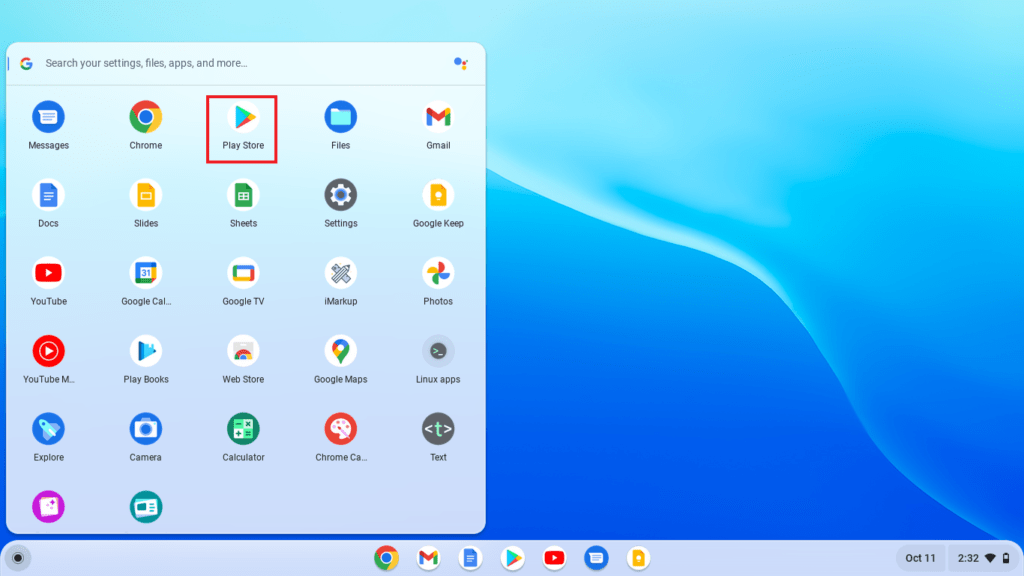
- Once enabled, the Play Store icon will appear in your app launcher, ready for use.
Downloading and Installing Android Apps
Using the Google Play Store on a Chromebook is very similar to using it on an Android phone or tablet:
- Open the Play Store: Click the Play Store icon in your launcher.
- Search or Browse: Use the search bar at the top to find specific apps, or explore categories like “Games,” “Apps,” “Editor’s Choice,” etc.
- Select and Install: Click on an app to view its details, then click the “Install” button. The app will download and install automatically.
- Launch Your App: Once installed, the Android app will appear in your Chromebook’s app launcher, alongside your web apps and other applications.
Managing Android Apps: Permissions, Updates, and Storage
Effective app management is crucial for optimal performance and privacy:
- Permissions: Just like on an Android phone, apps may request access to your camera, microphone, location, or storage. You can review and manage these permissions by going to Settings > Apps > Google Play Store > Manage Android preferences > Apps & notifications > [App Name] > Permissions.
- Updates: By default, Android apps update automatically. You can manually check for updates within the Play Store by clicking your profile icon and selecting “Manage apps & device.”
- Storage: Android apps and their data consume storage space. If your Chromebook runs low on space, you can uninstall unused apps or clear app data via Settings > Apps > Google Play Store > Manage Android preferences > Apps & notifications > [App Name] > Storage & cache.
While Android apps greatly enhance Chromebook functionality, some are better optimized for touchscreens or mobile form factors. However, many developers have adapted their apps for larger screens and keyboard/mouse input, offering a seamless experience.
Unleashing Linux (Beta): Powering Up with Desktop Software
For users requiring more powerful, traditional desktop software – especially developers, designers, or those needing specific utilities – Chromebooks offer a Linux development environment, often referred to as Linux (Beta) or Crostini. This allows you to run full-fledged Linux applications alongside your Chrome and Android apps.
What is Linux (Beta)/Crostini?
Linux (Beta) on ChromeOS provides a virtual machine that runs a Debian-based Linux distribution (usually Debian 11 “Bullseye”) within a secure container. This container isolates the Linux environment from the rest of ChromeOS, ensuring system stability and security. It’s an incredibly powerful feature for those who need access to tools like GIMP (image editor), LibreOffice (office suite), VS Code (code editor), or even specific development frameworks.
Enabling Linux on Your Chromebook
Enabling Linux is straightforward:
- Open Settings: Go to your Chromebook’s Settings.
- Navigate to “Developers”: In the left-hand menu, click on “Developers.”
- Turn on “Linux development environment”: Find the “Linux development environment” section and click “Turn on.”
- Follow Setup Instructions: A setup wizard will guide you through the process, allowing you to choose a username and allocate disk size for your Linux environment. The installation may take several minutes.
- Once installed, a “Terminal” app will appear in your launcher, which is your gateway to the Linux command line.
Using the Terminal and Installing Linux Apps
The primary way to interact with your Linux environment and install apps is through the Terminal:
- Open Terminal: Click the “Terminal” app in your launcher.
- Update Package Lists: Before installing anything, it’s good practice to update your package lists to ensure you have access to the latest software versions. Type
sudo apt updateand press Enter. - Upgrade Packages (Optional but Recommended): To upgrade any existing software, type
sudo apt upgradeand press Enter. - Install Applications: To install a new application, use the
sudo apt installcommand followed by the package name. For example:sudo apt install gimp(for the GIMP image editor)sudo apt install libreoffice(for the LibreOffice suite)sudo apt install code(for Visual Studio Code, after adding its repository)sudo apt install firefox-esr(for the Extended Support Release of Firefox)
- Launch Linux Apps: Most installed Linux apps will automatically add an icon to your Chromebook’s app launcher, usually under a “Linux apps” folder, allowing you to launch them directly without needing the terminal every time.
Advantages and Considerations for Linux
Linux on a Chromebook is a boon for specific users:
- Developers: Access to a full development environment, including compilers, interpreters, and IDEs.
- Power Users: Running desktop-grade software that isn’t available as a web or Android app.
- Security: The containerized nature ensures that Linux applications are isolated, maintaining ChromeOS security.
However, there are considerations:
- Storage: Linux apps and their dependencies can consume significant storage.
- Performance: While generally good, highly resource-intensive Linux applications might strain less powerful Chromebooks.
- Learning Curve: Basic familiarity with the Linux command line is helpful, though not strictly required for launching installed graphical apps.
The Web’s Power: Chrome Web Store & Progressive Web Apps (PWAs)
True to its web-first philosophy, ChromeOS excels at utilizing web-based applications. These include extensions and web apps from the Chrome Web Store, as well as modern Progressive Web Apps (PWAs) that offer native-like experiences.
Chrome Web Store: Extensions and Web Apps
The Chrome Web Store is the original marketplace for expanding Chrome’s functionality. It hosts two main types of items:
- Extensions: Small programs that add specific features or modify the behavior of your Chrome browser (e.g., ad blockers, password managers, productivity tools). They run within the browser.
- Web Apps: Essentially shortcuts to websites that behave like desktop applications. While some are glorified bookmarks, others are more robust web applications designed to run efficiently in a browser window.

Installation Process:
- Visit the Chrome Web Store: Open your Chrome browser and navigate to chrome.google.com/webstore.
- Search or Browse: Find an extension or app you want.
- Add to Chrome: Click on the item and then click the “Add to Chrome” button. For extensions, they will appear as small icons in your browser’s toolbar. For web apps, they might add a shortcut to your app launcher.
Chrome Web Store offerings are lightweight, secure, and don’t consume much system resources, making them ideal for enhancing productivity and browsing experience.
Progressive Web Apps (PWAs): Bridging Web and Native
Progressive Web Apps (PWAs) represent the cutting edge of web technology, blurring the lines between websites and native applications. A PWA is a web application that has been designed to offer a native app-like experience directly from a web browser.
Key Features of PWAs:
- Offline Capabilities: Can work even when you’re offline or have a poor network connection.
- Push Notifications: Can send notifications like a native app.
- Installable: Can be “installed” to your home screen or app launcher, running in their own window without the browser’s UI.
- Fast and Responsive: Optimized for speed and a smooth user experience.
- Secure: Served over HTTPS, ensuring data integrity.
Identifying and Installing PWAs:
Many popular services like YouTube, Twitter, Spotify, Google Maps, and various news sites offer PWA capabilities.
- Browse to a PWA-enabled website: For example, go to
web.whatsapp.comorapp.spotify.com. - Look for the “Install” icon: In the Chrome browser’s address bar, you’ll often see a small “install” icon (a monitor with a down arrow, or a plus sign).
- Click to Install: Click this icon, and a prompt will ask if you want to install the app. Confirm, and the PWA will be added to your app launcher. It will then open in its own dedicated window, without the browser’s usual tabs and address bar, feeling very much like a native application.
PWAs are an excellent choice for users who want the convenience and features of an app without the overhead of a full Android or Linux installation. They are resource-efficient and provide a streamlined user experience, fitting perfectly into the minimalist yet powerful philosophy of ChromeOS.
Advanced App Installation & Optimization Strategies
For users who want to push the boundaries of their Chromebook or simply optimize their experience, there are a few advanced techniques and considerations.
Sideloading Android Apps: A Word of Caution
Sideloading refers to the process of installing Android applications from sources other than the official Google Play Store, typically using .apk files. While it offers flexibility to install apps not available on the Play Store or specific versions, it comes with significant security risks.
What is Sideloading (APKs)?
An APK (Android Package Kit) is the package file format used by the Android operating system for distribution and installation of mobile apps. Sideloading involves downloading these files directly from websites and installing them manually.
Enabling Developer Mode and Security Implications
To sideload apps, you typically need to enable Developer Mode on your Chromebook. This process involves a factory reset and disables some of ChromeOS’s built-in security features, making your device more vulnerable to security threats.
Steps (Generally not recommended for average users due to risks):
- Backup Data: Developer Mode wipes your device.
- Enter Developer Mode: This varies by Chromebook model but usually involves holding specific keys during startup.
- Enable “Unknown Sources”: Within the Android settings on your Chromebook (after enabling Play Store), you’d enable installation from “Unknown Sources.”
- Install APKs: You can then download an APK file, open it, and install it.
Why it’s generally not recommended:
- Malware Risk: APK files from unofficial sources can contain viruses, spyware, or other malicious software, compromising your digital security.
- Instability: Sideloaded apps may not be optimized for ChromeOS, leading to crashes or performance issues.
- No Automatic Updates: You’ll have to manually update sideloaded apps, which is inconvenient and can leave you vulnerable to unpatched security flaws.
Sideloading should only be considered by advanced users who understand the risks and have a specific, justifiable need (e.g., testing self-developed apps, using a legacy app not on Play Store, from a highly trusted source). For most users, sticking to the Play Store, Linux, and web apps is the safest and most reliable approach.
Optimizing Your App Experience on ChromeOS
Once you have your desired apps installed, optimizing their usage ensures a smooth and efficient experience.
Managing Storage, Permissions, and Updates
- Storage: Keep an eye on your storage, especially if you have many Android or Linux apps. Regularly uninstall unused apps, clear cache for Android apps, and prune unnecessary files from your Linux environment. ChromeOS provides storage management tools in Settings.
- Permissions: Periodically review app permissions for both Android and Linux apps. Limit access to sensitive data (microphone, camera, location) only to apps that genuinely require it. This is a crucial aspect of digital security and personal privacy.
- Updates: Ensure all your apps are up to date. ChromeOS handles its own updates automatically. The Play Store manages Android app updates, and you should regularly run
sudo apt update && sudo apt upgradein your Linux terminal to keep your Linux software current.
Choosing the Right App Version
One of the unique aspects of ChromeOS is the choice it offers. Often, an app might be available as a web app, an Android app, and even a Linux version.
- Web App/PWA: Generally the most lightweight and resource-efficient. Ideal for quick access and basic functionality.
- Android App: Offers more features and a native-like interface, often better for touch interaction. Can consume more resources.
- Linux App: For specialized, powerful desktop software not available elsewhere. Most resource-intensive but offers the highest level of functionality.
Consider your specific needs, your Chromebook’s specifications, and the app’s functionality when deciding which version to use for optimal productivity and performance.
Performance Tips
- Close Unused Apps: While ChromeOS is efficient, having too many Android or Linux apps running simultaneously can consume RAM and CPU. Close apps you’re not actively using.
- Monitor Resources: Use the ChromeOS Task Manager (Shift + Esc) to see which apps or processes are using the most resources.
- Restart Regularly: A periodic restart can help clear memory and resolve minor glitches, keeping your Chromebook running smoothly.
Troubleshooting Common App Installation Issues
Even with a robust system like ChromeOS, you might encounter occasional issues when installing or running apps. Knowing how to troubleshoot can save you time and frustration.
Common Problems and Solutions
- “Google Play Store not available” or “Linux (Beta) not installing”:
- Solution: Check if your Chromebook model supports these features. Go to Settings > About ChromeOS > Additional details > Build details to see if your device is up to date. Ensure your device is on a stable channel. A simple restart can also sometimes resolve temporary glitches.
- “Linux container failed to start” or “Error connecting to Linux”:
- Solution: This often indicates a corrupted Linux environment or insufficient storage. Try restarting your Chromebook. If the issue persists, you might need to back up any important files from your Linux environment and then remove and reinstall it from Settings > Developers > Linux development environment.
- Android App Crashes or Freezes:
- Solution: First, try force-quitting the app (right-click its icon in the shelf and select “Close”). If that doesn’t work, clear the app’s cache (Settings > Apps > Google Play Store > Manage Android preferences > Apps & notifications > [App Name] > Storage & cache > Clear cache). If the problem continues, consider uninstalling and reinstalling the app.
- Insufficient Storage Space:
- Solution: ChromeOS offers a built-in storage manager (Settings > Device > Storage management) that helps identify and delete unnecessary files. For Linux, you can free up space by uninstalling unused packages (
sudo apt autoremove) or deleting large files. For Android, clear app caches or uninstall large games.
- Solution: ChromeOS offers a built-in storage manager (Settings > Device > Storage management) that helps identify and delete unnecessary files. For Linux, you can free up space by uninstalling unused packages (
- App Permissions Issues:
- Solution: Review and adjust app permissions in Settings > Apps > Google Play Store > Manage Android preferences > Apps & notifications > [App Name] > Permissions. Ensure the app has the necessary access to function correctly.
- Network-Related Installation Failures:
- Solution: Ensure you have a stable internet connection. Sometimes, switching Wi-Fi networks or restarting your router can resolve download issues.
Seeking Help
If you encounter persistent issues, don’t hesitate to seek help:
- Chromebook Help Center: Google provides comprehensive support documentation.
- Chromebook Community Forums: Engage with other Chromebook users who might have faced similar issues. These forums are a great resource for practical advice and troubleshooting tips.
- Manufacturer Support: For hardware-specific problems, contact your Chromebook’s manufacturer.
Conclusion
The modern Chromebook is a testament to the power of continuous technological evolution. What began as a simple, secure web-centric device has blossomed into a versatile computing platform, capable of running a diverse range of applications from the web, Android, and even full-fledged Linux desktop software. This expansive app ecosystem means that a Chromebook can cater to nearly any user, from students and casual browsers to creative professionals and developers.
By mastering the various installation methods – leveraging the simplicity of the Google Play Store, harnessing the power of Linux, and embracing the efficiency of web apps and PWAs – you can truly unlock the full potential of your device. Remember to prioritize digital security, manage your resources wisely, and optimize your app usage for the best possible experience. As technology trends continue to push the boundaries of what’s possible, your Chromebook stands ready as an adaptive, secure, and highly productive companion in the digital world. Explore, experiment, and empower your ChromeOS device to work precisely how you need it to.
aViewFromTheCave is a participant in the Amazon Services LLC Associates Program, an affiliate advertising program designed to provide a means for sites to earn advertising fees by advertising and linking to Amazon.com. Amazon, the Amazon logo, AmazonSupply, and the AmazonSupply logo are trademarks of Amazon.com, Inc. or its affiliates. As an Amazon Associate we earn affiliate commissions from qualifying purchases.