
The Apple Watch has evolved from a mere companion device into a powerful, independent gadget capable of handling a vast array of tasks right from your wrist. With each new iteration, its capabilities expand, making it an indispensable tool for productivity, fitness, communication, and even personal finance. However, to truly unlock its potential, you need to populate it with the right applications. Installing apps on your Apple Watch is a straightforward process, but understanding the various methods and best practices can significantly enhance your user experience. This comprehensive guide will walk you through every step, ensuring you can seamlessly integrate your favorite apps onto your wrist and make the most of your sophisticated wearable.
The Essentials: Understanding Apple Watch App Installation
Before diving into the “how-to,” it’s crucial to grasp the fundamental concepts behind Apple Watch app installation. Unlike an iPhone, which is a primary computing device, the Apple Watch often functions in tandem with your iPhone, inheriting many of its settings and apps. This symbiotic relationship influences how applications are discovered, downloaded, and managed on your wrist.
Why Apps Matter on Your Wrist
In an increasingly connected world, convenience is king. Apple Watch apps streamline interactions, providing glanceable information and quick actions without needing to pull out your iPhone. Imagine checking your heart rate during a workout, paying for groceries with Apple Pay, receiving critical notifications, or even controlling your smart home devices – all with a tap or a glance at your wrist. These micro-interactions save time and enhance efficiency, aligning perfectly with modern tech trends focused on ambient computing and instant access. From tracking your sleep patterns with advanced AI tools to managing your daily tasks with productivity apps, the right selection of applications transforms your Apple Watch from a simple timekeeper into a powerful personal assistant and health monitor. They truly exemplify how gadgets can integrate seamlessly into daily life, offering both utility and a touch of futuristic convenience.
Prerequisites for Seamless Installation
To ensure a smooth app installation process, a few conditions must be met:
- Paired Devices: Your Apple Watch must be properly paired with your iPhone. Most apps require this connection for initial setup and ongoing data synchronization.
- Updated Software: Ensure both your iPhone (running the latest iOS) and Apple Watch (running the latest watchOS) are up to date. Software updates often bring performance improvements, bug fixes, and new features that apps may rely on.
- Apple ID and Wi-Fi/Cellular: You’ll need an active Apple ID signed in on both devices. For downloading apps, your iPhone should be connected to Wi-Fi or have a strong cellular data connection. If your Apple Watch has cellular capabilities, it can download apps directly even without your iPhone nearby, provided it has a data connection.
- Available Storage: While Apple Watch apps are generally small, ensure you have sufficient free storage on your device, especially if you plan to install several applications or larger ones with extensive features. You can check this in the Watch app on your iPhone under
My Watch > General > Usage.
Meeting these prerequisites lays the groundwork for a hassle-free experience, allowing you to focus on discovering and enjoying new apps rather than troubleshooting connectivity or software issues.
Step-by-Step: Installing Apps from Your iPhone
The most common and often preferred method for installing apps on your Apple Watch is through your paired iPhone. This method leverages the iPhone’s larger screen for browsing and its superior processing power for downloading, making it incredibly user-friendly.
Automatic App Installation
By default, when you download an app on your iPhone that also has an Apple Watch counterpart, the watch version will automatically install on your Apple Watch. This is incredibly convenient and often goes unnoticed, seamlessly extending the functionality of your favorite iPhone apps to your wrist.
Here’s how to ensure this feature is enabled:
- Open the Watch App: On your iPhone, locate and tap the “Watch” app (it has an icon resembling an Apple Watch).
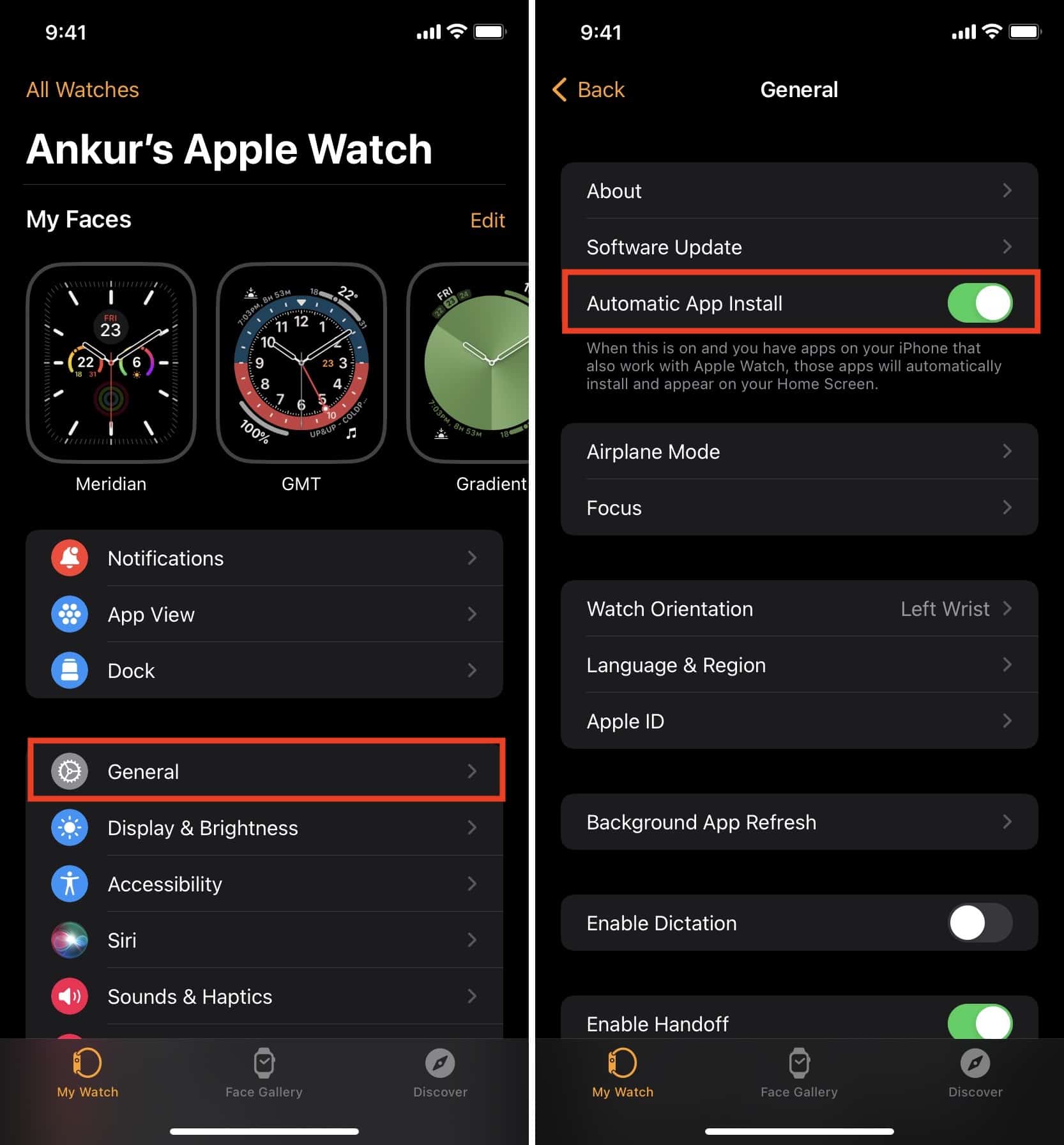
- Navigate to General Settings: In the Watch app, ensure you are on the “My Watch” tab at the bottom. Then, tap on “General.”
- Check Automatic App Install: Scroll down and find the “Automatic App Install” toggle. Ensure it is switched to the “On” (green) position.
- Download iPhone Apps: Now, whenever you download an iPhone app that supports the Apple Watch, its watchOS companion will automatically appear on your Apple Watch.
This automatic installation feature is a cornerstone of the Apple ecosystem, reflecting a thoughtful approach to user experience where functionality naturally extends across devices. It means that many apps you already use daily on your iPhone – from fitness trackers to banking apps – will likely find their way to your wrist without any extra effort on your part, boosting your digital security and productivity seamlessly.
Manually Adding Apps via the Watch App
Sometimes, you might disable automatic installation, or perhaps you want to install an Apple Watch app that doesn’t have an iPhone equivalent or wasn’t automatically installed. In these cases, you can manually browse and install apps using the Watch app on your iPhone.
Follow these steps:
- Launch the Watch App: Open the “Watch” app on your iPhone.
- Access the App Store: Tap on the “App Store” tab at the bottom of the screen. This will open a dedicated App Store interface tailored for Apple Watch applications.
- Browse or Search:
- You can browse featured apps, collections, and categories designed specifically for the Apple Watch, such as “Productivity,” “Health & Fitness,” “Entertainment,” and more.
- If you have a specific app in mind, use the “Search” bar at the top to find it.
- Select an App: Tap on an app to view its details, including screenshots, description, ratings, and reviews. This is an excellent opportunity to check if the app aligns with your specific needs, whether it’s an AI tool for transcription or a new gadget control app.
- Install the App:
- If the app is free, tap the “GET” button.
- If the app is paid, tap the price button. You may need to authenticate with Face ID, Touch ID, or your Apple ID password.
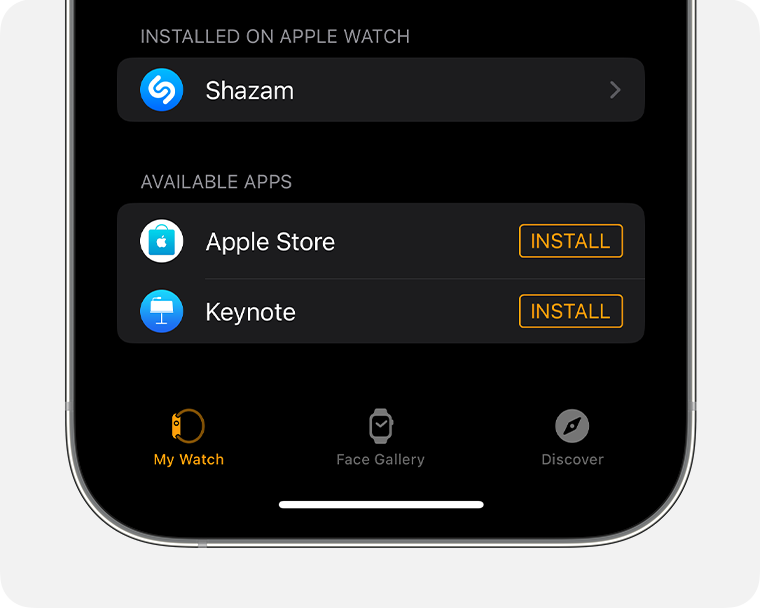
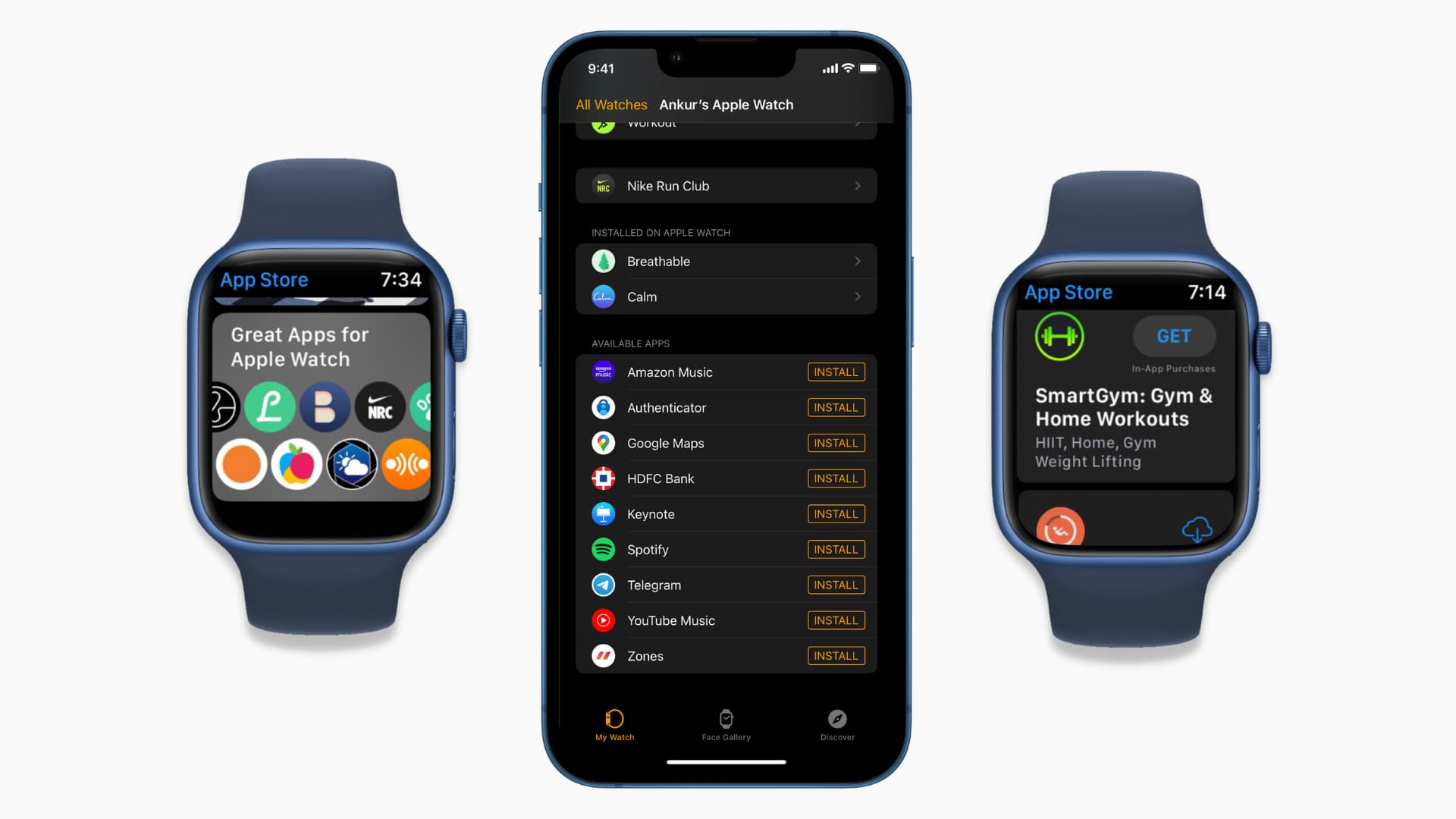
- Monitor Installation: The app will begin downloading and installing on your Apple Watch. You can monitor its progress directly on your watch’s app layout or within the “My Watch” tab on the iPhone Watch app, under the “Installed on Apple Watch” or “Available Apps” sections. Once installed, the app icon will appear on your watch’s Home screen.
Manually adding apps gives you fine-grained control over what appears on your wrist, allowing for a personalized and optimized Apple Watch experience. It’s particularly useful for discovering niche apps or those that cater to very specific needs not broadly available on the iPhone.
Going Solo: Installing Apps Directly on Your Apple Watch
While the iPhone remains the primary hub for managing your Apple Watch, newer generations of the watch, particularly those with cellular capabilities, have gained the ability to install apps directly, completely independent of your iPhone. This significantly enhances the watch’s autonomy, allowing you to discover and download apps even when your iPhone isn’t nearby or is turned off.
Navigating the On-Watch App Store
The Apple Watch itself now features a fully functional App Store, designed for wrist-based browsing and interaction. This interface is optimized for the smaller screen, making it surprisingly intuitive to navigate.
To access the App Store on your Apple Watch:
- Press the Digital Crown: From your watch face, press the Digital Crown once to open the app layout.
- Locate the App Store Icon: Look for the blue icon with a white “A” formed by overlapping lines – this is the App Store. Tap on it.
Once inside, you’ll find a curated selection of apps, categories, and editorial recommendations, all presented in a touch-friendly format. The experience is remarkably similar to the iPhone App Store, scaled down for your wrist.
Finding and Downloading Apps Directly
Installing apps directly from your Apple Watch is a liberating experience, especially when you’re on the go and want to quickly add new functionality.
Here’s how to do it:
- Browse or Search:
- Browse: The App Store on your watch will present you with “Featured” apps, “Discover” sections, and various categories. You can scroll through these lists using the Digital Crown or by swiping on the screen.
- Search: For a specific app, tap the “Search” icon (magnifying glass) at the top of the App Store screen. You can then use the on-screen keyboard (if available on your watch model), scribble individual letters, or use Siri voice input to search for the app name. Siri is often the most efficient method for input on a small screen.
- Select an App: Tap on an app from the search results or browsing list to view its details page. Here you’ll see information, screenshots, and ratings.
- Initiate Download:
- For free apps, tap the “GET” button.
- For paid apps, tap the price. You’ll then be prompted to double-click the side button on your Apple Watch to confirm the purchase.
- Monitor Progress: The app will begin downloading and installing directly onto your Apple Watch. You can see the download progress indicated by a circular animation around the app icon on your watch’s Home screen.
This direct installation method underscores the increasing independence of the Apple Watch, making it a more robust and self-sufficient gadget. It’s particularly useful for quick installations or when your iPhone is out of reach, ensuring that you always have access to the tools you need, right on your wrist.
Mastering Your Watch Apps: Management and Optimization
Installing apps is just the first step. To truly optimize your Apple Watch experience, you need to know how to manage, organize, update, and troubleshoot your applications effectively. Efficient app management ensures your watch remains fast, responsive, and tailored to your specific workflow and preferences.
Organizing and Deleting Apps
As your app collection grows, organizing them becomes essential for quick access and a clutter-free interface. Deleting unused apps helps free up storage and improves performance.
Organizing Apps:
- On Your Apple Watch: From your watch face, press the Digital Crown to view all your apps. Tap and hold an app icon until all icons begin to jiggle. You can then drag apps around to rearrange their order. To create a folder (available on some watchOS versions for select apps, though less common than on iPhone), drag one app onto another. Press the Digital Crown again to save your arrangement.
- On Your iPhone (Watch App): Open the “Watch” app on your iPhone. Go to the “My Watch” tab, then tap on “App Layout.” Here, you’ll see a grid representing your watch’s app screen. You can drag and drop icons to arrange them precisely as you wish. This method offers a larger, more precise canvas for organization.
Deleting Apps:
- On Your Apple Watch: From the app layout, tap and hold an app icon until they jiggle. An “X” will appear on deletable apps. Tap the “X” and confirm the deletion. Note: Some built-in Apple apps cannot be deleted.
- On Your iPhone (Watch App): Open the “Watch” app. In the “My Watch” tab, scroll down to “Installed on Apple Watch.” Tap on an app you wish to delete. On the app’s detail page, toggle off “Show App on Apple Watch.” This will remove the app from your watch. Alternatively, some apps listed under “Available Apps” can be swiped left to reveal a “Delete” option.
Regularly organizing and decluttering your app layout contributes significantly to a more productive and visually appealing Apple Watch experience.
Keeping Your Apps Up-to-Date
App developers frequently release updates to introduce new features, improve performance, and patch security vulnerabilities. Keeping your apps updated is crucial for both functionality and digital security.
Automatic Updates:
- On Your iPhone (Watch App): Go to
My Watch > General > Automatic App Installand ensure this is toggledOn. While primarily for new installations, this setting also helps ensure apps automatically update when new versions are released, as long as your iPhone is connected to Wi-Fi.
Manual Updates:
- On Your Apple Watch (App Store): Open the App Store on your Apple Watch. Scroll down to the bottom and look for “Account.” Tap on it, then tap “Updates.” Any available updates will be listed here, and you can tap “Update All” or update individual apps.
- On Your iPhone (App Store): Apps that have a watch component will usually update when their iPhone counterpart updates through the standard iOS App Store.
Staying current with updates ensures you benefit from the latest improvements, utilize new AI tools or features, and maintain optimal performance and security on your Apple Watch.
Troubleshooting Common Installation Issues
Occasionally, you might encounter issues when installing apps. Here are solutions to some common problems:
- App Not Installing/Stuck:
- Restart Both Devices: A simple restart of both your iPhone and Apple Watch often resolves temporary glitches.
- Check Connectivity: Ensure both devices are connected to Wi-Fi or have a stable cellular connection.
- Check Storage: Verify you have enough free storage on your Apple Watch (
Watch app > My Watch > General > Usage). Delete unused apps or media if needed. - Force Quit Watch App: On your iPhone, swipe up from the bottom (or double-press Home button) to bring up the app switcher, then swipe up on the Watch app to force quit it. Reopen and try again.
- “Waiting…” Status: If an app is stuck on “Waiting…”, try pausing and resuming the download. On your watch’s app layout, tap the “Waiting…” app icon once. This might force it to restart the download. If not, consider deleting the app (if it partially installed) and retrying the installation.
- App Not Appearing:
- Check “Available Apps” on iPhone: In the Watch app on your iPhone, under the “My Watch” tab, scroll down to the “Available Apps” section. If the app is listed here, tap “INSTALL” next to it.
- Check Automatic App Install: Ensure
Watch app > My Watch > General > Automatic App Installis enabled if you expect apps to install automatically.
- Payment Issues: If you’re purchasing a paid app and encountering issues, ensure your payment method associated with your Apple ID is current and valid. You can manage this in your iPhone’s
Settings > [Your Name] > Payment & Shipping.
By addressing these common troubleshooting steps, you can quickly resolve most installation hurdles and get back to enjoying your favorite applications on your Apple Watch.
Elevate Your Experience: Discovering Must-Have Apple Watch Apps
With the technical aspects covered, the final piece of the puzzle is enriching your Apple Watch with apps that truly enhance your life. The vast ecosystem offers options for every need, from boosting productivity to meticulously tracking your health and leveraging advanced AI tools.
Curated App Categories for Productivity and Health
When exploring the App Store, consider focusing on categories that align with the Apple Watch’s strengths:
- Health & Fitness: Apps like Workouts, Activity, Heart Rate (built-in), third-party options like AutoSleep, WaterMinder, and various specialized fitness trackers leverage the watch’s sensors to provide invaluable insights into your well-being. These are fundamental for anyone focused on personal health and fitness trends.
- Productivity: Stay on top of your tasks with apps like Things 3, Todoist, Fantastical for calendars, or even dictation apps that use AI to transcribe notes on the go. These apps bring streamlined efficiency directly to your wrist, helping you manage your daily grind without distraction from your phone.
- Communication: Beyond standard messages and calls, apps like Walkie-Talkie (built-in) or third-party messaging clients keep you connected in unique ways.
- Smart Home Control: Apps for HomeKit, Philips Hue, or Nest allow you to control lights, thermostats, and other smart devices from your wrist, turning your gadget into a central command for your smart living space.
- Navigation: Apple Maps, Google Maps, and dedicated hiking apps offer glanceable directions, making sure you stay on track whether you’re driving or exploring new trails.
Maximizing Your Watch’s Potential
Beyond installation, remember to explore app complications (small widgets on your watch face) and custom notifications. Many apps offer complications that provide instant access to key information or allow for quick actions. Customizing these can drastically improve your workflow and the overall utility of your Apple Watch. Think about integrating apps that align with your personal branding or financial goals – a quick glance at a stock tracker or a productivity metric can reinforce your objectives throughout the day.
The Apple Watch is more than just a time-telling device; it’s a personal hub for information, communication, and health management. By mastering the art of app installation and management, you transform it into an indispensable tool that seamlessly integrates into your digital life, continually adapting to your needs and enhancing your daily routines. With the right apps, your Apple Watch becomes a true extension of yourself, always ready to serve, inform, and assist, making every interaction more efficient and enjoyable.
aViewFromTheCave is a participant in the Amazon Services LLC Associates Program, an affiliate advertising program designed to provide a means for sites to earn advertising fees by advertising and linking to Amazon.com. Amazon, the Amazon logo, AmazonSupply, and the AmazonSupply logo are trademarks of Amazon.com, Inc. or its affiliates. As an Amazon Associate we earn affiliate commissions from qualifying purchases.