
In the vibrant ecosystem of modern technology, the iPhone stands as a beacon of innovation and user-centric design. Central to its unparalleled utility and personal customization are applications, or “apps.” These miniature software programs transform a sleek device into a powerful tool for productivity, entertainment, communication, and much more. From managing your finances to mastering a new language, editing photos, or simply staying connected with loved ones, apps unlock the full potential of your iPhone. This comprehensive guide will walk you through every facet of installing applications on your iOS device, ensuring you can harness the power of this technology securely and efficiently. We’ll delve into the primary, official methods, explore lesser-known alternatives with crucial caveats, and equip you with best practices for managing your digital life.
The Official Pathway: Installing Apps via the Apple App Store
For the vast majority of iPhone users, the Apple App Store is the gateway to a universe of applications. Launched in 2008, the App Store revolutionized how software is distributed, becoming a curated marketplace renowned for its security, ease of use, and vast selection. Apple’s stringent review process ensures that apps adhere to strict guidelines concerning performance, privacy, and content, providing users with a high level of trust and safety. This official method is by far the most recommended and secure way to populate your iPhone with essential and engaging software.
Understanding the App Store Ecosystem
The App Store isn’t just a download portal; it’s a meticulously managed ecosystem designed to provide a seamless and secure user experience. Every app submitted by developers undergoes a rigorous review to check for malware, privacy violations, functionality, and adherence to Apple’s design and content guidelines. This process is a cornerstone of Apple’s brand promise – a commitment to quality and digital security that benefits users worldwide. For you, this means a significantly reduced risk of downloading malicious software, spyware, or apps that might compromise your device’s performance or your personal data.
Beyond security, the App Store offers a rich discovery experience. Apps are categorized, featured, and editorialized, helping users find new and trending software relevant to their interests. User reviews and ratings provide valuable social proof, allowing you to gauge an app’s quality and reliability before committing to a download or purchase. Whether you’re seeking the latest AI tools for enhanced productivity, robust financial tracking apps to manage your money, or entertainment apps to unwind, the App Store is designed to guide you. Its integrated billing system, tied to your Apple ID, simplifies transactions, making both free downloads and paid purchases effortless and secure.
Step-by-Step Guide to App Store Installation
Installing an app from the App Store is an intuitive process, designed for users of all technical proficiencies. Here’s how you do it:
- Open the App Store: Locate the blue icon with a white ‘A’ on your iPhone’s home screen and tap it.
- Navigate or Search:
- Browse: Explore the “Today” tab for curated stories and new apps, the “Games” or “Apps” tabs for category-specific browsing, or the “Arcade” tab for Apple’s subscription gaming service.
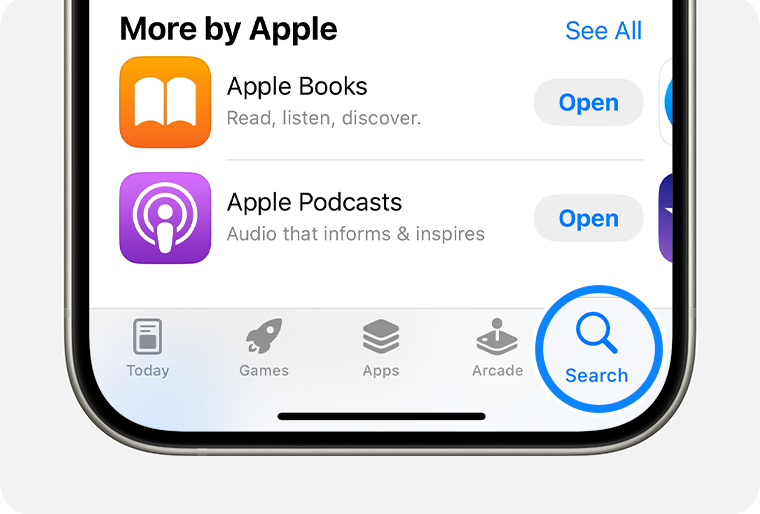
- Search: For a specific app, tap the “Search” tab (magnifying glass icon) at the bottom right. Type the app’s name or keywords (e.g., “photo editor,” “budget tracker,” “meditation”) into the search bar at the top and tap “Search.”
- View App Details: From the search results or browsing pages, tap on an app to view its dedicated product page. Here, you’ll find:
- App Name and Developer: Essential for identifying legitimate applications.
- Ratings and Reviews: User feedback on quality and experience.
- Screenshots and Videos: Visual previews of the app’s interface and functionality.
- Description: A summary of what the app does, its features, and benefits.
- Information: Details on size, category, compatibility, language, and privacy practices (the “App Privacy” section is crucial for understanding data collection).
- In-App Purchases: Indicates if the app offers additional content or subscriptions for a fee.
- Download or Purchase:
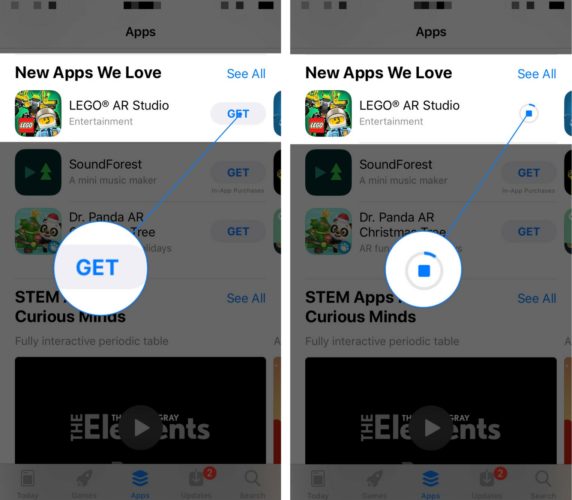
- Free Apps: Tap the “GET” button. You may be prompted to verify your identity using Face ID, Touch ID, or your Apple ID password.
- Paid Apps: The button will display the price (e.g., “$4.99”). Tap it, then confirm the purchase using Face ID, Touch ID, or your Apple ID password. The amount will be charged to your linked payment method.
- Installation and Placement: Once verified, the app will begin downloading and installing automatically. A progress circle will appear over the app icon on your home screen. After installation, the app icon will be fully visible on an available spot on your home screen or within your App Library. You can then tap to open and start using it.
Managing Your Apps After Installation
Installing is just the first step; effective app management is key to maintaining your iPhone’s performance and keeping your digital life organized.
- Updating Apps: Developers frequently release updates to introduce new features, improve performance, and patch security vulnerabilities. The App Store typically updates apps automatically in the background. To manually update or check for updates, open the App Store, tap your profile icon in the top right, and scroll down to see pending updates. Tap “Update All” or update individual apps.
- Offloading Apps: If your iPhone is running low on storage, iOS offers an “Offload App” feature. This removes the app itself but keeps its documents and data, allowing you to reinstall it later without losing your personalized settings or saved content. Go to
Settings > General > iPhone Storage, select an app, and tap “Offload App.” - Deleting Apps: To completely remove an app and all its data, tap and hold the app icon on your home screen until the context menu appears. Select “Remove App,” then “Delete App.” Alternatively, you can do this from
Settings > General > iPhone Storage. Deleting unwanted apps is a good practice for digital hygiene and reclaiming storage space, especially for those related to online income or business finance that you no longer use. - Re-downloading Apps: If you’ve deleted an app but wish to reinstall it, you can easily do so from the App Store. Search for the app and tap the cloud icon with a downward arrow (indicating you’ve previously owned it). You won’t be charged again for paid apps you’ve already purchased.
Navigating Beyond the App Store: Alternative Installation Methods (with Caution)
While the App Store is the primary and safest channel for app installation, Apple does provide a few alternative methods designed for specific use cases, primarily for developers, enterprises, or highly specialized scenarios. It is crucial to approach these methods with extreme caution, as they bypass many of the security checks inherent in the App Store, potentially exposing your device to risks. Understanding these alternatives is important for a complete picture of app distribution, but their use should be limited to those who fully comprehend the associated digital security implications.
Sideloading and Enterprise Apps
“Sideloading” generally refers to installing apps from sources other than the official App Store. While largely restricted on iOS compared to other platforms, Apple does allow for “Enterprise Apps.” These are proprietary applications developed by organizations for internal use by their employees, distributed directly by the company without going through the public App Store. Examples include internal CRM tools, custom HR applications, or specialized productivity software.
To install an Enterprise App, an organization provides a configuration profile or a direct link to the app. Users must then explicitly trust the enterprise developer’s certificate in their iPhone settings (Settings > General > VPN & Device Management) after downloading. While convenient for corporate deployment and brand-specific tools, this method carries significant risks if the source isn’t trusted. Malicious entities could potentially distribute malware disguised as legitimate enterprise apps, bypassing Apple’s review process entirely. Therefore, only install enterprise apps from organizations you explicitly trust and verify.
Developer Mode and TestFlight
For aspiring app developers and those involved in testing pre-release software, Apple offers specific tools: Developer Mode and TestFlight.
- Developer Mode: With iOS 16 and later, users who wish to install apps directly from Xcode or use certain development tools must enable Developer Mode (
Settings > Privacy & Security > Developer Mode). This is a security measure to prevent unsuspecting users from accidentally installing potentially unsafe software. It’s strictly for developers who understand the implications of installing and running code that hasn’t gone through Apple’s standard review. - TestFlight: This is Apple’s official platform for beta testing applications. Developers invite users to test pre-release versions of their apps before they hit the App Store. Testers download the TestFlight app, receive an invitation link from the developer, and can then install and provide feedback on beta apps. While TestFlight apps haven’t undergone the final App Store review, they are still channeled through Apple’s infrastructure, making it a relatively secure way to test unreleased software. It’s an excellent way to get an early look at new AI tools or innovative productivity apps while helping developers refine their products.
Third-Party App Stores (and why they are generally discouraged)
The concept of “third-party app stores” on iOS is contentious and generally not officially supported by Apple. While some historical methods (often involving jailbreaking) or region-specific allowances have existed, relying on unofficial third-party stores for app installation is fraught with peril. These platforms typically host apps that either do not meet Apple’s App Store guidelines or contain modified versions of legitimate apps (often with ads removed or features unlocked illicitly).
The overwhelming risk associated with these stores is digital security. Apps from unverified sources can contain malware, viruses, spyware, or adware that can compromise your personal data, degrade your iPhone’s performance, or even incur financial costs through scams. They bypass all of Apple’s security checks, putting the onus entirely on the user to trust an unverified source. For anyone concerned with their digital security, privacy, and the integrity of their device, these third-party app stores should be strictly avoided. The potential “benefits” rarely outweigh the severe and often irreversible risks.
Best Practices for App Management and Digital Security
Beyond the initial installation, responsible app management is an ongoing process that significantly impacts your iPhone’s performance, battery life, data privacy, and overall digital security. Adopting a proactive approach to how you use and manage your applications is paramount in today’s interconnected world.
Permissions and Privacy
One of the most critical aspects of app management is understanding and controlling app permissions. When you install an app, it may request access to various features and data on your iPhone, such as your camera, microphone, location, contacts, photos, or even your local network.
- Review Permissions Carefully: Always pay attention when an app requests permission. Consider if the requested access is truly necessary for the app’s functionality. Does a calculator app really need access to your location, for example?
- Manage Permissions in Settings: You can review and adjust app permissions at any time by going to
Settings > Privacy & Security. Here, you’ll find a list of all your privacy settings, such as Location Services, Contacts, Photos, Microphone, etc. Tap on each category to see which apps have requested access and toggle permissions on or off as needed. Regularly auditing these settings is a smart practice for protecting your data and maintaining your personal brand’s digital integrity. - App Privacy Report: iOS also offers an “App Privacy Report” (found in
Settings > Privacy & Security). This invaluable feature provides a detailed overview of how apps are accessing your data, sensors, and network activity, giving you transparent insights into their behavior.
Keeping Apps Updated
Software updates are not just about new features; they are a cornerstone of digital security. Developers regularly release updates to:
- Patch Security Vulnerabilities: New exploits are discovered constantly. Updates often contain critical fixes to close these loopholes, protecting your data from malicious attacks.
- Improve Performance and Stability: Updates can optimize code, fix bugs, and enhance the app’s speed and responsiveness, improving your productivity.
- Introduce New Features: Stay current with the latest enhancements, whether they are new AI tools, improved financial tracking capabilities, or fresh social media functions.
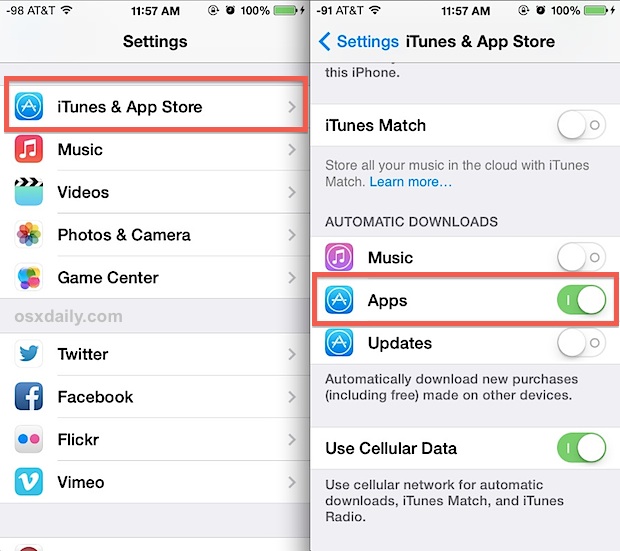
While automatic updates are convenient, it’s good practice to occasionally check for manual updates or ensure auto-updates are enabled (Settings > App Store > App Updates). Running outdated software leaves you vulnerable and diminishes your user experience.
Identifying and Avoiding Malicious Apps
Even with Apple’s stringent App Store review, occasionally an app with hidden malicious intent or misleading practices might slip through, or you might encounter deceptive ads outside the App Store. Here’s how to protect yourself:
- Scrutinize Reviews and Ratings: While helpful, be wary of apps with an unusually high number of generic five-star reviews, which could indicate manipulation. Read actual user comments for specific feedback.
- Check the Developer: Reputable apps come from reputable developers. Look up the developer’s website or other apps they’ve published. Generic developer names or very few apps should raise a flag.
- Read the Privacy Policy: Especially for apps handling sensitive data (e.g., financial apps, health apps), take a moment to understand their data collection and usage policies.
- Be Skeptical of “Too Good to Be True” Offers: Free versions of typically paid software, or apps promising unrealistic gains (e.g., instant money, extreme performance boosts), are often scams.
- Beware of Phishing Links: Never click on suspicious links in emails or messages that claim to lead to app downloads or updates. Always go directly to the App Store.
Backup and Recovery
Your apps often contain valuable data – documents, settings, game saves, chat histories. Ensuring this data is backed up is crucial for disaster recovery and maintaining continuity across devices.
- iCloud Backup: Enable iCloud Backup (
Settings > [Your Name] > iCloud > iCloud Backup) to automatically back up your iPhone’s data, including app data (for apps that support it), settings, and photos. This allows you to restore your iPhone to a previous state or set up a new iPhone with all your familiar apps and data. - App-Specific Cloud Sync: Many apps offer their own cloud synchronization services. For instance, note-taking apps might sync with their proprietary cloud, or productivity apps might integrate with Google Drive or Dropbox. Ensure these are configured for important apps.
- Regular Backups: While iCloud is convenient, consider occasional manual backups to a computer using Finder (macOS Catalina or later) or iTunes (older macOS/Windows) for an additional layer of security. This strategy ensures the safeguarding of your digital assets, whether they relate to personal finance management or crucial business documents.
The Future of iPhone Apps: Trends and Innovations
The landscape of iPhone applications is constantly evolving, driven by advancements in technology and shifting user demands. Staying aware of these trends not only helps you leverage new capabilities but also provides insight into the broader tech industry.
AI Integration and Machine Learning
Artificial intelligence (AI) and machine learning (ML) are rapidly becoming integral to app development. We are seeing a surge in AI tools that enhance productivity, creativity, and daily life. From sophisticated personal assistants that predict your needs to advanced photo editing apps that can intelligently improve images, AI-powered features are making apps smarter and more intuitive. AI is also transforming how we interact with apps, enabling more natural language processing, personalized content recommendations, and predictive analytics in everything from financial apps to health trackers. Expect more apps to integrate AI for enhanced user experiences, automation, and decision-making support.
Subscription Models and In-App Purchases
The monetization of apps has evolved significantly. While many apps remain free with optional in-app purchases (IAPs) for additional features or content, subscription models are increasingly prevalent. Many premium apps now operate on a monthly or annual subscription basis, offering continuous updates, cloud services, and exclusive content. This shift reflects a move towards recurring revenue for developers, ensuring sustained support and development, and for users, providing access to premium services without large upfront costs. Understanding these models is key to managing your “Money” spent on apps and evaluating long-term value. While some view subscriptions with skepticism, they often allow for more robust app development and long-term viability, ensuring the brand can continue to deliver high-quality software.
App Privacy and Data Regulations
With growing global awareness of data privacy, Apple has been at the forefront of implementing features like App Tracking Transparency (ATT) and detailed App Privacy Labels. These initiatives empower users with more control over their data and provide transparency into how apps collect and use information. Future trends will likely see even stricter privacy regulations and more sophisticated tools within iOS to help users manage their digital footprints. Developers will continue to adapt by designing apps with “privacy by design” principles, fostering greater trust between users and app brands. This focus on privacy is not just a technological trend but a fundamental shift in how companies build trust and establish their brand reputation in the digital age.
By understanding these current and emerging trends, iPhone users can make more informed decisions about which apps to install, how to manage their digital lives, and how to protect their privacy and financial well-being in an increasingly app-driven world.
Installing apps on your iPhone is a straightforward process, primarily facilitated by the secure and user-friendly Apple App Store. By adhering to official channels, diligently managing permissions, and keeping your apps updated, you not only unlock the full potential of your device but also safeguard your digital security and personal data. While alternative installation methods exist, they should be approached with extreme caution and reserved for specific, verified scenarios. Embrace the power of apps responsibly, and your iPhone will remain an indispensable tool for every facet of your modern life.
aViewFromTheCave is a participant in the Amazon Services LLC Associates Program, an affiliate advertising program designed to provide a means for sites to earn advertising fees by advertising and linking to Amazon.com. Amazon, the Amazon logo, AmazonSupply, and the AmazonSupply logo are trademarks of Amazon.com, Inc. or its affiliates. As an Amazon Associate we earn affiliate commissions from qualifying purchases.