
The Amazon Fire TV Stick has revolutionized home entertainment, transforming any HDMI-enabled television into a smart TV capable of streaming a vast array of content. Its compact design, intuitive interface, and integration with the Amazon ecosystem make it a highly popular choice for cord-cutters and casual viewers alike. While the Firestick comes pre-loaded with access to major streaming services through its official Amazon Appstore, its true power lies in its versatility to install a multitude of applications, both official and third-party. This guide will take you through every method of installing apps on your Firestick, from the straightforward to the more advanced, ensuring you can unlock its full potential and tailor your entertainment hub precisely to your needs.
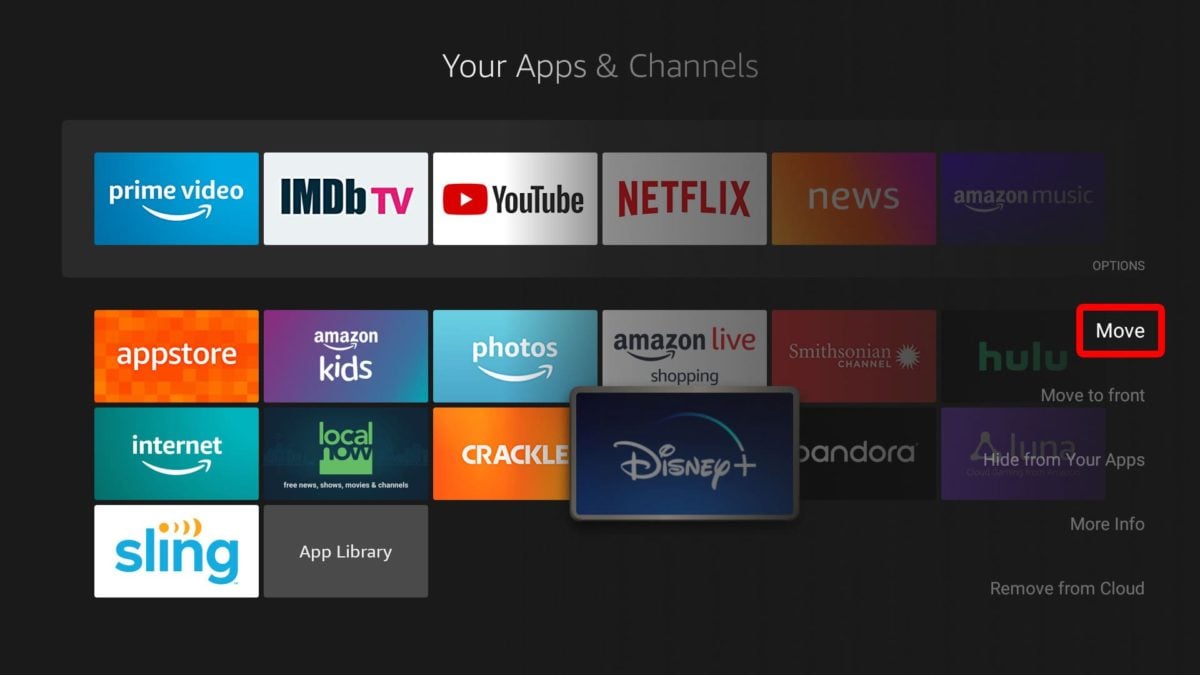
Understanding how to effectively manage and install apps is crucial for maximizing your Firestick’s utility. Whether you’re looking to expand your streaming library, utilize productivity tools, or even play casual games, the right app installation strategy can significantly enhance your user experience. We’ll delve into the secure and simple official methods, and then explore the popular, albeit more involved, process of “sideloading” third-party applications, providing you with the knowledge to make informed choices about your device’s security and functionality.
Method 1: Installing Apps from the Amazon Appstore
The most straightforward and secure way to install applications on your Fire TV Stick is directly through the Amazon Appstore. This method leverages Amazon’s curated marketplace, offering apps that have been vetted for compatibility and security. It’s the recommended first step for most users seeking popular streaming services, utility apps, or games.
The Official Route: Simple and Secure
Installing apps from the Amazon Appstore is akin to downloading apps on a smartphone. The process is designed to be user-friendly, ensuring a seamless experience for all Firestick owners.
Steps to Install Apps from the Amazon Appstore:
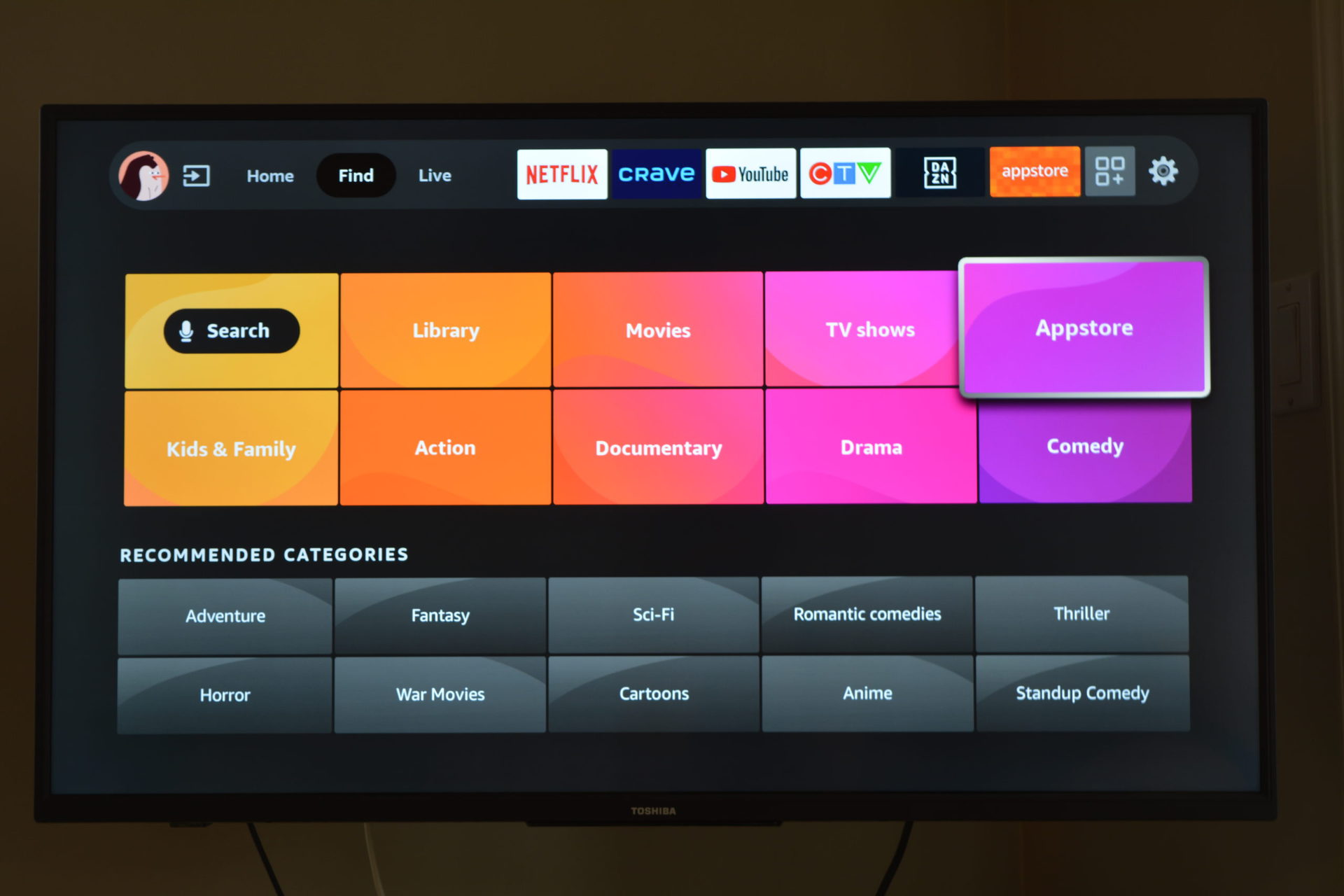
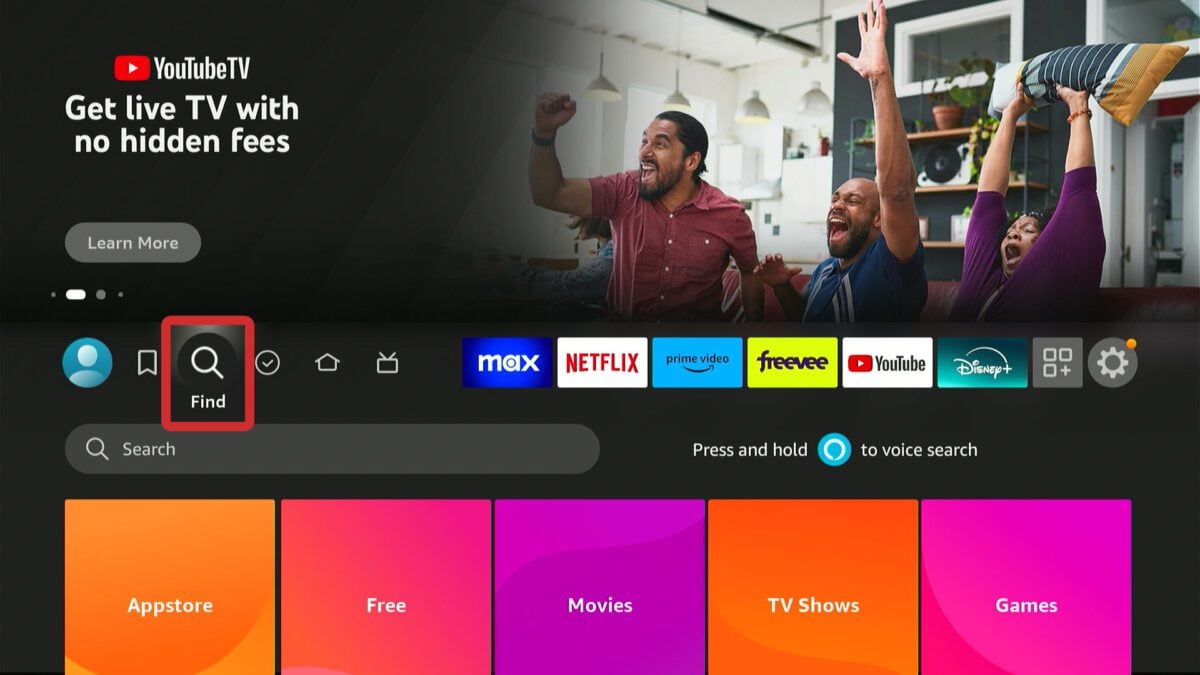
- Navigate to the “Find” Tab: From your Firestick’s home screen, use your remote to navigate to the “Find” tab in the main menu bar. This is typically located to the right of “Home” and “Live.”
- Select “Search”: Within the “Find” tab, you’ll see several options. Select “Search” (often represented by a magnifying glass icon) to bring up the on-screen keyboard.
- Enter Your App’s Name: Type the name of the app you wish to install using the on-screen keyboard. As you type, suggestions may appear below.
- Select the App: Once you see the desired app in the search results, select it. This will take you to the app’s dedicated page in the Amazon Appstore.
- Download and Install: On the app’s page, you’ll see a button labeled “Get” or “Download.” If it’s a paid app, it will display the price. Select this button to begin the download and installation process.
- Launch the App: After the installation is complete, the “Get” or “Download” button will change to “Open.” Select “Open” to launch your newly installed app immediately, or you can find it later in your “Your Apps & Games” section on the home screen.
Benefits of Using the Amazon Appstore:
- Security: Apps in the official store undergo a review process, minimizing the risk of malware or security vulnerabilities. This aligns with digital security best practices and protects your personal data.
- Ease of Use: The process is intuitive, requiring minimal technical expertise.
- Automatic Updates: Apps installed this way typically receive automatic updates, ensuring you always have the latest features and bug fixes without manual intervention.
- Compatibility: These apps are optimized for the Firestick interface and hardware, guaranteeing a smooth performance.
For many users, especially those new to the Firestick ecosystem, sticking to the Amazon Appstore provides a robust and secure foundation for their entertainment needs. However, the world of streaming is vast, and sometimes the apps you want aren’t available through official channels. This leads us to the realm of sideloading.
Method 2: Sideloading Third-Party Apps Using the Downloader App
Sideloading refers to installing applications from sources other than the official Amazon Appstore. This method is incredibly popular among Firestick users who wish to access a broader range of content, including niche streaming services, emulators, or alternative media players not available officially. While it opens up a world of possibilities, it also requires a bit more technical setup and a heightened awareness of security. The Downloader app is by far the most popular and easiest tool for sideloading on the Firestick.
Preparing Your Firestick for Sideloading
Before you can sideload any app, you need to adjust some security settings on your Firestick. These settings are in place to protect users from inadvertently installing potentially harmful software, so exercising caution and understanding the risks is paramount.
Steps to Enable Sideloading:
- Access Settings: From your Firestick’s home screen, navigate to the “Settings” icon (usually a gear icon) in the main menu bar.
- Go to “My Fire TV”: Within the Settings menu, scroll down and select “My Fire TV.”
- Open “Developer Options”:
- If you see “Developer Options” directly, select it.
- If you don’t see “Developer Options,” it means it’s hidden. To enable it, select “About” (often the first option under “My Fire TV”).
- Scroll down to “Fire TV Stick” (or “Fire TV Cube,” etc., depending on your device model) and press the “Select” button on your remote seven times consecutively. You’ll see a small message at the bottom of the screen counting down, indicating that “Developer Options” is being enabled. Once it says “No need, you are already a developer,” you can go back to “My Fire TV,” and “Developer Options” will now be visible.
- Enable “Apps from Unknown Sources”: Inside “Developer Options,” you will find “Apps from Unknown Sources.” Toggle this setting to “ON.” A warning message will appear, explaining the risks. Read it carefully, then select “Turn On.” This step is crucial as it allows your Firestick to install applications that didn’t come from the Amazon Appstore.
- Enable “ADB Debugging”: Also within “Developer Options,” toggle “ADB Debugging” to “ON.” While not strictly necessary for all sideloading methods, it’s good practice to enable it as it’s required for certain advanced techniques and debugging should you encounter issues.
These preparatory steps essentially tell your Firestick that you, the user, are taking responsibility for the source and safety of the applications you install.
Installing and Using the Downloader App
The Downloader app, developed by AFTVnews, is a must-have tool for anyone serious about sideloading on a Firestick. It simplifies the process by allowing you to directly download APK files (Android application packages) from the internet onto your device and install them.
Steps to Install and Use Downloader:
- Install Downloader from the Amazon Appstore:
- Go back to the Firestick home screen, navigate to the “Find” tab, and then “Search.”
- Type “Downloader” into the search bar.
- Select the Downloader app (it typically has an orange icon).
- Select “Get” or “Download” to install it.
- Launch Downloader: Once installed, select “Open” to launch the app. You may need to grant storage permissions; select “Allow.”
- Enter the APK URL: The Downloader app will open to its home screen, which primarily features a URL input field. This is where you’ll paste or type the direct download link for the APK file you want to install.
- Crucial Tip: You need the direct URL to the APK file, not just the website where it’s hosted. Reputable sites often provide direct download links.
- Use the on-screen keyboard to enter the URL accurately. Pay close attention to typos, as they will lead to failed downloads.
- Download the APK: After entering the URL, select “Go.” Downloader will connect to the server and begin downloading the APK file. The progress will be displayed on the screen.
- Install the App: Once the download is complete, Downloader will automatically prompt you to install the application. Select “Install” from the pop-up window.
- Delete the APK File (Recommended): After the installation is finished, you’ll see an “App Installed” message with “Done” and “Open” options. Before selecting either, Downloader will ask if you want to delete the APK file. It is highly recommended to select “Delete” to free up valuable storage space on your Firestick, as the APK file is no longer needed after the app is installed. Confirm deletion when prompted.
- Launch Your New App: Now you can select “Open” to launch your newly sideloaded app, or find it later in your “Your Apps & Games” section.
Finding Reliable APK Sources
This is perhaps the most critical aspect of sideloading. Because you are bypassing Amazon’s official vetting process, the responsibility for the safety and integrity of the app falls entirely on you.
Tips for Finding Safe APKs:
- Reputable Websites: Stick to well-known and trusted Android APK repositories or the official websites of the app developers themselves. Avoid obscure sites that seem suspicious or riddled with pop-up ads.
- Read Reviews: Before downloading, search for reviews or discussions about the specific APK file and source. User feedback can often highlight potential issues.
- Be Skeptical of “Free Premium” Apps: If an app that’s normally paid is offered for free via an unofficial APK, proceed with extreme caution. These often contain malware or are non-functional.
- Check Permissions: During installation, pay attention to the permissions the app requests. If an app for watching movies asks for access to your contacts or microphone, it’s a red flag.
- Security Software: While harder to run on Firestick directly, if you download APKs to a computer first, consider scanning them with antivirus software before transferring.
The “Apps from Unknown Sources” setting is a gateway, not an invitation to recklessness. Always prioritize digital security and privacy when venturing beyond official app stores.
Method 3: Alternative Sideloading Methods
While Downloader is the go-to for most, there are other effective methods for sideloading, each with its own advantages, particularly for those who prefer more control or have specific workflows.
Sideloading via ADB Debugging (Advanced)
ADB (Android Debug Bridge) is a versatile command-line tool that allows communication with an Android-powered device, including the Firestick. It’s more technical but offers robust control for installing apps, debugging, and managing files.
Using Apps2Fire (Android Phone) or adbLink (Computer):
- Ensure ADB Debugging is ON: (As described in Method 2’s preparation).
- Find Firestick IP Address: Go to Settings > My Fire TV > About > Network. Note down your Firestick’s IP address.
- Install Apps2Fire (on Android Phone): Download “Apps2Fire” from the Google Play Store. This app allows you to push APKs installed on your phone directly to the Firestick.
- Open Apps2Fire, go to the “Setup” tab, and enter your Firestick’s IP address.
- In the “Local Apps” tab, you’ll see apps installed on your phone. Select an app, then choose “Install.”
- Using adbLink (on Computer): Download and install “adbLink” on your Windows, Mac, or Linux computer.
- Open adbLink, select “New” to create a profile for your Firestick. Enter a description and your Firestick’s IP address.
- Select “Connect” to establish a connection.
- Select “Install APK” and browse to the APK file on your computer. adbLink will push and install it.
This method is particularly useful for developers or users who prefer managing apps from a companion device, offering a more hands-on approach to tech management.
Using Cloud Storage (e.g., Google Drive, Dropbox) and File Managers
This method is excellent for transferring files you’ve stored in the cloud or if you have an APK on your computer that you want to put into a cloud service first.
- Upload APK to Cloud Storage: Upload the desired APK file to your Google Drive, Dropbox, or any other cloud service you use.
- Install a File Manager on Firestick: Search and install a reputable file manager app from the Amazon Appstore. Popular choices include “FX File Explorer” or “File Commander.” Note: ES File Explorer used to be popular but has garnered a reputation for being bloated and ad-heavy; alternative, leaner options are often preferred.
- Access Cloud Storage via File Manager: Open the file manager app on your Firestick. Most modern file managers have built-in support for connecting to cloud storage services.
- Add your cloud account credentials.
- Navigate to the folder where your APK is stored.
- Download and Install: Select the APK file within the file manager. It will download to your Firestick, and then prompt you to install it, similar to the Downloader app process.
This method offers flexibility and can be convenient if you already use cloud services extensively for file management.
The “Send Files to TV” App
For a simpler, more direct transfer from a mobile device, the “Send Files to TV” app (SFTTV) is a fantastic tool.
- Install SFTTV on Firestick and Mobile Device: Search for “Send Files to TV” in the Amazon Appstore on your Firestick and install it. Do the same on your Android smartphone or tablet from the Google Play Store (or iOS App Store if an iOS version exists and supports sending/receiving APKs, though typically this is an Android-centric solution).
- Launch on Both Devices: Open the SFTTV app on both your Firestick and your mobile device.
- Send the File: On your mobile device, select “Send.” Browse for the APK file you want to transfer.
- Receive the File: On your Firestick, select “Receive.”
- Transfer and Install: Your mobile device will detect the Firestick, and the file transfer will begin. Once transferred, the APK will be available in the “Downloads” folder of the SFTTV app on your Firestick. Use a file manager (or SFTTV itself if it has an install option) to navigate to this folder and install the APK.
SFTTV is excellent for quick, peer-to-peer transfers, simplifying the process without needing URLs or cloud accounts.
Optimizing Your Firestick Experience (Post-Installation)
Installing apps is just the beginning. To truly get the most out of your Firestick and maintain its performance, some post-installation best practices are crucial.
Managing Your Installed Apps
Keeping your app library organized and efficient is vital for a smooth user experience.
- Move to Front: To quickly access frequently used apps, you can move them to the front of your app list. From the home screen, navigate to “Your Apps & Games,” highlight an app, press the “Menu” button (three horizontal lines) on your remote, and select “Move to Front.”
- Uninstalling Apps: If an app is no longer needed, uninstall it to free up storage. Go to Settings > Applications > Manage Installed Applications, select the app, and choose “Uninstall.”
- Clear Cache/Data: If an app is acting buggy or slow, clearing its cache can often resolve issues without uninstalling. From “Manage Installed Applications,” select the problematic app, then choose “Clear Cache” and/or “Clear Data.” Clearing data will reset the app to its default state, requiring you to log in again.
The Importance of a VPN (Virtual Private Network)
A VPN is an indispensable tool for many Firestick users, especially those who engage in sideloading or wish to access geo-restricted content.
- Bypassing Geo-Restrictions: Many streaming services are geographically locked. A VPN allows you to connect to servers in different countries, making it appear as if you are browsing from that location, thus unlocking content libraries unavailable in your region. This can significantly expand your entertainment options, aligning with global tech trends in content consumption.
- Privacy and Security: When sideloading, you’re accessing content from various sources. A VPN encrypts your internet traffic, protecting your online activities from your Internet Service Provider (ISP), government surveillance, and potential malicious actors. This is a critical aspect of digital security, especially when using unofficial apps.
- ISP Throttling: Some ISPs might throttle (slow down) your internet speed if they detect high bandwidth usage from streaming, particularly during peak hours. A VPN can help circumvent this by masking your activity, preventing your ISP from identifying and throttling your connection.
Installing a VPN on Firestick: Most reputable VPN providers offer dedicated apps for the Firestick, which can be installed directly from the Amazon Appstore. Simply search for your preferred VPN service, install it, log in, and connect to a server. Choosing a premium VPN service (which typically involves a subscription fee) is recommended for reliable performance, strong encryption, and a wide selection of servers. Consider this an investment in your digital security and unrestricted entertainment.
Keeping Your Firestick Updated
Regular updates are essential for both system stability and app functionality.
- System Updates: Your Firestick typically updates its operating system automatically. However, you can manually check for updates by going to Settings > My Fire TV > About > Check for Updates. System updates bring new features, performance improvements, and crucial security patches.
- App Updates: Apps installed from the Amazon Appstore will generally update automatically. For sideloaded apps, you usually need to update them manually by downloading the latest APK and reinstalling it (or using the app’s internal update mechanism if it has one). Neglecting updates can lead to security vulnerabilities, compatibility issues, and a degraded user experience.
Troubleshooting Common Installation Issues
Even with the best instructions, you might encounter issues. Here are solutions to some common problems.
“App Not Installed” Error
- Corrupted APK: The APK file you downloaded might be incomplete or corrupted. Try downloading it again from a different, reputable source.
- Insufficient Storage: Your Firestick might not have enough free space for the new app. Delete unnecessary apps, clear app caches, or delete downloaded APK files. Go to Settings > Applications > Manage Installed Applications to check storage.
- Conflicting Permissions/Versions: Sometimes, a previous version of the app or a similar app might be causing a conflict. Try uninstalling any related apps before attempting the installation again. Ensure the APK is compatible with your Firestick’s Android version.
App Crashing or Freezing
- Clear Cache and Data: Go to Settings > Applications > Manage Installed Applications, select the problematic app, and choose “Clear Cache.” If that doesn’t work, try “Clear Data” (remember this will log you out and reset settings).
- Reinstall the App: If clearing cache/data fails, uninstall the app and reinstall it.
- Check for Updates: Ensure both your Firestick’s system software and the app itself are updated to their latest versions.
- App Compatibility: Some sideloaded apps might not be fully optimized for Fire TV devices and may inherently be unstable. Research user experiences with the specific app on Firestick.
Connectivity Problems
- Wi-Fi Issues: Ensure your Firestick is connected to a stable Wi-Fi network. Restart your router and modem.
- Server Problems: The app’s servers might be down, or there could be a problem with the content source. This is common with some free streaming apps.
- VPN Interference: If you’re using a VPN, try disconnecting it to see if it resolves the issue, or switch to a different VPN server.
Firestick Performance Issues
- Too Many Apps/Low Storage: A cluttered Firestick with too many apps or insufficient storage can lead to slow performance. Regularly uninstall unused apps and clear caches.
- Overheating: Ensure your Firestick has adequate ventilation. If it feels hot, disconnect it for a while to cool down.
- Restart Your Firestick: A simple restart can often resolve temporary performance glitches. Go to Settings > My Fire TV > Restart.
Conclusion
The Amazon Fire TV Stick is far more than just a gateway to Amazon’s content; it’s a versatile and powerful media hub that can be customized to an incredible degree. By understanding both the official and sideloading methods for installing apps, you gain the freedom to transform your television into a personalized entertainment, productivity, and information center. From effortlessly accessing popular streaming services via the Amazon Appstore to exploring niche content and advanced tools through careful sideloading, your Firestick’s potential is vast.
However, with great power comes great responsibility. Always prioritize digital security, especially when venturing into the world of third-party apps. Utilize tools like Downloader with caution, select APK sources wisely, and consider the invaluable protection offered by a Virtual Private Network. By following the comprehensive steps and advice outlined in this guide, you’re not just installing apps; you’re actively shaping a more dynamic, secure, and enjoyable digital experience tailored to your unique preferences. Embrace the customization, manage your device wisely, and unlock the full capabilities of your Fire TV Stick.
aViewFromTheCave is a participant in the Amazon Services LLC Associates Program, an affiliate advertising program designed to provide a means for sites to earn advertising fees by advertising and linking to Amazon.com. Amazon, the Amazon logo, AmazonSupply, and the AmazonSupply logo are trademarks of Amazon.com, Inc. or its affiliates. As an Amazon Associate we earn affiliate commissions from qualifying purchases.