
The Apple Watch has evolved from a simple iPhone accessory into a powerhouse of standalone functionality. Whether you are using the latest Ultra 2 or an older Series model, the true potential of the device lies in its software ecosystem. Understanding how to install, manage, and optimize apps on your Apple Watch is essential for transforming it from a mere notification hub into a specialized tool for fitness, productivity, and digital security. In this guide, we will explore the technical nuances of the watchOS App Store, the integration between iOS and watchOS, and the best practices for maintaining a high-performance wearable.
Understanding the Apple Watch Ecosystem and App Architecture
To master app installation, one must first understand how watchOS handles software. In the early days of the Apple Watch, apps were essentially “extensions” of their iPhone counterparts. Most of the processing happened on the phone, and the watch acted as a secondary display. However, with the introduction of later versions of watchOS, Apple shifted toward “independent” apps. These are applications that can run directly on the watch’s hardware, often utilizing its built-in Wi-Fi or cellular connection without needing a nearby iPhone.
The Evolution of watchOS Apps
The transition to independent apps changed the way users interact with the App Store. Modern Apple Watch apps are designed to be lightweight yet powerful. Developers now build apps specifically for the “Wrist Experience,” focusing on glanceable information and quick interactions. This architectural shift means that when you install an app today, you are often getting a package optimized for the S-series chips found inside the watch, ensuring smoother performance and better battery efficiency.
How Apple Watch and iPhone Work Together
Despite the move toward independence, the iPhone remains the “Command Center” for the Apple Watch. The two devices communicate via a sophisticated handoff system using Bluetooth and Wi-Fi. When you install an app on your iPhone that has a companion watchOS app, the system can automatically bridge that software over to your wrist. Understanding this synergy is key to managing your storage and ensuring that your most critical tools are always accessible, even when your phone is in another room.
Method 1: Installing Apps Directly from the Apple Watch App Store
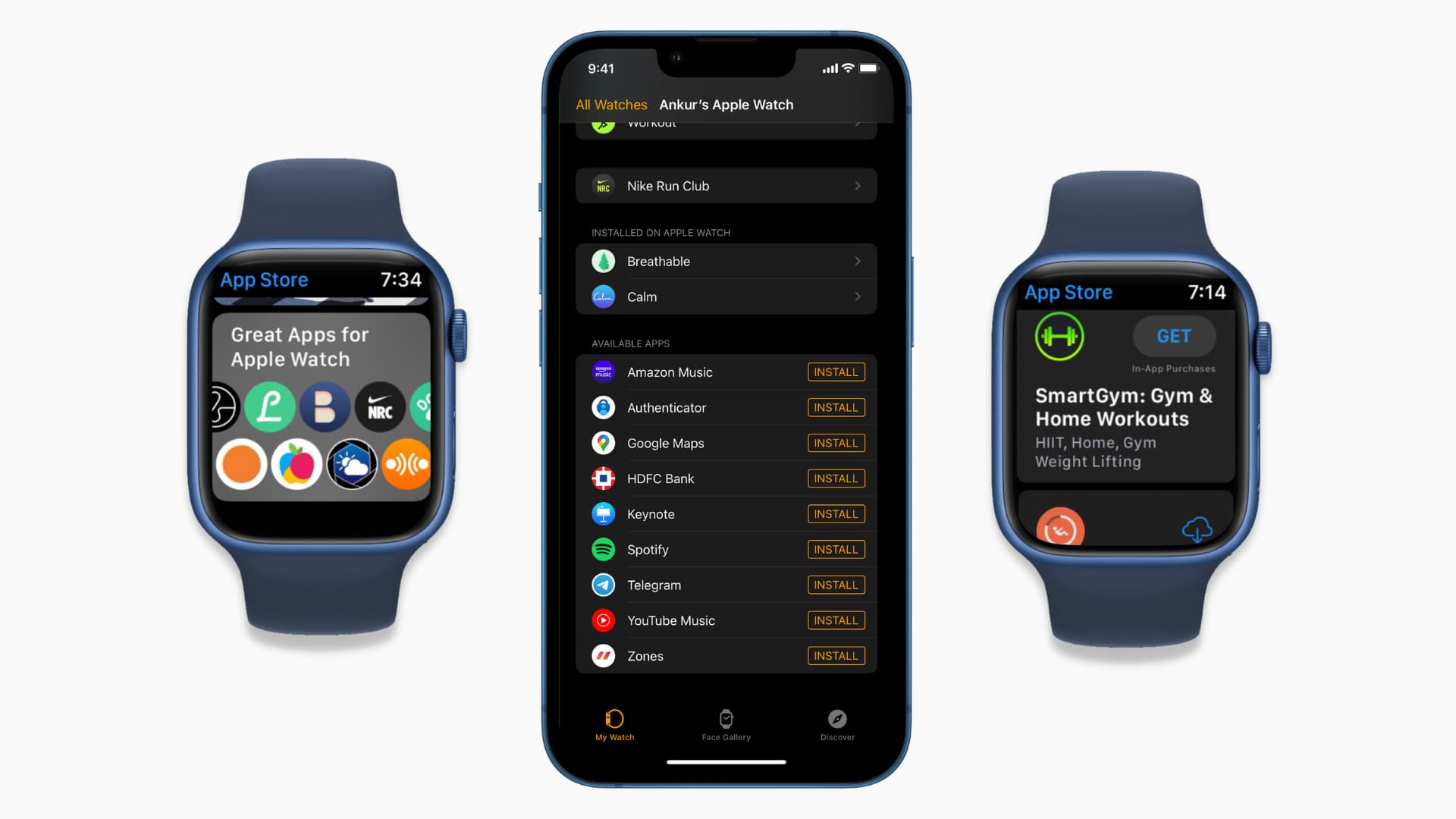
Since watchOS 6, Apple has included a dedicated App Store directly on the watch. This allows users to browse, purchase, and download software without ever touching their iPhone. This is particularly useful for users with Cellular models who may be out for a run or a commute and realize they need a specific utility.
Navigating the On-Device App Store
To access the App Store on your wrist, press the Digital Crown to see all your apps, then tap the App Store icon (the blue icon with a white “A”). The interface is surprisingly robust. You can browse through “Featured” apps curated by Apple’s editors, view “Top Charts,” or use the search function. Because typing on a small screen can be cumbersome, Apple provides three primary ways to search:
- Scribble: Draw letters on the screen with your finger.
- Dictation: Use the microphone icon to speak the name of the app.
- QWERTY Keyboard: Available on Series 7 and later models, allowing for traditional typing.
Using Siri to Find Apps
For a truly hands-free experience, Siri is the most efficient way to install apps. By holding the Digital Crown or saying “Hey Siri,” you can simply command, “Find fitness apps in the App Store” or “Install the Carrot Weather app.” Siri will bring up the relevant App Store page, and you can initiate the download with a single tap. This method bypasses the need to navigate through menus and is the hallmark of an advanced tech user.
Managing App Permissions and Downloads
When you find an app you want, tap the price or the “Get” button. You may be prompted to double-click the side button to confirm the installation—a security measure similar to FaceID on the iPhone. If it is a paid app, the transaction will be processed via the Apple ID linked to your iPhone. Once the download begins, a circular progress indicator will appear around the app icon on your home screen.
Method 2: Leveraging Your iPhone to Manage Apple Watch Apps
While the on-wrist App Store is convenient, managing a large library of applications is often easier on the larger screen of an iPhone. The “Watch” app on iOS provides a comprehensive interface for controlling every aspect of the wearable experience.
The “Available Apps” Section in the Watch App
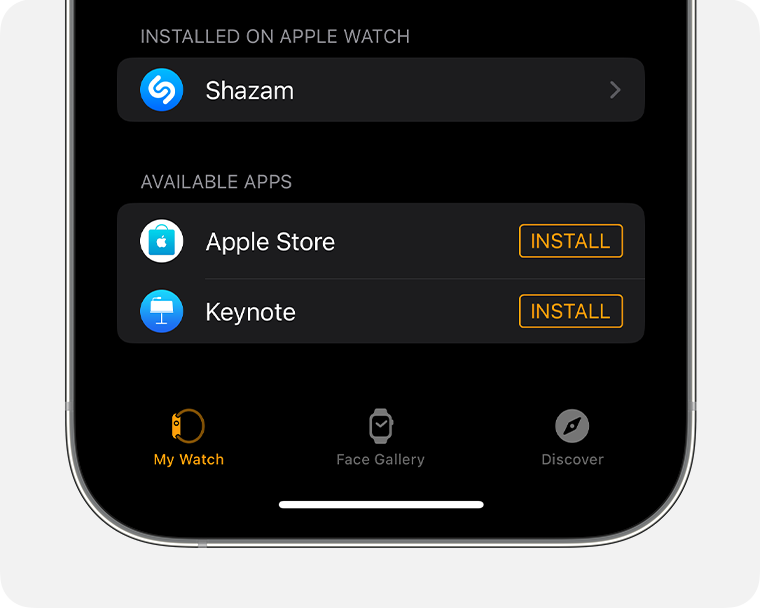
When you open the Watch app on your iPhone and stay on the “My Watch” tab, scrolling to the very bottom reveals the “Available Apps” section. This list shows every app currently on your iPhone that offers a watchOS version but isn’t yet installed on your watch. By tapping the “Install” button next to these apps, you can trigger a remote installation. This is the most efficient way to do a “bulk” setup of a new Apple Watch.
Enabling Automatic App Installation
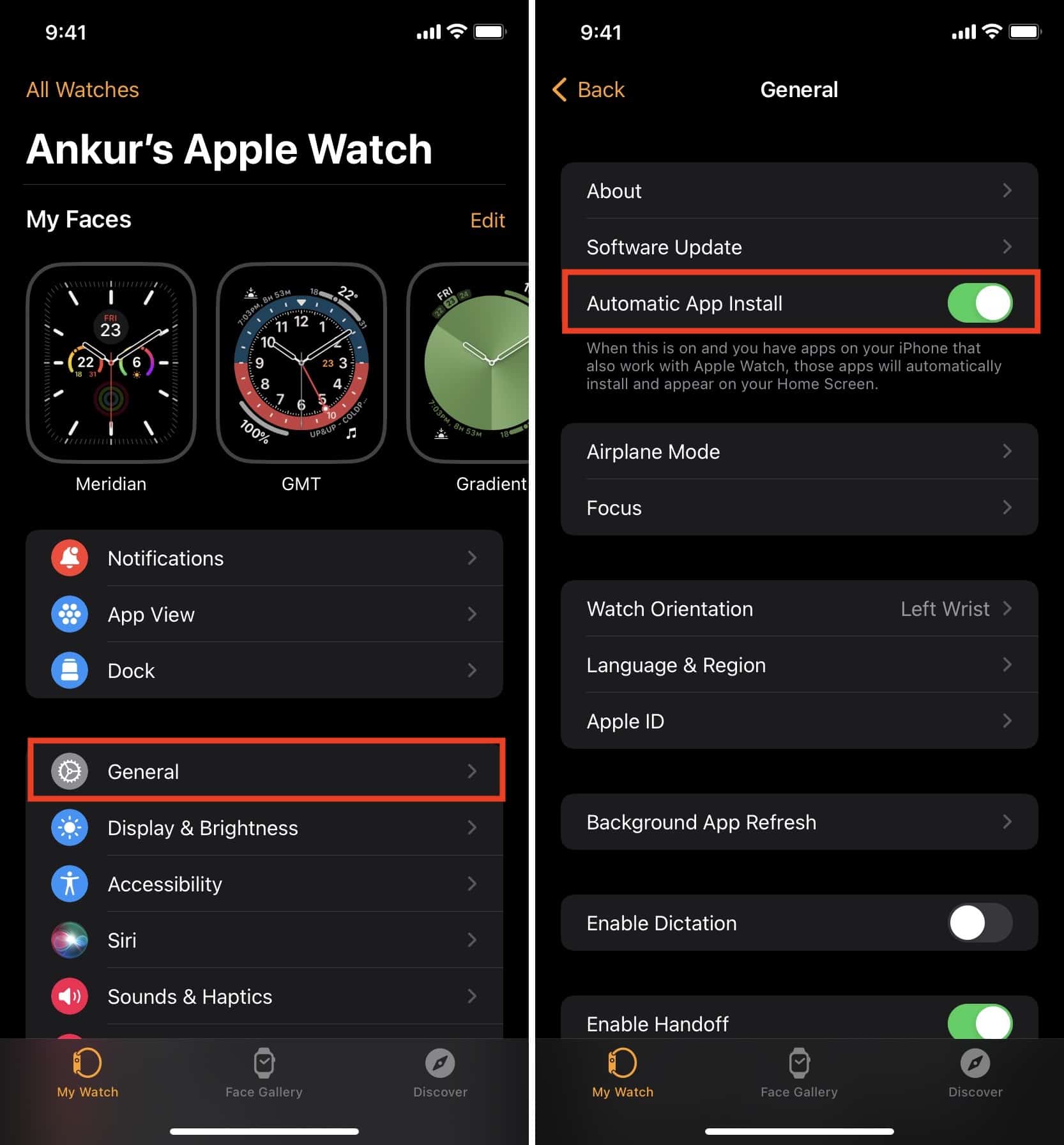
For those who want a seamless experience, there is a setting to automatically install any watch-compatible app you download on your iPhone. Inside the Watch app, navigate to General > App Install. By toggling “Automatic App Install” to the ON position, you ensure that your ecosystem stays synchronized. If you download a new hiking app on your phone, it will be waiting for you on your watch the next time you head to the trails. However, power users often keep this OFF to prevent “app clutter” and to save precious storage space on the watch.
Synchronizing Data and Configurations
Installing the app is only the first step. Many tech-heavy apps (like Spotify, Strava, or Authenticator apps) require a “Handshake” between the iPhone and the Watch. After installation, you may need to open the app on your iPhone to sign in or grant permissions (like Health Data access or Location Services) before the watch app becomes fully functional. This synchronization ensures that your data is encrypted and secure across both devices.
Optimizing Your Experience: Managing and Organizing Your Watch Apps
An Apple Watch can quickly become cluttered with too many icons, making it difficult to find what you need during a workout or a meeting. Effective management is what separates a casual user from a tech enthusiast.
How to Reorganize the App Grid or List View
By default, the Apple Watch uses the “Grid View” (the honeycomb of icons). While visually striking, many find it difficult to navigate. You can switch to “List View” by opening Settings > App View on the watch or via the Watch app on the iPhone. If you prefer the Grid, you can rearrange the icons by tapping and holding an icon until they all jiggle, then dragging them into a more logical order. Putting your most-used apps (like Workouts or Messages) in the center of the grid makes them much easier to tap.
Removing Unused Apps to Save Storage
Apple Watches vary in storage capacity, from 8GB on older models to 64GB on the latest versions. If you find your watch is sluggish or you cannot perform a watchOS update, it is time to delete unused apps.
- On the Watch: From the home screen, long-press an app and tap the “X” (in Grid view) or swipe left and tap the trash icon (in List view).
- On the iPhone: In the Watch app, tap on an installed app and toggle off “Show App on Apple Watch.” This removes it from the wrist but keeps it on your phone.
Updating Apps for Peak Performance
Just like your Mac or iPhone, watchOS apps receive frequent updates to fix bugs and improve security. Usually, these happen automatically overnight while the watch is charging. However, you can manually check for updates by going to the App Store on your watch, scrolling to the bottom, and tapping Account > Updates. Keeping your software current is the best way to ensure your digital security and app stability.
Troubleshooting Common Installation Issues
Even with Apple’s polished ecosystem, technical glitches can occur. Understanding how to troubleshoot these issues is vital for maintaining your digital workflow.
Resolving Connectivity and Pairing Glitches
The most common reason an app fails to install is a “communication breakdown” between the watch and the phone. If a download is stuck on “Installing,” try toggling Bluetooth off and on again on your iPhone. Ensure both devices are on the same Wi-Fi network. If the problem persists, a simple restart of both the Apple Watch and the iPhone usually clears the cache and allows the installation to complete.
Managing Storage Constraints on Older Models
If you receive a “Storage Full” notification, it is likely due to synced media rather than just apps. High-resolution photos and downloaded podcasts/music take up significantly more space than software. To free up room for new apps, go to the Watch app on your iPhone and limit the number of “Recent Photos” synced or remove downloaded playlists in the Music and Podcasts sections.
Checking for Software Compatibility
Occasionally, an app may refuse to install because it requires a newer version of watchOS. Always ensure your Apple Watch is running the latest software by navigating to Settings > General > Software Update. Keep in mind that older hardware (like the Series 3) cannot run the latest watchOS versions, which may eventually limit your ability to install the newest apps on the market. In the world of tech, staying updated is the key to longevity.
aViewFromTheCave is a participant in the Amazon Services LLC Associates Program, an affiliate advertising program designed to provide a means for sites to earn advertising fees by advertising and linking to Amazon.com. Amazon, the Amazon logo, AmazonSupply, and the AmazonSupply logo are trademarks of Amazon.com, Inc. or its affiliates. As an Amazon Associate we earn affiliate commissions from qualifying purchases.