
The landscape of personal computing is in constant flux, and few devices exemplify this evolution better than the Chromebook. Once perceived as mere web browsers, these machines have transformed into versatile productivity powerhouses, increasingly capable of running a diverse range of applications. As we look towards 2025, Chromebooks are expected to continue their trajectory of growth, offering enhanced performance, richer software integration, and a seamless user experience. However, despite the robust integration of the Google Play Store, there remain scenarios where a user might need or want to install applications from outside this official channel – a process known as “sideloading” using APK files.
For enthusiasts, developers, or anyone seeking to access a wider universe of Android applications not available on the Google Play Store, understanding how to install APKs on a Chromebook is a crucial skill. This guide will walk you through the methods, considerations, and best practices for sideloading applications on your Chromebook, keeping in mind the technological advancements and potential changes by 2025. Whether you’re looking to run a niche productivity tool, a specific version of an app, or simply explore beyond the official ecosystem, equipping yourself with this knowledge will unlock the full potential of your Chromebook.
Understanding Chromebooks and APKs in 2025
By 2025, Chromebooks are set to be even more powerful and integrated, blurring the lines between traditional laptops and tablets. Chrome OS, the operating system powering these devices, has steadily evolved to incorporate not just web applications but also a robust Android app runtime and even a full Linux environment. This multi-faceted architecture provides users with unparalleled flexibility, but it also necessitates a clear understanding of how different app ecosystems interact.
The Evolving Chrome OS Ecosystem
The journey of Chrome OS from a purely web-centric platform to a versatile environment capable of running Android and Linux applications has been remarkable. Initially, Chromebooks relied solely on web apps and the Chrome browser. The introduction of the Google Play Store in 2016 dramatically expanded their utility, allowing millions of Android applications to run natively. This was achieved through the Android Runtime for Chrome (ARC) and later advanced to a more robust virtual machine-based solution known as ARCVM, ensuring better performance and isolation for Android apps.
Looking towards 2025, we can anticipate further refinements in this integration. Google is continuously working on Project Borealis, aiming to bring even more advanced gaming capabilities to Chrome OS via Steam. The underlying architecture for running Android and Linux applications is also likely to become more streamlined and performant, with tighter integration into the Chrome OS shell. This means that Android apps, whether installed via the Play Store or sideloaded, will feel even more native and responsive on future Chromebook models. The core concept, however, remains: Chrome OS provides a secure container for Android applications to run, making it possible to leverage the vast Android app library.
Why Sideloading Might Still Be Necessary
Despite the continuous expansion of the Google Play Store’s offerings and its seamless integration with Chrome OS, there are several compelling reasons why sideloading APKs will likely remain a relevant and sometimes necessary practice in 2025:
- Access to Unavailable Apps: Some applications, for various reasons (developer choice, regional restrictions, beta testing), might not be listed on the Google Play Store. Sideloading provides a direct route to install these apps. This is particularly useful for niche tools, company-specific apps, or applications from smaller developers.
- Specific App Versions: You might need an older version of an app due to compatibility issues with your other tools, a preferred interface, or missing features in newer updates. The Play Store typically only offers the latest version, while APK repositories often archive older releases.
- Developer Testing and Custom Builds: For developers, sideloading is essential for testing their applications before official release or for deploying custom builds for specific purposes.
- Geo-Restricted Content: Some apps are only available in certain geographical regions via the Play Store. Sideloading can circumvent these restrictions, though users should be mindful of terms of service and legal implications.
- Open-Source Alternatives: Platforms like F-Droid host open-source Android applications that prioritize privacy and transparency. Many of these apps are not found on the Google Play Store, making sideloading the primary installation method.
- Enhanced Productivity and Niche Tools: While the Play Store covers mainstream needs, specific productivity tools or utilities designed for niche workflows might only be available as direct APK downloads. For professionals and power users, these apps can significantly enhance their capabilities on a Chromebook.
Prerequisites for Sideloading APKs
Before you can begin installing APK files on your Chromebook, there are a few essential steps to prepare your device. These steps ensure that your Chromebook is configured to allow installations from “unknown sources,” a security setting that Google enables by default for official Play Store installations but restricts for external APKs. Understanding these prerequisites is key to a smooth sideloading experience.
Enabling Developer Options and Unknown Sources
The primary gateway to sideloading Android apps on your Chromebook involves enabling the installation of apps from “unknown sources.” This setting isn’t directly labeled as “sideloading” but rather as a permission within the Android environment that runs on your Chromebook.
Here’s how to enable it, assuming a similar Chrome OS interface in 2025:
- Open Chrome OS Settings: Click on the time/status bar in the bottom-right corner of your screen, then select the gear icon to open “Settings.”
- Navigate to Android Preferences: In the Settings menu, scroll down to the “Apps” section. You should see “Google Play Store.” Click on “Turn on” if it’s not already enabled, or click on “Manage Android preferences” if it is. This will open a separate Android settings window.
- Find Security Settings: Within the Android settings, look for “Security” or “Security & Privacy.”
- Enable Unknown Sources: Inside the Security menu, you’ll typically find an option labeled “Install unknown apps” or “Unknown sources.” Tap on it.
- Grant Permission to a File Manager: You’ll be presented with a list of apps installed on your Chromebook. You need to grant permission to the app you’ll use to open the APK file. The most common choice is the Chrome OS “Files” app. Locate “Files” (or any other file manager you might use, like Solid Explorer or FX File Explorer if you have it installed from the Play Store) and toggle the switch next to it to “Allow from this source.”
Important Note on Developer Mode: While some guides for older Chromebooks might suggest enabling Developer Mode, for simply sideloading APKs from within the Android subsystem, this is generally not required and is actively discouraged for most users due to its security implications (it wipes your device and reduces some security protections). The “Unknown Sources” setting within Android preferences is usually sufficient for direct APK installs. Developer Mode is primarily for deeper system modifications or using advanced tools like ADB, which we’ll discuss next.
Setting Up Linux (Beta) for Advanced Users
For users who require more control, encounter compatibility issues with direct sideloading, or wish to use the powerful Android Debug Bridge (ADB) tool, setting up the Linux (Beta) environment (also known as Crostini) on your Chromebook is the way to go. This provides a full-fledged Debian Linux container where you can install command-line tools, including ADB.
Here’s how to enable Linux (Beta):
- Open Chrome OS Settings: Go to “Settings” as described above.
- Enable Linux (Beta): Scroll down to the “Linux (Beta)” section and click “Turn on.”
- Follow On-Screen Prompts: A setup wizard will appear. Follow the instructions to create your Linux development environment. You’ll be asked to choose a username and disk size. The process involves downloading and installing a virtual machine, which might take several minutes depending on your internet connection and Chromebook’s speed.
- Access the Linux Terminal: Once installed, a “Terminal” application will appear in your Chromebook’s app launcher. Open it to access the Linux command line.
Installing ADB in Linux (Beta):
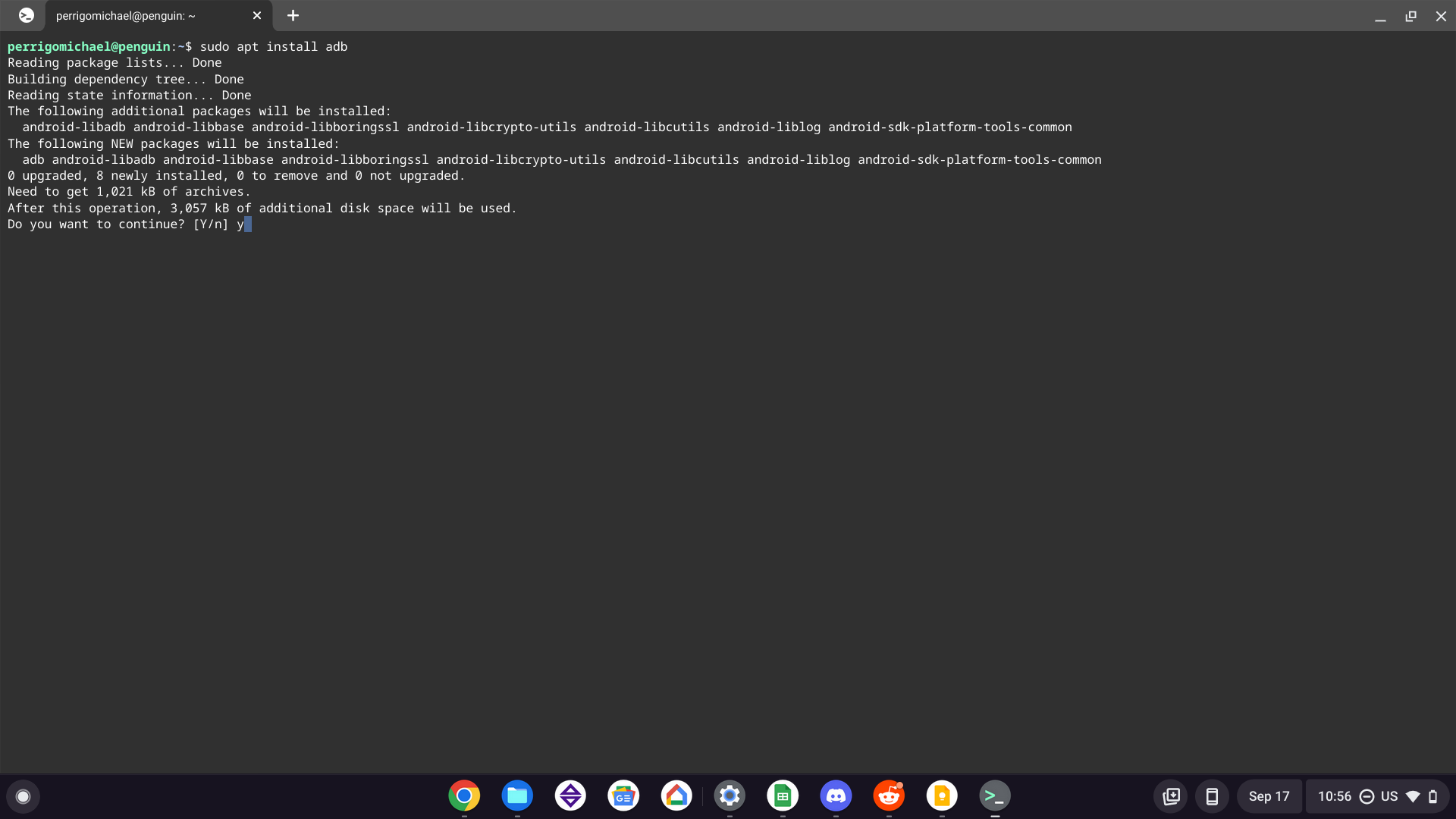
With the Linux terminal open, you can now install ADB (Android Debug Bridge) tools:
- Update Package Lists: First, update your package list to ensure you’re getting the latest software versions:
bash

sudo apt update
- Install ADB Tools: Next, install the
android-tools-adbpackage:
bash

sudo apt install android-tools-adb
Confirm the installation when prompted.
You now have ADB installed within your Linux environment, ready for more advanced sideloading and debugging. This setup is particularly useful for developers or for installing APKs that might refuse to install through the simpler direct method.
Step-by-Step Guide: Installing APKs on Your Chromebook
With the prerequisites met, you’re ready to proceed with installing APK files. There are generally two primary methods: a straightforward direct installation suitable for most users, and a more advanced method using ADB for complex scenarios or developers.
The Basic Method: Using the Android Subsystem
This is the simplest and most common way to sideload APKs, directly utilizing the Android environment running on your Chromebook.
-
Download the APK File:
- Open your Chrome browser on the Chromebook.
- Navigate to a reputable source for APK files. Highly recommended sources include:
- APKMirror: Known for hosting original, untouched APKs and older versions.
- F-Droid: A repository for free and open-source Android apps, focusing on privacy and transparency.
- Official Developer Websites: If an app is unavailable on the Play Store, the developer might offer it directly on their website.
- Crucially, only download APKs from trusted sources. Untrusted sources can bundle malware, spyware, or other malicious code with the app, compromising your device’s security and your personal data. Always prioritize digital security.
- Download the APK file to your Chromebook’s “Downloads” folder.
-
Locate the APK and Initiate Installation:
- Open the “Files” app on your Chromebook (you can find it in the app launcher).
- Navigate to the “Downloads” folder.
- Find the APK file you just downloaded (it will have a
.apkextension). - Double-click or tap on the APK file.
-
Confirm Installation:
- A dialog box will appear, asking if you want to install the application. It will list the permissions the app requires.
- Review the permissions carefully. If anything seems suspicious or excessive for the app’s functionality, reconsider installing it.
- Click “Install” to proceed.
- The app will begin installing within the Android subsystem. Once complete, you’ll see a notification that the app has been installed.
-
Launch the App:
- The newly installed app will appear in your Chromebook’s app launcher alongside your other Android and Chrome apps.
- Click on its icon to launch it.
This method is straightforward and works for the vast majority of APKs, provided you’ve enabled “Unknown Sources” for your file manager.
Advanced Method: Sideloading via ADB (Android Debug Bridge)
The ADB method offers greater control and is particularly useful for troubleshooting installations, installing specific system apps (if your Chromebook is in developer mode, though this guide avoids that), or when the direct installation method fails. This requires the Linux (Beta) environment and ADB tools installed.
-
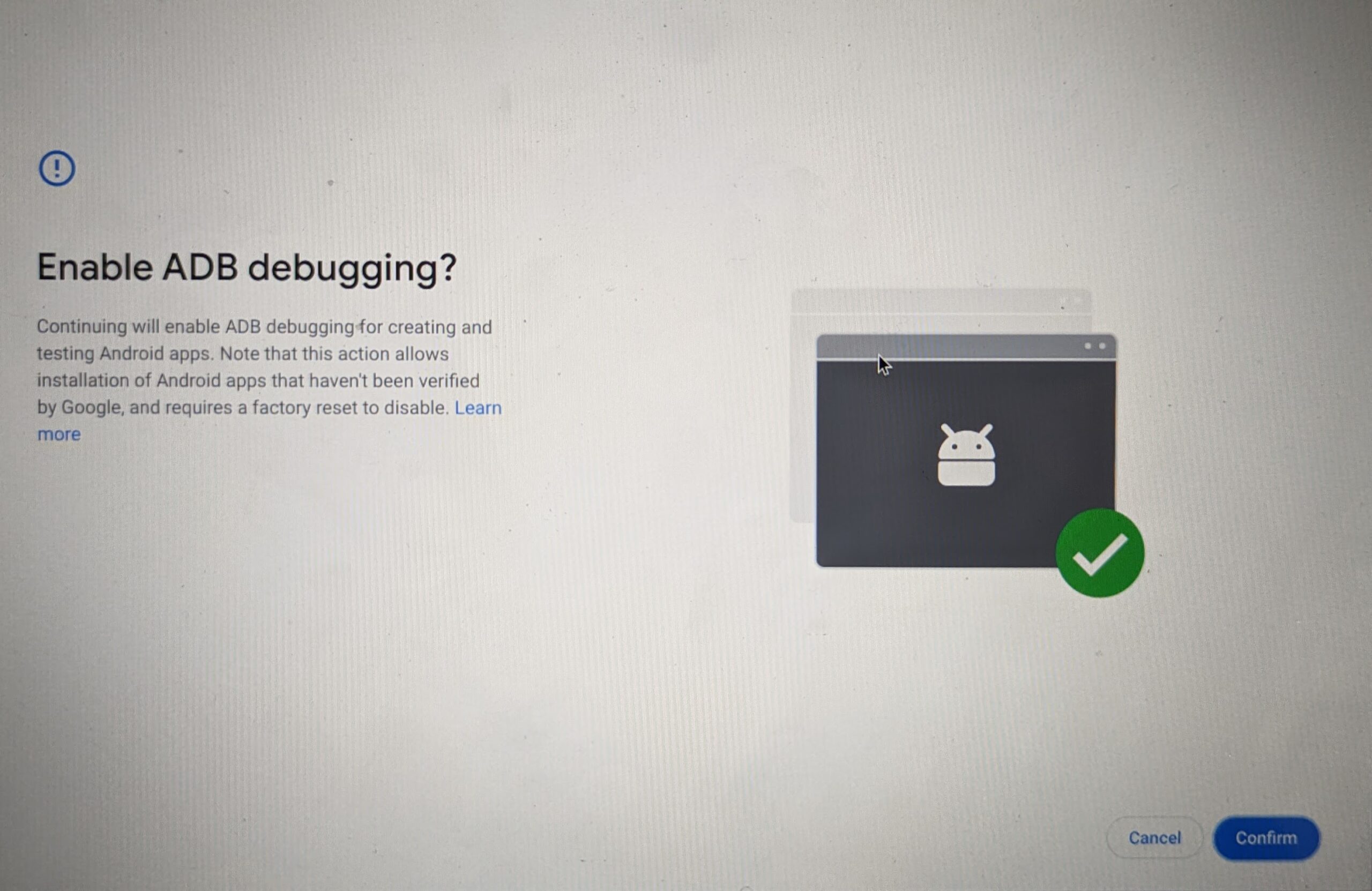
Enable ADB Debugging for Android Apps:
- Go to your Chrome OS “Settings.”
- Under “Apps,” click “Google Play Store” and then “Manage Android preferences.” This opens Android settings.
- Scroll down to “System,” then “About device” (or “About phone”).
- Tap on “Build number” (or “Chrome OS build number” for Android’s internal view) seven times rapidly. This will enable “Developer options” in the Android settings.
- Go back to “System,” and you’ll now see “Developer options.” Tap on it.
- Scroll down and enable “ADB debugging.” A pop-up will ask for confirmation; click “OK.”
-
Move the APK to Your Linux Files:
- Locate the downloaded APK file in your Chromebook’s “Downloads” folder using the “Files” app.
- Right-click on the APK file and select “Copy.”
- In the “Files” app sidebar, navigate to “Linux files.”
- Right-click within the “Linux files” folder and select “Paste.” This places the APK file in your Linux environment’s home directory.
-
Open the Linux Terminal and Connect ADB:
- Open the “Terminal” app from your Chromebook’s app launcher.
- First, determine the IP address of your Android container. In the Android Developer options, there should be an option for “Wireless debugging” or “ADB over network,” which should display an IP address (e.g.,
100.115.92.2:5555). Note this down. - In the Linux terminal, connect to the Android subsystem using its IP address. Replace the example IP with your actual Android container’s IP:
bash

adb connect 100.115.92.2:5555
(You might need to accept a debugging authorization on your Android subsystem if it’s the first time connecting).
-
Install the APK using ADB:
- Once connected, navigate to the directory where you pasted your APK file (usually
/home/<your-linux-username>/). - Use the
adb installcommand, replacingyour_app_name.apkwith the actual name of your APK file:
bash

adb install your_app_name.apk
- If the installation is successful, ADB will report “Success.” If there are errors, ADB will provide a message that can help in troubleshooting.
- Once connected, navigate to the directory where you pasted your APK file (usually
-
Launch the App:
- The app will now appear in your Chromebook’s app launcher, ready to be used.
The ADB method is more involved but provides a robust way to manage Android application installations and debugging on your Chromebook.
Risks, Rewards, and Best Practices
While sideloading APKs can unlock a vast world of applications and functionality for your Chromebook, it’s crucial to understand the associated risks and adopt best practices to protect your device and data. The balance between enhanced utility and digital security is paramount.
Digital Security Considerations
The primary concern when sideloading APKs is digital security. Unlike the Google Play Store, which has a vetting process for apps, APKs downloaded from external sources do not undergo the same level of scrutiny.
- Malware and Viruses: Untrusted APKs can contain malicious code designed to steal your data, compromise your device, or disrupt its operation. This is the most significant risk.
- Privacy Concerns: Malicious apps might request excessive permissions (e.g., access to contacts, microphone, camera, location) and misuse them to spy on you or sell your data.
- System Instability: Poorly developed or incompatible APKs can cause your Android subsystem to crash, consume excessive resources, or behave erratically, impacting your Chromebook’s overall performance.
- Outdated Apps: Sideloaded apps don’t receive automatic updates from the Play Store. This means you might miss out on important security patches and new features, potentially leaving vulnerabilities unaddressed.
Best Practices for Digital Security:
- Source Wisely: Only download APKs from highly reputable and trusted sources like APKMirror, F-Droid, or the official developer’s website. Avoid obscure forums or websites that seem suspicious.
- Verify Integrity: Some APK repositories provide MD5 or SHA checksums. If available, verify that the downloaded file’s checksum matches the one provided by the source.
- Read Reviews and Research: Before downloading, search for reviews of the app and the source. Look for discussions about security concerns or issues.
- Review Permissions Carefully: During installation, always scrutinize the permissions an app requests. If an app asks for permissions that seem unrelated to its core function (e.g., a calculator asking for camera access), be highly suspicious.
- Use a Reliable VPN: While not directly related to APK security, using a VPN can add an extra layer of privacy and security when downloading files, especially on public Wi-Fi.
- Regularly Update and Scan: Keep your Chrome OS updated. While Chromebooks have robust built-in security, considering an Android antivirus/malware scanner for your Android subsystem might offer an extra layer of peace of mind if you frequently sideload.
- Limit Sideloading: Only sideload apps when absolutely necessary. If an app is available on the Google Play Store, it’s almost always safer to install it from there.
Enhancing Productivity with Diverse Apps
Beyond the security aspects, the rewards of judicious sideloading are substantial, particularly in boosting productivity. Chromebooks are already excellent for web-based tasks, but Android apps expand their capabilities significantly.
- Specialized Workflow Tools: Many professionals rely on niche applications not available on the Play Store or for which an older, preferred version exists. Sideloading allows designers to use specific rendering apps, writers to access custom editors, or engineers to deploy unique simulation tools.
- Enhanced Customization: Some sideloaded apps offer deeper levels of customization than their Play Store counterparts, allowing users to tailor their experience precisely to their needs.
- Access to Beta Features: Developers often distribute beta versions of their apps via APKs before a public Play Store release. This allows power users and testers to get early access to new features and provide feedback.
- Offline Functionality: While many web apps require an internet connection, many Android apps are designed for robust offline functionality, making sideloaded apps valuable for productivity on the go.
- Brand-Specific Utilities: Certain device accessories or IoT gadgets might have companion Android apps that are not widely distributed through the Play Store, but are essential for full functionality.
For businesses and individual professionals, the ability to leverage a broader range of applications through sideloading means Chromebooks can cater to an even wider array of use cases, driving efficiency and innovation.
The Future of App Installation on Chromebooks
As we approach 2025, the way we interact with applications on Chromebooks is likely to continue evolving. Google has consistently worked to make Chrome OS more user-friendly and versatile.
- Improved Official Sideloading? It’s plausible that Google might introduce a more streamlined and perhaps “officially sanctioned” way to sideload APKs in the future, especially for business users or developers, potentially with integrated security checks. However, a fully open sideloading experience similar to traditional Android phones might contradict Chrome OS’s security-first philosophy.
- Enhanced App Compatibility: Continued development in ARCVM and Linux (Beta) will likely lead to even better performance and compatibility for both Android and Linux applications, reducing the need for extensive troubleshooting.
- Web App Progress: Progressive Web Apps (PWAs) are also gaining traction, offering app-like experiences directly from the browser, which might reduce the need for native Android apps for some use cases. However, for deep system integration, specialized hardware access, or complex offline functionality, native Android apps will still hold an advantage.
- Unified App Stores: There might be a push towards a more unified app experience, potentially blending Play Store, Linux apps, and PWAs into a more cohesive discovery and management system, but the underlying installation mechanisms for different types of apps will likely remain distinct.
Ultimately, by 2025, Chromebooks will be more capable than ever. While official app stores will remain the primary source for applications, understanding and safely utilizing sideloading techniques for APKs will continue to be a valuable skill for those who wish to push the boundaries of their Chromebook’s utility.
In conclusion, installing APKs on a Chromebook, whether directly through the Android subsystem or via the more advanced ADB method in Linux, is a powerful way to expand your device’s capabilities. By meticulously following the steps and prioritizing digital security through trusted sources and careful permission review, you can unlock a universe of applications, enhance your productivity, and truly personalize your Chromebook experience, ready for the technological advancements of 2025 and beyond.
aViewFromTheCave is a participant in the Amazon Services LLC Associates Program, an affiliate advertising program designed to provide a means for sites to earn advertising fees by advertising and linking to Amazon.com. Amazon, the Amazon logo, AmazonSupply, and the AmazonSupply logo are trademarks of Amazon.com, Inc. or its affiliates. As an Amazon Associate we earn affiliate commissions from qualifying purchases.