
In the vast ecosystem of Android, the Google Play Store reigns supreme as the primary gateway for downloading and installing applications. It’s convenient, secure, and intuitive. However, the Android operating system, renowned for its open-source nature and flexibility, offers users an alternative method for app installation: sideloading. This involves directly installing applications from sources other than official app stores, typically using an Android Package Kit (APK) file.
While the concept of sideloading might seem daunting or even risky to the uninitiated, it unlocks a world of possibilities, from accessing geo-restricted apps and beta features to installing older versions of software. This comprehensive guide will demystify the process, providing you with the knowledge and steps required to safely and effectively install APKs on your Android device. We’ll explore what an APK is, why you might choose to sideload, the critical security considerations, and a detailed walkthrough of the installation process.
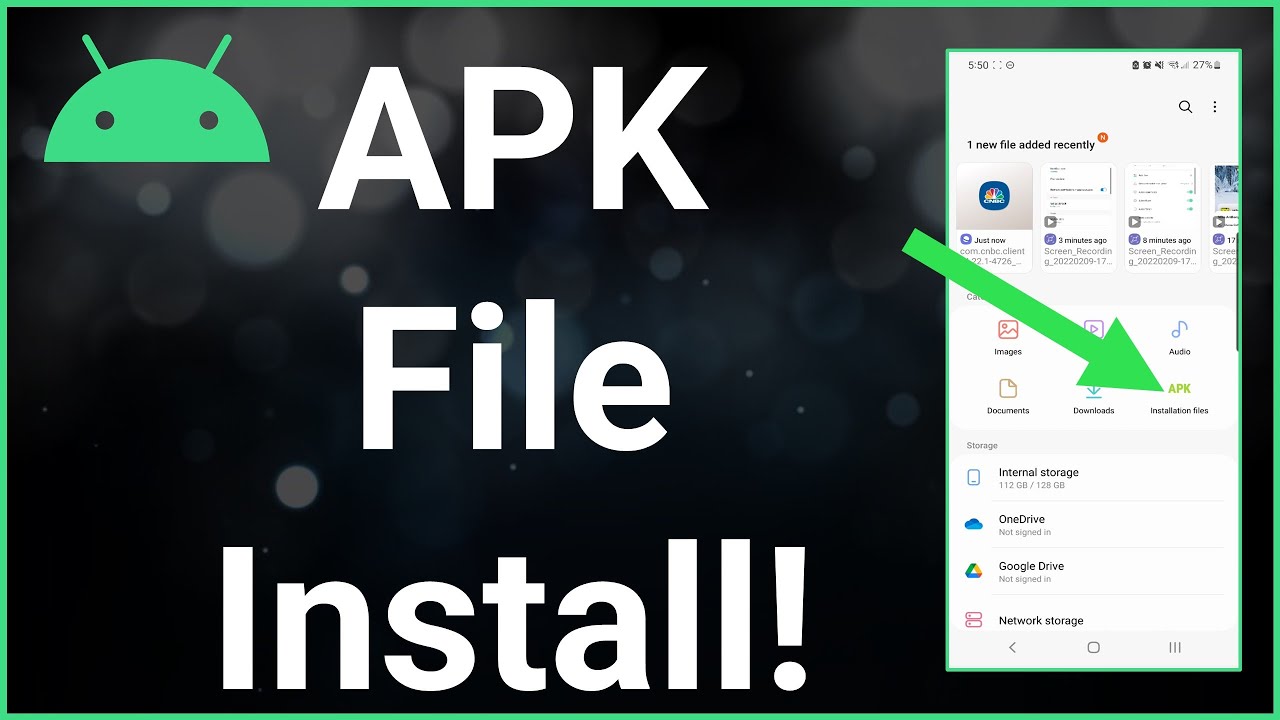
Understanding APKs and Sideloading: Why Go Beyond the Play Store?
Before diving into the mechanics of installation, it’s crucial to grasp the fundamental concepts of what an APK file represents and the various compelling reasons one might opt for sideloading an application. This foundational knowledge empowers users to make informed decisions about their app installation practices.
What Exactly is an APK File?
At its core, an APK stands for Android Package Kit (sometimes referred to as Android Application Package). It’s the standard package file format used by the Android operating system for the distribution and installation of mobile apps. Think of it as the Android equivalent of an .exe file on Windows or a .dmg file on macOS.
An APK file is essentially an archive that contains all the elements an Android device needs to properly install an application. This includes:
- Application code: The compiled program code (DEX files) that makes the app run.
- Resources: Static content like images, audio files, and user interface layouts.
- Assets: Raw files bundled with the application.
- Certificates: Cryptographic certificates that verify the app’s developer.
- Manifest file: An
AndroidManifest.xmlfile that describes the application’s name, version, access rights, hardware features it requires, and other metadata.
When you download an app from the Google Play Store, you are, in essence, downloading an APK file (or parts of it, in the case of App Bundles, which Google then converts into an APK for your specific device). Sideloading simply means you’re acquiring this APK file from another source and manually installing it onto your device, bypassing the automated Play Store process.
The Allure of Sideloading: Benefits and Use Cases
The primary reason users choose to sideload APKs is to gain access to applications or features that are not available through conventional channels. This method, while requiring a degree of caution, opens up several valuable opportunities:
- Access to Geo-Restricted Applications: Many apps are released only in specific regions or countries due to licensing agreements, local regulations, or developer strategy. Sideloading allows users outside these regions to install and use such applications, often with the help of a VPN for initial setup or continued functionality.
- Beta Versions and Early Access Features: Developers frequently release beta versions of their apps to a limited audience for testing purposes. These versions often contain new features, bug fixes, or design overhauls that haven’t been pushed to the stable Play Store release. Sideloading grants early adopters the chance to experience these innovations firsthand.
- Apps Not Available on the Play Store: Not every legitimate Android application makes it to the Google Play Store. This could be due to Google’s content policies (which can be strict for certain utility apps, open-source software, or highly customized launchers), developer preference, or simply being niche tools. Examples include certain privacy-focused browsers, ad-blockers, or custom system utilities.
- Downgrading to Older App Versions: Sometimes, a new app update introduces unwanted changes, removes a beloved feature, or even causes stability issues on older devices. Sideloading an older APK allows users to revert to a previous, more functional, or preferred version of an application, providing a level of control over their app experience.
- Installing Apps on Devices Without Google Play Services: Certain Android devices, particularly those sold in specific markets (like China) or specialized hardware, may not come with Google Play Services pre-installed. Sideloading is often the only way to get applications onto these devices.
- App Development and Testing: For developers, sideloading is an indispensable tool for testing their own applications on physical devices during the development cycle, long before they are ready for official store submission.
- Privacy Considerations: Some users prefer to minimize their reliance on Google’s ecosystem for privacy reasons. By sideloading, they can acquire apps from alternative repositories or direct developer downloads, bypassing Google’s tracking and data collection associated with the Play Store.
Preparing Your Android Device for APK Installation
Before you can successfully sideload an APK, your Android device needs to be configured to allow installations from “unknown sources.” This is a crucial security setting that Android employs to protect users from potentially malicious software. Additionally, knowing where to safely acquire APKs is paramount.
Enabling “Install Unknown Apps” or “Unknown Sources”
This is the most critical step in preparing your device. By default, Android blocks installations from sources other than trusted app stores (like Google Play Store). You’ll need to temporarily override this setting. The exact path and terminology for this setting vary slightly depending on your Android version:
For Android 8.0 (Oreo) and Newer (Recommended Method):
Modern Android versions have enhanced security measures. Instead of a single system-wide toggle, you grant permission to specific apps to install APKs. This means if you download an APK using your web browser (e.g., Chrome), you’ll need to grant Chrome permission to install unknown apps. If you download it via a file manager, that specific file manager app needs the permission.
- Download the APK first: Use your web browser (e.g., Chrome, Firefox) to download the APK file you intend to install.
- Attempt to open the APK: Once the download is complete, tap the download notification or locate the file in your Downloads folder using a file manager.
- Permission Prompt: Android will likely display a warning message stating, “For your security, your phone is not allowed to install unknown apps from this source.” Below this, you’ll see an option like “Settings” or “Allow from this source.”
- Grant Permission: Tap “Settings” or “Allow from this source.” This will take you directly to the “Install unknown apps” screen for the specific app that attempted the installation (e.g., Chrome, Files).
- Toggle On: Toggle the switch next to “Allow from this source” to the On position.
- Return and Install: Go back to your file manager or browser, and tap the APK file again. You should now be prompted to install it.
For Android 7.0 (Nougat) and Older:
Older Android versions use a single, system-wide toggle for “Unknown sources.”
- Go to Settings: Open the main Settings app on your device.
- Navigate to Security: Scroll down and find “Security” or “Lock screen and security.”
- Enable Unknown Sources: Locate “Unknown sources” and toggle the switch to the On position.
- Confirm Warning: A warning message will appear, informing you of the risks associated with installing apps from unknown sources. Read it carefully and tap “OK” to confirm.
Important Security Note: It is highly recommended to disable this setting (either the specific app permission or the system-wide toggle) immediately after you have successfully installed your desired APK. Leaving it enabled leaves your device vulnerable to potentially malicious apps installing themselves without your explicit permission.
Downloading APKs Safely: Choosing Reputable Sources
The biggest risk associated with sideloading is the potential for installing malicious software. Just as you wouldn’t download an .exe file from a suspicious website on your PC, you should exercise extreme caution when downloading APKs. Always prioritize reputable and well-known sources.
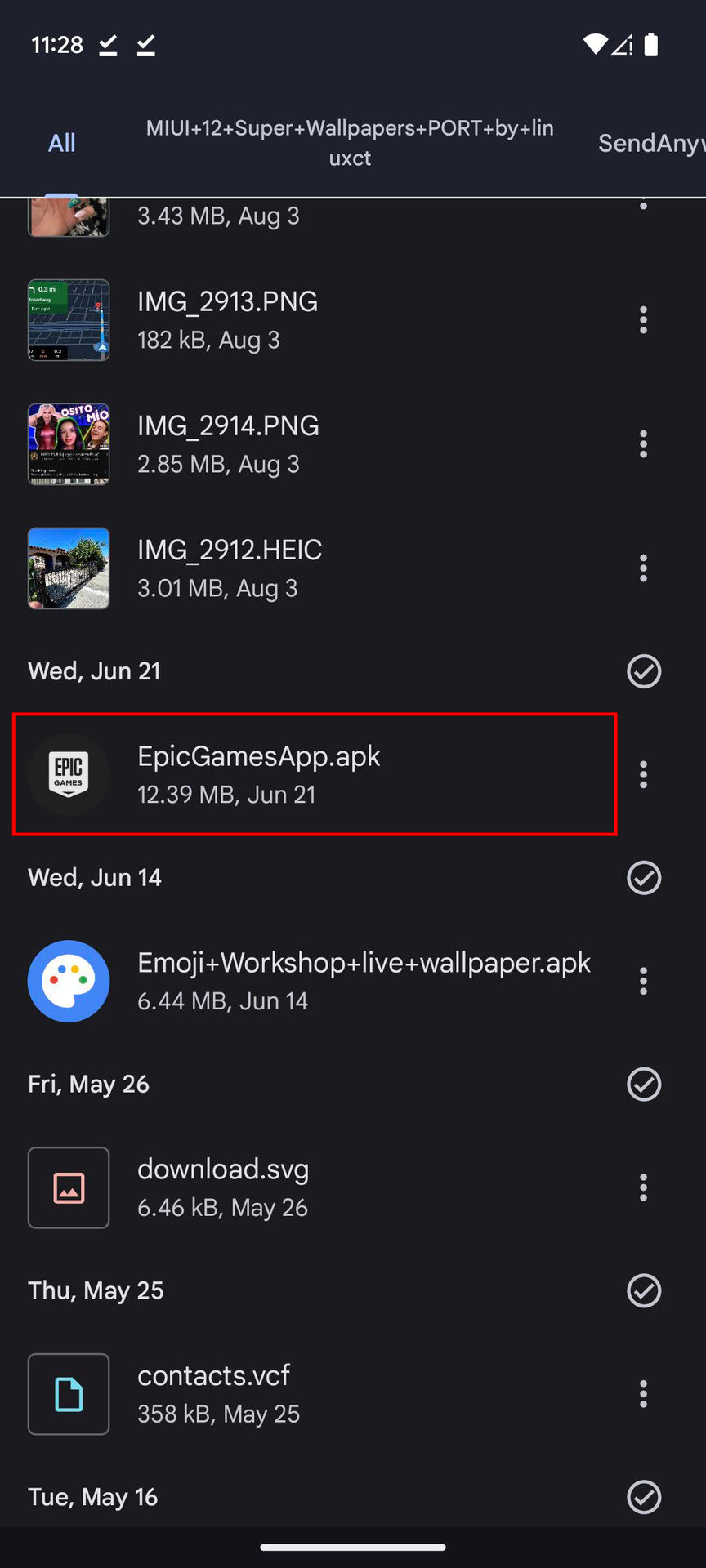
Here are some guidelines and commonly trusted sources:
- Official Developer Websites: If the developer of the app you want to install offers an APK directly on their official website, this is usually the safest option.
- APKMirror: This is one of the most trusted repositories for APK files. APKMirror focuses on free apps, ensuring they are untouched, signed by their original developers, and cryptographically verified. They also provide information on architecture, DPI, and Android version compatibility.
- APKPure: Another popular and generally reliable source. Like APKMirror, APKPure verifies the legitimacy of uploaded APKs.
- F-Droid: A repository specifically for Free and Open Source Software (FOSS) Android apps. Apps on F-Droid are typically open-source and often undergo scrutiny, making it a good choice for privacy-conscious users.
- Avoid Random Websites: Steer clear of obscure websites, file-sharing forums, or links found in untrustworthy emails/messages. These are common vectors for malware.
- Check App Permissions: Before installing an APK, always review the permissions it requests. If an app requests permissions that seem excessive or unrelated to its functionality (e.g., a simple calculator requesting access to your camera or contacts), it’s a major red flag.
- Use an Antivirus/Anti-Malware App: Running a reputable mobile security solution on your Android device can provide an extra layer of protection by scanning downloaded APKs for known threats.
A Step-by-Step Guide to Sideloading APKs
Once your device is prepared and you’ve secured a trusted APK file, the actual installation process is straightforward. Follow these steps carefully to ensure a smooth and successful installation.
Locating and Initiating the Installation
- Download the APK File: Using your chosen web browser (e.g., Chrome, Firefox), navigate to your reputable APK source and download the desired APK file. Most browsers will show a download progress notification.
- Confirm Download: After the download is complete, you’ll typically see a “Download complete” notification. Tap on this notification.
- Alternatively, if you miss the notification, open your device’s “Files” app (or a third-party file manager like Files by Google, ES File Explorer, Solid Explorer).
- Navigate to the “Downloads” folder. This is the default location where most browsers save downloaded files.
- Tap the APK File: Locate the
.apkfile you just downloaded and tap on it.
Navigating Permissions and Completing the Process
- Install Unknown Apps Prompt (if not already done): If you haven’t granted permission for your browser or file manager to install unknown apps (as described in the “Preparing Your Device” section), you will be prompted to do so now. Tap “Settings” and enable “Allow from this source” for the app that launched the APK. Then, go back and tap the APK again.
- Review Permissions: Android will present a screen detailing the permissions the app requires (e.g., access to storage, camera, contacts). This is a critical moment to review. Read through these permissions carefully. If anything seems suspicious or excessive for the app’s purported function, cancel the installation.
- Tap “Install”: If you are comfortable with the requested permissions, tap the “Install” button, usually located at the bottom right of the screen.
- Installation Progress: The installation process will begin, indicated by a progress bar or spinner. This typically takes only a few seconds, though larger apps might take longer.
- Installation Complete: Once the installation is finished, you’ll see a screen indicating “App installed.” You’ll usually have two options:
- “Open”: To launch the newly installed app immediately.
- “Done”: To close the installer and return to your home screen or file manager.
Congratulations! You have successfully sideloaded an APK onto your Android device.
Navigating the Risks and Best Practices for Sideloading
While sideloading offers considerable flexibility, it also introduces potential security risks that are largely mitigated when installing apps exclusively from the Google Play Store. Understanding these risks and adopting best practices is crucial for protecting your device and personal data.
Security Concerns and Mitigations
The primary concern with sideloading is the increased exposure to malware, viruses, and other security threats. When you download an APK from an untrusted source, you bypass Google Play Protect’s automatic scanning and verification processes.
- Malware and Viruses: Malicious actors can embed viruses, ransomware, spyware, or adware into seemingly legitimate APKs. Once installed, these can steal your personal information, display intrusive ads, encrypt your data, or even take control of your device.
- Mitigation: Always download from highly reputable sources. Never install an APK from a link you received unexpectedly or from a website you don’t recognize. Use a mobile security app to scan downloaded APKs before installation.
- Data Theft and Privacy Breaches: A malicious app might request excessive permissions (e.g., access to your contacts, SMS, location, microphone) and then covertly transmit your sensitive data to remote servers.
- Mitigation: Carefully review all requested permissions during installation. If a simple flashlight app asks for microphone access, decline the installation. Post-installation, regularly review app permissions via your device settings and revoke any that seem unnecessary.
- Adware and Unwanted Pop-ups: Some less nefarious but equally annoying APKs might inject adware onto your device, leading to a barrage of unwanted pop-up ads, browser redirects, and a degraded user experience.
- Mitigation: Stick to reputable sources. If an app seems “too good to be true” (e.g., a paid app offered for free), it often is.
Post-Installation Security Measures
Your responsibility doesn’t end once the APK is installed. Adopting good habits after sideloading can significantly enhance your device’s security.
- Disable “Install Unknown Apps” Immediately: This is perhaps the most critical post-installation step. Go back into your Settings (Security > Install unknown apps, or specific app permissions) and turn off the “Allow from this source” toggle for any app you enabled. This prevents other potentially malicious apps from being installed without your knowledge.
- Regularly Review App Permissions: Even legitimate apps can sometimes have overly broad permissions. Periodically go through your device’s app settings and review the permissions granted to each application. Revoke any permissions that are not essential for the app’s functionality.
- Keep Your Android OS Updated: Android security updates often patch vulnerabilities that could be exploited by malicious APKs. Ensure your device is always running the latest available software version.
- Consider a Mobile Security Solution: Installing a reputable antivirus or anti-malware app (like Malwarebytes, Avast, or Bitdefender) can provide ongoing protection by scanning your device for threats and monitoring app behavior.
- Uninstall Unused or Suspicious Apps: If you install an APK and it doesn’t function as expected, or if it starts exhibiting suspicious behavior (excessive ads, battery drain, unusual permissions requests), uninstall it immediately.
Troubleshooting Common Sideloading Issues
While the process is generally straightforward, you might encounter a few common issues. Here’s how to troubleshoot them:
- “App not installed” error:
- Insufficient Storage: Your device might not have enough free space. Clear some storage by deleting old photos, videos, or unused apps.
- Incompatible Android Version: The APK might be designed for a newer or older Android version than what your device is running. Check the app’s compatibility requirements.
- Corrupted APK File: The downloaded APK file might be incomplete or damaged. Try downloading it again from the same or a different reputable source.
- Conflicting App Signatures: If you’re trying to install an updated version of an app that’s already on your device (especially if it was from a different source), the signatures might conflict. You might need to uninstall the existing version first.
- “Parse Error” or “There was a problem parsing the package”:
- Corrupted APK: Similar to the above, the APK file might be corrupted.
- Incompatible Android Version/Architecture: The APK might not be compatible with your device’s processor architecture (e.g., ARM vs. x86) or Android version. Ensure you download the correct variant.
- App crashes immediately after installation:
- Compatibility Issues: The app might not be fully compatible with your specific device model or Android version.
- Missing Dependencies: Some apps require Google Play Services or other frameworks to function properly. If your device lacks these (e.g., certain custom ROMs or devices without GMS), the app might crash.
- Corrupted Installation: Try uninstalling the app and reinstalling it from the APK.
- Download issues:
- Internet Connectivity: Ensure you have a stable internet connection.
- Browser/App Restrictions: Check if your browser or file manager has necessary permissions or if any firewall/VPN is interfering.
By understanding these potential pitfalls and following the recommended troubleshooting steps, you can often resolve issues quickly and get your desired apps up and running.

Conclusion
Sideloading APKs on Android is a powerful feature that grants users greater control and flexibility over their mobile experience. Whether you’re seeking early access to features, exploring geo-restricted content, or simply prefer to use applications unavailable on the official Play Store, the ability to install APKs directly is an invaluable tool in the Android toolkit.
However, this enhanced freedom comes with an inherent responsibility. The open nature of Android necessitates user vigilance, particularly when venturing beyond the curated safety of official app stores. By meticulously choosing reputable sources, carefully reviewing app permissions, and diligently reenabling your device’s security settings after each sideloading instance, you can harness the full potential of APK installations without compromising your device’s security or your personal data. Embrace the power of Android’s openness, but do so with knowledge, caution, and a commitment to best practices.
aViewFromTheCave is a participant in the Amazon Services LLC Associates Program, an affiliate advertising program designed to provide a means for sites to earn advertising fees by advertising and linking to Amazon.com. Amazon, the Amazon logo, AmazonSupply, and the AmazonSupply logo are trademarks of Amazon.com, Inc. or its affiliates. As an Amazon Associate we earn affiliate commissions from qualifying purchases.