
The Android operating system is celebrated for its open-source nature and the flexibility it offers users. Unlike more restrictive ecosystems, Android allows users to venture beyond the official Google Play Store to find software. This process, commonly known as “sideloading,” involves the installation of APK (Android Package Kit) files. Whether you are looking to access region-locked applications, test a beta version of a new tool, or install an app that isn’t available on mainstream platforms, understanding how to safely and effectively install APK files is a fundamental skill for any tech-savvy Android user.

In this guide, we will explore the technical nuances of APK files, the step-by-step installation process across different Android versions, and the critical security protocols you must follow to protect your digital environment.
Understanding the APK Ecosystem and Safety Protocols
Before diving into the installation process, it is essential to understand what an APK file is and the implications of using them. An APK is the package file format used by the Android operating system for the distribution and installation of mobile apps. Think of it like a .exe file on Windows or a .dmg file on macOS; it contains all the code, resources, and manifest files needed for an application to run.
What is an APK File?
Technically, an APK is a ZIP-formatted archive based on the JAR (Java Archive) format. When you download an app from the Google Play Store, the system handles the extraction and installation of this package in the background. Sideloading is simply the manual version of this process. It gives users granular control over which version of an app they run, allowing for “downgrading” to a previous version if a new update proves buggy—a feat nearly impossible through official channels.
The Risks and Benefits of Sideloading
The primary benefit of sideloading is freedom. You gain access to a vast world of open-source software (like those found on F-Droid) and experimental tools. However, this freedom comes with responsibility. Because APKs bypass the rigorous automated scanning of the Google Play Store, they can be a vector for malware, spyware, or ransomware.
To mitigate these risks, professional users always adhere to the “Rule of Source.” Only download APKs from reputable, community-vetted repositories such as APKMirror, APKPure, or the official website of the software developer. Avoid “modded” or “cracked” APKs that promise premium features for free, as these are the most common carriers of malicious code.
Preparing Your Device for Installation
Android’s security architecture is designed to prevent the accidental installation of unauthorized software. To install an APK, you must manually override these protections. The method for doing this has evolved significantly as the Android OS has matured.
Enabling “Unknown Sources” on Older Android Versions (Android 7.0 and Below)
In older iterations of Android (Nougat and earlier), there was a global toggle to allow installations from outside the Play Store. To enable this, users navigate to Settings > Security and switch on the toggle for “Unknown Sources.” While convenient, this was a security vulnerability, as it allowed any app on the phone to potentially trigger an installation of another file.
Granting Per-App Permissions (Android 8.0 Oreo to Android 14+)
Modern Android versions have replaced the global toggle with a more secure “Install Unknown Apps” permission. Instead of a blanket authorization, you now grant permission to specific applications—such as your web browser or your file manager—to install packages.
To set this up:
- Open your device Settings.
- Navigate to Apps or Apps & Notifications.
- Select Special App Access (often found under “Advanced”).
- Tap on Install Unknown Apps.
- Select the app you intend to use to download the APK (e.g., Google Chrome or Solid Explorer).
- Toggle the switch to Allow from this source.
This granular control ensures that even if you accidentally download a malicious file, it cannot install itself without the explicit permission of a trusted intermediary app.
Step-by-Step Guide to Installing APK Files
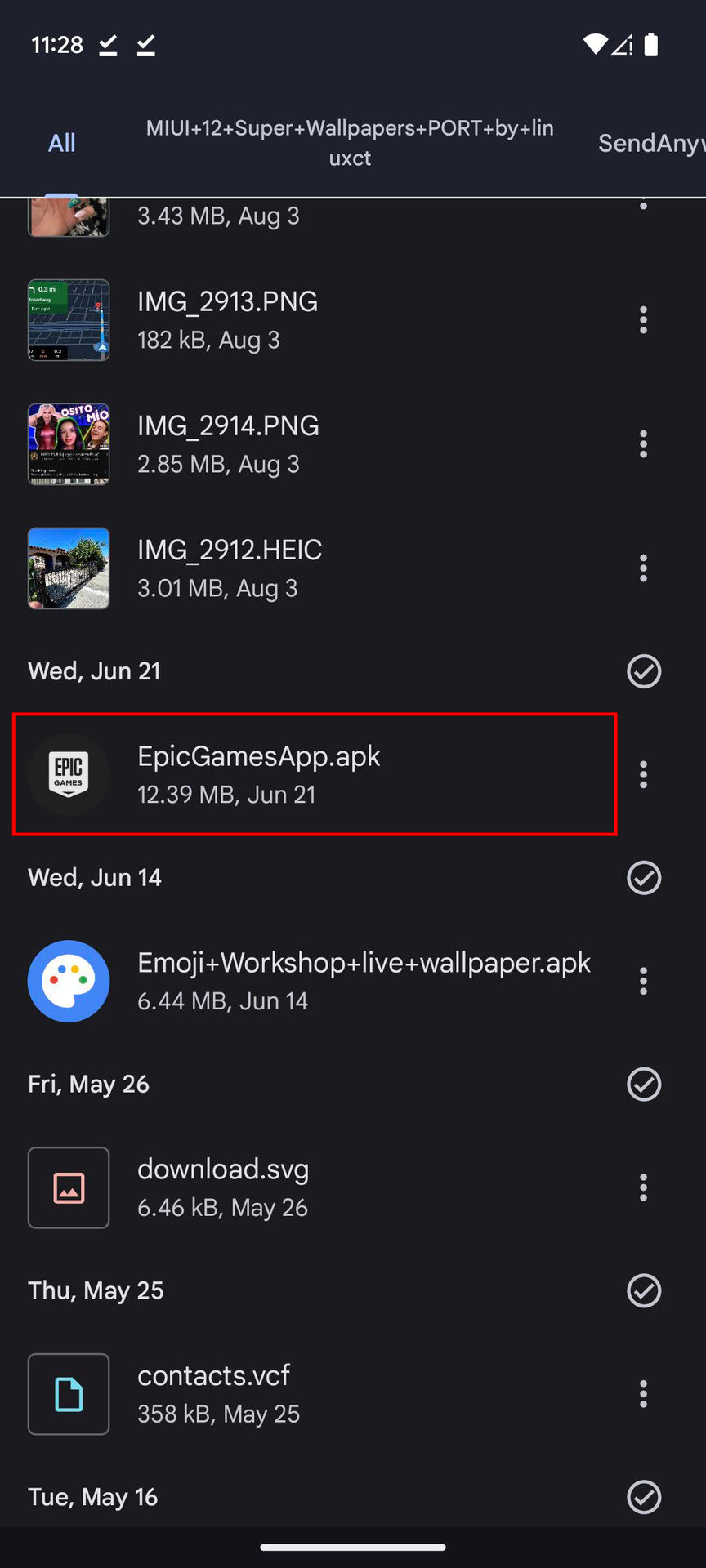
Once your device is configured, the actual installation process is straightforward. However, the rise of “Split APKs” and “App Bundles” has introduced some complexity that users should be aware of.
Downloading and Locating the File
Using a secure browser, navigate to your chosen repository and download the APK. Once the download is complete, you will often see a notification in your status bar. You can tap this notification to begin the installation immediately. If you clear the notification, you will need to use a File Manager app to navigate to your Downloads folder.
Executing the Installer
When you tap on the APK file, Android’s Package Installer will launch. It will display a prompt asking if you want to install the application, often listing the permissions the app requires.
- Review Permissions: Professional users always scan this list. If a simple calculator app asks for access to your contacts and microphone, it is a significant red flag.
- The Installation: Tap Install. The system will run a brief security scan (via Play Protect) and then place the app in your drawer.
Handling XAPK and Split APK Files
In recent years, developers have shifted toward Android App Bundles (AAB) to reduce file sizes. This resulted in the “Split APK” format, where an app is broken into several smaller pieces (base APK + config APKs). These cannot be installed via the standard Package Installer.
To install these, you will need a third-party utility like SAI (Split APKs Installer). These tools aggregate the various components and present them to the OS as a single, cohesive installation. If you see a file ending in .xapk or .apks, a standard tap-to-install will fail, and you must use a specialized installer.
Troubleshooting Common Installation Errors
Even with the correct settings, you may encounter roadblocks during the installation process. Understanding the technical reasons behind these errors can save hours of frustration.
The “App Not Installed” Error
This is the most common and often the most vague error message. It usually occurs for one of three reasons:
- Conflicting Packages: You are trying to install a version of an app that is already on your phone, but the “signatures” don’t match. This happens if you try to update a Play Store app with an APK from a different source. You must uninstall the existing app first.
- Insufficient Storage: APK installation requires double the file size (space for the APK itself and space for the extracted files).
- Corrupt File: If the download was interrupted, the archive will be broken. Redownloading the file usually solves this.
Parsing Errors
A “Parse Error” typically means the APK is not compatible with your version of Android. For example, if you try to install an app designed for Android 13 on a phone running Android 10, the installer will fail to read the manifest file. Additionally, check the CPU architecture; an APK compiled strictly for 64-bit (arm64-v8a) will not run on older 32-bit hardware.
Advanced Techniques and Best Practices for Digital Security
For those who frequently sideload, the process can be streamlined and secured using professional-grade tools and habits.
Using ADB for PC-to-Android Installation
For developers and power users, the Android Debug Bridge (ADB) is the most robust way to install APKs. By connecting your phone to a computer via USB and using the command adb install filename.apk, you can bypass the on-device UI entirely. This is particularly useful for troubleshooting or installing apps on devices with broken screens.
Post-Installation Clean-up and Verification
Once an app is installed, the original APK file is no longer needed. It remains in your storage, consuming space. It is a best practice to delete the APK file immediately after a successful installation.
Furthermore, always keep Google Play Protect enabled. Even for sideloaded apps, Play Protect acts as a secondary layer of defense, scanning the installed code for malicious behavior patterns. While it may occasionally flag niche or experimental apps as “unrecognized,” it is an invaluable tool for the average user.
Conclusion
Installing APK files is a gateway to the full potential of the Android platform. By moving beyond the curated walls of official stores, you can customize your device to an extraordinary degree. However, as we have explored, this technical freedom requires a disciplined approach to security. By verifying your sources, understanding your device’s permission architecture, and knowing how to troubleshoot installation hurdles, you can navigate the world of Android sideloading with professional confidence. Whether you are a developer testing a new build or a user seeking software independence, the APK remains a powerful tool in your digital arsenal.
aViewFromTheCave is a participant in the Amazon Services LLC Associates Program, an affiliate advertising program designed to provide a means for sites to earn advertising fees by advertising and linking to Amazon.com. Amazon, the Amazon logo, AmazonSupply, and the AmazonSupply logo are trademarks of Amazon.com, Inc. or its affiliates. As an Amazon Associate we earn affiliate commissions from qualifying purchases.