
Android’s open-source nature is one of its most defining and powerful characteristics, offering users an unparalleled degree of freedom and customization. While the Google Play Store serves as the primary gateway to countless applications, it represents only a fraction of the vast software ecosystem available for your device. Beyond this curated marketplace lies the world of APKs – Android Package Kits – the fundamental format for distributing and installing Android applications. Understanding how to confidently and securely install APKs is a crucial skill for any power user, developer, or enthusiast looking to unlock their device’s full potential.

This guide will demystify the process of sideloading APKs, providing a clear, step-by-step tutorial while also emphasizing the critical security considerations and best practices. We’ll explore why you might choose to install an APK outside of official channels, how to prepare your device, the installation workflow, and crucially, how to navigate the inherent risks to keep your digital life secure. For tech enthusiasts, brand strategists eyeing niche markets, and individuals focused on maximizing productivity and digital security, mastering APK installation is an indispensable skill.
Unlocking Android’s Potential: Why APKs Matter
The decision to install an application via an APK often stems from a desire for greater control, access to unique functionalities, or a strategic necessity. While the Play Store offers convenience and a baseline of security, the world of APKs opens up new avenues for customization and utility.
What is an APK and How Does it Differ?
At its core, an APK (Android Package Kit) is the package file format used by the Android operating system for distribution and installation of mobile apps. Think of it as the .exe file for Windows or the .dmg for macOS, but for your Android phone or tablet. When you download an app from the Google Play Store, you are, in essence, downloading and installing an APK file in the background, managed seamlessly by Google’s services.
The key difference when we talk about “installing an APK” is that you are bypassing the automated systems of the Play Store. Instead, you are manually obtaining the APK file from another source and instructing your device to install it directly. This direct installation process, often referred to as “sideloading,” grants users more autonomy over the software on their devices, making it a critical aspect of Android’s open ecosystem.
Beyond the Play Store: The Strategic Advantages of Sideloading
The reasons for choosing to sideload an APK are diverse and often strategic, touching upon various aspects of technology trends, app development, and even personal finance.
- Access to Geo-Restricted Applications: Many apps are region-locked, preventing users in certain countries from downloading them through official app stores. Sideloading an APK can circumvent these restrictions, allowing you to access tools, games, or services that might be crucial for international communication, market research, or simply staying connected with content from your home country. For businesses, this can mean accessing niche productivity tools or competitor analysis apps unavailable in their local Play Store.
- Beta Versions and Early Access: Developers often release beta versions of their apps to a select group of testers before a public rollout. These beta APKs allow tech-savvy users to preview new features, provide feedback, and gain early access to cutting-edge functionalities. For those invested in technology trends, this offers a front-row seat to innovation.
- Older Versions of Apps: Sometimes, an app update introduces unwanted changes, removes a favorite feature, or breaks compatibility with an older device. Sideloading an older version of an app via an APK can be a lifesaver, allowing you to roll back to a more stable or preferred iteration. This control over app versions is invaluable for maintaining productivity with specific workflows.
- Apps Not Available on the Play Store: Some legitimate applications, especially those catering to highly specific niches, open-source projects, or custom internal tools for businesses, may never be listed on the Google Play Store. Sideloading is the only way to get these unique applications onto your device. This is particularly relevant for businesses developing proprietary internal tools or for users seeking highly specialized AI tools or utility apps that don’t fit Google’s strict Play Store guidelines for various reasons.
- Developer and Custom ROM Support: For developers and enthusiasts who flash custom ROMs or test their own applications, APKs are the standard means of distribution and installation. This aspect underscores the “Tech” focus of sideloading, empowering innovation and experimentation within the Android ecosystem.
- Cost-Saving for Niche Tools (with caution): While we strongly advocate against piracy, there are instances where developers offer free trials or direct downloads of paid apps for specific purposes that aren’t facilitated by the Play Store’s payment infrastructure. Users can sometimes access specific functional trials through direct APKs, potentially saving money on initial testing before committing to a purchase, provided these are legitimate offerings from the developer.
The Inherent Risks: Navigating the Digital Minefield
Despite the advantages, sideloading APKs is not without its perils. The freedom of direct installation comes with increased responsibility, particularly concerning digital security.
- Malware and Viruses: The most significant risk associated with sideloading is installing a malicious APK. Unlike apps from the Google Play Store, which undergo security checks (though not infallible), APKs from unknown sources can be embedded with malware, spyware, ransomware, or other harmful code. This could compromise your personal data, financial information (linking to the “Money” topic), or even take control of your device.
- Security Vulnerabilities: Even if an APK isn’t overtly malicious, it might contain unpatched security vulnerabilities that could be exploited by other malicious apps or actors. Outdated or poorly coded applications pose a continuous risk to your device’s overall digital security.
- Data Privacy Concerns: Malicious APKs might secretly collect your personal data, track your location, access your contacts, or monitor your online activity without your consent. This directly impacts your privacy and could have significant “Brand” implications if corporate data is compromised.
- System Instability: Poorly developed or incompatible APKs can cause system crashes, performance degradation, or conflicts with other applications, leading to a frustrating user experience and reduced productivity.
- Lack of Automatic Updates: Sideloaded apps typically do not receive automatic updates through the Play Store. This means you are responsible for manually checking for and installing new versions, which can be cumbersome and leave you vulnerable to security flaws in older builds.
Understanding and mitigating these risks is paramount. The benefits of sideloading only outweigh the dangers when performed with due diligence and a robust security mindset.
Preparing Your Device for Sideloading: The Essential Steps
Before you can install an APK from an unofficial source, your Android device needs a slight adjustment to its security settings. The exact steps can vary slightly depending on your Android version, as Google has progressively refined its security protocols.
Enabling “Unknown Sources” (Android 8.0 Oreo and Below)
For older Android versions (Oreo and earlier), the permission to install apps from outside the Play Store is a system-wide toggle.
- Open Settings: Tap the “Settings” icon on your home screen or app drawer.
- Navigate to Security: Scroll down and find “Security” or “Security & Lock Screen.”
- Find “Unknown Sources”: Within the security menu, locate the option labeled “Unknown Sources.”
- Enable the Toggle: Tap the toggle switch to enable it.
- Confirm the Warning: A warning message will appear, explaining the risks of installing apps from unknown sources. Read it carefully and tap “OK” or “Allow” to proceed.
Once enabled, any app downloaded as an APK can be installed on your device until this setting is disabled. Remember to disable it again after installing your desired APKs to enhance your device’s security.
Granting “Install Unknown Apps” Permissions (Android 9.0 Pie and Above)
Starting with Android 9.0 Pie, Google introduced a more granular security model for sideloading. Instead of a single system-wide toggle, you must grant permission to “Install unknown apps” on a per-app basis. This means you specify which app (e.g., your browser, file manager, or messaging app) is allowed to initiate the installation of an APK downloaded through it. This change significantly enhances digital security by limiting the scope of potential threats.
- Open Settings: Tap the “Settings” icon.
- Navigate to Apps & Notifications: Scroll down and tap on “Apps & notifications” (it might be simply “Apps” or “Applications” on some devices).
- Access Special App Access: Tap “Advanced” (if available) or scroll down and look for “Special app access” or “Special access.”
- Find “Install unknown apps”: Within “Special app access,” locate and tap “Install unknown apps.”
- Select the Source App: You’ll see a list of apps on your device. Identify the app you’ll use to download or open the APK file (e.g., your web browser like Chrome or Firefox, or your file manager like Files by Google, or even your messaging app if someone sent you an APK).
- Allow from This Source: Tap on the chosen app (e.g., Chrome) and then toggle “Allow from this source” to the “On” position.
Repeat this process for any other app you plan to use to download or manage APK files for installation. It’s recommended to disable this permission for specific apps once you’ve finished your installation to maintain a higher level of security. This approach aligns with modern digital security practices, giving users more control over their device’s behavior.
Sourcing Your APKs Responsibly: Trust and Verification
Preparing your device is only half the battle; the other, equally critical half involves sourcing your APK files from reputable locations. This directly impacts your brand security and financial well-being, as a compromised device can lead to significant losses.
- Official Developer Websites: The safest source for an APK is almost always the official website of the app’s developer. Many developers offer direct downloads for their apps, especially if they are not available on the Play Store, are open-source, or are in beta. Always verify the URL to ensure you’re on the legitimate site, not a phishing clone. This respects the developer’s brand and ensures you get an authentic product.
- Reputable Third-Party App Stores: Several well-known third-party app stores, such as F-Droid (for open-source apps), Amazon Appstore, or APKMirror, have strong reputations for vetting their APKs. APKMirror, for example, focuses on providing original, unmodified APKs directly from developers, making it a relatively safe option for getting legitimate apps not yet available or updated in your region.
- Developer Forums and Communities: For beta versions, niche tools, or custom ROMs, developer forums (like XDA Developers) or community-driven platforms can be excellent sources. However, exercise extreme caution and only download from trusted members or official threads.
- Antivirus Scans: Before installing any APK, especially if you’re unsure of its origin, it’s wise to scan the file with an antivirus application on your computer or a reputable online APK scanner service. While not foolproof, this adds an extra layer of protection against known threats.
- Read Reviews and Permissions: Before downloading, search for reviews or discussions about the APK you intend to install. After installation, always review the permissions the app requests. If an app requests excessive or irrelevant permissions (e.g., a simple calculator asking for camera and microphone access), it’s a major red flag. This due diligence is part of a strong digital security strategy.
- Avoid Pirated Content: Never download APKs from websites that offer cracked, modded, or pirated versions of paid apps. These are notorious vectors for malware and contribute to financial losses for legitimate developers. The allure of “free” often comes with a steep hidden cost in terms of security and privacy.
The Installation Journey: A Step-by-Step Walkthrough
Once your device is configured and you have a safely sourced APK file, the actual installation process is straightforward.
Downloading the APK File
- Using Your Browser: The most common method is to download the APK directly from a website using your Android device’s web browser (e.g., Chrome, Firefox). Tap the download link, and your browser will usually ask for confirmation.
- Via Email or Cloud Storage: If someone sent you an APK via email or you stored it in a cloud service (like Google Drive, Dropbox), you can open the file directly from your email client or cloud storage app.
- Connecting to a Computer: You can also download the APK to your computer and then transfer it to your Android device using a USB cable. Place the file in an easily accessible folder, such as “Downloads” or “Documents.”
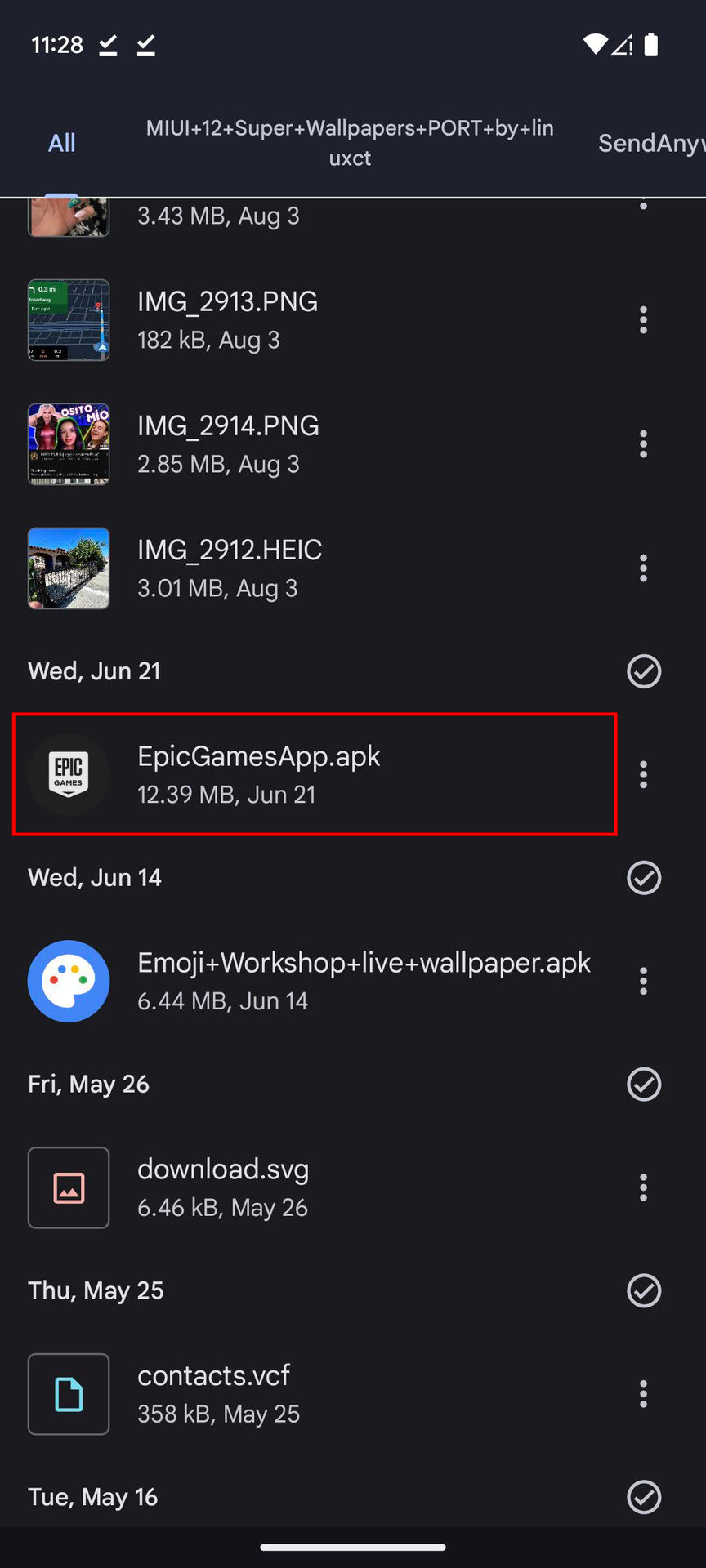
Once the download is complete, a notification will usually appear, indicating the file has been saved.
Locating and Initiating Installation
-
Using the Notification: Often, after the download completes, a “Download complete” notification will appear. Tapping this notification is the quickest way to open the APK file.
-
Using a File Manager: If the notification disappears or you’re installing an APK transferred from a computer, you’ll need to use a file manager app.
- Open your device’s file manager (e.g., “Files by Google,” “My Files,” or a third-party file manager).
- Navigate to the “Downloads” folder, which is the default location for most browser downloads. If you transferred it from a computer, navigate to the folder where you placed it.
- Locate the APK file (it will have a
.apkextension). - Tap on the APK file to begin the installation.
-
Installation Prompt: A prompt will appear, asking if you want to install the application. It will also show you the permissions the app requires. Review these permissions carefully.
-
Confirm Installation: Tap “Install.” The installation process typically takes a few seconds to a minute, depending on the app’s size and your device’s performance.
-
Completion: Once installed, you’ll see a message indicating “App installed” or “App installed successfully.” You’ll then have options to “Open” the app directly or “Done” to close the installer.
Post-Installation Considerations
After successfully installing the APK, remember to perform these crucial steps:
- Review Permissions Again: Even after installation, go into your device’s Settings > Apps, find the newly installed app, and review its granted permissions. Disable any that seem unnecessary or intrusive. This is a vital aspect of ongoing digital security and privacy.
- Disable “Install Unknown Apps” Permission: For enhanced security, return to
Settings > Apps & notifications > Special app access > Install unknown appsand disable the “Allow from this source” toggle for the app you used to install the APK (e.g., your browser or file manager). This minimizes the window for potential future vulnerabilities. - Regularly Check for Updates: Since sideloaded apps don’t auto-update via the Play Store, you’ll need to manually check the developer’s website or the source where you got the APK for newer versions. Keeping apps updated is crucial for security patches and new features, aligning with best practices in technology trends.
Mitigating Risks and Ensuring Security
The journey of installing APKs doesn’t end with successful installation. Proactive risk mitigation and ongoing security practices are essential to ensure your device remains safe and your data protected.
The Lifecycle of an APK: Updates and Vulnerabilities
A significant challenge with sideloaded apps is managing their lifecycle, particularly updates. Software is rarely “finished”; it evolves with bug fixes, performance enhancements, and, critically, security patches.
- Manual Updates are Key: Unlike Play Store apps that update automatically in the background, sideloaded apps require manual intervention for updates. This means you must periodically revisit the original source (developer’s website, trusted third-party store) to download and install newer versions. Neglecting updates can leave your device vulnerable to newly discovered exploits.
- Outdated Apps as Security Risks: An outdated app, even if initially benign, can become a security liability over time. Attackers constantly discover and exploit flaws in older software versions. Staying current is a fundamental principle of digital security, protecting your data and potentially your financial assets.
- Compatibility Issues: New Android versions often bring changes that older apps may not be designed for, leading to crashes, reduced functionality, or system instability. Regular updates from developers ensure compatibility and optimal performance.
Essential Security Practices for Sideloaders
To minimize the risks associated with sideloading, adopt these robust security practices:
- Install a Reputable Antivirus/Anti-Malware App: Even with careful sourcing, a good security suite on your Android device can detect and warn you about malicious behavior from installed apps. These apps continuously monitor your device for suspicious activity, providing an essential layer of defense. This is a core component of “Digital Security” under the “Tech” topic.
- Regular Data Backups: Periodically back up your essential data (photos, documents, contacts) to a cloud service or an external drive. In the event of a malware infection that necessitates a factory reset, you’ll be able to restore your valuable information. This is good practice for both personal and business finance, protecting against data loss that could lead to monetary loss.
- Use a Strong Screen Lock: A PIN, pattern, or fingerprint lock adds a crucial barrier against unauthorized physical access to your device.
- Be Wary of Excessive Permissions: Always scrutinize the permissions an app requests during installation and in your device settings afterward. If a flashlight app asks for access to your contacts, microphone, and location, it’s highly suspicious. Deny unnecessary permissions.
- Keep Android OS Updated: Ensure your Android operating system is always running the latest available version for your device. OS updates frequently include critical security patches that protect against a wide range of threats.
- Avoid Rooting (Unless Necessary and Understood): While rooting offers ultimate control, it also bypasses many of Android’s built-in security features, making your device significantly more vulnerable to malicious apps and attacks. If you don’t fully understand the implications, avoid rooting.
Legal and Ethical Considerations: Respecting Digital Boundaries
While sideloading offers freedom, it’s crucial to operate within legal and ethical boundaries, particularly when it comes to “Brand” and “Money” aspects.
- Copyright and Intellectual Property: Downloading and installing paid apps for free through unauthorized APKs is piracy, which is illegal and unethical. It harms developers, impacting their ability to create quality software. Always support developers by purchasing their legitimate applications.
- Terms of Service (ToS): Some app developers or service providers explicitly state in their ToS that using unofficial APKs or modified versions of their apps is prohibited. Doing so could result in your account being suspended or banned.
- Brand Reputation: For businesses, relying on pirated software or unverified APKs can tarnish your brand reputation and expose you to legal liabilities. Always ensure your software acquisition methods are above board.
- Data Sovereignty and Privacy Laws: Be mindful of where the APKs originate and what data they might collect. Different regions have varying data protection laws. Using apps from unknown sources could inadvertently violate GDPR or other privacy regulations, especially if handling sensitive data.
Troubleshooting Common APK Installation Issues
Despite careful preparation, you might occasionally encounter problems when trying to install an APK. Here are some common issues and their solutions.
“App Not Installed” or “Parsing Package Error”
These are among the most frequent error messages.
- Corrupted or Incomplete Download: The APK file itself might be damaged during download. Try downloading the APK again from a trusted source.
- Insufficient Storage Space: Your device might not have enough free space to install the app. Check your storage (
Settings > Storage) and free up some space by deleting unnecessary files or apps. - App Compatibility Issues: The APK might not be compatible with your Android version or device architecture (e.g., an app built for ARM processors won’t run on an x86 device, though Android typically handles this). Check the app’s requirements.
- Conflicting App Signature: If you’re trying to install an update or a different version of an app you already have, and the new APK has a different cryptographic signature (which happens if it’s from a different developer or has been tampered with), the installation will fail. You may need to uninstall the existing app first, but be aware this will delete its data.
- Security Restrictions: Ensure “Install unknown apps” permission is correctly enabled for the app you’re using to open the APK.
App Crashing or Malfunctioning After Installation
If the app installs but doesn’t run correctly or crashes frequently:
- Incompatibility: The app might not be fully compatible with your specific Android device model or OS version. Check developer forums for known issues.
- Corrupt Installation: Try uninstalling the app and then reinstalling the APK.
- Insufficient Resources: The app might be too demanding for your device’s hardware (RAM, CPU).
- Missing Dependencies: Some apps require additional components or services (e.g., Google Play Services) that might not be fully functional or present if you’re on a de-Googled ROM or a highly customized system.
- Clear Cache and Data: Go to
Settings > Apps > [App Name] > Storageand try “Clear cache” and “Clear data.” Be aware that clearing data will erase the app’s stored information.
What to Do When an APK Turns Malicious
If you suspect you’ve installed a malicious APK:
- Disconnect from Network: Immediately turn off Wi-Fi and mobile data to prevent the app from sending or receiving data.
- Uninstall the App: Go to
Settings > Apps, find the suspicious app, and uninstall it. If you can’t uninstall it (e.g., if it granted itself Device Administrator privileges), you’ll first need to revoke those privileges underSettings > Security > Device admin apps. - Run a Security Scan: Perform a full scan of your device with a reputable antivirus app.
- Change Passwords: If you suspect any accounts were compromised, change passwords for critical services (email, banking, social media) from a trusted, uninfected device.
- Monitor Accounts: Keep a close eye on your banking and online accounts for any suspicious activity.
- Factory Reset (Last Resort): If the malware persists or you cannot remove it, a factory reset might be necessary. This will erase all data on your device, so ensure you have a recent backup of essential files.

Empowering Your Android Experience Safely
Installing APKs is a fundamental aspect of the Android experience, offering unmatched flexibility and access to a world of applications beyond the traditional app stores. Whether you’re an early adopter eager for the latest tech trends, a business professional seeking niche productivity tools, or simply a user looking for more control over your device, mastering the art of sideloading is an invaluable skill.
However, this power comes with a significant responsibility. The open nature that grants freedom also opens doors to potential security risks. By understanding what APKs are, meticulously preparing your device, sourcing files from trusted origins, and adhering to rigorous security best practices, you can confidently navigate the Android ecosystem. Remember to prioritize digital security, respect intellectual property, and stay vigilant against potential threats. With this comprehensive guide, you’re now equipped to unlock your Android’s full potential, safely and smartly.
aViewFromTheCave is a participant in the Amazon Services LLC Associates Program, an affiliate advertising program designed to provide a means for sites to earn advertising fees by advertising and linking to Amazon.com. Amazon, the Amazon logo, AmazonSupply, and the AmazonSupply logo are trademarks of Amazon.com, Inc. or its affiliates. As an Amazon Associate we earn affiliate commissions from qualifying purchases.