
In an increasingly connected world, our cars are no longer just modes of transportation; they’ve become extensions of our digital lives. For Android users, Android Auto is the quintessential bridge, seamlessly bringing the power and convenience of your smartphone to your vehicle’s infotainment system. It transforms your car’s display into a driver-friendly interface for navigation, music, communication, and more, all while prioritizing safety.
This comprehensive guide will walk you through everything you need to know about installing and optimizing Android Auto, ensuring a smooth, smart, and secure driving experience. From understanding its core functionalities to troubleshooting common issues, we’ll cover every aspect to get you on the road with your digital co-pilot.
Understanding Android Auto: Your Smart Co-Pilot
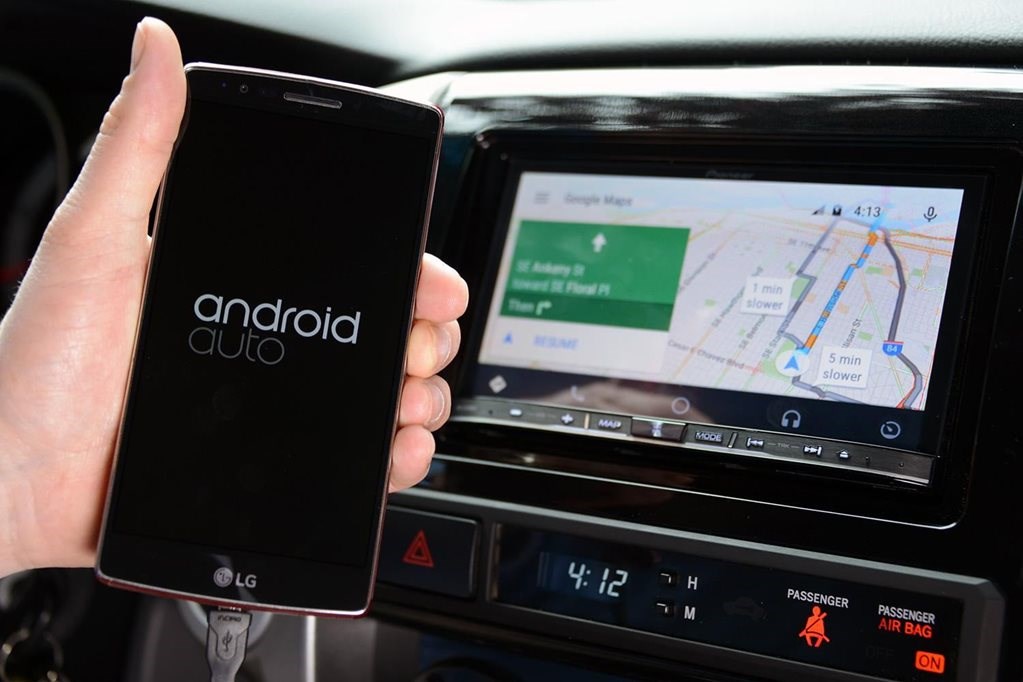
Before diving into the installation process, it’s crucial to grasp what Android Auto is and why it has become an indispensable tool for modern drivers. It’s more than just mirroring your phone screen; it’s a meticulously designed platform aimed at enhancing safety and convenience behind the wheel.
What is Android Auto?
Android Auto is a smart driving companion developed by Google, designed to project a simplified version of your Android phone’s interface onto your car’s compatible infotainment screen. It streamlines access to essential smartphone features like Google Maps for navigation, Spotify or Google Play Music for entertainment, and various messaging apps, all optimized for in-car use. The interface features large icons, simplified menus, and robust voice command integration, minimizing distractions and allowing you to keep your focus on the road.
Unlike simply mounting your phone on the dashboard, Android Auto leverages your car’s native controls – including touchscreens, steering wheel buttons, and rotary dials – providing a more integrated and ergonomic user experience. It turns your car into a truly smart vehicle, enhancing both functionality and safety.
Why Use Android Auto? The Benefits of a Connected Ride
The advantages of integrating Android Auto into your daily commute and road trips are manifold, touching upon safety, convenience, and entertainment.
Enhanced Safety: This is paramount. Android Auto significantly reduces driver distraction by offering a simplified interface and powerful voice control via Google Assistant. Instead of fumbling with your phone, you can dictate messages, get directions, or change music purely through voice commands, keeping your hands on the wheel and eyes on the road. Large, easy-to-read cards display critical information at a glance, minimizing the time your gaze is diverted from the windshield.
Seamless Navigation: Google Maps (and Waze) is at the heart of Android Auto, providing real-time traffic updates, turn-by-turn directions, and estimated arrival times directly on your car’s display. This integration means you no longer need to rely on a small phone screen or separate GPS device, benefiting from clear visuals and audio prompts through your car’s speakers.
Effortless Communication: Stay connected without compromising safety. Android Auto allows you to make and receive calls, send and read messages (via Google Assistant), and join conference calls, all through your car’s audio system. Notifications are discreet and easy to manage, ensuring you’re aware of important communications without being overwhelmed.
Personalized Entertainment: Access your favorite music, podcasts, and audiobooks through apps like Spotify, YouTube Music, Audible, and more. Control playback directly from your car’s screen or with voice commands, enjoying your personal soundtrack with crystal-clear sound through your vehicle’s speakers.
Future-Proofing Your Car: Many new cars come with Android Auto built-in, but even older compatible vehicles can gain a modern edge through this integration. It keeps your car’s infotainment system current with the latest software updates and app functionalities, extending its utility and value.
In essence, Android Auto transforms your driving experience from a disconnected chore into an intuitive, enjoyable, and safer journey, making every trip a little smarter.
Essential Prerequisites for a Seamless Setup
Before you can embark on the road to a connected driving experience, it’s vital to ensure you have the necessary components and conditions in place. Skipping these preliminary checks can lead to frustration and failed installation attempts. A little preparation goes a long way in ensuring a smooth Android Auto setup.
Device Compatibility: Phone and Car
The foundation of a successful Android Auto installation lies in the compatibility of your smartphone and your vehicle.
-
Smartphone Requirements:
- Operating System: Your Android phone must be running Android 6.0 (Marshmallow) or a newer version. For wireless Android Auto connectivity (which we’ll discuss shortly), your phone needs to be running Android 10 or higher. Some Samsung phones with Android 9.0 also support wireless Android Auto.
- Data Plan: While Android Auto itself doesn’t require constant internet access after initial setup (especially for downloaded maps or music), most of its core functionalities like real-time navigation, music streaming, and voice commands rely heavily on a stable and sufficient data plan. Ensure you have enough data to avoid unexpected charges or service interruptions.
- Apps: Make sure you have the Android Auto app installed on your phone. For newer Android versions (Android 10 and above), Android Auto is built directly into the operating system, so you won’t find a separate app icon in your app drawer. However, you can access its settings via your phone’s settings menu (usually under “Connected devices” or by searching “Android Auto”). Essential Google apps like Google Maps, Google Assistant, and various media apps should also be updated to their latest versions.
-
Vehicle Compatibility:
- Factory-Installed Android Auto: Many modern cars from leading manufacturers (Ford, GM, Honda, Hyundai, Kia, Mercedes-Benz, Toyota, Volkswagen, Volvo, and many more) come with Android Auto support built into their infotainment systems. Look for an Android Auto logo on your car’s dashboard or in the owner’s manual.
- Aftermarket Head Units: If your car doesn’t have factory-installed Android Auto, you can often add it by installing a compatible aftermarket head unit from brands like Pioneer, Kenwood, Alpine, or JVC. These units replace your car’s existing stereo and offer full Android Auto functionality.
- Wireless Android Auto: For wireless connectivity, your car needs to specifically support wireless Android Auto. This feature is becoming more common in newer models. If your car only supports wired Android Auto, you can still achieve wireless functionality by using a third-party wireless adapter (e.g., AAWireless, Motorola MA1) that plugs into your car’s USB port.
Connectivity: Wired vs. Wireless
The method of connecting your phone to your car significantly impacts your experience.
-
Wired Connection: This is the most common and often most reliable method.
- USB Cable: The quality of your USB cable is paramount. A cheap, generic, or damaged cable is a frequent culprit for connection issues. Always use a high-quality, data-capable USB cable (preferably the one that came with your phone or a reputable brand) that is not excessively long. Ensure the cable is free from kinks or frayed ends.
- USB Port: Connect your phone to the car’s data-enabled USB port. Some cars have multiple USB ports, but not all are designed for data transfer with infotainment systems; some are just for charging. Consult your car’s manual to identify the correct port, which might be labeled with an Android Auto icon or a smartphone symbol.
-
Wireless Connection: This offers maximum convenience but requires specific hardware.
- Bluetooth: Your phone and car (or wireless adapter) must have Bluetooth enabled and be paired. Bluetooth initiates the connection, but it’s not the primary data transfer method for Android Auto itself.
- Wi-Fi (5GHz): Once the Bluetooth handshake is complete, wireless Android Auto leverages a 5GHz Wi-Fi direct connection between your phone and the car (or adapter) for high-bandwidth data transfer, ensuring a smooth and responsive experience. Your phone needs to support 5GHz Wi-Fi.
Software and Data Requirements
Beyond the physical hardware, ensuring your software is up-to-date and your data situation is robust is critical.
- App Updates: Before starting, make sure all relevant Google apps (Android Auto, Google Maps, Google Assistant, YouTube Music, etc.) are updated to their latest versions from the Google Play Store.
- Car Firmware: Occasionally, your car’s infotainment system might require a firmware update to properly support Android Auto or resolve known bugs. Check with your car manufacturer or dealership if you experience persistent issues not resolved by phone-side troubleshooting.
- Permissions: During the initial setup, Android Auto will request various permissions (location, microphone, contacts, calendar, SMS). It’s crucial to grant these for full functionality. If you deny them, certain features might not work. You can always manage these permissions later in your phone’s settings under the Android Auto app info.
By meticulously checking off these prerequisites, you lay a solid groundwork for a hassle-free Android Auto installation and an enjoyable connected driving experience.
Step-by-Step Installation Guide
With all the prerequisites met, you’re ready to install Android Auto. The process is straightforward, whether you’re connecting via a cable or wirelessly. We’ll break down both methods to ensure you’re covered.
Setting Up Wired Android Auto
This is the most common and generally simplest way to get started with Android Auto.
- Start Your Car and Phone: Turn on your vehicle and ensure its infotainment system is powered up. Unlock your Android phone.
- Connect via USB: Using a high-quality, data-capable USB cable, connect your phone to the designated data USB port in your car. This port might be labeled with a smartphone icon or the Android Auto logo. Avoid using simple charging-only ports.
- Initial Prompts on Your Phone:
- Upon connecting, your phone might display a notification asking what to do with the USB connection (e.g., “Use USB for:”). Select an option that allows data transfer, such as “File transfer / Android Auto” or “MIDI.”
- The Android Auto app (or the built-in system on Android 10+) will then launch, presenting you with a series of setup screens.
- Review Permissions: You will be prompted to review and grant various permissions for Android Auto to function correctly (e.g., access to your microphone for voice commands, location for navigation, contacts for calls, SMS for messaging). Read through them and accept to proceed. You might also be asked to agree to Google’s terms of service.
- Enable Notifications: Ensure notifications are enabled for Android Auto on your phone so you receive alerts for calls, messages, and navigation prompts on your car’s screen.
- Prompts on Your Car’s Screen:
- Concurrently, your car’s infotainment screen should detect the connection. It might display a prompt asking if you want to launch Android Auto. Select “Yes” or “Allow.”
- Some cars may require you to select “Android Auto” from a menu within the infotainment system if it doesn’t launch automatically.
- Complete Setup: Follow any remaining on-screen instructions on both your phone and car display. Once the setup is complete, the Android Auto interface will appear on your car’s screen, featuring familiar icons for navigation, phone, music, and other compatible apps.
- Test It Out: Try navigating to a location, playing some music, or making a call using your car’s controls or voice commands to ensure everything is working as expected.
Configuring Wireless Android Auto
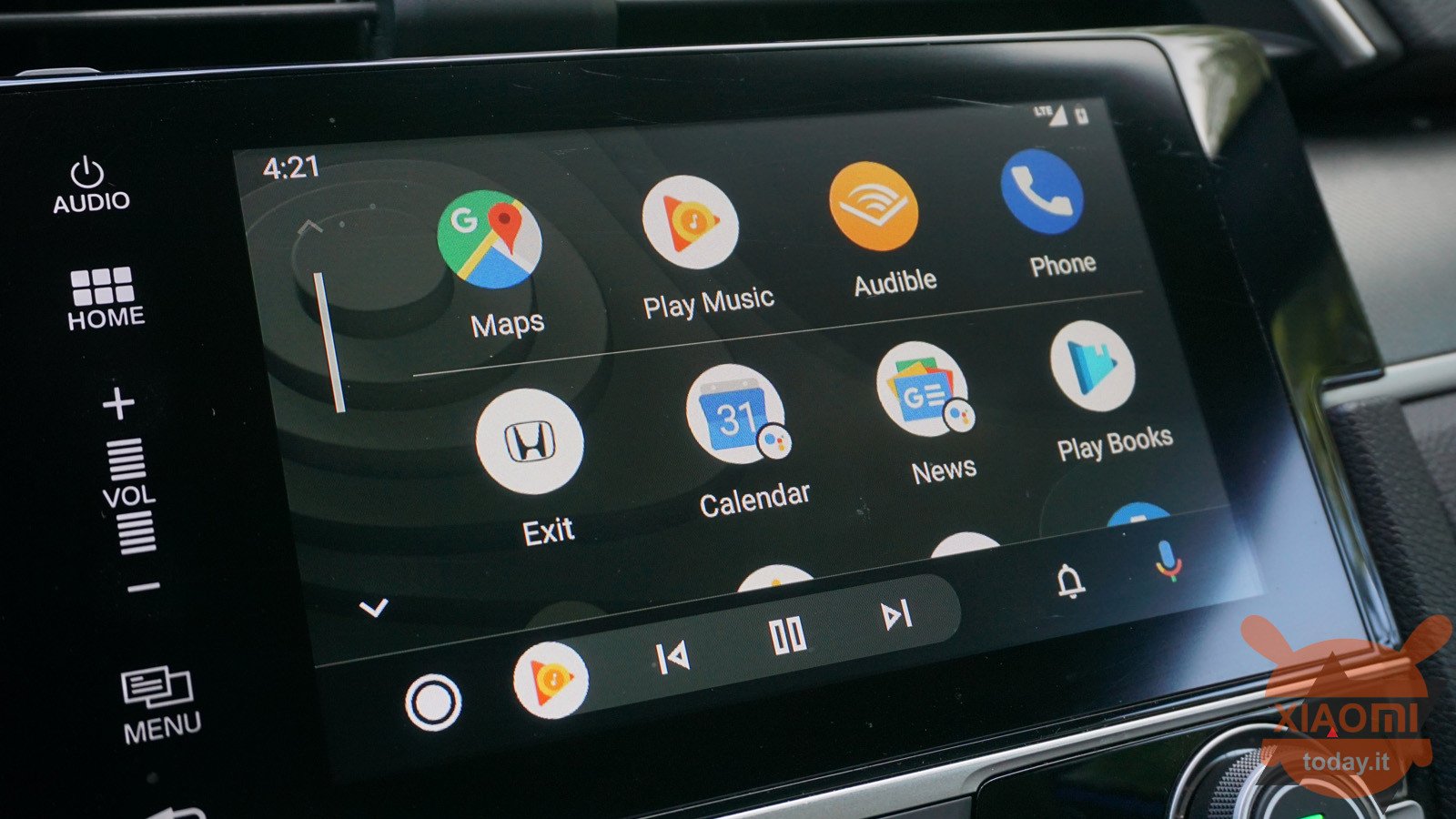
For those with compatible cars or a wireless adapter, the wireless setup offers ultimate convenience, eliminating the need for cables every time you get in the car.
- Ensure Car/Adapter Support: Confirm that your car natively supports wireless Android Auto or that you have a compatible wireless adapter (e.g., AAWireless, Motorola MA1) plugged into your car’s data USB port. If using an adapter, make sure it’s properly set up according to its manufacturer’s instructions.
- Enable Bluetooth on Phone and Car: On your Android phone, go to your Bluetooth settings and ensure Bluetooth is turned on. On your car’s infotainment system, also ensure Bluetooth is enabled and discoverable.
- Pair Your Phone via Bluetooth:
- On your car’s infotainment system, navigate to the Bluetooth settings and select “Add New Device” or “Pair Device.”
- On your phone, scan for available Bluetooth devices and select your car’s name when it appears.
- Confirm the pairing code displayed on both your phone and car screen.
- Establish Wi-Fi Connection: After successful Bluetooth pairing, your car will typically initiate a Wi-Fi Direct connection with your phone (usually 5GHz). Your phone might ask for permission to connect to this Wi-Fi network. Accept this prompt. This Wi-Fi connection is what handles the high-bandwidth data for Android Auto.
- Initial Android Auto Launch:
- Once the Bluetooth and Wi-Fi connections are established, Android Auto should automatically launch on your car’s screen.
- Similar to the wired setup, you might encounter initial setup screens on your phone or car display asking for permissions and agreement to terms of service. Grant all necessary permissions.
- Confirm and Enjoy: After the initial setup, Android Auto should connect automatically each time you get into your car with your phone, provided Bluetooth and Wi-Fi remain active. Test out navigation, music, and voice commands.
Initial Setup and Permissions
Regardless of whether you choose wired or wireless, the very first time you connect, Android Auto will guide you through a brief setup wizard. This process is crucial for establishing full functionality:
- Google Assistant Activation: You’ll likely be prompted to set up or confirm Google Assistant. This is vital for hands-free voice commands, which are central to safe Android Auto use.
- App Selection: You might get an option to customize which apps appear on your Android Auto dashboard. You can always adjust this later in your phone’s Android Auto settings.
- Privacy Permissions: Take a moment to review the privacy permissions requested. While granting them is usually necessary for the best experience, it’s good practice to understand what data Android Auto is accessing.
Once these steps are completed, you’re all set! Your car’s display should now be showing the familiar Android Auto interface, ready to enhance your driving.
Troubleshooting Common Android Auto Issues
Even with a perfect setup, technology can sometimes be temperamental. If you encounter issues with Android Auto, don’t despair. Many common problems have straightforward solutions. This section will help you diagnose and resolve the most frequent hiccups.
Connectivity Problems
Connectivity issues are the most common cause of Android Auto woes.
-
“Android Auto Not Launching” or “No Connection”:
- Check USB Cable: If wired, this is the prime suspect. Replace your USB cable with a high-quality, data-transfer certified cable (preferably short, 1-3 feet). Cheap or damaged cables often cause intermittent connections or no connection at all.
- Try Different USB Port: Your car might have multiple USB ports, but only one (or some) might support data transfer for Android Auto. Consult your car’s manual.
- USB Debugging Mode: On your phone, go to Developer Options (if enabled) and ensure “USB Debugging” is turned off. It can sometimes interfere with Android Auto.
- “USB Preference” Settings: When connected via USB, pull down your phone’s notification shade. Tap on the USB connection notification and ensure “File transfer / Android Auto” or “MIDI” is selected, not just “Charging.”
- Bluetooth & Wi-Fi (for Wireless): For wireless connections, ensure both Bluetooth and Wi-Fi (especially 5GHz) are enabled on your phone and that your phone is successfully paired with your car. Try unpairing and re-pairing Bluetooth.
- Clear Bluetooth Cache: In your phone’s app settings, find your Bluetooth system app (you might need to enable “Show system apps”) and clear its cache and data. Then restart your phone.
-
“Black Screen” or “Frozen Interface”:
- Restart Your Phone: A simple phone reboot can often resolve temporary software glitches.
- Restart Car Infotainment: Turn off your car completely, wait a minute, and then restart it. Sometimes the car’s system needs a refresh.
- Clear Android Auto Cache: On your phone, go to
Settings > Apps > See all apps > Android Auto. TapStorage & cacheand thenClear cacheandClear storage. Note: Clearing storage will reset your Android Auto preferences. - Check for App Updates: Ensure the Android Auto app and all associated Google apps (Maps, Assistant) are updated to their latest versions via the Google Play Store.
-
“Intermittent Disconnections”:
- Loose Cable/Port: Ensure the USB cable is firmly seated in both your phone and the car’s USB port. A slightly loose connection can cause frequent drops.
- Power Fluctuation: In rare cases, insufficient power from the car’s USB port can cause instability. If possible, try a different port or consult a mechanic.
- Phone Overheating: If your phone is running many background apps or charging rapidly, it might overheat, leading to performance throttling or disconnections. Close unnecessary apps.
App Crashes and Performance
If specific apps within Android Auto are crashing or the overall system is slow.
- Update All Apps: This is crucial. Outdated apps can lead to instability. Regularly update Android Auto, Google Maps, Spotify, and any other apps you use within the system.
- Restart Phone/Car: As mentioned, a fresh start often resolves temporary software conflicts.
- Check Phone Storage: If your phone is critically low on storage, it can affect app performance. Free up some space if needed.
- Force Stop Android Auto: On your phone, go to
Settings > Apps > See all apps > Android Autoand tapForce stop. Then try reconnecting. - Disable Battery Optimization for Android Auto: Some phones aggressively optimize battery usage, which can interfere with background processes for Android Auto. Go to your phone’s battery settings, find “Battery optimization,” and set Android Auto to “Don’t optimize.”
Updating and Maintaining Android Auto
Regular maintenance ensures optimal performance and access to new features.
- Automatic Updates: By default, your phone’s apps should update automatically via the Google Play Store. Ensure this setting is enabled.
- Manual Checks: Periodically open the Google Play Store, search for “Android Auto,” and check for available updates. Do the same for Google Maps, Google Assistant, and your preferred music apps.
- Car Firmware Updates: While less frequent, your car’s manufacturer may release firmware updates for its infotainment system that improve Android Auto compatibility or performance. Check your car’s owner’s manual or contact your dealership for information on updating your vehicle’s software.
By systematically working through these troubleshooting steps, you can resolve most Android Auto issues and get back to enjoying a seamless, connected driving experience.
Maximizing Your Android Auto Experience
Once you’ve successfully installed and ironed out any initial kinks, it’s time to unlock the full potential of Android Auto. This platform offers extensive customization and smart features designed to make your time on the road safer, more efficient, and more enjoyable.
Customizing Your Dashboard
Personalization is key to making Android Auto truly yours. While the interface is designed for simplicity, there are still ways to tailor it to your preferences.
- Arranging Apps: You can choose which apps appear on your Android Auto dashboard and in what order. On your phone, navigate to
Settings > Connected devices > Connection preferences > Android Auto. Here, you’ll find an “Customize launcher” option (or similar) where you can drag and drop icons to reorder them or uncheck apps you don’t want to see. This ensures your most-used navigation, music, and messaging apps are always within easy reach. - Wallpaper and Theme: Some Android Auto versions and car infotainment systems allow for limited customization of the background wallpaper or display theme (light/dark mode). Check your Android Auto settings on your phone for these options to give your dashboard a personal touch.
- Notifications: Manage which app notifications appear on your car screen. While some notifications are helpful, too many can be distracting. You can fine-tune these settings within the Android Auto app on your phone.
Voice Commands and Google Assistant
The true power of Android Auto lies in its hands-free operation through Google Assistant. Mastering voice commands is crucial for safety and convenience.
- Activating Google Assistant:
- “Hey Google”: The easiest way is to simply say “Hey Google” while Android Auto is active.
- Steering Wheel Button: Many cars have a dedicated voice command button on the steering wheel. Pressing and holding this button usually activates Google Assistant within Android Auto.
- Microphone Icon: Tap the microphone icon on your car’s Android Auto screen.
- Essential Voice Commands:
- Navigation: “Navigate to [address/place name],” “Take me home,” “What’s my ETA?,” “Are there any gas stations nearby?”
- Music: “Play [song/artist/album] on Spotify,” “Change the station to [radio station],” “Skip song,” “Volume up/down.”
- Communication: “Call [contact name],” “Send a text to [contact name],” “Read my messages.”
- Information: “What’s the weather like?,” “Tell me a joke,” “What’s the score of the [team] game?”
- Tips for Effective Voice Commands: Speak clearly and naturally. Minimize background noise if possible. Google Assistant is quite robust, but clear commands yield the best results.
Recommended Apps for Android Auto
While many apps are compatible, some stand out for enhancing the Android Auto experience.
- Navigation:
- Google Maps: The default and arguably best navigation tool, offering real-time traffic, lane guidance, and extensive point-of-interest data.
- Waze: A community-driven navigation app known for its crowd-sourced traffic and hazard alerts.
- Music & Audio:
- Spotify, YouTube Music, Pandora, Amazon Music: Popular streaming services for endless music.
- Audible, Google Podcasts, Pocket Casts: For audiobooks and podcasts.
- Sygic Car Navigation: A great offline navigation option if you’re frequently in areas with poor data coverage (requires a purchase).
- Messaging: Most major messaging apps like WhatsApp, Telegram, and Google Messages are supported, allowing you to listen to and reply to messages using voice commands.
- Utility:
- Calendar: Displays your upcoming appointments.
- Weather: Quick access to current weather conditions.
Always download apps from the Google Play Store and ensure they are updated to their latest versions for optimal performance within Android Auto.

Safety and Best Practices
While Android Auto is designed to enhance safety, responsible use is still paramount.
- Pre-Drive Setup: Before starting your journey, set your destination in navigation and select your playlist or podcast. Minimize interactions with the screen while driving.
- Voice First: Always prioritize voice commands for any task while the vehicle is in motion. This keeps your hands on the wheel and eyes on the road.
- Minimize Distractions: Resist the urge to browse through extensive music libraries or settings menus while driving. If you need to make complex adjustments, pull over safely.
- Regular Updates: Keep your phone, Android Auto app, and all connected apps updated. Updates often include bug fixes, performance improvements, and new safety features.
- Stay Informed: Familiarize yourself with new features as they roll out. Google frequently updates Android Auto, adding new capabilities that can further enhance your driving experience.
By embracing these tips and best practices, you can fully leverage Android Auto to transform your vehicle into a smart, connected, and significantly safer driving environment. Enjoy the journey!
aViewFromTheCave is a participant in the Amazon Services LLC Associates Program, an affiliate advertising program designed to provide a means for sites to earn advertising fees by advertising and linking to Amazon.com. Amazon, the Amazon logo, AmazonSupply, and the AmazonSupply logo are trademarks of Amazon.com, Inc. or its affiliates. As an Amazon Associate we earn affiliate commissions from qualifying purchases.