
In the vast and ever-evolving landscape of Linux distributions, managing software packages efficiently is paramount for both system administrators and everyday users. Among the various package management systems, RPM (Red Hat Package Manager) stands out as a foundational technology, particularly prevalent in distributions like Fedora, CentOS, RHEL, openSUSE, and many others. Understanding how to correctly install an RPM file is a crucial skill that unlocks access to a wider array of applications, tools, and system components, ensuring your Linux environment remains robust, secure, and tailored to your specific needs. This comprehensive guide will walk you through the intricacies of RPM installation, from basic command-line operations to sophisticated dependency resolution and best practices, empowering you to confidently manage software on your RPM-based Linux system.
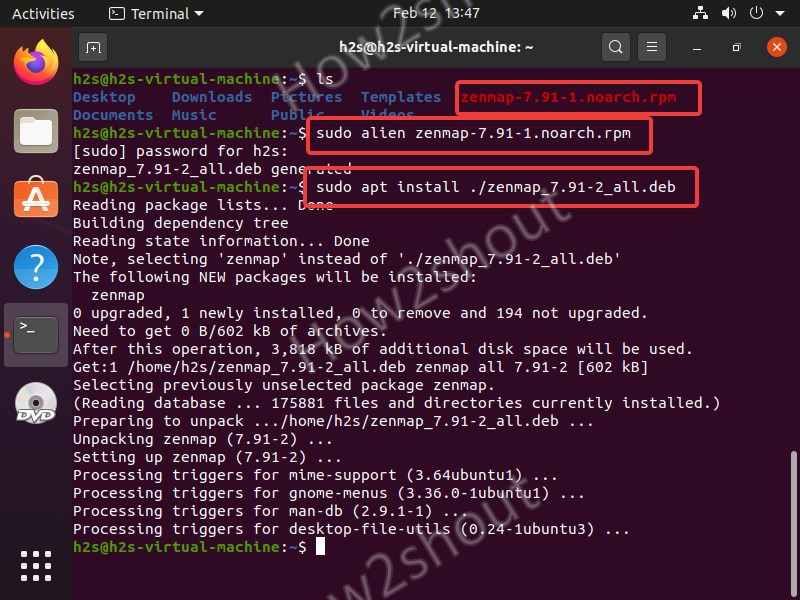
Understanding RPM Packages: The Foundation of Linux Software Management
Before diving into the installation process, it’s essential to grasp what an RPM file is and why package managers are so vital in the Linux ecosystem. This foundational understanding will illuminate the logic behind the commands and procedures we’ll explore.
What is an RPM File?
An RPM file, often identified by the .rpm extension, is essentially an archive containing all the necessary files, metadata, and instructions required to install a specific software package on an RPM-based Linux distribution. Think of it as a meticulously organized software installer, much like .exe files on Windows or .dmg files on macOS, but specifically designed for the Linux environment.
Each RPM package encapsulates:
- The compiled software: The actual executable binaries, libraries, and other files that make up the application.
- Metadata: Information about the package, such as its name, version, architecture (e.g., x86_64), a description, and crucially, its dependencies (other packages it requires to function correctly).
- Installation scripts: Instructions on how to place the files on the system, create directories, set permissions, and execute any pre- or post-installation tasks.
- Checksums and GPG signatures: These are critical for verifying the integrity and authenticity of the package, ensuring it hasn’t been tampered with and comes from a trusted source.
The structured nature of RPM packages ensures consistency and reliability across different systems running RPM-compatible Linux distributions, making software deployment predictable and manageable.
The Importance of Package Managers in Linux
While you can technically install software by manually compiling source code or extracting archives, this approach is fraught with complexities, particularly when dealing with dependencies. This is where package managers come into play, revolutionizing software management on Linux.
Package managers like rpm (the low-level utility), yum, dnf, and zypper (higher-level tools) offer several indispensable advantages:
- Simplified Installation: They automate the process of placing files in correct directories, configuring settings, and registering the software with the system.
- Dependency Resolution: This is perhaps their most critical function. Software often relies on other software components (libraries, frameworks). Package managers automatically identify, download, and install all required dependencies, preventing the dreaded “dependency hell.”
- Easy Updates and Upgrades: They provide a centralized mechanism to check for and apply updates to all installed packages, keeping your system secure and up-to-date.
- Clean Uninstallation: When software is no longer needed, package managers can remove it cleanly, deleting all associated files and configurations without leaving remnants that can clutter your system.
- Integrity and Security: By verifying package signatures and checksums, package managers help ensure that the software you install is legitimate and hasn’t been compromised, safeguarding your system from malicious code.
- System Consistency: They maintain a database of all installed packages, their versions, and their files, allowing for easy querying and ensuring that software environments remain consistent and predictable.
In essence, package managers transform the daunting task of software deployment into a streamlined, reliable, and secure process, making Linux user-friendly and robust.
Essential Prerequisites Before You Begin
Before you attempt to install an RPM file, a few preliminary checks and configurations are necessary. Adhering to these prerequisites will save you from potential headaches and ensure a smoother installation experience.
Identifying Your Linux Distribution
The first step is to confirm that you are indeed running an RPM-based Linux distribution. As mentioned, common examples include:
- Red Hat Enterprise Linux (RHEL)
- CentOS Stream / CentOS Linux
- Fedora
- Rocky Linux
- AlmaLinux
- openSUSE / SUSE Linux Enterprise Server (SLES)
You can typically identify your distribution by checking the /etc/os-release or /etc/redhat-release files. For instance, running cat /etc/os-release will usually provide detailed information about your system. Attempting to install an RPM file on a Debian-based system (like Ubuntu or Debian) will lead to errors, as those systems use .deb packages and apt for package management.
Gaining Necessary Permissions (Sudo/Root Access)
Installing system-wide software generally requires administrative privileges. This means you’ll need either root access or the ability to execute commands with sudo (Superuser Do).
- Root User: If you are logged in as the
rootuser, you automatically have the necessary permissions. - Sudo User: Most modern Linux setups configure regular users to use
sudofor administrative tasks. To usesudo, simply prefix your command withsudo, and you’ll be prompted for your user password. Ensure your user account is part of thesudogroup (orwheelgroup on some distributions) to utilize this feature.
Attempting to install an RPM without sufficient permissions will result in “Permission denied” errors.
Updating Your System’s Package Lists
While not strictly mandatory for every direct RPM installation, it’s a best practice to update your system’s package lists and installed packages before installing new software. This ensures that your system has the latest information about available packages and that existing dependencies are up-to-date, which can prevent conflicts or issues with the new software.
For Fedora, CentOS Stream, RHEL 8+, Rocky Linux, AlmaLinux (using dnf):
sudo dnf update
For older CentOS/RHEL (using yum):
sudo yum update
For openSUSE (using zypper):
sudo zypper update
This command will fetch the latest package information from your configured repositories and upgrade any outdated packages on your system. It’s a fundamental step for maintaining a healthy and secure Linux environment.
Step-by-Step RPM Installation Methods
With the prerequisites met, you’re ready to proceed with installing RPM files. There are several methods, ranging from direct command-line installation to utilizing powerful dependency-solving package managers and user-friendly graphical interfaces.
Using the rpm Command Line Tool (Direct Installation)
The rpm command is the low-level utility for managing RPM packages. It’s powerful but does not automatically resolve dependencies. You are responsible for ensuring all required packages are present on your system. This method is best for installing self-contained packages or when you’re confident all dependencies are already met.
-
Download the RPM File: First, you’ll need to obtain the
.rpmfile. You might download it from a software vendor’s website or a trusted repository. For this example, let’s assume you have a file namedmypackage-1.0-1.x86_64.rpmin your current directory. -
Install the Package: Use the
rpm -iorrpm -Ucommand.rpm -i: Installs a new package. If the package or an older version is already installed, it will error out.rpm -U(orrpm --upgrade): Installs a package if it’s not present or upgrades it if an older version is already installed. This is generally preferred.
sudo rpm -i mypackage-1.0-1.x86_64.rpmOr, for upgrading/installing:
sudo rpm -U mypackage-1.0-1.x86_64.rpm -
Handle Dependencies (Manually): If the package has unmet dependencies,
rpmwill report an error listing the missing packages. For example:
error: Failed dependencies:

        libexample.so.1()(64bit) is needed by mypackage-1.0-1.x86_64
In such a case, you would need to manually find and installlibexample.so.1and any other missing dependencies before retrying the installation ofmypackage. This can quickly become cumbersome, highlighting the limitation ofrpm -i/-Ufor complex software.
Useful rpm command-line options:
-v: Verbose output, showing more details during installation.-h: Hash marks, displaying a progress bar.--test: Performs a dry run, checking for conflicts and dependencies without actually installing.--force: Forces installation even if files conflict or package is already installed (use with extreme caution!).--nodeps: Skips dependency checks (highly discouraged, can break your system!).
Leveraging Dependency Solvers: Yum, DNF, and Zypper
For a far more user-friendly and robust installation experience, especially for packages with dependencies, it’s highly recommended to use higher-level package managers like Yum (Yellowdog Updater, Modified), DNF (Dandified Yum), or Zypper. These tools automatically fetch and resolve dependencies from configured repositories.
-
DNF(Fedora, CentOS Stream, RHEL 8+, Rocky Linux, AlmaLinux): DNF is the next-generation package manager for RPM-based systems, superseding Yum. It offers better performance, improved dependency resolution, and a clearer command-line interface.To install a local RPM file with DNF, while letting it handle dependencies:
sudo dnf install ./mypackage-1.0-1.x86_64.rpmThe
./is important to indicate that you are referring to a local file. DNF will then scan the package, identify its dependencies, search its configured repositories for those dependencies, download them if missing, and install everything in the correct order.To install a package directly from a repository (most common use case):
sudo dnf install <package_name>(e.g.,
sudo dnf install firefox) -
Yum(Older CentOS/RHEL 7 and earlier): Yum is the predecessor to DNF and operates very similarly. While still functional on older systems, it’s generally recommended to use DNF where available.To install a local RPM file with Yum:
sudo yum localinstall mypackage-1.0-1.x86_64.rpmNote the use of
localinstallspecifically for local files.
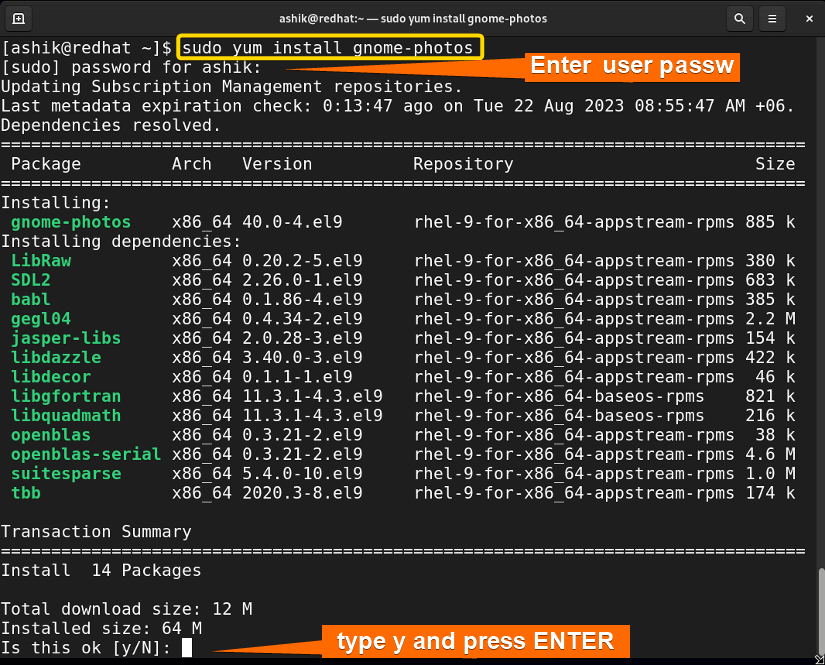
To install a package directly from a repository:
```bash
sudo yum install <package_name>
```
(e.g., `sudo yum install httpd`)
-
Zypper(openSUSE / SLES): Zypper is the powerful package manager for SUSE-based distributions, known for its speed and advanced features.To install a local RPM file with Zypper:
sudo zypper install ./mypackage-1.0-1.x86_64.rpmSimilar to DNF,
zypper installcan handle local RPMs and resolve dependencies.To install a package directly from a repository:
sudo zypper install <package_name>(e.g.,
sudo zypper install vlc)
Using these higher-level tools is almost always the preferred method for installing RPMs, as they automate the complex task of dependency management, significantly simplifying the process.
Graphical Package Managers for User-Friendly Installation
For users who prefer a graphical interface over the command line, most RPM-based desktop environments offer intuitive tools to manage software. These typically integrate with DNF or Zypper on the backend.
-
GNOME Software (Fedora, RHEL with GNOME): This application provides a user-friendly store-like interface to browse, install, and update software. You can often simply double-click an
.rpmfile in your file manager, and GNOME Software will open, prompt you to install it, and automatically handle dependencies. -
KDE Discover (openSUSE with KDE, Fedora with KDE): Similar to GNOME Software, KDE Discover offers a rich graphical experience for managing packages. Double-clicking an
.rpmfile will usually trigger Discover to initiate the installation process. -
PackageKit: This is a system service that provides a consistent API for various package managers (like DNF, Zypper, APT) and is often used by graphical frontends like GNOME Software and KDE Discover.
While graphical tools are convenient, understanding the command-line methods provides greater control, flexibility, and is essential for server environments or troubleshooting.
Verifying Installation and Troubleshooting Common Issues
After attempting an installation, it’s crucial to verify its success and be equipped to troubleshoot any problems that might arise.
How to Check if an RPM Package is Installed
You can use the rpm -q (query) command to check if a package is installed and to get information about it.
To check if a specific package is installed:
rpm -q mypackage
If installed, it will return the package name and version (e.g., mypackage-1.0-1.x86_64). If not, it will state package mypackage is not installed.
To list all installed RPM packages:
rpm -qa
This output can be very long, so you might want to pipe it to grep to search for specific packages:
rpm -qa | grep mypackage
You can also use dnf, yum, or zypper to query installed packages:
dnf list installed mypackage
yum list installed mypackage
zypper search --installed-only mypackage
Resolving Dependency Hell
“Dependency hell” is a common term for frustrating situations where a package cannot be installed because it requires other packages that are not available, or where installing a dependency would conflict with an already installed package.
-
Use
dnf/yum/zypper: The best way to avoid dependency hell is to always usednf,yum, orzypperfor installations, even when dealing with local RPM files. These tools are designed to automatically identify and resolve dependencies.sudo dnf install ./mypackage-1.0-1.x86_64.rpmIf dependencies are missing from your configured repositories, DNF/Yum/Zypper will explicitly tell you which packages are missing. You may then need to:
- Enable additional repositories: Sometimes, required dependencies are in supplementary repositories (e.g., EPEL for CentOS/RHEL).
- Find and download missing dependency RPMs: This should be a last resort, as it can lead to complex manual dependency chains.
- Check for conflicting versions: Ensure you’re not trying to install a package that requires a newer/older version of an existing package, leading to conflicts.
- Consider a different source: If a package continually gives dependency issues, the RPM file itself might be poorly built or incompatible with your system.
-
--skip-broken(Yum/DNF): In severe cases,yumanddnfoffer an option to skip broken packages during an update or installation, though this should be used cautiously as it means some packages might not be installed or updated.
bash

sudo dnf install ./mypackage.rpm --skip-broken
Handling Signature Verification Errors
When installing an RPM package, your system’s package manager verifies its GPG signature. This ensures the package is authentic and has not been tampered with since it was signed by the developer or packager. If you encounter a “GPG key verification failed” or similar error, it means your system doesn’t trust the key used to sign the package.
To resolve this:
-
Import the GPG key: Most official repositories and reputable software vendors provide their public GPG keys. You’ll typically find instructions on their websites. For example:
sudo rpm --import /path/to/RPM-GPG-KEY-myvendorOr, if the key is available via HTTP:
sudo rpm --import https://www.example.com/RPM-GPG-KEY-myvendorFor
dnf/yum, keys are often imported automatically when you enable a new repository. -
Verify Key ID: Always verify the GPG key’s ID against the official source to ensure you’re importing the correct and legitimate key.
-
--nogpgcheck(Use with Extreme Caution!): You can bypass GPG signature checks using--nogpgcheckwithrpm -iorrpm -U, or by addinggpgcheck=0in repository configuration files. However, this is highly discouraged as it eliminates a critical security layer. Only use this if you are absolutely certain of the package’s origin and integrity (e.g., from a private, trusted build server).sudo rpm -i --nogpgcheck mypackage-1.0-1.x86_64.rpm
Advanced Topics and Best Practices
Mastering RPM installation extends beyond basic commands to include understanding updates, uninstallation, and critical security considerations.
Updating and Upgrading RPM Packages
Keeping your software up-to-date is crucial for security, stability, and access to new features.
-
System-wide Updates: The most common way to update all installed packages is using your system’s primary package manager:
sudo dnf update       # For Fedora, CentOS Stream, RHEL 8+, Rocky Linux, AlmaLinux
sudo yum update       # For older CentOS/RHEL
sudo zypper update    # For openSUSE
These commands download the latest package versions from your configured repositories and upgrade existing software.
-
Upgrading a Specific RPM File: If you have a newer
.rpmfile for an already installed package, you can userpm -Uordnf install ./<new_package.rpm>to upgrade it.
bash

sudo rpm -U new_mypackage-2.0-1.x86_64.rpm
Or, the preferred method with dependency resolution:
bash

sudo dnf install ./new_mypackage-2.0-1.x86_64.rpm
Uninstalling RPM Packages
Removing software is as important as installing it. Package managers ensure a clean uninstallation.
To uninstall a package (by its package name, not the .rpm file name):
sudo dnf remove mypackage       # For DNF-based systems
sudo yum remove mypackage       # For Yum-based systems
sudo zypper remove mypackage    # For Zypper-based systems
These commands will remove the specified package and any dependencies that were installed solely for that package and are no longer needed by other software (known as “autoremove”).
You can also use the low-level rpm command, but again, it won’t handle dependencies:
sudo rpm -e mypackage
This is generally not recommended for complex applications, as it might leave orphaned dependencies.
Security Considerations and Trusting Sources
When installing any software on your system, security should always be a top priority.
- Trust Repositories: Prefer installing software from official distribution repositories (e.g., Fedora, RHEL, openSUSE repos) or well-known, trusted third-party repositories (like EPEL). These repositories typically provide signed packages that have undergone review processes.
- Verify GPG Signatures: Always ensure that GPG signatures are checked during installation. This mechanism protects you from installing malicious or corrupted software. If a package doesn’t have a valid signature or if you encounter signature errors, investigate thoroughly before proceeding.
- Avoid
--nogpgcheckand--nodeps: These options bypass critical security and stability checks. Use them only if you fully understand the risks and have absolute trust in the package’s source. In most production or critical environments, their use is strictly forbidden. - Regular Updates: Keep your system updated. Software vulnerabilities are regularly discovered and patched. Regular
dnf updateorzypper updatecommands ensure you have the latest security fixes. - Source Your RPMs Wisely: If you download an RPM from a website, ensure it’s from the official project or vendor. Cross-reference the filename, checksums, and GPG key information provided on their official site. Unofficial or unknown sources are a significant security risk.
By adhering to these best practices, you can confidently install and manage RPM packages, maintaining a secure, stable, and efficient Linux environment.
Conclusion
The ability to effectively install RPM files is a cornerstone skill for anyone operating within the rich ecosystem of RPM-based Linux distributions. From the foundational rpm command to the sophisticated dependency resolution capabilities of dnf, yum, and zypper, understanding these tools empowers you to manage software with precision and confidence. We’ve explored the structure of RPM packages, the critical role of package managers, step-by-step installation methodologies, and essential troubleshooting techniques for common issues like dependency conflicts and signature verification failures.
Moreover, we emphasized the paramount importance of security, stressing the need to rely on trusted repositories, verify GPG signatures, and maintain regular system updates. By embracing these best practices, you not only ensure the smooth functioning of your applications but also fortify the overall integrity and security of your Linux system. Whether you’re a system administrator deploying critical services or a desktop user customizing your environment, mastering RPM installation is a significant step towards unlocking the full potential of your Linux machine. With the knowledge gained from this guide, you are now well-equipped to navigate the world of Linux software management with expertise and ease.
aViewFromTheCave is a participant in the Amazon Services LLC Associates Program, an affiliate advertising program designed to provide a means for sites to earn advertising fees by advertising and linking to Amazon.com. Amazon, the Amazon logo, AmazonSupply, and the AmazonSupply logo are trademarks of Amazon.com, Inc. or its affiliates. As an Amazon Associate we earn affiliate commissions from qualifying purchases.