
In the tightly controlled ecosystem of Apple’s iOS, installing applications typically involves navigating the official App Store. This streamlined process ensures security, compatibility, and a consistent user experience. However, for those looking to explore beyond the App Store’s curated selection – perhaps to test beta versions, access apps not officially listed, or even revert to older software iterations – the concept of “sideloading” an IPA file becomes invaluable. This advanced technique allows users to manually install applications on their iPhone, bypassing the traditional App Store channels. While offering immense flexibility and control over your device’s software, it also introduces a layer of complexity and potential risks that necessitate a clear understanding. This guide will demystify the process, walking you through the “how-to” of installing IPA files, empowering you with the knowledge to safely and effectively expand your iPhone’s capabilities, all while navigating the nuances of Apple’s robust security architecture.

Understanding IPA Files and the World of Sideloading
The ability to install applications outside of official storefronts is a common practice on many operating systems. For iPhone users, this path is less trodden due to Apple’s stringent security measures. Yet, understanding the fundamentals of IPA files and the concept of sideloading is the first step towards unlocking a wider range of software experiences on your device.
What Exactly is an IPA File?
An IPA (iOS App Store Package) file is essentially an archive file format used to distribute and install mobile applications on Apple’s iOS, iPadOS, and tvOS devices. Think of it as the iOS equivalent of an .exe file on Windows, a .dmg on macOS, or an .apk on Android. Each IPA file contains the binary for the ARM architecture, resources, and metadata required for an iOS application. When you download an app from the App Store, you’re indirectly downloading and installing an IPA file. The distinction arises when you acquire an IPA file from sources other than the App Store and wish to install it directly onto your device. These files are typically compressed using a ZIP algorithm and can be unzipped by simply changing the extension to .zip. However, direct unzipping won’t install the app; it only exposes its internal structure.
Why Sideload? The Benefits and Use Cases
The primary reason users venture into sideloading is to gain access to applications or functionalities not available through the official App Store. This can stem from several scenarios:
- Beta Testing: Developers often distribute pre-release versions of their apps to a select group of testers via IPA files, allowing them to gather feedback before an official App Store launch.
- Unlisted Apps: Some applications, for various reasons (e.g., niche utility, internal corporate tools, controversial features), may not meet Apple’s strict App Store guidelines or are simply not intended for public distribution. Sideloading provides a direct route for their installation.
- Older App Versions: In cases where an app update removes a beloved feature or introduces unwanted changes, sideloading an older IPA file can allow users to revert to a previous, preferred version.
- Regional Restrictions: Certain apps might be geographically restricted in the App Store. Sideloading can sometimes bypass these limitations, though this can be legally complex depending on content.
- Privacy Concerns: Some users prefer to avoid the App Store entirely for certain applications due to data collection practices or a desire for greater autonomy over their software sources.
- Developer Testing: For app developers, sideloading is an integral part of their workflow, allowing them to test their creations directly on physical devices before submitting them for App Store review.
Apple’s Walled Garden: Security and Limitations
Apple’s philosophy for iOS is rooted in a “walled garden” approach, prioritizing security, privacy, and user experience above all else. This means tightly controlling the software that runs on its devices. The App Store serves as the gatekeeper, ensuring that all applications meet a rigorous set of guidelines regarding safety, performance, and content.
When you sideload an IPA, you are effectively bypassing this gatekeeper. To mitigate the inherent risks, Apple implements several security measures:
- Code Signing: Every app installed on an iOS device, regardless of its source, must be digitally signed with a valid certificate. This ensures that the app hasn’t been tampered with since it was signed and identifies the developer.
- Developer Accounts: To obtain these signing certificates, individuals or organizations must register for an Apple Developer Program membership. Free developer accounts allow for app signing, but with significant limitations, such as apps expiring after 7 days and requiring regular re-signing. Paid developer accounts (€99/year) offer more flexibility, including longer signing periods and the ability to distribute apps to a wider test group.
- “Untrusted Developer” Warnings: When you install a sideloaded app, iOS will initially block it, displaying an “Untrusted Developer” message. Users must manually trust the developer’s profile in their device settings before the app can launch, acting as a crucial security prompt.
- Revocation: Apple can revoke developer certificates if they suspect misuse or security breaches, rendering all apps signed with that certificate unusable.
These limitations underscore Apple’s commitment to maintaining a secure ecosystem, but they also highlight the hoops users must jump through to exercise greater control over their device’s software. Understanding these restrictions is key to successfully and safely navigating the world of sideloading.
Essential Tools and Methods for Sideloading IPA Files
Sideloading an IPA file onto your iPhone requires specific tools that facilitate the signing and installation process. While the core concept remains the same – getting a signed app onto your device – the methods vary in complexity, features, and target audience. Here, we’ll focus on the most accessible and widely used techniques for the average user, alongside a brief mention of developer-centric approaches.
Sideloading Without Jailbreaking: Main Approaches
Historically, jailbreaking was the only way to extensively customize an iPhone and install unapproved apps. However, modern sideloading tools allow you to achieve this without compromising your device’s security or voiding its warranty, making them the preferred choice for most users. The two most popular and reliable tools in this category are AltStore and Sideloadly.
Method 1: AltStore – Your Personal App Store
AltStore is a unique and innovative sideloading solution that functions as a personal, unofficial app store for your iPhone. Unlike other tools that simply install an IPA and then require manual re-signing, AltStore itself runs on your device and can refresh your sideloaded apps wirelessly, preventing them from expiring after the standard 7-day period (for free developer accounts).
How it Works: AltStore leverages a feature of iOS that allows developers to “install” apps from Xcode on their own devices using an Apple ID. By running a companion application called AltServer on your computer (Mac or Windows), AltStore tricks your iPhone into believing it’s installing an app from Xcode. AltServer then acts as a signing server, allowing AltStore on your iPhone to install and refresh IPA files.
Requirements:
- A Mac or Windows computer.
- iTunes (Windows) or Finder (Mac).
- iCloud (Windows).
- Your iPhone connected via USB (for initial setup).
- An Apple ID (free developer account is sufficient).
AltStore is particularly popular for its convenience once set up, making it ideal for maintaining several sideloaded apps over an extended period without constant computer intervention.
Method 2: Sideloadly – A Simpler Alternative
Sideloadly is another widely used desktop application that allows users to sideload IPA files onto their iOS devices. It’s often considered a successor to the now-defunct Cydia Impactor, offering a user-friendly interface and robust functionality.
How it Works: Sideloadly simplifies the process of signing and installing IPA files. You drag and drop your desired IPA file into the Sideloadly application, enter your Apple ID credentials, and the tool handles the signing and installation onto your connected iPhone. While it doesn’t offer the wireless refreshing capabilities of AltStore, it’s straightforward for one-off installations or for users who don’t mind connecting their device to a computer for re-signing every seven days.
Requirements:
- A Mac or Windows computer.
- iTunes (Windows) or Finder (Mac).
- Your iPhone connected via USB.
- An Apple ID (free developer account is sufficient).
Sideloadly’s strength lies in its simplicity and directness, making it an excellent choice for those who prefer a no-frills approach to sideloading.
Method 3: Xcode – The Developer’s Gateway
For professional iOS developers and power users, Xcode is Apple’s integrated development environment (IDE) and the most official way to test applications on an iPhone. While more complex than consumer-focused sideloading tools, it provides the most direct method for installing IPA files.
How it Works: Developers use Xcode to compile their app code into an IPA file, and then deploy it directly to a connected iPhone for testing. Xcode manages the code signing process using the developer’s Apple ID and associated certificates.
Requirements:
- A Mac computer.
- Xcode installed from the Mac App Store.
- Your iPhone connected via USB.
- An Apple ID (free or paid developer account).
Xcode is overkill for most users simply wanting to install an IPA, but it’s essential for anyone involved in app development.
Exploring Other (Less Common or Risky) Methods
Beyond the primary tools, other methods exist, though they come with increased caveats:
- Enterprise Certificates: Large organizations can obtain enterprise developer certificates, allowing them to distribute internal apps to employees without the App Store. These apps don’t have the 7-day expiration. However, misusing or obtaining these certificates unofficially is against Apple’s terms and carries significant risks of revocation.
- Third-Party Signing Services/App Stores: Various online services claim to sign and install apps onto your device, often advertising access to modified or premium apps. These services typically use revoked or stolen enterprise certificates, are highly unreliable, and pose substantial security and privacy risks. They can inject malware, steal data, or simply stop working without notice. It is strongly advised to avoid these services.
- Virtual Machines for macOS: For Windows users without a Mac, running macOS in a virtual machine (like VMware or VirtualBox) can provide access to Xcode and AltServer. This is a more advanced setup and can be resource-intensive.
When choosing a method, always prioritize reliability and security. AltStore and Sideloadly represent the safest and most user-friendly options for general sideloading.
Step-by-Step Guides for Popular Sideloading Tools
Now that we’ve explored the different tools, let’s dive into the practical steps for installing IPA files using the two most popular non-jailbreaking methods: AltStore and Sideloadly. These detailed instructions will guide you through the process, ensuring a smooth installation.
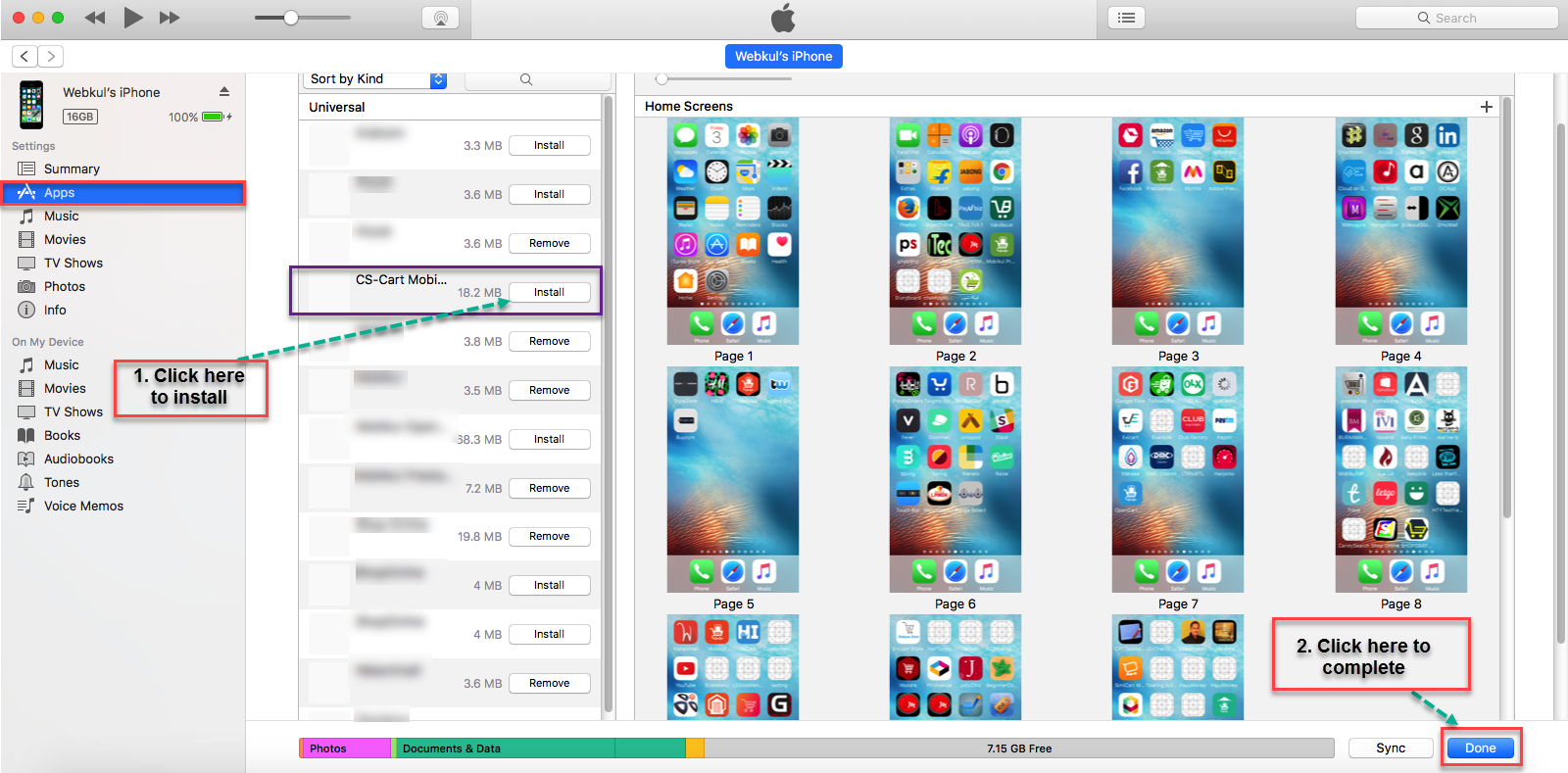
Installing IPA Files with AltStore
AltStore is favored for its ability to refresh apps wirelessly, making it a “set it and forget it” solution once configured.
Step 1: Download and Install AltServer (Mac/Windows)
- On your computer (Mac or Windows), visit the official AltStore website (altstore.io).
- Download AltServer for your operating system.
- For Windows: Ensure iTunes and iCloud are installed (from Apple’s website, not Microsoft Store, for proper driver compatibility). Then, install AltServer.
- For Mac: Install AltServer. If you downloaded iTunes from the Mac App Store, ensure Mail Plug-in is installed (in AltServer preferences).
Step 2: Connect Your iPhone
- Connect your iPhone to your computer using a USB cable.
- On Mac: Ensure your iPhone is discoverable in Finder.
- On Windows: Ensure iTunes recognizes your iPhone. For AltServer to work correctly, enable “Wi-Fi Sync” for your device in iTunes (or Finder on Mac). This allows AltStore to refresh apps wirelessly later.
Step 3: Install AltStore on Your iPhone
- On your computer:
- Mac: Click the AltServer icon in the menu bar. Select “Install AltStore” > “[Your iPhone’s Name]”.
- Windows: Click the AltServer icon in the system tray. Select “Install AltStore” > “[Your iPhone’s Name]”.
- You will be prompted to enter your Apple ID and password. This is used to sign AltStore itself and other apps with your personal developer certificate.
- After a few moments, AltStore will appear on your iPhone’s home screen.
Step 4: Trust the Developer Certificate on iPhone
- On your iPhone: Go to
Settings > General > VPN & Device Management. - Under “Developer App,” tap on your Apple ID email.
- Tap “Trust [Your Apple ID]” and confirm. This allows your iPhone to open apps signed by your personal developer account, including AltStore.
Step 5: Install IPA Files via AltStore
- On your iPhone:
- Open the AltStore app.
- Navigate to the “My Apps” tab.
- Tap the “+” icon in the top-left corner.
- Browse and select the IPA file you wish to install (you’ll need to have downloaded it to your iPhone’s files app or another accessible location).
- AltStore will install the IPA file. This may require you to re-enter your Apple ID credentials.
- The newly installed app will appear on your home screen.
Step 6: Refreshing Apps and Dealing with Expiration
- Sideloaded apps installed with a free Apple ID expire after 7 days.
- To refresh apps: Connect your iPhone to your computer (or ensure Wi-Fi sync is enabled and your computer with AltServer is on the same network). Open AltStore on your iPhone, go to “My Apps,” and tap “Refresh All.” AltStore will re-sign and refresh your apps, resetting the 7-day timer.
Installing IPA Files with Sideloadly
Sideloadly offers a straightforward, desktop-based approach for installing IPA files.
Step 1: Download and Install Sideloadly (Mac/Windows)
- On your computer (Mac or Windows), visit the official Sideloadly website (sideloadly.io).
- Download Sideloadly for your operating system.
- For Windows: Ensure iTunes and iCloud are installed (from Apple’s website, not Microsoft Store). Then, install Sideloadly.
- For Mac: Install Sideloadly.
Step 2: Connect Your iPhone
- Connect your iPhone to your computer using a USB cable.
- Sideloadly should automatically detect your device. If not, select it from the dropdown menu at the top.
Step 3: Select Your IPA File and Apple ID
- Drag and drop the IPA file you want to install into the Sideloadly window, or click the “IPA” button and browse for it.
- In the “Apple ID” field, enter your Apple ID email address.
- (Optional) If you have a paid Apple Developer account and wish to use a specific signing certificate, you can configure advanced options. For most users, simply entering your Apple ID is sufficient.
Step 4: Start Sideloading
- Click the “Start” button.
- Sideloadly will prompt you to enter your Apple ID password. This is used to sign the app with your personal developer certificate.
- Sideloadly will begin the installation process. This might take a few minutes depending on the size of the IPA file and your internet connection.
- Once complete, the app will appear on your iPhone’s home screen.
Step 5: Trusting the Developer Certificate on iPhone
- On your iPhone: If this is your first time sideloading an app using this Apple ID, you will encounter an “Untrusted Developer” message when you try to open the app.
- Go to
Settings > General > VPN & Device Management. - Under “Developer App,” tap on your Apple ID email.
- Tap “Trust [Your Apple ID]” and confirm. You should now be able to open the sideloaded app.
Remember that apps installed with Sideloadly (using a free Apple ID) will also expire after 7 days. To continue using them, you’ll need to reconnect your iPhone to your computer, open Sideloadly, and re-install the IPA, which effectively re-signs the app.
Troubleshooting Common Issues and Ensuring Digital Security
Sideloading, while empowering, isn’t always a smooth process. Users may encounter various errors or limitations. Moreover, the freedom of sideloading comes with an inherent responsibility to prioritize digital security. Understanding common issues and best practices can save you time and protect your device and personal data.
Addressing “Untrusted Developer” and “Revoked Certificate” Errors
These are perhaps the most frequent hurdles for sideloaders.
- “Untrusted Developer” Error: As covered in the step-by-step guides, this occurs when your iPhone doesn’t recognize the developer profile used to sign the app.
- Solution: Go to
Settings > General > VPN & Device Management. Under the “Developer App” section, tap on the listed Apple ID, then tap “Trust [Your Apple ID]” and confirm. You only need to do this once per Apple ID.
- Solution: Go to
- “Revoked Certificate” Error: This error means the signing certificate used for your app is no longer valid. This can happen if Apple revokes a certificate (especially common with shady third-party signing services), or if your 7-day free developer certificate has expired.
- Solution: Re-sideload the app using AltStore (which will refresh it with a new 7-day signature) or Sideloadly. If using a third-party service, you might need to find an alternative or accept that the app is no longer functional through that method.
App Crashes and Installation Failures
If an app crashes immediately upon launch or fails to install, several factors could be at play:
- Corrupt or Incompatible IPA: The IPA file itself might be damaged, incomplete, or designed for a different iOS version or device architecture.
- Solution: Download the IPA from a different, reputable source. Verify its compatibility with your device and iOS version.
- Insufficient Device Storage: Ensure you have enough free space on your iPhone for the app installation.
- Incorrect Permissions/Trust: Double-check that you’ve correctly trusted the developer profile in
Settings > General > VPN & Device Management. - App-Specific Issues: Some apps might have internal bugs or dependencies that prevent them from running correctly when sideloaded. This is particularly common with beta apps.
- Solution: Check forums or developer documentation for the specific app.
The 7-Day Signing Limit and Auto-Refresh
For users with a free Apple Developer account, sideloaded apps signed with their personal certificate will expire after 7 days. Attempting to open an expired app will result in a “This app is no longer available” or “Untrusted Developer” message.
- Explanation: This is a deliberate limitation imposed by Apple to encourage developers to enroll in their paid program for longer-term distribution and to limit widespread, unofficial app distribution.
- Solution with AltStore: As discussed, AltStore’s key advantage is its ability to automatically refresh apps. Ensure AltServer is running on your computer (and your iPhone is connected via Wi-Fi sync or USB) and periodically open AltStore on your iPhone to refresh all apps. This will reset the 7-day timer.
- Solution with Sideloadly: With Sideloadly, you’ll need to reconnect your iPhone to your computer and re-sideload the IPA file every 7 days. This effectively re-signs the app and renews its validity.
Navigating Risks: The Importance of Secure IPA Sources
While sideloading offers freedom, it also bypasses Apple’s robust App Store review process, placing the burden of security squarely on the user.
- Malware and Viruses: Unverified IPA files can contain malware, spyware, or other malicious code designed to steal your data, compromise your device, or disrupt its operation.
- Data Privacy Concerns: Apps from unknown sources might collect excessive personal data without your consent, potentially transmitting it to third parties.
- Unintended Modifications: Some sideloaded apps might modify system files or settings in ways that lead to instability or security vulnerabilities.
- Reputation and Warranty: While sideloading itself doesn’t void your warranty (unlike jailbreaking), installing harmful or unstable software can cause issues that Apple may not cover.
Best Practices for Secure Sideloading:
- Source Verification: Only download IPA files from trusted, reputable sources. These might include official developer websites, well-known beta testing platforms, or open-source repositories.
- Read Reviews and Research: Before installing an unfamiliar IPA, search for reviews, user feedback, and security analyses online.
- Permissions Check: Be mindful of the permissions an app requests upon installation or first launch. If an app asks for unnecessary access to your contacts, photos, or location, exercise caution.
- Regular Backups: Always back up your iPhone regularly, especially before experimenting with new sideloaded apps.
- Use a VPN: When downloading IPA files, especially from less conventional sources, using a reputable VPN can add an extra layer of privacy.
Future of Sideloading: What’s Next for iOS?
The landscape of iOS sideloading is constantly evolving, significantly influenced by regulatory pressures, particularly in the European Union. The Digital Markets Act (DMA) mandates that Apple open its platform to alternative app stores and sideloading options within the EU.
- Impact of DMA: This means that within EU countries, users may soon have more official and streamlined ways to install apps from outside the App Store, potentially reducing the need for unofficial tools like AltStore and Sideloadly in those regions. Apple has already announced changes to comply with the DMA, including support for third-party app marketplaces in the EU.
- Global Implications: While these changes are currently limited to the EU, they set a precedent and could influence Apple’s policies in other regions over time.
- Continued Relevance: Even with more official avenues, tools like AltStore and Sideloadly may still remain relevant for niche use cases, accessing older versions, or for users outside of regulated regions. The ability to directly manage and sign personal apps offers a level of control that even new app marketplaces might not entirely replicate.
Staying informed about these developments is crucial for anyone interested in the future of iOS app distribution.
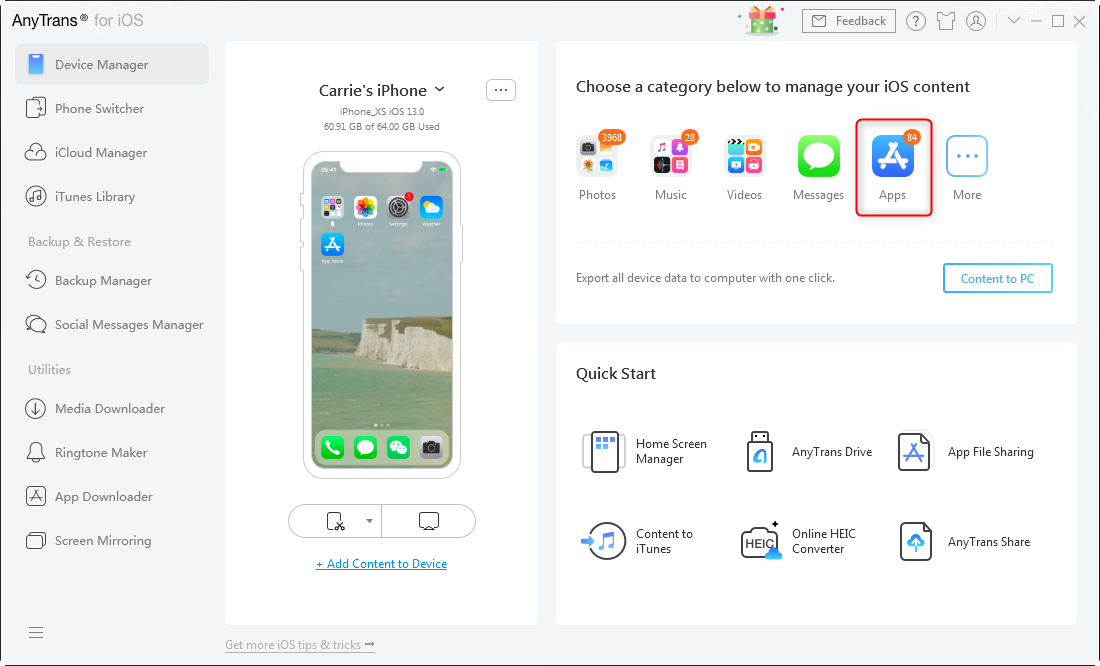
Empowering Your iPhone with Caution
Installing IPA files on your iPhone opens up a world of possibilities beyond the confines of the official App Store. From testing innovative beta applications to accessing region-locked content or simply enjoying older software versions, the power of sideloading puts greater control in your hands. Tools like AltStore and Sideloadly have democratized this process, making it accessible even without developer-level expertise or the need for a jailbreak. This directly aligns with the “Tech” focus of our website, providing a valuable “how-to” tutorial for software enthusiasts.
However, with this newfound freedom comes a significant responsibility. The very security measures Apple puts in place are designed to protect you from malicious software and maintain the integrity of your device. Bypassing these requires vigilance and a commitment to digital security. Always prioritize reliable IPA sources, understand the limitations of free developer accounts, and be prepared to troubleshoot common issues.
As the digital landscape evolves, particularly with regulations like the EU’s Digital Markets Act, the future of sideloading on iOS promises to be even more dynamic. By staying informed and exercising caution, you can safely explore the broader ecosystem of iOS applications, truly empowering your iPhone to meet your unique needs while safeguarding your privacy and data. The journey of sideloading is a testament to the ongoing balance between an open platform and robust security, a balance every tech-savvy user must learn to navigate.
aViewFromTheCave is a participant in the Amazon Services LLC Associates Program, an affiliate advertising program designed to provide a means for sites to earn advertising fees by advertising and linking to Amazon.com. Amazon, the Amazon logo, AmazonSupply, and the AmazonSupply logo are trademarks of Amazon.com, Inc. or its affiliates. As an Amazon Associate we earn affiliate commissions from qualifying purchases.