
In today’s digital landscape, documents are the lifeblood of communication, collaboration, and commerce. From contracts and invoices to presentations and academic papers, the Portable Document Format (PDF) has emerged as the universal standard for sharing and archiving information, ensuring consistency across different devices and operating systems. At the heart of managing these crucial files lies Adobe Acrobat, a powerful suite of tools developed by Adobe Inc.
Whether you’re a student needing to annotate research papers, a small business owner preparing professional proposals, or a corporate professional managing complex legal documents, knowing how to properly install Adobe Acrobat is the first step towards enhancing your digital productivity and security. This comprehensive guide will walk you through the entire process, from understanding the different versions and preparing your system to a smooth, step-by-step installation and crucial post-setup tips. We’ll also delve into common troubleshooting scenarios and highlight how leveraging Adobe Acrobat can significantly streamline your workflow, reflecting its importance in modern tech and business environments.

Understanding Adobe Acrobat: Why It’s Essential for Your Digital Workflow
Before diving into the installation process, it’s crucial to understand what Adobe Acrobat is and why it has become an indispensable tool for individuals and organizations alike. More than just a PDF viewer, Adobe Acrobat is a sophisticated platform designed for creating, editing, managing, and securing PDF documents. Its utility spans across virtually every sector, making it a cornerstone for efficient digital document management.
Adobe Acrobat Reader vs. Adobe Acrobat Pro DC
One of the most common points of confusion for new users is distinguishing between Adobe Acrobat Reader and Adobe Acrobat Pro DC. While both deal with PDFs, their functionalities and target audiences are vastly different, impacting your choice and the installation process.
- Adobe Acrobat Reader: This is the free, widely available application primarily used for viewing, printing, signing, and annotating PDF documents. It’s an excellent choice for anyone who needs to consume PDF content without the need to create or extensively modify it. It’s lightweight, easy to install, and serves as the default PDF viewer for millions worldwide. For casual users, Reader often suffices, allowing basic interaction with PDF files.
- Adobe Acrobat Pro DC: This is the premium, subscription-based version that unlocks the full spectrum of PDF manipulation capabilities. Acrobat Pro DC allows users to create PDFs from scratch, convert other file types (like Word, Excel, PowerPoint, or images) into PDFs, edit text and images within PDFs, organize pages, merge multiple documents, protect files with passwords and encryption, create fillable forms, and much more. It also integrates cloud services (Document Cloud, hence “DC”) for seamless access across devices, collaboration features, and e-signatures. For professionals, businesses, and anyone requiring robust PDF editing and management, Acrobat Pro DC is an invaluable asset. It’s an investment that pays dividends in productivity, security, and brand consistency by ensuring professional-grade document delivery.
Understanding this distinction is vital for determining which version you need to install. This guide will primarily focus on the installation of Adobe Acrobat Pro DC, given its comprehensive feature set and the higher likelihood of users seeking guidance for this more complex setup.
The Power of PDF: A Universal Standard
The PDF format itself is a testament to technological foresight, designed to present documents in a manner independent of application software, hardware, and operating systems. This “universal standard” ensures that a document created on one computer appears identically on another, regardless of the fonts, graphics, or layout used. Adobe Acrobat Pro DC amplifies this power by giving you full control over this standard, allowing you to:
- Maintain Brand Consistency: Create professional-looking documents with consistent branding elements, crucial for corporate identity.
- Enhance Security: Protect sensitive information with encryption and password controls, a critical aspect of digital security.
- Improve Collaboration: Share and review documents with commenting tools, streamlining workflows and boosting team productivity.
- Ensure Accessibility: Optimize PDFs for accessibility, making information available to a broader audience.
These capabilities underscore why Adobe Acrobat Pro DC is more than just software; it’s a strategic tool for managing digital assets, impacting everything from internal operations to external client communications and ultimately, the bottom line.
Pre-Installation Checklist: Paving the Way for a Smooth Setup
A successful software installation begins long before you click “Download.” Proper preparation can save you considerable time and frustration, ensuring that Adobe Acrobat Pro DC integrates seamlessly with your system. This checklist covers critical aspects from system compatibility to account management, setting the stage for a hassle-free installation.
Verifying System Compatibility
Adobe Acrobat Pro DC is a powerful application, and like any robust software, it has specific system requirements that your computer must meet to ensure optimal performance. Ignoring these can lead to slow operation, crashes, or installation failures.
- Operating System: Confirm your operating system is supported. Adobe typically supports the latest versions of Windows (e.g., Windows 10, Windows 11) and macOS (e.g., macOS Ventura, Sonoma, and sometimes one or two prior versions). Always check Adobe’s official system requirements page for the most up-to-date information. Running an unsupported OS version could prevent installation or cause instability.
- Processor (CPU): A multi-core processor is generally recommended for smooth performance, especially when dealing with large or complex PDFs. Aim for at least a 1.5 GHz or faster processor.
- Random Access Memory (RAM): Adequate RAM is crucial for multitasking and handling large files. Adobe recommends a minimum of 2 GB of RAM, but 4 GB or more is highly advised for professional use and better overall responsiveness. The more RAM, the smoother your experience, particularly when working with multiple PDFs or other applications concurrently.
- Hard Disk Space: Adobe Acrobat Pro DC requires a significant amount of hard disk space for the installation itself, plus additional space for temporary files and document storage. Ensure you have at least 4.5 GB of available hard-disk space, and preferably more, to accommodate future updates and your working files. A Solid State Drive (SSD) is highly recommended for faster application launch times and better file handling.
- Screen Resolution: A screen resolution of 1024×768 or higher is recommended for an optimal viewing experience of the application interface.
- Internet Connection: An active internet connection is mandatory for product activation, downloading the installer, accessing cloud services, and receiving essential software updates.
Securing Your Adobe ID and Subscription
Adobe Acrobat Pro DC operates on a subscription model, which means you’ll need an active Adobe ID and a valid subscription plan to use the software.
- Adobe ID: If you don’t already have one, create an Adobe ID on Adobe’s official website (account.adobe.com). This ID is your gateway to managing your Adobe products, subscriptions, and cloud storage. It’s also vital for activation and accessing cloud-based features. Ensure your Adobe ID email is accessible, as you may need to verify your account or receive important communications.
- Subscription: Purchase or verify your Adobe Acrobat Pro DC subscription. This typically involves selecting a plan (individual, business, student & teacher, or enterprise) and completing the payment process. Once subscribed, the software will be linked to your Adobe ID, allowing you to download and activate it. For business users, ensure your IT department has provided you with the necessary credentials or instructions if it’s part of a volume license. This also ties into the ‘Money’ aspect of our website topics, as it’s an investment in a professional tool.
Preparing Your System: Deleting Old Versions and Freeing Space
To prevent conflicts and ensure a clean installation, a few preparatory steps related to your existing software and storage are advisable:
- Uninstall Older Versions: If you have an older version of Adobe Acrobat or Acrobat Reader (especially very old ones like Acrobat 9 or X) installed, it’s generally best to uninstall them before installing Pro DC. This minimizes the risk of file conflicts, registry issues, or unexpected behavior. Use your operating system’s “Add or Remove Programs” (Windows) or move the application to the Trash and empty it (macOS) to remove them cleanly.
- Close Other Applications: Before running the installer, close all other open applications. This frees up system resources and prevents other programs from interfering with the installation process.
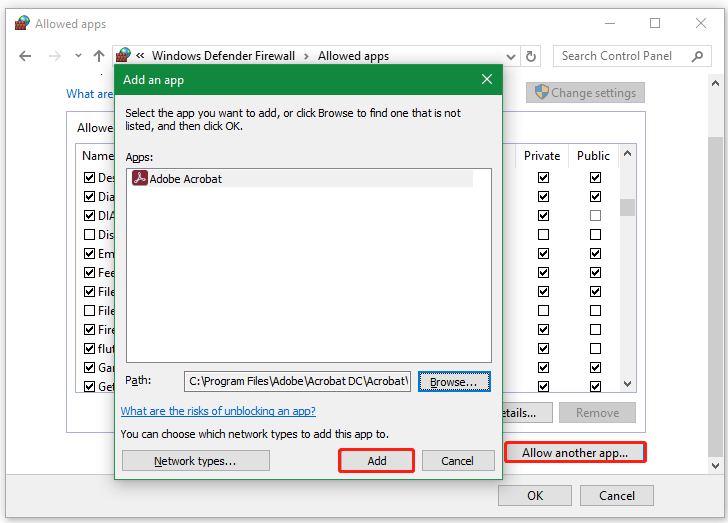
- Disable Antivirus (Temporarily): In rare cases, overly aggressive antivirus software can flag legitimate installation files as suspicious, preventing a smooth installation. You may temporarily disable your antivirus software during the installation process, but remember to re-enable it immediately afterward to maintain your digital security. Only do this if you are downloading from the official Adobe website.
Step-by-Step Guide to Installing Adobe Acrobat Pro DC
With your system prepared and your Adobe ID ready, you’re now set for the main event: installing Adobe Acrobat Pro DC. Follow these steps meticulously to ensure a successful setup.
Downloading the Installer from Adobe’s Official Website
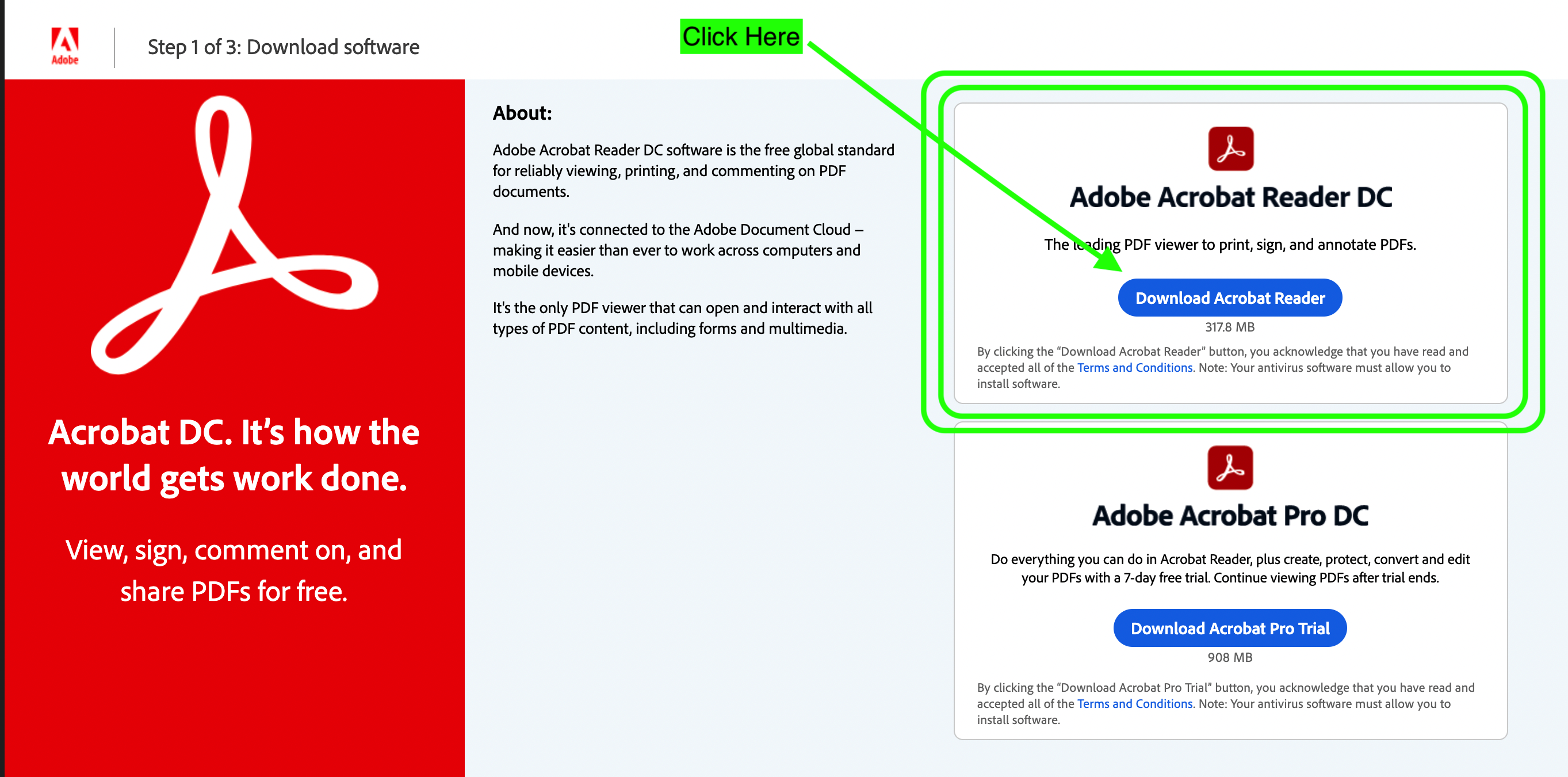
The first and most critical step is to download the legitimate installer directly from Adobe. This ensures you receive the correct, uncorrupted, and secure version of the software.
- Visit Adobe’s Official Website: Open your preferred web browser and navigate to the Adobe website, specifically the Acrobat Pro DC product page or your Adobe account page (account.adobe.com).
- Sign In: Click on the “Sign In” button and enter your Adobe ID (email address) and password. This will take you to your Adobe account dashboard.
- Locate Your Products/Services: Within your account, navigate to the section that lists your purchased products or services. For Acrobat Pro DC, you should see your subscription listed.
- Download the Installer: Find the “Download” button associated with your Adobe Acrobat Pro DC subscription. Click it to begin downloading the installer file. The file size can be significant (several gigabytes), so ensure you have a stable internet connection and sufficient time. Pro Tip: If you have a slow connection, consider using a download manager, though modern browsers handle large downloads quite robustly.
Running the Setup Wizard
Once the installer file is downloaded, typically named something like Acrobat_DC_Web_WWMU.exe (Windows) or Acrobat_DC_Web_WWMU.dmg (macOS), you can proceed with running the setup wizard.
- Locate the Downloaded File: Go to your browser’s default download folder (or wherever you saved the file).
- Launch the Installer:
- Windows: Double-click the
.exefile. You may be prompted by User Account Control (UAC) to allow the application to make changes to your device; click “Yes.” - macOS: Double-click the
.dmgfile. This will mount a disk image. Open the mounted drive and then double-click the Acrobat Pro DC installer icon within it.
- Windows: Double-click the
- Follow On-Screen Prompts: The Adobe Acrobat Pro DC setup wizard will launch.
- Initial Setup: The installer might first extract necessary files. Wait for this process to complete.
- License Agreement: Read the Adobe Software License Agreement. To proceed with the installation, you must accept the terms.
- Installation Options: In most cases, the default installation location is recommended (e.g.,
C:Program FilesAdobeAcrobat DCon Windows). You might have options to customize the installation (e.g., language, shortcuts), but for most users, the default settings are perfectly fine. - Begin Installation: Click “Install” or “Next” to start the installation process. This can take several minutes, depending on your system speed and the size of the installation files. A progress bar will indicate the status.
- Completion: Once the installation is complete, you will typically see a “Setup Complete” or “Installation Successful” message. Click “Finish” or “Close” to exit the wizard.
Post-Installation Activation and First Launch
After the installation files are on your system, you need to activate the software to use its full features.
- Launch Adobe Acrobat Pro DC: Find the Adobe Acrobat Pro DC icon on your desktop, in your Start menu (Windows), or in your Applications folder (macOS), and launch the application.
- Sign In (If Prompted): The first time you launch Acrobat Pro DC, or if it wasn’t already linked, you will likely be prompted to sign in with your Adobe ID. Enter the same email address and password you used to download the installer. This step is crucial for authenticating your subscription and activating the software.
- Set as Default PDF Viewer (Optional but Recommended): Adobe Acrobat Pro DC will often ask if you want to set it as your default PDF viewer. Clicking “Yes” will ensure that all PDF files automatically open with Acrobat Pro DC, streamlining your workflow.
- Initial Setup and Tour: You might be presented with an initial setup screen or a brief tour highlighting new features. Take a moment to familiarize yourself with the interface.
- Check for Updates: Even after a fresh installation, it’s a good practice to check for any pending software updates. Go to
Help > Check for Updateswithin Acrobat Pro DC. Installing the latest updates ensures you have the most recent features, bug fixes, and security patches, enhancing both productivity and digital security.
Troubleshooting Common Installation Issues
Even with careful preparation, unexpected issues can sometimes arise during software installation. Here are common problems you might encounter with Adobe Acrobat Pro DC and practical solutions to get you back on track.
Addressing Download Failures and Corrupted Files
A common first hurdle is a problematic download.
- Incomplete Download: If your internet connection is unstable, the download might stop prematurely.
- Solution: Ensure a stable internet connection. If using Wi-Fi, try moving closer to your router or connecting via Ethernet. Pause and resume the download in your browser, or clear your browser’s cache and cookies and try downloading again.
- Corrupted Installer File: Sometimes, a download completes, but the file itself is corrupted, leading to installation errors.
- Solution: Delete the downloaded installer file and clear your browser’s download history. Then, redownload the installer directly from your Adobe account. Verify the file size of the new download matches the expected size (if provided by Adobe). Using a different browser might also help.
- “Download Failed” or “Network Error”: Firewalls or network security settings can sometimes block downloads.
- Solution: Temporarily disable your firewall or antivirus software (remember to re-enable it immediately after). If you’re on a corporate network, contact your IT administrator, as they might have network restrictions in place.
Resolving Installation Errors and Compatibility Conflicts
Installation errors often manifest as cryptic messages or the setup wizard simply failing to complete.
- “Installation Failed” or Error Codes: Generic installation failures can stem from various issues.
- Solution:
- Restart Your Computer: A simple restart can resolve many underlying system glitches.
- Run as Administrator (Windows): Right-click the installer file and select “Run as administrator.” This ensures the installer has the necessary permissions.
- Check System Requirements (Again): Double-check that your system fully meets all minimum requirements (OS, RAM, CPU, disk space).
- Uninstall Previous Versions (Thoroughly): If you skipped this step or did it incompletely, use Adobe’s official Cleaner Tool (search for “Adobe Creative Cloud Cleaner Tool”) to remove all remnants of previous Adobe installations, then retry.
- Disable Antivirus/Firewall (Temporarily): As mentioned, temporarily disabling security software can prevent false positives during installation.
- Review Installation Logs: If the error persists, look for installation log files (often in temporary directories or specified by the error message). These logs can provide more specific error codes or details that can be searched for on Adobe’s support forums.
- Solution:
- “Another Installation is in Progress”: This error indicates that Windows Installer is busy with another task, even if no other installation is visibly running.
- Solution: Restart your computer. If the issue persists, open Task Manager (Ctrl+Shift+Esc on Windows), go to the “Details” tab, and look for any processes named
msiexec.exe. End these tasks and then try running the Acrobat installer again.
- Solution: Restart your computer. If the issue persists, open Task Manager (Ctrl+Shift+Esc on Windows), go to the “Details” tab, and look for any processes named
- Insufficient Disk Space: The installer might fail if there isn’t enough space for temporary files or the final installation.
- Solution: Free up disk space by deleting unnecessary files, emptying the recycle bin, and uninstalling unused programs.
Ensuring Genuine Software and Avoiding Pitfalls
One of the most critical aspects of software installation, particularly for professional tools like Adobe Acrobat, is ensuring you are installing genuine software.
- Source of Download: Always download Adobe Acrobat Pro DC only from your official Adobe account page or Adobe’s primary product website. Avoid third-party download sites, torrents, or unofficial distributors, as these can provide pirated, corrupted, or malware-laden installers. Installing non-genuine software poses significant digital security risks, including malware infections and data breaches, and violates licensing agreements.
- Adobe Genuine Software Service: Adobe includes a “Genuine Software Service” that periodically verifies the authenticity of your Adobe products. If you receive an alert that your software is not genuine, it often means you’ve installed a pirated copy or there’s an issue with your license.
- Solution: If you suspect an issue, contact Adobe Support directly. Do not follow instructions from unofficial sources or download “cracks” to bypass verification, as these are major security risks.
- Subscription Management: Ensure your Adobe subscription is active and up-to-date. Expired subscriptions will cause the software to revert to a trial version or become unusable. This highlights the ‘Money’ aspect – protecting your investment in legitimate software.
Maximizing Your Adobe Acrobat Experience
Once Adobe Acrobat Pro DC is successfully installed, the journey shifts from setup to utilization. To truly leverage this powerful tool and enhance your productivity, consider these best practices and features.
Integrating Acrobat into Your Productivity Suite
Adobe Acrobat Pro DC isn’t just a standalone application; it’s designed to integrate seamlessly with other productivity tools, further streamlining your workflow.
- Microsoft Office Integration: After installation, Acrobat typically installs add-ins for Microsoft Word, Excel, and PowerPoint. These add-ins allow you to create high-quality PDFs directly from your Office applications with just a click, preserving formatting and fonts perfectly. Utilize these for quick and professional document conversion.
- Cloud Storage and Collaboration: Leverage Adobe Document Cloud storage, which comes with your subscription. This allows you to access your PDFs from any device, share them for review, and collaborate in real-time. Use features like shared reviews and commenting tools to get feedback efficiently. This is a huge boost to team productivity and efficiency, aligning with the “Tech” and “Productivity” aspects.
- E-Signatures (Adobe Sign): For businesses, integrating e-signatures (powered by Adobe Sign, often included or available as an add-on) can drastically speed up contract approvals and document workflows. Legal validity and security are paramount here, offering both a “Tech” and a “Brand” benefit in professional dealings.
- Customizing Your Workspace: Explore Acrobat’s preferences and toolbar customization options. Tailoring the interface to your most frequent tasks can save clicks and improve efficiency, making the software feel more intuitive and responsive to your specific needs.
Staying Updated and Secure
Software is dynamic, and ongoing maintenance is key to optimal performance and security.
- Regular Updates: As mentioned, check for updates regularly (
Help > Check for Updates). Adobe frequently releases updates that include new features, performance enhancements, and critical security patches. Staying updated protects you from known vulnerabilities, which is paramount for digital security. - Security Best Practices:
- Password Protect Sensitive PDFs: Use Acrobat’s security features to encrypt and password-protect documents containing confidential information. This is especially important for financial or personal data.
- Disable JavaScript for Unknown PDFs: In Acrobat’s preferences, you can configure JavaScript settings. While JavaScript can enhance PDF functionality, it can also be exploited by malicious actors. Consider disabling JavaScript for PDFs from untrusted sources.
- Review Document Properties: Before sharing PDFs, use Acrobat’s “Redact” tool and “Examine Document” feature to remove hidden information (metadata, comments, hidden layers) that might inadvertently expose sensitive data. This is crucial for maintaining brand reputation and avoiding costly data breaches.
- Backup Your Work: While not directly an Acrobat feature, always back up your important PDF documents. Cloud storage (like Adobe Document Cloud or other services) provides an excellent solution for this, protecting your valuable work against data loss.
By following this comprehensive guide, you’ve not only learned how to install Adobe Acrobat Pro DC but also gained insights into its broader value for productivity, security, and professional presentation. Investing in the proper installation and utilization of such a powerful tool empowers you to master your digital documents, streamlining your workflow and elevating your professional output in an increasingly digital world.
aViewFromTheCave is a participant in the Amazon Services LLC Associates Program, an affiliate advertising program designed to provide a means for sites to earn advertising fees by advertising and linking to Amazon.com. Amazon, the Amazon logo, AmazonSupply, and the AmazonSupply logo are trademarks of Amazon.com, Inc. or its affiliates. As an Amazon Associate we earn affiliate commissions from qualifying purchases.