
The digital world hums with the constant flow of information, and for most of us, that flow is powered by Wi-Fi. Whether you’re streaming your favorite shows, video conferencing for work, or simply browsing the web, a stable and functional Wi-Fi connection is paramount. However, there are times when this essential link falters, and the culprit often turns out to be a missing, outdated, or corrupted Wi-Fi driver. This guide will walk you through the process of installing a Wi-Fi driver, ensuring your devices can seamlessly connect to the wireless network, all within the broader context of staying technologically adept and productive.
In today’s tech-driven landscape, understanding how to troubleshoot and resolve common hardware issues like driver problems is a vital aspect of digital literacy. It empowers you to maintain your devices, optimize their performance, and avoid unnecessary frustration. This isn’t just about fixing a specific problem; it’s about building a foundational understanding of how your technology works, a skill that translates directly into enhanced productivity and a smoother digital experience.
This article will delve into the practical steps of driver installation, but it will also touch upon the underlying reasons why drivers are so crucial. We’ll explore where to find the correct drivers, how to install them safely, and what to do if things don’t go as planned. Think of this as an essential tutorial within our broader “Tech” section, equipping you with the knowledge to conquer a common, yet sometimes perplexing, technical hurdle.
Understanding Wi-Fi Drivers: The Unsung Heroes of Connectivity
Before we dive into the installation process, it’s essential to grasp what a Wi-Fi driver actually is and why it’s so critical. Imagine your computer or device as a sophisticated orchestra, and each piece of hardware – your processor, your graphics card, your sound card, and of course, your Wi-Fi adapter – is an instrument. The driver, in this analogy, is the sheet music and the conductor. It’s a piece of software that acts as an intermediary, translating the commands from your operating system into instructions that your specific Wi-Fi hardware can understand, and vice-versa.
Without the correct Wi-Fi driver, your operating system wouldn’t know how to communicate with your Wi-Fi card. It’s like trying to conduct an orchestra with no music – the musicians have their instruments, but they don’t know what to play or when. This lack of communication results in a conspicuous absence of Wi-Fi connectivity. You’ll likely see error messages, a “Wi-Fi not available” status, or the Wi-Fi icon might be missing entirely from your taskbar or system tray.
Why Drivers Become Problematic
Drivers, like any software, aren’t static. They evolve, and they can encounter issues. Several factors can lead to a Wi-Fi driver problem:
- Operating System Updates: When you update your operating system (e.g., from Windows 10 to Windows 11, or a major macOS update), the new OS might require updated drivers for your hardware to function correctly. Sometimes, existing drivers aren’t fully compatible with the new OS version, leading to connectivity issues.
- New Hardware Installation: If you’ve recently installed a new Wi-Fi adapter, or if your device came with a Wi-Fi card that needs a specific driver, you’ll need to install it manually.
- Corrupted Drivers: Drivers can become corrupted due to various reasons, including software conflicts, system errors, or incomplete installations. A corrupted driver can lead to intermittent connectivity, slow speeds, or complete failure to connect.
- Outdated Drivers: Even if a driver is technically installed, it might be outdated. Manufacturers regularly release driver updates to improve performance, fix bugs, and enhance security. Using an old driver can lead to suboptimal performance or compatibility issues with newer networks or protocols.
- Malware or Virus Infections: In rare cases, malware can corrupt or interfere with system drivers, including your Wi-Fi driver.
Understanding these potential causes helps us approach the solution with a clear perspective. It’s not just about blindly installing something; it’s about addressing the root of the problem.
Step-by-Step Guide to Installing Your Wi-Fi Driver
Now that we understand the importance of Wi-Fi drivers, let’s get down to the practical steps of installing them. This process typically involves identifying your Wi-Fi adapter, finding the correct driver, and then installing it on your system. We’ll cover the most common methods, primarily focusing on Windows, as it’s the most prevalent operating system.
Locating Your Wi-Fi Adapter Information
The first crucial step is to identify the exact model of your Wi-Fi adapter. Without this information, you won’t be able to download the correct driver.
Using Device Manager (Windows)
Device Manager is your go-to tool in Windows for managing hardware.
-
Open Device Manager:
- Press the Windows key + R to open the Run dialog box.
- Type
devmgmt.mscand press Enter or click OK.
-
Find Your Wi-Fi Adapter:
- In the Device Manager window, look for a category named “Network adapters”.
- Expand this category by clicking the arrow next to it.
- You will see a list of network devices. Your Wi-Fi adapter will likely have “Wireless,” “Wi-Fi,” “802.11,” or its manufacturer’s name (e.g., Intel, Realtek, Broadcom) in its description.
- Important: If you don’t see “Network adapters” or if your Wi-Fi adapter is listed with a yellow exclamation mark, it signifies a problem, and you’ll need to install a driver.
-
Note Down the Adapter Name:
- Right-click on your Wi-Fi adapter and select “Properties”.
- In the Properties window, go to the “General” tab. The “Device name” will provide the specific model information you need.
- Alternatively, you can go to the “Details” tab, click the dropdown menu under “Property,” and select “Hardware Ids”. This will display a string of identifiers, which is extremely useful for searching for drivers online. Copy the top-most string for easier searching.
Other Methods for Identification
- System Information (Windows): You can also find this information by typing “System Information” in the Windows search bar and navigating to “Components” > “Network” > “Adapter.”
- Manufacturer’s Website: If you know the manufacturer of your laptop or computer, visiting their support website and entering your model number will often lead you to a list of compatible drivers.
- Third-Party Tools: While not always necessary, some diagnostic tools can automatically identify your hardware and suggest drivers. However, it’s generally safer to stick to official manufacturer sources.
Finding the Correct Wi-Fi Driver
Once you have the precise name or hardware ID of your Wi-Fi adapter, the next step is to find the corresponding driver. There are a few reliable ways to do this.
Official Manufacturer Websites
This is the most recommended and safest method.
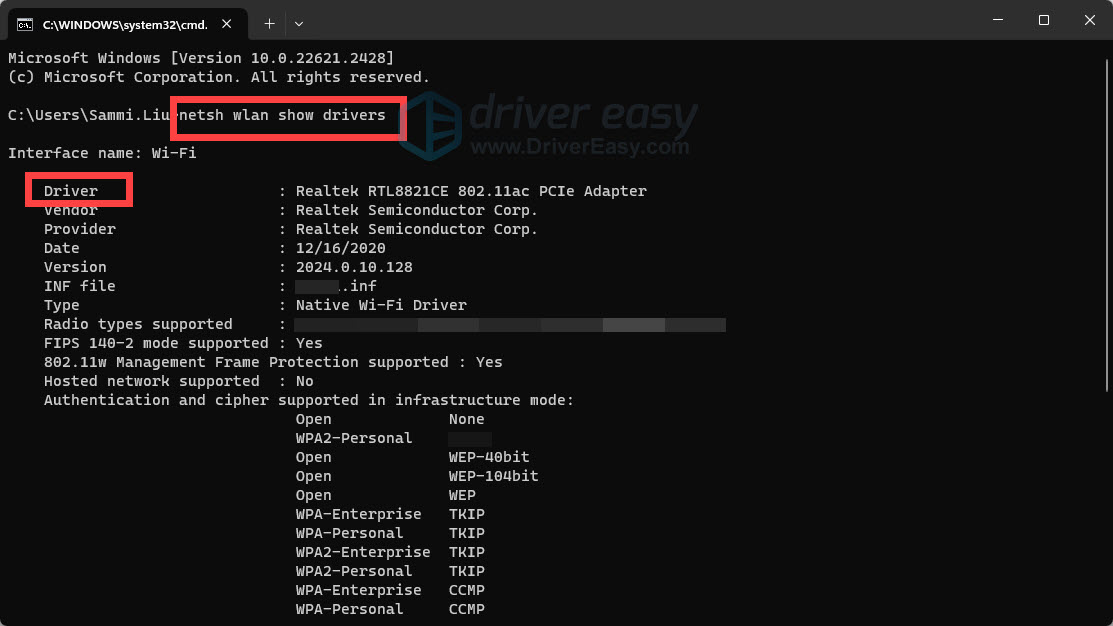
- Identify Your Wi-Fi Adapter Manufacturer: Based on the information you gathered from Device Manager, you’ll know if you have an Intel, Realtek, Broadcom, Atheros, or other brand of Wi-Fi card.
- Visit the Manufacturer’s Support/Download Page:
- Go to the official website of your Wi-Fi adapter manufacturer (e.g., intel.com, realtek.com, broadcom.com).
- Look for a “Support,” “Downloads,” or “Drivers” section.
- Search for Your Driver:
- You’ll typically be prompted to enter your product model, hardware ID, or operating system.
- Enter the information you have. Be precise with your operating system version (e.g., Windows 10 64-bit, Windows 11 32-bit).
- The website will then list available driver packages. Download the latest stable version.
- Consider Your Computer Manufacturer: If you have a pre-built computer or laptop, it’s often best to visit the website of your computer manufacturer (e.g., Dell, HP, Lenovo, Acer) and search for drivers specific to your laptop model. They often provide customized driver packages that are tested for your specific hardware configuration.
Using Windows Update (Sometimes)
Windows Update can sometimes automatically detect and install missing drivers, including Wi-Fi drivers.
- Go to Settings: Press Windows key + I.
- Click “Update & Security” (or “Windows Update” in newer versions).
- Click “Check for updates.”
- Look for Optional Updates: If a driver is available, it might be listed under “Optional updates” or “View optional updates.” Click to expand and install it.
Caution: While convenient, Windows Update doesn’t always find the latest or most optimized drivers. Relying on the manufacturer’s website is generally more reliable.
Installing the Wi-Fi Driver
With the driver file downloaded, you’re ready to install it. The process usually involves running an executable file.
Running the Installer Executable
- Locate the Downloaded File: Find the driver file you downloaded. It’s usually in a
.exeformat (for Windows) and often resides in your “Downloads” folder. - Run as Administrator: It’s highly recommended to run the installer as an administrator to ensure it has the necessary permissions to make system changes.
- Right-click on the downloaded driver
.exefile. - Select “Run as administrator.”
- Right-click on the downloaded driver
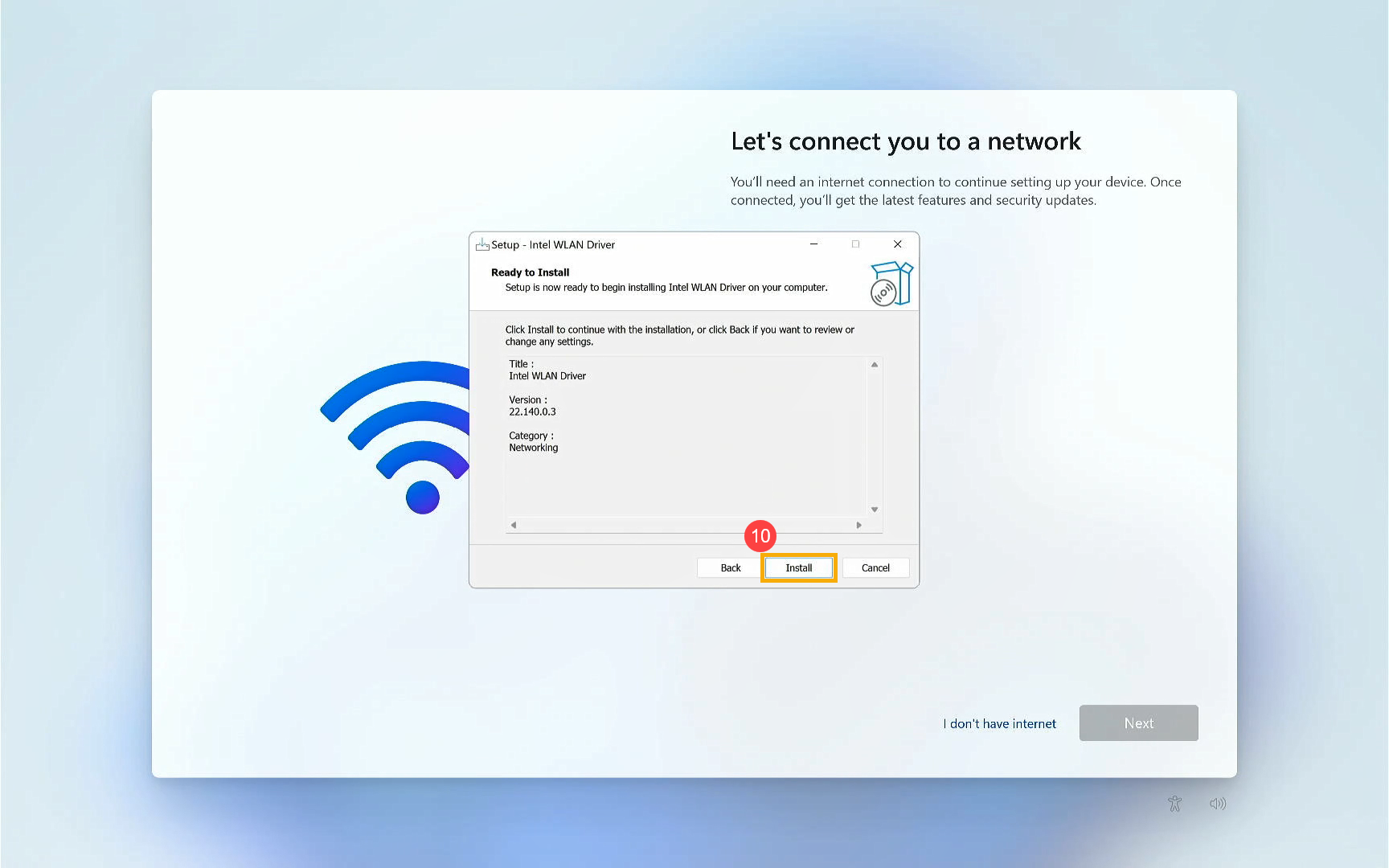
- Follow On-Screen Instructions: The installer will guide you through the process. This typically involves:
- Accepting License Agreements: Read and accept the terms.
- Choosing Installation Type: Usually, a “Typical” or “Express” installation is sufficient. Avoid custom installations unless you know what you’re doing.
- Installation Progress: The installer will copy files and configure the driver.
- Restart Your Computer: After the installation is complete, you will almost always be prompted to restart your computer. This is crucial for the new driver to be properly loaded and take effect.
Manual Driver Installation (If the .exe Fails)
In rare cases, the executable installer might not work, or you might have downloaded a driver package that contains only the driver files (.inf, .sys, .cat). In such scenarios, you can perform a manual installation through Device Manager.
- Open Device Manager (as described earlier).
- Locate Your Wi-Fi Adapter: Find your Wi-Fi adapter, which will likely have a yellow exclamation mark if the driver is not installed correctly.
- Update Driver:
- Right-click on the Wi-Fi adapter.
- Select “Update driver.”
- Choose “Browse my computer for drivers”:
- Click this option.
- Select “Let me pick from a list of available drivers on my computer”:
- Click this option.
- Click “Have Disk…”:
- This will open a new window.
- Browse to the Driver Folder: Click “Browse…” and navigate to the folder where you extracted or downloaded your driver files. Look for a file with a
.infextension. Select it and click “Open.” - Select the Driver and Install: The system will then list the compatible driver. Select it and click “Next.”
- Restart: Again, restart your computer after the manual installation is complete.
Troubleshooting Common Wi-Fi Driver Issues
Even with the best intentions and careful steps, you might encounter problems. Here are some common issues and how to address them.
Wi-Fi Still Not Working After Installation
If you’ve installed a driver and your Wi-Fi is still not working, consider the following:
- Did You Restart? This is the most common oversight. Always restart your computer after driver installation.
- Is it the Right Driver? Double-check that you downloaded the driver for your exact Wi-Fi adapter model and your specific operating system version (including 32-bit or 64-bit).
- Roll Back the Driver: If your Wi-Fi was working before an update or a previous driver installation, you can try rolling back to a previous driver version.
- In Device Manager, right-click your Wi-Fi adapter.
- Go to “Properties.”
- On the “Driver” tab, click “Roll Back Driver” (if available).
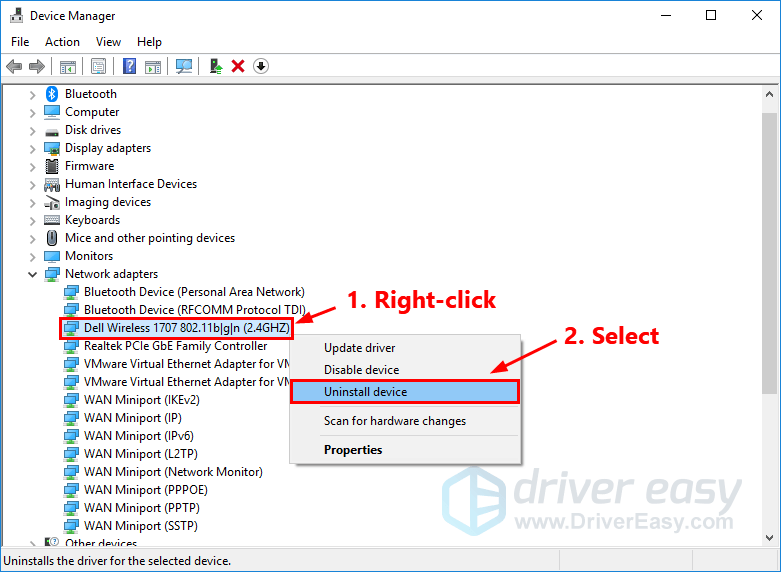
- Uninstall and Reinstall: Sometimes, a clean slate is needed.
- In Device Manager, right-click your Wi-Fi adapter and select “Uninstall device.”
- Crucially, check the box that says “Delete the driver software for this device” if prompted.
- Restart your computer. Then, attempt to install the driver again from scratch.
Slow Wi-Fi Speeds or Intermittent Connectivity
If your Wi-Fi is connected but experiencing performance issues, it might not be a complete driver failure, but an outdated or suboptimal driver.
- Check for Newer Drivers: Visit the manufacturer’s website again and see if there’s a more recent driver update available, even if your current one seems to be working. Performance improvements are often part of these updates.
- Antenna Issues: While this is hardware, a faulty antenna connection can be mistaken for a driver problem. Ensure your Wi-Fi card’s antennas are securely connected (if it’s a desktop with an add-in card).
- Interference: Other devices (microwaves, cordless phones) or even neighboring Wi-Fi networks can cause interference. Try moving your device closer to the router or changing your router’s Wi-Fi channel.
Driver Installation Fails
If the driver installation itself fails:
- Antivirus Interference: Temporarily disable your antivirus software during the driver installation. Some security programs can mistakenly flag driver installation files as suspicious. Remember to re-enable it afterward.
- Corrupted Download: The driver file you downloaded might be corrupted. Try downloading it again from a different source if possible, or clear your browser cache.
- Insufficient Disk Space: Ensure you have enough free space on your hard drive for the driver installation.
By systematically following these steps and troubleshooting common pitfalls, you can effectively resolve most Wi-Fi driver issues. This not only restores your connectivity but also enhances your confidence in managing your own technology, a key aspect of staying proficient in our increasingly digital world. Remember, being able to maintain and optimize your devices is a fundamental skill for productivity and a seamless digital experience.
aViewFromTheCave is a participant in the Amazon Services LLC Associates Program, an affiliate advertising program designed to provide a means for sites to earn advertising fees by advertising and linking to Amazon.com. Amazon, the Amazon logo, AmazonSupply, and the AmazonSupply logo are trademarks of Amazon.com, Inc. or its affiliates. As an Amazon Associate we earn affiliate commissions from qualifying purchases.