
In an increasingly connected world, your smartphone is more than just a device; it’s your portal to communication, information, entertainment, and even your livelihood. At the heart of this connection lies a tiny, often overlooked component: the SIM card. The Subscriber Identity Module (SIM) card is essential for linking your phone to a mobile network, granting you the ability to make calls, send texts, and access mobile data. While the process of installing a SIM card might seem straightforward, understanding the nuances, various types, and best practices ensures a seamless and secure experience.

This comprehensive guide will demystify the SIM card installation process, offering detailed, step-by-step instructions for different device types. We’ll delve into the evolving landscape of SIM technology, including the rise of eSIMs, and equip you with troubleshooting tips to overcome common hurdles. Furthermore, we’ll explore how proper SIM management ties into your digital security, personal productivity, and even financial well-being, aligning with the core themes of technology, branding, and money in our digital age.
Understanding Your SIM Card and Device: The Foundation of Connectivity
Before you even think about installing a SIM card, it’s crucial to understand what it is, the different forms it takes, and how your specific device interacts with it. This foundational knowledge will prevent common mistakes and prepare you for a smooth setup.
What Exactly is a SIM Card?
A SIM card is a small, smart card that securely stores your International Mobile Subscriber Identity (IMSI) number and related keys used to identify and authenticate you to your mobile network operator (MNO). Essentially, it’s your digital passport to the cellular world. When you insert a SIM card into your phone, it registers with the network, allowing you to use your phone number, access data, and utilize all the services provided by your chosen carrier. Without a SIM card (or an equivalent digital profile), your smartphone is largely limited to Wi-Fi-based functions, acting more like a mini-tablet than a true mobile phone. The data stored on a SIM also includes contact information and messages, although most modern smartphones store these in cloud services or internal memory for greater flexibility and backup.
The Evolution of SIM Cards: From Mini to Nano to eSIM
The physical size of SIM cards has dramatically shrunk over the years, driven by the increasing demand for smaller, sleeker smartphone designs and more internal space for components like larger batteries and advanced camera modules. Understanding these types is vital for selecting the correct SIM for your device.
- Standard SIM (Mini-SIM): These were the original, largest SIM cards, commonly found in older feature phones and early smartphones. Measuring 25mm x 15mm, they are rarely used in new devices today.
- Micro-SIM: Introduced to accommodate thinner devices, Micro-SIMs measure 15mm x 12mm. They became popular in the early 2010s with devices like the iPhone 4 and many Android phones of that era.
- Nano-SIM: The current standard for virtually all modern smartphones, Nano-SIMs are the smallest physical SIM cards at 12.3mm x 8.8mm. Their compact size allows manufacturers greater design freedom, enabling slimmer phones and more internal components. If you’ve bought a smartphone in the last 7-8 years, it almost certainly uses a Nano-SIM.
- eSIM (Embedded SIM): Representing a significant leap in mobile technology, the eSIM is not a physical card but a tiny chip permanently embedded within your device’s hardware. Instead of swapping physical cards, you download your carrier’s network profile digitally. This technological advancement directly aligns with our ‘Tech’ theme, showcasing innovation in connectivity. eSIMs offer incredible flexibility, allowing users to switch carriers without needing a new physical card, manage multiple lines, and simplify international travel. They are also a boon for IoT devices, enabling seamless connectivity for a wide range of smart gadgets. While not yet universally adopted, eSIMs are increasingly common in flagship smartphones from Apple, Samsung, Google, and others.
Identifying Your Phone’s SIM Tray or Slot
Knowing where your SIM card goes is the first practical step. Most modern smartphones utilize a SIM tray that slides out from the side of the device, typically near the power button or volume rocker. This tray usually requires a special SIM ejector tool (often included in your phone’s box) or a straightened paperclip to open.
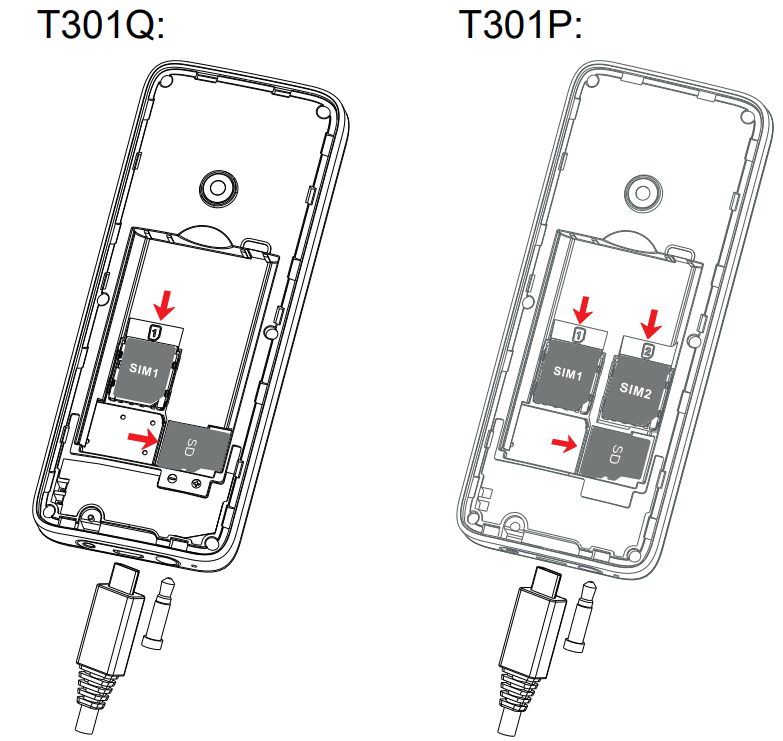
Older phones, particularly those with removable back covers and batteries, might have a SIM slot located underneath the battery. In these cases, you’ll need to power off the device, remove the back cover, and then the battery to access the slot. Some devices, especially those designed for business or international use, might feature a dual-SIM tray, allowing you to use two SIM cards simultaneously – handy for managing personal and work numbers, or for travelers. Always consult your phone’s manual if you’re unsure about the location or type of SIM tray.
Step-by-Step Guide to Physical SIM Card Installation
Once you understand your SIM type and device, the actual installation process is quite simple. However, attention to detail is key to avoiding damage and ensuring proper function.
Essential Tools and Preparations
Before you begin, gather these items:
- Your new SIM card: Ensure it’s the correct size (Nano-SIM is most common).
- Your smartphone: Fully charged or with sufficient battery.
- A SIM ejector tool or straightened paperclip: For side-tray devices.
- Good lighting: To clearly see the small components.
- A clean, flat surface: To prevent dropping tiny parts.
- Your phone’s manual (optional but recommended): Especially if you’re unfamiliar with your specific model.
Crucial Step: Power Off Your Device. Always power off your smartphone before attempting to insert or remove a SIM card. This minimizes the risk of data corruption, system errors, or even damaging the SIM card or phone’s internal components. While many phones are hot-swappable, it’s best practice to power down.
Installing a SIM in a Side Tray Device (The Modern Standard)
This method applies to the vast majority of current smartphones, including iPhones, Samsung Galaxies, Google Pixels, and many others.
- Locate the SIM Tray: Examine the edges of your phone for a small, narrow slot with a tiny pinhole next to it. This is your SIM tray.
- Eject the Tray: Insert the SIM ejector tool or the straightened end of a paperclip firmly into the small pinhole. Apply gentle, steady pressure until the tray slightly pops out. Do not force it.
- Remove the Tray Completely: Carefully pull the tray all the way out of the slot. It’s often a delicate piece of plastic or metal.
- Orient the SIM Card: Your SIM card will have one corner subtly cut or beveled. The SIM tray itself will have a corresponding cutout, indicating the correct orientation. Align your Nano-SIM card so that its gold contacts face downwards (or upwards, depending on the tray design; consult your phone’s manual if unsure) and the beveled corner matches the tray’s cutout. The SIM should fit snugly into the tray without needing to be forced. If it’s a dual-SIM tray, ensure you place the primary SIM in the designated slot (usually SIM 1).
- Insert the Tray: Gently slide the loaded SIM tray back into the phone’s slot. It should slide in smoothly and click into place, flush with the phone’s edge. Do not push too hard, as this could damage the tray or the internal contacts.
- Power On Your Device: Press and hold the power button to turn your phone back on.
Installing a SIM in a Back Panel Device (Older Models)
If you have an older smartphone or a basic feature phone, you might need to access the SIM slot from the back.
- Remove the Back Cover: Locate the notch or indentation on the side or bottom of the phone’s back cover. Gently pry it open and remove the back panel.
- Remove the Battery: If the battery is covering the SIM slot, carefully lift it out.
- Locate the SIM Slot: The SIM slot will usually be clearly marked and positioned near the top of the battery compartment. It might be a simple push-in slot, or it could have a hinged mechanism.
- Insert the SIM Card: Align your SIM card with the slot, paying attention to the beveled corner and the direction indicated by a small diagram on the phone’s casing. For push-in slots, slide the SIM until it clicks into place. For hinged slots, lift the hinge, place the SIM, and then lock the hinge back down.
- Reassemble the Phone: Replace the battery, ensuring it’s properly seated. Then, reattach the back cover, pressing firmly around the edges until it clicks securely into place.
- Power On Your Device: Turn your phone back on.
What to Do After Installation: Verification and Activation
After installing your SIM card and powering on your device, perform these checks to ensure everything is working correctly:
- Check for Network Signal: Look at the top of your phone screen. You should see a signal strength indicator (bars) and your carrier’s name (e.g., “AT&T,” “Vodafone,” “T-Mobile”).
- Enter PIN (If Prompted): If your SIM card has a PIN set, your phone will prompt you to enter it. This is a security feature to prevent unauthorized use of your SIM. You can usually find the default PIN on the card that came with your SIM.
- Make a Test Call/Text: Dial a friend or family member, or send a quick text message to confirm calling and messaging capabilities.
- Test Mobile Data: Try browsing a webpage or opening an app that requires an internet connection (with Wi-Fi turned off) to verify mobile data access.
- Activate Your SIM (If New): Some new SIM cards, especially from prepaid carriers, may require activation. This usually involves calling a toll-free number or visiting the carrier’s website and entering details found on your SIM card packaging.
Navigating the World of eSIMs: The Future of Connectivity

While physical SIM cards remain prevalent, the technology landscape is shifting rapidly towards eSIMs, offering unprecedented convenience and flexibility. This is a prime example of ‘Tech Trends’ influencing everyday life.
What is an eSIM and How it Works
As mentioned, an eSIM is a small, integrated chip that replaces the physical plastic card. It functions identically to a traditional SIM in terms of connecting you to a network, but instead of swapping cards, you download a digital “SIM profile” onto the chip. This profile contains all the necessary network information. The core benefit here is software-defined connectivity, making it a powerful tool for global travelers, business professionals, and anyone seeking greater control over their mobile plans. For example, a global business traveler can seamlessly switch between local data plans in different countries without needing to buy and install new physical SIMs, thereby saving ‘Money’ on roaming charges and improving ‘Productivity’ by staying connected.
Activating an eSIM
Activating an eSIM is a relatively simple process, though it varies slightly by carrier and device.
- Carrier Support: First, ensure your mobile carrier supports eSIMs and that your device is eSIM-compatible. Most major carriers worldwide now offer eSIM services.
- Purchase an eSIM Plan: When you buy a new plan or convert your existing plan to eSIM, your carrier will provide you with activation details. This usually comes in the form of a QR code, an activation code, or through their app.
- Access eSIM Settings: On your smartphone, navigate to the “Settings” menu. Look for “Cellular,” “Mobile Data,” or “Network & Internet” options, and then find “Add Cellular Plan” or “Add eSIM.”
- Scan QR Code or Enter Details:
- QR Code: The easiest method is to scan the QR code provided by your carrier using your phone’s camera within the eSIM setup menu. Your phone will automatically download and install the profile.
- Manual Entry: If a QR code isn’t available or doesn’t work, you’ll be prompted to manually enter activation codes (SM-DP+ Address, Activation Code, Confirmation Code).
- Follow On-Screen Prompts: Your phone will guide you through naming your new plan (e.g., “Work,” “Personal,” “Travel SIM”) and setting it as primary or secondary (if you’re using dual SIMs).
- Verify Activation: Once installed, the eSIM profile should appear in your network settings, and your phone should connect to the network.
Benefits and Considerations of eSIMs
Benefits:
- Convenience: No more fumbling with tiny physical cards or ejector tools.
- Dual SIM Functionality: Many eSIM-compatible phones can use one physical SIM and one or more eSIM profiles simultaneously, perfect for separating work and personal calls or for international travel.
- Global Connectivity: Easily switch between local carriers when traveling, avoiding expensive roaming fees. This is a huge ‘Money’ saver for frequent travelers.
- Environmental Impact: Reduces plastic waste from discarded physical SIM cards.
- Enhanced Security: An embedded chip is harder to lose, damage, or physically tamper with compared to a removable card, offering a subtle ‘Digital Security’ advantage.
- Space Saving: Frees up internal space in devices for other components.
Considerations:
- Device Compatibility: Not all devices support eSIMs yet, though adoption is growing rapidly.
- Carrier Support: While widespread, some smaller or regional carriers may not yet offer eSIM services.
- Troubleshooting: While installation is easy, complex troubleshooting might require more direct carrier support as you can’t simply swap out the physical card.
Troubleshooting Common SIM Installation Issues
Even with careful planning, sometimes things don’t go as expected. Here are solutions to common problems you might encounter after installing a SIM card.
“No SIM Card Detected” Errors
This is perhaps the most common issue.
- Re-insert the SIM: The SIM card might not be seated correctly. Power off your phone, remove the SIM tray, and carefully re-insert the SIM card, ensuring it’s perfectly aligned. Then, re-insert the tray and power on.
- Clean the SIM/Tray: Dust or grime on the SIM card’s gold contacts or inside the SIM tray/slot can prevent proper connection. Gently wipe the SIM’s contacts with a soft, lint-free cloth. You can use a can of compressed air to clear any debris from the tray slot, but be very gentle.
- Check for Damage: Inspect the SIM card for any visible bends, scratches, or cracks. A damaged SIM card will not work. Also, check the SIM tray for any deformation.
- Test in Another Device: If possible, try inserting your SIM card into another compatible phone. If it works there, the problem lies with your original phone. If it doesn’t work, your SIM card is likely faulty, and you’ll need a replacement from your carrier.
- Contact Carrier/Phone Manufacturer: If all else fails, your carrier can verify if your SIM is active and provisioned correctly. If the SIM works in another phone but not yours, contact your phone’s manufacturer for device support.
Incorrectly Sized SIM Card
Receiving a SIM that’s too large or too small for your device is a common misstep.
- SIM Too Large: Do NOT attempt to cut a larger SIM down to size manually using scissors. This often leads to damage and an unusable SIM. Instead, visit your mobile carrier’s store; they can usually provide you with a new, correctly sized SIM (typically a Nano-SIM that comes in a multi-size punch-out card).
- SIM Too Small: If you have a Nano-SIM and your phone requires a Micro-SIM or Standard SIM, you can purchase a SIM adapter kit. These plastic frames hold the smaller SIM in place within a larger slot. Exercise caution, as poorly made adapters can get stuck in your phone’s tray, potentially causing damage. It’s generally safer and more reliable to get a correctly sized SIM from your carrier.
Network Connection Problems
Even if the SIM is detected, you might have trouble connecting to the network.
- Toggle Airplane Mode: Turn airplane mode on for a few seconds, then turn it off. This often forces your phone to re-scan for available networks.
- Check APN Settings: Access Point Name (APN) settings are crucial for mobile data. Incorrect settings can prevent internet access even with signal. These settings are usually auto-configured, but sometimes they need manual adjustment. You can find your carrier’s APN settings on their website and enter them in your phone’s “Mobile Network” settings.
- Reset Network Settings: This option (found in your phone’s settings under “System,” “General,” or “Reset”) clears all Wi-Fi passwords, Bluetooth connections, and cellular settings. It can often resolve persistent network issues but will require you to reconnect to Wi-Fi and pair Bluetooth devices again.
- Confirm Activation: If it’s a brand-new SIM, double-check with your carrier that it has been fully activated on their system.
- Carrier Outage: Sometimes, the problem isn’t with your phone or SIM but with the network itself. Check your carrier’s website or social media for any reported outages in your area.
Optimizing Your Mobile Experience: Security, Productivity, and Financial Tips
Beyond just getting connected, understanding the broader implications of your SIM card can significantly impact your digital life, personal brand, and financial security. This section brings together our ‘Tech,’ ‘Brand,’ and ‘Money’ themes.
Digital Security and Your SIM Card
Your SIM card is a critical link in your digital identity. Protecting it is paramount for ‘Digital Security.’
- SIM PIN Protection: Always activate a PIN for your SIM card. This prevents unauthorized use if your phone is lost or stolen. Anyone trying to use your SIM in another device would need the PIN. You can usually set or change your SIM PIN in your phone’s security settings.
- Beware of SIM Swapping Fraud: This increasingly common scam involves criminals convincing your carrier to transfer your phone number to a new SIM card they control. Once they have control, they can intercept two-factor authentication codes sent to your phone number, gaining access to your email, banking, and social media accounts. Protect yourself by:
- Using strong, unique passwords for all online accounts.
- Enabling multi-factor authentication (MFA) methods that don’t rely solely on SMS (e.g., authenticator apps, security keys).
- Setting up a unique PIN or passphrase with your carrier that must be used for any account changes.
- Being vigilant about phishing attempts.
- Protect Your Physical SIM: Treat your SIM card like a miniature vault. Don’t leave it exposed, and be mindful when sharing your phone for extended periods.
Productivity and Connectivity
A properly installed and functioning SIM card is the backbone of modern productivity.
- Reliable Connection for Remote Work: For professionals, entrepreneurs, and anyone engaged in remote work or online income generation, a consistent and reliable mobile connection is non-negotiable. It ensures you can participate in video calls, respond to urgent emails, and access cloud-based documents from anywhere. Downtime due to SIM issues directly impacts ‘Productivity’ and can affect your ‘Brand’ professionally.
- Seamless Communication: Whether it’s client calls, team collaboration, or staying in touch with family, your SIM enables uninterrupted communication. Choosing a SIM plan that matches your data and call needs is crucial for maximizing your daily efficiency.
- Emergency Preparedness: Beyond work, a working SIM card ensures you can make emergency calls, access navigation, and stay updated in critical situations.
Financial Implications and Smart SIM Choices
Your SIM card and the plan it enables have direct ‘Money’ implications, from daily costs to international travel budgets.
- Unlocking Your Phone: If your phone is locked to a specific carrier, it limits your ability to use other SIM cards, including those from international providers. Unlocking your phone (usually after fulfilling a contract) gives you the freedom to choose cheaper plans, locally or abroad, significantly impacting your personal finance.
- International Roaming vs. Local SIMs/eSIMs: Traveling internationally can incur exorbitant roaming charges. Smart ‘Money’ management dictates either activating an international roaming package (if cost-effective) or, better yet, purchasing a local SIM card upon arrival or activating an eSIM profile for the destination. eSIMs, in particular, simplify this, allowing you to compare and activate local data plans without hunting for physical stores, saving both time and money.
- Understanding Plan Costs: Regularly review your mobile plan. Are you paying for data you don’t use, or consistently exceeding your allowance? Optimizing your plan based on your actual usage patterns can lead to significant monthly savings. For those building an ‘Online Income’ stream or managing a ‘Business Finance’ budget, every saving counts.
Conclusion
Installing a SIM card, while a seemingly minor step, is a foundational act that unlocks your smartphone’s full potential. From understanding the minute differences between Nano-SIMs and the revolutionary capabilities of eSIMs to mastering the physical installation process and troubleshooting common issues, this guide aims to empower you with the knowledge for seamless mobile connectivity.
In a world driven by ‘Tech’ innovation, where your ‘Brand’ (personal or corporate) relies heavily on reliable communication, and ‘Money’ is managed through efficient services, your SIM card is more than just a chip – it’s a gateway. By paying attention to detail during installation, embracing new technologies like eSIMs, and being mindful of security and cost-saving opportunities, you ensure that your connection remains robust, secure, and optimized for every aspect of your digital life. Staying connected has never been more critical, and with the right approach to SIM management, you’re well-equipped to navigate the complexities of our increasingly interconnected world.
aViewFromTheCave is a participant in the Amazon Services LLC Associates Program, an affiliate advertising program designed to provide a means for sites to earn advertising fees by advertising and linking to Amazon.com. Amazon, the Amazon logo, AmazonSupply, and the AmazonSupply logo are trademarks of Amazon.com, Inc. or its affiliates. As an Amazon Associate we earn affiliate commissions from qualifying purchases.