
In today’s dynamic work and leisure environments, the compact nature of laptops offers unparalleled portability. However, this convenience often comes at the cost of screen real estate, limiting multitasking capabilities and potentially straining your eyes. Connecting an external monitor to your laptop is one of the simplest yet most impactful upgrades you can make to your personal computing setup. It transforms a confined view into an expansive, productivity-boosting workspace, mirroring the advantages of a desktop computer while retaining your laptop’s core functionality and data. This guide will walk you through every step, from identifying the right connections and gathering necessary equipment to configuring your display settings and troubleshooting common issues, ensuring you can seamlessly integrate a larger screen into your daily routine.

Why an External Monitor is a Game-Changer for Laptop Users
Integrating an external monitor into your laptop setup isn’t just a luxury; it’s a strategic move that can significantly enhance various aspects of your digital life. For professionals, students, and casual users alike, the benefits are immediate and profound.
Firstly, increased screen real estate is perhaps the most obvious advantage. A larger display, or even dual external displays, allows you to open multiple applications side-by-side without constant tabbing. Imagine reviewing a document while simultaneously researching online, or coding on one screen and seeing the output on another. This vastly improves multitasking efficiency and reduces the cognitive load associated with managing too many windows on a small screen.
Secondly, external monitors contribute directly to enhanced productivity. Studies have shown that users with multiple monitors can complete tasks faster and with fewer errors. The ability to spread out your work visually leads to a more organized and efficient workflow, minimizing interruptions and maximizing focus. This is a simple yet powerful “tech tutorial” that immediately impacts your daily output.
Thirdly, an external monitor can significantly improve ergonomics and reduce eye strain. Laptops inherently force users into a hunched posture, looking down at a small screen. By connecting an external monitor, you can position it at eye level, allowing for a more natural and comfortable posture. This reduces neck and back pain, and combined with a larger screen that’s easier to read, it alleviates eye fatigue, making long work sessions much more bearable.
Finally, for entertainment and creative pursuits, a larger monitor offers a more immersive experience. Whether you’re watching movies, editing photos and videos, or gaming, the extra space and often higher resolution of an external display bring content to life with greater detail and visual impact. It effectively upgrades your laptop into a more capable desktop workstation or entertainment hub.
Essential Preparations: What You’ll Need
Before you dive into connecting your new monitor, a little preparation goes a long way. Understanding the types of ports on your devices and gathering the correct cables will ensure a smooth, frustration-free setup. This phase is crucial for avoiding compatibility headaches and ensuring optimal performance.
Identifying Your Laptop and Monitor Ports
The first step is to examine the connection ports on both your laptop and your external monitor. These ports determine the type of cable you’ll need. Common laptop video output ports include:
- HDMI (High-Definition Multimedia Interface): The most common digital port, supporting both video and audio. Found on nearly all modern laptops and monitors.
- DisplayPort (DP) or Mini DisplayPort: Offers higher bandwidth than HDMI, often preferred for high-resolution (4K and above) and high-refresh-rate gaming monitors. Mini DisplayPort is common on older Apple laptops and some ultrabooks.
- USB-C (Thunderbolt 3/4 or DisplayPort Alt Mode): A versatile port found on newer laptops, capable of carrying video, audio, data, and even power over a single cable. This is a rising “Technology Trend” for its simplicity and power.
- VGA (Video Graphics Array): An older, analog port that only transmits video. Still found on some older business laptops and budget monitors, but less common today.
- DVI (Digital Visual Interface): An older digital port that only transmits video. Less common than HDMI or DisplayPort now.
Your monitor will typically have input ports that correspond to these, often with multiple options (e.g., HDMI 1, HDMI 2, DisplayPort). Make a note of which ports are available on both devices.
Gathering the Right Equipment: Cables, Adapters, and More
Once you know your ports, you can gather the necessary equipment:
- The External Monitor: If you haven’t purchased one yet, consider your needs. For productivity, a 24-27 inch monitor with 1080p or 1440p resolution is a great starting point. For graphic design or gaming, you might look at 4K resolution, higher refresh rates, and better color accuracy.
- The Correct Cable:
- HDMI-to-HDMI: For HDMI ports on both ends.
- DisplayPort-to-DisplayPort: For DisplayPort ports on both ends.
- USB-C-to-DisplayPort/HDMI: If your laptop has a USB-C port (with video output capability) and your monitor has DisplayPort or HDMI. These are often called USB-C video adapters or cables.
- VGA-to-VGA or DVI-to-DVI: For older setups.
- Adapters or Converters (if ports don’t match):
- USB-C to HDMI/DisplayPort Adapter: Essential if your laptop only has USB-C for video output but your monitor uses HDMI or DisplayPort.
- Mini DisplayPort to HDMI/DisplayPort Adapter: For older Apple devices or ultrabooks.
- HDMI to VGA Converter: If one device has HDMI and the other only VGA. Note that these are active converters and often require external power, as they convert a digital signal to analog.
- Monitor Power Cable: All external monitors require their own power source.
- Optional Accessories:
- Docking Station: For modern laptops, especially those with USB-C/Thunderbolt, a docking station can simplify connections, provide multiple display outputs, additional USB ports, Ethernet, and even power delivery through a single cable to your laptop. This is a top “Gadget” for laptop users.
- Monitor Stand/Arm: For improved ergonomics and desk space management.
Ensuring you have the right cables and adapters beforehand will prevent setup delays and guarantee compatibility.
Connecting Your Monitor: A Step-by-Step Guide
With your equipment ready and ports identified, the physical connection process is usually straightforward. However, knowing the specific steps and nuances of different connection types will make the experience seamless.
The Physical Connection Process
Follow these steps to physically connect your external monitor:
- Power Down: For safety and to prevent potential display issues, it’s generally best to power off both your laptop and the monitor before making connections. At the very least, ensure your laptop is in sleep mode.
- Connect the Video Cable: Take the appropriate video cable (HDMI, DisplayPort, USB-C, etc.) and connect one end to the video output port on your laptop. Then, connect the other end to an available video input port on your external monitor. Ensure the connections are firm. If using an adapter, connect the adapter to your laptop first, then plug the video cable into the adapter.
- Connect Monitor Power: Plug the monitor’s power cable into the monitor and then into a wall outlet or power strip.
- Power On: First, turn on your external monitor. Many monitors have an input selection button (often labeled “Input,” “Source,” or an icon indicating an arrow entering a rectangle) that you may need to press to select the correct input channel (e.g., HDMI 1, DisplayPort). Next, power on your laptop.
Upon startup, your laptop should automatically detect the external monitor. If it doesn’t, don’t worry; we’ll cover troubleshooting in a later section.
Understanding Common Connection Types (HDMI, DisplayPort, USB-C)
Each connection type has its strengths, making it suitable for different scenarios:
- HDMI (High-Definition Multimedia Interface): This is the most prevalent standard, found on virtually all modern consumer electronics. It transmits both high-definition video and audio through a single cable, simplifying setups. HDMI is excellent for general use, home entertainment, and most office tasks. Different versions (e.g., HDMI 1.4, 2.0, 2.1) support increasing resolutions and refresh rates, so check your devices’ specifications for optimal performance.
- DisplayPort (DP): DisplayPort is often favored by power users, gamers, and professionals requiring high resolutions and refresh rates (e.g., 4K at 120Hz, 8K at 60Hz). It also supports daisy-chaining multiple monitors from a single port on compatible monitors, which can declutter your workspace. Like HDMI, it carries both video and audio. Mini DisplayPort is a smaller version, electrically identical to standard DisplayPort.
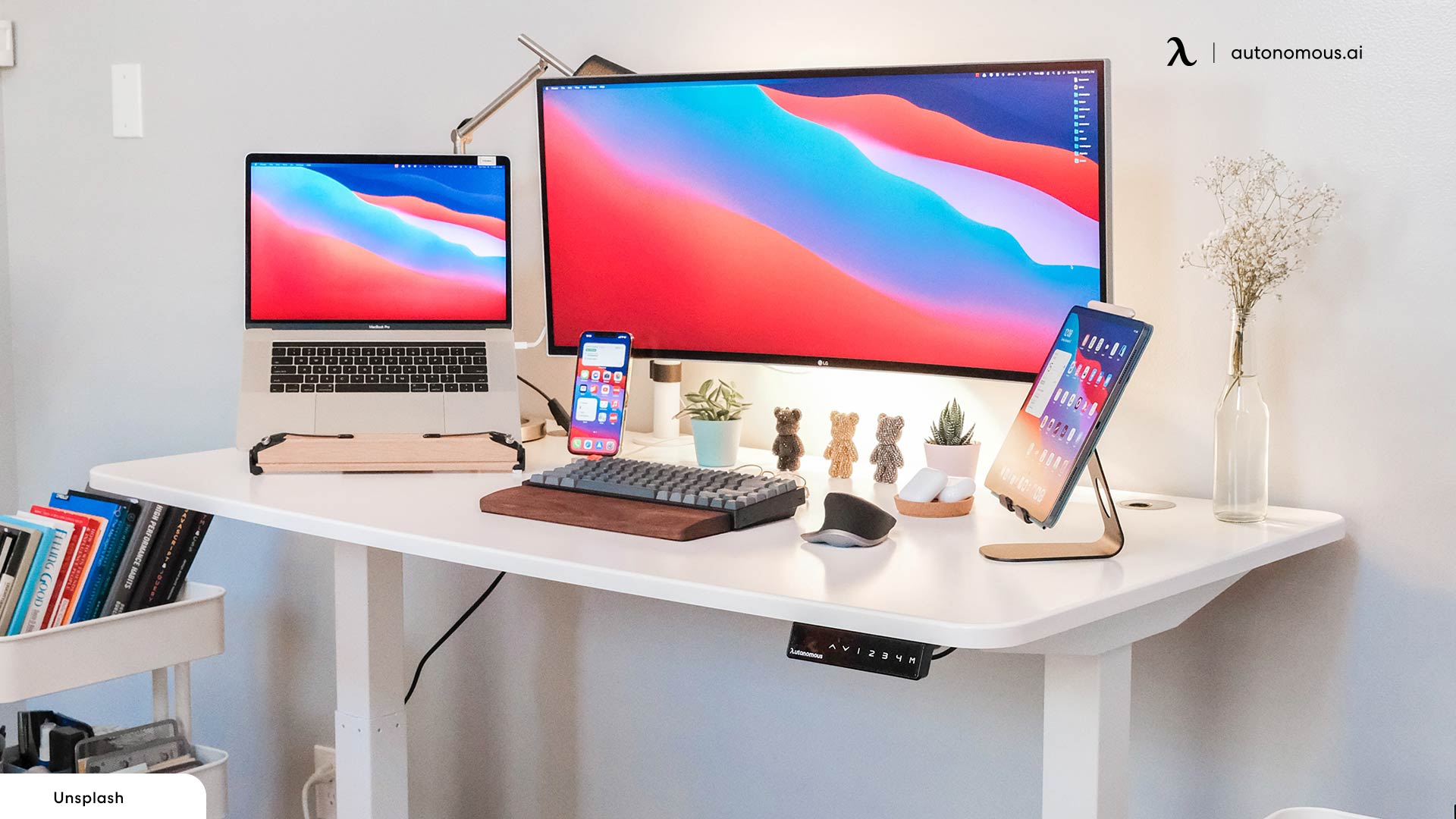
- USB-C (with Thunderbolt or DisplayPort Alt Mode): This versatile connector is a hallmark of modern laptops and a significant “Technology Trend.” A single USB-C cable can carry video (via DisplayPort Alternate Mode or Thunderbolt), audio, data, and even power to charge your laptop. This makes it incredibly convenient, especially when paired with a compatible monitor or a USB-C docking station, offering a true “one-cable solution” for your desktop setup. Not all USB-C ports support video output, so check your laptop’s specifications.
Considering Adapters and Wireless Options
- Adapters and Converters: When your laptop’s output port doesn’t match your monitor’s input port, adapters or converter cables bridge the gap. For example, a USB-C to HDMI adapter is common for new laptops with older monitors. Always ensure you’re getting the right type (e.g., active vs. passive converters, especially for older analog standards like VGA). Quality adapters are key to reliable performance.
- Wireless Display Solutions: For certain scenarios, you might consider wireless display technologies.
- Miracast: Built into Windows 10/11, it allows mirroring or extending your display to compatible TVs or wireless display adapters.
- Apple AirPlay: Allows macOS devices to mirror or extend displays to Apple TV or AirPlay 2-compatible smart TVs.
- Chromecast: While primarily for streaming content, some third-party apps and browser extensions can mirror your desktop to a Chromecast-enabled display.
Wireless solutions offer convenience but can introduce latency, compression artifacts, or resolution limitations compared to wired connections. They are excellent for presentations or casual content sharing but less ideal for demanding tasks like gaming or precise design work.
Configuring Your Display: Optimizing Your Workspace
Once your external monitor is physically connected and powered on, the next crucial step is to configure your laptop’s display settings. This allows you to choose how your laptop interacts with the new screen, ensuring an optimized and productive workspace.
Configuring Displays in Windows
For Windows 10 and 11 users, configuring your external monitor is straightforward:
- Access Display Settings: Right-click anywhere on your desktop and select “Display settings.” Alternatively, go to Start > Settings > System > Display.
- Detect and Identify: If your monitor isn’t immediately detected, click the “Detect” button. Once detected, you’ll see rectangles representing your displays, usually labeled 1 (laptop) and 2 (external monitor). Click “Identify” to see which number corresponds to which screen.
- Multiple Displays Options: Under the “Multiple displays” section, you’ll find key options:
- Duplicate these displays: Mirrors your laptop screen onto the external monitor. Ideal for presentations.
- Extend these displays: Treats the external monitor as an extension of your laptop screen, allowing you to drag windows between them. This is the most common setting for productivity and multi-tasking.
- Show only on 1 / Show only on 2: Use one screen exclusively. “Show only on 2” is often used when using your laptop in “clamshell mode” (closed) with an external keyboard and mouse, effectively turning it into a desktop.
- Arrange Your Displays: In “Extend” mode, you can drag the display rectangles to physically match how your monitors are positioned on your desk. This ensures your mouse cursor moves naturally from one screen to the other.
- Resolution and Orientation: For each display, you can select its “Display resolution” (always choose the “Recommended” native resolution for the sharpest image) and “Display orientation” (Landscape, Portrait).
- Scale and Layout: Adjust the “Scale” setting (e.g., 100%, 125%) to make text and apps appear larger or smaller, depending on the monitor’s size and resolution, and your viewing distance.
Adjusting Settings in macOS
macOS offers a similarly intuitive approach to display configuration:
- Access Display Settings: Click the Apple menu in the top-left corner of your screen, then select “System Settings” (macOS Ventura and later) or “System Preferences” (older macOS versions), and then click “Displays.”
- Detect and Arrange: Your external monitor should appear alongside your built-in display.
- Arrangement Tab: Click the “Arrangement” tab. Here, you can visually arrange your monitors to match their physical setup. Drag the blue rectangles to desired positions.
- Mirror Displays: To duplicate your laptop screen, check the “Mirror Displays” box. For an extended workspace (the default and most common for productivity), uncheck it.
- Main Display: The white bar at the top of one of the blue rectangles indicates the “main display” (where your menu bar and dock will appear). You can drag this white bar to any screen to designate it as the main display.
- Resolution and Refresh Rate: For each monitor, you can select different resolutions (e.g., “Default for Display” or “Scaled” to choose from various resolutions) and “Refresh Rate” options. For retina displays, “Scaled” offers various “looks like” resolutions.
- Rotation: If your monitor is physically rotated, you can adjust the “Rotation” setting accordingly.
Fine-Tuning Resolution, Refresh Rate, and Arrangement
Regardless of your operating system, optimizing these settings is crucial for the best visual experience and productivity:
- Resolution: Always try to set your monitor to its “native resolution” (the highest resolution it supports, often marked as “Recommended”). This ensures the sharpest image quality. Lower resolutions can make text appear blurry.
- Refresh Rate: For smoother motion, especially in gaming or fast-paced video, adjust the refresh rate. Common options are 60Hz, 75Hz, 120Hz, or higher. A higher refresh rate means more frames per second, resulting in a more fluid visual experience. Ensure your laptop’s graphics card and cable support the desired refresh rate at your chosen resolution.
- Arrangement: In extended display mode, drag the virtual representations of your monitors to match their physical arrangement on your desk. This creates a seamless flow for your mouse cursor as it moves between screens, enhancing your “Productivity” and user experience.
- Color Calibration: For tasks requiring color accuracy (e.g., graphic design, photography), consider using your monitor’s built-in color calibration tools or dedicated calibration hardware.
Taking a few moments to properly configure these settings will significantly impact your comfort and efficiency with your new external monitor setup.
Troubleshooting Common Issues and Advanced Setups
While connecting an external monitor is typically straightforward, you might occasionally encounter hiccups. Knowing how to troubleshoot common problems and understanding advanced setup options can save you time and further enhance your “Tech” experience.
Quick Fixes for Common Display Problems
-
“No Signal” or Black Screen:
- Check Cables: Ensure all video and power cables are securely plugged into both the laptop and the monitor. Loose connections are a frequent culprit.
- Select Correct Input Source: Many monitors have an “Input” or “Source” button. Cycle through the available inputs (e.g., HDMI 1, DisplayPort) until your laptop’s display appears.
- Laptop Display Output Key: On many laptops, there’s a function key (often
Fn+F5,F7,F8, orF10depending on the brand) that cycles through display modes (laptop only, duplicate, extend, external only). Try pressing this combination. - Reboot: Sometimes, a simple restart of both the laptop and monitor can resolve detection issues.
- Try a Different Port/Cable: If available, test with another port on your laptop or monitor, or a different video cable, to rule out a faulty component.
-
Incorrect Resolution or Scaling:
- Check Display Settings: Go to your operating system’s display settings (as described above) and ensure the monitor is set to its “Recommended” or native resolution.
- Adjust Scaling: If everything looks too small or too large, adjust the “Scale” percentage in your display settings (e.g., 100%, 125%, 150%).
- Update Graphics Drivers: Outdated or corrupted graphics drivers can cause resolution issues. Visit your laptop manufacturer’s website or the graphics card manufacturer’s website (NVIDIA, AMD, Intel) to download and install the latest drivers. This falls under good “Digital Security” practices too, as updated drivers often include security patches.
-
Flickering or Distorted Image:
- Cable Check: Again, ensure the video cable is firmly connected and undamaged. A faulty cable is often the cause.
- Refresh Rate: In your display settings, try lowering the refresh rate of the external monitor to see if it stabilizes the image.
- Driver Update: As with resolution issues, updating your graphics drivers can resolve flickering problems.
-
Sound Not Coming Through Monitor Speakers:
- Check Sound Output Settings: If your monitor has built-in speakers and you want sound to come from them, you need to select the monitor as the audio output device in your operating system’s sound settings. In Windows, right-click the speaker icon in the taskbar > Sound Settings > Choose your output device. In macOS, System Settings/Preferences > Sound > Output.
Elevating Your Setup with Docking Stations and Multi-Monitor Configurations
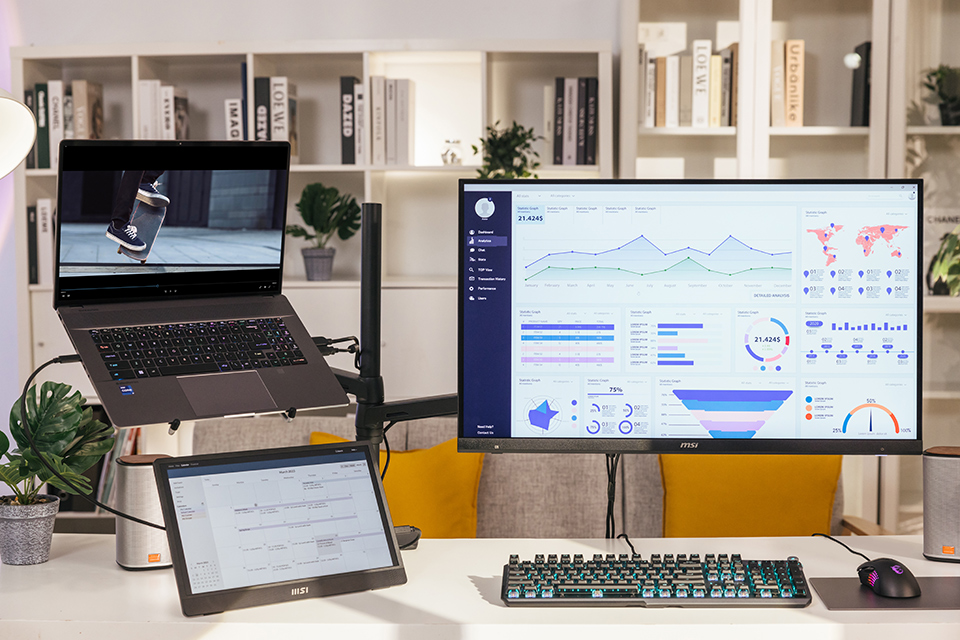
For users who want to push their productivity further or simplify their complex setups, “Gadgets” like docking stations and multi-monitor setups are invaluable.
-
Docking Stations: Especially beneficial for modern laptops with USB-C or Thunderbolt ports, a docking station transforms a single port into a hub for multiple connections. A good dock can provide:
- Multiple video outputs (HDMI, DisplayPort) for dual or triple monitor setups.
- Ethernet for a stable wired network connection.
- Additional USB-A and USB-C ports for peripherals (keyboard, mouse, external drives).
- SD card readers.
- Power Delivery, allowing you to charge your laptop through the same USB-C cable that handles all other connections.
This creates a truly seamless “plug-and-play” experience when you connect or disconnect your laptop from your desk.
-
Multi-Monitor Configurations: Beyond a single external monitor, some users benefit from two or even three external displays.
- Daisy-Chaining: Many DisplayPort 1.2+ monitors support daisy-chaining, where you connect your laptop to the first monitor, and then connect the first monitor to the second, and so on, using a single cable run from the laptop. This requires compatible monitors and a DisplayPort 1.2 or newer port on your laptop.
- Dedicated Ports: Laptops and docking stations with multiple video output ports (e.g., two HDMI, or one HDMI and one DisplayPort) can support multiple external monitors directly.
- USB to Video Adapters: For laptops with limited video outputs, dedicated USB to HDMI/DisplayPort adapters (often using DisplayLink technology) can allow you to connect additional monitors via a standard USB port.
By understanding these advanced options and being prepared to troubleshoot, you can maximize the potential of your laptop and external monitor setup, turning it into a truly powerful and versatile workstation.
Connecting an external monitor to your laptop is one of the most effective and straightforward ways to boost your productivity, improve ergonomics, and enhance your overall computing experience. By following this comprehensive guide, from understanding port types and gathering the right cables to configuring your display settings and troubleshooting common issues, you can easily transform your laptop into a powerful desktop-like workstation. Embrace the expanded view, reduced eye strain, and seamless multitasking that an external monitor provides, and unlock a new level of efficiency in your daily digital tasks.
aViewFromTheCave is a participant in the Amazon Services LLC Associates Program, an affiliate advertising program designed to provide a means for sites to earn advertising fees by advertising and linking to Amazon.com. Amazon, the Amazon logo, AmazonSupply, and the AmazonSupply logo are trademarks of Amazon.com, Inc. or its affiliates. As an Amazon Associate we earn affiliate commissions from qualifying purchases.