
In the dynamic world of Linux, where customization and control are paramount, the ability to manage your software effectively is a crucial skill. For users of Debian-based distributions like Ubuntu, Linux Mint, or Debian itself, .deb files represent a fundamental method for installing applications. While official repositories offer a vast array of trusted software, there are countless scenarios where you might encounter a .deb package – perhaps for a brand-new application, a specific version not yet in your distro’s repos, or proprietary software distributed directly by a vendor.

This guide will demystify the process of installing .deb files, empowering you to confidently expand your software arsenal. We’ll explore both graphical user interface (GUI) and command-line interface (CLI) methods, discuss essential prerequisites, troubleshooting tips, and best practices to ensure a smooth, secure experience. Whether you’re a seasoned Linux user seeking to refine your knowledge or a newcomer eager to take greater control of your system, understanding .deb package installation is a valuable step in mastering your digital environment.
Understanding .deb Files and Why They Matter
Before diving into the “how-to,” it’s essential to grasp what a .deb file is and its significance within the broader Linux ecosystem. This foundational knowledge not only aids in installation but also helps in troubleshooting and making informed decisions about your system’s security and stability.
What Exactly is a .deb File?
A .deb file is the standard package format for Debian and its derivatives, including the immensely popular Ubuntu and Linux Mint distributions. Conceptually, you can think of it as analogous to an .exe file on Windows or a .dmg file on macOS – it’s a self-contained archive that bundles all the necessary components for a software application.
Inside a .deb file, you’ll find:
- Compiled binaries: The actual program code ready to run.
- Configuration files: Settings and preferences for the application.
- Documentation: User manuals, READMEs, and other helpful information.
- Dependency information: A crucial list of other software packages that the current application requires to function correctly. This is a cornerstone of Linux package management, ensuring that all necessary libraries and tools are present.
- Pre/Post-installation scripts: Commands that run before or after the main installation process, often used for setting up permissions, creating user accounts, or registering services.
The .deb format is managed by the Debian Package Management System, which includes tools like dpkg, apt, and aptitude. This system provides a robust and standardized way to install, upgrade, configure, and remove software, contributing significantly to the stability and reliability that Debian-based systems are known for.
The Role of .deb Files in the Linux Ecosystem
In the grand scheme of Linux software distribution, .deb files play a pivotal role. They are the building blocks for the vast software repositories that thousands of users rely on daily. When you install software using sudo apt install <package-name>, you are, in essence, downloading and installing a .deb file (or several) from your distribution’s official repositories.
However, the utility of standalone .deb files extends beyond official channels. They serve as:
- Direct distribution method: Software developers and vendors (e.g., Google Chrome, Microsoft Teams, Zoom) often provide
.debfiles directly on their websites for users to download and install, especially for proprietary software not hosted in open-source repositories. - Testing and bleeding-edge versions: Users can often find
.debfiles for newer or beta versions of software before they are officially available in stable repositories, allowing early adopters to test new features. - Offline installation: In environments with limited or no internet access, pre-downloaded
.debfiles can be used to install software without an active connection (though dependencies would ideally also need to be pre-downloaded). - Custom builds: Developers or power users might create custom
.debpackages for their specific needs, distributing specialized software within their teams or communities.
This flexibility is a hallmark of the Linux experience, offering users control over their software choices and the ability to tailor their systems precisely to their requirements.
When and Why You Might Need to Install a .deb File
While using your distribution’s official package manager (apt) and its repositories is generally the safest and most convenient method for software installation, there are compelling reasons to install a .deb file directly:
- Software Not in Official Repositories: Many popular applications, especially proprietary ones, are not included in the default Debian or Ubuntu repositories. Examples include Google Chrome, Microsoft Edge, Slack, Discord, and various specialized tools. Vendors typically provide
.debfiles for these. - Newer Versions than in Repositories: Official repositories prioritize stability, meaning software versions can sometimes lag behind the latest releases. If you need a cutting-edge feature, a bug fix, or enhanced performance from a newer version, a directly provided
.debfile might be your best option. - Specific Software Requirements: For development or specialized tasks, you might require a very specific version of a library or application that is only available as a standalone
.debpackage. - Avoiding PPAs (Personal Package Archives): While PPAs offer an alternative to extending your software sources, they also introduce potential stability and security risks. Sometimes, a single
.debfile might be a simpler and less intrusive way to get one particular piece of software without adding a new PPA to your system. - Local Installation or Restricted Environments: For systems without internet access, or in corporate environments with strict proxy rules, downloading
.debfiles once and distributing them locally can be the most practical approach.
Understanding these scenarios helps you decide when to deviate from the standard apt install and confidently navigate the world of .deb packages.
Essential Preparations Before Installation
Installing a .deb file, especially one from an external source, requires a bit more caution than installing from official repositories. A few preparatory steps can save you significant headaches, ensuring system stability and security.
Verifying the Source and Ensuring Security
This is arguably the most critical step. Unlike official repositories, which are rigorously vetted by your distribution’s maintainers, a .deb file downloaded from an arbitrary website carries inherent risks. Malicious packages can compromise your system, install malware, or create backdoors.
Always ask yourself:
- Is the source trustworthy? Download
.debfiles only from official vendor websites, reputable open-source project pages, or well-known and trusted third-party sites (e.g.,github.comfor open-source projects). Avoid random forums or unknown download sites. - Are there checksums available? Many reputable sources provide SHA256 or MD5 checksums alongside their
.debfiles. After downloading, verify the integrity of the file by comparing its checksum with the one provided. This ensures the file hasn’t been corrupted during download or tampered with.
bash

sha256sum /path/to/your/package.deb
Compare the output with the official checksum. If they don’t match, do not proceed with the installation. - Does it look legitimate? Be wary of unusually small file sizes for complex applications or packages with generic names. If something feels off, err on the side of caution.
- Consider sandboxing: For highly sensitive scenarios or experimental packages, consider installing in a virtual machine (e.g., VirtualBox, VMware) first to evaluate its behavior without risking your main system.
Prioritizing security here is a core aspect of digital security and productivity, preventing downtime and data loss that can directly impact your ‘money’ or ‘brand’ by halting work or eroding trust.
Checking for Existing Dependencies and System Compatibility
A .deb package specifies its dependencies, which are other software packages it needs to run. If these dependencies are not met, the installation will fail, or the application won’t run correctly.
- Read documentation: Always check the installation instructions or README provided by the software vendor. They often list specific dependencies or minimum system requirements (e.g., “requires Ubuntu 20.04 or later,” “depends on
libssl1.1“). - Understand your system: Know your distribution and its version (e.g.,
lsb_release -a). Some.debpackages are compiled for specific distributions or even specific versions. Installing an Ubuntu 22.04.debon an older Ubuntu 18.04 system might lead to dependency issues due to differing library versions. - Check for architecture: Most modern systems are 64-bit (amd64 or x86_64). Ensure the
.debfile you download matches your system’s architecture. Installing ani386(32-bit) package on a 64-bit system might work for some applications, but it’s generally best to stick to your native architecture. You can check your architecture withdpkg --print-architecture.
Taking these preparatory steps is not just about avoiding errors; it’s about proactively managing your system’s health and ensuring a seamless, productive experience with new software installations.
Graphical Methods for Effortless .deb Installation
For many users, the convenience of a graphical interface is preferred. Debian-based distributions offer straightforward ways to install .deb files with just a few clicks, making software management accessible to everyone.
Using the Default Software Center or Package Installer
Most modern Debian-based distributions come with a default graphical software manager or a simple .deb package installer. This is often the easiest starting point for beginners.
How to use it:
- Download the
.debfile: Save the.debpackage to a convenient location on your computer, usually your “Downloads” folder. - Locate the file: Open your file manager and navigate to the downloaded
.debfile. - Double-click: Simply double-click on the
.debfile. - Open with: Your system should automatically open the file with the default package installer (often named “Software Install,” “Software Center,” or “GDebi Package Installer” if installed).
- Review and Install: The installer window will typically display information about the package, including its name, description, and sometimes its size and dependencies. Look for an “Install,” “Install Package,” or “Install Software” button.
- Authenticate: You will likely be prompted to enter your user password to authorize the installation, as this modifies system files.
- Completion: Once installed, the application should appear in your application launcher or menu.
This method abstracts away much of the complexity, making it ideal for users who prefer a point-and-click experience. It typically handles basic dependency checks and will inform you if essential packages are missing.
The Power of GDebi Package Installer
While the default software center is convenient, GDebi is a particularly powerful and recommended graphical tool specifically designed for .deb package installation. What sets GDebi apart is its superior dependency handling. If a .deb package has unmet dependencies, GDebi will attempt to find and install them from your configured repositories, a feature not always as robust in generic software centers.
How to use it:
- Install GDebi (if not already present):
If GDebi isn’t installed by default, you can easily add it:
bash

sudo apt update

sudo apt install gdebi
This command will fetch and install GDebi from your official repositories. - Download the
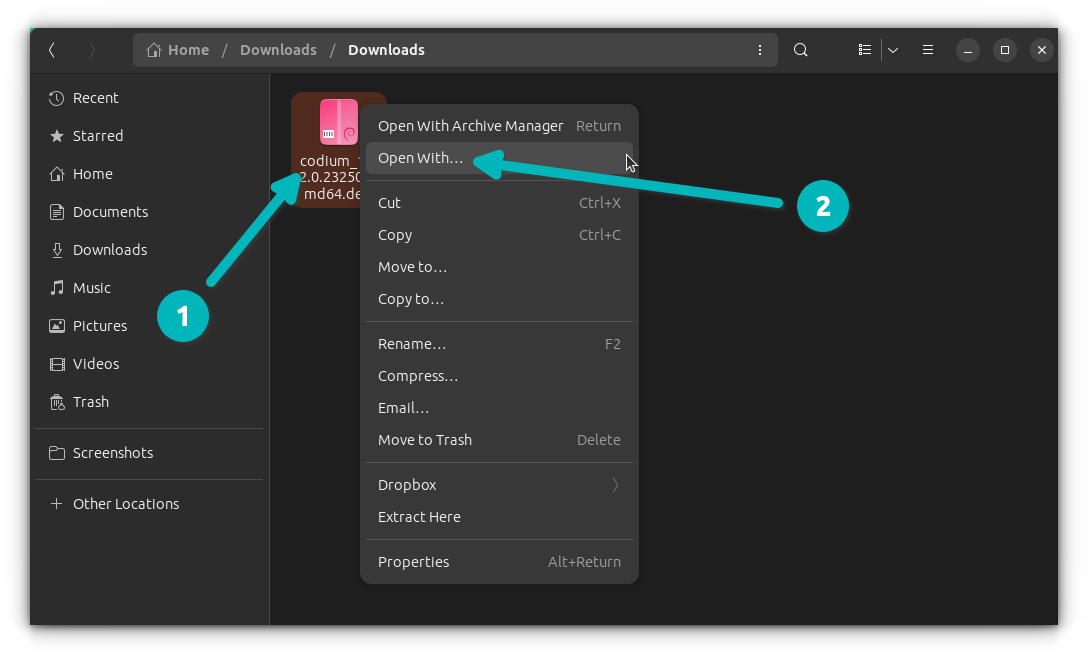
.debfile: As before, download your desired.debpackage. - Open with GDebi: Right-click on the downloaded
.debfile in your file manager. Select “Open With” and then choose “GDebi Package Installer” from the list. If it’s not listed, you might need to select “Other Application” and find GDebi. - Review and Install: GDebi’s window will open, displaying detailed information about the package. Crucially, it will show a section indicating “Dependencies: All dependencies are satisfied” or list the missing dependencies. If dependencies are missing, GDebi will offer to install them for you.
- Click “Install Package”: Confirm the installation and provide your password when prompted.
- Wait for completion: GDebi will handle the installation and dependency resolution.
GDebi is an excellent tool for balancing graphical simplicity with robust functionality, making it a favorite among experienced Linux users for its reliability in managing external .deb packages. Its proactive approach to dependencies significantly reduces the chances of a failed installation, contributing to a more productive workflow.
Command-Line Mastery: Installing .deb Files via Terminal
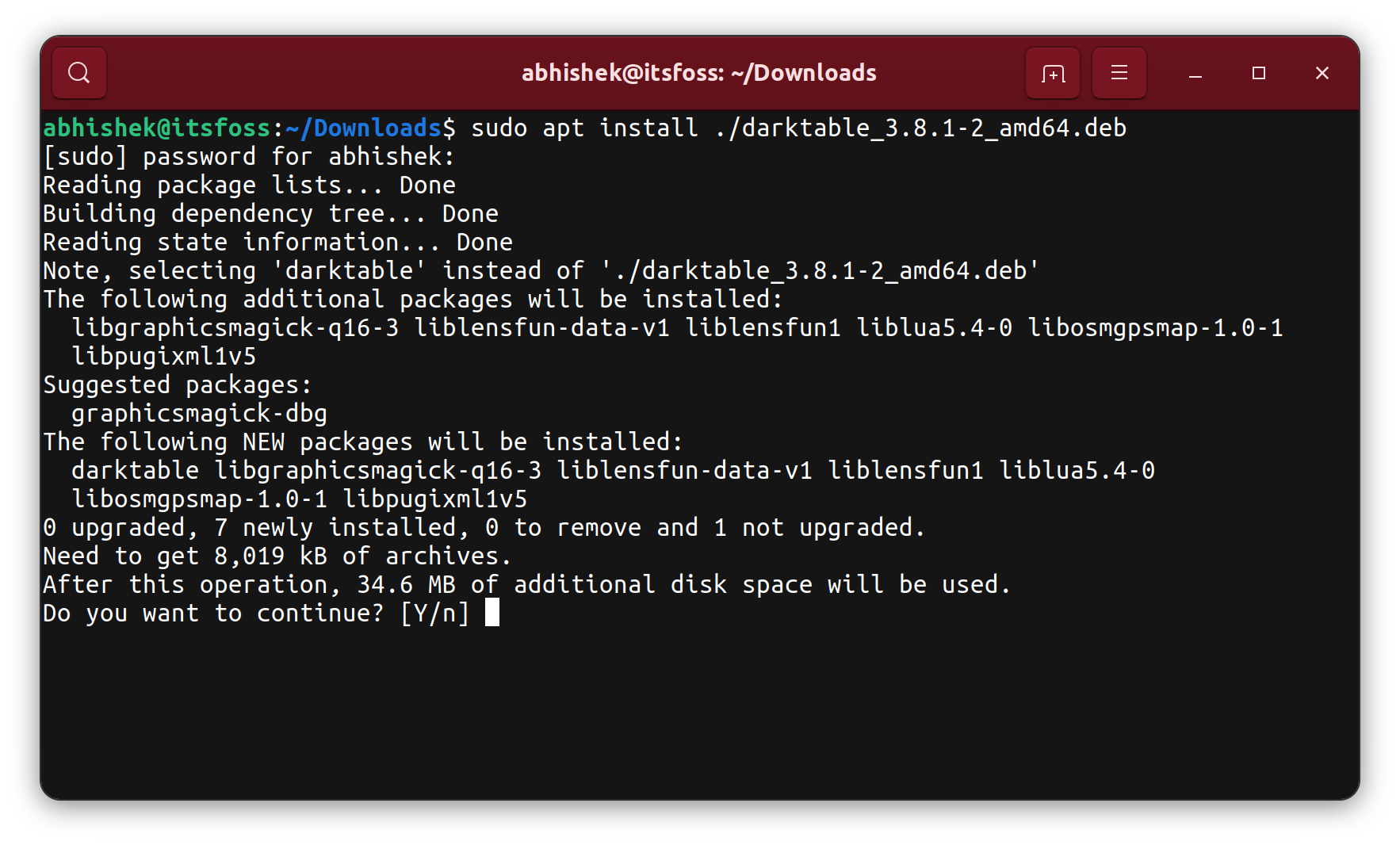
For those who prefer the precision and power of the command line, or when graphical tools are unavailable (e.g., on a server or a minimal installation), the terminal offers flexible and robust methods for .deb package installation.
The Fundamental dpkg Command
dpkg is the foundational package management system for Debian. It’s a low-level tool that directly interacts with .deb files. While powerful, dpkg‘s primary limitation is that it does not automatically resolve dependencies. If a package requires other software that isn’t already installed, dpkg will fail.
How to use it:
- Open a terminal: Press
Ctrl + Alt + Tor search for “Terminal” in your applications menu. - Navigate to the file (optional but recommended): Use the
cdcommand to change directory to where your.debfile is located (e.g.,cd ~/Downloads). This allows you to use.for the current directory. - Install the
.debfile:
bash

sudo dpkg -i package-name.deb
Replacepackage-name.debwith the actual name of your downloaded file. Thesudoprefix is necessary because package installation modifies system-wide files, requiring root privileges.
The-iflag stands for “install.”
Example:
If you downloaded google-chrome-stable_current_amd64.deb to your Downloads folder:
cd ~/Downloads
sudo dpkg -i google-chrome-stable_current_amd64.deb
Handling dpkg dependency errors:
If dpkg encounters unmet dependencies, it will typically stop with an error message listing the missing packages. This is where apt comes to the rescue. After dpkg fails, you can run:
sudo apt install -f
The -f flag (short for --fix-broken) tells apt to attempt to resolve and install any missing dependencies for packages that failed to install correctly (including those attempted by dpkg). After apt fixes the broken dependencies, you might need to re-run the dpkg -i command, or sometimes apt install -f will complete the original installation as well.
Enhancing Installation with apt
While dpkg is fundamental, apt (Advanced Package Tool) is the higher-level, more user-friendly command-line interface for managing packages on Debian-based systems. apt does handle dependency resolution automatically and is generally the preferred command-line tool. You can use apt to install local .deb files directly.
How to use it:
- Open a terminal.
- Install the
.debfile:
bash

sudo apt install ./package-name.deb
Crucially, note the./before the package name. This tellsaptthat you are referencing a local file in the current directory, not a package from the repositories. If you don’t include./,aptwill search its repositories for a package with that name and likely won’t find your local.debfile.
If the.debfile is not in your current directory, you can provide the full path:
bash

sudo apt install /path/to/your/package-name.deb
Example:
cd ~/Downloads
sudo apt install ./vscode-amd64.deb
Why apt is often better than dpkg for local .deb files:
- Automatic Dependency Resolution:
aptwill automatically download and install any required dependencies from your configured repositories, saving you from manual intervention. This is the primary advantage. - Cleaner Process: The installation process is often smoother and less prone to “dependency hell” compared to solely using
dpkg.
Leveraging gdebi from the Command Line
The gdebi command-line tool combines the best of both worlds: it’s a CLI utility that, like its graphical counterpart, excels at handling dependencies. It’s often considered the most reliable command-line method for installing external .deb files.
How to use it:
- Install
gdebi-core(if not already present): The command-line version of GDebi is provided by thegdebi-corepackage.
bash

sudo apt update

sudo apt install gdebi-core
- Open a terminal.
- Install the
.debfile:
bash

sudo gdebi package-name.deb
You can also provide the full path to the.debfile.
Example:
cd ~/Downloads
sudo gdebi zoom_amd64.deb
gdebi will analyze the package, list its dependencies, and ask for confirmation before proceeding to download and install any missing dependencies and then the .deb package itself. This interactive nature provides transparency and control.
For command-line enthusiasts and system administrators, mastering these tools is not just about installing software; it’s about efficient system management, troubleshooting, and maintaining a robust computing environment. This level of technical proficiency can greatly enhance a professional’s ‘brand’ in the tech sector.
Navigating Common Challenges and Best Practices
While installing .deb files is generally straightforward, you might encounter issues, particularly with dependencies or security. Knowing how to troubleshoot and adhere to best practices can save you time and potential system instability.
Resolving Dependency Hell
“Dependency hell” is a common frustration in package management, occurring when a package requires other software components that are either missing, conflict with existing versions, or cannot be installed for other reasons.
Common Scenarios and Solutions:
dpkgerrors: Ifdpkg -ifails due to unmet dependencies, immediately follow up with:
bash

sudo apt install -f
This command attempts to fix broken packages by installing missing dependencies.aptorgdebiwarnings/errors: Ifapt install ./package.deborsudo gdebi package.debreports unmet dependencies and fails, carefully read the output.- Identify missing packages: The output will list the specific packages required.
- Search for solutions:
- Try installing them manually:
sudo apt install <missing-package-name>. - Sometimes, the
.debfile itself might be outdated or designed for a different distribution version, leading to incompatible dependency versions. In such cases, check the vendor’s website for an updated.debor one specific to your OS version. - Occasionally, you might need to add a specific repository (PPA) to get a required dependency, but this should be done with caution.
- Try installing them manually:
- Conflicts: If a new package conflicts with an already installed package, you’ll need to decide which one to keep.
aptwill typically prompt you or refuse to install. You might need to remove the conflicting package first (e.g.,sudo apt remove <conflicting-package>).
Always prioritize resolving dependencies through apt or gdebi first. Manually forcing installations without resolving dependencies can lead to a broken system.
Uninstalling .deb Packages
Just as important as installing is the ability to remove software cleanly.
-
Using
apt remove: This is the most common and recommended method for removing packages, whether they were installed viaapt,dpkg, orgdebi.sudo apt remove package-nameReplace
package-namewith the actual name of the installed package (which might be slightly different from the.debfile name, e.g.,google-chrome-stableinstead ofgoogle-chrome-stable_current_amd64.deb).
apt removeremoves the package binaries but leaves configuration files behind (useful if you plan to reinstall later). -
Using
apt purge: To remove a package and its configuration files completely:sudo apt purge package-nameThis is useful for a “clean slate” removal.
-
Cleaning up unused dependencies: After removing packages, there might be dependencies that are no longer needed by any other installed software. You can remove these “orphaned” dependencies using:
bash

sudo apt autoremove
Runningautoremoveregularly helps keep your system lean and tidy, contributing to better performance and system hygiene.
Security Considerations and Best Practices
Installing .deb files is a powerful feature, but it comes with responsibilities. A lax approach can undermine your digital security, potentially impacting your ‘money’ through data breaches or your ‘brand’ through system instability.
- Trust Your Sources (Reiterated): Only download
.debfiles from official, reputable sources. If you’re unsure, search for reviews or official documentation. A compromised package can install malware, keyloggers, or other malicious software. - Verify Integrity: Always use checksums (SHA256, MD5) if provided, to ensure the file hasn’t been corrupted or tampered with during download.
- Understand Permissions: Package installation often requires
sudoprivileges, meaning you’re granting root access. This underscores the importance of trusting the package’s source. - Keep Your System Updated: Regularly update your system’s packages using
sudo apt update && sudo apt upgrade. This ensures you have the latest security patches for your installed software and dependencies. - Backup Your System: Before installing significant software from external sources, especially if you’re experimenting, consider backing up your system or at least your critical data. Tools like Timeshift (for system snapshots) can be invaluable.
- Read Before You Run: If a
.debpackage requires custom installation scripts or manual steps, always read them carefully to understand what changes they make to your system. - Limit External Packages: While useful, rely on official repositories and trusted PPAs where possible. The more external packages you install, the higher the chance of dependency conflicts or security vulnerabilities.
When to Prefer Repositories Over Direct .deb Installation
While this guide focuses on .deb installation, it’s crucial to understand when not to use it.
- Default Software Available in Repositories: If the software you need is available in your distribution’s official repositories (check with
apt search <package-name>), it is almost always best to install it usingsudo apt install <package-name>. Repository packages are thoroughly tested for compatibility and security with your specific distribution version. - Stability and Security: Repository packages are maintained by your distribution, ensuring they receive timely security updates and bug fixes. Directly installed
.debfiles might require manual updates. - Dependency Management: Installing from repositories automatically handles all dependencies and updates seamlessly.
Direct .deb installation should be a conscious choice for specific scenarios, not a default practice. Balancing the need for specific software with system stability and security is a hallmark of an effective Linux user, a testament to their technical proficiency and ‘brand’ as a reliable digital practitioner.
Conclusion: Empowering Your Linux Experience
Mastering the installation of .deb files is a vital skill for anyone navigating the Debian-based Linux ecosystem. It grants you the flexibility to access a broader range of software, stay ahead with newer versions, and customize your system precisely to your needs. From the simplicity of graphical installers like GDebi to the granular control offered by dpkg, apt, and gdebi on the command line, you now have a comprehensive toolkit at your disposal.
However, power comes with responsibility. Always prioritize security by sourcing .deb files from trusted vendors and verifying their integrity. Be mindful of dependencies, and leverage apt‘s capabilities to maintain a healthy and stable system. Remember that while direct .deb installation is powerful, the default method of installing from official repositories should remain your first choice for stability and ease of maintenance.
By applying the knowledge and best practices outlined in this guide, you’re not just installing software; you’re actively taking control of your Linux environment, enhancing your productivity, and building a more robust and personalized digital workspace. This level of technical acumen is invaluable, reflecting a proactive approach to technology that benefits both personal efficiency and professional growth. Embrace the freedom and flexibility that .deb packages offer, and continue to explore the endless possibilities of the Linux world.