
In the rapidly evolving landscape of smart home entertainment, Samsung Smart TVs stand out with their sleek design, vibrant displays, and the intuitive Tizen operating system. While Samsung’s official App Store offers a robust selection of applications catering to a wide array of entertainment, news, and utility needs, many users find themselves desiring access to a broader universe of content and functionality. This quest often leads to the intriguing world of “third-party apps” – applications not officially endorsed or available through Samsung’s proprietary marketplace.
The allure of these unofficial applications is undeniable. They promise to unlock region-locked content, introduce niche streaming services, or provide utilities that Samsung hasn’t integrated into its native ecosystem. However, venturing beyond the carefully curated official store comes with its own set of considerations, including potential security risks, compatibility issues, and even implications for your TV’s warranty. This comprehensive guide will navigate you through the methods, precautions, and best practices for installing third-party apps on your Samsung Smart TV, empowering you to expand its capabilities responsibly and safely.
Understanding the Landscape: Official vs. Third-Party Apps
Before diving into the technicalities of sideloading, it’s crucial to understand the fundamental difference between the applications you typically download from Samsung’s App Store and those from external sources. This distinction helps clarify why specific installation methods are necessary and why a degree of caution is warranted.
The Walled Garden of Tizen OS
Samsung Smart TVs operate on Tizen OS, a Linux-based operating system developed by Samsung. This ecosystem, much like Apple’s iOS or Google’s Android TV, features a controlled “walled garden” approach to app distribution. The official Samsung App Store is the primary gateway for users to download applications.
Benefits of the Official Route:
- Security and Reliability: Apps in the official store undergo a vetting process to ensure they are free from malware and function correctly with the TV’s hardware and software.
- Seamless Integration: These apps are optimized for Tizen OS, offering smooth performance, consistent user interfaces, and often leveraging specific Samsung TV features.
- Automatic Updates: Official apps typically receive updates directly through the TV’s system, ensuring you always have the latest features and security patches.
- Customer Support: Issues with official apps can often be resolved through Samsung’s customer support or the app developer directly.
Limitations:
- Limited Selection: While vast, the official store might not include every niche streaming service, specific utility, or regional application users might desire.
- Regional Restrictions: Some apps are geo-restricted, meaning they are only available in certain countries, even if they exist in the global Samsung App Store.
- Developer Control: Samsung and app developers dictate what’s available, limiting user choice if an app isn’t deemed profitable or compatible for the platform.
Why Venture Outside: Benefits of Sideloading
Sideloading, the process of installing applications from sources other than the official app store, opens up a world of possibilities for Samsung Smart TV users. The primary motivations for going this route often revolve around enhancing the TV’s utility and breaking free from geographical or content restrictions.
- Accessing Niche Content and Services: Many smaller streaming platforms, local broadcasters, or specialized utility apps might not have the resources or inclination to develop a native Tizen OS app. Sideloading allows users to bypass this limitation and install their preferred services.
- Overcoming Regional Restrictions: For users who have moved or wish to access content from other regions, sideloading can sometimes provide a workaround for geo-blocked applications that are otherwise unavailable in their local Samsung App Store.
- Enhancing Functionality Not Offered Natively: Beyond entertainment, third-party apps can introduce functionalities like advanced file managers, custom media players with broader codec support, or even simple games that aren’t part of Samsung’s official offerings. This customization can significantly tailor the TV experience to individual preferences.
- Testing and Development: For developers or tech enthusiasts, sideloading is essential for testing apps in development before official submission or for exploring experimental features.
While the benefits are clear, it’s paramount to proceed with an understanding of the potential risks, which we will address in the next section.
Essential Preparations Before Sideloading
Embarking on the journey of installing third-party apps requires more than just a desire for new content; it demands careful preparation and an awareness of the implications. Taking the necessary steps beforehand can save you from frustration, security breaches, and potential damage to your device.
Prerequisites and Tools You’ll Need
Before attempting any sideloading method, ensure you have the following ready:
- A Compatible Samsung Smart TV: While most recent models (especially those running Tizen OS from 2015 onwards) support some form of sideloading, specific steps or limitations might apply based on the model year and firmware version.
- A USB Flash Drive: Essential for the most common sideloading method. It should be formatted to FAT32 for maximum compatibility.
- A Computer: You’ll need a PC (Windows, macOS, or Linux) to download application files (usually .TPK for Tizen or sometimes .APK if you’re exploring emulated environments or external boxes) and prepare your USB drive.
- Reliable Internet Connection: Your TV and often your computer will need internet access for downloading apps, enabling developer mode, or establishing connections for advanced methods.
- Knowledge of the App’s Origin: Crucially, know exactly which third-party app you intend to install and from where you are sourcing its installation file. This is directly tied to security.
Navigating Security and Warranty Considerations
This is perhaps the most critical section for anyone considering sideloading. The convenience of expanded app access comes with inherent risks that users must acknowledge and mitigate.
- The Importance of Trusted Sources: The most significant risk associated with third-party apps is malware. Unofficial app stores or random websites can host malicious applications designed to steal your personal data, compromise your network, or disrupt your TV’s functionality. Always download app files from reputable forums, well-known independent developer websites, or communities with a strong track record. Avoid downloading from obscure links or pop-up ads.
- Potential Malware and Data Privacy Issues: Once installed, a malicious app can gain access to your TV’s network, potentially affecting other devices on your home network. It might collect viewing habits, personal information if you log into services, or even inject ads. Be extremely cautious about the permissions an app requests during installation or setup. If an app asks for unnecessary permissions (e.g., a simple video player requesting access to your microphone or contacts), reconsider its installation.
- Warranty Implications of Unofficial Installations: While merely enabling developer mode or sideloading an app typically won’t void your Samsung TV’s warranty outright, performing actions that cause permanent software damage or require hardware repair due to an unofficial app might lead Samsung to deny warranty service. If you encounter significant issues after sideloading, try to revert all changes (uninstall apps, disable developer mode) before contacting support. It’s generally advised to factory reset your TV if you suspect a sideloaded app has caused irreparable software issues.
- Compatibility and Stability: Third-party apps are not optimized for Tizen OS by Samsung. This means they might not perform as expected, crash frequently, or cause overall system instability. There’s also no guarantee of future compatibility with Tizen OS updates.
By understanding these risks and preparing adequately, you can significantly enhance your chances of a successful and secure sideloading experience.
Proven Methods for Sideloading Apps on Samsung Smart TVs
Having covered the prerequisites and risks, let’s explore the practical methods for installing third-party applications on your Samsung Smart TV. Each method has its own complexity level and suitability, ranging from developer-focused tools to simpler workarounds.

Method 1: Utilizing Developer Mode and Tizen Studio (Advanced)
This method is primarily intended for developers but can be used by advanced users comfortable with technical procedures. It allows for direct installation of Tizen Package (TPK) files using a connected computer.
- Enable Developer Mode on Your TV:
- Turn on your Samsung Smart TV.
- Go to Settings > Smart Hub > Apps.
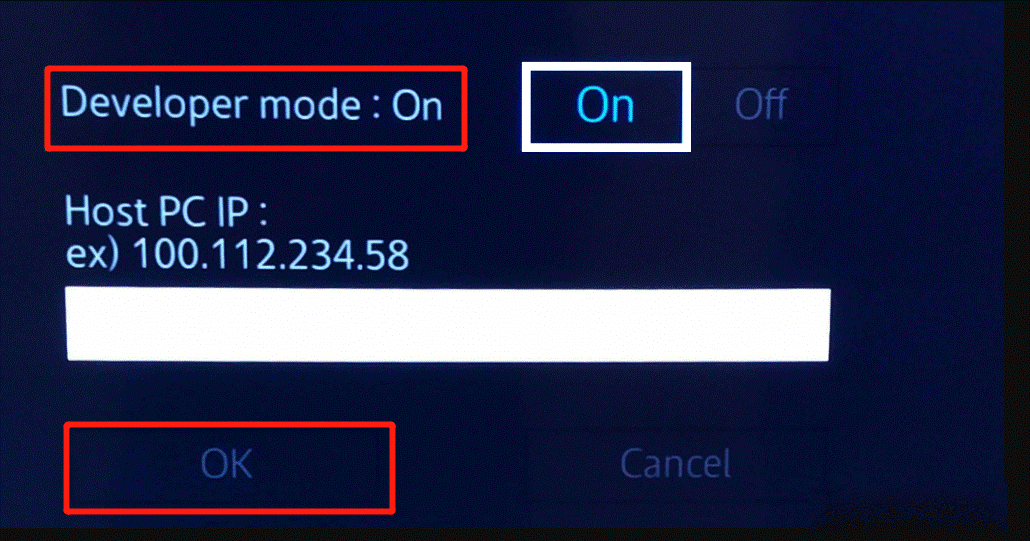
- On the Apps screen, type
12345using your remote’s number pad. This will open the Developer Mode configuration window. - Toggle Developer Mode to On.
- Enter the IP address of your computer (the one running Tizen Studio). This connects your TV to your development environment.
- Select OK and restart your TV.
- Set Up Tizen Studio on a PC:
- Download and install Tizen Studio (available for Windows, macOS, and Linux) from the official Tizen Developers website.
- During installation, ensure you select the “TV Extension” and “Samsung TV SDK” components.
- Connect TV to Tizen Studio:
- Open Tizen Studio. Go to Window > Show View > Connection Explorer.
- In the Connection Explorer, click the “Remote Device Manager” icon (a monitor with a plus sign).
- Click the “Scan” icon to find your TV on the network. If not found, manually add the TV by clicking the “Add” icon and entering your TV’s IP address.
- Ensure the TV’s status changes to “Connected.” If it remains “Disconnected,” double-check the IP address entered on the TV and that both devices are on the same Wi-Fi network.
- Deploy .TPK Files:
- In Tizen Studio, go to File > Import > Tizen Project > Tizen Project.
- Select “Archive file” and browse for the .TPK file you want to install. Finish the import.
- Right-click on the imported project in the Project Explorer.
- Select Run As > Tizen Web Application (or Tizen Native Application, depending on the .TPK type).
- Choose your connected TV as the target device. Tizen Studio will then deploy and install the application directly onto your TV.
Method 2: Installing via USB Drive (Common & Relatively Easy)
This is generally the most straightforward and popular method for sideloading apps for non-developers.
- Download the App’s .TPK File: Find the .TPK file for the desired application from a trusted source on your computer. Note that Samsung Smart TVs primarily use TPK files. While Android uses APKs, Tizen is a different OS, so Android APKs will not run natively unless they are specifically designed as Tizen web apps or packaged for Tizen. Be very sure you are downloading a .TPK file intended for Samsung Smart TVs.
- Prepare Your USB Drive:
- Insert your USB flash drive into your computer.
- Format the USB drive to FAT32. This is crucial for the TV to recognize it.
- Create a folder on the root of the USB drive named
userwidget(case-sensitive).
- Copy the .TPK File:
- Copy the downloaded .TPK file into the
userwidgetfolder you just created on your USB drive. Do not put it in any subfolders withinuserwidget.
- Copy the downloaded .TPK file into the
- Install on Your TV:
- Safely eject the USB drive from your computer.
- Plug the USB drive into one of the USB ports on your Samsung Smart TV.
- The TV should automatically detect the USB and prompt you to install the application. If it doesn’t:
- Navigate to Smart Hub > Apps.
- Sometimes, after a power cycle (unplugging the TV for 30 seconds and plugging it back in with the USB still inserted), the TV will detect the app upon restart.
- On some models, the app might appear under a “User Apps” or “USB Apps” section within the Apps menu.
- If all else fails, try changing the USB port or restarting the TV with the USB drive connected.
- Follow the on-screen prompts to complete the installation.
Method 3: Casting and Screen Mirroring (A Workaround)
While not a true sideloading method in the sense of installing an app directly onto the TV, casting and screen mirroring offer a way to display content from apps running on another device (like your smartphone or tablet) directly onto your Samsung Smart TV. This is an excellent solution if you don’t want to deal with the complexities of sideloading or if an app isn’t available for Tizen.
- How it Works: The app runs on your mobile device, and its display is mirrored or cast to your TV via Wi-Fi. The TV acts merely as a large monitor.
- Using Smart View (Samsung Devices): If you have a Samsung smartphone or tablet, the built-in Smart View feature allows for quick screen mirroring to your Samsung TV. Swipe down from the top of your phone screen to access the Quick Panel, tap Smart View, and select your TV.
- Using Google Cast/Chromecast Built-in: Many apps (e.g., YouTube, Netflix, Spotify) have a built-in Cast icon. If your Samsung TV has Chromecast built-in (some models do, or you can use an external Chromecast dongle), you can cast content directly from these apps.
- Apple AirPlay: Newer Samsung Smart TVs support Apple AirPlay 2, allowing iPhone, iPad, and Mac users to mirror their screens or cast content from AirPlay-enabled apps directly to the TV.
Benefits: No installation on TV required, less risk of malware on the TV, broader app compatibility (as it uses your phone’s apps).
Limitations: The app runs on the external device, draining its battery. Performance depends on your home Wi-Fi network. You need the external device to be present and active.
Method 4: External Android TV Box (The Ultimate End-Run)
For users who want the widest possible app selection without the limitations of Tizen OS or the risks of sideloading questionable TPKs, an external Android TV box is the most robust solution. This involves connecting a separate device to your TV via HDMI.
- Why this is a Popular Alternative: Android TV boxes (like Nvidia Shield TV, Google Chromecast with Google TV, Xiaomi Mi Box, etc.) run a full version of Android TV OS, giving you access to the vast Google Play Store. This store hosts thousands of apps, including many that are not available on Tizen.
- Benefits of a Full Android Ecosystem: You get native support for a plethora of streaming services, games, utility apps, and the ability to easily sideload Android APKs (if desired) without impacting your Samsung TV’s native OS.
- Setting Up and Connecting: Simply connect the Android TV box to an available HDMI port on your Samsung TV, power it on, and switch your TV’s input to that HDMI port. From there, you’ll set up the Android TV box as a separate device, download apps from the Google Play Store, and essentially use your Samsung TV as a display for the Android TV experience.
This method offers the most flexibility and least direct interaction with your TV’s internal software, making it a safe and versatile choice for power users.
Troubleshooting Common Issues and Best Practices
Even with careful preparation, issues can arise during the sideloading process. Knowing how to troubleshoot and adhere to best practices can save you time and maintain your TV’s integrity.
What to Do When Things Go Wrong
- “App Not Installed” Errors (USB Method):
- Check USB Format: Ensure your USB drive is formatted to FAT32.
- Folder Structure: Verify the
.TPKfile is directly inside a folder nameduserwidgeton the root of your USB drive. - App Compatibility: The
.TPKfile might be incompatible with your TV model or Tizen OS version. Try searching for a different version of the app. - Corrupt File: The
.TPKfile itself might be corrupted. Re-download it from a trusted source. - Power Cycle: Unplug your TV from power for a minute, then plug it back in with the USB drive inserted.
- TV Not Recognizing USB:
- Check USB Port: Try a different USB port on your TV.
- File System: Reconfirm FAT32 formatting.
- USB Drive Health: Test the USB drive on a computer to ensure it’s functioning correctly.
- Connectivity Issues (Developer Mode):
- IP Address: Double-check the IP address entered on the TV matches your computer’s IP address.
- Network: Ensure both your TV and computer are connected to the same Wi-Fi network.
- Firewall: Your computer’s firewall might be blocking the connection. Temporarily disable it for testing, or add an exception for Tizen Studio.
- App Crashes or Freezes:
- Compatibility: The app may not be fully compatible with your TV’s hardware or Tizen OS.
- Outdated App: If updates are available, try updating the sideloaded app (though this can be tricky for unofficial apps).
- Reinstall: Try uninstalling and reinstalling the app.
- Resource Conflict: Too many background apps might be consuming resources. Close other apps.
Maximizing Security and Performance
Responsible sideloading involves ongoing vigilance and adherence to best practices to protect your TV and personal data.
- Use Reputable App Sources ONLY: This cannot be stressed enough. Always download TPK files from well-known, community-verified sources. Avoid random websites or untrustworthy links. Before downloading, search for reviews or discussions about the specific app and its source.
- Scan Downloaded Files: Before transferring any
.TPKfile to your USB drive or deploying it via Tizen Studio, scan it with robust antivirus software on your computer. While not foolproof for Tizen-specific malware, it can catch broadly recognized threats. - Review App Permissions: If an app requests unusual or excessive permissions during installation, be suspicious. A simple video player shouldn’t need access to your location or personal contacts.
- Keep Your TV’s Firmware Updated: While Tizen OS updates might occasionally break sideloaded apps, they are crucial for your TV’s overall security and stability. Samsung regularly releases patches for known vulnerabilities.
- Regularly Review Installed Apps: Periodically check the apps installed on your TV, especially if you’ve sideloaded many. Uninstall any apps you no longer use or that seem suspicious.
- Consider a VPN: For enhanced privacy and to potentially bypass geo-restrictions for certain streaming services (though not a direct sideloading tool), a VPN can be beneficial. Ensure your TV or router supports VPN configuration.

Conclusion: Expanding Your Smart TV’s Horizons Responsibly
Installing third-party apps on your Samsung Smart TV is a powerful way to unlock its full potential, granting you access to a broader spectrum of content and enhanced functionalities that go beyond the official Samsung App Store. Whether you’re a tech enthusiast eager to explore the capabilities of Tizen Studio, a casual user opting for the simplicity of a USB installation, or someone who prefers the robust ecosystem of an external Android TV box, the options are plentiful.
However, with this expanded freedom comes the critical responsibility of maintaining your device’s security and performance. The digital security landscape demands diligence, particularly when venturing outside official app marketplaces. By meticulously selecting trusted sources for your applications, understanding the potential risks of malware and data privacy breaches, and adhering to the best practices outlined in this guide, you can safeguard your smart TV and your personal information.
Ultimately, the decision to install third-party apps is about balancing desire for customization with informed risk management. By approaching the process with caution, preparation, and a commitment to security, you can transform your Samsung Smart TV into an even more personalized and powerful entertainment hub, truly tailored to your unique preferences. Explore the possibilities, but always do so wisely and securely.
aViewFromTheCave is a participant in the Amazon Services LLC Associates Program, an affiliate advertising program designed to provide a means for sites to earn advertising fees by advertising and linking to Amazon.com. Amazon, the Amazon logo, AmazonSupply, and the AmazonSupply logo are trademarks of Amazon.com, Inc. or its affiliates. As an Amazon Associate we earn affiliate commissions from qualifying purchases.