
The Nintendo 3DS, a beloved handheld console, continues to hold a special place in the hearts of many gamers. While its official lifespan has concluded, a vibrant community of enthusiasts still actively engages with the platform. This community often explores ways to enhance their gaming experience beyond official releases, which can involve the use of .3ds files. These files, often associated with game backups or homebrew applications, require a specific understanding to be installed and utilized effectively on your 3DS. This guide will demystify the process, breaking down the essential steps and considerations, all within the context of the technological landscape surrounding such modifications.
Understanding the .3ds File Format and Your 3DS
Before diving into the installation process, it’s crucial to understand what a .3ds file represents and the underlying technology that enables its use on a Nintendo 3DS.
What are .3ds Files?
In the context of the Nintendo 3DS, a “.3ds” file is essentially a ROM image of a game cartridge. This means it’s a digital copy of the data that would typically reside on a physical game card. These ROMs can be created from your own legitimate game cartridges for backup purposes or can be found through various online channels. It’s important to note that the legality of downloading and using ROMs you don’t own is a complex issue and varies by region. This guide will focus on the technical aspects of installation, assuming you have the right to use the .3ds files in question, whether they are your own backups or freely distributable homebrew titles.
The Role of Custom Firmware (CFW)
Directly installing .3ds files onto a stock, unmodified Nintendo 3DS is not possible. The console’s operating system is designed to run only officially signed software. To install and run .3ds files, you’ll need to install Custom Firmware (CFW) on your 3DS. CFW is essentially a modified version of the console’s operating system that unlocks its full potential, allowing it to run unauthorized software, including .3ds ROMs and homebrew applications.
The installation of CFW itself is a multi-step process that involves exploiting vulnerabilities within the 3DS operating system. It’s a technically involved procedure, and attempting it incorrectly can potentially “brick” your console, rendering it unusable. Therefore, thorough research and adherence to reputable guides are paramount. Popular CFW options for the 3DS include Luma3DS, which is widely considered the standard and most reliable option for modern 3DS hacking.
Essential Hardware and Software Requirements
To embark on the journey of installing .3ds files, you’ll need a few key components:
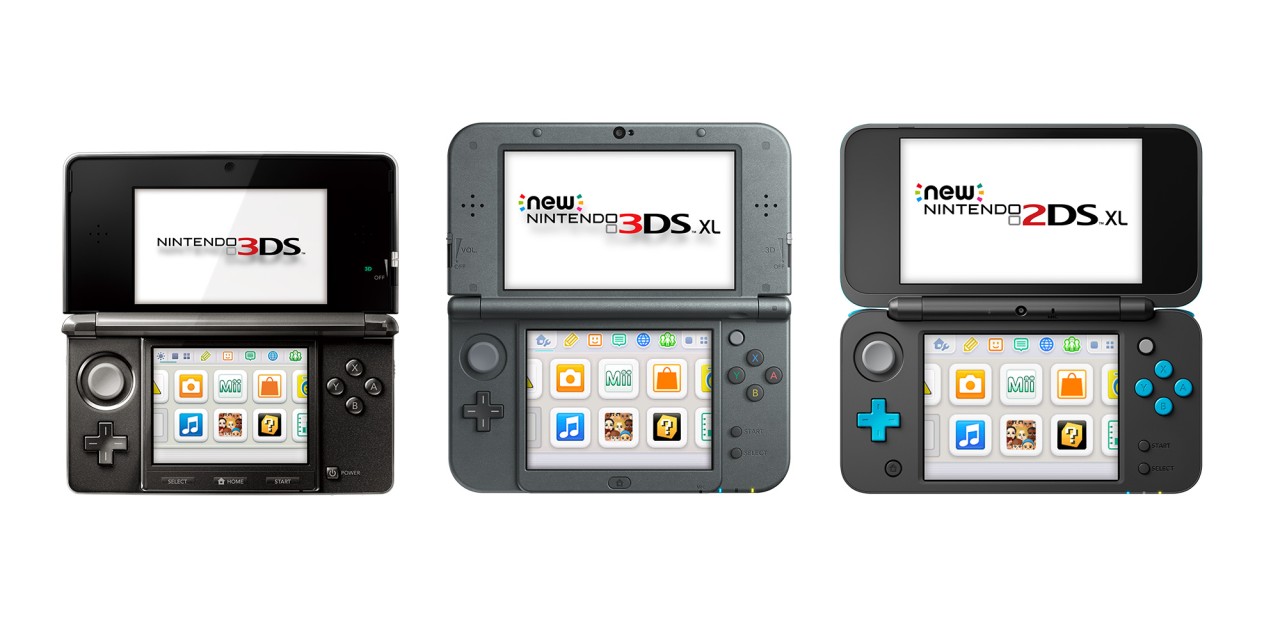
- A Nintendo 3DS Console: This can be any model (original 3DS, 3DS XL, New 3DS, New 3DS XL, 2DS, New 2DS XL).
- A MicroSD Card: This is crucial for storing your .3ds files and the CFW. The larger the capacity, the more games and applications you can have. Ensure it’s formatted correctly (usually FAT32).
- A Computer with an SD Card Reader: You’ll need this to transfer files to and from your MicroSD card.
- A Reliable Internet Connection: For downloading CFW, necessary tools, and potentially your .3ds files.
- The .3ds Files Themselves: As mentioned, ensure you have these files ready.
- Specific Software Tools: Depending on the CFW installation method and how you plan to run your .3ds files, you might need specific software like a file manager (e.g., GodMode9) and a ROM launcher.
Navigating the Legal and Ethical Landscape
While this guide focuses on the technical “how-to,” it’s imperative to touch upon the legal and ethical considerations surrounding .3ds files. Downloading copyrighted game ROMs for which you do not own a legitimate copy is a violation of copyright law in most jurisdictions. Reputable sources for .3ds files are typically those that host homebrew applications (software created by independent developers for the 3DS platform) or tools that assist in backing up your own legally owned games. Always respect intellectual property rights and ensure you are acting within the bounds of the law and ethical practices.
Preparing Your 3DS for .3ds File Installation
This section outlines the crucial preparatory steps, focusing on the installation of Custom Firmware, which is the gateway to running .3ds files.
Installing Custom Firmware (CFW)
This is the most critical and technically sensitive part of the process. The method for installing CFW can vary slightly depending on your 3DS model and its current firmware version. However, the general principles remain the same.
Disclaimer: The installation of Custom Firmware involves modifying your 3DS system software. While generally safe when following reputable guides meticulously, there is always a small risk of bricking your console. Proceed with caution and at your own risk. We strongly recommend consulting the latest and most up-to-date guides from trusted communities like the Nintendo Homebrew wiki or GBATemp.
Here’s a generalized overview of the common steps involved in installing Luma3DS, the most prevalent CFW:
- Update Your 3DS System: Ensure your 3DS is running the latest official system firmware. This is often a prerequisite for CFW installation.
- Prepare Your MicroSD Card: Format your MicroSD card to FAT32. You’ll need to place specific files onto it for the CFW installation.
- Download the Latest Luma3DS: Obtain the most recent release of Luma3DS from its official GitHub repository.
- Exploit Method: The CFW installation typically relies on an “exploit.” Historically, this has involved installing a specific homebrew application (like SafeB9S/boot9strap) that runs a custom payload upon boot. This payload then installs Luma3DS. The exact exploit can depend on your firmware version and console model. Common exploits include:
- Seedminer: A versatile exploit that allows for the installation of boot9strap and Luma3DS on a wide range of 3DS firmware versions. It often involves generating a specific QR code on your 3DS and using a companion app on your PC or smartphone.
- M-Platium: Another exploit method that can be used for CFW installation.
- Follow a Detailed Guide: This is where the utmost care is needed. You will need to follow a step-by-step guide specific to your 3DS model and firmware version. These guides will tell you exactly which files to download, where to place them on your MicroSD card, and the sequence of actions to perform on your 3DS. The Nintendo Homebrew wiki is an excellent resource for these detailed, up-to-date guides.
- Boot into CFW: Once the installation is complete, your 3DS will boot into Luma3DS. You’ll know it’s working if you see the Luma3DS configuration menu when you hold ‘Select’ while booting, or if you can launch specific homebrew applications.
Understanding the File Structure for .3ds Files
Once your 3DS is equipped with CFW, you need to understand how to organize your .3ds files for them to be recognized and launched.
- The
sdmc:/Directory: The root of your MicroSD card (often referred to assdmc:/) is where most of your custom content will reside. - Emulators or Forwarders: To run .3ds files, you’ll typically need an emulator or a “forwarder” application.
- Emulators: For running games from other systems (like GBA or NES) that are packaged as .3ds files (though less common for native DS/3DS games), you might use specific emulators.
- ROM Launchers/Forwarders: For native 3DS games in .3ds format, you will likely use a custom launcher or forwarder. These are small homebrew applications that point to your .3ds files and launch them as if they were legitimate cartridges. Popular examples include:
- Checkpoint: Primarily a save manager, but it can also launch ROMs.
- Universal-Updater: A tool to download and install various homebrew applications and some game ROMs.
- Custom forwarder .cia files: These are small .cia files (a package format for 3DS) that, when installed, create an icon on your 3DS home screen that directly launches a specific .3ds game.
The exact placement of your .3ds files will depend on the emulator or launcher you are using. Many launchers will look for ROMs in specific folders (e.g., sdmc:/roms/3ds/ or sdmc:/games/). Always refer to the documentation of the specific homebrew tool you are using for precise folder structure requirements.
Installing and Launching .3ds Files
With Custom Firmware in place and an understanding of the file structure, you’re ready to install and play your .3ds files.
Method 1: Using a ROM Launcher/Forwarder (.cia installation)
This is arguably the most user-friendly method for playing individual .3ds games, as it integrates them into your 3DS home screen.
- Obtain a ROM Launcher/Forwarder: Search for a forwarder application for your desired .3ds game. These are often distributed as .cia files. You can find these on homebrew communities and forums.
- Install a CIAP installer: You’ll need a .cia installer application to put the forwarder .cia file onto your 3DS. Popular options include Tito or FBI. You can usually install these via your CFW’s homebrew menu.
- Transfer the Forwarder .cia file: Copy the forwarder .cia file onto your MicroSD card.
- Install the .cia file: Launch your .cia installer (e.g., FBI) from the Homebrew Menu. Navigate to the .cia file on your MicroSD card and select it to install.
- Place your .3ds file: The forwarder will have a specific location it expects your .3ds game file to be. This is typically a designated folder on your MicroSD card (e.g.,
sdmc:/3ds/YourGameName.3dsorsdmc:/roms/3ds/YourGameName.3ds). Crucially, the .3ds file must be named exactly as the forwarder expects it. The forwarder’s creator usually provides instructions on the expected filename and location. - Launch the Game: A new icon for your game should appear on your 3DS home screen. Tap it to launch the game.
Method 2: Using a Homebrew Game Manager (e.g., Checkpoint)
Checkpoint is a versatile homebrew application primarily used for managing game saves but also capable of launching ROMs.
- Install Checkpoint: Download the latest release of Checkpoint (usually a .cia file) and install it using a .cia installer as described in Method 1.
- Configure Checkpoint: Launch Checkpoint from your Homebrew Menu. It will likely prompt you to scan for games.
- Create a ROMs Folder: Ensure you have a folder on your MicroSD card where you will store your .3ds files. A common convention is
sdmc:/3ds/your_game_roms/. Place your .3ds files into this folder. - Tell Checkpoint Where Your ROMs Are: Within Checkpoint’s settings, you can specify the directory where your .3ds files are located.
- Launch the Game: Once configured, Checkpoint should list your .3ds games. Select the game you wish to play and choose the “Launch” option.
Important Considerations for Running .3ds Files
- Game Compatibility: Not all .3ds files will run perfectly, even with CFW. Some games may have glitches, performance issues, or may not launch at all due to specific hardware requirements or DRM. The homebrew community is constantly working on improving compatibility.
- Save Data Management: For most launchers and emulators, your save data will be stored on your MicroSD card, often in a separate folder for each game or emulator. Tools like Checkpoint are excellent for backing up and restoring this save data.
- Performance: Some more demanding .3ds games might not run at their best, especially on older 3DS models. Overclocking your 3DS (a feature available through CFW) can sometimes improve performance, but it also increases battery consumption and can lead to overheating if not done carefully.
- Updates and Homebrew: The world of 3DS homebrew is dynamic. Keep your CFW and any homebrew applications you use updated to the latest versions for the best compatibility and security.
Beyond .3ds Files: Expanding Your 3DS Horizons
Installing .3ds files is just one aspect of the vibrant homebrew scene on the Nintendo 3DS. The technology unlocked by Custom Firmware opens up a world of possibilities.
Homebrew Applications and Emulators
Once your 3DS is running CFW, you’re no longer limited to official Nintendo software. You can install and run a wide array of homebrew applications:
- Emulators: Beyond .3ds ROMs, you can run emulators for classic consoles like Game Boy, Game Boy Color, NES, SNES, and more. This allows you to play a vast library of retro games directly on your 3DS.
- Utilities: Homebrew provides powerful tools like save managers (Checkpoint), custom themes, media players, and even web browsers that offer more functionality than the built-in ones.
- Fan-Made Games and Demos: Independent developers create new games and applications specifically for the 3DS, offering unique experiences that you won’t find on the eShop.
Digital Security and Maintenance
While exploring the world of custom firmware and .3ds files, maintaining digital security is paramount.
- Source Reputability: Always download CFW, homebrew applications, and any other software from trusted sources. The Nintendo Homebrew wiki, official GitHub repositories, and well-known communities like GBATemp are excellent places to start. Avoid random download links from untrusted websites, as they can contain malware.
- Backup Regularly: Regularly back up your MicroSD card and your console’s NAND (the internal storage) using tools like GodMode9. This is your lifeline in case something goes wrong during modifications or if you want to revert to a previous state.
- Stay Informed: The 3DS hacking scene evolves. New exploits are discovered, and existing methods are updated. Stay informed about the latest developments by following reputable news sources within the homebrew community.
The Future of the 3DS and its Community
Even with the discontinuation of official support and the eShop, the Nintendo 3DS continues to thrive thanks to its dedicated community. The ability to install .3ds files and run homebrew software ensures that the console remains relevant and enjoyable for enthusiasts. Whether you’re looking to revisit your childhood game library, explore new indie titles, or simply enhance the functionality of your handheld, understanding how to install .3ds files is a key step in unlocking the full potential of your Nintendo 3DS. Always proceed with knowledge, caution, and respect for the platform and its creators.
aViewFromTheCave is a participant in the Amazon Services LLC Associates Program, an affiliate advertising program designed to provide a means for sites to earn advertising fees by advertising and linking to Amazon.com. Amazon, the Amazon logo, AmazonSupply, and the AmazonSupply logo are trademarks of Amazon.com, Inc. or its affiliates. As an Amazon Associate we earn affiliate commissions from qualifying purchases.