
In an increasingly digital world, the humble printer might seem like a relic, yet for many, it remains an indispensable tool. From printing important documents and family photos to creating marketing materials and invoices, a reliable printer is central to both personal productivity and business operations. However, the process of setting up a new printer can sometimes feel daunting, a maze of cables, drivers, and network configurations. This comprehensive guide aims to demystify printer installation, providing clear, step-by-step instructions that ensure a smooth setup process, allowing you to maximize your device’s potential and integrate it seamlessly into your digital workflow.
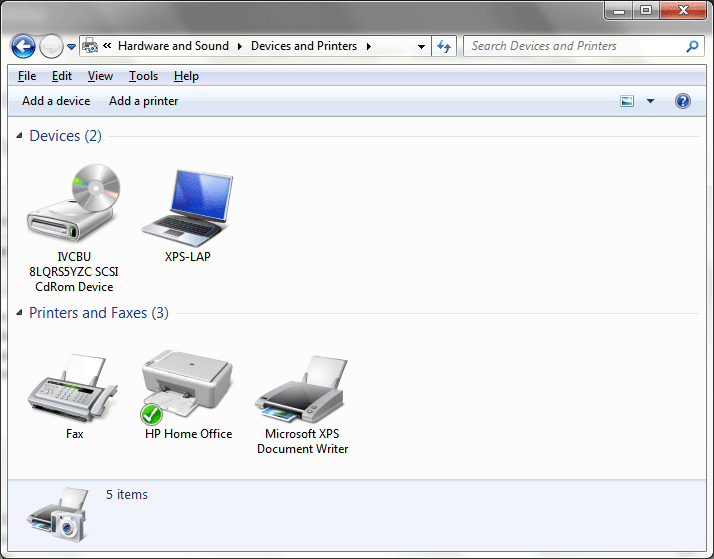
We’ll cover everything from the initial unboxing to advanced setup options, ensuring that whether you’re connecting via USB, Wi-Fi, or Ethernet, you’ll have the knowledge to get your printer up and running efficiently. We’ll also delve into strategic considerations that extend beyond the initial setup, touching upon how your printer choice and maintenance can impact your budget, productivity, and digital security – core themes for anyone navigating the complex interplay of Tech, Brand, and Money in the modern landscape.
Preparation is Key: Before You Begin
A successful printer installation often hinges on thorough preparation. Rushing through the initial steps can lead to frustration and troubleshooting later on. Taking a few moments to prepare your workspace, understand your device, and gather necessary information will save you significant time and effort in the long run.
Unboxing and Physical Setup
The first step upon acquiring a new printer is to carefully unbox it. Printers, especially modern multifunction devices, come with an array of protective tapes, foams, and cardboard inserts designed to prevent damage during transit.
- Remove All Packaging: Begin by removing the printer from its box. Carefully inspect the exterior and interior for any remaining protective materials. This often includes tapes securing access doors, plastic films over control panels, and cardboard inserts within the paper trays or ink/toner cartridge bays. Failure to remove all packaging can lead to paper jams, poor print quality, or even damage to the printer’s internal mechanisms. Consult the printer’s quick-start guide or user manual, which typically highlights these specific areas with diagrams.
- Choose a Suitable Location: Select a stable, level surface near a power outlet. Consider the printer’s dimensions and ensure there’s enough space for paper trays to extend, covers to open, and for comfortable access to load paper or change cartridges. If you plan to connect via USB, ensure the printer is within a reasonable distance of your computer. For network connections (Wi-Fi or Ethernet), proximity to your router or an Ethernet port might be a consideration, especially if you anticipate signal strength issues. Good ventilation is also a plus for laser printers which can generate heat.
- Load Paper: Open the paper tray and load a stack of fresh, unused paper according to the printer’s specifications (usually indicated inside the tray). Adjust the paper guides to snugly fit the paper stack without being too tight. This step ensures you’ll be ready to print a test page once the setup is complete.
- Install Ink or Toner Cartridges: This is a crucial step. Most new printers come with starter cartridges. Follow the instructions precisely to install them. Inkjet printers typically have individual color cartridges and a black cartridge, while laser printers use toner cartridges, often with a separate drum unit. Handle cartridges carefully, avoiding touching electrical contacts or print nozzles. Ensure they click securely into place. Many printers will run an initial alignment or calibration process after cartridge installation, which helps optimize print quality.
Gathering Your Tools and Information
Before you even plug anything in, gather everything you’ll need. This proactive approach prevents interruptions during the installation process.
- Power Cable: The printer’s power cable is essential. Ensure it’s accessible and long enough to reach your chosen power outlet.
- USB Cable (if applicable): If you plan to connect your printer directly to your computer, you’ll need a USB cable. Most printers use a standard USB Type-B connector (the square-ish one) on the printer end and a USB Type-A connector (the rectangular one) on the computer end. While some new printers come with this cable, many manufacturers now assume Wi-Fi connectivity and omit it, so check your box.
- Network Name (SSID) and Password (for Wi-Fi): If you’re setting up a wireless printer, you’ll need your Wi-Fi network’s name (Service Set Identifier or SSID) and its password (WPA2 key). Write these down or have them readily available. This information is usually found on a sticker on your router or in your router’s administration interface.
- Ethernet Cable (if applicable): For a wired network connection, you’ll need a standard Ethernet cable (RJ45).
- Printer Model Number: Locate the exact model number of your printer. This is usually printed on the printer itself, on a sticker, or on the packaging. This information is vital for downloading the correct drivers and software from the manufacturer’s website.
- Installation CD/DVD (if included): Some older or more basic models may still include an installation disc. While often outdated, it can be a convenient starting point if you don’t have internet access or prefer a guided setup. However, it’s generally recommended to download the latest drivers online for optimal performance and security.
Choosing Your Connection Method
Modern printers offer several ways to connect to your devices, each with its own advantages and ideal use cases. Understanding these options helps you select the best fit for your home or office environment, aligning with your productivity needs and existing tech infrastructure.
- USB Connection: This is the most straightforward connection method, involving a direct cable between your printer and a single computer.
- Pros: Simple, reliable, no network configuration needed, often plug-and-play.
- Cons: Limits the printer to one computer (unless shared over a network), requires proximity to the computer, adds cable clutter.
- Ideal for: Single-user setups, environments without Wi-Fi, situations where absolute reliability is paramount.
- Wi-Fi Connection: Wireless connectivity is the most popular choice for modern households and small offices, offering flexibility and convenience.
- Pros: No cables to the computer, allows multiple devices (computers, smartphones, tablets) to print wirelessly from anywhere within network range, reduces clutter.
- Cons: Can be susceptible to network interference, requires initial network configuration, relies on a stable Wi-Fi signal.
- Ideal for: Multi-device homes, shared office spaces, users who value flexibility and a cable-free environment. This option significantly enhances productivity by allowing everyone on the network to print effortlessly.
- Ethernet Connection: This wired network connection is common in office environments where reliability and security are critical.
- Pros: Highly stable and reliable, faster data transfer than Wi-Fi (beneficial for large print jobs), enhanced security (harder to intercept than Wi-Fi signals), ideal for shared office printers.
- Cons: Requires an Ethernet port on your router/switch and a cable run to the printer, less flexible than Wi-Fi regarding placement.
- Ideal for: Business environments, high-volume printing, situations demanding maximum security and uptime.
- Bluetooth (less common for primary printers): Some compact or portable printers offer Bluetooth connectivity, primarily for direct mobile printing.
- Pros: Direct connection to mobile devices without a network.
- Cons: Limited range, slower than Wi-Fi, often not suitable for full-featured, everyday printing.
Consider your usage patterns, the number of users, and your existing network infrastructure when making this choice. For most users today, Wi-Fi strikes the best balance of convenience and functionality.
The Installation Process: Step-by-Step Guide
Once you’ve prepared your printer and gathered all necessary information, you’re ready to proceed with the actual installation. This section breaks down the process into manageable steps, from installing the critical software (drivers) to physically connecting and testing your device.
Driver Installation: The Brains Behind the Machine
Drivers are software programs that enable your computer’s operating system (OS) to communicate with the printer. Without the correct drivers, your computer won’t understand how to “talk” to the printer, rendering it useless.
- Using the Installation CD/DVD (if available): If your printer came with an installation disc, insert it into your computer’s CD/DVD drive. Most discs will auto-run an installer program. Follow the on-screen prompts. While convenient, remember that these drivers might be outdated. It’s often best to check for newer versions online even if using the disc initially.
- Downloading Drivers from the Manufacturer’s Website: This is the most recommended and secure method.
- Go to the Official Website: Open your web browser and navigate to the printer manufacturer’s official support website (e.g., HP.com/support, Epson.com/support, Canon.com/support). Always use the official website to avoid malware or incompatible drivers from third-party sites. This is a critical digital security practice.
- Locate Support/Downloads Section: Look for a “Support,” “Drivers & Downloads,” or “Customer Service” section.
- Enter Your Model Number: Use the exact printer model number you identified earlier. This ensures you download the correct software for your specific device.
- Select Your Operating System: Choose your operating system (Windows 11, Windows 10, macOS Ventura, macOS Sonoma, etc.) and its architecture (32-bit or 64-bit), if prompted.
- Download the Full Software Package: Often, manufacturers provide a “full feature software and driver” package, which includes not just the basic driver but also utility software for scanning, troubleshooting, and managing printer settings. This is generally the best option for comprehensive functionality and to maximize productivity. Download this file to a location you can easily find (e.g., your Downloads folder).
- Run the Installer: Once downloaded, locate the file (it will often be an .exe file for Windows or a .dmg for macOS) and double-click to run it. Follow the on-screen instructions carefully. The installer will typically guide you through connecting the printer at the appropriate time.
- Automatic Driver Installation (Windows Update/macOS Built-in Drivers):
- Windows: When you connect a new printer (especially via USB or a network), Windows often attempts to automatically detect it and install basic drivers through Windows Update. While this can get you printing quickly, it might not install all the advanced features or utility software.
- macOS: macOS has a robust built-in printer driver library. When you add a new printer, it will often automatically detect and configure it using generic or specific drivers from its database. For full functionality, however, downloading the manufacturer’s software is still often recommended.
Connecting Your Printer
The method of connection will dictate when and how you plug in your printer.
- USB Connection:
- Install Drivers First (Recommended): It’s often best to install the printer drivers and software before connecting the USB cable. The installation wizard will usually prompt you to connect the printer when it’s ready.
- Plug in the USB Cable: Connect the square-end (Type-B) of the USB cable to the printer and the rectangular-end (Type-A) to an available USB port on your computer.
- Power On: Turn on the printer. Your computer should detect the new hardware and complete the driver installation.
- Wi-Fi Connection: This method varies slightly by printer model but generally involves one of these approaches:
- Using the Printer’s Control Panel: Many modern printers have a small LCD screen and navigation buttons.
- Navigate to the “Setup,” “Network,” or “Wireless” menu.
- Select “Wireless Setup Wizard” or “Wi-Fi Setup.”
- The printer will scan for available networks. Select your network’s SSID from the list.
- Enter your Wi-Fi password using the printer’s on-screen keyboard. Confirm the connection.
- Using Wi-Fi Protected Setup (WPS): If both your printer and router support WPS, this is a quick method.
- On your printer, navigate to the Wi-Fi or Network menu and select “WPS” or “Push Button Method.”
- Within a few minutes, press the WPS button on your router. The printer and router will communicate and establish a connection.
- Using Setup Software from the Computer: If you downloaded the full software package, the installer will often guide you through setting up the Wi-Fi connection from your computer. It might temporarily connect via USB to transfer network settings, or use a “Wireless Direct” feature.
- Verify Connection: Once connected, the printer’s control panel should display a Wi-Fi symbol or a message indicating a successful connection to your network.
- Using the Printer’s Control Panel: Many modern printers have a small LCD screen and navigation buttons.
- Ethernet Connection:
- Connect the Cable: Plug one end of the Ethernet cable into the Ethernet port on the back of your printer and the other end into an available Ethernet port on your router or network switch.
- Power On: Turn on the printer. The printer should automatically obtain an IP address from your network’s DHCP server.
- Verify Connection: Check the printer’s control panel for a network status indicator or run a network configuration page printout (often found in the network settings menu) to confirm it has an IP address.
Adding the Printer to Your Operating System
After the drivers are installed and the printer is connected, you need to tell your operating system about the new device.
- Windows:
- Go to
Settings(Windows key + I) >Bluetooth & devices>Printers & scanners. - Click the
Add a devicebutton. - Windows will scan for available printers. If your printer appears (especially if connected via Wi-Fi or Ethernet), select it and click
Add device. - If it doesn’t appear, click “The printer that I want isn’t listed.” You’ll then have options to:
Add a Bluetooth, wireless or network discoverable printer(Windows will rescan).Add a printer using a TCP/IP address or hostname(useful for Ethernet printers if automatic detection fails – you’ll need the printer’s IP address).Add a local printer or network printer with manual settings(for USB or specific advanced configurations).Add a printer using an IP address(select if using Ethernet).
- Follow the prompts to complete the installation.
- Go to
- macOS:
- Go to
System Settings>Printers & Scanners. - Click the
+(Add Printer, Scanner, or Fax) button at the bottom of the list. - Your Mac will automatically search for printers connected via USB, Wi-Fi, or Ethernet.
- If your printer appears in the list (under “Default” or “IP”), select it. macOS will attempt to find the appropriate driver.
- Ensure the “Use” or “Print Using” dropdown menu selects the correct driver for your printer (usually the manufacturer’s name and model).
- Click
Add.
- Go to
Testing Your New Printer
Once the installation is complete, the final step is to print a test page. This verifies that everything is working correctly and that your computer can communicate with the printer.
- From Windows: Go to
Settings>Bluetooth & devices>Printers & scanners. Click on your printer, then selectPrinter propertiesorManage. In the new window, look for an option likePrint a test page. - From macOS: Go to
System Settings>Printers & Scanners. Select your printer, clickPrinter QueueorOptions & Supplies, then look for a button likePrint Test PageorPrint Supply Levels. - From an Application: Alternatively, open any document (e.g., in Word, Notepad, Pages) and go to
File>Print. Select your newly installed printer and clickPrint.
If the test page prints successfully, congratulations! Your printer is installed and ready for use. If it doesn’t, proceed to the troubleshooting section.
Optimizing Your Printer Experience: Beyond Basic Setup
Installing your printer is just the first step. To truly get the most out of your device and integrate it seamlessly into your digital life, understanding and utilizing its full range of features and maintaining it properly are essential. This ensures not only efficiency and productivity but also longevity and digital security.
Advanced Settings and Features
Modern printers offer a wealth of customizable settings that can significantly enhance your printing experience and productivity. Taking the time to explore these options can yield substantial benefits.
- Setting a Default Printer: If you have multiple printers (e.g., a work printer and a home photo printer), designate one as your default. This saves you from having to select it every time you print. In Windows, go to
Settings > Bluetooth & devices > Printers & scanners, click on your desired printer, and selectSet as default. On macOS, go toSystem Settings > Printers & Scanners, click the dropdown forDefault Printer, and choose your preferred device. - Duplex Printing (Double-Sided): Many printers support automatic duplex printing, saving paper and reducing environmental impact. Check your printer’s settings (often under
Printing PreferencesorPrint Optionswithin your computer’s print dialog) to enable this feature by default or on a per-document basis. This aligns with modern tech trends focusing on sustainability and efficiency. - Print Quality Settings: Adjusting print quality can save ink/toner and speed up printing for drafts, while maximizing quality for final presentations or photos. You’ll typically find options like “Draft,” “Normal,” “Best,” or “Photo” quality. For text-heavy documents, “Draft” is usually sufficient and much faster.
- Color vs. Grayscale/Black & White: If you’re printing documents that don’t require color, switching to grayscale or black & white printing can significantly conserve expensive color ink/toner, saving you money in the long run. This is a vital personal finance tip for printer owners.
- Printer Sharing (Networked Printers): If you connected your printer via USB to one computer but want other network users to access it, you can often share it through your operating system. In Windows, this is done via
Network and Sharing Center. For macOS, it’s underSystem Settings > General > Sharing > Printer Sharing. Be mindful of digital security implications when sharing, ensuring your network is secure. - Scan to Email/Cloud (for Multifunction Printers): If you have a multifunction printer (MFP), explore its capabilities for scanning directly to email, a network folder, or cloud services like Dropbox or Google Drive. This streamlines workflows and enhances productivity, reducing reliance on physical copies.
Regular Maintenance and Updates
Just like any other piece of technology, printers benefit from regular care and software updates. This ensures optimal performance, security, and extends the lifespan of your investment.
- Driver and Firmware Updates: Periodically check the manufacturer’s website for updated drivers and firmware.
- Drivers: Updated drivers can improve compatibility, add new features, resolve bugs, and enhance performance.
- Firmware: Firmware is the printer’s internal operating system. Firmware updates can patch security vulnerabilities, improve network connectivity, and fix hardware-level issues. Installing these updates is a critical digital security practice to protect your network from potential exploits.
- Cleaning Print Heads (Inkjets): For inkjet printers, clogged print heads are a common cause of poor print quality (streaks, missing colors). Most printers have a “Clean Print Head” utility in their maintenance menu (either on the printer’s control panel or through the utility software on your computer). Run this tool if you notice print quality degradation.
- Cartridge Replacement: Replace ink or toner cartridges promptly when they run low. Using severely depleted cartridges can sometimes damage print heads or internal mechanisms. Always use genuine cartridges or reputable third-party alternatives to maintain print quality and printer health, considering the cost-benefit analysis.
- Paper Path Cleaning: Dust and paper debris can accumulate inside the printer, leading to jams. Occasionally, cleaning the paper path with compressed air or by following manufacturer instructions can prevent issues.
Troubleshooting Common Issues
Even with careful installation, printers can sometimes be temperamental. Here are solutions to common problems:
- Printer Not Found/Offline:
- Check Cables: Ensure all power and data cables (USB, Ethernet) are securely connected.
- Wi-Fi Connection: Verify the printer is connected to the correct Wi-Fi network and has a stable signal. Check your router.
- Power Cycle: Turn off the printer, computer, and router, wait 30 seconds, then turn them back on in order (router first, then computer, then printer). This often resolves temporary network glitches.
- Check Drivers: Ensure the correct drivers are installed and up to date. Reinstall if necessary.
- Printer Status: In your OS settings (
Printers & scanners), ensure the printer isn’t paused or set to offline mode.
- Poor Print Quality:
- Check Ink/Toner Levels: Low cartridges are the most common culprit.
- Clean Print Heads/Align Cartridges: Run the printer’s maintenance utilities (as described above).
- Check Paper Type: Ensure you’re using the correct paper type for your print settings (e.g., photo paper for photo prints).
- Inspect Cartridges: Ensure cartridges are correctly seated and not expired or damaged.
- Paper Jams:
- Follow Printer’s Instructions: Most printers have clear instructions on the control panel or in the manual for clearing jams.
- Remove All Obstructions: Carefully pull out jammed paper in the direction of the paper path, ensuring no small pieces are left behind.
- Check Paper Tray: Ensure paper is loaded correctly and not overfilled.
- Clean Rollers: Dust on feed rollers can cause jams.
- “Spooler Error” (Windows): The print spooler is a Windows service that manages print jobs. If it crashes, you can’t print.
- Restart Print Spooler Service: Go to
Services(search in Start menu), findPrint Spooler, right-click and selectRestart.
- Restart Print Spooler Service: Go to
Strategic Considerations for Printer Ownership
Beyond the technicalities of installation and maintenance, a printer represents an investment of both time and money. Strategic thinking around your printer’s brand, its long-term costs, and its place within your broader digital strategy can significantly impact your financial well-being and overall productivity.
Choosing the Right Brand and Model
The market is flooded with printer brands and models, each boasting different features and price points. Making an informed decision goes beyond just the initial purchase price; it’s about aligning with your values, usage, and budget.
- Brand Reputation and Reliability: Brands like HP, Canon, Epson, Brother, and Lexmark have established reputations. Researching brand reviews and reliability reports can provide insights into a manufacturer’s commitment to quality and longevity. A reliable brand can minimize future troubleshooting and downtime, safeguarding your productivity.
- Features vs. Needs: Don’t overpay for features you won’t use. Do you need a scanner, copier, and fax (multifunction)? Do you require duplex printing, large paper capacity, or wireless direct printing? Assess your specific needs to avoid unnecessary expenditure.
- After-Sales Support: Good customer support, warranty options, and readily available spare parts can be invaluable if issues arise. This directly relates to the “Brand” aspect of our website, emphasizing the importance of a brand that stands behind its products.
- Security Features: For business or home office environments, consider printers with enhanced security features, such as secure boot, encrypted data transmission, or user authentication. This is crucial for protecting sensitive information printed over a network, aligning with modern digital security concerns.
Cost-Effectiveness and Supplies
The initial purchase price of a printer often pales in comparison to the long-term cost of consumables, primarily ink or toner. This is where the “Money” aspect becomes particularly relevant.
- Ink/Toner Costs: Research the cost per page for ink or toner cartridges before buying the printer. Some inexpensive printers have very expensive cartridges, making them costly to operate in the long run. Look for models with high-yield cartridges or ink tank systems (e.g., Epson EcoTank, Canon MegaTank) if you print frequently, as these often offer significantly lower costs per page.
- Third-Party vs. OEM Supplies: While third-party (non-OEM, Original Equipment Manufacturer) cartridges can be cheaper, they sometimes come with risks of lower print quality, potential printer damage, or voiding warranties. Weigh the cost savings against these potential drawbacks. This is a classic personal finance decision – balancing immediate savings with long-term risks.
- Energy Efficiency: Consider the printer’s power consumption. Energy-efficient models can reduce your electricity bills, especially if the printer is on frequently. Look for ENERGY STAR certification.
- Long-Term ROI: For businesses, evaluating the total cost of ownership (TCO) over several years is crucial. This includes initial purchase, supplies, maintenance, and energy costs. A slightly more expensive printer with lower running costs might offer a better return on investment (ROI) in the long run.
Digital Alternatives and Productivity
While printers are essential, it’s also important to consider them within the broader context of digital productivity and sustainability trends.
- Go Paperless Where Possible: Before hitting print, ask yourself if a physical copy is truly necessary. Cloud storage, digital signatures, and document collaboration tools have made it easier than ever to operate paperlessly, saving money on paper and ink and contributing to environmental sustainability. This aligns with modern “Tech Trends” that prioritize digital workflows.
- Optimal Use Cases: Identify where your printer offers the most value. For example, high-quality photo prints, legally binding documents requiring physical signatures, or creative projects often necessitate a printer. For casual reading or temporary information, digital viewing is usually sufficient.
- Integration with Productivity Tools: Many modern printers integrate with productivity apps, allowing you to print directly from cloud services or mobile devices. Leveraging these integrations maximizes the printer’s utility within your digital ecosystem.
Conclusion
Installing a printer, while seemingly a straightforward task, involves a series of logical steps and considerations that can significantly impact its performance, your productivity, and even your budget. By following this detailed guide, from careful unboxing and physical setup to precise driver installation and network configuration, you can ensure a smooth and frustration-free experience.
Beyond the initial setup, understanding advanced settings, committing to regular maintenance, and adopting a strategic approach to printer ownership – considering brand reliability, long-term costs, and the integration of digital alternatives – will empower you to unlock your printer’s full potential. In an era where technology constantly evolves, ensuring your essential tools are set up correctly and optimized for your needs is paramount for both personal efficiency and successful business operations. Your printer, when properly managed, remains a valuable asset in bridging the gap between the digital and physical worlds.
aViewFromTheCave is a participant in the Amazon Services LLC Associates Program, an affiliate advertising program designed to provide a means for sites to earn advertising fees by advertising and linking to Amazon.com. Amazon, the Amazon logo, AmazonSupply, and the AmazonSupply logo are trademarks of Amazon.com, Inc. or its affiliates. As an Amazon Associate we earn affiliate commissions from qualifying purchases.