
In today’s interconnected digital landscape, where productivity hinges on seamless technological interaction, the ability to efficiently manage your peripherals is paramount. For many Mac users, an HP printer represents a reliable workhorse, bridging the gap between digital documents and physical copies. Whether you’re a student preparing assignments, a creative professional printing proofs, or a small business owner handling invoices, a properly installed printer is a cornerstone of an efficient workflow.
While the “plug-and-play” ideal is often touted, setting up an HP printer on a macOS system can sometimes present nuanced challenges, particularly with varying models, connection types, and software requirements. This comprehensive guide aims to demystify the process, offering step-by-step instructions, essential troubleshooting tips, and insights to ensure your HP printer integrates flawlessly with your Mac, enhancing your overall productivity and digital experience. We’ll navigate everything from initial unboxing to advanced setup options, ensuring you’re ready to print with confidence.
Preparing for Installation: Essential Checks and Considerations
Before diving into the installation process, a little preparation can save you significant time and frustration. Think of this as laying the groundwork for a smooth and successful setup. Understanding your printer model, available connection methods, and ensuring your Mac is ready are crucial first steps.
Gathering Your Tools and Information
To ensure a smooth setup, have the following items and information readily available:
- Your HP Printer: Unboxed and placed in its desired location, with all packing materials removed from inside (e.g., tape, foam inserts, toner/ink cartridge protectors).
- Your Mac Computer: Ensure it’s powered on, logged in, and connected to the internet.
- Power Cables: For both your printer and your Mac.
- USB Cable (Type A to Type B): Essential if you plan to connect via USB. Most new printers come with one, but older models might not.
- Network Name (SSID) and Password: Crucial for wireless setup. This information is typically found on a sticker on your Wi-Fi router.
- HP Smart App: While optional for some methods, it’s highly recommended for modern HP printers and offers the most streamlined setup. You can download it from the Mac App Store.
- Printer Model Number: Usually found on a sticker on the printer itself (e.g., HP OfficeJet Pro 9015e, HP Envy 6055). Knowing this helps locate specific drivers if needed.
- macOS Version: Go to “About This Mac” from the Apple menu to confirm your operating system version. This helps determine driver compatibility.
- HP Account (Optional but Recommended): Setting one up can facilitate warranty registration, ink subscriptions (like Instant Ink), and driver downloads.
Understanding Connection Types
HP printers offer various ways to connect to your Mac, each with its own advantages. Knowing which method suits your environment and printer capabilities is key:
- USB Connection: This is the most straightforward method, establishing a direct physical link between your printer and Mac. It’s ideal for single-computer setups or when wireless connectivity isn’t an option. The Mac often detects USB printers automatically.
- Wi-Fi/Wireless Connection: The most popular choice for modern users, allowing your printer to be accessible from any device on your home or office network without physical cables. This is perfect for shared printers and mobile printing. HP printers typically connect directly to your router.
- Ethernet Connection: Less common for home users but often found in office environments. An Ethernet cable connects the printer directly to your router or network switch, providing a stable and often faster network connection than Wi-Fi.
Initial Printer Setup and Network Readiness
Before connecting to your Mac, the printer itself needs a few initial steps:
- Unbox and Power On: Remove all protective packaging materials, including any tape or foam inside the printer’s cartridge access area. Install the ink cartridges or toner cartridges as per the printer’s instructions. Load paper into the input tray. Plug the printer into a power outlet and turn it on.
- Run Initial Setup (if prompted): Many modern HP printers will guide you through an initial setup on their control panel, which might include language selection, date/time, and even a print alignment page.
- Network Readiness (for Wireless/Ethernet): If you’re planning a wireless connection, ensure your Wi-Fi network is active and you have the correct network name (SSID) and password. For Ethernet, make sure a port is available on your router or switch.
Step-by-Step Installation Methods
With preparations complete, let’s explore the various methods for installing your HP printer on your Mac. We’ll cover the most common scenarios, from simple USB connections to advanced wireless setups.
Method 1: Connecting via USB (The Simplest Approach)
The USB connection is often the quickest and most reliable way to get your printer up and running, especially if you’re experiencing network issues or have an older printer model.
- Ensure Printer is Ready: Make sure your HP printer is powered on and has completed its initial setup.
- Connect the USB Cable: Plug one end of the USB cable (Type B) into the square-shaped USB port on the back of your HP printer. Plug the other end (Type A) into an available USB port on your Mac. If your Mac only has USB-C/Thunderbolt 3/4 ports, you’ll need a USB-C to USB-A adapter or hub.
- Mac Automatic Detection: macOS is typically excellent at detecting new USB devices. In many cases, your Mac will automatically recognize the printer, download the necessary drivers (if not already built-in), and add it to your “Printers & Scanners” list. You might see a notification indicating the printer is being set up.
- Manually Adding if Not Detected (Rare but Possible):
- Click the Apple menu in the top-left corner of your screen.
- Select System Settings (macOS Ventura and later) or System Preferences (macOS Monterey and earlier).
- Click on Printers & Scanners.
- Click the + (plus) button at the bottom of the printer list.
- Your HP printer should appear in the list with “USB” next to it. Select it.
- The “Use” or “Print Using” dropdown menu should automatically select the correct HP driver. If not, choose “HP [Your Printer Model]” or “AirPrint” if available. AirPrint is a driverless printing technology built into macOS for many modern printers.
- Click Add.
- Test Print: Once added, perform a test print to confirm functionality. Open any document, go to File > Print, select your HP printer, and click Print.
Method 2: Wireless Setup (Wi-Fi for Seamless Connectivity)
Wireless setup offers maximum flexibility, allowing you to print from anywhere on your network without being tethered by cables. This is the preferred method for most users today.
Option A: Using HP Smart App (Recommended for Modern Printers)
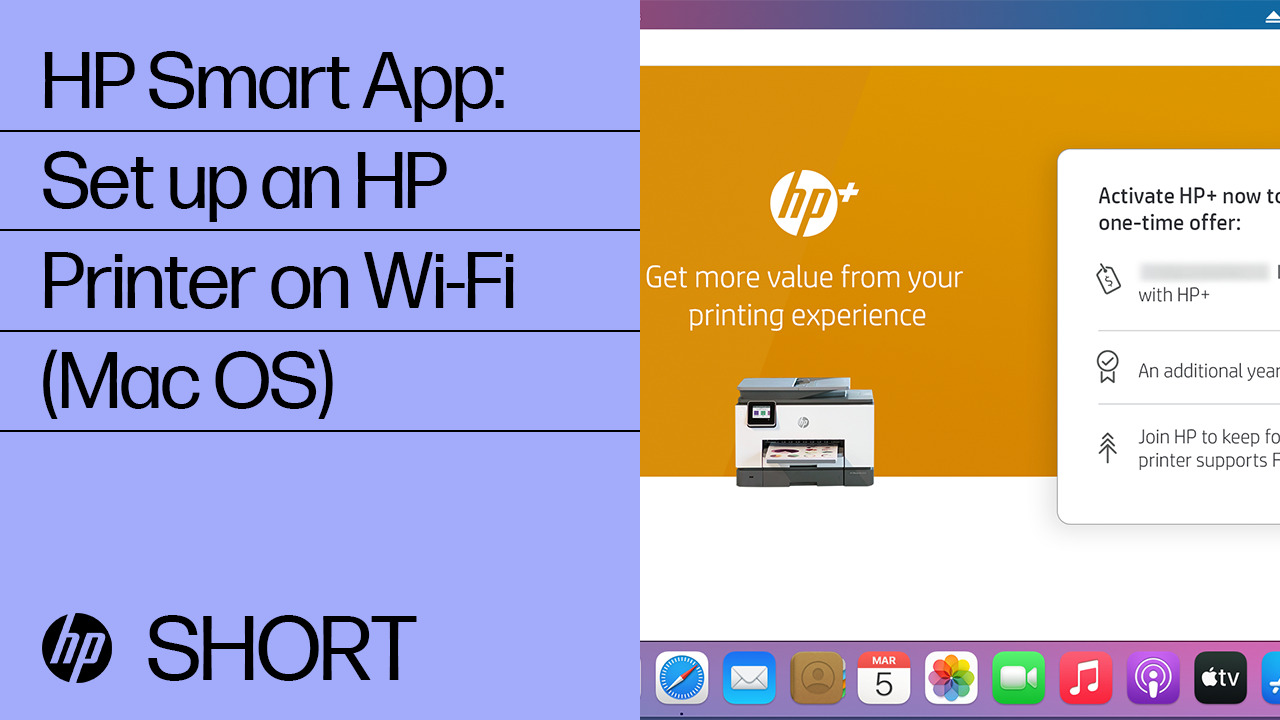
The HP Smart app is HP’s recommended software for managing and setting up modern HP printers. It streamlines the entire process and offers additional features like scanning, mobile printing, and ink ordering.
- Download HP Smart: Open the Mac App Store on your Mac. Search for “HP Smart” and download/install the app.
- Launch HP Smart: Open the app once installed. You may be prompted to sign in with an HP account or create one.
- Add Your Printer:
- Click the + (plus) button or “Add Printer” option within the HP Smart app.
- The app will search for new printers on your network or guide you to set up a new one wirelessly.
- If your printer is already connected to Wi-Fi: It should appear in the list. Select it, and the app will add it.
- If your printer is NOT yet connected to Wi-Fi: The app will guide you through connecting it. This usually involves:
- Placing the printer in Wi-Fi setup mode (often by pressing and holding the Wireless button or going through the printer’s control panel menus).
- Temporarily connecting your Mac to the printer’s direct Wi-Fi (if the app prompts you to do so).
- Selecting your home/office Wi-Fi network (SSID) from a list within the app and entering the password.
- The app will then send the Wi-Fi credentials to the printer, connecting it to your network.
- Complete Setup: Follow any remaining on-screen prompts in the HP Smart app to complete the installation. The app will automatically add the printer to your Mac’s “Printers & Scanners” list.
- Test Print: Use the HP Smart app or any Mac application to perform a test print.
Option B: WPS Push Button Method (If Supported by Printer and Router)
WPS (Wi-Fi Protected Setup) is a quick way to connect your printer to your Wi-Fi network without typing the password, provided both your printer and router support it.
- Activate WPS on Printer: On your HP printer’s control panel, locate and press the WPS button or navigate to the “Wireless” or “Network” settings and select “Wi-Fi Protected Setup” or “WPS Push Button.” The printer’s Wi-Fi light will usually start blinking.
- Activate WPS on Router: Within two minutes, press the WPS button on your Wi-Fi router. The WPS indicator light on the router should also start blinking.
- Connection Confirmation: The printer’s Wi-Fi light should turn solid blue once successfully connected to the network.
- Add Printer to Mac:
- Go to System Settings/Preferences > Printers & Scanners.
- Click the + (plus) button.
- Your HP printer should appear in the list as a network printer (often identified by its name or “Bonjour” or “IP”).
- Select it, choose the appropriate driver (AirPrint or HP [Printer Model]), and click Add.
- Test Print.
Option C: Manual Wi-Fi Setup on the Printer’s Control Panel
If you don’t want to use the HP Smart app or if WPS isn’t an option, you can connect your printer to Wi-Fi directly from its control panel, then add it to your Mac.
- Access Wireless Settings on Printer: On your HP printer’s control panel (touchscreen or buttons), navigate to the “Wireless,” “Network,” or “Setup” menu.
- Select Wireless Setup Wizard: Choose “Wireless Setup Wizard” or “Connect to Wi-Fi.”
- Select Your Network: The printer will scan for available Wi-Fi networks. Select your home or office network (SSID) from the list.
- Enter Password: Use the printer’s keypad or touchscreen to enter your Wi-Fi network password (case-sensitive). Confirm the entry.
- Confirm Connection: The printer should confirm it’s connected to the network, and its Wi-Fi light should turn solid blue.
- Add Printer to Mac:
- Go to System Settings/Preferences > Printers & Scanners.
- Click the + (plus) button.
- Your HP printer should now appear in the list as a network printer.
- Select it, choose the appropriate driver (AirPrint or HP [Printer Model]), and click Add.
- Test Print.
Method 3: Network/Ethernet Connection (For Office Environments or Stability)
For environments requiring maximum stability and speed, an Ethernet connection is an excellent choice.
- Connect Ethernet Cable: Plug one end of an Ethernet cable into the Ethernet port on the back of your HP printer. Plug the other end into an available port on your network router or switch.
- Printer Network Confirmation: The printer will automatically obtain an IP address from your network. You might see a network status indicator light turn on or change color on the printer.
- Add Printer to Mac:
- Go to System Settings/Preferences > Printers & Scanners.
- Click the + (plus) button.
- Your HP printer should appear in the list as a network printer (often identified by its network name, “Bonjour,” or “IP”).
- Select it, choose the appropriate driver (AirPrint or HP [Printer Model]), and click Add.
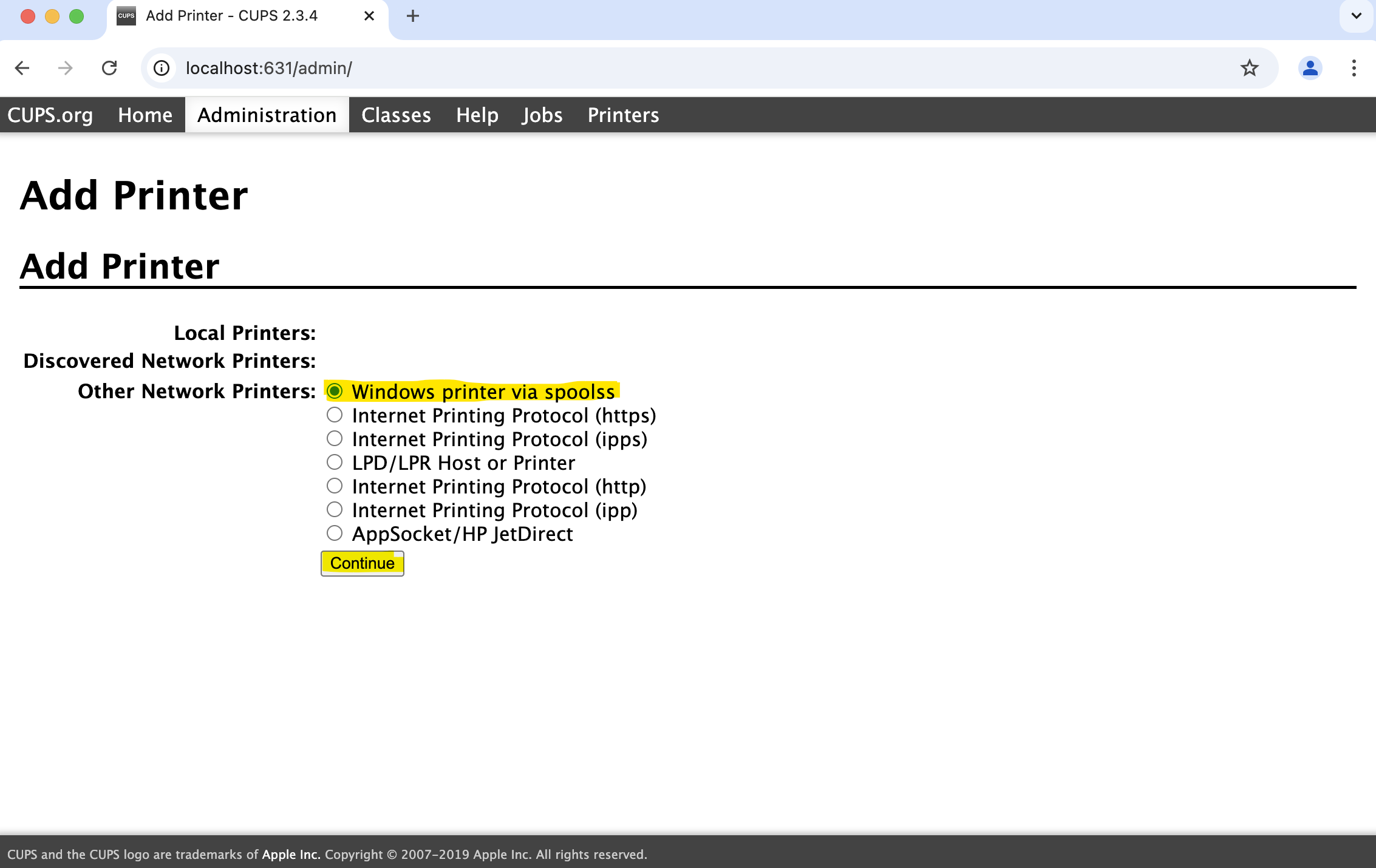
- If not detected automatically: You might need to click the “IP” tab at the top of the “Add Printer” window. Select “HP Jetdirect – Socket” as the protocol. You’ll then need to enter the printer’s IP address (which you can usually find by printing a Network Configuration Page from the printer’s control panel). Ensure the “Print Using” field is set to the correct HP driver or AirPrint.
- Test Print.
Verifying and Optimizing Your Installation
Once your printer is connected and added to your Mac, a few final steps can ensure optimal performance and help you get the most out of your new setup.
Performing a Test Print
This is the most crucial verification step. Open a simple document (e.g., a text file, a webpage, or even a blank document in Pages or Word). Go to File > Print, select your newly installed HP printer from the list, and click Print. Confirm that the page prints correctly and clearly. If it doesn’t, revisit the troubleshooting section.
Exploring Printer Options and Preferences
Your Mac’s “Printers & Scanners” settings allow you to customize various aspects of your printing experience:
- Access Printer Options: In System Settings/Preferences > Printers & Scanners, select your HP printer from the list, then click Options & Supplies…
- General Tab: Here you can see general information about your printer, its location, and its status.
- Options Tab: This tab provides access to printer-specific settings, such as:
- Duplex Printing: Enable or disable automatic two-sided printing to save paper.
- Paper Type/Quality: Adjust settings for different paper types (plain, photo, glossy) and desired print quality (draft, normal, best) to optimize ink usage and print output.
- Ink/Toner Levels: Often, you can check estimated ink or toner levels here.
- Utility Tab: Some printers offer a “Utility” tab with options like print head cleaning, alignment, or diagnostics.
- Supply Levels Tab: For many modern printers, this tab directly displays ink or toner levels.
Keeping Your Printer Drivers Up-to-Date
Printer drivers are software components that allow your Mac to communicate with your printer. Outdated drivers can lead to compatibility issues or missing features.
- macOS Updates: Apple frequently includes updated printer drivers with its macOS software updates. Always ensure your Mac is running the latest macOS version.
- HP Support Website: For the most specific and up-to-date drivers, visit the official HP support website (support.hp.com). Search for your exact printer model, and look for the “Software and Drivers” section. Download and install any recommended macOS drivers.
- HP Smart App: The HP Smart app often notifies you of available firmware updates for your printer, which can improve performance and add new features.
Understanding HP Smart App Features
Beyond initial setup, the HP Smart app is a powerful tool for managing your HP printer and enhancing your productivity:
- Mobile Printing: Print documents and photos directly from your Mac or other mobile devices connected to the same network.
- Scanning: Use your HP all-in-one printer’s scanner directly from the app, allowing you to save documents as PDFs or images.
- Faxing: For compatible printers, the app can facilitate mobile faxing.
- Ink & Toner Management: Monitor ink/toner levels, order supplies directly, and manage Instant Ink subscriptions (if applicable).
- Troubleshooting Tools: Access diagnostic tools and guides to resolve common printer issues.
- Printer Shortcuts: Create custom one-touch shortcuts for repetitive tasks, like “Print homework” (print two-sided, black & white) or “Scan to cloud.”
Troubleshooting Common Installation Issues
Even with the best preparation, you might encounter bumps along the road. Here’s how to address some common problems when installing an HP printer on your Mac.
Printer Not Detected
- Check Physical Connections: For USB, ensure the cable is securely plugged into both the printer and the Mac. Try a different USB port or cable. For network connections, ensure the Ethernet cable is secure or the Wi-Fi signal is strong and the printer is connected to the correct network.
- Restart Everything: Power cycle your printer, your Mac, and your Wi-Fi router. Sometimes a fresh start can resolve temporary glitches.
- Verify Network Connectivity (Wireless/Ethernet):
- Printer: On the printer’s control panel, look for network status indicators or print a Network Configuration Page to confirm it has an IP address and is connected to your Wi-Fi.
- Mac: Ensure your Mac is connected to the same Wi-Fi network as your printer.
- Firewall Interference: Your Mac’s firewall or third-party security software might be blocking communication. Temporarily disable it and try adding the printer again. Remember to re-enable it afterwards.
- Manually Add (IP Address): If automatic detection fails, try adding the printer manually using its IP address in Printers & Scanners > + button > IP tab. You’ll need the printer’s IP address from its Network Configuration Page.
Wireless Connection Problems
- Incorrect Password: Double-check your Wi-Fi password (case-sensitive!).
- Out of Range: Ensure your printer is within a reasonable range of your Wi-Fi router. Obstacles like walls or other electronics can interfere.
- Network Band: Some older HP printers might only support the 2.4 GHz Wi-Fi band. If your router broadcasts both 2.4 GHz and 5 GHz, ensure your printer is trying to connect to the 2.4 GHz network, or separate the SSID names for the two bands on your router.
- Too Many Devices: If your network is heavily congested, the printer might struggle to connect. Try disconnecting other devices temporarily.
- Firmware Update: Sometimes, a printer’s firmware needs updating to improve wireless stability. If you can connect via USB temporarily, use the HP Smart app or HP’s website to update the firmware.
Printing Errors or Quality Issues
- Low Ink/Toner: Check ink or toner levels. Low supplies are a common cause of poor print quality or failed prints.
- Paper Jams: Clear any paper jams according to your printer’s manual.
- Incorrect Paper Type: Ensure the paper type selected in your print settings (File > Print > Paper Type/Quality) matches the paper loaded in the tray.
- Print Head Cleaning/Alignment: Many HP printers offer utility functions to clean or align the print heads, which can resolve streaking, faded prints, or color inaccuracies. Access these through the HP Smart app or your printer’s control panel.
- Outdated Drivers: As mentioned, ensure your drivers are up-to-date.
- Default Printer: Ensure your HP printer is set as the default printer in your Mac’s “Printers & Scanners” settings if you want to avoid selecting it every time.
Driver Incompatibility
- macOS Version: Verify that your printer model is compatible with your current macOS version. Older printers might not have drivers for the latest macOS releases. Check HP’s support site.
- AirPrint: If your printer supports AirPrint, it’s often the most reliable “driverless” option. When adding the printer, ensure “AirPrint” is selected under the “Use” or “Print Using” dropdown.
- Generic Drivers: In rare cases where a specific driver isn’t available, macOS might offer a “Generic PCL Laser Printer” or “Generic PostScript Printer” driver. While these might allow basic printing, advanced features may be lost.
Resetting the Printing System
If all else fails, resetting your Mac’s printing system can often clear corrupted settings or lingering issues. Be aware that this will remove ALL printers from your Mac.
- Go to System Settings/Preferences > Printers & Scanners.
- Right-click (or Control-click) on an empty area in the printer list.
- Select Reset Printing System…
- Confirm the action.
- After the reset, try adding your HP printer again using one of the methods described above.
Maximizing Your HP Printer Experience on Mac
Beyond basic setup, integrating your HP printer effectively into your Mac ecosystem can unlock further productivity and peace of mind.
Digital Security Best Practices
In an age of heightened digital threats, securing your printer and its network connection is crucial, especially for Wi-Fi enabled devices:
- Firmware Updates: Regularly update your printer’s firmware via the HP Smart app or HP’s support website. These updates often include security patches.
- Secure Wi-Fi Network: Ensure your home or office Wi-Fi network uses WPA2 or WPA3 encryption with a strong, unique password.
- Unique Printer Passwords: If your printer has a built-in web server (accessed via its IP address), change any default passwords to strong, unique ones.
- Network Segmentation: In advanced office setups, consider placing network printers on a separate VLAN to isolate them from critical data.
- Regular Maintenance: Keep your printer clean to avoid dust accumulation that might affect performance or connectivity.
Eco-Friendly Printing Tips
Leverage your HP printer’s capabilities to be more environmentally conscious and save on supplies:
- Duplex Printing: Always enable two-sided (duplex) printing for documents when appropriate. Most modern HP printers support this.
- Draft Mode: Use “Draft” or “Economode” print quality for internal documents or rough drafts to save ink/toner.
- Print Preview: Always use print preview to catch errors before printing, reducing wasted pages.
- Recycle Ink/Toner Cartridges: Take advantage of HP’s recycling programs for used cartridges.
- Paper Selection: Use recycled paper when feasible.
Integrating with Mac Productivity
Your HP printer can seamlessly integrate with various macOS features and apps:
- AirPrint: For AirPrint-enabled printers, you can print directly from iOS/iPadOS devices without installing additional drivers, making mobile printing incredibly easy.
- Mac Shortcuts: Create custom macOS Shortcuts to automate printing tasks. For example, a shortcut that automatically prints a specific report or scans a document and saves it to a designated folder.
- Preview App: Use the built-in Preview app to open and print PDFs and images with ease.
- Mail/Pages/Numbers/Keynote: All Apple’s native apps fully support the Mac printing system, allowing you to print documents, spreadsheets, and presentations directly.
- Third-Party Apps: Professional design software (Adobe Creative Suite) and office suites (Microsoft Office) will recognize your installed HP printer, allowing you to print high-quality output.

Conclusion
Installing an HP printer on your Mac, while sometimes requiring a bit of attention to detail, is a straightforward process once you understand the various methods and potential pitfalls. By following this comprehensive guide, from initial preparation and choosing the right connection type to utilizing the powerful HP Smart app and troubleshooting common issues, you can ensure a smooth and successful setup.
A properly configured HP printer isn’t just a peripheral; it’s an extension of your digital workspace, enabling you to transform digital ideas into tangible realities. With your printer seamlessly integrated into your Mac ecosystem, you’ll benefit from enhanced productivity, efficient document management, and the freedom to print exactly what you need, when you need it. Embrace the versatility of your HP printer and unlock a new level of efficiency in your daily tasks.
aViewFromTheCave is a participant in the Amazon Services LLC Associates Program, an affiliate advertising program designed to provide a means for sites to earn advertising fees by advertising and linking to Amazon.com. Amazon, the Amazon logo, AmazonSupply, and the AmazonSupply logo are trademarks of Amazon.com, Inc. or its affiliates. As an Amazon Associate we earn affiliate commissions from qualifying purchases.