
In an increasingly digital world, the need for a reliable printer might seem like a relic of the past, yet for many, it remains an indispensable tool. From printing important documents for work or school, creating physical copies of photos, managing personal finance records, or even printing shipping labels for an online hustle, a functional printer is a cornerstone of productivity. Windows 10, with its robust operating system, offers multiple straightforward ways to connect and configure a printer, catering to various hardware types and user preferences.
This comprehensive guide will walk you through every step of printer installation on Windows 10, demystifying the process for both novice and experienced users. We’ll explore the essential preparations, diverse installation methods, advanced configurations, common troubleshooting tips, and even touch upon how your printer choice and maintenance can impact your tech setup, personal finance, and even your professional brand.
I. Preparing for Printer Installation: Essential Pre-Installation Checklist
Before you even think about plugging in your printer or searching for drivers, a little preparation can save a lot of headaches down the line. Understanding your printer’s specifications, gathering necessary components, and ensuring your Windows 10 system is ready are crucial first steps that contribute to a smooth installation process and long-term printing efficiency.
Understanding Your Printer Type and Connectivity Options
Printers come in a variety of forms, each with distinct connectivity options that dictate how they interact with your computer. Recognizing your printer’s type is the first step in successful installation.
- USB Printers (Local Printers): These are the simplest to install, connecting directly to your computer via a USB cable. They are ideal for single-user setups and offer a reliable, direct connection. Their simplicity makes them a popular choice for home users and small offices where sharing isn’t a primary concern. For individuals focused on personal finance, a simple USB printer might be a cost-effective choice, reducing the complexity of network setup and potential IT issues.
- Wireless Printers: A staple in modern homes and offices, wireless printers connect to your Wi-Fi network, allowing multiple devices (laptops, desktops, smartphones, tablets) to print from anywhere within the network range without physical cables. This type of printer significantly enhances productivity and flexibility, aligning with current technology trends of seamless connectivity. From a brand perspective, having a centrally accessible wireless printer can streamline operations, making a small business appear more professional and efficient.
- Network Printers (Ethernet): These printers connect directly to your router or network switch via an Ethernet cable. Similar to wireless printers, they allow multiple users on the same network to print. Often found in larger office environments, network printers are known for their stability and speed, crucial for high-volume printing tasks. They are a sound investment for businesses where consistent output is vital, impacting the “money” aspect through reliability and reducing downtime.
- Bluetooth Printers: Less common for general-purpose printing but found in specialized applications (e.g., mobile receipt printers), Bluetooth printers connect wirelessly over short distances. While convenient for specific mobile setups, they are not typically used for desktop printing.
Before proceeding, identify which type of printer you have. This will determine the specific installation steps you need to follow.
Gathering Your Supplies: What You’ll Need
Having everything ready before you start prevents interruptions. Here’s a quick checklist:
- Your Printer: Unboxed and placed in its desired location.
- Power Cable: Connect your printer to a power outlet.
- Ink Cartridges or Toner: Installed according to the manufacturer’s instructions. Ensure they are correctly seated to avoid printing issues later. This is where the “money” aspect comes into play – using genuine cartridges often provides better quality prints and can extend the life of your printer, preventing costly repairs.
- USB Cable (if applicable): For USB printers, ensure you have a standard USB-A to USB-B cable, which typically comes with the printer.
- Ethernet Cable (if applicable): For network printers, a standard Ethernet cable (Cat5e or Cat6) will be needed.
- Wi-Fi Network Name and Password (if applicable): For wireless printers, you’ll need this to connect it to your network.
- Printer Manual: Always a good resource for specific setup instructions, especially for initial power-on and cartridge installation.
- Windows 10 PC: Ensure it’s powered on and connected to the internet (especially important for driver downloads).
- Administrator Privileges: You’ll need an administrator account on your Windows 10 PC to install new hardware and drivers.
Driver Considerations: The Brains Behind the Print Job
A printer driver is a piece of software that allows your Windows 10 operating system to communicate with your printer. Without the correct driver, your printer won’t function.
- Windows Update: Windows 10 is remarkably good at automatically detecting and installing drivers for many common printers through Windows Update. This is often the easiest and most hands-off method.
- Manufacturer’s Website: If Windows doesn’t automatically find the driver, or if you want the latest version with all features, the printer manufacturer’s website is your next stop. Search for your specific printer model and download the recommended drivers for Windows 10 (64-bit or 32-bit, depending on your system). Always download from the official site to avoid malware, a critical digital security practice.
- Installation CD/DVD: Some older printers come with an installation disc. While still viable, drivers on these discs may be outdated, so checking the manufacturer’s website for the latest version is generally recommended.
Choosing the right driver isn’t just about functionality; it can impact performance, print quality, and even specific features like duplex printing or custom paper sizes. Keeping drivers updated is a key tech maintenance practice that ensures optimal performance and security.
II. Step-by-Step Printer Installation Methods
With your preparations complete, it’s time to connect your printer to Windows 10. The method you choose will depend on your printer’s connectivity type.
Adding a Local USB Printer
This is often the most straightforward method.
- Power On the Printer: Connect your printer to a power outlet and turn it on.
- Connect USB Cable: Plug one end of the USB cable into your printer and the other end into an available USB port on your Windows 10 PC.
- Automatic Detection: Windows 10 should automatically detect the new hardware and attempt to install the appropriate drivers. You might see a notification indicating “Setting up a device” or “Installing device drivers.”
- Wait for Completion: Allow Windows to complete the installation process. Once done, you should receive a notification that your device is ready to use.
- Manual Addition (if needed): If Windows doesn’t automatically detect it or if the installation fails, you can add it manually:
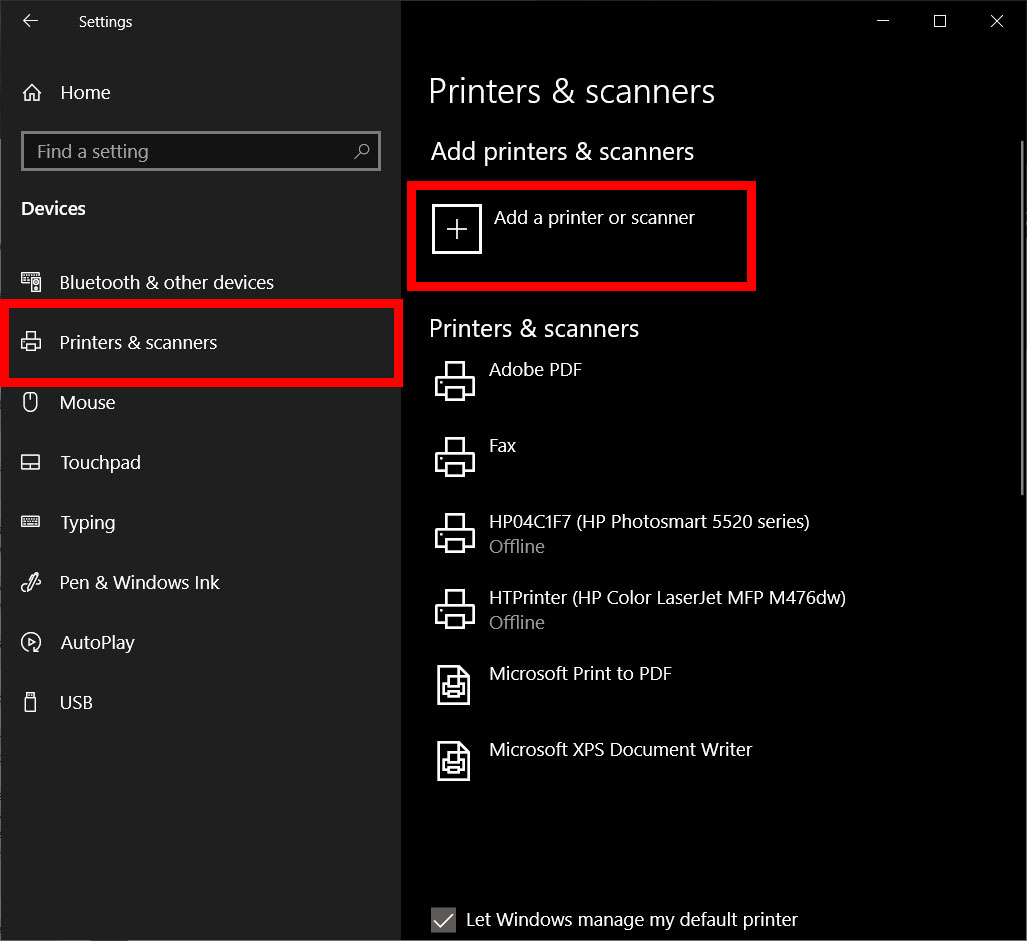
- Go to Settings (Windows Key + I).
- Click on Devices.
- Select Printers & scanners from the left pane.
- Click Add a printer or scanner.
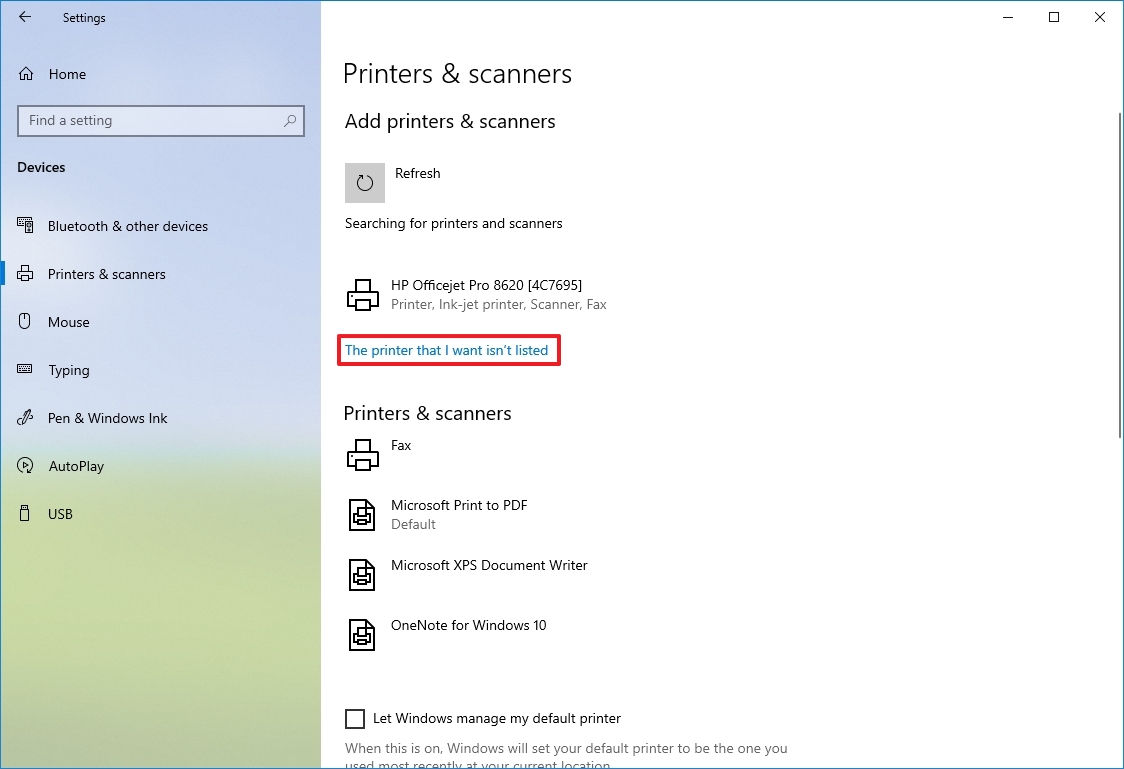
- Windows will search for available printers. If your USB printer appears, select it and click Add device.
- If it doesn’t appear immediately, click “The printer that I want isn’t listed.” Then, select “Add a local printer or network printer with manual settings.” Choose the correct USB port (e.g., USB001, USB002) from the dropdown and proceed to select the driver (either from a list or by installing from a disk/downloaded file).
Connecting a Wireless or Network Printer
Wireless and network printers offer great flexibility, especially in environments where multiple users need access or where physical cabling is impractical.
- Connect Printer to Your Network:
- Wireless: On your printer’s control panel, navigate to the network settings or Wi-Fi setup wizard. Select your Wi-Fi network name (SSID) and enter the password. Consult your printer manual for specific steps, as this varies greatly between models and brands.
- Network (Ethernet): Plug one end of the Ethernet cable into the printer’s network port and the other end into an available port on your router or network switch.
- Ensure Network Connectivity: Make sure your Windows 10 PC is connected to the same network as the printer.
- Add Printer in Windows 10:
- Go to Settings > Devices > Printers & scanners.
- Click Add a printer or scanner.
- Windows will search for network-connected printers. Your wireless or network printer should appear in the list. Select it and click Add device.
- If your printer doesn’t show up:
- Click “The printer that I want isn’t listed.”
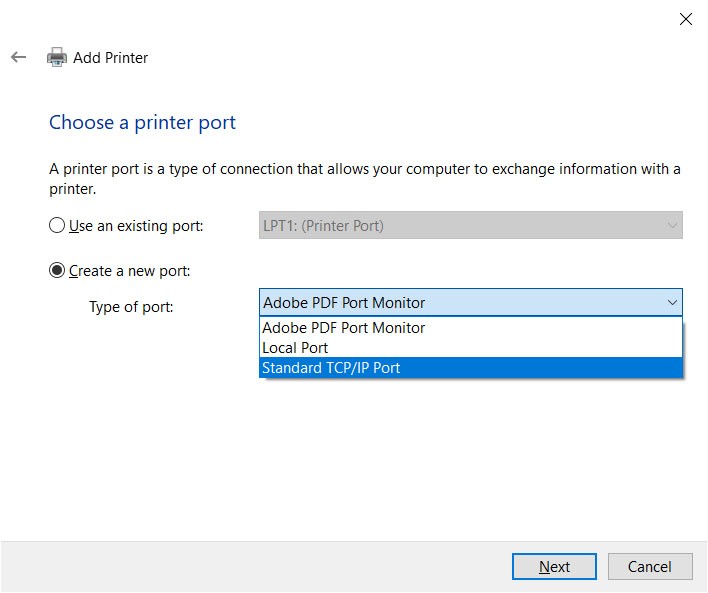
- Select “Add a Wi-Fi, wireless or Bluetooth printer” or “Add a printer using a TCP/IP address or hostname.”
- For TCP/IP, you’ll need your printer’s IP address, which you can usually find in the printer’s network settings menu or by printing a network configuration page from the printer. This method provides robust connectivity, important for businesses where uptime and reliable printing are essential for maintaining a professional brand.
Installing a Bluetooth Printer
While less common for standard document printing, Bluetooth printers are used for specific tasks, often in retail or mobile settings.
- Enable Bluetooth on Printer: Turn on your printer and ensure its Bluetooth is discoverable. Consult your printer’s manual for specific instructions.
- Enable Bluetooth on Windows 10:
- Go to Settings > Devices > Bluetooth & other devices.
- Toggle Bluetooth to On.
- Add Bluetooth Device:
- Click Add Bluetooth or other device.
- Select Bluetooth.
- Windows will search for nearby Bluetooth devices. When your printer appears, select it and follow the on-screen prompts to pair. You may need to enter a pairing code (often 0000 or 1234, but check your printer’s manual).
- Complete Installation: Once paired, Windows may automatically install the necessary drivers. If not, you may need to manually install drivers from the manufacturer’s website.
III. Advanced Setup and Configuration for Optimal Printing
Once your printer is installed, there are several steps you can take to optimize its performance and manage its features, enhancing your overall productivity and printing efficiency.
Updating and Managing Printer Drivers
As mentioned earlier, drivers are critical. Keeping them updated can resolve bugs, improve performance, and unlock new features.
- Check for Updates: Regularly visit your printer manufacturer’s website for the latest drivers. Manufacturers often release updated drivers that improve compatibility with new Windows versions or add functionality.
- Device Manager: You can also manage drivers through Device Manager.
- Right-click the Start button and select Device Manager.
- Expand Printers or Print queues.
- Right-click on your printer and select Update driver.
- You can choose to let Windows search automatically or browse your computer for driver software if you’ve downloaded it.
- Uninstalling Drivers: If you encounter persistent issues, uninstalling and reinstalling the driver can often resolve the problem. In Device Manager, right-click the printer and select Uninstall device. Then, restart your computer and follow the installation steps again.
Proper driver management is a key aspect of tech maintenance, ensuring your printing system remains robust and secure, protecting against vulnerabilities that outdated software might present.
Setting a Default Printer
For convenience, you’ll want to set your most frequently used printer as the default. This means that whenever you print a document, that printer will be automatically selected without you needing to choose it each time.
- Go to Settings > Devices > Printers & scanners.
- Under “Printers & scanners,” ensure “Let Windows manage my default printer” is OFF. If it’s on, Windows will automatically set the last used printer as default.
- Click on the printer you wish to set as default.
- Click the Manage button.
- On the next screen, click Set as default.
This small tweak significantly boosts productivity by reducing repetitive steps, especially for individuals managing multiple printers or busy offices.
Sharing a Printer on Your Network
For small offices or family homes, sharing a single printer among multiple PCs can be a cost-effective solution, eliminating the need to purchase individual printers for each computer. This aligns with the “money” aspect by optimizing resource utilization.
- On the Host PC (where the printer is installed):
- Go to Settings > Devices > Printers & scanners.
- Click on the printer you want to share and then click Manage.
- On the printer’s settings page, click Printer properties.
- Go to the Sharing tab.
- Check the box for Share this printer.
- Give it a memorable Share name.
- Click Apply and then OK.
- On Client PCs (that want to use the shared printer):
- Go to Settings > Devices > Printers & scanners.
- Click Add a printer or scanner.
- Click “The printer that I want isn’t listed.”
- Select “Select a shared printer by name.”
- Enter the network path to the shared printer (e.g.,
\ComputerNameShareName, whereComputerNameis the name of the host PC andShareNameis the name you gave the shared printer). - Click Next and follow the prompts to install the driver.
Printer sharing is a powerful feature that enhances collaboration and makes the most out of your existing hardware, a smart tech strategy for productivity and managing resources effectively.
IV. Troubleshooting Common Printer Installation Issues
Even with careful preparation, you might encounter issues during or after installation. Here are some common problems and their solutions, emphasizing the importance of digital security in networked environments.
Driver Problems
- “Printer not found” or “Driver unavailable”: This usually means Windows couldn’t find or correctly install the driver.
- Solution: Download the latest driver directly from the manufacturer’s website. If you’ve already downloaded it, try uninstalling the existing driver (via Device Manager) and then performing a clean install using the downloaded file.
- Outdated/Corrupt Driver: Can lead to strange print behaviors or crashes.
- Solution: Update the driver as described in Section III. If issues persist, completely uninstall the driver and reinstall.
- Driver Compatibility: Ensure you download the correct driver for your Windows 10 version (32-bit vs. 64-bit).
Connectivity Issues
- USB Printer Not Detected:
- Solution: Try a different USB port on your computer. Ensure the USB cable is securely connected at both ends and not damaged. Reboot both the printer and the PC.
- Wireless Printer Won’t Connect to Wi-Fi:
- Solution: Double-check your Wi-Fi network name (SSID) and password on the printer’s control panel. Ensure your router is broadcasting the network and that the printer is within range. Reboot your router, printer, and PC. Check for any firmware updates for your printer.
- Network Printer (Ethernet) Not Found:
- Solution: Verify the Ethernet cable is securely connected at both ends. Check the network status lights on both the printer and your router/switch (they should be active). Ensure your PC is on the same network subnet as the printer. Ping the printer’s IP address from your PC’s Command Prompt to confirm network visibility.
Windows Update and Printer Compatibility
Sometimes, Windows updates can introduce or resolve printer compatibility issues.
- Post-Update Issues: If printing problems started after a Windows update, check the manufacturer’s website for new drivers compatible with the latest Windows version. You might also temporarily pause updates if a known issue is widespread.
- Missing Features: If certain printer features aren’t working, it could be due to a generic Windows driver. Installing the full feature driver from the manufacturer’s website often resolves this, providing access to all the printer’s capabilities.
For networked printers, ensure your router’s firewall isn’t blocking communication. Periodically checking your network’s digital security settings and ensuring strong, unique passwords for Wi-Fi and network access are crucial, especially when sharing devices. This prevents unauthorized access to your printer, which could potentially expose sensitive documents or compromise your network.
V. Optimizing Your Printing Experience: Beyond Installation
Installing your printer is just the beginning. To truly leverage its capabilities and ensure long-term satisfaction, consider these additional tips that blend tech, money, and brand considerations.
Choosing the Right Printer for Your Needs
The “money” and “tech” aspects converge significantly here. Your choice of printer should align with your specific usage patterns and budget.
- Inkjet vs. Laser: Inkjets are generally cheaper upfront and excel at color printing (photos). Lasers are more expensive initially but offer lower cost per page for high-volume monochrome printing, faster speeds, and sharper text, making them a wise long-term investment for a business brand or frequent document printing.
- Multi-Function vs. Single-Function: All-in-one (AIO) printers that scan, copy, and fax (MFPs) offer versatility but can be bulkier and more complex. Single-function printers are often more reliable and cheaper if you only need printing.
- Connectivity: Prioritize wireless for flexibility and mobile printing, or USB for simplicity and direct connection.
- Consumable Costs: Research the cost of replacement ink cartridges or toner. Some printers are cheap to buy but have very expensive consumables, significantly impacting your personal or business finance over time. Consider printers with high-yield options or subscription services that can save money.
- Brand Reputation and Support: Some brands are known for their user-friendliness, driver support, and robust hardware. Investing in a reputable brand often means better reliability and easier troubleshooting, contributing to a positive tech experience and professional brand image.
Maintenance Tips for Longevity and Efficiency
A well-maintained printer lasts longer and performs better, saving you money on repairs and replacements.
- Regular Cleaning: Periodically clean print heads (inkjets) or toner rollers (lasers) using the printer’s utility software. Dust and debris can accumulate and affect print quality.
- Proper Storage of Consumables: Store ink and toner in a cool, dark place, and ensure they are sealed until ready for use to prevent drying or damage.
- Avoid Overloading: Don’t overload the paper tray beyond its recommended capacity.
- Firmware Updates: Occasionally, manufacturers release firmware updates for the printer itself. These can improve performance, add features, or fix bugs. Check your printer’s support page for instructions. This is a crucial “tech” habit.
Digital Security and Networked Printers
With more printers connected to networks, digital security becomes paramount.
- Strong Passwords: Ensure your Wi-Fi network has a strong, unique password. If your printer has its own web interface, change the default administrator password immediately.
- Firewall Configuration: Ensure your network firewall is properly configured to protect your printer from unauthorized external access while still allowing internal network devices to print.
- Secure Print Features: Many business-grade printers offer “secure print” or “confidential print” features, requiring a PIN to be entered at the printer before a job starts. This is excellent for protecting sensitive documents and maintaining data privacy, which is critical for any brand.
- Firmware Updates: As mentioned, these can also address security vulnerabilities.
- Guest Networks: For guest access, consider setting up a separate guest Wi-Fi network to isolate guest devices from your primary network and printer.
By considering these aspects, you ensure your printing setup is not just functional but also efficient, cost-effective, and secure, aligning with best practices in technology, personal finance, and brand management.
Conclusion
Installing a printer on Windows 10 is a task that, while seemingly simple, involves a few critical steps and considerations. Whether you’re connecting a straightforward USB printer, a versatile wireless device, or a robust network printer, Windows 10 provides the tools and flexibility to get you up and running efficiently.
By following this comprehensive guide, from meticulous pre-installation preparations to navigating diverse setup methods and implementing advanced configurations, you can ensure a seamless printing experience. Moreover, by embracing best practices in driver management, printer maintenance, and digital security, you’re not just installing a device; you’re optimizing a crucial part of your tech ecosystem. A well-chosen, correctly installed, and diligently maintained printer is an investment that pays dividends in productivity, cost savings, and the overall professional polish of your personal or business brand. Happy printing!
aViewFromTheCave is a participant in the Amazon Services LLC Associates Program, an affiliate advertising program designed to provide a means for sites to earn advertising fees by advertising and linking to Amazon.com. Amazon, the Amazon logo, AmazonSupply, and the AmazonSupply logo are trademarks of Amazon.com, Inc. or its affiliates. As an Amazon Associate we earn affiliate commissions from qualifying purchases.