
In the expansive realm of mathematics and data visualization, the ability to translate abstract algebraic expressions into concrete graphical representations is a foundational skill. From understanding basic equations and inequalities to analyzing complex data sets, graphing provides an intuitive visual language that simplifies complex concepts. While pencil and paper remain classic tools, the advent of digital graphing software and advanced calculators has revolutionized how we interact with and comprehend these visualizations. This article delves into the practical application of technology to graph fundamental expressions like x=1, x>1, and x<1, exploring various tools that make this process not just possible, but also highly interactive, insightful, and incredibly efficient.

For many, the transition from one-dimensional number line representations to two-dimensional Cartesian plane interpretations can be a conceptual hurdle. An expression like ‘x=1’ on a number line is a single point, but in a 2D plane, it signifies something far more expansive. Understanding these basic graphical forms is crucial for building a robust mathematical intuition, essential for fields ranging from engineering and physics to economics and computer science. Our focus here is on leveraging the power of technology – from sophisticated online platforms to handheld calculators – to demystify these visual representations and empower users with the skills to interpret and create them with ease and precision.
Understanding the Fundamentals: What Does x=1, x>1, and x<1 Represent Graphically?
Before diving into the digital tools, it’s vital to grasp the core mathematical concepts behind these expressions when represented on a two-dimensional Cartesian coordinate system. This fundamental understanding is what drives our ability to correctly interpret and use graphing technologies.
The Equation x=1: A Vertical Line
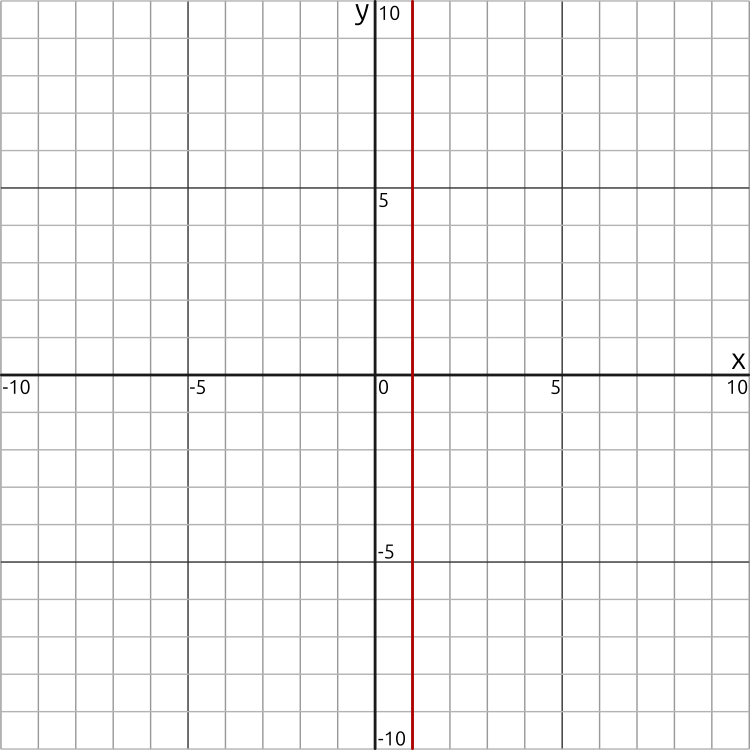
In a Cartesian coordinate system, points are defined by an (x, y) pair. The equation x=1 means that every point on the graph must have an x-coordinate of 1, regardless of its y-coordinate.
-
Visual Representation: This results in a straight vertical line that passes through the point (1,0) on the x-axis. This line is parallel to the y-axis.
-
Key Characteristic: Any point on this line, such as (1, -5), (1, 0), (1, 3.14), or (1, 100), will satisfy the condition that its x-coordinate is 1. The y-coordinate can take any real value.
The Inequality x>1: A Region to the Right
The inequality x>1 represents all points in the Cartesian plane where the x-coordinate is strictly greater than 1.
-
Visual Representation: Graphically, this is depicted as a shaded region to the right of the vertical line x=1.
-
Boundary Line: Because the inequality is “strictly greater than” (not “greater than or equal to”), the line x=1 itself is not included in the solution set. Therefore, the boundary line x=1 is drawn as a dashed or dotted line to indicate its exclusion.
-
Key Characteristic: Any point within the shaded region, such as (2, 0), (5, -3), or (1.001, 10), will satisfy x>1.
The Inequality x<1: A Region to the Left
Conversely, the inequality x<1 encompasses all points in the Cartesian plane where the x-coordinate is strictly less than 1.
-
Visual Representation: This is shown as a shaded region to the left of the vertical line x=1.
-
Boundary Line: Similar to x>1, since the inequality is “strictly less than,” the line x=1 is excluded from the solution set. Thus, the boundary line x=1 is again represented as a dashed or dotted line.
-
Key Characteristic: Any point within this shaded region, such as (0, 0), (-4, 7), or (0.999, -π), will satisfy x<1.
Understanding these fundamental distinctions is paramount before we explore how various digital tools interpret and render them. Modern technology handles these nuances, such as dashed lines and shading, with remarkable elegance and often automatically.
Harnessing Graphing Calculators for Precision and Speed
Graphing calculators have been a staple in mathematics education and STEM fields for decades. While newer software offers more visual flair, dedicated graphing calculators like those from Texas Instruments (TI) or Casio remain invaluable for their portability, reliability in exam settings, and the discipline they instill in understanding function input.
Step-by-Step with a TI-84 (or similar)
Graphing vertical lines like x=1 on a standard function-based graphing calculator (which primarily deals with y=f(x) form) requires a slightly different approach than typical function graphing, especially for inequalities.
-
For x=1: Most TI calculators do not have a direct “x=” function input. You might use the “Draw” menu.
-
Press
2ndthenPRGM(DRAW). -
Select option
4:Vertical. -
Type
1and pressENTER. This will draw a vertical line at x=1. -
Limitation: This method only draws the line; it doesn’t represent it as an editable equation.
-
-
For x>1 and x<1: Graphing inequalities involving only ‘x’ directly can be challenging on many standard graphing calculators, as their shading functions are often optimized for
y < f(x)ory > f(x).-
Workaround: Some advanced calculators might allow you to use a “test” function within the Y= editor (e.g.,
Y1 = (X > 1) * 9999andY2 = (X > 1) * -9999) to create a shaded region by exploiting how the calculator draws large positive/negative values, but this is often imprecise and not standard. -
More Practical Approach: Visually understand that x>1 is to the right of the drawn line x=1, and x<1 is to the left. Some calculators might offer “Shade(” commands under the
DRAWmenu, but again, these are typically foryinequalities.
-
Advantages and Limitations of Dedicated Calculators
Advantages:
-
Portability: Handheld and battery-powered, ideal for on-the-go calculations and classroom use.
-
Exam Approved: Often the only electronic tools permitted in standardized tests.
-
Reliability: Consistent performance without internet dependency.
-
Deep Integration: Many features for calculus, statistics, matrices, and programming are tightly integrated.
Limitations:
-
Input Method: Not always intuitive for non-function graphs like vertical lines and x-based inequalities.
-
Visuals: Monochromatic screens (on older models) and limited resolution can make shading and complex graphs less clear.
-
Learning Curve: Mastering advanced features and workarounds can be time-consuming.
-
Cost: Quality graphing calculators represent a significant upfront investment.
-
Less Interactive: Static graphs once drawn, lacking the dynamic manipulation of modern software.
Leveraging Online Graphing Software for Interactive Visualization
The internet has democratized access to powerful graphing tools, making sophisticated mathematical visualization available to anyone with a browser. These platforms excel in intuitive interfaces, dynamic interaction, and visually rich outputs.
Desmos: The User-Friendly Choice
Desmos (desmos.com/calculator) is arguably the most user-friendly and visually appealing online graphing calculator, widely popular among students and educators for its simplicity and power.
-
Access: Open your web browser and navigate to desmos.com/calculator.
-
Input x=1: In the expression input box (usually on the left), simply type
x=1.- Result: Desmos instantly draws a solid vertical line at x=1. It automatically recognizes this as an equation of a line.
-
Input x>1: Type
x>1into a new input box.- Result: Desmos automatically draws a dashed vertical line at x=1 and shades the entire region to the right of it.
-
Input x<1: Type
x<1into another new input box.-
Result: Desmos draws a dashed vertical line at x=1 and shades the entire region to the left.
-
Interactive Features: You can easily change the color of lines and shaded regions, zoom in/out with your mouse wheel, pan by dragging, and even add labels. Desmos handles open/closed interval visualization (dashed vs. solid lines) perfectly.
-
GeoGebra: Dynamic Mathematics for All Levels
GeoGebra (geogebra.org) is a dynamic mathematics software suite that combines geometry, algebra, spreadsheets, graphing, statistics, and calculus into one easy-to-use package. It’s available as a web app, desktop application, and mobile app.
-
Access: Go to geogebra.org and select “Start Graphing” or open the desktop app.
-
Input x=1: In the “Input” bar at the bottom, type
x = 1and press Enter.- Result: GeoGebra draws a solid vertical line at x=1.
-
Input x>1: Type
x > 1and press Enter.- Result: GeoGebra shades the region to the right of x=1 and automatically uses a dashed line for the boundary.
-
Input x<1: Type
x < 1and press Enter.-
Result: GeoGebra shades the region to the left of x=1, again with a dashed boundary.
-
Versatility: GeoGebra allows for extensive customization, creating interactive sliders, points, and even constructing geometric figures alongside algebraic representations. Its visual output is professional and clear.
-
Wolfram Alpha: Computational Powerhouse
Wolfram Alpha (wolframalpha.com) is a computational knowledge engine that can interpret natural language queries and provide instant, detailed answers, including generated graphs. While less interactive for direct manipulation than Desmos or GeoGebra, it excels at providing immediate, high-quality visualizations and associated mathematical properties.
-
Access: Open your web browser and go to wolframalpha.com.
-
Input x=1: In the search bar, type
plot x=1orgraph x=1and press Enter.- Result: Wolfram Alpha generates a 2D plot of the vertical line x=1, often including contextual information like domain/range or alternative forms.
-
Input x>1: Type
plot x>1orgraph x>1and press Enter.- Result: Wolfram Alpha generates a graph showing the shaded region to the right of x=1, typically with a dashed line, clearly indicating the excluded boundary.
-
Input x<1: Type
plot x<1orgraph x<1and press Enter.-
Result: Similar to x>1, it generates a graph with the shaded region to the left of x=1 and a dashed boundary.
-
Strengths: Wolfram Alpha’s strength lies in its ability to parse complex queries and provide not just the graph, but also rich mathematical context and properties, making it excellent for quick checks and detailed academic work.
-
Advanced Applications and Considerations for Graphing Tools
The capabilities of modern graphing software extend far beyond simple lines and regions, offering features that empower deeper mathematical exploration and practical application.
Beyond Simple Vertical Lines: The Power of Systems
One of the most powerful applications of these digital tools is their ability to graph systems of equations and inequalities. For example, simultaneously graphing x > 1 and y < 2 immediately shows the intersection of these two regions, which is a common task in fields like linear programming or defining constraints. The software effortlessly handles multiple inputs, often differentiating shaded areas with varying colors or patterns, making solution sets visually distinct. This capability transforms complex multi-condition problems into easily interpretable visual solutions.
Customization and Export Features
Professional presentations and reports often require graphs that are not only accurate but also visually appealing and clearly labeled.
-
Customization: Tools like Desmos and GeoGebra allow users to customize line colors, styles (solid, dashed, dotted), thickness, fill colors for shaded regions, and add labels or annotations directly onto the graph. This ensures clarity and adherence to specific aesthetic requirements.
-
Export: Most platforms offer easy export options, allowing users to save graphs as image files (PNG, JPEG, SVG) or even embed interactive graphs directly into webpages or presentations. This functionality is crucial for academics, students, and professionals needing to incorporate mathematical visualizations into their work.
Educational Benefits and Real-World Relevance
These graphing technologies serve as invaluable educational aids, providing immediate visual feedback that reinforces abstract mathematical concepts. Students can experiment with changing inequalities or equations and instantly see the impact on the graph, fostering a deeper, more intuitive understanding. In the real world, such tools are fundamental for:
-
Data Analysis: Visualizing data trends, distributions, and relationships.
-
Engineering and Physics: Modeling physical phenomena, designing systems, and analyzing forces.
-
Economics: Plotting supply and demand curves, cost functions, and market equilibrium.
-
Computer Graphics and Game Development: Defining boundaries, collision detection, and rendering environments.
The ability to quickly and accurately graph expressions is a gateway to solving complex problems across numerous disciplines.
Choosing the Right Tool for Your Needs
With a variety of excellent digital graphing tools available, selecting the most appropriate one depends on your specific requirements and context.
Factors to Consider: Accessibility, Features, Learning Curve
-
Accessibility:
-
Desmos & GeoGebra: Excellent for quick access via web browser, mobile app, and often available offline with desktop versions. Ideal for anyone with an internet connection.
-
Graphing Calculators: Highly accessible in exam settings and situations without internet. Portable.
-
Wolfram Alpha: Web-based, excellent for quick, one-off queries with rich mathematical context.
-
-
Features:
-
Desmos: Prioritizes ease of use, dynamic interaction, and visually clear representations for functions and inequalities. Great for learning and teaching.
-
GeoGebra: Comprehensive suite for geometry, algebra, calculus, and more. Offers deeper construction tools and wider mathematical scope.
-
Wolfram Alpha: Powerful computational engine for direct answers and detailed mathematical properties; less about interactive construction.
-
Graphing Calculators: Robust for scientific calculations, programming, and approved for standardized tests.
-
-
Learning Curve:
-
Desmos: Very low learning curve; highly intuitive.
-
GeoGebra: Moderate learning curve due to its extensive feature set, but still user-friendly.
-
Wolfram Alpha: Simple input for results, but understanding the full range of queries takes time.
-
Graphing Calculators: Can have a steep learning curve for advanced features and workarounds.
-
Integrating Graphing into Workflow
Whether you are a student tackling homework, an educator preparing lessons, or a professional analyzing data, integrating these graphing tools into your workflow can dramatically enhance efficiency and understanding. Use Desmos or GeoGebra for exploratory learning and interactive classroom demonstrations. Rely on graphing calculators for exams and situations demanding a robust, self-contained device. Turn to Wolfram Alpha for quick, detailed answers and deep mathematical insights. The best approach often involves familiarity with multiple tools, leveraging each for its specific strengths.

Conclusion
The journey from understanding the abstract definitions of x=1, x>1, and x<1 to visualizing them accurately on a Cartesian plane has been transformed by modern technology. Digital graphing tools have demystified these fundamental concepts, turning a potentially tedious task into an engaging, interactive, and insightful experience. Whether through the directness of a graphing calculator, the intuitive design of Desmos, the versatile power of GeoGebra, or the computational depth of Wolfram Alpha, the means to accurately plot and understand these expressions are more accessible than ever before.
By embracing these technological advancements, users can not only graph equations and inequalities with precision but also gain a deeper, more intuitive grasp of mathematical principles. This proficiency is invaluable in academic pursuits and across a wide spectrum of professional disciplines, empowering individuals to visualize data, solve complex problems, and communicate mathematical ideas with clarity and confidence. The next time you encounter an expression, remember the power of digital tools at your fingertips, ready to transform numbers and symbols into vivid, understandable visual landscapes.
aViewFromTheCave is a participant in the Amazon Services LLC Associates Program, an affiliate advertising program designed to provide a means for sites to earn advertising fees by advertising and linking to Amazon.com. Amazon, the Amazon logo, AmazonSupply, and the AmazonSupply logo are trademarks of Amazon.com, Inc. or its affiliates. As an Amazon Associate we earn affiliate commissions from qualifying purchases.