
The landscape of modern media consumption has shifted dramatically from traditional linear broadcasting to sophisticated cloud-based distribution. YouTube TV stands at the forefront of this evolution, operating as a premier virtual Multichannel Video Programming Distributor (vMVPD). Unlike the coaxial-dependent systems of the past, YouTube TV leverages Google’s robust global infrastructure to deliver high-definition live content over the internet. For users looking to transition away from hardware-intensive cable setups, understanding the technical requirements, the installation ecosystem, and the optimization strategies is essential.
This guide provides a comprehensive roadmap for acquiring, installing, and fine-tuning YouTube TV within your digital ecosystem, ensuring a seamless high-fidelity viewing experience.
System Requirements and Hardware Ecosystem
Before initiating the subscription process, it is critical to audit your current hardware and network environment. Because YouTube TV relies entirely on internet protocol (IP) delivery, your local network infrastructure is the most significant factor in performance.
Network Infrastructure and Bandwidth Needs
The quality of your stream is directly proportional to your available bandwidth and network stability. YouTube TV utilizes adaptive bitrate streaming, which adjusts the video quality in real-time based on your connection speeds. To ensure a professional-grade experience, the following technical benchmarks are recommended:
-
Standard Definition (SD): A minimum of 3 Mbps is required for basic functionality without frequent buffering.
-
High Definition (HD): For 1080p resolution at 60 frames per second (fps), a consistent 7 Mbps per individual stream is necessary.
-
4K Ultra HD: If you opt for the 4K Plus add-on, you will require a minimum of 25 Mbps per stream.
-
Latency and Jitter: For live sports, low latency is crucial. Utilizing a 5GHz Wi-Fi band or, preferably, an Ethernet connection (Cat6 or higher) minimizes the packet loss that causes “stuttering.”
Compatible Hardware and Operating Systems
One of the primary advantages of YouTube TV is its platform-agnostic nature. The service is compatible with a vast array of hardware, but performance varies based on the processor and RAM of the host device.
-
Dedicated Streaming Players: Devices such as the Chromecast with Google TV, Roku (Ultra and Streaming Stick 4K), Amazon Fire TV Stick (4K Max), and Apple TV 4K offer the most stable environments. These devices feature dedicated GPUs designed for video decoding.
-
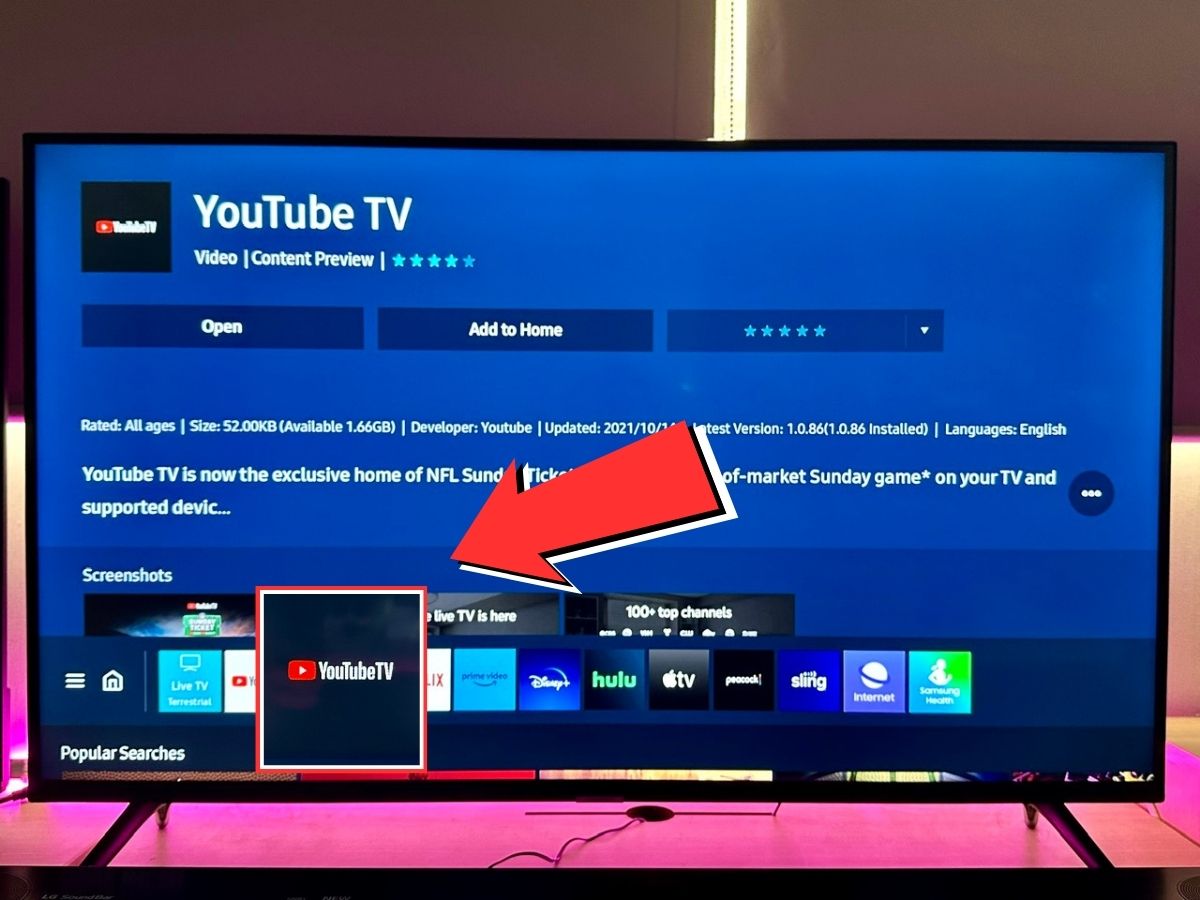
Smart TV Integration: Most modern displays running Android TV, Google TV, Samsung Tizen OS (2016+), and LG webOS (3.0+) have native YouTube TV apps available in their respective app stores.
-
Gaming Consoles: The PlayStation 5 and Xbox Series X/S provide high-performance environments for YouTube TV, utilizing their significant processing power to handle high-bitrate streams effortlessly.
-
Mobile and Web: For on-the-go access, the service is available on iOS (12.0+) and Android (5.0+). Desktop users can access the service via modern browsers like Chrome, Firefox, or Safari, though Chrome offers the best integration for casting features.
The Digital Onboarding Process
Getting YouTube TV requires navigating the Google account ecosystem. Unlike legacy systems that require a technician and a physical set-top box, the “installation” of YouTube TV is entirely software-based and authenticated through digital credentials.
Account Configuration and Geolocation
YouTube TV is currently exclusive to the United States. The onboarding process utilizes advanced geolocation technology to determine your “Home Area.” This is critical because it dictates which local broadcast affiliates (ABC, CBS, NBC, FOX) and regional sports networks (RSNs) are mapped to your account.
To start, navigate to the YouTube TV website or download the app on your mobile device. You must sign in with a Google Account. It is recommended to use an account secured with Two-Factor Authentication (2FA), as your subscription involves sensitive billing data and personalized viewing profiles. During the signup phase, the system will ping your IP address and GPS data (if on mobile) to verify your location. If you are setting this up via a desktop, ensure your browser permissions allow for location sharing.
Subscription Management and the 4K Plus Tier
During the “get” phase, you will be presented with the base plan. However, for tech enthusiasts and power users, the “4K Plus” add-on is a significant consideration. This add-on enables:
-
Ultra High Definition: Access to specific live events and on-demand content in 4K.
-
Unlimited Concurrent Streams: While the base plan allows for three simultaneous streams, the 4K Plus tier allows for unlimited streams on your home Wi-Fi network.
-
Offline Viewing: The ability to download recorded Cloud DVR content to mobile devices for offline consumption—a rarity in live TV streaming.
Once the plan is selected and the payment method (synced via Google Pay) is confirmed, the service is activated instantly across all devices logged into that account.
Maximizing the Software Interface and Feature Set
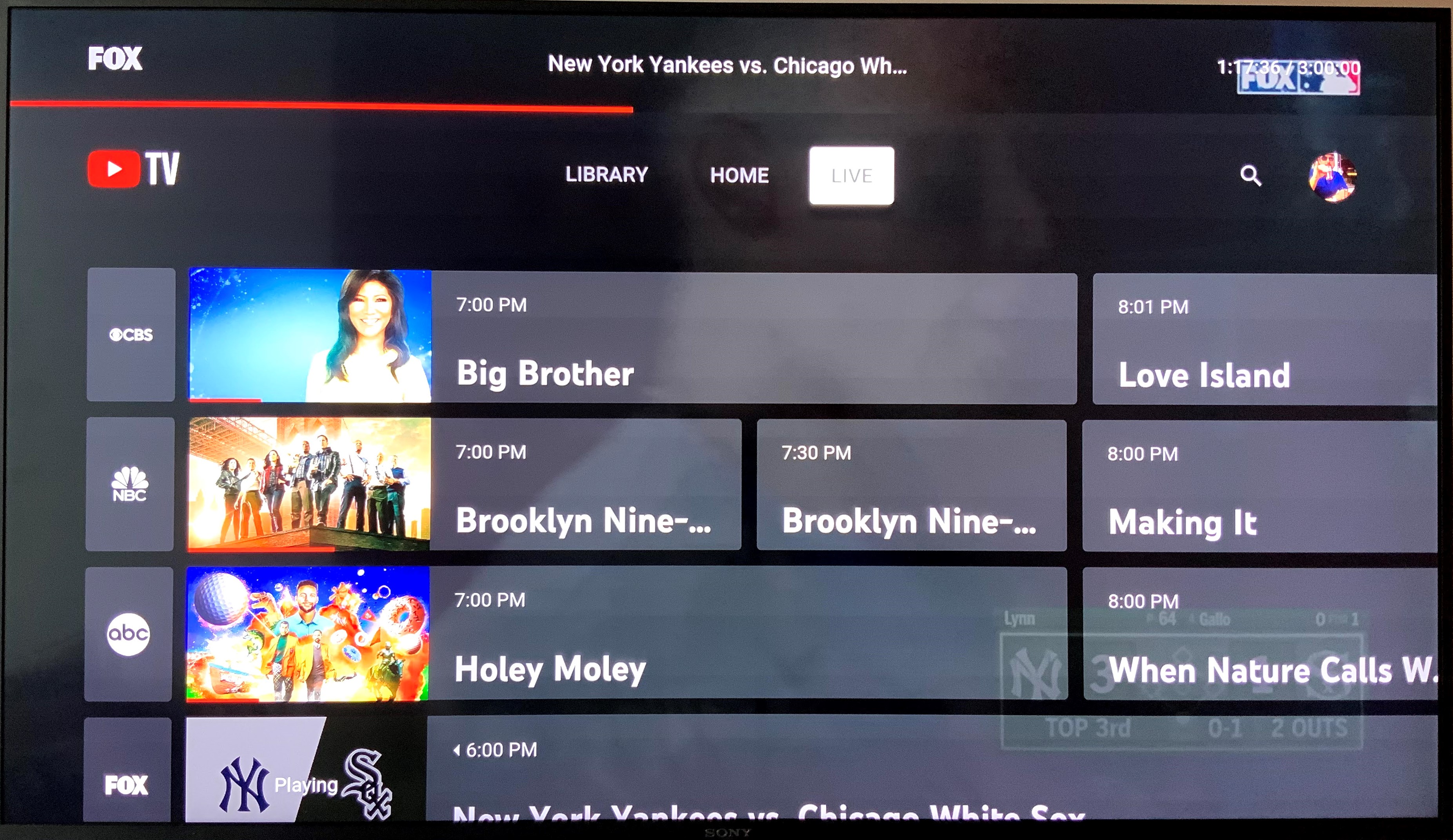
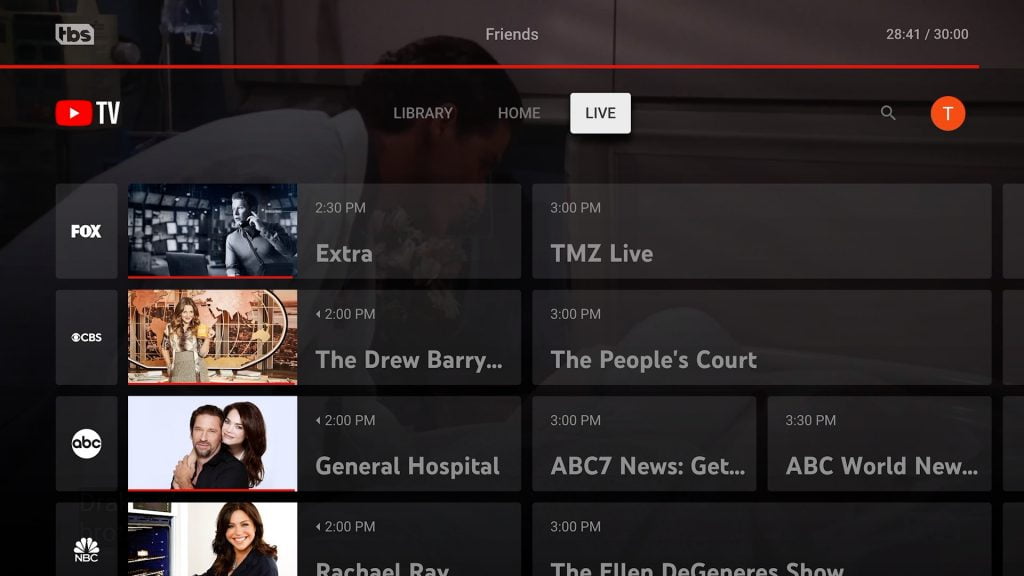
Once you have successfully acquired access, the next step is optimizing the software interface. YouTube TV’s backend is distinct from the standard YouTube app, focusing on a “Live, Library, Home” architecture designed for high-efficiency navigation.
Cloud DVR: Unlimited Storage Dynamics
The most significant technological leap in YouTube TV is the Cloud DVR. Unlike physical DVRs that rely on local hard drive space (SATA/SSD), YouTube TV records content directly to Google’s cloud servers.
-
Storage Capacity: There is no limit on the number of hours you can record.
-
Data Retention: Recordings are stored for nine months.
-
Parallel Processing: Because the recording happens in the cloud, you can record an infinite number of simultaneous programs without taxing your local hardware or internet bandwidth.
To optimize your Library, use the “Add to Library” function for entire series or sports teams. The system’s metadata tagging ensures that every airing—including repeats and new episodes—is automatically indexed and available for instant playback.
Multi-User Experience and Shared Memberships
YouTube TV supports “Family Sharing,” allowing the primary account holder to invite up to five additional household members. Technically, this creates six distinct sub-accounts, each with its own personalized Library, watch history, and recommendations. This is managed via the Google Family Link infrastructure. Each member logs in with their own Google credentials, ensuring that the AI-driven “Home” tab remains relevant to the individual user’s viewing habits.
Multiview and Interactive Features
For sports fans and news junkies, the “Multiview” feature is a standout technical achievement. It allows the server-side processing of up to four live feeds into a single stream. This means your local device only has to decode one 1080p stream while displaying four different channels simultaneously, significantly reducing the local CPU load that would normally be required for four separate video decoders.
Technical Troubleshooting and Network Optimization
Even with a top-tier subscription, the quality of your experience can be degraded by local technical bottlenecks. Troubleshooting YouTube TV often involves addressing network congestion and software cache issues.
Resolving Latency and Buffering
If you encounter the dreaded buffering wheel, the first step is to check the “Stats for Nerds” overlay, a feature unique to the YouTube ecosystem. This tool provides real-time data on:
-
Connection Speed: The actual throughput the app is receiving.
-
Buffer Health: How many seconds of video are pre-loaded in the cache.
-
Dropped Frames: Indicators of hardware struggle or network instability.
To optimize the stream, ensure your router is utilizing Quality of Service (QoS) settings to prioritize streaming traffic. If using a smart TV, clearing the app’s cache or performing a “cold boot” (unplugging the TV for 30 seconds) can clear memory leaks that often occur in lower-end television processors.
Managing ISP Throttling and DNS
Some Internet Service Providers (ISPs) may throttle high-bandwidth video traffic during peak hours. In these instances, switching your router’s DNS settings to a neutral provider like Google DNS (8.8.8.8) or Cloudflare (1.1.1.1) can sometimes bypass localized routing congestion, leading to faster initial load times and more responsive channel switching.
The Future of Cloud-Based Television Technology
Getting YouTube TV is more than just replacing a cable box; it is an entry into the future of media distribution. As the industry moves toward ATSC 3.0 and beyond, YouTube TV continues to integrate AI-driven features. We are seeing the implementation of improved compression codecs like VP9 and AV1, which allow for higher visual fidelity at lower bitrates.
Furthermore, the integration with smart home ecosystems—such as controlling the TV via Google Assistant or Nest Hub devices—demonstrates that YouTube TV is a core component of the modern connected home. By following the technical configurations and optimization strategies outlined in this guide, users can ensure they are not just “getting” a TV service, but are deploying a robust, high-performance media center that scales with the future of technology.
aViewFromTheCave is a participant in the Amazon Services LLC Associates Program, an affiliate advertising program designed to provide a means for sites to earn advertising fees by advertising and linking to Amazon.com. Amazon, the Amazon logo, AmazonSupply, and the AmazonSupply logo are trademarks of Amazon.com, Inc. or its affiliates. As an Amazon Associate we earn affiliate commissions from qualifying purchases.