
The transition of YouTube from a desktop-centric video repository to the dominant force in living room entertainment has fundamentally changed how we consume media. No longer confined to small screens, YouTube’s vast library of 4K content, live streams, and educational tutorials is now optimized for the cinematic experience of a television. Whether you own the latest OLED smart display or an older flat-screen with basic ports, there are several reliable technical methods to bridge the gap between the internet and your TV.
Navigating the landscape of smart platforms, external hardware, and wireless protocols can be daunting. This guide breaks down the most effective ways to get YouTube on your TV, ensuring you achieve the highest possible resolution and the most intuitive user interface.

Smart TV Integration: The Built-in Solution
For the majority of modern television owners, the easiest way to access YouTube is through the native operating system built into the hardware. Most manufacturers, including Samsung, LG, Sony, and Vizio, pre-install the YouTube app as a core component of their software ecosystem.
Locating and Installing the App
On most smart TVs, accessing YouTube begins with the “Home” or “Hub” button on your remote. This brings up a dashboard of available applications. If YouTube is not visible on the home screen, you will need to navigate to the TV’s app store—such as the Samsung Galaxy Store, LG Content Store, or the Google Play Store on Sony and Hisense models.
Searching for “YouTube” will allow you to download the official client. It is critical to ensure you are downloading the official Google-developed app rather than third-party “wrappers,” which may lack security updates or support for high-definition playback.
The Activation and Syncing Process
Once the app is launched, you will face the choice of browsing as a guest or signing in. To access your personalized subscriptions, history, and “Watch Later” playlists, signing in is essential. Modern YouTube TV apps utilize a simplified activation process to avoid the frustration of typing passwords with a remote control.
When you select “Sign In,” the TV will display a code and a URL (usually youtube.com/activate). By visiting this link on a smartphone or laptop logged into your Google account and entering the code, the TV app will automatically sync. This utilizes an OAuth 2.0 handshake, a secure method that grants the TV access to your YouTube data without ever storing your actual password on the device itself.
Updating Firmware for Performance
A common technical hurdle for smart TV apps is sluggish performance or crashing. This is often due to outdated firmware. Manufacturers frequently release updates that optimize the hardware’s resources for streaming. To ensure the smoothest YouTube experience, navigate to your TV’s “Settings” menu, locate “Support” or “System,” and check for software updates. Keeping the system updated ensures compatibility with the latest VP9 and AV1 video codecs used by YouTube for high-bitrate 4K streaming.
Dedicated Streaming Media Players: Roku, Fire Stick, and Apple TV
If your TV’s built-in software is slow, outdated, or non-existent, external streaming devices offer a superior technical experience. These devices, often referred to as “over-the-top” (OTT) players, plug into an HDMI port and take over the processing duties from the TV’s internal hardware.
Amazon Fire TV and Roku Ecosystems
The Amazon Fire TV Stick and Roku are among the most popular choices due to their affordability and dedicated YouTube support. On a Fire Stick, the YouTube app is integrated deeply into the Alexa-powered interface, allowing for voice-activated searches. Roku, on the other hand, treats YouTube as a “Channel.”
Technically, these devices are often more powerful than the processors found in entry-level smart TVs. They support dual-band Wi-Fi (2.4GHz and 5GHz), which is crucial for maintaining the high bandwidth required for 60fps (frames per second) video. When setting these up, always use the provided wall power adapter rather than plugging the USB cable into the TV’s USB port, as many TV ports do not provide enough amperage to keep the streaming stick stable during high-demand 4K playback.
Apple TV and tvOS
For users within the Apple ecosystem, the Apple TV 4K provides perhaps the most polished YouTube interface. Running on tvOS, it offers a highly responsive UI and integrates with Siri for universal search. One technical advantage of the Apple TV is its superior color management. If you have an HDR-capable television, the Apple TV can accurately map YouTube’s HDR10 content to your screen’s specific capabilities. However, it is worth noting that for a long time, Apple TV did not support YouTube in 4K due to a codec disagreement (VP9 vs. HEVC); this has since been resolved in newer models (Apple TV 4K 2017 and later), provided the software is up to date.
Google TV and Chromecast
Google’s own hardware, the Chromecast with Google TV, offers the most “native” experience. Because Google owns both the hardware and the YouTube platform, the integration is seamless. The interface prioritizes your YouTube recommendations directly on the home screen, often showing you “Continue Watching” prompts before you even open the app. This device also serves as a bridge for those who prefer to control their TV via their smartphone.
Leveraging Mobile Devices: Casting and AirPlay
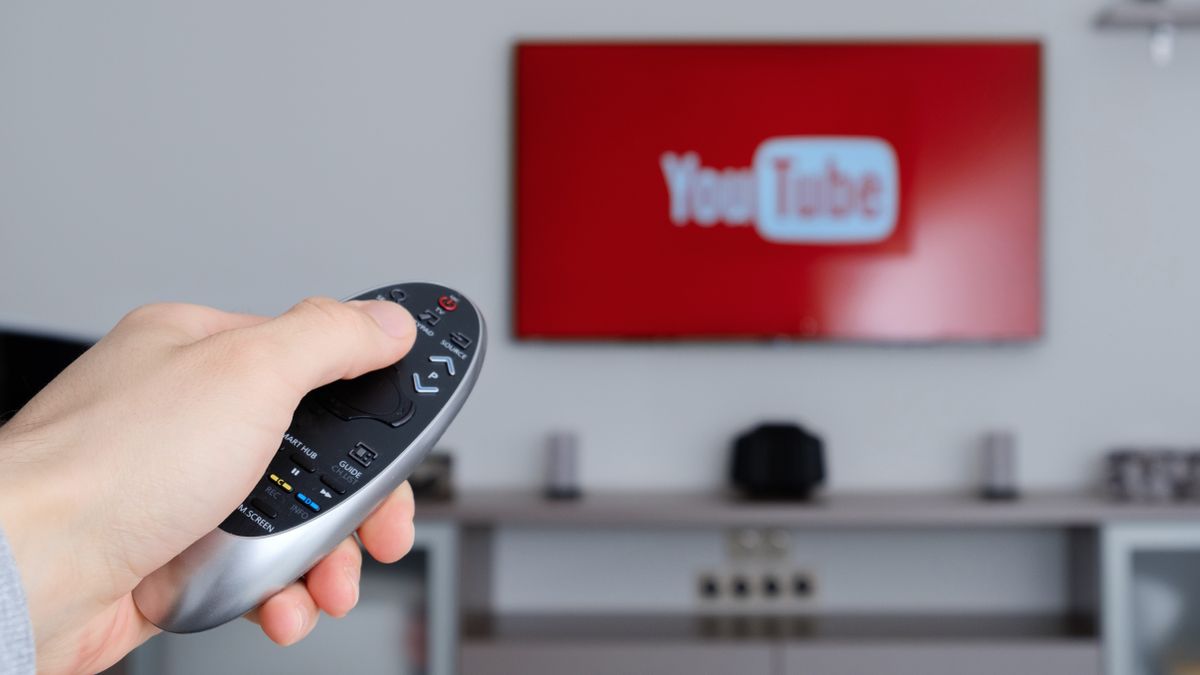
You do not always need a remote control to get YouTube on your TV. If your TV and smartphone are on the same Wi-Fi network, you can use wireless protocols to “cast” video from your small screen to the large one.
Understanding Google Cast
Chromecast technology is built into millions of TVs and streaming devices. When you open the YouTube app on your phone, you will see a rectangular “Cast” icon in the top right corner. Tapping this sends a signal to the TV to open the YouTube app and begin playing the specific video URL you selected.
Technically, casting is not “mirroring.” Your phone does not send the actual video data to the TV. Instead, your phone sends a command to the TV’s YouTube app, telling it to pull the video stream directly from Google’s servers. This preserves battery life on your phone and allows you to use your device for other tasks while the video plays on the TV.
Apple AirPlay 2 for iOS Users
For those with iPhones and compatible TVs (such as newer models from Vizio, Sony, and LG), AirPlay 2 offers a similar functionality. By selecting the AirPlay icon in the YouTube player on an iPhone, you can stream the video to the TV. Unlike standard casting, AirPlay 2 can sometimes involve more direct streaming from the device, so it is important to ensure a strong local connection to avoid buffering.
Wireless Mirroring (Miracast)
In scenarios where a dedicated app isn’t working, Android and Windows users can use Miracast or “Screen Mirroring.” This replicates exactly what is on your screen onto the TV. While functional, this is the least optimized method for YouTube. It often results in lower resolution, higher latency, and a mismatched aspect ratio. It should be considered a secondary option to dedicated casting.
Gaming Consoles and Wired Connections
For gamers, the console sitting under the TV is an incredibly powerful media hub. The PlayStation 4, PlayStation 5, Xbox One, and Xbox Series X/S all host robust YouTube applications available for free in their respective stores.
The Console Experience
Gaming consoles are designed to handle massive data throughput and high-resolution graphics, making them excellent YouTube players. They support 4K output and, in many cases, HDR. The primary drawback is the power consumption; a PS5 uses significantly more electricity to stream a YouTube video than a small streaming stick or a built-in TV app. However, for users who prefer using a controller or a dedicated media remote, the console experience is fast and reliable.
The Nintendo Switch Exception
While the Nintendo Switch does have a YouTube app, it is limited to 1080p resolution when docked and 720p in handheld mode. It lacks HDR support but is a convenient option for those who use the Switch as their primary TV peripheral.
Hardwired HDMI Connections
The most “fail-proof” method to get YouTube on a TV is a direct HDMI connection from a laptop or desktop PC. By connecting an HDMI cable from your computer’s output to the TV’s input, the TV acts as a second monitor.
This method provides the greatest control over the technical aspects of the stream. You can use a web browser (like Chrome or Edge) to access YouTube, allowing you to use ad-blockers, custom playback speeds, and specific browser extensions that might not be available on “leanback” TV apps. For the best quality, ensure your PC’s display settings are set to the TV’s native resolution (e.g., 3840×2160 for 4K) and that the refresh rate is set to 60Hz.
Troubleshooting and Optimizing Your Viewing Experience
Getting the app onto the screen is only half the battle. To ensure a premium viewing experience, you must optimize the technical environment.
Connection Speed and Quality
YouTube’s adaptive bitrate streaming will automatically lower your resolution if your internet connection is unstable. For 4K streaming, Google recommends a sustained download speed of at least 25 Mbps. If you experience frequent buffering, consider connecting your TV or streaming device via an Ethernet cable rather than Wi-Fi. A wired connection eliminates interference from other household devices and provides the lowest possible latency.
Account Security and Restricted Mode
When setting up YouTube on a family TV, it is wise to consider “Restricted Mode.” Found in the app settings, this filter uses automated systems and human review to hide potentially mature content. Additionally, if you share a TV with multiple people, most YouTube TV apps now support “Profiles,” allowing each family member to switch between their own recommendation feeds and history without logging out and back in.

Managing Resolution Settings
Sometimes the “Auto” setting on the YouTube app fails to select the highest available resolution. Users should manually check the “Quality” settings during playback (usually found by pressing “Up” or “Down” on the remote to reveal the gear icon). Ensuring the app is set to “2160p” or “1440p” rather than “1080p” can make a significant difference on screens larger than 55 inches.
By understanding the hardware options—from the convenience of built-in Smart TV apps to the power of gaming consoles and the flexibility of casting—you can transform your television into a high-performance portal for the world’s largest video platform. Whether you are troubleshooting an old device or optimizing a new 4K setup, the intersection of internet software and display hardware has never been more accessible.
aViewFromTheCave is a participant in the Amazon Services LLC Associates Program, an affiliate advertising program designed to provide a means for sites to earn advertising fees by advertising and linking to Amazon.com. Amazon, the Amazon logo, AmazonSupply, and the AmazonSupply logo are trademarks of Amazon.com, Inc. or its affiliates. As an Amazon Associate we earn affiliate commissions from qualifying purchases.