
Understanding YouTube TV: What It Is and Why It’s Popular
YouTube TV stands as a prominent live TV streaming service, offering a modern alternative to traditional cable television. It delivers a comprehensive package of live channels from major broadcast networks, popular cable channels, and a robust on-demand library, all accessible over an internet connection. Its appeal lies in its flexibility, often lower cost compared to cable bundles, and the freedom from long-term contracts, making it a cornerstone of the cord-cutting movement.
The Cord-Cutting Revolution
The digital age has fundamentally shifted how consumers access entertainment and news. The concept of “cord-cutting” refers to the trend of canceling traditional pay-TV subscriptions in favor of internet-based streaming services. YouTube TV emerged as a direct response to this demand, providing a familiar linear TV experience without the restrictive hardware, installation fees, or geographical limitations often associated with cable or satellite. It leverages existing internet infrastructure, transforming any compatible device into a television. This paradigm shift offers users unprecedented control over their viewing habits, allowing them to watch what they want, when they want, and on their preferred device. The service’s ability to bundle a wide array of channels, including local sports and news, into a single, user-friendly interface has made it a compelling proposition for millions seeking to modernize their home entertainment setup.
Core Features and Benefits
At its heart, YouTube TV distinguishes itself through several key technical and user-experience features. The most celebrated is its unlimited cloud DVR, which allows users to record as many shows as they want simultaneously, storing them for up to nine months. This eliminates conflicts when multiple favorite programs air concurrently and provides immense flexibility for time-shifted viewing. Furthermore, YouTube TV supports up to three simultaneous streams per account and allows for up to six individual profiles, each with personalized recommendations, libraries, and settings. This multi-user functionality is crucial for households with diverse viewing preferences. The service’s intuitive interface, consistent across various platforms, simplifies channel navigation, content discovery, and access to recorded or on-demand material. It integrates seamlessly with the broader Google ecosystem, providing a familiar and efficient user experience for anyone accustomed to other Google products. High-definition streaming, often in 1080p, ensures a crisp visual experience, further enhanced by 5.1 surround sound capabilities on select devices and content, elevating the overall immersion.
Device Compatibility
A significant technical advantage of YouTube TV is its broad device compatibility, ensuring accessibility across a wide range of hardware platforms. This extensive support means users can enjoy their content on virtually any screen in their home or on the go.
- Smart TVs: Most modern smart TVs running operating systems like Android TV, LG webOS, Samsung Tizen, or Roku OS come with native YouTube TV app support. Users can simply download the app from their TV’s app store, sign in, and start streaming.
- Streaming Media Players: Popular dedicated streaming devices are fully supported. This includes Google Chromecast (both built-in and dongle versions), Roku devices (Sticks, Express, Ultra), Amazon Fire TV devices (Sticks, Cubes, TVs), Apple TV (4th generation and later), and Nvidia Shield TV. These devices offer a robust and often optimized viewing experience, complete with remote control integration.
- Mobile Devices: The YouTube TV app is available for download on both iOS (iPhones, iPads) and Android smartphones and tablets. This allows for convenient on-the-go viewing, whether commuting, traveling, or simply watching in another room. The mobile app often includes features like picture-in-picture and offline viewing for downloaded content (though live TV naturally requires an internet connection).
- Web Browsers: For desktop and laptop users, YouTube TV is fully accessible through most modern web browsers, including Google Chrome, Mozilla Firefox, Microsoft Edge, and Safari. Simply navigating to tv.youtube.com and logging in provides the full service experience without requiring any software installation.
- Gaming Consoles: Popular gaming consoles such as PlayStation (PS4, PS5) and Xbox (One, Series X|S) also host the YouTube TV app, transforming them into comprehensive entertainment hubs.
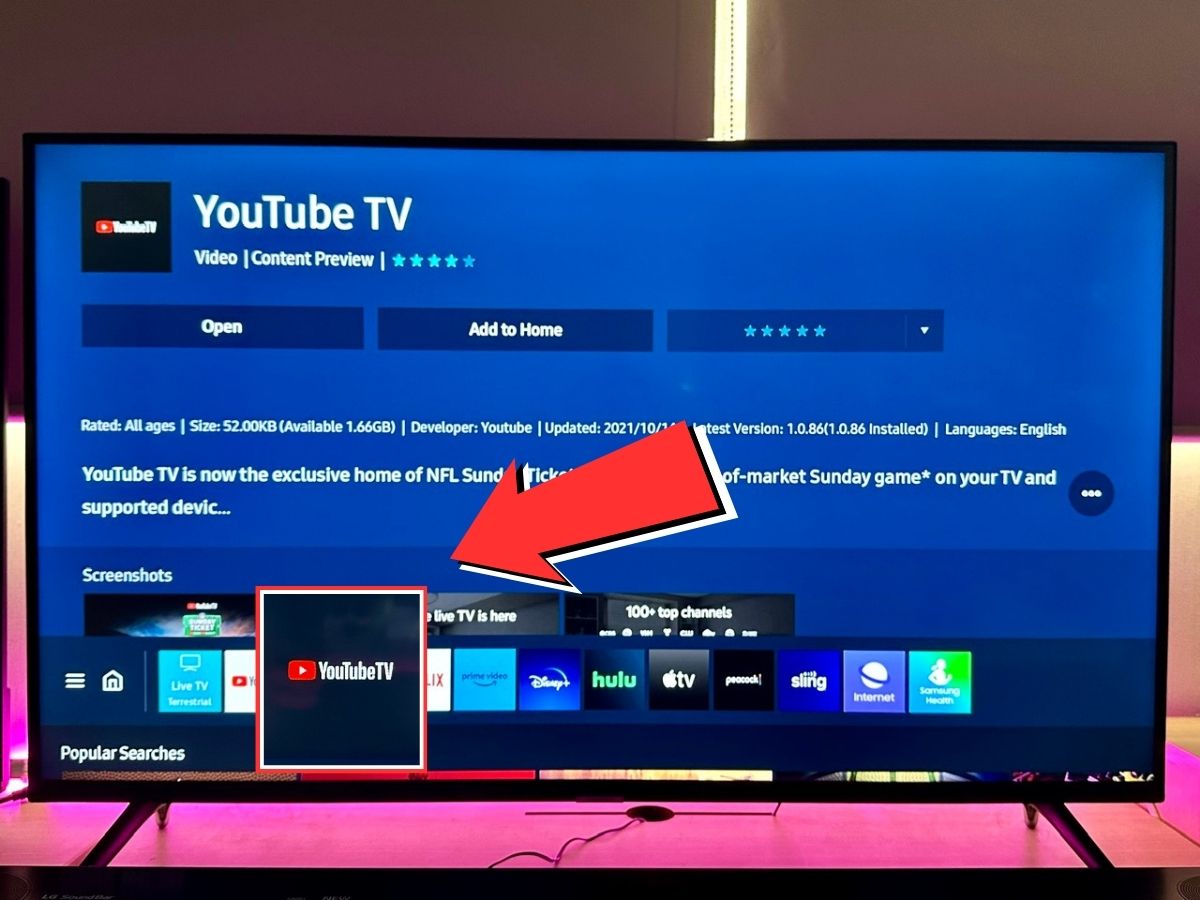
This wide array of compatible devices underscores YouTube TV’s commitment to accessibility, allowing users to choose their preferred viewing method without significant hardware investment, provided they have a stable internet connection.
Step-by-Step Guide to Subscribing and Setting Up
Accessing YouTube TV is a straightforward process, designed for user convenience from initial sign-up to activation across various devices. The technical setup is minimal, relying primarily on your internet connection and existing hardware.
Initial Sign-Up Process
To begin your YouTube TV journey, the first step is to visit the official YouTube TV website, tv.youtube.com, using a web browser on a computer or mobile device.
- Start Your Free Trial: Look for the prominent “Start Free Trial” or “Try it Free” button. YouTube TV typically offers a generous trial period, allowing new users to explore the service before committing to a subscription.
- Google Account Requirement: YouTube TV operates within the Google ecosystem, meaning you’ll need a Google account to sign up. If you already have a Gmail address, you have a Google account. If not, the system will prompt you to create one, a quick process involving providing basic personal information and agreeing to Google’s terms of service.
- Location Verification: YouTube TV’s channel lineup is geo-restricted based on your billing ZIP code, primarily to ensure you receive the correct local broadcast channels (ABC, CBS, FOX, NBC, etc.) and regional sports networks. You will be prompted to confirm your home ZIP code. It’s crucial to provide your actual home address ZIP code for accurate channel delivery. The service will occasionally verify your location using your device’s IP address to ensure you are within your registered home area.
- Review Available Channels: After entering your ZIP code, YouTube TV will display the specific channels available in your area. Take a moment to review this lineup to ensure it meets your viewing preferences, especially concerning local affiliates and desired cable channels.
- Payment Information: Even for a free trial, you will need to enter valid payment information (credit/debit card or PayPal). You won’t be charged until the free trial period ends, and you can cancel anytime before that to avoid charges. This step is standard practice for most subscription services to ensure a seamless transition to a paid subscription if you decide to continue.
Choosing Your Base Plan and Add-ons
YouTube TV primarily offers one robust base plan, simplifying the selection process compared to traditional cable bundles. This plan includes over 100 channels, encompassing a wide variety of genres from news and sports to entertainment and family programming.
- Base Plan Inclusions: The base plan’s channel lineup is generally comprehensive, featuring networks like ESPN, CNN, Fox News, TNT, TBS, AMC, HGTV, Discovery Channel, and the major local affiliates. Familiarize yourself with the full list presented during sign-up to confirm it covers your essential viewing needs.
- Premium Add-ons: Beyond the base package, YouTube TV offers a selection of premium add-on networks and sports packages. These are optional and incur additional monthly fees. Examples include HBO Max, SHOWTIME, STARZ, NBA League Pass, NFL Sunday Ticket (seasonally), and various genre-specific packages. You can select these during the initial sign-up or add/remove them at any time through your account settings after subscribing. This modular approach allows for customization, enabling users to tailor their subscription precisely to their interests.
- Billing Cycle and Management: Your subscription will typically auto-renew on a monthly basis. All billing information, including payment methods, current plan details, and options to add or remove add-ons, can be managed within the “Settings” section of your YouTube TV account, accessible via the web browser or the app.
Activating on Various Devices (Smart TVs, Streaming Devices, Mobile)
Once subscribed, activating YouTube TV on your devices is designed to be user-friendly, typically involving a quick pairing process.
- Download the App: On your Smart TV, streaming media player (Roku, Fire TV, Apple TV, etc.), or mobile device, navigate to its respective app store. Search for “YouTube TV” and download the official application.
- Open the App and Select Sign In: Launch the YouTube TV app. You will typically see an option to “Sign In” or “Already a Member.” Select this option.
- Activation Code (for TVs/Streaming Devices): For most TV-connected devices, the app will display a unique 6-8 character activation code and instruct you to visit
tv.youtube.com/starton a computer or mobile browser.- On your computer/mobile device: Open a web browser, go to
tv.youtube.com/start, and ensure you are logged into the Google account associated with your YouTube TV subscription. - Enter the code: Input the activation code displayed on your TV screen into the browser prompt.
- Confirm: Click “Activate” or “Allow Access.” Your TV screen should automatically refresh and log into your YouTube TV account.
- On your computer/mobile device: Open a web browser, go to
- Direct Sign-In (for Mobile/Web): On mobile devices, after launching the app, you may be prompted to sign in directly using your Google account credentials. Similarly, when accessing YouTube TV via a web browser on a computer, you simply log in with your Google account.
- Start Watching: Once logged in, the app will load, and you can immediately begin browsing channels, watching live TV, or accessing your library of recordings and on-demand content. The interface is designed for intuitive navigation regardless of the device.
Remember to ensure your devices are connected to a stable internet connection for optimal streaming performance. If you encounter issues, a simple restart of the device or checking your internet connection often resolves common problems.
Navigating the YouTube TV Interface and Maximizing Your Experience
Once you’ve successfully subscribed and activated YouTube TV on your preferred devices, understanding its interface and features is key to unlocking its full potential. The platform is designed for intuitive navigation, providing a seamless transition from traditional TV viewing while offering advanced digital functionalities.
Live TV Guide and Channel Surfing
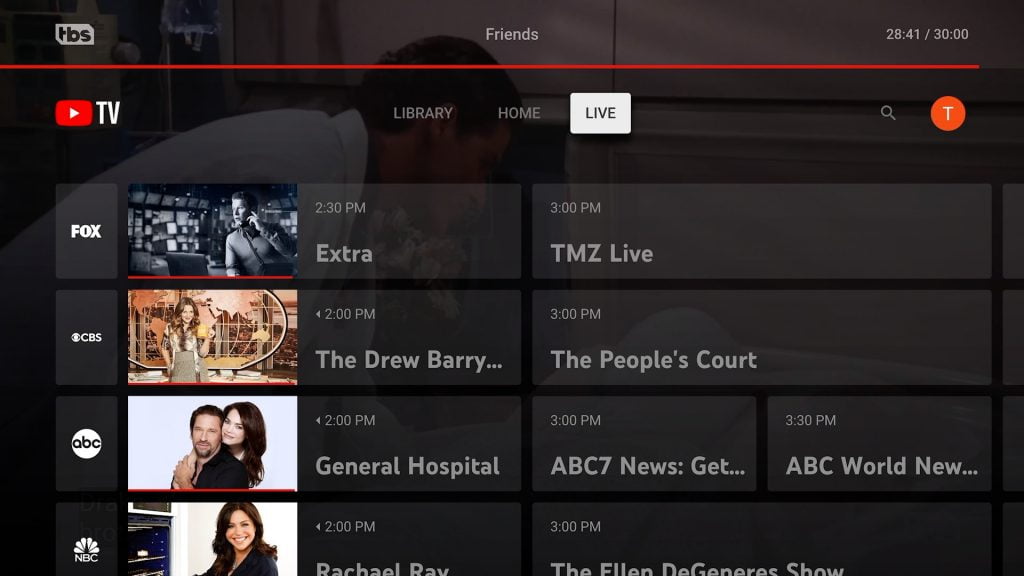
The “Live” tab is the digital equivalent of a traditional TV guide, presenting a familiar grid layout of channels and their current and upcoming programming.
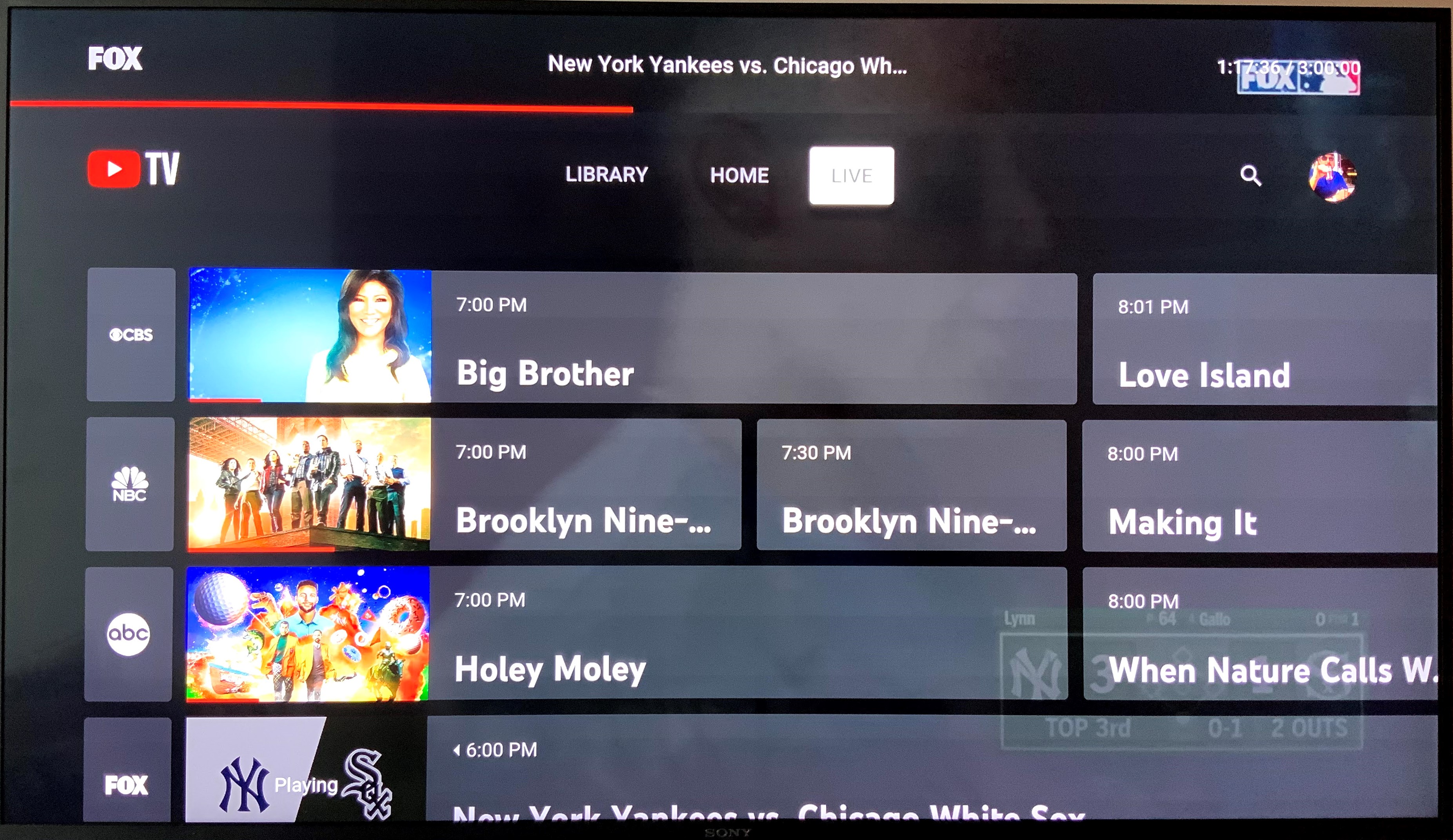
- Grid Layout: Upon opening the “Live” tab, you’ll see a horizontal scrollable list of channels and a vertical timeline showing programming for the next several hours. This allows for quick scanning of what’s currently on and what’s coming up.
- Customizing Channel Order: YouTube TV allows you to personalize your channel lineup. In the “Live” guide, look for an option to “Sort” or “Customize.” You can rearrange channels to put your favorites at the top, hide channels you never watch, or revert to a default sort order. This customization significantly enhances the channel surfing experience by prioritizing relevant content.
- Quick Channel Switching: While watching live TV, many devices offer shortcuts for quick channel changes. On smart TV remotes or streaming device controllers, the “up” and “down” arrows typically cycle through channels. A “back” or “previous channel” button might also be available to toggle between the last two channels watched.
- Mini-Guide: Some implementations of the app, particularly on larger screens, feature a mini-guide that appears briefly when you change channels or press an arrow key, allowing you to see what else is on without fully leaving your current program.
The Unlimited DVR Feature
The cloud-based DVR (Digital Video Recorder) is one of YouTube TV’s most powerful technical advantages, setting it apart from many competitors with its “unlimited” capacity.
- Recording a Program: To record a show, movie, or entire series, simply navigate to its listing in the “Live” guide, “Library,” or through a search. You’ll typically see a “Record” button (often represented by a plus sign or a red circle). Selecting this will automatically record all future airings of that program (or just the selected instance, depending on the prompt).
- Accessing Recordings: All recorded content is stored in your “Library” tab. Here, content is neatly organized by program title. You can easily find specific episodes or resume watching from where you left off.
- Nine-Month Storage: While the DVR capacity is unlimited, recordings are kept for nine months from their original air date. After this period, they are automatically deleted. YouTube TV will often provide on-demand versions of popular shows that might remain accessible beyond this timeframe, depending on network agreements.
- Simultaneous Recordings: The “unlimited” aspect also extends to simultaneous recordings. You can record as many programs as you want at the same time, without any technical conflicts or limits, thanks to the cloud-based nature of the service. This eliminates the “recording clash” frustration common with physical DVRs.
On-Demand Content and Library
Beyond live TV and DVR recordings, YouTube TV also offers a significant amount of on-demand content, accessible through the “Library” and “Home” tabs.
- “Library” Tab: This section not only houses your DVR recordings but also provides access to on-demand versions of shows and movies from channels included in your subscription. If a show you’ve recorded is also available on-demand, the system will often prioritize the on-demand version for playback to conserve DVR space (though technically, it’s unlimited).
- “Home” Tab for Discovery: The “Home” tab acts as your personalized discovery engine. It displays trending shows, recommended content based on your viewing history, and easy access to channels and programs you watch frequently. It’s a great starting point for finding something new to watch without having to browse the full guide or search.
- Movie and Series Hubs: Within the “Library” or via search, you can often find dedicated hubs for movies and TV series, allowing you to browse available titles, watch trailers, and view cast information. Many networks also provide their full on-demand libraries directly through the YouTube TV interface.
Customizing Your Profile and Recommendations
YouTube TV supports up to six individual user profiles under one account, each designed to offer a personalized viewing experience.
- Creating and Switching Profiles: You can create new profiles and switch between them easily, typically by selecting your current profile icon (usually in the top right corner of the interface) and choosing “Switch Account” or “Manage Profiles.” Each profile retains its own viewing history, DVR recordings, customized live guide, and personalized recommendations. This ensures that a child’s viewing history doesn’t influence an adult’s recommendations, and vice-versa.
- Personalized Recommendations: The “Home” tab dynamically adapts to each profile’s viewing habits. The more you watch, the better YouTube TV becomes at suggesting relevant shows, movies, and channels. This machine learning-driven personalization significantly enhances content discovery.
- Privacy and Parental Controls: Each profile can also have specific parental controls applied, restricting access to certain content ratings or channels. This is crucial for managing what younger viewers can access, ensuring a safe viewing environment tailored to their age.
Effectively utilizing these interface features transforms YouTube TV from a mere channel provider into a highly customized and powerful personal entertainment hub.
Advanced Tips for Optimization and Troubleshooting
Beyond the basic setup and navigation, several advanced strategies can help optimize your YouTube TV experience and address common technical hiccups, ensuring uninterrupted and high-quality streaming.
Managing Multiple Profiles and Family Sharing
Leveraging YouTube TV’s multiple profile feature is essential for households, but managing it effectively can further enhance the experience.
- Dedicated DVR and Watch History: Emphasize to household members that each profile has its own DVR library and watch history. This means recordings made by one profile are accessible to all, but the “watched” status and recommendations are individualized. Encourage each user to stick to their own profile for accurate personalization.
- Parental Controls Configuration: For profiles used by children, actively configure parental controls. These can restrict content based on ratings (G, PG, PG-13, R) and even filter out specific channels. This ensures a safe viewing environment and prevents accidental access to mature content. Access these settings via the main account holder’s profile, typically under “Settings” > “Family Link” or “Members.”
- Google Family Group Integration: YouTube TV integrates with Google’s Family Group feature. If you have an existing Google Family Group, you can easily invite members to share your YouTube TV subscription. This simplifies management of multiple Google services under one family umbrella. Remember that while six profiles are allowed, only three can stream simultaneously. Communicate this limit within your household to avoid conflicts, especially during peak viewing hours.
Bandwidth Considerations for Optimal Streaming
A stable and sufficiently fast internet connection is the backbone of any streaming service, and YouTube TV is no exception. Understanding bandwidth requirements is crucial for preventing buffering and maintaining high-definition quality.
- Minimum Requirements: YouTube TV officially recommends a minimum of 3 Mbps for standard definition streaming, 7 Mbps for a single 1080p stream, and 13 Mbps for multiple 1080p streams or 4K content (if applicable through an add-on).
- Household Usage: These recommendations are for YouTube TV only. If other devices in your home are simultaneously streaming video, gaming online, or performing large downloads, your overall internet speed needs to be significantly higher. As a general rule, aim for at least 25-50 Mbps for a household with multiple users and devices, and consider 100+ Mbps if 4K streaming or heavy online gaming is frequent.
- Wired vs. Wireless: Whenever possible, connect your primary streaming device (Smart TV, streaming box) directly to your router via an Ethernet cable. Wired connections provide superior stability, speed, and lower latency compared to Wi-Fi, which can be susceptible to interference and signal degradation.
- Wi-Fi Optimization: If wireless is necessary, ensure your router is centrally located, updated with the latest firmware, and utilizes modern Wi-Fi standards (Wi-Fi 5 or Wi-Fi 6). Using the 5 GHz band for streaming devices can also provide better performance than the more congested 2.4 GHz band, though it has a shorter range.
- Monitoring Bandwidth: Most modern routers offer tools to monitor bandwidth usage. Additionally, websites like Speedtest.net can help you verify your internet speed at various times of day. If your speeds are consistently below recommended levels, consider upgrading your internet plan or troubleshooting your home network.
Common Issues and Quick Fixes
Despite YouTube TV’s robustness, users might occasionally encounter technical glitches. Many issues have simple, quick resolutions.
- Buffering or Poor Quality:
- Check Internet Connection: Ensure your Wi-Fi is strong or your Ethernet cable is secure. Test your internet speed.
- Restart App/Device: Close and reopen the YouTube TV app. If the issue persists, power cycle your streaming device (unplug it for 30 seconds, then plug it back in) or restart your Smart TV.
- Restart Router/Modem: This often resolves network-related issues.
- Reduce Other Network Activity: Temporarily pause large downloads or other high-bandwidth activities on your network.
- Change Stream Quality: Within the YouTube TV app settings (usually the gear icon during playback), you can manually lower the video quality (e.g., from 1080p to 720p) to reduce bandwidth demands.
- “Location Mismatch” Errors:
- Verify Home Area: Ensure you are physically within your registered home area ZIP code. YouTube TV periodically verifies your location.
- Update Home Location: If you’ve moved or are receiving an error in your actual home, you might need to update your home location in YouTube TV settings (via a web browser). This option typically becomes available after a certain period or a specific number of location checks.
- Disable VPN/Proxy: YouTube TV often blocks access from VPNs or proxy servers because they obscure your true geographic location. Disable any such services when using YouTube TV.
- App Not Loading/Crashing:
- Update App: Check your device’s app store for pending updates for the YouTube TV app.
- Clear Cache/Data: In your device’s app settings, try clearing the YouTube TV app’s cache and data. Be aware that this will log you out and require you to sign back in.
- Reinstall App: If all else fails, uninstall and then reinstall the YouTube TV app.
Exploring Supplementary Features (Sports, News, Premium Add-ons)
YouTube TV is continually evolving, and staying aware of its supplementary features can significantly enhance your viewing experience.
- Sports Features: For sports enthusiasts, YouTube TV offers robust sports coverage. Beyond standard sports channels, look for the “Sports” tab in the app for quick access to live games, highlights, and scores. The service also provides specific sports-focused add-ons like NFL Sunday Ticket (during the football season) and NBA League Pass, which expand regional and national game access. Some events may even be available in 4K resolution with the optional 4K Plus add-on.
- News Shelf: The “News” shelf or section within the “Home” tab aggregates current events and trending news stories from various sources, making it easy to stay informed.
- 4K Plus Add-on: This premium add-on provides access to specific content in 4K resolution, unlimited simultaneous streams at home, and the ability to download DVR recordings for offline viewing on mobile devices. It’s an excellent value proposition for users with 4K TVs and robust internet connections.
- Premium Networks: You can add a variety of premium movie and entertainment channels like HBO Max, SHOWTIME, STARZ, and EPIX directly through your YouTube TV subscription, consolidating your billing and access. Regularly check the “Settings” > “Membership” section to explore and manage these add-ons.
By understanding these advanced technical aspects and proactively managing your account and network, you can ensure a smooth, high-quality, and personalized YouTube TV experience tailored to your specific household’s needs.
aViewFromTheCave is a participant in the Amazon Services LLC Associates Program, an affiliate advertising program designed to provide a means for sites to earn advertising fees by advertising and linking to Amazon.com. Amazon, the Amazon logo, AmazonSupply, and the AmazonSupply logo are trademarks of Amazon.com, Inc. or its affiliates. As an Amazon Associate we earn affiliate commissions from qualifying purchases.