
In the modern digital landscape, the television has evolved from a simple broadcast receiver into a sophisticated hub for home entertainment, gaming, and internet connectivity. As we move deeper into the era of the Internet of Things (IoT), the process of syncing devices—whether it is a smartphone, a tablet, or a universal remote—requires a specific digital handshake. This handshake is facilitated by a “TV code.”
Understanding how to retrieve and utilize these codes is essential for any tech-savvy consumer looking to streamline their media experience. Whether you are trying to link your YouTube account to a smart TV, program a universal remote to replace a cluttered coffee table of controllers, or pair a cable box with a new high-definition display, the “TV code” serves as the primary authentication layer. This guide explores the technical nuances of these codes, where to find them, and how to troubleshoot the integration process across various platforms.
Understanding the Varieties of TV Codes
Before diving into the retrieval process, it is important to distinguish between the two primary types of TV codes: App Link Codes and Remote Programming Codes. While both facilitate connectivity, they operate on entirely different technical layers.
App Link and Activation Codes
These are typically alphanumeric strings (e.g., A1B2-C3D4) generated by a Smart TV application like YouTube, Netflix, or Prime Video. These codes serve as a secure bridge between your television and your account hosted on another device, such as a laptop or smartphone. The purpose is to bypass the cumbersome process of typing long email addresses and complex passwords using a standard TV remote. Instead, you enter the code into a web portal on your mobile device, which then “pushes” your credentials to the TV.
Universal Remote Programming Codes
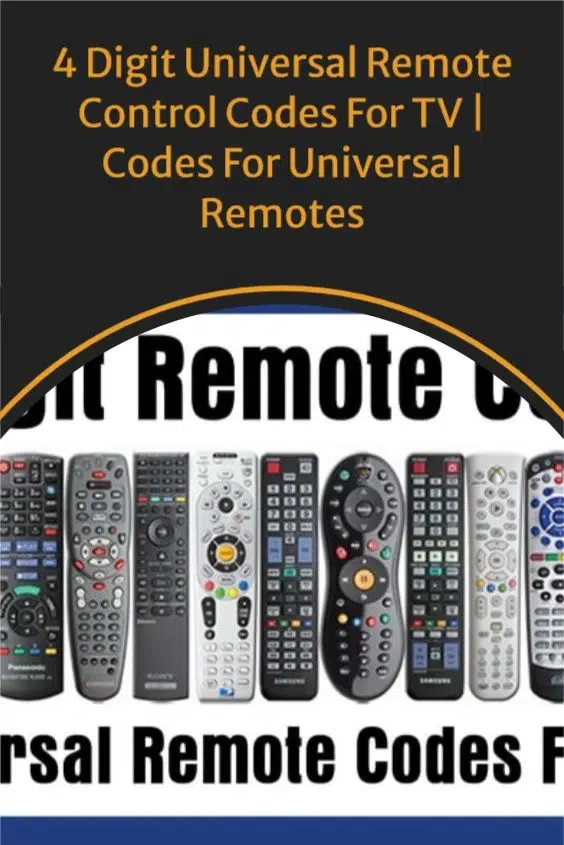
These are usually 3, 4, or 5-digit numeric sequences found in manufacturer databases. These codes allow a universal remote to communicate with the specific infrared (IR) or Bluetooth frequency of your TV hardware. Every manufacturer—from Samsung and LG to smaller brands like Hisense or TCL—uses a specific set of frequencies for commands like “Power,” “Volume Up,” and “Input.” The TV code tells the remote which library of commands to use.
How to Get TV Codes for Streaming Applications
The most common reason users search for a TV code today is to link their streaming accounts to their Smart TVs or streaming sticks (like Roku, Fire Stick, or Apple TV). This process is designed to be user-friendly, yet it often requires navigating through nested menus.
The YouTube “Link with TV Code” Method
YouTube is the most prominent platform utilizing the manual code method. While many devices support “Casting” via Wi-Fi, the manual code is a failsafe for when devices are on different subnets or if the casting feature is disabled.
-
Open the YouTube App: Launch the app on your Smart TV or gaming console.
-
Navigate to Settings: Use your remote to scroll down the left-hand sidebar to the gear icon.
-
Find “Link with TV Code”: Once in settings, look for the option labeled “Link with TV code.” A blue 12-digit code will appear on your screen.
-
Enter the Code on Your Device: On your phone or computer, open the YouTube app or go to
youtube.com/activate. Log in to your account, enter the 12-digit code shown on the TV, and click “Confirm.”
Activation Codes for Premium Services
Services like Disney+, Prime Video, and Hulu often utilize a similar activation screen upon the first launch after installation.
-
The Activation URL: When you open the app, it will typically display a 6-to-8-character code and a URL (e.g.,
disneyplus.com/begin). -
The Verification Step: By visiting this URL on a secondary device already logged into your account, the server recognizes the unique session ID of the TV and authorizes the login. This is a high-security method that ensures the physical person in front of the TV has authorized access to the account.
Finding Codes for Universal Remotes and Hardware

If you are trying to consolidate your home theater setup, obtaining the correct hardware code is the first step. Without it, your universal remote is essentially a brick.
Manual Code Search via Manufacturer Websites
Most universal remote manufacturers, such as RCA, GE, and Logitech, host extensive online databases. To find your code, you will need the model number of your TV (found on a sticker on the back of the set) and the brand of your remote.
-
Identify the Remote Brand: Locate the brand and model of your universal remote.
-
Visit the Support Portal: Navigate to the manufacturer’s “Remote Code Finder” page.
-
Input Device Details: Select “TV” as the device type and then select your TV’s brand. The site will provide a list of potential codes.
-
Sequential Testing: Since manufacturers often change internal components mid-cycle, there may be five or six codes listed for a single brand. You must test them sequentially until the TV responds to the “Power” or “Mute” button.
The “Auto-Code Search” Technical Workaround
For those who cannot find the physical manual or an online database entry, most modern remotes have a built-in search function. This process instructs the remote to cycle through every code in its internal library, sending a “Power Off” signal for each one.
-
Step 1: Turn on the TV manually.
-
Step 2: Press and hold the “Device” button (e.g., TV) and the “Power” button simultaneously until the light stays on.
-
Step 3: Repeatedly press the “Channel Up” button. Each press sends a new code. When the TV turns off, you have found the correct frequency.
-
Step 4: Press the “Stop” or “Enter” button to lock the code into the remote’s memory.
Security and Troubleshooting the Connection
Retrieving a code is only half the battle; ensuring the connection is secure and functional is the other. In a world of increasing digital vulnerability, even a TV code can be a point of entry if not handled correctly.
Why Your TV Code Might Not Work
If you are entering a code and receiving an error message, there are several technical factors at play:
-
Token Expiry: Most activation codes (like those for Netflix or YouTube) have a TTL (Time to Live) of approximately 5 to 15 minutes. If you wait too long, the code expires for security reasons, and you must request a new one.
-
Network Latency: If your TV is on a slow Wi-Fi connection, it may fail to communicate with the activation server, causing the code to be rejected as “invalid” even if typed correctly.
-
Firmware Mismatch: Outdated TV firmware can lead to handshake failures. Ensure your Smart TV’s OS is updated to the latest version before attempting to link accounts.
Digital Security and Device Permissions
When you “Link with TV Code,” you are essentially granting a device a persistent OAuth token. This means the TV will stay logged into your account until you manually revoke access. To maintain digital security:
-
Review Connected Devices: Periodically check your Google or Amazon account settings under “Security” or “Connected Apps” to see which TVs have access.
-
Guest Access: If you are in a hotel or an Airbnb, never use the “Link with TV Code” feature unless you remember to log out or “Reset App” before checking out. Leaving your account linked allows subsequent guests to access your personal data and viewing history.
The Future of TV Integration: Beyond the Manual Code
As we look toward the future of technology, the manual entry of TV codes is gradually being replaced by more seamless protocols. The industry is moving toward proximity-based and cloud-based authentication.
Matter and Thread Protocols
The introduction of the “Matter” smart home standard aims to eliminate the need for brand-specific codes. In a Matter-enabled home, your TV, lights, and remote will recognize each other automatically via a secure, encrypted local network, requiring only a single QR code scan during the initial setup of the entire home ecosystem.
Near-Field Communication (NFC) and Bluetooth LE
High-end TVs are now incorporating NFC tags into their frames or remotes. Instead of navigating menus to find a “Link with TV Code” option, users can simply tap their smartphone against the remote. The devices exchange credentials over Bluetooth Low Energy (BLE), completing the “handshake” in milliseconds without any manual alphanumeric entry.

Cloud-Syncing Profiles
Ecosystems like Apple (with Apple TV) and Google (with Google TV) are moving toward profile-based syncing. If you set up a new TV using your smartphone, the TV inherits all your app logins and preferences via the cloud. This eliminates the “TV code” entirely for the end-user, moving the authentication process to the background where the hardware and the server communicate directly.
Despite these advancements, the manual TV code remains the “universal language” of device connectivity. It is a reliable, cross-platform method that ensures even older hardware can participate in the modern streaming economy. By mastering the retrieval and application of these codes, users can take full control of their digital environment, ensuring that their hardware and software work in perfect harmony.
aViewFromTheCave is a participant in the Amazon Services LLC Associates Program, an affiliate advertising program designed to provide a means for sites to earn advertising fees by advertising and linking to Amazon.com. Amazon, the Amazon logo, AmazonSupply, and the AmazonSupply logo are trademarks of Amazon.com, Inc. or its affiliates. As an Amazon Associate we earn affiliate commissions from qualifying purchases.