
The shift from traditional linear broadcasting to over-the-top (OTT) streaming services has fundamentally redefined how users interact with television. At the forefront of this digital transformation is YouTube TV, a premium subscription service that bridges the gap between classic cable television and the flexibility of modern software-as-a-service (SaaS) platforms. Unlike its predecessor, the standard YouTube video-sharing site, YouTube TV is a dedicated live streaming application designed to deliver network television via the internet. For users looking to transition away from hardware-heavy cable boxes, understanding the technical landscape of YouTube TV is essential for a seamless viewing experience.
Hardware Compatibility and Device Ecosystems
The first step in accessing YouTube TV is ensuring your hardware ecosystem supports the platform’s technical requirements. Because YouTube TV relies on high-definition video encoding and real-time data streaming, the choice of device significantly impacts latency and UI responsiveness.
Smart TVs and Media Streamers
Most contemporary Smart TVs manufactured after 2016 come with native support for the YouTube TV application. This includes displays running webOS (LG), Tizen (Samsung), and Vizio SmartCast. However, for users with older “dumb” TVs or those seeking a more robust processing interface, dedicated media streamers are often the preferred route. Devices such as the Chromecast with Google TV, Roku (Express, Stick, and Ultra models), Amazon Fire TV Stick, and Apple TV 4K provide optimized environments for the app. These devices leverage specialized hardware acceleration to handle 1080p and 4K streams with minimal buffering.
Mobile and Desktop Access
For portability, YouTube TV is available on both iOS and Android platforms. The mobile application is built to handle dynamic network changes, allowing for a transition between Wi-Fi and LTE/5G without dropping the stream. On the desktop, there is no standalone application for Windows or macOS; instead, the service is accessed via a web browser. For the best technical performance, Google Chrome or Chromium-based browsers (like Microsoft Edge) are recommended, as they utilize the latest VP9 and AV1 video codecs for efficient data compression.
Gaming Consoles and Alternative Hardware
Gaming consoles have evolved into comprehensive media hubs, and YouTube TV is fully integrated into the PlayStation (PS4, PS5) and Xbox (One, Series X/S) storefronts. These platforms are particularly effective for users who prefer a wired Ethernet connection, which provides the most stable environment for live sports and high-bitrate content.
Navigating the Setup and Authentication Architecture
Once the hardware is identified, the process of “getting to” the service involves navigating Google’s authentication layers. Since YouTube TV is an extension of the Google ecosystem, your digital identity—specifically your Google Account—serves as the primary key for access.
Account Integration and Geo-Verification
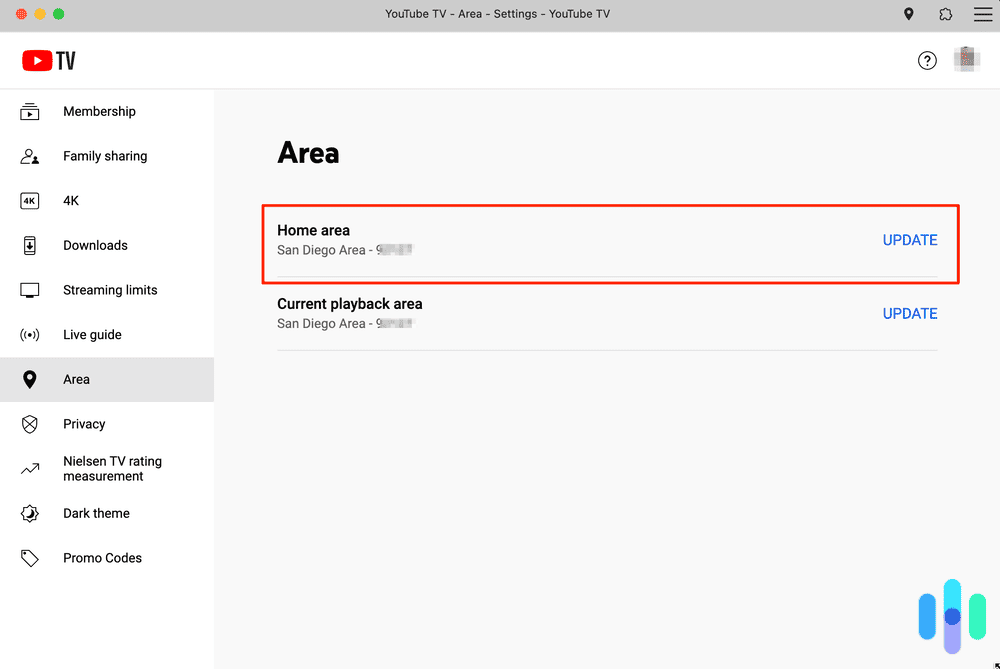
To begin, users must sign up via a web browser or the mobile app. A critical technical component of the setup is geo-verification. Because YouTube TV provides local broadcast affiliates (ABC, NBC, CBS, FOX), the service must verify your “Home Area.” This is done through a combination of IP address tracking and GPS data from your mobile device. During the initial login on a television, you will frequently be asked to verify your location via a smartphone to ensure the correct regional metadata is being served to your account.
Installing the Application
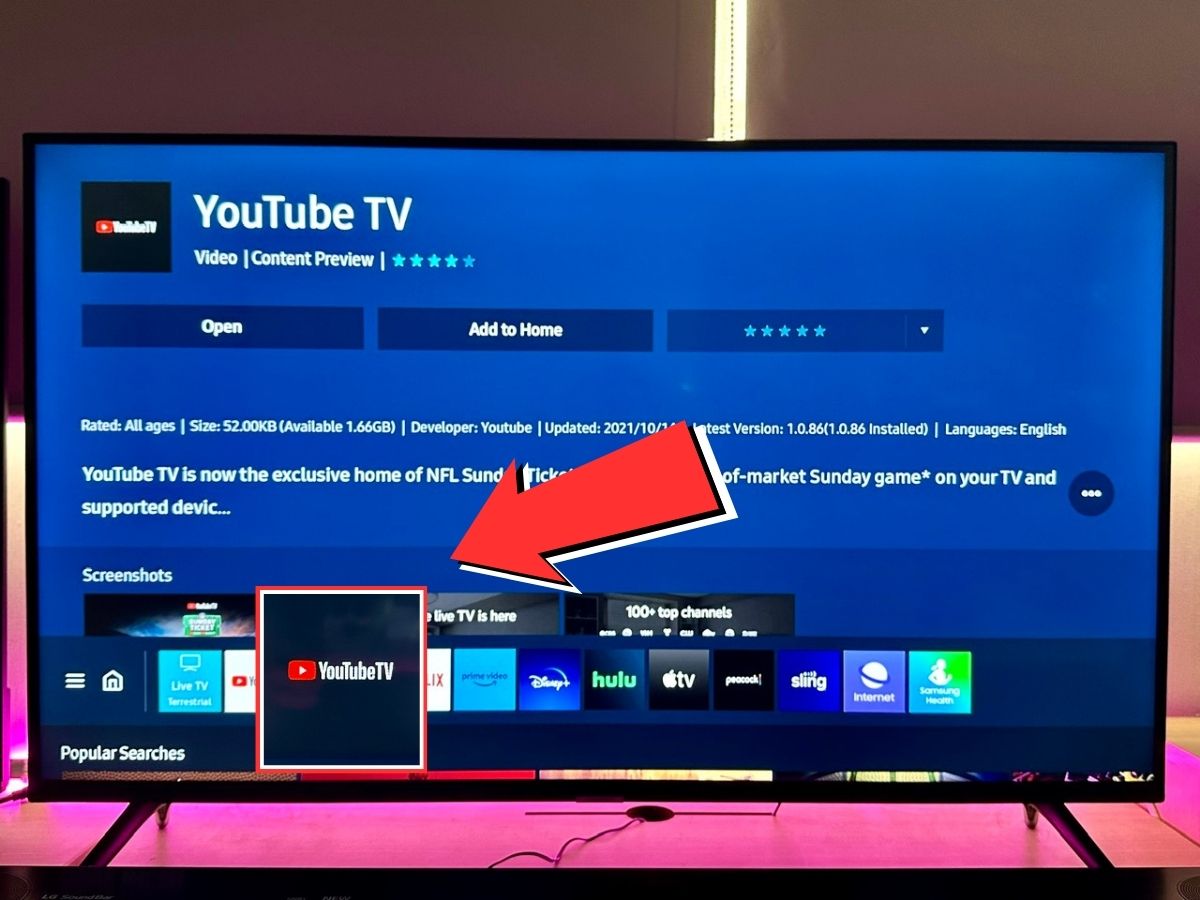
On streaming sticks and Smart TVs, the installation process requires navigating to the respective App Store (e.g., the Roku Channel Store or the Amazon Appstore). After searching for “YouTube TV,” the download initiates the installation of the APK or app package. Upon opening the app for the first time, users are met with a “Sign In” screen that provides a six-digit alphanumeric code. This code must be entered at tv.youtube.com/start on a separate device where the user is already logged in, effectively linking the hardware to the user’s cloud-based subscription profile.
Optimizing the User Interface and Technical Performance
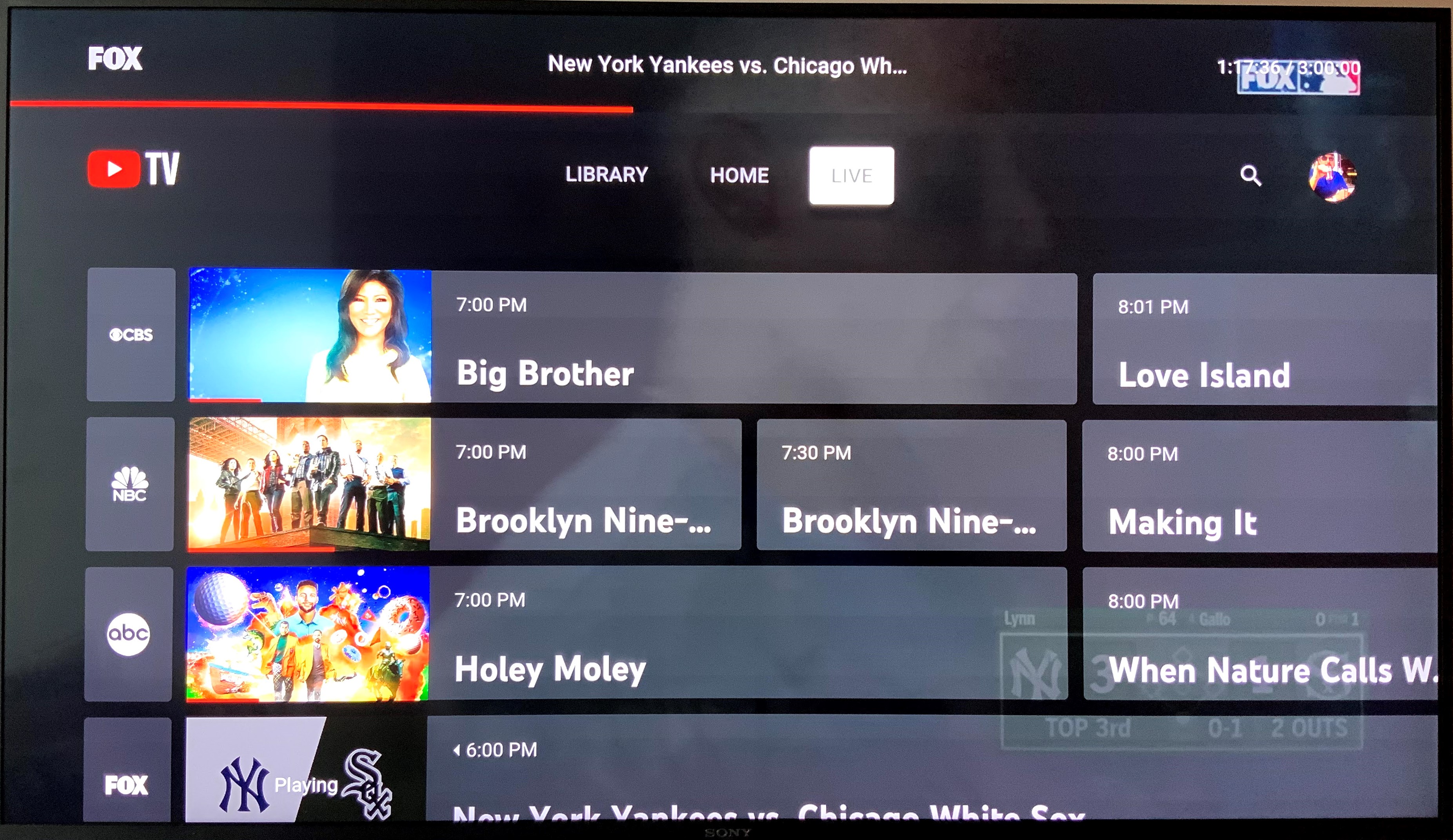
Accessing the service is only half the journey; the other half is optimizing the software interface to suit your technical needs. YouTube TV’s UI is divided into three primary pillars: Home, Library, and Live.
Mastering the Cloud DVR and Library
One of the most significant technological advantages of YouTube TV is its unlimited Cloud DVR. Unlike traditional digital video recorders that rely on local hard drive space, YouTube TV records content to Google’s distributed server network. When you “add” a show to your library, the system flags that broadcast for your account. Technically, this means you are not downloading a file, but rather gaining a time-shifted access token to a high-quality stream stored in the cloud. These recordings are kept for nine months, and because the storage is infinite, users can effectively build a massive personal catalog without worrying about disk sectors or hardware failure.
Advanced Streaming Features: Multi-View and 4K Plus
For power users and tech enthusiasts, the service offers “Multi-View,” a feature that allows the simultaneous streaming of up to four live channels on a single screen. This is particularly resource-intensive and requires a device with a capable GPU and sufficient RAM to decode multiple streams simultaneously. Additionally, the “4K Plus” add-on enables Ultra High Definition (UHD) playback for select content. This upgrade also unlocks the ability to download recordings for offline viewing on mobile devices, a feature that utilizes local storage encryption to protect copyright while providing flexibility for travelers.
Network Requirements and Connectivity Troubleshooting
The quality of your YouTube TV experience is directly proportional to the stability of your local area network (LAN) and the bandwidth provided by your Internet Service Provider (ISP). Because live TV lacks the aggressive buffering capabilities of pre-recorded content (like Netflix), real-time throughput is vital.
Bandwidth Management and Latency
To stream in standard definition, a minimum of 3 Mbps is required. However, for a consistent 1080p experience, Google recommends at least 13 Mbps. If you are utilizing the 4K Plus add-on, that requirement jumps to 25 Mbps per stream. It is important to note that these are “sustained” speeds. If multiple devices are on the same network—gaming, video conferencing, or downloading large files—the available overhead for YouTube TV can drop, leading to a reduction in resolution or the dreaded “spinning circle” of buffering.
To minimize latency, especially during live events where a 30-second delay can lead to social media spoilers, users should opt for a 5GHz Wi-Fi band or, ideally, a Cat6 Ethernet connection. 5GHz provides faster data transfer rates over shorter distances and is less prone to interference from household appliances than the 2.4GHz band.
Resolving Common Authentication and Playback Errors
Technical glitches often manifest as “Playback Error” messages or “Licensing Errors.” These are frequently caused by a mismatch in the High-bandwidth Digital Content Protection (HDCP) handshake between the streaming device and the TV’s HDMI port. Ensuring that you are using an HDCP 2.2 compliant cable and port is necessary for 4K content. Additionally, if the app fails to load, clearing the cache within the device settings or performing a “Power Cycle” (unplugging the device for 30 seconds) can flush out corrupted temporary data and force a fresh connection to the YouTube TV servers.
Security Protocols and Multi-User Management
As a digital service, YouTube TV is subject to the same security considerations as any other cloud-based platform. Protecting your access is paramount, especially since the service is tied to your primary Google Account.
Two-Factor Authentication and Family Sharing
Users should ensure that Two-Factor Authentication (2FA) is enabled on their Google Account. This prevents unauthorized access to the streaming subscription and any associated payment methods. From a management perspective, YouTube TV allows for “Family Sharing,” which lets the primary subscriber invite up to five other members to join a family group. Technically, each member gets their own unique login and personalized Library. This is managed via the Google Family Link infrastructure, ensuring that one person’s viewing habits and DVR recordings do not interfere with another’s, maintaining data integrity across the household.
Privacy and Data Settings
Within the YouTube TV settings, users can manage their “Privacy” toggles. This includes the ability to pause or clear watch and search histories. For those concerned about data tracking, these settings control how the underlying algorithm recommends content on the “Home” tab. By fine-tuning these technical preferences, users can ensure their interface remains relevant to their interests while maintaining control over their digital footprint within the Google ecosystem.
By understanding the hardware requirements, the authentication process, and the networking needs of the platform, users can move beyond simple access and master the technical nuances of YouTube TV. This ensures a high-fidelity, reliable, and secure viewing experience that represents the pinnacle of modern television technology.
aViewFromTheCave is a participant in the Amazon Services LLC Associates Program, an affiliate advertising program designed to provide a means for sites to earn advertising fees by advertising and linking to Amazon.com. Amazon, the Amazon logo, AmazonSupply, and the AmazonSupply logo are trademarks of Amazon.com, Inc. or its affiliates. As an Amazon Associate we earn affiliate commissions from qualifying purchases.