
The seamless integration of personal technology into daily life has become a hallmark of the 21st century. For owners of a Tesla, this expectation extends to their prized electric vehicle, leading many to seek ways to interact with their car through their existing smart devices. Among these, the Apple Watch stands out as a prime candidate for quick, convenient control and monitoring. This article delves into the various methods and considerations for bringing your Tesla experience to your wrist, transforming how you interact with your vehicle and embracing a truly connected lifestyle.

The Promise of Seamless Integration: Why Your Tesla Needs an Apple Watch
In an era defined by instant gratification and ubiquitous connectivity, the concept of a smart car takes on new meaning when paired with a smart wearable. The appeal of managing aspects of your Tesla directly from your Apple Watch is multifaceted, extending far beyond mere convenience.
Unlocking Ultimate Convenience
Imagine walking away from your Tesla, and with a subtle tap on your wrist, confirming it’s locked, or checking its charging status without ever reaching for your phone. This level of immediate, unobtrusive access is the primary draw of integrating your Tesla with your Apple Watch. It liberates you from the need to constantly pull out your smartphone, streamlining routine interactions and saving precious seconds throughout your day. Whether you’re juggling groceries, leaving the gym, or simply prefer a more discreet way to interact with your vehicle, the Apple Watch offers an unparalleled level of convenience.
Quick Access, Enhanced Control
The utility of having essential car controls and information readily available on your wrist cannot be overstated. From remotely initiating climate control to pre-condition the cabin before you get in, to unlocking doors for a passenger, or even checking your car’s exact location, the Apple Watch transforms into a powerful remote control. This quick access is not just about speed; it’s about reducing friction in your daily routine. No more fumbling for keys or searching for your phone; your car’s status and basic functions are always within reach, offering peace of mind and an enhanced sense of control over your valuable asset.
Beyond the Key Fob: A Modern Approach
While Tesla vehicles come with sophisticated key fobs and phone-as-a-key capabilities, the Apple Watch offers a distinct, modern alternative. It complements existing access methods by providing a glanceable, touch-based interface that feels intuitive and natural for the tech-savvy owner. In situations where your phone might be out of reach or inconvenient to use, or if you simply prefer a minimalist approach to carrying fewer items, the Apple Watch steps in as an elegant solution. It represents a forward-thinking approach to vehicle interaction, aligning with the innovative spirit of Tesla itself and pushing the boundaries of what a personal vehicle experience can be.
Essential Preparations: Setting the Stage for Connectivity
Before you can enjoy the convenience of controlling your Tesla from your Apple Watch, a few foundational steps and checks are necessary. Ensuring your devices and software are up-to-date and compatible will pave the way for a smooth and reliable experience.
Device Compatibility Check
The first step is to confirm that your hardware meets the necessary requirements. While Tesla vehicles are inherently smart, and most Apple Watches are capable, there are specific models and generations that perform best or are required for certain functionalities.
- Tesla Vehicle: Generally, all modern Tesla models (Model S, 3, X, Y, Cybertruck) are compatible, as long as they have connectivity and are linked to your Tesla account. The car’s firmware needs to be up-to-date to ensure proper communication.
- iPhone: Your Apple Watch needs to be paired with an iPhone. Most recent iPhone models (iPhone 8 or newer) running the latest iOS version are suitable. The iPhone serves as the bridge between your Apple Watch and your Tesla, as the primary Tesla app resides there.
- Apple Watch Models: While most Apple Watch Series (Series 3 and newer) will support some level of functionality, newer models with faster processors and more memory will offer a smoother experience, especially with third-party applications. Ensure your Watch is paired correctly with your iPhone.
Software Updates: Ensuring Optimal Performance
Software is the backbone of this interconnected ecosystem. Outdated software can lead to performance issues, security vulnerabilities, or simply prevent features from working as intended.
- iOS Version: Your iPhone should be running the latest stable version of iOS. Apple frequently releases updates that improve system stability, security, and app performance. You can check and update this in your iPhone’s Settings > General > Software Update.
- watchOS Version: Similarly, your Apple Watch should be running the latest watchOS version compatible with your iPhone. Updates often bring new features to the Watch and enhance its ability to communicate with paired apps. Update via the Apple Watch app on your iPhone (My Watch > General > Software Update).
- Tesla App: Ensure the official Tesla app on your iPhone is updated to its latest version from the Apple App Store. Developers constantly push updates to fix bugs, add new features, and improve connectivity.
- Tesla Vehicle Firmware: Your Tesla itself receives over-the-air software updates. While not directly managed by you for compatibility with the Watch, ensuring your car’s firmware is current helps guarantee it’s ready to communicate with the latest app features. You can check your car’s software version in the vehicle’s touchscreen interface.
Account Security and Network Stability
Finally, having a robust and secure foundation is crucial.
- Tesla Account Access: You must have an active Tesla account with full access to your vehicle. The Apple Watch integration relies on authenticating through this account via your iPhone. Ensure you know your login credentials and have two-factor authentication enabled for enhanced security.
- Stable Internet Connection: Both your iPhone and, by extension, your Apple Watch, need a stable internet connection (Wi-Fi or cellular data) to communicate with Tesla’s servers. While some basic functions might cache, most remote commands require active communication. Your Tesla vehicle also needs to have cellular connectivity enabled (which is standard) or be connected to Wi-Fi for optimal remote control.
By addressing these prerequisites, you lay a solid foundation for a reliable and rewarding Tesla-Apple Watch experience.
The Official Pathway: Leveraging the Tesla iOS App on Your Watch
The most straightforward method to get your Tesla’s capabilities onto your Apple Watch involves the official Tesla iOS application. While its Apple Watch component might seem basic at first glance, it offers essential functionalities that are incredibly useful.
Automatic Installation and Basic Functionality
When you install the official Tesla app on your iPhone, a companion app or a set of features will typically be automatically installed on your paired Apple Watch. This usually happens without explicit action on your part, as long as the “Automatic App Install” setting is enabled on your Apple Watch (you can check this in the Apple Watch app on your iPhone: My Watch > General > Automatic App Install).
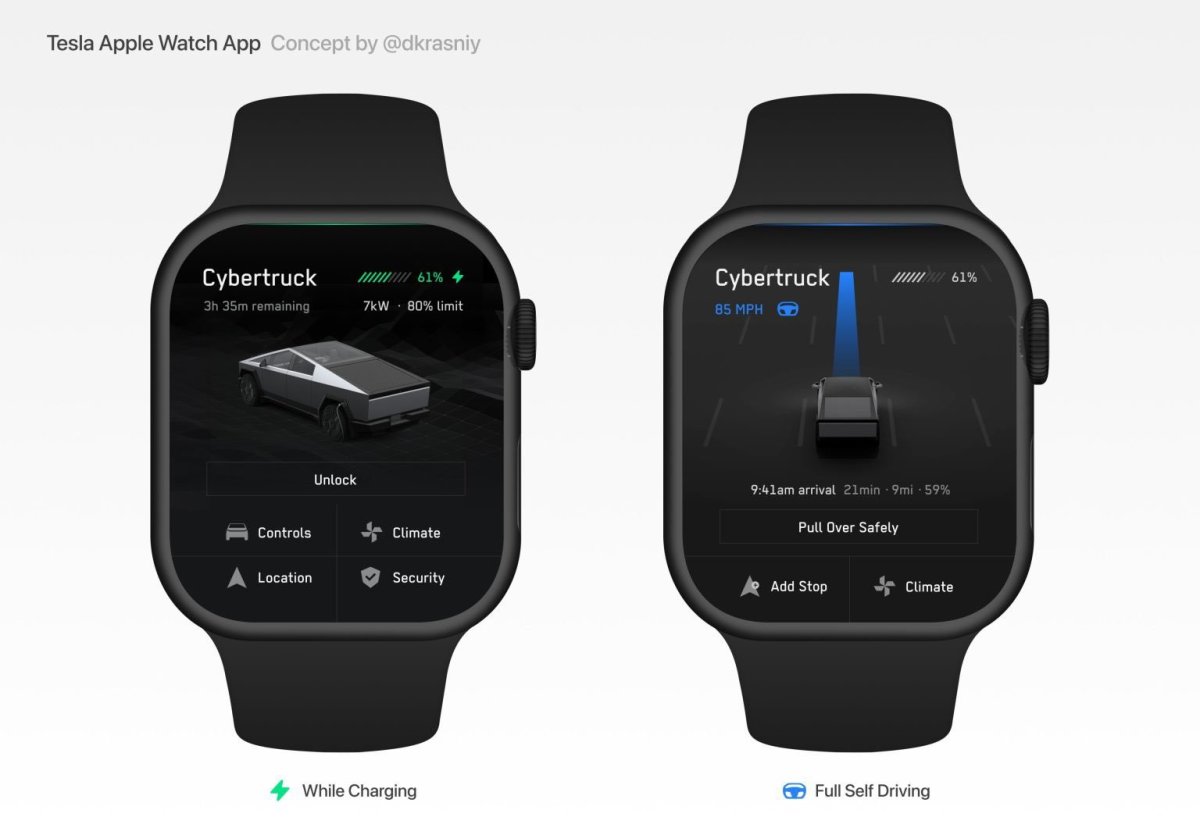
Once installed, the official Tesla Watch app or its complications provide a streamlined interface for key operations. These typically include:
- Lock/Unlock: Secure or open your car’s doors directly from your wrist.
- Climate Control: Start, stop, or adjust your Tesla’s climate control, pre-heating or cooling the cabin before you enter.
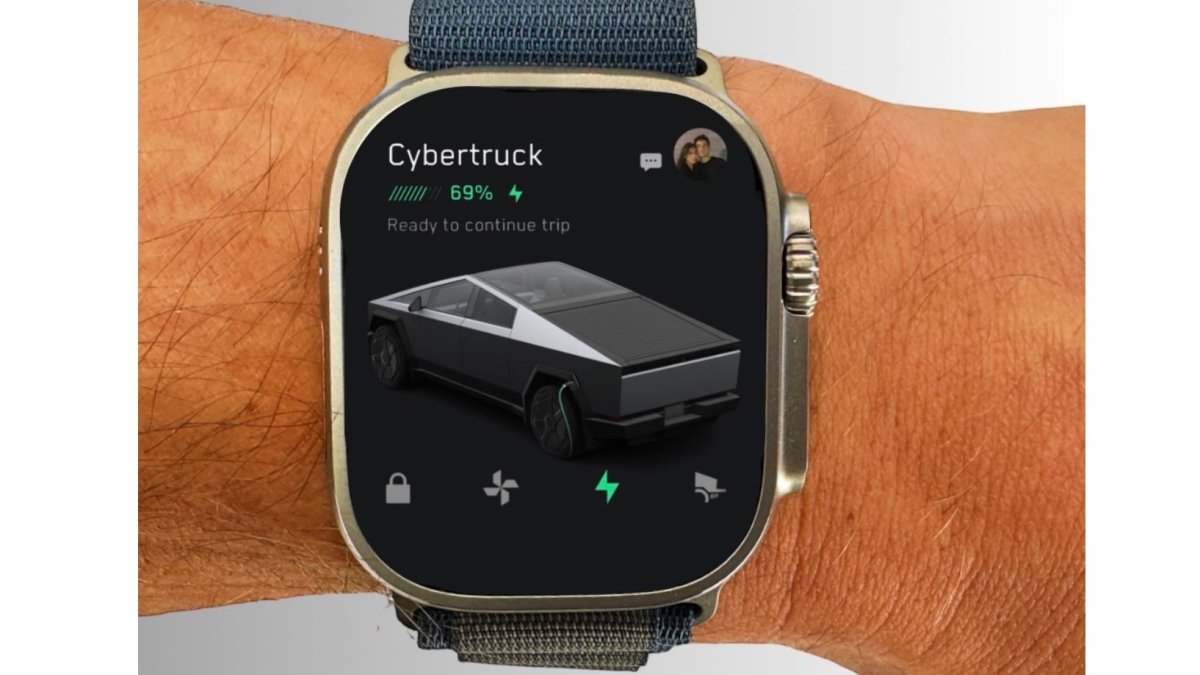
- Charging Status: View your battery’s current state of charge and estimated range.
- Location: See your car’s last known location on a small map or get directions back to it.
- Sentry Mode: Arm or disarm Sentry Mode (though comprehensive control is usually on the phone).
The exact features available can vary slightly with app updates, but the core functionality aims for quick, glanceable control.
Configuring Tesla Complications on Your Apple Watch
One of the most powerful features of the official Tesla integration lies in its Apple Watch complications. Complications are small pieces of information displayed directly on your watch face, offering quick access to app data or shortcuts.
To add Tesla complications:
- Force Touch (or long-press, depending on WatchOS version) your current Apple Watch face.
- Tap Edit.
- Swipe left until you reach the Complications screen.
- Tap on a complication spot you wish to customize.
- Scroll through the list of available apps until you find Tesla.
- Select the desired Tesla complication. Options might include displaying the charging status, current range, or a shortcut to open the Tesla Watch app.
- Press the Digital Crown to confirm, then tap your watch face to save.
Configuring these complications allows you to see critical Tesla information at a glance, without even needing to open the app, making your Apple Watch a truly integrated dashboard for your vehicle.
Core Controls: What You Can Do Directly from Your Wrist
The official Tesla Watch app, while not as feature-rich as some third-party alternatives, covers the most frequently used remote controls:
- Remote Locking/Unlocking: A quick tap can secure your vehicle or grant access. This is particularly useful when your phone is out of reach, or you need to let someone into the car briefly.
- Climate Pre-conditioning: Activate the heating or cooling system to set your car to a comfortable temperature before you embark on your journey. This is a game-changer for those living in extreme climates.
- Charge Status at a Glance: Instantly check how much battery percentage you have left, what your estimated range is, and if your car is currently charging. This provides crucial information for planning your trips and managing your energy.
- Open Trunk/Frunk (Limited): Depending on the app version and Watch model, some basic controls like opening the trunk or frunk might be available, offering another layer of convenience.
While the official app may not offer every single feature found on the main iPhone app (like summon, advanced settings, or detailed diagnostics), its focus on immediate, high-frequency actions makes it an indispensable tool for Tesla owners who embrace wearable tech.
Expanding Capabilities: Exploring Third-Party Tesla Apps for Apple Watch
While the official Tesla app provides basic and essential functionalities on the Apple Watch, many owners seek a more robust and feature-rich experience. This demand has led to the development of several excellent third-party applications that significantly expand what you can do with your Tesla from your wrist.
Why Consider Third-Party Solutions?
Third-party apps often fill the gaps left by the official Tesla Watch app, offering a broader range of controls, more detailed information, and sometimes a more refined user interface designed specifically for the Apple Watch. The reasons to explore these alternatives include:
- Enhanced Features: Many third-party apps support advanced controls like Summon, opening the charge port, turning on/off Sentry Mode with more granularity, controlling specific windows, or even viewing real-time data like tire pressure or drive statistics.
- Improved User Experience: Developers dedicated to Apple Watch apps often create interfaces that are highly optimized for the small screen and touch interactions, making navigation smoother and more intuitive.
- Customization: Some apps offer greater customization options for complications, dashboard layouts, or notification preferences, allowing you to tailor the experience precisely to your needs.
- Quicker Updates: Independent developers can sometimes roll out updates more frequently to introduce new features or fix bugs, often responding to user feedback rapidly.
Popular Third-Party Apps and Their Advantages
Several third-party apps have gained popularity within the Tesla community for their comprehensive features and reliable performance. Examples include:
- “Watch App for Tesla” (often referred to by users as “Watch for Tesla”): This is a highly-rated app known for its extensive feature set, intuitive design, and consistent updates. It often includes features like opening the charge port, managing climate in detail, activating Summon (where applicable and safe), and providing more detailed car status information. Its user interface is typically praised for being clear and easy to navigate on the small watch screen.
- “Remote S for Tesla”: Another well-established app that offers a wide array of controls, often including vehicle location tracking, climate control, unlocking/locking, horn, flash lights, and detailed charging information. It aims to put a significant portion of the iPhone app’s power directly on your wrist.
When considering these apps, it’s crucial to read reviews, check the developer’s reputation, and understand the scope of their features to ensure they align with what you’re looking for.
Installation and Authorization Procedures for Third-Party Apps
The process for installing and authorizing third-party Tesla apps on your Apple Watch generally follows a similar pattern:
- Purchase/Download on iPhone: Most third-party Tesla apps are paid applications, reflecting the development effort and ongoing maintenance. Purchase and download the app from the Apple App Store onto your iPhone.
- Install on Apple Watch: Once the app is on your iPhone, open the Apple Watch app on your iPhone. Navigate to the “My Watch” tab, scroll down to “Available Apps,” and tap “Install” next to the chosen Tesla app. Ensure “Automatic App Install” is enabled to streamline this.
- Initial Setup and Authorization: Launch the newly installed app on your Apple Watch (or iPhone, as some require initial setup there). You will typically be prompted to log in to your Tesla account. This is a critical step, as the app needs authorization to communicate with your Tesla vehicle via Tesla’s API. This authorization is usually handled securely, but it’s important to understand you are granting a third-party app access to your vehicle’s controls and data.
- Configure Watch Face Complications: Just like with the official app, you can usually add complications from these third-party apps to your watch face for quick access to specific data or controls.
Security Considerations When Using Unofficial Apps
While third-party apps offer enhanced functionality, it’s paramount to be mindful of security:
- API Access: These apps connect to your Tesla via Tesla’s official API (Application Programming Interface). This is generally secure, but you are entrusting your login credentials (or an access token derived from them) to a third-party developer.
- Developer Reputation: Always choose apps from reputable developers with a solid track record and good user reviews. Avoid obscure or untested applications.
- Permissions: Understand what permissions the app requests. Ensure they align with the functionality offered and don’t seem excessive.
- Regular Updates: A well-maintained app is a secure app. Developers who regularly update their apps are more likely to address security vulnerabilities promptly.
- Two-Factor Authentication (2FA): Always ensure 2FA is enabled on your Tesla account. While third-party apps may handle this differently during initial setup, 2FA adds an extra layer of protection against unauthorized access.
By exercising due diligence, you can safely enjoy the extended capabilities that third-party Apple Watch apps bring to your Tesla experience.
Maximizing Your Tesla-Watch Experience: Tips, Troubleshooting, and Future Gazing
Integrating your Tesla with your Apple Watch is a powerful step towards a more connected and convenient driving experience. To fully leverage this synergy, understanding best practices, common troubleshooting steps, and the future outlook is essential.
Practical Use Cases and Daily Convenience Hacks
Beyond the basic lock/unlock and climate control, consider these scenarios to truly maximize your Tesla-Watch integration:
- Keyless Entry Backup: If your phone’s battery dies or you forget your key card, your Apple Watch can be a reliable backup for unlocking and starting your Tesla, assuming the app is running and authorized.
- Pre-conditioning Perfection: On hot summer days or freezing winter mornings, use your Watch to initiate climate control 10-15 minutes before you leave. Step into a perfectly comfortable cabin every time.
- Charge Management on the Go: While shopping or at a restaurant, a quick glance at your watch tells you if your Tesla is sufficiently charged or needs more time, helping you plan your return.
- Granting Temporary Access: Need to let a family member or friend retrieve something from your car? A quick tap on your watch can unlock the doors without needing to hand over keys or your phone.
- Locating Your Car: In a vast parking lot or an unfamiliar city, the Watch app’s ability to show your car’s location (and sometimes even navigate you to it) is invaluable.
- Sentry Mode Peace of Mind: Instantly check if Sentry Mode is active, or toggle it on/off as needed, adding a layer of security awareness at a glance.
These small, frequent interactions accumulate into significant daily convenience, reinforcing the value of this integrated ecosystem.
Addressing Common Connectivity and Performance Issues
While generally reliable, you might occasionally encounter issues. Here’s a troubleshooting guide:
- “Car Not Connecting” / “Offline”:
- Check Tesla Connectivity: Ensure your Tesla vehicle itself has a good internet connection (cellular or Wi-Fi).
- iPhone and Apple Watch Connectivity: Verify your iPhone has a stable internet connection and is properly paired with your Apple Watch via Bluetooth.
- Restart Apps/Devices: Close and reopen the Tesla app on your iPhone and the companion app on your Watch. Sometimes, a full restart of your iPhone and Apple Watch can resolve temporary glitches.
- Slow Response Times:
- Network Latency: Remote commands rely on network latency. If your car or phone is in an area with poor signal, commands will be slower.
- App Refresh: Ensure the apps are allowed to refresh in the background on your iPhone (Settings > General > Background App Refresh).
- Watch Performance: If your Apple Watch is an older model, it might naturally be slower. Ensure you have sufficient free space on your Watch.
- Features Not Working:
- App Updates: Ensure all software (iOS, watchOS, Tesla app, third-party app) is up-to-date.
- Permissions: Double-check that the apps have all necessary permissions on your iPhone.
- Tesla Firmware: Sometimes a specific feature requires a newer Tesla vehicle firmware version.
- Battery Drain:
- Watch Battery: Constantly refreshing complications or frequently using the app can increase Apple Watch battery drain. Adjust complication frequency or use the app less often if this is an issue.
- iPhone Battery: Background activity of the Tesla app (especially with location services) can impact iPhone battery. Monitor usage in iPhone Settings > Battery.
- Re-authenticate: Occasionally, you may need to log out and log back into your Tesla account within the iPhone app (and subsequently the Watch app) to refresh authentication tokens.
The Future of Wearable Control for Your Tesla
The integration of Tesla with smart wearables is an evolving landscape. As both Tesla’s technology and Apple Watch capabilities advance, we can anticipate even more sophisticated interactions:
- Enhanced Biometric Security: Future Apple Watches could offer more advanced biometric authentication (beyond just wrist detection) for critical car functions, adding an extra layer of security.
- Voice Commands: While some basic voice control exists, deeper integration with Siri on the Watch could allow for more natural language commands for car functions.
- Advanced Diagnostics and Notifications: Imagine your Watch proactively notifying you of potential tire pressure issues or upcoming service needs, or providing real-time diagnostic data at a glance.
- Personalized Car Settings: Your Watch could potentially learn your preferences (e.g., climate settings for different times of day) and automatically adjust your car upon approach.
- Ultra-Wideband (UWB) Integration: As Apple Watches incorporate UWB technology, possibilities for highly precise proximity unlocking, “Find My Car” features, and even more secure digital key functionality could emerge.
The journey of connecting your Tesla to your Apple Watch is one of continuous improvement, promising an increasingly seamless, intuitive, and secure experience for the modern electric vehicle owner. By understanding the current landscape and anticipating future developments, you can remain at the forefront of automotive and wearable technology.
aViewFromTheCave is a participant in the Amazon Services LLC Associates Program, an affiliate advertising program designed to provide a means for sites to earn advertising fees by advertising and linking to Amazon.com. Amazon, the Amazon logo, AmazonSupply, and the AmazonSupply logo are trademarks of Amazon.com, Inc. or its affiliates. As an Amazon Associate we earn affiliate commissions from qualifying purchases.