
In the digital age, streaming has become the dominant way we consume entertainment. Among the plethora of streaming services, Amazon Prime Video stands out, offering a vast library of movies, TV shows, and exclusive originals, all bundled with an Amazon Prime subscription. While watching on a phone, tablet, or computer is convenient, the immersive experience of viewing on a larger television screen remains unparalleled. Whether you’re planning a movie night, catching up on a series, or simply want to enjoy content on a grander scale, understanding how to get Prime Video on your TV is essential. This guide will walk you through various methods, from smart TV integrations to external streaming devices and direct connections, ensuring you can enjoy your favorite Prime Video content with ease and optimal quality.

Direct Integration: Smart TVs and Built-in Apps
The simplest and most streamlined way to access Prime Video on your television is through a modern smart TV. Most smart TVs manufactured in recent years come equipped with internet connectivity and a robust operating system that supports a wide range of streaming applications, including Amazon Prime Video.
Checking for Pre-installed Apps
Many popular smart TV brands, such as Samsung, LG, Sony, Vizio, and Panasonic, often have the Amazon Prime Video app pre-installed directly on their home screens or within their app launchers. Before you consider any external devices, take a moment to navigate your TV’s interface. Look for an icon clearly labeled “Prime Video” or “Amazon Prime Video.” If you find it, you’re halfway there. Simply select the app to launch it.
Downloading from App Stores
If Prime Video isn’t pre-installed, don’t despair. Most smart TVs feature an integrated app store, similar to what you’d find on a smartphone. Common app store names include “LG Content Store,” “Samsung Smart Hub,” or simply “Apps.”
-
Navigate to your TV’s app store: Use your TV remote to access the home screen or main menu, and then locate the app store icon.
-
Search for “Prime Video”: Use the search function within the app store to find the “Amazon Prime Video” application.
-
Download and Install: Select the app and follow the on-screen prompts to download and install it. The process is usually quick and straightforward, depending on your internet speed.
Account Setup and Login
Once the app is launched or installed, you’ll need to log in to your Amazon account.
-
Open the Prime Video app: Launch the application on your TV.
-
Select “Sign In”: You will typically be presented with two main options: “Sign In and Start Watching” or “Register Your Device.”
-
Choose your preferred login method:
-
On-screen keyboard: You can often enter your Amazon email and password directly using your TV remote and an on-screen keyboard. This can be tedious but is always an option.
-
Activation code (recommended): This is usually the easiest method. The TV will display an activation code (e.g., “XXXX-XXXXXX”). You then go to a web browser on your computer or mobile device, navigate to
primevideo.com/mytv(oramazon.com/mytv), enter the activation code, and log in to your Amazon account there. Your TV will automatically connect once authenticated.
-
-
Start streaming: Once successfully logged in, you’ll have full access to the Prime Video library.
Smart TV Advantages & Considerations
The primary advantage of using a smart TV for Prime Video is its sheer convenience. There’s no additional hardware, no extra cables, and one less remote to manage. However, it’s worth noting that older smart TVs might have slower processors or outdated operating systems, which could lead to a less responsive app experience or lack support for newer features like 4K HDR. Ensuring your TV’s firmware is up to date can often resolve minor performance issues.
Streaming Devices: Enhancing Any TV’s Capabilities
For televisions that aren’t “smart” or for users who desire a more robust and feature-rich streaming experience, dedicated streaming devices are an excellent solution. These small, often inconspicuous gadgets plug into your TV’s HDMI port and provide access to a multitude of streaming services, including Prime Video, effectively transforming any TV into a smart TV.
Amazon’s Own Ecosystem: Fire TV Devices
Given that Prime Video is an Amazon service, it’s no surprise that Amazon’s own line of Fire TV devices offers the most seamless integration.
-
Fire TV Stick: These HDMI dongles are compact and come in various models (Lite, Standard, 4K, 4K Max), offering different levels of performance and resolution support. They plug directly into an HDMI port and are powered via USB.
-
Fire TV Cube: A more powerful, cube-shaped device that combines a Fire TV streamer with an Echo Dot, offering hands-free voice control for your TV and smart home devices.
-
Fire TV Edition TVs: Some smart TVs come with Fire TV functionality built directly into them, offering the same interface and features without needing an external stick.
Setup for Fire TV Devices:
-
Plug in: Connect the Fire TV device to an HDMI port on your TV and plug it into a power source.
-
Follow on-screen setup: Your TV will display the Fire TV setup wizard. Connect to your Wi-Fi network.
-
Log in to Amazon: You’ll be prompted to log in to your Amazon account. Since these are Amazon devices, Prime Video is deeply integrated and usually doesn’t require a separate app download or login. Your Prime Video access is tied directly to your Amazon account.
Popular Third-Party Streamers
Beyond Amazon’s own hardware, several other popular streaming device manufacturers offer excellent Prime Video support.
-
Roku (Roku Express, Roku Streaming Stick, Roku Ultra): Roku devices are renowned for their user-friendly interface and vast channel selection. You can easily find and install the Prime Video channel from the Roku Channel Store.
-
Apple TV (Apple TV HD, Apple TV 4K): For those within the Apple ecosystem, Apple TV provides a premium experience with robust hardware and tight integration with other Apple services. The Prime Video app is available from the App Store.
-
Chromecast with Google TV: Google’s latest Chromecast iteration now comes with a remote and a full Google TV interface, making it a direct competitor to Roku and Fire TV. Prime Video is available through the Google Play Store on the device.
-
Nvidia Shield TV: A high-performance Android TV box popular with enthusiasts, offering excellent gaming capabilities alongside premium streaming.
General Setup for Third-Party Streamers:
-
Connect the device: Plug the streaming device into an available HDMI port on your TV and connect it to power.
-
Initial setup: Follow the on-screen instructions to connect to your Wi-Fi network and perform any initial device updates.
-
Install Prime Video app: Navigate to the device’s app store (e.g., Roku Channel Store, Apple App Store, Google Play Store) and search for “Amazon Prime Video.” Download and install the app.
-
Log in: Use your Amazon account credentials to log in, often using the activation code method mentioned earlier.
Gaming Consoles as Media Hubs
Modern gaming consoles have evolved into comprehensive entertainment hubs, capable of much more than just playing games.
-
Sony PlayStation (PS4, PS5): The PlayStation Store offers the Amazon Prime Video app for download.
-
Microsoft Xbox (Xbox One, Xbox Series X/S): Similarly, the Microsoft Store on Xbox consoles provides the Prime Video app.
Setup for Gaming Consoles:
-
Power on and connect to internet: Ensure your console is connected to your TV and the internet.
-
Access the console’s store: Go to the PlayStation Store or Microsoft Store.
-
Search and install: Find and download the “Amazon Prime Video” app.
-
Log in: Launch the app and sign in with your Amazon account.
Device Setup and App Installation
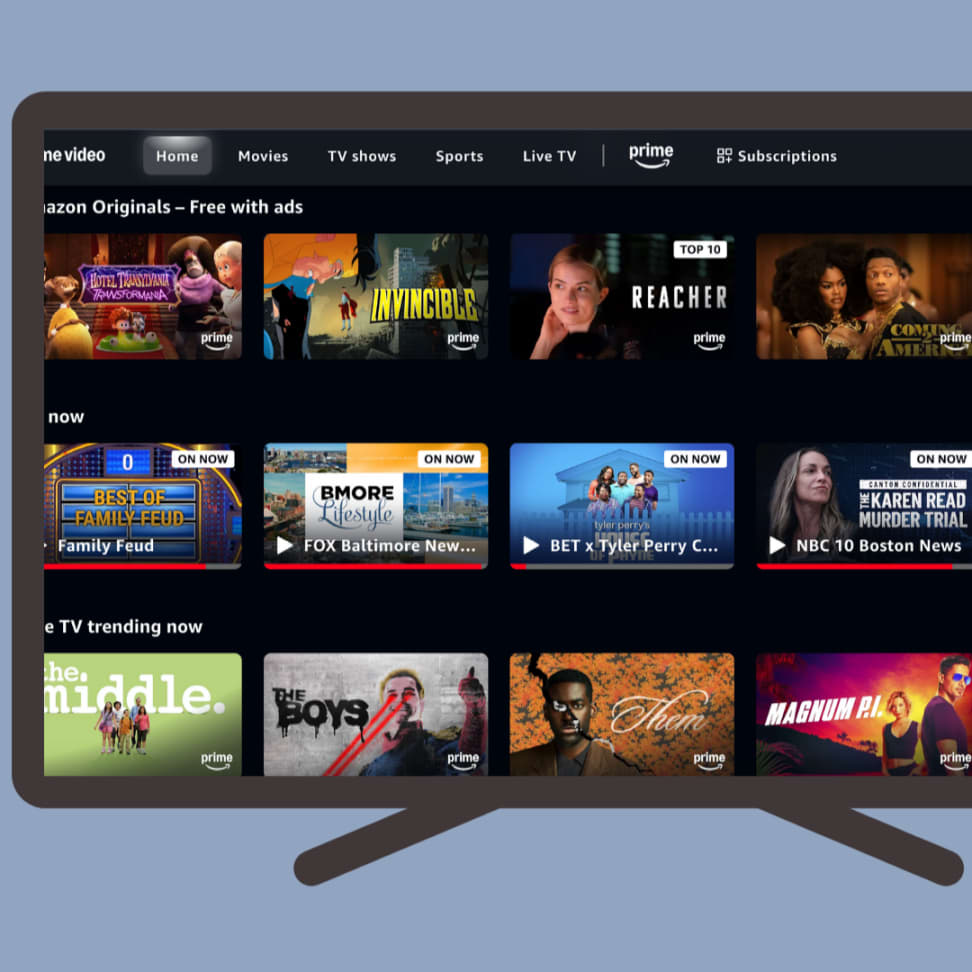
Regardless of the specific streaming device or console, the general principle remains consistent: connect it, set it up for internet access, download the Prime Video app from its respective store, and then log in using your Amazon account. Each device type offers its own unique advantages, from deep ecosystem integration (Fire TV, Apple TV) to broad app support and user-friendliness (Roku).
Connecting Via External Hardware: Laptops, PCs, and Mobile Devices
Sometimes, a dedicated streaming device isn’t available, or you prefer to use a computer or mobile device as your primary source. Fortunately, there are straightforward ways to beam Prime Video content from these devices to your TV.
HDMI Connection for Laptops/PCs
This is arguably the most reliable and direct method, turning your TV into a large monitor for your computer.
-
Check ports: Ensure your laptop or PC has an HDMI output port, and your TV has an available HDMI input port. Most modern computers and TVs will. If your laptop only has a USB-C (Thunderbolt) port, you might need a USB-C to HDMI adapter.
-
Connect the cable: Plug one end of the HDMI cable into your computer and the other into an HDMI input on your TV.
-
Select input on TV: Use your TV remote to switch the input source (often labeled “Input,” “Source,” or “HDMI”) to the HDMI port your computer is connected to.
-
Configure display settings (if needed): Your TV should automatically mirror or extend your computer’s display. If not, go to your computer’s display settings (e.g., “Display settings” on Windows, “Displays” on macOS) and configure it to “Duplicate” or “Extend” your desktop to the TV.
-
Open Prime Video: Launch your web browser on your computer, go to
primevideo.com, log in, and start playing your desired content. The audio will also transmit through the HDMI cable to your TV.
Casting and Mirroring from Mobile Devices
Casting and mirroring offer wireless convenience, allowing you to control playback from your smartphone or tablet.
-
Chromecast (built-in or dongle): If your TV has Chromecast built-in, or you have a Chromecast dongle connected:
-
Ensure your phone/tablet and Chromecast are on the same Wi-Fi network.
-
Open the Prime Video app on your mobile device.
-
Look for the “Cast” icon (a rectangle with a Wi-Fi symbol) usually in the top right corner of the playback screen.
-
Tap the icon and select your Chromecast device from the list. The video will then play on your TV, controlled by your mobile device.
-
-
AirPlay (for Apple devices and AirPlay 2-compatible TVs/devices):
-
Ensure your iPhone/iPad and Apple TV/AirPlay 2-compatible smart TV are on the same Wi-Fi network.
-
Open the Prime Video app on your iOS device.
-
During playback, tap the “AirPlay” icon (a rectangle with an upward-pointing arrow).
-
Select your Apple TV or AirPlay 2-compatible TV from the list.
-
-
Screen Mirroring (Miracast/Smart View): Some Android phones and smart TVs support Miracast or similar screen mirroring technologies (like Samsung’s Smart View).
-
On your phone, pull down the notification shade and look for “Smart View,” “Screen Cast,” or “Screen Mirroring.”
-
On your TV, look for a “Screen Mirroring” or “Miracast” input source.
-
Select your TV from your phone’s mirroring options. Your entire phone screen will be mirrored to the TV. Then, simply open the Prime Video app and play your content.
-
Mobile Devices with HDMI Adapters
For older TVs or specific scenarios, you can connect your mobile device directly to your TV via an adapter.
-
USB-C to HDMI Adapter: Many modern Android phones and some iPads use USB-C ports. You can purchase a USB-C to HDMI adapter and connect it to your TV with an HDMI cable, similar to connecting a laptop.
-
Lightning Digital AV Adapter (for older iPhones/iPads): Apple sells proprietary Lightning to HDMI adapters that allow you to connect older iOS devices to an HDMI port on your TV.
While these methods offer flexibility, casting and mirroring quality can sometimes be affected by Wi-Fi network congestion, and direct HDMI connections might require an extra cable and adapter management.
Optimizing Your Prime Video Experience
Simply getting Prime Video onto your TV is one thing; ensuring you have the best possible viewing experience is another. A few technical considerations can significantly impact the quality of your streaming.
Internet Connection Requirements
Streaming high-definition and especially 4K content demands a stable and fast internet connection.
-
SD (Standard Definition): Minimum 1.5 Mbps
-
HD (High Definition 720p/1080p): Minimum 3.5 Mbps (Amazon recommends 5 Mbps for optimal experience)
-
4K UHD (Ultra High Definition): Minimum 15 Mbps (Amazon recommends 25 Mbps for optimal experience)
For the best results, especially with 4K, an Ethernet connection (wired) between your streaming device/smart TV and your router is always preferable to Wi-Fi, as it provides greater stability and speed. If Wi-Fi is your only option, ensure your router is relatively close to your TV and supports modern Wi-Fi standards (Wi-Fi 5 or Wi-Fi 6).
Picture and Sound Settings
Many Prime Video titles are available in stunning 4K Ultra HD, High Dynamic Range (HDR), and immersive surround sound formats like Dolby Atmos.
-
4K/HDR: To enjoy these, you need a 4K-compatible TV that supports HDR10 or Dolby Vision, a compatible streaming device, and a strong internet connection. Your TV’s display settings should be configured to allow HDR input for the HDMI port your device is connected to.
-
Dolby Atmos/Surround Sound: For cinematic audio, you’ll need a soundbar or AV receiver that supports Dolby Atmos (or other surround sound formats) connected to your TV via an HDMI ARC/eARC port. Ensure your streaming device and Prime Video app are configured to output the highest quality audio available.
Troubleshooting Common Issues
Even with the best setup, minor issues can arise.
-
Buffering/Lag: Often an internet speed issue. Try restarting your router, streaming device, or TV. Check other devices on your network to see if they’re consuming bandwidth.
-
App Crashes/Freezes: Try force-closing and restarting the Prime Video app. If that doesn’t work, clear the app’s cache (via your device’s settings) or uninstall and reinstall the app.
-
Login Problems: Double-check your Amazon credentials. If using the activation code method, ensure you’re going to the correct Amazon URL (
primevideo.com/mytvoramazon.com/mytv). -
No Sound/Picture: Verify all HDMI cables are securely connected. Check your TV’s input source selection and ensure your sound system (if any) is correctly configured.
Staying Updated
Software updates for your smart TV, streaming device, or the Prime Video app itself often bring performance improvements, bug fixes, and new features. Regularly check for and install these updates to ensure optimal functionality.
Conclusion
Bringing Amazon Prime Video to your television is a straightforward process, offering a multitude of options to suit every setup and preference. Whether you leverage the built-in capabilities of a smart TV, invest in a dedicated streaming device for enhanced performance, or simply connect your laptop or cast from your mobile, the goal remains the same: to enjoy a vast world of entertainment on the big screen. By understanding the different methods and optimizing your setup for internet speed, picture, and sound, you can unlock the full potential of your Prime Video subscription and transform your living room into a personal cinematic experience. Choose the method that best fits your technology ecosystem and start streaming your favorite shows and movies today.
aViewFromTheCave is a participant in the Amazon Services LLC Associates Program, an affiliate advertising program designed to provide a means for sites to earn advertising fees by advertising and linking to Amazon.com. Amazon, the Amazon logo, AmazonSupply, and the AmazonSupply logo are trademarks of Amazon.com, Inc. or its affiliates. As an Amazon Associate we earn affiliate commissions from qualifying purchases.