
In an age dominated by digital entertainment, the allure of streaming services like Amazon Prime Video on the biggest screen in your home – your television – is undeniable. While mobile devices and computers offer convenience, the immersive experience of watching a critically acclaimed series or a blockbuster film on a large, high-definition display with quality sound elevates simple viewing into an event. This comprehensive guide will walk you through every conceivable method to bring Amazon Prime Video to your television, ensuring you can enjoy its vast library of content with optimal quality and minimal fuss.
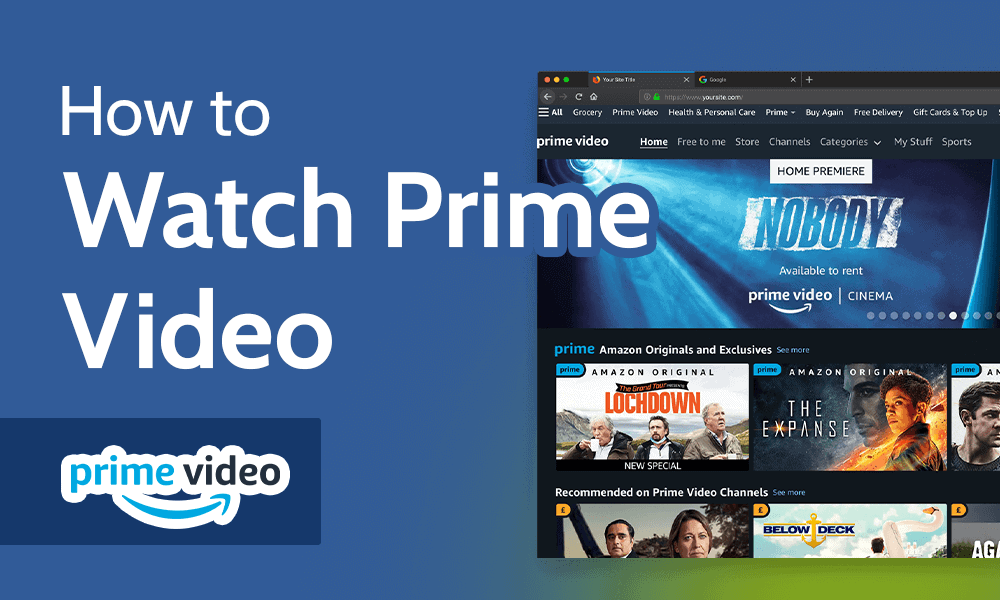
Understanding Prime Video and Its Appeal on the Big Screen
Amazon Prime Video has evolved from a simple perk of an Amazon Prime subscription into a standalone streaming giant, rivaling other major players in the entertainment industry. Its appeal lies not only in its extensive catalog but also in the seamless integration with the broader Amazon ecosystem.
The Allure of Prime Video Content
Amazon Prime Video boasts an impressive and ever-expanding library that caters to a wide array of tastes. Subscribers gain access to thousands of movies, TV shows, and Amazon Originals – award-winning series and films produced by Amazon Studios that are exclusive to the platform. From genre-defining dramas like “The Boys” and “The Marvelous Mrs. Maisel” to epic fantasies such as “The Lord of the Rings: The Rings of Power” and an eclectic mix of international cinema, documentaries, and children’s programming, there’s always something new to discover. Beyond the included content, Prime Video also offers options to rent or purchase new releases, further expanding its utility as a central hub for digital media consumption. The platform also frequently provides access to live events, sports, and add-on channels, making it a versatile entertainment package.
Why Your TV is the Ultimate Viewing Platform
While streaming on a smartphone, tablet, or laptop offers portability, these devices cannot replicate the cinematic experience that a television provides. A large TV screen, especially one with high resolution (4K, 8K) and HDR capabilities, transforms the visual impact of any content. Details become sharper, colors more vibrant, and the overall picture quality significantly enhanced. Coupled with a home theater sound system or even a good soundbar, the audio experience becomes more enveloping, drawing you deeper into the narrative. For families or groups, a TV screen also offers a communal viewing experience, allowing everyone to comfortably share and enjoy content together, turning a simple night in into a shared entertainment event. The comfort of a sofa, combined with a large screen and superior audio, creates an ideal environment for immersive, distraction-free viewing.
Essential Prerequisites for Seamless Streaming
Before diving into the various technical methods, ensuring you have the foundational elements in place will prevent common frustrations and guarantee a smooth streaming experience.
Active Amazon Prime Membership
The most fundamental requirement is an active Amazon Prime subscription. Prime Video is included as a core benefit of a full Amazon Prime membership, which also provides perks like expedited shipping, Prime Music, Prime Reading, and more. If you don’t have a full Prime membership, you can also subscribe to Prime Video as a standalone service. Ensure your subscription is current and your payment method is up-to-date. Without an active membership, you won’t be able to access the Prime Video library beyond trailers or free content. You will need your Amazon account credentials (email and password) handy for logging into the Prime Video app on your TV or streaming device.
Reliable High-Speed Internet Connection
Streaming high-definition video requires a stable and sufficiently fast internet connection. While standard definition (SD) content might work with speeds as low as 3 Mbps, for HD content, Amazon recommends a minimum of 3.5 Mbps. For Ultra HD (4K) content, you’ll need at least 15 Mbps, with 25 Mbps or higher being ideal for a consistent, buffer-free experience. A wired Ethernet connection is generally more stable than Wi-Fi, especially for 4K streaming, as it minimizes interference and ensures dedicated bandwidth. If using Wi-Fi, ensure your router is relatively close to your streaming device or TV, and consider a newer Wi-Fi standard (like Wi-Fi 5 or Wi-Fi 6) for better performance. Bandwidth limitations due to multiple devices using the internet simultaneously can also impact streaming quality, so managing your home network can be crucial.
Compatible Television or Streaming Device
To watch Prime Video on your TV, you’ll need a compatible device. This could be:
- A Smart TV: Most modern smart TVs (manufactured in the last 5-7 years) from brands like Samsung, LG, Sony, Vizio, Philips, and others come with built-in access to popular streaming apps, including Amazon Prime Video.
- A Dedicated Streaming Device: These are small hardware devices that plug into your TV via HDMI and provide access to numerous apps. Popular options include Amazon Fire TV Stick/Cube, Roku devices, Apple TV, and Google Chromecast.
- A Gaming Console: Modern gaming consoles such as PlayStation (PS4, PS5) and Xbox (Xbox One, Xbox Series X/S) also support Prime Video.
- A Computer with HDMI Output: You can connect a laptop or desktop computer directly to your TV using an HDMI cable.
- A Mobile Device with Casting Capabilities: Smartphones or tablets can cast content to compatible smart TVs or casting devices.
Ensure your chosen device has an available HDMI port on your TV, as this is the standard connection method for high-quality digital video and audio.
Diverse Methods to Stream Prime Video on Your Television
With the prerequisites met, let’s explore the various technical avenues available to bring Amazon Prime Video to your TV. Each method offers a slightly different experience and caters to different user setups and preferences.
Leveraging Smart TV Applications
The simplest and often most integrated way to watch Prime Video is directly through your smart TV’s built-in applications.
- Access Your Smart TV’s App Store/Home Screen: Most smart TVs have a home screen or an “Apps” section accessible via the remote control.
- Locate the Prime Video App: Search for “Amazon Prime Video” or simply “Prime Video” within the app store or list of pre-installed applications. It’s often pre-installed on many newer smart TVs.
- Install/Launch the App: If not installed, download and install it. If already present, simply launch it.
- Sign In: You will be prompted to sign in with your Amazon account credentials (email and password). Some TVs might offer a unique code to enter on
amazon.com/mytvfrom a web browser on another device, simplifying the login process. - Start Streaming: Once logged in, you can browse the Prime Video library and begin watching.
- Pros: No additional hardware needed, integrated remote control experience, often supports the highest video/audio quality your TV can offer.
- Cons: App updates depend on TV manufacturer, older smart TVs might have slower interfaces or lack newer features.
Utilizing Dedicated Streaming Devices
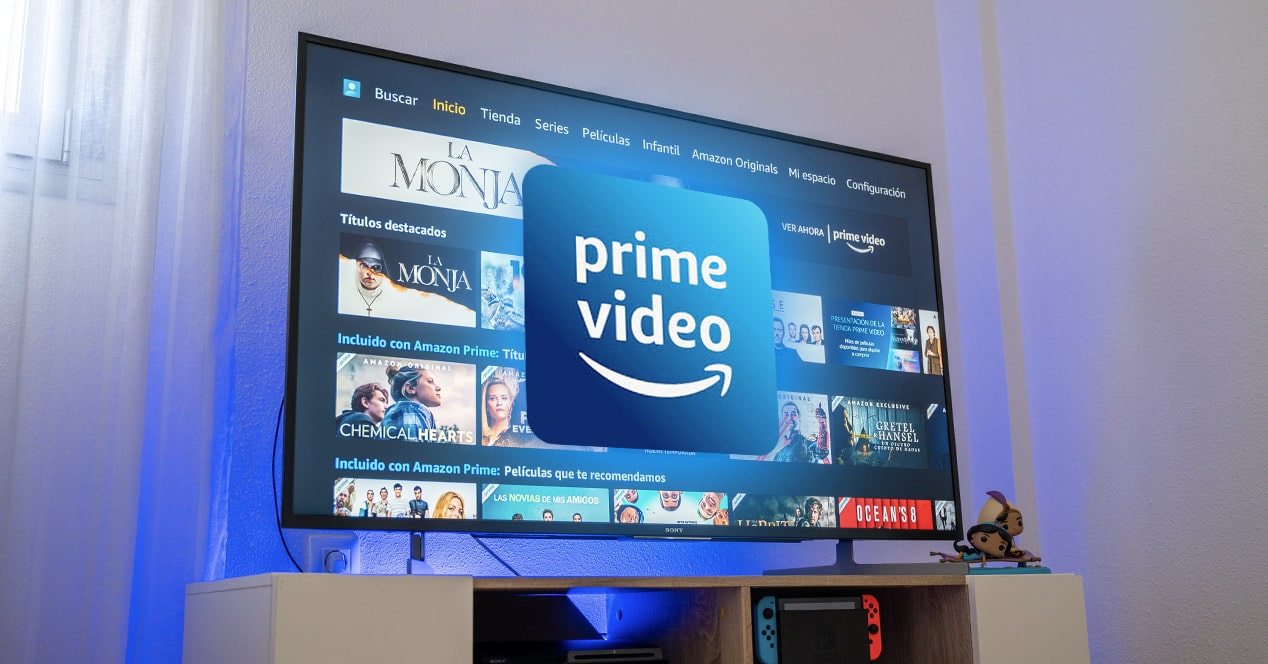
Dedicated streaming devices are an excellent option for non-smart TVs, older smart TVs that no longer receive app updates, or users who prefer a unified streaming experience across multiple services.
Amazon Fire TV Devices
Amazon’s own line of streaming devices (Fire TV Stick Lite, Fire TV Stick, Fire TV Stick 4K Max, Fire TV Cube) are designed for seamless integration with Prime Video.
- Plug In: Connect the Fire TV device to an HDMI port on your TV and power it on.
- Setup: Follow the on-screen instructions to connect to Wi-Fi and log in with your Amazon account (it often auto-populates if you purchased the device from Amazon).
- Launch Prime Video: The Prime Video app is typically pre-installed and prominently featured on the Fire TV home screen.
- Pros: Deep integration with Prime Video, Alexa voice control, wide range of apps, competitive pricing.
- Cons: Interface can be Amazon-centric, potentially pushing other services less prominently.
Roku Streaming Players
Roku offers a variety of devices, from simple HDMI sticks to advanced Ultra models, known for their user-friendly interface.
- Connect & Setup: Plug your Roku device into your TV’s HDMI port and follow the initial setup steps (Wi-Fi, account creation).
- Add Channel: From the Roku home screen, go to “Streaming Channels,” search for “Amazon Prime Video,” and add the channel.
- Launch & Sign In: Open the Prime Video app, and sign in with your Amazon credentials.
- Pros: Very easy to navigate, extensive channel store, cross-platform search.
- Cons: Some models might lack advanced features like Dolby Vision on older hardware.
Apple TV
Apple TV (HD or 4K) offers a premium streaming experience, especially for users invested in the Apple ecosystem.
- Connect & Setup: Plug your Apple TV into your TV’s HDMI port and follow the guided setup.
- Download App: Go to the App Store on Apple TV, search for “Amazon Prime Video,” and download it.
- Launch & Sign In: Open the app and sign in with your Amazon account.
- Pros: Smooth interface, excellent app support, high-quality hardware, integration with other Apple services.
- Cons: Higher price point compared to some other streamers.
Google Chromecast
Chromecast devices differ slightly as they are primarily “casting” receivers, meaning you initiate playback from a mobile device or computer. The newer Chromecast with Google TV includes a remote and a more traditional app interface.
- Setup: Plug Chromecast into your TV and follow the setup instructions via the Google Home app on your phone, or directly on your TV for Chromecast with Google TV.
- For Chromecast (Older Models):
- Open the Prime Video app on your smartphone or tablet.
- Tap the “Cast” icon (a rectangle with a Wi-Fi signal) usually found in the top right corner.
- Select your Chromecast device from the list.
- Choose your content on the phone, and it will begin playing on your TV.
- For Chromecast with Google TV:
- Search for and install the Prime Video app from the Google TV interface.
- Launch the app and sign in.
- Pros: Affordable (older models), simple casting functionality, Google TV model offers a full app experience.
- Cons: Older models require a separate device for control; network performance can affect casting reliability.
Connecting via Gaming Consoles (PlayStation, Xbox)
Modern gaming consoles are multimedia powerhouses and excellent streaming devices.
- Power On Console: Turn on your PlayStation (PS4, PS5) or Xbox (Xbox One, Xbox Series X/S).
- Access Store: Go to the PlayStation Store or Microsoft Store.
- Search & Install: Search for “Amazon Prime Video” and download the app.
- Launch & Sign In: Open the app and sign in with your Amazon credentials.
- Pros: Utilizes existing hardware, powerful processors for smooth playback.
- Cons: Can be power-intensive, potentially noisy if console fans are active, user interface may be geared more towards gaming.
Casting and Screen Mirroring from Mobile Devices or PCs
If you don’t have a smart TV or streaming device, or prefer to control playback from your phone/computer, casting or screen mirroring is an option.
- Casting (e.g., to a Smart TV with built-in Chromecast/AirPlay or a Chromecast device):
- Ensure your phone/tablet and TV/Chromecast are on the same Wi-Fi network.
- Open the Prime Video app on your mobile device.
- Find the “Cast” icon and select your TV or Chromecast.
- The content will then stream directly from the internet to your TV, controlled by your mobile device.
- Screen Mirroring (e.g., Apple AirPlay for Apple TVs/AirPlay 2 compatible Smart TVs, or general screen mirroring apps):
- This duplicates your device’s screen onto your TV.
- On iOS, swipe down for Control Center, tap Screen Mirroring, and select your AirPlay-compatible TV.
- On Android, the feature might be called “Smart View,” “Screen Cast,” or “Wireless Display” in quick settings.
- Then, play Prime Video on your mirrored phone.
- Pros: No dedicated streaming device required (for basic casting), convenient control from your personal device.
- Cons: Can drain phone battery, performance can be inconsistent, screen mirroring often reduces video quality compared to direct streaming.
The Direct HDMI Connection Method
This is a reliable fallback for any TV with an HDMI input, bypassing the need for smart TV features or streaming apps.
- Connect HDMI Cable: Plug one end of an HDMI cable into your laptop or desktop computer and the other end into an available HDMI port on your TV.
- Select Input: Use your TV remote to select the correct HDMI input source.
- Configure Display: Your TV should mirror or extend your computer’s display. You might need to adjust display settings on your computer (e.g., “Duplicate these displays” or “Extend these displays”) to optimize resolution.
- Open Prime Video in Browser: On your computer, open a web browser (Chrome, Firefox, Edge, Safari), go to
primevideo.com, and sign in. - Play Content: Start playing your desired content on your computer, and it will appear on your TV.
- Pros: Universal method, excellent for non-smart TVs, no internet connectivity issues specific to TV apps.
- Cons: Requires a computer to be tethered, potential for awkward cable management, computer fan noise, less convenient than a dedicated app interface.
Troubleshooting Common Prime Video Streaming Issues
Even with the right setup, occasional technical glitches can occur. Here are solutions to common problems.
Network Connectivity Problems
- No Internet/Buffering: Restart your Wi-Fi router and modem. Ensure your streaming device is close enough to your router or consider a wired Ethernet connection. Check other devices to see if the internet is working elsewhere.
- Slow Speeds: Disconnect other devices from your network. Perform a speed test on your streaming device if possible. Your ISP might be experiencing issues.
App Freezes and Buffering
- Restart App: Close the Prime Video app completely and reopen it.
- Restart Device: Power cycle your smart TV or streaming device (unplug it for 30 seconds, then plug it back in).
- Clear Cache: If available in your device’s settings, clear the cache for the Prime Video app.
- Update App/Firmware: Ensure the Prime Video app is updated to the latest version. Check your smart TV or streaming device’s system settings for firmware updates.
Account Login and Subscription Verification
- Incorrect Credentials: Double-check your Amazon email and password. Try logging into
amazon.comorprimevideo.comon a computer to ensure your credentials are correct. - Subscription Status: Verify that your Amazon Prime membership or Prime Video subscription is active and in good standing. Check your Amazon account settings for subscription details and payment methods.
- Too Many Streams: Amazon Prime Video typically allows up to three simultaneous streams on different devices within the same account, but only two concurrent streams of the same title. If you exceed this, you might get an error.
Device Compatibility and Updates
- Outdated Hardware: Older smart TVs or streaming devices might eventually lose support for newer app versions or features. Consider upgrading your streaming device if constantly encountering issues.
- Software Glitches: Ensure your TV’s operating system or your streaming device’s firmware is up to date. Manufacturers regularly release updates that fix bugs and improve performance.
Optimizing Your Prime Video Experience
Beyond merely getting Prime Video on your TV, a few adjustments can significantly enhance your viewing pleasure.
Maximizing Video Quality Settings
- Check Device Settings: Most smart TVs and streaming devices allow you to set your preferred resolution output (e.g., 1080p, 4K UHD). Ensure this matches your TV’s native resolution.
- Prime Video App Settings: Within the Prime Video app, you can often find playback quality settings. While it usually defaults to “Best” or “Auto,” you can sometimes manually set it if you’re experiencing buffering on an “Auto” setting.
- HDR/Dolby Vision: If your TV and streaming device support HDR10 or Dolby Vision, ensure these are enabled in your TV’s picture settings for compatible content. This provides a wider range of colors and contrast.
Enhancing Audio Immersion
- Sound System Setup: Connect your TV or streaming device to a soundbar, AV receiver, or home theater system for superior audio quality. Ensure your audio system is configured to decode formats like Dolby Digital or Dolby Atmos if your content and equipment support them.
- Audio Output Settings: Check your TV’s audio output settings to ensure it’s sending the highest quality audio signal (e.g., Bitstream or Passthrough) to your external audio device, rather than downmixing it to stereo.
- Volume Levels: Adjust volume on both your TV and external audio device for optimal listening. Use your TV’s remote or the streaming device’s remote to manage volume seamlessly.

Exploring User Interface Features and Personalization
- Watchlist: Utilize the “Watchlist” feature within the Prime Video app to keep track of movies and shows you want to watch later. This makes finding your next piece of content much easier.
- Profiles: Create individual user profiles for each family member. This allows for personalized recommendations, separate watch histories, and tailored content queues without interfering with others’ preferences.
- Parental Controls: Take advantage of Prime Video’s parental control features to restrict access to content based on ratings for specific profiles. This ensures age-appropriate viewing for children.
- X-Ray Feature: While watching, use the X-Ray feature (often accessible by pressing up on your remote or via a dedicated button) to get instant information about actors, music, trivia, and more directly on screen, leveraging IMDb’s extensive database.
By carefully selecting your preferred method, ensuring your setup meets the technical requirements, and making a few strategic adjustments, you can unlock the full potential of Amazon Prime Video on your television, transforming your living room into a personal cinema. The evolution of streaming technology makes it easier than ever to access a world of entertainment, and understanding these pathways ensures you’re always ready for your next viewing adventure.
aViewFromTheCave is a participant in the Amazon Services LLC Associates Program, an affiliate advertising program designed to provide a means for sites to earn advertising fees by advertising and linking to Amazon.com. Amazon, the Amazon logo, AmazonSupply, and the AmazonSupply logo are trademarks of Amazon.com, Inc. or its affiliates. As an Amazon Associate we earn affiliate commissions from qualifying purchases.