
In the intricate ecosystem of a Windows operating system, what you see isn’t always what you get. While most software installations are straightforward, appearing clearly in your ‘Apps & Features’ list, a surprising number of programs can lurk unseen, silently consuming resources, impacting performance, and potentially compromising your digital security and privacy. From benign but forgotten helper applications to outright malicious spyware, these hidden installations represent a significant challenge for any Windows user striving for an optimized and secure computing experience. This comprehensive guide delves deep into the often-overlooked corners of your Windows system, equipping you with the knowledge and tools to uncover, understand, and ultimately manage these elusive programs. For anyone serious about digital security and maintaining peak system performance, mastering the art of detecting hidden installations is an indispensable skill.
The Stealthy Threat: Why Hidden Installations Matter
The concept of a “hidden installation” might sound like something out of a spy novel, but its reality is far more common and impactful than many realize. Understanding why these programs hide and the potential consequences of their presence is the first step towards a more secure and efficient Windows environment. Our modern digital lives increasingly depend on the reliability and integrity of our devices, making vigilance against unseen software critically important.
Unmasking Unwanted Software: What Constitutes a “Hidden Installation”?
A hidden installation isn’t necessarily a malicious program, though many are. It encompasses a broad spectrum of software that, for various reasons, doesn’t present itself overtly through standard Windows interfaces. This can include:
- Potentially Unwanted Programs (PUPs) and Adware: Often bundled with legitimate free software, these programs might install silently in the background, adding browser toolbars, changing your homepage, injecting advertisements, or collecting browsing data. They are designed to be difficult to uninstall and often don’t appear clearly in the ‘Apps & Features’ list.
- Malware, Spyware, and Rootkits: These are the most dangerous forms of hidden installations. Malware aims to damage your system, steal data, or disrupt operations. Spyware specifically monitors your activities, while rootkits are designed to conceal their presence and actions (and often the presence of other malware) from the operating system and user. Their primary goal is stealth and persistence.
- Leftover Files and Registry Entries: Even after a seemingly successful uninstallation, many programs leave behind residual files, folders, and registry entries. While not a full “installation,” these remnants can clutter your system, potentially slow it down, or even interfere with future software installations.
- Legitimate but Unseen Components: Some legitimate software, especially drivers, security tools, or system utilities, installs background services or helper applications that don’t have a direct user interface or an entry in the ‘Apps & Features’ list. While necessary for the software’s function, an excessive number of these can impact performance.
- Software Installed Silently: In corporate environments or by tech-savvy users, software can be installed using command-line arguments or deployment tools that suppress user interface elements, making the installation process “silent.” While intended for efficiency, it means the user might not be fully aware of everything that has been installed.
The Ramifications: Security, Performance, and Privacy Risks
The consequences of harboring hidden installations range from minor annoyances to significant security breaches, directly impacting the core pillars of digital well-being:
- Degraded System Performance: Every running program, even those hidden in the background, consumes CPU cycles, RAM, and disk I/O. An accumulation of hidden processes can lead to a noticeably slower computer, longer boot times, application crashes, and overall system sluggishness. This directly impacts productivity and user experience.
- Compromised Digital Security: Malicious hidden installations pose the most severe threat. They can steal personal information (passwords, credit card numbers, sensitive documents), encrypt your files for ransom (ransomware), turn your computer into part of a botnet for DDoS attacks, or even grant remote access to attackers. The stealthy nature of these threats makes them particularly dangerous, as they can operate for extended periods without detection.
- Privacy Invasion: Spyware and certain types of adware collect data on your browsing habits, search queries, personal preferences, and even keystrokes. This information is often sold to advertisers or used for targeted profiling, eroding your personal privacy and making you vulnerable to sophisticated phishing attacks or identity theft.
- Disk Space Consumption: While a single hidden program might not take up much space, an accumulation of multiple unwanted installations and their associated leftover files can significantly reduce available disk space, especially on solid-state drives (SSDs) where every gigabyte counts.
- System Instability: Conflicting software, poorly coded programs, or remnants of uninstalled applications can lead to system instability, error messages, and frequent crashes, making your computer unreliable.
Manual Detection Techniques: Leveraging Windows’ Built-in Arsenal
Before resorting to specialized third-party tools, Windows provides a suite of built-in utilities that, with a keen eye and systematic approach, can help uncover many hidden installations. These methods require a bit more effort but offer a fundamental understanding of your system’s inner workings.
Starting Point: The Apps & Features List and Program Files Directory
The most obvious, yet often incomplete, place to start is the Windows ‘Apps & Features’ list (or ‘Programs and Features’ in older Windows versions).
- Apps & Features (Windows 10/11): Navigate to
Settings > Apps > Apps & features. Scroll through the list carefully. Look for anything unfamiliar, programs with generic names, or software you don’t recall installing. Sort by installation date to identify recently added programs. - Program Files and Program Files (x86): Open File Explorer and browse
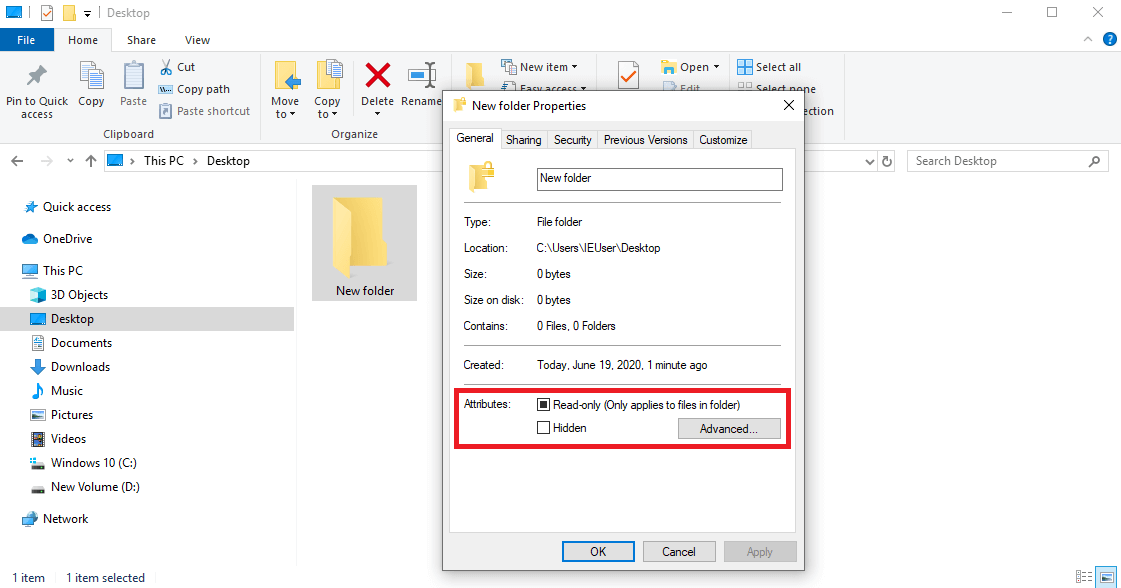
C:Program FilesandC:Program Files (x86). These are the primary directories for 64-bit and 32-bit applications, respectively. Look for folders with names that don’t correspond to software you recognize. Be cautious when deleting anything here directly, as it might be part of an essential system component. If you find a suspicious folder, check for an uninstaller executable within it (often nameduninstall.exeorunins000.exe). - ProgramData: This hidden folder (
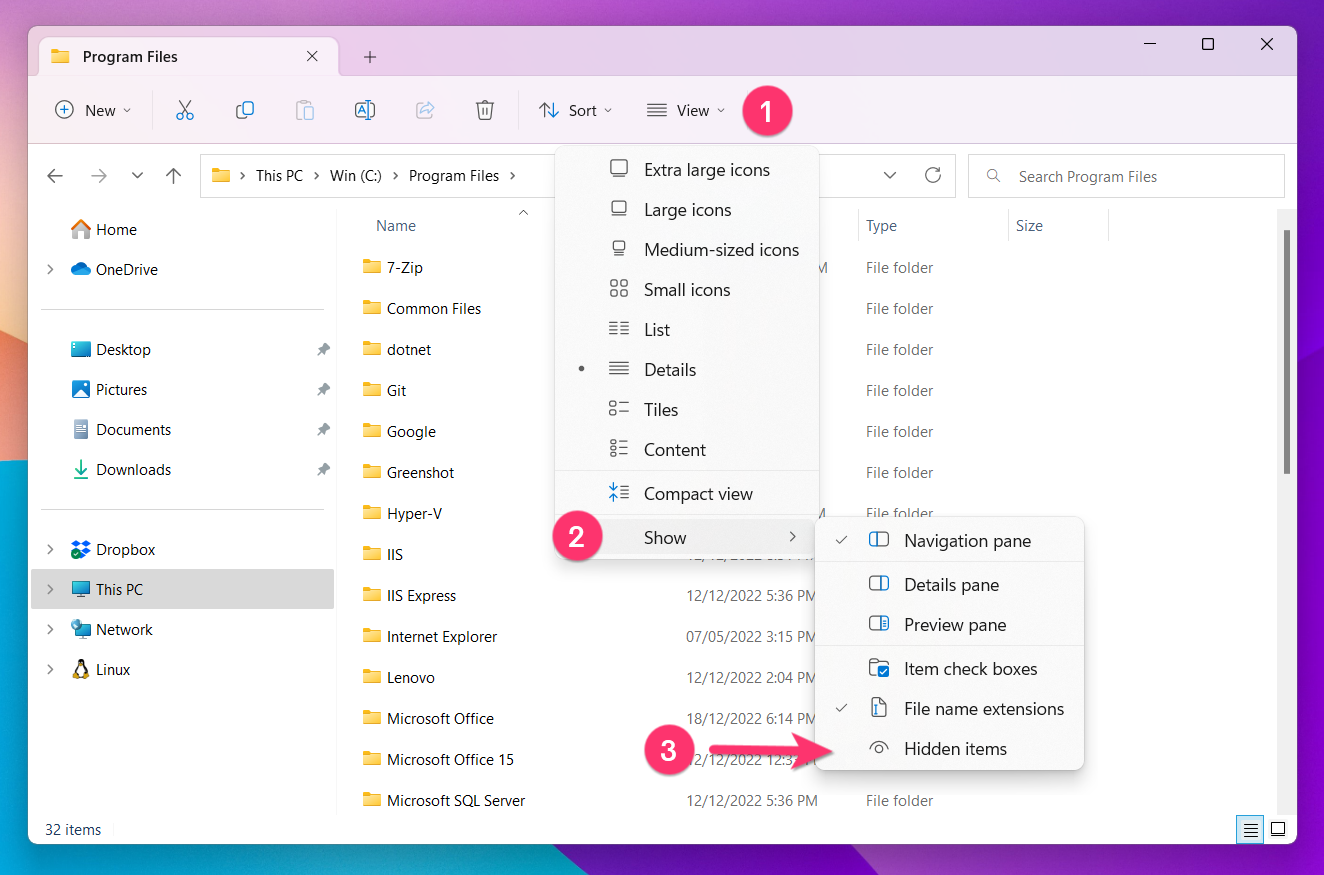
C:ProgramData) stores application data shared between users. Many legitimate programs store configuration files here, but malware can also leverage it for persistent storage. It’s often harder to identify specific “installations” here, but unusual or recently modified folders can be a red flag. - UsersYOUR_USERNAMEAppData (Local, Roaming, LocalLow): This directory is crucial.
AppDatais where applications store user-specific data, settings, and temporary files.Roaming: For data that should follow your profile across different computers.Local: For data specific to the current computer.LocalLow: For low-integrity applications (like Flash or Java).
Many smaller utilities, adware, and even some malware prefer to install themselves here because it doesn’t require administrative privileges, making them harder to detect by standard methods. Look for suspicious folders with unusual names or recent modification dates within these directories.
Deep Dive into System Processes: Task Manager and Services
The Task Manager and Services console offer real-time insights into what’s running on your system.
- Task Manager: Press
Ctrl + Shift + Escto open.- Processes Tab: This tab shows all currently running applications, background processes, and Windows processes. Sort by
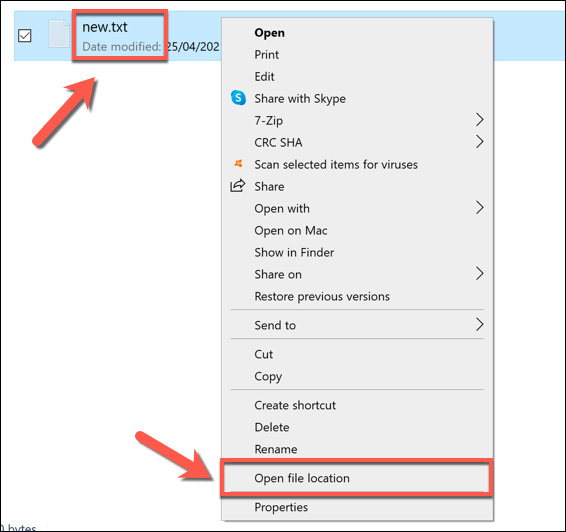
Name,CPU, orMemory. Look for processes with high resource usage that you can’t identify. Right-click suspicious processes and select “Open file location” to see where they are running from. If the location is unusual (e.g., a temporary folder or a deeply nested AppData folder), it’s a red flag. You can also right-click and select “Search online” for more information. - Startup Tab: This tab lists programs that launch automatically when Windows starts. High impact programs here can slow down boot times. Disable anything you don’t recognize or need.
- Services Tab: While less direct for “installations,” this shows background services. Right-click and choose “Open Services” for a more detailed view.
- Processes Tab: This tab shows all currently running applications, background processes, and Windows processes. Sort by
- Services Console (
services.msc): Typeservices.mscinto the Run dialog (Win + R) and press Enter. This console lists all services, including those installed by third-party applications. Look for services with strange names, no publisher information, or those set to “Automatic” startup that you don’t recognize. Be cautious, as disabling critical services can cause system instability. Research any suspicious service before taking action.
Unearthing Clues: Startup Programs, Scheduled Tasks, and Registry Entries
These locations are often exploited by hidden software to ensure persistence and automatic execution.
- System Configuration Utility (
msconfig): Typemsconfiginto the Run dialog.- Startup Tab (Windows 7/8.1 and earlier): Similar to Task Manager’s Startup tab, this lists programs that run at boot.
- Services Tab: Here, you can hide all Microsoft services to focus on third-party services. Untick any suspicious ones, but again, research before disabling.
- Task Scheduler (
taskschd.msc): Typetaskschd.mscinto the Run dialog. The Task Scheduler allows programs to run at specific times or in response to certain events. Malware and PUPs often create scheduled tasks to relaunch themselves, download updates, or perform malicious activities. Scrutinize the “Task Scheduler Library” for unfamiliar tasks, especially those set to run frequently or at system startup, often with obscure names or without clear descriptions. - Registry Editor (
regedit): This is for advanced users only, as incorrect modifications can cripple your system. Typeregeditinto the Run dialog.- Startup Locations: Many programs register themselves to run at startup in specific registry keys:
HKEY_CURRENT_USERSoftwareMicrosoftWindowsCurrentVersionRunHKEY_LOCAL_MACHINESoftwareMicrosoftWindowsCurrentVersionRunHKEY_LOCAL_MACHINESoftwareWOW6432NodeMicrosoftWindowsCurrentVersionRun(for 32-bit apps on 64-bit systems)
- Services Locations: Services are also registered in the registry, primarily under
HKEY_LOCAL_MACHINESYSTEMCurrentControlSetServices. - Look for unfamiliar entries pointing to executable files in suspicious locations. Always back up your registry before making changes.
- Startup Locations: Many programs register themselves to run at startup in specific registry keys:
Advanced Detection: Empowering Your Search with Third-Party Tools
While Windows’ built-in tools are powerful, they often require significant technical expertise and time. Third-party utilities are designed to automate and deepen the search for hidden installations, offering a more user-friendly and comprehensive approach, often with greater efficacy in detecting truly elusive software. These tools are indispensable for a thorough system audit and robust digital security.
Comprehensive Uninstallation: Dedicated Cleaners and Scanners
Specialized uninstaller software goes far beyond Windows’ native ‘Apps & Features’ by actively scanning for and removing leftover files, folders, and registry entries associated with uninstalled programs, effectively cleaning up digital “ghosts.”
- Revo Uninstaller (Free/Pro): This is one of the most highly recommended tools. When you uninstall a program with Revo, it first runs the program’s native uninstaller, then scans the system for residual files and registry entries, presenting them for review and removal. It also has a “Hunter Mode” that allows you to drag a target icon over any open window or system tray icon to reveal information about the program and offer uninstall options.
- IObit Uninstaller (Free/Pro): Similar to Revo, IObit Uninstaller excels at batch uninstallation and removing stubborn programs. It also monitors new installations to track all changes made to the system, making complete removal easier later. It includes features to remove browser toolbars and plugins, which are common hiding places for adware.
- Malwarebytes (Free/Premium): While primarily a malware scanner, Malwarebytes is incredibly effective at detecting and removing PUPs, adware, and other potentially unwanted software that might not be classified as outright malware by traditional antivirus programs. Its real-time protection in the premium version helps prevent these installations in the first place. Regular, full system scans are crucial.
- Windows Defender Full Scan: Don’t underestimate the capabilities of Microsoft’s built-in antivirus. A full scan with Windows Defender can often uncover malware and some PUPs that have managed to hide. Ensure it’s updated regularly.
Real-time Monitoring and Deep System Analysis: Sysinternals Suite and Process Explorers
For those who want to delve deeper into the system’s inner workings, Microsoft’s free Sysinternals Suite offers powerful utilities for advanced diagnostics, process monitoring, and auto-start program analysis.
- Process Explorer: A highly advanced alternative to Task Manager. It provides much more detail about running processes, including the full path to the executable, its parent process, loaded DLLs, and even a virustotal.com check for unknown processes. This level of detail is invaluable for identifying suspicious processes and their origins.
- Autoruns: This utility shows you every location where a program or driver might configure itself to launch automatically at system startup or login. This includes not just the common startup folders and registry keys but also scheduled tasks, services, browser helper objects, print monitors, Winsock providers, and much more. It’s an overwhelming but incredibly powerful tool for uncovering persistence mechanisms used by hidden software, including malware. You can disable or delete entries directly from Autoruns, but extreme caution is advised.
- Process Monitor: This tool provides real-time monitoring of file system, Registry, and process/thread activity. While not directly for finding “installations,” it can help troubleshoot and understand what a suspicious process is doing on your system, such as which files it’s accessing or which registry keys it’s modifying.
File System Analysis Tools
While less common for the average user, tools that analyze disk usage and file system integrity can sometimes point to unusual directories or excessive file collections that could indicate a hidden installation.
- WinDirStat / TreeSize Free: These tools visually represent disk space usage. While not directly designed for malware detection, a sudden large chunk of disk space taken up by an unknown folder (especially in AppData or ProgramData) could prompt further investigation.
Post-Detection Protocol: What to Do Next
Finding a hidden installation is only half the battle. The next crucial step is to identify its nature, remove it safely, and take measures to prevent future incursions. A structured approach minimizes risk and ensures your system’s long-term health.
Identifying and Verifying the Culprit
Once you’ve identified a suspicious file, process, or entry, take a moment to verify its nature before acting.
- Search Online: The most immediate step is to search the internet for the exact name of the file, process, service, or registry entry. Often, legitimate programs will have clear documentation, while known malware or PUPs will have warnings and removal guides posted by security researchers and users.
- Check File Properties: Right-click the suspicious executable and go to
Properties > DetailsorDigital Signatures. Look for a legitimate publisher name. Missing or generic publisher information can be a red flag. - VirusTotal: For suspicious files, upload them to VirusTotal.com. This free service scans files with dozens of different antivirus engines and provides community comments, offering a comprehensive assessment of whether a file is malicious.
The Art of Thorough Uninstallation and Remediation
Once verified as unwanted, proceed with removal. The method depends on the nature of the hidden installation.
- Use Dedicated Uninstaller Software (Recommended): For PUPs, adware, or stubborn legitimate software, tools like Revo Uninstaller or IObit Uninstaller are your best bet. They ensure a clean removal by eliminating leftover files and registry entries.
- Manual Uninstallation (Cautious): If you’ve identified a specific folder in Program Files or AppData belonging to an unwanted program, look for an
uninstall.exewithin that folder. If none exists, you might have to manually delete the folder (after ending any related processes in Task Manager) and then carefully remove associated registry entries found viaregeditor Autoruns. This carries higher risk and should only be done if you are confident in your actions and have backed up your system. - Malware Removal Tools: For confirmed malware, a thorough scan with an updated antivirus (like Windows Defender) and a specialized anti-malware tool (like Malwarebytes) is essential. These tools are designed to quarantine and remove malicious files that might be deeply embedded. You might need to boot into Safe Mode for more effective removal if the malware actively resists.
- System Restore: As a last resort, if your system becomes unstable or you suspect deep infection, consider using System Restore to revert your system to a previous point in time before the hidden installation occurred. Ensure you select a restore point you know was clean.
- Browser Cleanup: If the hidden installation was adware or a browser hijacker, reset your web browsers to their default settings and remove any unfamiliar extensions.
Proactive Measures: Preventing Future Infiltrations
Prevention is always better than cure. By adopting good digital hygiene habits, you can significantly reduce the risk of future hidden installations.
- Be Skeptical of Free Software: Many free applications are monetized by bundling PUPs. Always choose “Custom” or “Advanced” installation options and carefully uncheck any additional software offers. Read End User License Agreements (EULAs) cautiously, as they often disclose bundled software.
- Download from Trusted Sources: Whenever possible, download software directly from the official developer’s website. Avoid third-party download sites that often bundle installers with adware.
- Keep Your Software Updated: Regularly update your operating system, web browsers, and all installed applications. Software updates often include security patches that close vulnerabilities exploited by malware.
- Use a Reputable Antivirus and Anti-Malware Solution: Keep your security software updated and perform regular full system scans. Consider using a layered approach with both an antivirus and an anti-malware scanner.
- Use a Standard User Account: Whenever possible, operate Windows using a standard user account instead of an administrator account. This limits the ability of malicious software to make system-wide changes without your explicit permission.
- Enable Windows Firewall: Ensure your firewall is active. It helps block unauthorized access to and from your computer.
- Regular Backups: Implement a regular backup strategy for your important data. In the worst-case scenario of an intractable infection, a clean backup can be a lifesaver.
Uncovering hidden installations on Windows is a critical aspect of maintaining a secure, efficient, and private computing experience. It’s a process that demands diligence, a methodical approach, and a willingness to explore beyond the superficial layers of your operating system. By combining Windows’ built-in diagnostic tools with powerful third-party utilities and adopting proactive security habits, you can effectively safeguard your digital life against the stealthy threats that lurk beneath the surface. Stay vigilant, stay informed, and reclaim full control over your Windows environment.
aViewFromTheCave is a participant in the Amazon Services LLC Associates Program, an affiliate advertising program designed to provide a means for sites to earn advertising fees by advertising and linking to Amazon.com. Amazon, the Amazon logo, AmazonSupply, and the AmazonSupply logo are trademarks of Amazon.com, Inc. or its affiliates. As an Amazon Associate we earn affiliate commissions from qualifying purchases.