
In an increasingly data-driven world, understanding and manipulating percentages is an indispensable skill. From deciphering discount offers on e-commerce platforms to analyzing growth rates in business reports, percentages are the universal language for expressing proportional relationships. While the underlying mathematical concepts are straightforward, efficiently calculating them – especially in complex scenarios – often relies on a trusty technological companion: the calculator. Far from being a simple relic, the calculator, whether a physical device, a smartphone app, or a desktop utility, remains a foundational tool for digital fluency. This guide will demystify how to harness this everyday gadget to conquer any percentage calculation with precision and ease, ensuring you leverage its full technological potential.
The Universal Language of Percentages: A Digital Age Essential
The concept of a percentage, meaning “per hundred,” is a normalized way to represent a fraction or proportion out of a total of 100. Its simplicity makes it incredibly versatile, allowing for easy comparison and communication across diverse fields. In our modern, tech-saturated environment, the ability to quickly and accurately work with percentages isn’t just a niche skill for mathematicians or statisticians; it’s a critical component of everyday digital literacy.
Why Percentage Proficiency Matters in a Tech-Driven World
Consider the myriad ways percentages permeate our digital lives. Every online shopping spree involves percentage discounts, sales tax calculations, or perhaps even currency conversion fees. When engaging with digital media, social media analytics frequently present engagement rates or growth metrics as percentages. Navigating personal finance apps means regularly encountering interest rates, investment returns, or budget allocations expressed in percentage terms. Even in professional settings, from understanding project completion rates in agile software development to interpreting data analytics dashboards, percentages provide immediate context and enable swift, informed decision-making. The ubiquity of these figures necessitates not just an understanding of what they represent, but also the practical ability to compute them swiftly using the digital tools at our disposal.
The Calculator: Your Digital Companion for Percentage Prowess
At its core, a calculator is a specialized computer designed for arithmetic operations. While modern calculators, particularly those integrated into smartphones or operating systems, boast a stunning array of functions, their fundamental utility for percentage calculations remains paramount. They eliminate the tedium and potential for human error inherent in manual arithmetic, providing instant, precise results. Mastering the various inputs and functions of your calculator specifically for percentages transforms it from a mere number-crunching device into a powerful analytical instrument, enhancing your digital dexterity and empowering you to make sense of the quantitative information constantly bombarding us in the information age. Understanding how your specific calculator handles percentage inputs can significantly streamline tasks, from quick mental checks to complex financial modeling, firmly positioning this seemingly simple gadget as a vital piece of personal technology.
Mastering the Basics: Core Percentage Calculations
Before delving into advanced features, it’s crucial to solidify the foundational methods for calculating percentages on any digital calculator. These basic operations form the building blocks for more complex computations and are applicable across virtually all calculator types, from the most basic handheld device to sophisticated smartphone applications.
Finding a Percentage of a Number
This is perhaps the most common percentage calculation. For instance, if you want to find 20% of 150.
The principle is to convert the percentage into a decimal and then multiply. 20% is equivalent to 0.20 (20 divided by 100).
On a standard calculator:
-
Enter the number:
150 -
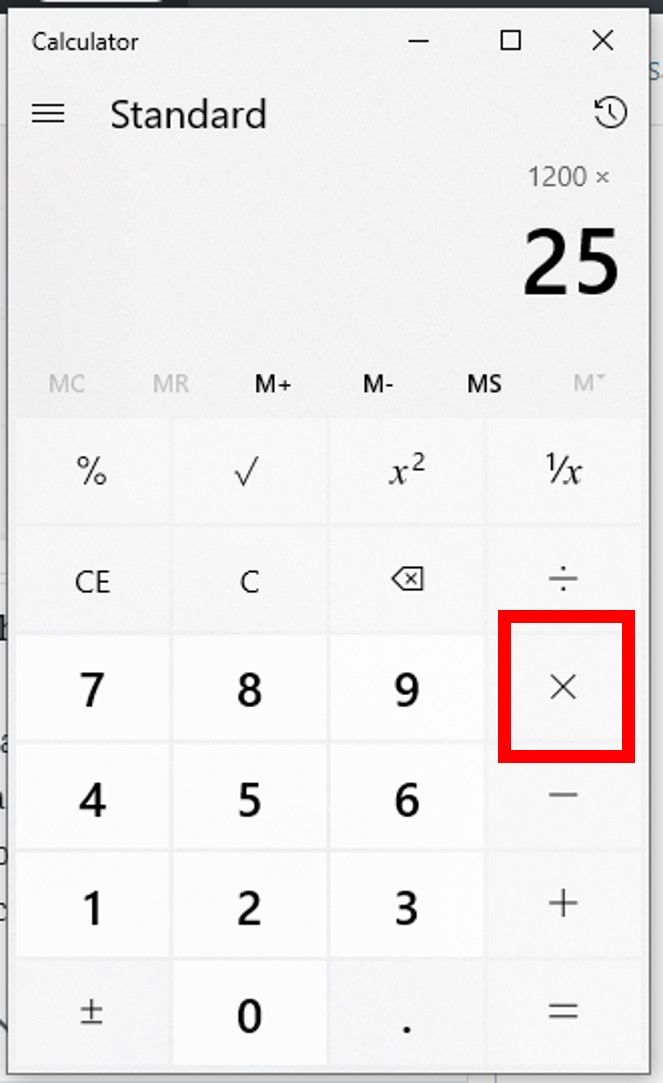
Press the multiplication button:
x -
Enter the percentage as a decimal:
0.20 -
Press the equals button:
=Result:
30
Some calculators have a dedicated % button that can simplify this.
Using the dedicated ‘%’ button (if available and behaves as an operator):
-
Enter the number:
150 -
Press the multiplication button:
x -
Enter the percentage:
20 -
Press the
%button:%Result:
30Note: The behavior of the ‘%’ button can vary significantly between calculator models. Some interpret
150 x 20 %as150 x 0.20, while others might first calculate20% of 150and then perform an operation, or even convert 20% to 0.20. Always test your specific calculator.
Calculating Percentage Increase or Decrease
These calculations are vital for tracking changes over time, such as price fluctuations, growth rates, or performance metrics.
To calculate a percentage increase (e.g., adding 15% to 200):
-
Find the percentage of the number first (15% of 200 = 30).
-
Add that amount to the original number (200 + 30 = 230).
On a standard calculator (method 1 – two steps):
-
200 x 0.15 = 30 -
200 + 30 = 230
On a standard calculator (method 2 – single step, applying a multiplier):
If you’re increasing a number by 15%, you’re essentially finding 115% of the original number (100% + 15%).
-
Enter the original number:
200 -
Press the multiplication button:
x -
Enter the multiplier:
1.15(which is 100% + 15% as a decimal) -
Press the equals button:
=Result:
230
To calculate a percentage decrease (e.g., deducting 25% from 300):
-
Find the percentage of the number first (25% of 300 = 75).
-
Subtract that amount from the original number (300 – 75 = 225).
On a standard calculator (method 1 – two steps):
-
300 x 0.25 = 75 -
300 - 75 = 225
On a standard calculator (method 2 – single step, applying a multiplier):
If you’re decreasing a number by 25%, you’re finding 75% of the original number (100% – 25%).
-
Enter the original number:
300 -
Press the multiplication button:
x -
Enter the multiplier:
0.75(which is 100% – 25% as a decimal) -
Press the equals button:
=Result:
225
Determining What Percentage One Number Is of Another
This calculation helps you understand proportions, such as what percentage of your budget was spent on a particular category, or a student’s score on a test.
Example: What percentage is 60 of 80?
The formula is (Part / Whole) x 100.
On a standard calculator:
-
Enter the “part”:
60 -
Press the division button:
/ -
Enter the “whole”:
80 -
Press the multiplication button:
x -
Enter
100 -
Press the equals button:
=Result:
75(meaning 75%)
Some calculators’ % button can also perform this when used after a division.
Using the dedicated ‘%’ button (if available and behaves as an operator for ratio):
-
Enter the “part”:
60 -
Press the division button:
/ -
Enter the “whole”:
80 -
Press the
%button:%Result:
75Again, always test your specific calculator’s ‘%’ button behavior.
Advanced Calculator Features for Percentage Wizards
Beyond basic arithmetic, modern calculators offer features that can significantly enhance efficiency when dealing with more complex percentage-based scenarios. Leveraging these integrated technological functions can save time and reduce errors in multi-step calculations.

Leveraging the Dedicated ‘%’ Button
As noted, the behavior of the ‘%’ button is the most idiosyncratic feature across various calculator models. On some basic calculators, it acts as a shortcut for division by 100. For example, 50 % might display 0.5. On others, particularly scientific or financial calculators, it often acts as an operator.
-
As a decimal converter:
[number] %=[number]/100. (e.g.,25 %=0.25) -
As an operator (for “percentage of”):
[number] x [percent] %=[number] x ([percent]/100). (e.g.,200 x 15 %=30) -
As an operator (for “add/subtract percent”):
[number] + [percent] %or[number] - [percent] %. (e.g.,200 + 15 %=230or300 - 25 %=225). This is where the ‘%’ button truly shines, as it performs the full increase/decrease calculation in one go.
Understanding your calculator’s specific interpretation of this button is paramount. A quick test with simple numbers will clarify its function, allowing you to use it effectively or opt for the manual decimal conversion method for consistent results.
Utilizing Memory Functions (M+, M-, MR/MC)
For complex calculations involving multiple percentages or intermediate results, memory functions (Memory Plus M+, Memory Minus M-, Memory Recall MR, Memory Clear MC) are invaluable technological assets.
Imagine calculating a total cost that includes a base price, a discount percentage, sales tax percentage on the discounted price, and a service charge percentage.
-
Calculate the discounted price:
Original Price - (Original Price x Discount %) -
Store this in memory:
M+ -
Calculate the sales tax:
(Value in Memory) x Sales Tax % -
Add this to the value in memory:
M+(orMR + [tax amount] = M+) -
Calculate the service charge:
(Original Price or Discounted Price, depending on policy) x Service Charge % -
Add this to memory:
M+ -
Recall total:
MR
By storing intermediate results, you avoid re-entering numbers or writing them down, streamlining the workflow and minimizing transcription errors, a common pitfall in multi-step computations.
The Power of Parentheses and Order of Operations
Scientific and advanced calculators, including most smartphone and computer calculator apps, allow for the use of parentheses () to define the order of operations. This is crucial when combining percentage calculations with other arithmetic, ensuring that operations are performed in the correct sequence (PEMDAS/BODMAS: Parentheses/Brackets, Exponents/Orders, Multiplication and Division, Addition and Subtraction).
For example, if you need to calculate (Original Price - 20%) + 5% Tax where the tax is applied after the discount:
((Original Price) x 0.80) x 1.05
Or, if your calculator’s % button supports it:
Original Price - 20 % + 5 % (if the calculator interprets the + 5 % as adding 5% of the current result).
Using parentheses explicitly removes ambiguity and ensures the calculation follows the intended logical flow, especially vital for accurate financial or engineering applications.
Navigating Different Calculator Types: A Tech User’s Guide
While the core principles of percentage calculation remain consistent, the user experience and specific button presses can vary significantly depending on the type of calculator you’re using. Understanding these nuances is key to maximizing efficiency with your preferred tech tool.
Standard and Basic Calculators: Simplicity in Action
These are the simplest devices, often found as physical units on desks or as the default app on older phones. They typically handle direct sequential operations. For percentage calculations, they generally require you to convert percentages to decimals manually (e.g., 25% becomes 0.25). Their % button, if present, is often the most varied in its function. For clarity and consistency, it’s often best to stick to the (number / 100) method for percentages on these tools, and then perform multiplication or addition/subtraction. Their strength lies in their straightforward nature, making them perfect for quick, uncomplicated tasks where precision is less about advanced features and more about careful input.
Scientific Calculators: Unlocking Enhanced Capabilities
Designed for more complex mathematical and scientific computations, scientific calculators (both physical and app-based) offer a richer feature set. They typically have a clearer understanding of the order of operations, often through implicit rules or explicit parentheses. Their % button usually acts as a true operator, meaning 100 x 20 % will correctly yield 20. They also often include memory functions (M+, M-, MR, MC) and sometimes dedicated statistical functions that can be tangentially useful for percentage-based data analysis. While their advanced layout might initially seem daunting, mastering their use for percentages allows for more complex, multi-step calculations to be performed seamlessly without intermediate manual steps.
Smartphone and Computer Calculators: Apps and Software Integration
The calculators integrated into modern smartphones (iOS Calculator, Android Calculator) and desktop operating systems (Windows Calculator, macOS Calculator) are powerful applications combining ease of use with advanced features.
-
Smartphone Calculators: Often start in a basic mode and switch to a scientific mode (e.g., by rotating the phone horizontally). They typically handle order of operations well and offer a
%button whose behavior is generally consistent with an operator. Their touch interfaces make input fast, and the ability to copy/paste results into other apps is a significant productivity boost. -
Computer Calculators: These are robust software tools that often feature different modes (Standard, Scientific, Programmer, Date Calculation). The Windows Calculator, for instance, has a “Standard” mode that behaves much like a basic physical calculator and a “Scientific” mode with advanced functions. macOS Calculator offers similar versatility. The advantage here is the keyboard input, which can be faster for many users, and the visual display of the calculation history.
Online Calculators and Specialized Tools
Beyond built-in apps, a vast ecosystem of online calculators and specialized web applications exists. These range from simple percentage calculators to highly specific tools for financial modeling, tax calculations, or statistical analysis. Websites like Google’s built-in calculator (just type your calculation into the search bar) or dedicated online percentage calculators offer immediate, context-specific results without needing to install software. While not a “calculator” in the traditional sense, they represent a significant tech solution for percentage figuring, often providing user-friendly interfaces and clear explanations. These are particularly useful when you need to perform very specific types of percentage calculations (e.g., tip calculators, loan interest calculators) and benefit from their tailored interfaces.
Troubleshooting Common Percentage Calculator Errors
Even with sophisticated digital tools, errors can occur. Most stem not from the calculator’s malfunction, but from user input or a misunderstanding of how the calculator processes commands. Being aware of these common pitfalls can help you avoid them.
Understanding Operator Precedence
This is the most frequent source of error. As discussed with parentheses, calculators follow an implicit (or explicit) order of operations. If you intend to add 10% to a subtotal after applying a 20% discount to an initial price, entering Initial Price - 20 % + 10 % might not yield the expected result on some basic calculators. They might calculate (Initial Price - 20% of Initial Price) + (10% of (Initial Price - 20% of Initial Price)), while others might misinterpret it. The solution is always to break down complex calculations into smaller steps, use memory functions, or utilize parentheses on scientific/app calculators to force the desired order.
Misuse of the ‘%’ Button
As previously emphasized, the % button is the calculator’s wild card. Accidentally pressing it at the wrong time or assuming it behaves universally can lead to incorrect results. For example, if you want to find 20% of 100 and you type 100 % x 20, you might get 0.20 on a calculator where % acts as /100. The best practice is to test your specific calculator’s % behavior or, for guaranteed accuracy, always convert percentages to decimals manually by dividing by 100 (20% becomes 0.20).
Double-Checking Inputs and Outputs
The human element remains critical. Even the most advanced calculator is only as accurate as the data fed into it. A common error is simply miskeying a number. For lengthy inputs, taking a moment to visually confirm the numbers on the display before pressing an operator or equals sign can save significant recalculation time. Similarly, after obtaining a result, perform a quick mental check or approximation to see if the answer is reasonable. Does a 10% discount on a $500 item result in a total around $450? If the calculator displays $490, something went wrong. This quick verification step serves as a crucial final quality check for any technological computation.
Empowering Your Digital Dexterity with Percentages
The ability to fluidly figure out percentages on a calculator is more than just a mathematical skill; it’s a fundamental aspect of digital dexterity in the 21st century. As our lives become increasingly intertwined with technology, from smart devices managing our homes to complex algorithms shaping our online experiences, the underlying quantitative data often speaks in percentages. Mastering the calculator, in all its forms, for these common yet crucial computations empowers you to navigate this data-rich landscape with confidence and precision.
Whether you’re a student tackling coursework, a professional analyzing data, or simply an individual making informed purchasing decisions, your calculator is an indispensable tech tool. By understanding its basic and advanced features, recognizing the nuances between different types, and knowing how to troubleshoot common errors, you transform a simple gadget into a powerful ally. Embrace this technological companion, and unlock a clearer, more insightful understanding of the proportional world around you.
aViewFromTheCave is a participant in the Amazon Services LLC Associates Program, an affiliate advertising program designed to provide a means for sites to earn advertising fees by advertising and linking to Amazon.com. Amazon, the Amazon logo, AmazonSupply, and the AmazonSupply logo are trademarks of Amazon.com, Inc. or its affiliates. As an Amazon Associate we earn affiliate commissions from qualifying purchases.