
In an increasingly connected world, the ability to disconnect without losing access to your favorite entertainment has become an invaluable feature. Amazon Prime Video, a titan in the streaming industry, understands this need implicitly, offering users the robust capability to download content for offline viewing. This functionality transcends mere convenience; it’s a strategic offering that empowers users to consume media on their terms, free from the shackles of internet connectivity. Whether you’re a frequent flyer, a daily commuter, or simply someone looking to save on mobile data, mastering the art of downloading Prime Video content is a crucial digital skill. This guide will meticulously walk you through the process, elucidate the underlying tech considerations, and help you optimize your offline viewing experience.
The Imperative of Offline Entertainment: Why Download Prime Video?
The digital landscape is rife with opportunities for entertainment, yet it often presents its own set of challenges, particularly concerning connectivity. The option to download content directly addresses these pain points, transforming how and where we engage with our media libraries. Understanding the “why” behind this feature not only justifies its existence but also highlights its strategic importance in modern digital consumption.
Uninterrupted Viewing on the Go
Imagine being mid-flight, deep in a subway tunnel, or simply in an area with notoriously spotty Wi-Fi. These scenarios, once frustrating impediments to entertainment, become non-issues with downloaded content. For the globetrotter, downloading ensures that long journeys are punctuated by engaging narratives, documentary insights, or comedic relief. For the urban commuter, a daily dose of a series or movie can transform mundane travel into productive, enjoyable leisure time. The technical advantage here is clear: stored content bypasses the inherent unreliability of public Wi-Fi or cellular networks, guaranteeing a smooth, buffer-free playback experience from start to finish. This liberation from real-time data streams is a cornerstone of Prime Video’s commitment to user-centric design.
Conserving Mobile Data and Bandwidth
Streaming high-definition video consumes significant amounts of data. For users on limited mobile data plans, this can quickly lead to costly overages or throttled speeds. Downloading content while connected to a stable, unlimited Wi-Fi network presents an intelligent workaround. By front-loading your entertainment consumption, you bypass the need to stream over cellular data entirely when you’re out and about. This not only results in substantial savings on your data plan but also frees up bandwidth for other essential online activities when Wi-Fi is scarce. From a technological standpoint, this strategy effectively shifts the data burden from on-the-go streaming to planned, pre-emptive downloads, optimizing resource allocation and reducing network congestion during peak mobile usage times.
Accessing Content Beyond Connectivity Limits
Beyond personal data savings, there are numerous locations where internet access is either nonexistent, prohibitively expensive, or severely restricted. Remote cabins, international travel destinations with costly roaming charges, or even certain workplaces can become entertainment black holes without offline capabilities. Prime Video’s download feature transforms your device into a portable, self-contained media hub, allowing you to carry a curated selection of movies and TV shows wherever you go, regardless of local network infrastructure. This expands the practical utility of your Prime Video subscription, ensuring that your investment in entertainment remains accessible and enjoyable in virtually any environment, thus pushing the boundaries of what is traditionally understood as “streaming.”
Navigating the Download Process: A Step-by-Step Guide Across Devices
The process of downloading Prime Video content is designed to be intuitive, yet there are nuances depending on the device you’re using. Understanding these platform-specific steps is key to a seamless experience.
Downloading on Mobile Devices (iOS and Android)
Mobile devices are arguably the primary beneficiaries of offline viewing, offering unparalleled portability. The Prime Video app for iOS and Android is robust and user-friendly, making downloads a straightforward affair.
Installation and Login
First, ensure you have the official Amazon Prime Video app installed on your smartphone or tablet. You can find it on the Apple App Store for iOS devices or the Google Play Store for Android devices. Once installed, launch the app and log in with your Amazon account credentials. Make sure your account has an active Prime subscription or that you’ve purchased/rented the content you wish to download. The app’s initial setup is critical for authenticating your access rights to the content library.
Discovering Downloadable Content
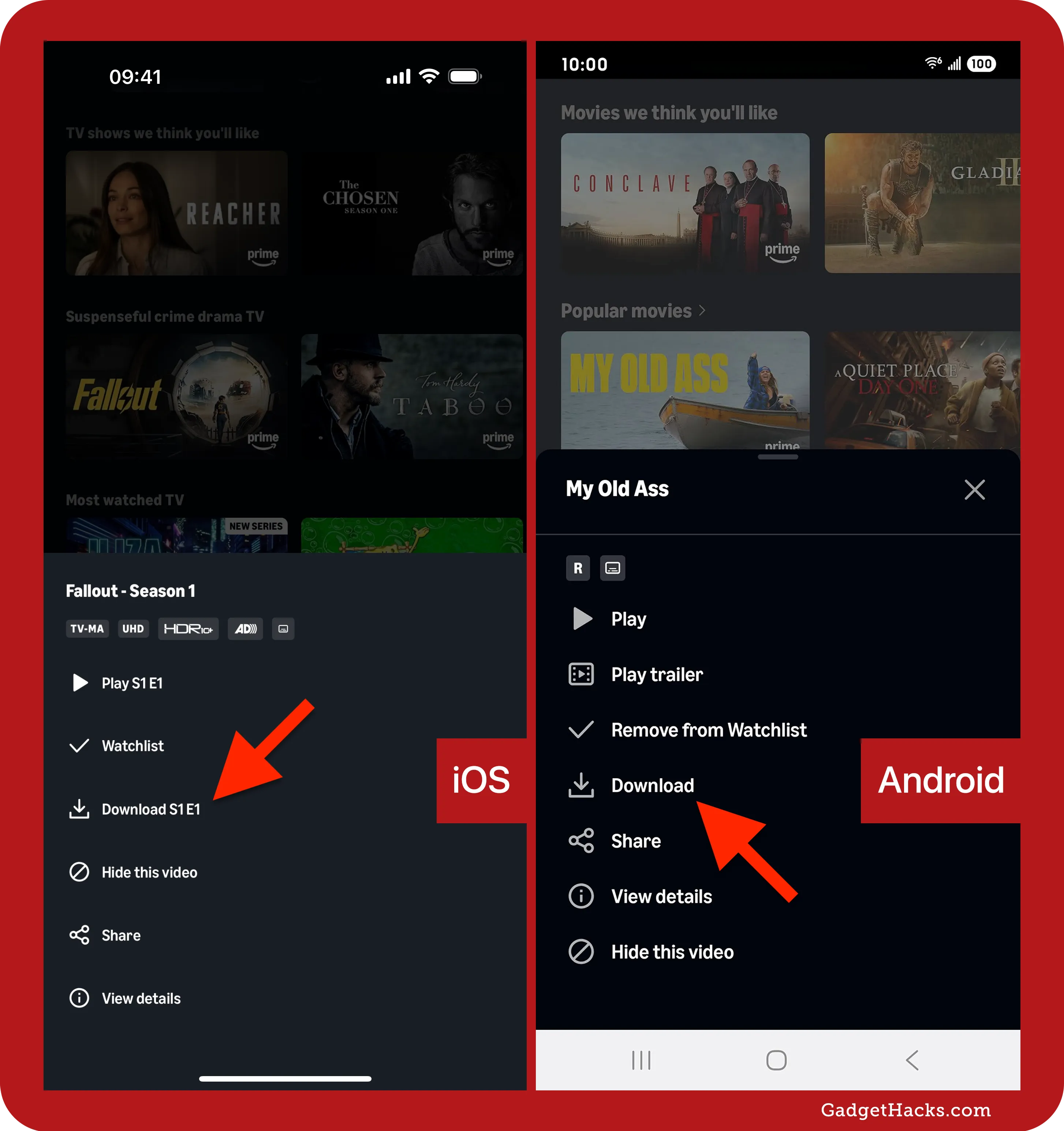
Not all content on Prime Video is available for download due to licensing restrictions. To find content that can be downloaded, look for the download icon (often a down arrow with a line underneath) next to the title or episode. Many titles included with your Prime subscription are downloadable, as are most movies and TV shows available for purchase or rent. The app typically makes it easy to identify these options directly from the content’s detail page, providing clear visual cues for accessibility.
Initiating and Managing Downloads
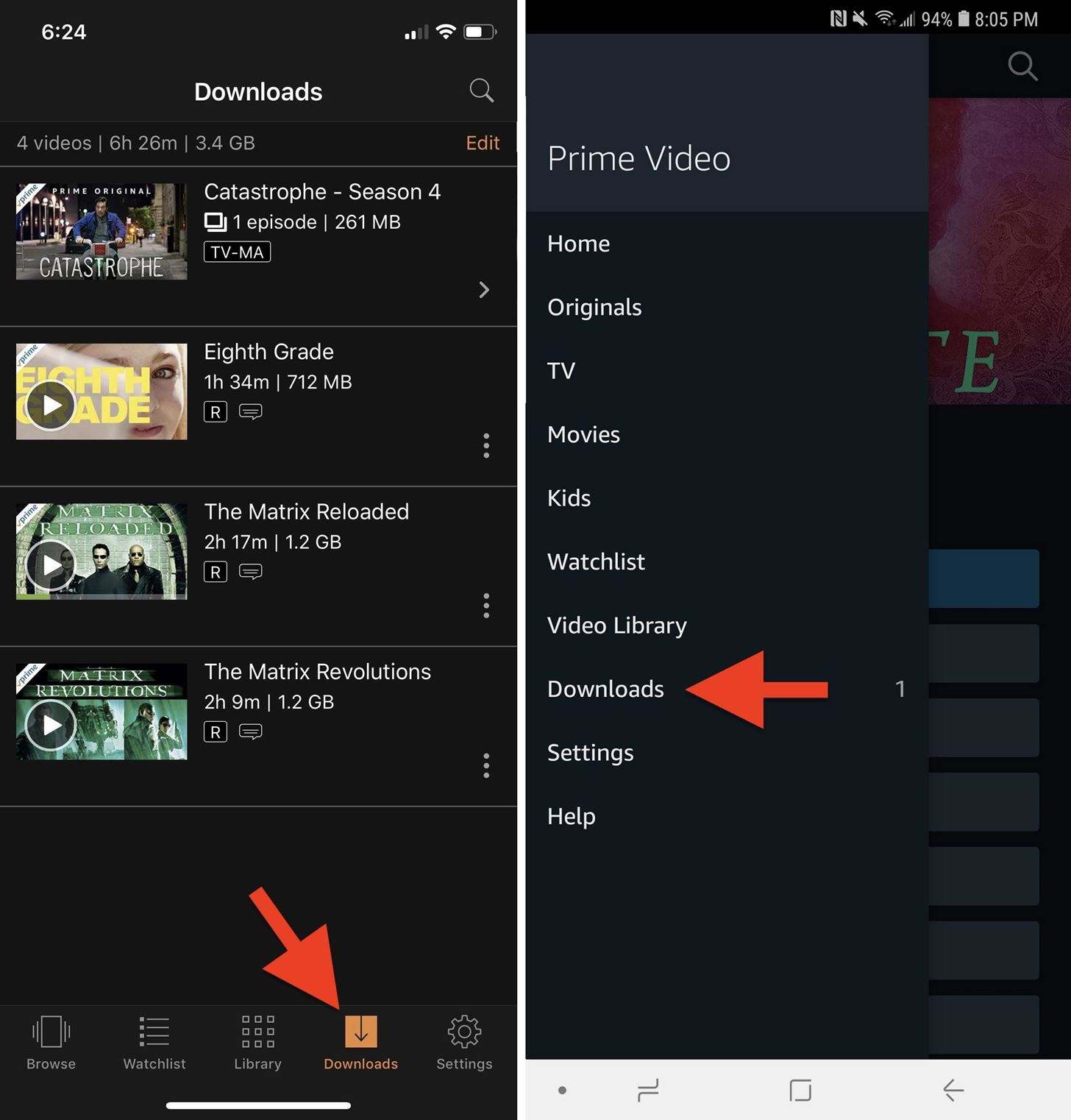
Once you’ve found a title or episode you want to download, navigate to its detail page. You’ll typically see a ‘Download’ button or icon. For TV series, you might have the option to download individual episodes or an entire season (if available). Tapping the download button will initiate the process. You can monitor the progress of your downloads by navigating to the “Downloads” section within the app (usually found in the main menu). From here, you can pause, resume, or cancel downloads, providing granular control over your queue. This management interface is crucial for users with limited storage or specific priorities for offline viewing.
Customizing Download Quality and Storage
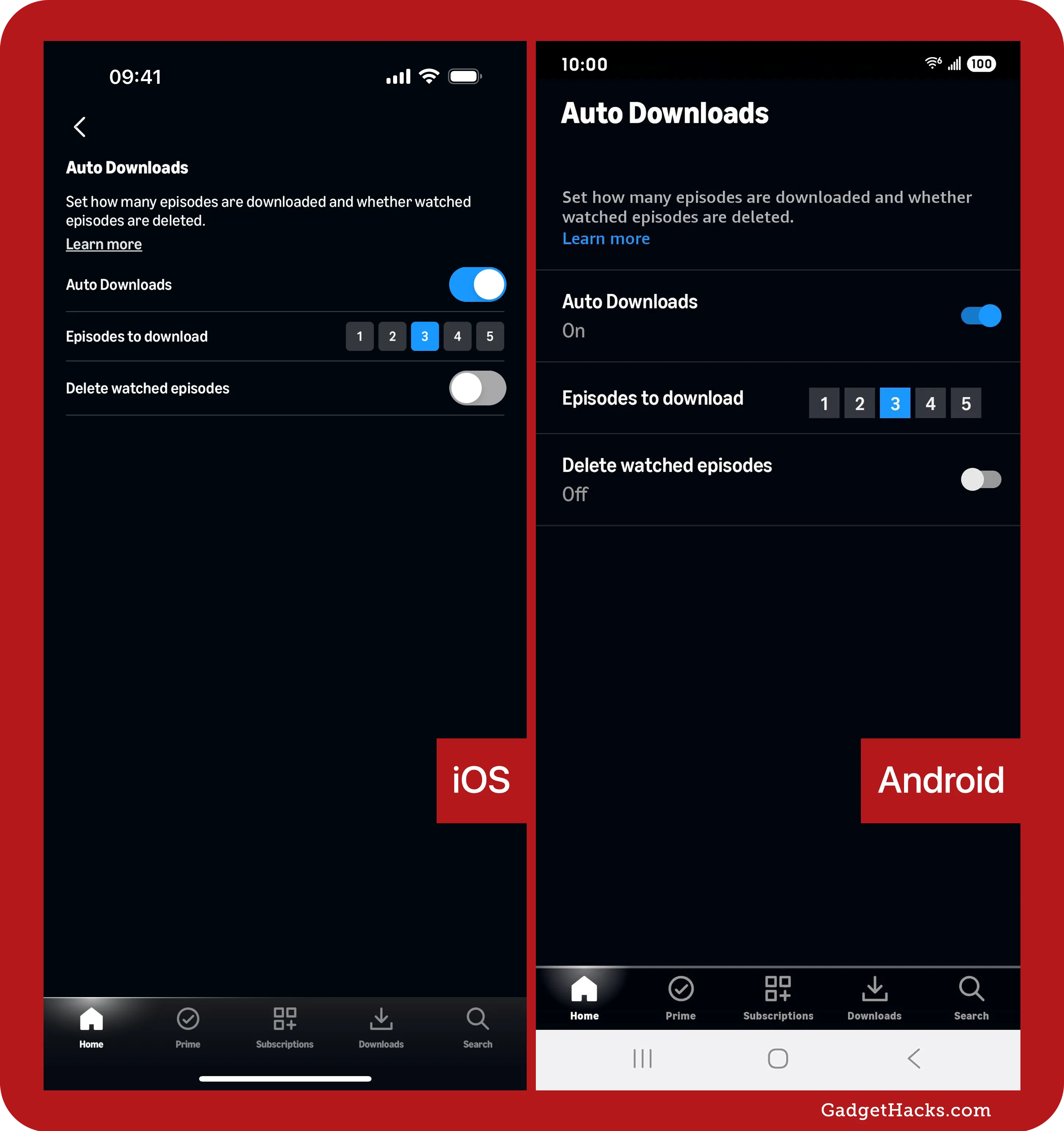
Before initiating a download, or via the app’s settings, you can often select the download quality (e.g., Good, Better, Best). Higher quality downloads will consume more storage space but offer a superior visual experience. It’s also possible to specify whether downloads should only occur over Wi-Fi to prevent accidental mobile data usage. On some Android devices, you might even have the option to store downloads on an external SD card, which is a significant advantage for users with limited internal storage. These customization options allow users to balance file size, video fidelity, and storage availability according to their specific needs and device capabilities.
Downloading on Desktop and Laptops (Windows and macOS Apps)
While often overlooked in favor of mobile, desktop and laptop users also benefit from the Prime Video app, which offers robust download capabilities for offline viewing on larger screens.
Acquiring and Setting Up the Prime Video App
For Windows users, the Prime Video app can be downloaded from the Microsoft Store. macOS users can find the Prime Video app on the Mac App Store. Install the app, then sign in with your Amazon Prime account. The desktop apps are designed to mirror much of the functionality of their mobile counterparts, providing a consistent user experience across different form factors. The initial setup is straightforward, ensuring that your computer is properly authenticated to access your Prime Video library.
Seamless Content Discovery and Download
Just like on mobile, browse the Prime Video library within the desktop app. Look for the familiar download icon next to movies or individual episodes of TV shows. Clicking this icon will prompt the download. The desktop app provides a dedicated “Downloads” section where you can view your downloaded content, track ongoing downloads, and manage your offline library. The process is remarkably similar to mobile, ensuring ease of use regardless of your preferred platform. The larger screen real estate on desktops can sometimes make content discovery even more efficient.
Understanding Download Locations and Offline Playback
Downloaded content on desktop apps is typically stored in a protected folder specific to the Prime Video application. This ensures content security and prevents unauthorized distribution. While you can’t manually move these files, the app seamlessly handles playback from this internal storage. To watch downloaded content, simply open the Prime Video app and navigate to your “Downloads” section. Select the title you wish to watch, and it will play without requiring an internet connection. This encapsulated system simplifies the user experience by abstracting away the underlying file management complexities.
Optimizing Your Download Experience: Tips and Best Practices
To truly maximize the utility of Prime Video’s download feature, it’s essential to adopt certain best practices and understand the technical nuances that govern the process.
Smart Storage Management for Your Device
Downloaded video files can be substantial, especially in higher resolutions. Regularly review your “Downloads” section in the Prime Video app and delete content you’ve already watched or no longer need. This frees up valuable storage space on your device, preventing it from becoming sluggish or running out of room for other applications and files. Consider the trade-off between download quality and file size; if storage is a consistent concern, opt for “Good” or “Better” quality instead of “Best.” For Android users, leveraging an SD card for storage, if available, can significantly alleviate internal storage pressure. Proactive storage management is a cornerstone of a smooth offline viewing experience.
Understanding Download Limits and Expiry Dates
Amazon Prime Video implements certain technical limitations on downloads. There’s often a limit to the total number of titles you can download across all your registered devices simultaneously (e.g., 15 or 25 titles). Furthermore, downloaded content typically has an expiry date. Once you start watching a downloaded title, you usually have a limited window (e.g., 48 hours) to finish it before it expires. If a title is removed from Prime Video’s library or your Prime subscription lapses, downloaded content associated with it may also become inaccessible. Be mindful of these restrictions, especially for longer trips or when planning extended periods without internet access. Periodically “refreshing” your downloads by connecting to the internet can sometimes extend their availability.
Maximizing Download Speed and Efficiency
To ensure the fastest download speeds, always connect to the most stable and fastest Wi-Fi network available. Avoid downloading large files over public, unsecured Wi-Fi hotspots if possible, not just for speed but also for security reasons. If your internet connection is slow, consider scheduling downloads during off-peak hours when network congestion is lower. Ensure your device is connected to power during large downloads to prevent battery drain. Closing other bandwidth-intensive applications on your device can also help dedicate more resources to the Prime Video download process, improving overall efficiency and reducing the time spent waiting for your content to be ready.
Troubleshooting Common Download Challenges
Even with a robust system, technological processes can sometimes hit snags. Knowing how to troubleshoot common download issues can save time and frustration.
Resolving Connectivity Issues
The most frequent culprit for failed downloads is a poor or intermittent internet connection. Ensure your Wi-Fi is strong and stable. Try restarting your router and modem. If you’re on mobile data (and have allowed downloads over it), check your signal strength. Occasionally, simply toggling Wi-Fi off and on, or switching to airplane mode and back, can reset network connections and resolve minor glitches. The Prime Video app will usually provide an error message indicating a network problem, guiding your troubleshooting efforts.
Addressing Storage Constraints
If a download fails with a message about insufficient space, you’ll need to free up storage on your device. As mentioned, delete old downloads from Prime Video, remove other unused apps, photos, or videos. For Android users, consider migrating data to an SD card if your device supports it. Clearing the cache of other apps can also sometimes free up a small amount of space. This is a common technical limitation that requires direct user intervention to manage physical device resources.
Tackling Content Availability Restrictions
Sometimes, a title you expect to download might not have the download option. This is almost always due to licensing restrictions. Not all content owners grant Amazon the rights to offer their titles for offline viewing. Also, if a title is only available for rent or purchase, and you haven’t completed the transaction, the download option may be grayed out. Ensure your Prime subscription is active, and if it’s a rental/purchase, verify that the transaction was successful and that the content is still within its viewing window. These are contractual and rights-based limitations, not technical failures of the app itself.
The Future of Offline Viewing: Prime Video’s Evolving Role
The ability to download Prime Video content is more than just a feature; it’s a testament to the platform’s understanding of contemporary consumer habits and technological advancements. As devices become more powerful, storage capacities grow, and global connectivity remains uneven, the importance of robust offline capabilities will only intensify. Prime Video continues to refine its app, integrating new technologies to enhance download speeds, optimize file sizes, and improve overall user management of offline content. This ongoing evolution underscores a broader industry trend: the future of digital entertainment is not solely about streaming in real-time but also about empowering users with flexible, resilient access to their media libraries, regardless of the digital infrastructure immediately available to them. Mastering these download functionalities ensures you are well-equipped to navigate this evolving technological landscape, making your entertainment truly yours, anytime, anywhere.
aViewFromTheCave is a participant in the Amazon Services LLC Associates Program, an affiliate advertising program designed to provide a means for sites to earn advertising fees by advertising and linking to Amazon.com. Amazon, the Amazon logo, AmazonSupply, and the AmazonSupply logo are trademarks of Amazon.com, Inc. or its affiliates. As an Amazon Associate we earn affiliate commissions from qualifying purchases.