
In the world of PC gaming and professional rendering, the common mantra is to always keep your drivers updated. Manufacturers like NVIDIA frequently release “Game Ready” drivers to provide day-one optimizations for the latest titles and “Studio Drivers” to enhance creative workflows. However, the latest version is not always the best version for every user. Whether it is a regression in performance, a specific bug that crashes a legacy application, or a conflict with a Windows update, there are numerous scenarios where downloading an older NVIDIA driver becomes a necessity.

Finding these older versions can be slightly more complex than clicking the “Update” button in GeForce Experience. This guide provides a comprehensive look at how to locate, download, and properly install legacy NVIDIA drivers while ensuring your system remains stable and secure.
Why Reverting to an Older Driver is Sometimes Necessary
While software updates generally aim to improve performance and security, the sheer diversity of hardware configurations in the PC ecosystem makes it impossible for developers to account for every variable. There are several professional and technical reasons why a user might opt for an older driver over the latest release.
Addressing Performance Regressions and Bugs
One of the most common reasons for a driver rollback is the introduction of “regression” bugs. A driver that works perfectly for a flagship RTX 40-series card might inadvertently introduce stuttering, “blue screens of death” (BSOD), or flickering on an older GTX 10-series or 20-series card. If you notice a sudden drop in frame rates or system instability immediately after an update, the driver is the likely culprit.
Compatibility with Legacy Software and Hardware
Professional users working with specialized CAD software, 3D modeling suites, or older versions of the Adobe Creative Cloud often find that specific software versions are certified only for certain driver branches. Furthermore, users with legacy hardware that has reached “End of Life” (EOL) status may find that the latest generic drivers no longer support their specific architecture, requiring them to hunt for the final stable release intended for their GPU.
Specific Optimization for Professional Workflows
For those in the AI and data science fields, driver versions are often tied to specific versions of the CUDA toolkit. Upgrading a driver without upgrading the accompanying library can break local AI training environments or rendering pipelines. In these instances, maintaining a specific older driver version is a matter of workflow continuity rather than a technical error.
Navigating the NVIDIA Advanced Driver Search
The standard NVIDIA download page is designed to point users to the most recent WHQL-certified (Windows Hardware Quality Labs) driver. To access the archives, you must use the Advanced Driver Search portal. This is the safest and most official way to source older software.
Step-by-Step Selection Process
To begin, navigate to the NVIDIA “Advanced Driver Search” page. Unlike the standard landing page, this interface allows you to filter by specific versions and types that are not advertised to the general public.
-
Product Type and Series: Accurately select your GPU category (e.g., GeForce, Quadro, or Titan) and the specific series. It is vital to distinguish between desktop and notebook (Laptop) versions, as the mobile architectures often require specific thermal management profiles included in their respective drivers.
-
Operating System: Ensure you select the exact version of Windows you are running. A common mistake is downloading a Windows 10 driver for a Windows 11 system; while they are often compatible, the DCH (Declarative Componentized Hardware) drivers for Windows 11 have specific requirements for the Microsoft Store.
-
Download Type: You will likely see options for “Game Ready Driver (GRD)” and “Studio Driver (SD).” If your primary goal is stability for creative work or video editing, choose the Studio Driver. If you are troubleshooting a specific game issue, stick with the Game Ready version.
-
Recommended/Beta: Set this filter to “Recommended/Certified” to ensure you are viewing stable releases. Only select “Beta” if you are looking for a specific experimental fix that was never fully rolled out to the general public.
Understanding DCH vs. Standard Drivers
In the archives, you may encounter the distinction between “Standard” and “DCH” drivers. Standard drivers are the traditional packages that include the NVIDIA Control Panel as a local executable. DCH drivers are the modern standard for Windows 10 and 11, where the Control Panel is a separate app delivered through the Microsoft Store. When downloading an older driver, it is generally best to match the type currently installed on your system to avoid registry conflicts.
Preparing Your System: The Importance of a Clean Uninstall
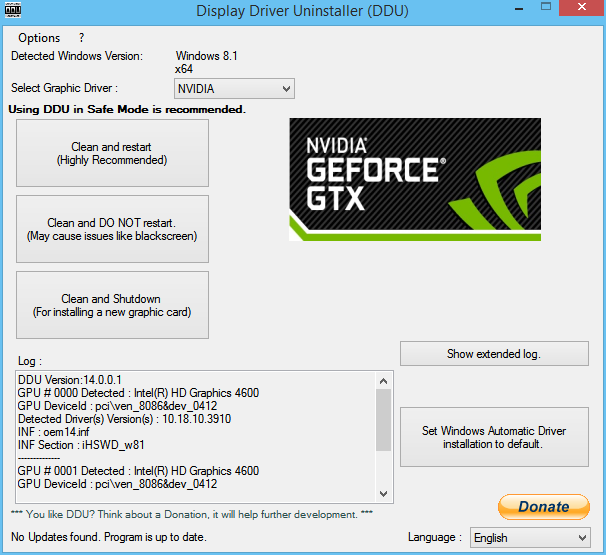
Simply running an older installer over a newer driver can lead to “DLL hell,” where mismatched driver components reside in the same system folders. This often results in persistent crashes or the “NVIDIA Installer Failed” error. To successfully downgrade, a clean uninstallation is mandatory.
The Role of Display Driver Uninstaller (DDU)
The most effective tool for this process is a third-party utility called Display Driver Uninstaller (DDU). This program scans your registry and system folders to remove every trace of previous driver installations, including hidden files that the official uninstaller often misses.
-
Download DDU and the Driver: Before starting the uninstallation, have your older NVIDIA driver file ready on your desktop and download DDU from a reputable source.
-
Enter Safe Mode: For DDU to work effectively, you must boot Windows into Safe Mode. This prevents the OS from loading the active GPU driver, allowing the utility to delete files that would otherwise be “in use.”
-
Run the Cleanup: Within DDU, select “GPU” as the device type and “NVIDIA” as the manufacturer. Choose the “Clean and restart” option. This will strip the system of all NVIDIA software and return your display to the basic Microsoft Basic Display Adapter mode.
Preventing Windows Auto-Update
A common frustration when installing older drivers is that Windows Update may see the lack of a modern driver and automatically download the latest version from the Microsoft servers, overwriting your work. To prevent this, it is recommended to disconnect your internet or use a group policy setting to “Exclude drivers from Windows Quality Updates” before you begin the installation of the older driver.
Installing the Legacy Driver and Verifying Stability
Once the system has been cleaned and restarted, you can proceed with the installation of the specific version you downloaded.
The Installation Walkthrough
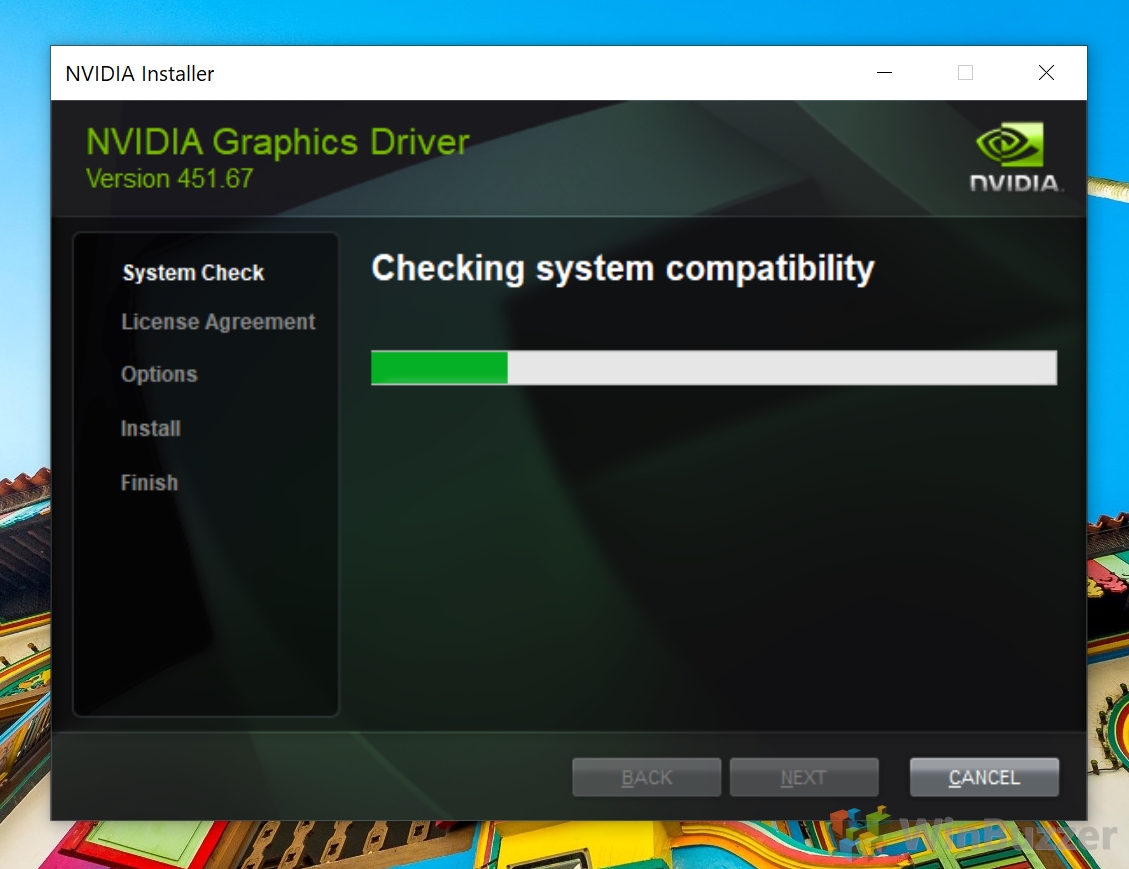
When you launch the NVIDIA installer, choose the “Custom (Advanced)” installation option rather than “Express.” This allows you to uncheck components you may not need, such as the GeForce Experience overlay or the NVIDIA Telemetry containers, which can sometimes be the source of background micro-stuttering.
Crucially, check the box that says “Perform a clean installation.” While you have already used DDU, this provides an extra layer of insurance by resetting the NVIDIA-specific profile settings to their factory defaults.
Verification and Monitoring
After the installation is complete and the system has rebooted, verify the version number in the NVIDIA Control Panel under “System Information.” It is then essential to monitor the system using tools like MSI Afterburner or HWInfo64. Check for:
-
Clock Speed Stability: Ensure the GPU is boosting to its intended frequencies.
-
Temperature Profiles: Sometimes older drivers have different fan curve logic; verify that your card is not overheating.
-
Frame Time Consistency: Use a benchmarking tool to ensure the “1% lows” have improved compared to the problematic newer driver.
Security Considerations and Third-Party Repositories
While the NVIDIA Advanced Search is the primary source, some extremely old drivers for legacy hardware (such as the GeForce 8 or 9 series) may no longer be hosted on the official site. In these cases, users often turn to third-party repositories like Guru3D or TechPowerUp.
Staying Secure
When downloading drivers from non-official sources, always verify the MD5 or SHA-256 checksum of the file if provided. Graphics drivers run at the kernel level of your operating system, meaning a malicious or compromised driver could grant an attacker total control over your system. Stick to well-known community sites that have been active for decades, and never download driver files from “driver update” aggregator sites that require their own proprietary software to install the package.
Long-Term Maintenance
Running an older driver is often a temporary solution. While it may fix a specific bug in a legacy game, it may also leave your system vulnerable to security exploits that were patched in later versions. It is good practice to revisit the official NVIDIA forums or the “r/nvidia” community every few months to see if a newer driver has finally addressed the bug that forced your downgrade.
By following this structured approach—identifying the need, using the advanced search portal, performing a deep clean with DDU, and verifying the installation—you can reclaim control over your hardware’s performance. The latest software isn’t always the pinnacle of stability; sometimes, looking backward is the only way to move forward with a reliable and high-performing PC.
aViewFromTheCave is a participant in the Amazon Services LLC Associates Program, an affiliate advertising program designed to provide a means for sites to earn advertising fees by advertising and linking to Amazon.com. Amazon, the Amazon logo, AmazonSupply, and the AmazonSupply logo are trademarks of Amazon.com, Inc. or its affiliates. As an Amazon Associate we earn affiliate commissions from qualifying purchases.