
In an increasingly connected world, the ability to disconnect, yet remain entertained, has become a cherished luxury. Amazon Prime Video, a leading streaming service, empowers its subscribers with precisely this capability: the option to download a vast library of movies and TV shows for offline viewing. Whether you’re preparing for a long flight, commuting through areas with spotty internet, or simply wish to conserve your mobile data, downloading content from Amazon Prime is a game-changer. This comprehensive guide delves into the why, how, and nuances of leveraging Prime Video’s offline features across various devices, ensuring your entertainment is always at your fingertips, regardless of your internet connection.
The Indispensable Benefits of Offline Viewing with Prime Video
The allure of streaming services lies in their immediate access to an expansive content library. However, this accessibility often hinges on a stable and fast internet connection, a luxury not always available. This is where the power of offline downloads steps in, transforming your viewing habits and offering unparalleled convenience.
Uninterrupted Entertainment, Anywhere, Anytime
Imagine being halfway through a gripping movie or the climax of a season finale, only for your internet connection to drop, buffer, or disappear entirely. For frequent travelers, commuters, or those living in areas with inconsistent connectivity, this is a frustratingly common scenario. Offline downloads from Amazon Prime Video completely bypass this dependency. By saving content directly to your device, you create a personal, portable entertainment library that is immune to Wi-Fi outages, data signal dead zones, or crowded public networks. This ensures your viewing experience remains seamless and uninterrupted, whether you’re soaring at 30,000 feet, riding a subway, or relaxing at a remote cabin. It’s about empowering you to watch what you want, when you want, without external limitations.
Conserving Data and Battling Unreliable Connections
Mobile data plans, while more generous than ever, still have limits. Streaming high-definition video on the go can quickly deplete your monthly allowance, leading to throttled speeds or unexpected overage charges. Downloading content via Wi-Fi before you leave home is a smart strategy to sidestep this issue entirely. By front-loading your entertainment, you eliminate the need to use cellular data for streaming, significantly reducing your mobile data consumption and freeing it up for other essential online activities.
Furthermore, not all internet connections are created equal. Public Wi-Fi networks can be notoriously slow, unreliable, and even insecure. Relying on them for real-time streaming often results in frustrating buffering, poor video quality, and potential security risks. Offline downloads remove these vulnerabilities, guaranteeing crisp, high-quality playback irrespective of the local network conditions. It’s a proactive approach to ensuring a consistent and high-quality viewing experience, saving both your data and your patience.
A Deep Dive into Prime Video Download Eligibility
While the ability to download content is a significant advantage, it’s crucial to understand that not every title on Amazon Prime Video is available for offline viewing. The download availability is primarily dictated by licensing agreements between Amazon and the content providers.
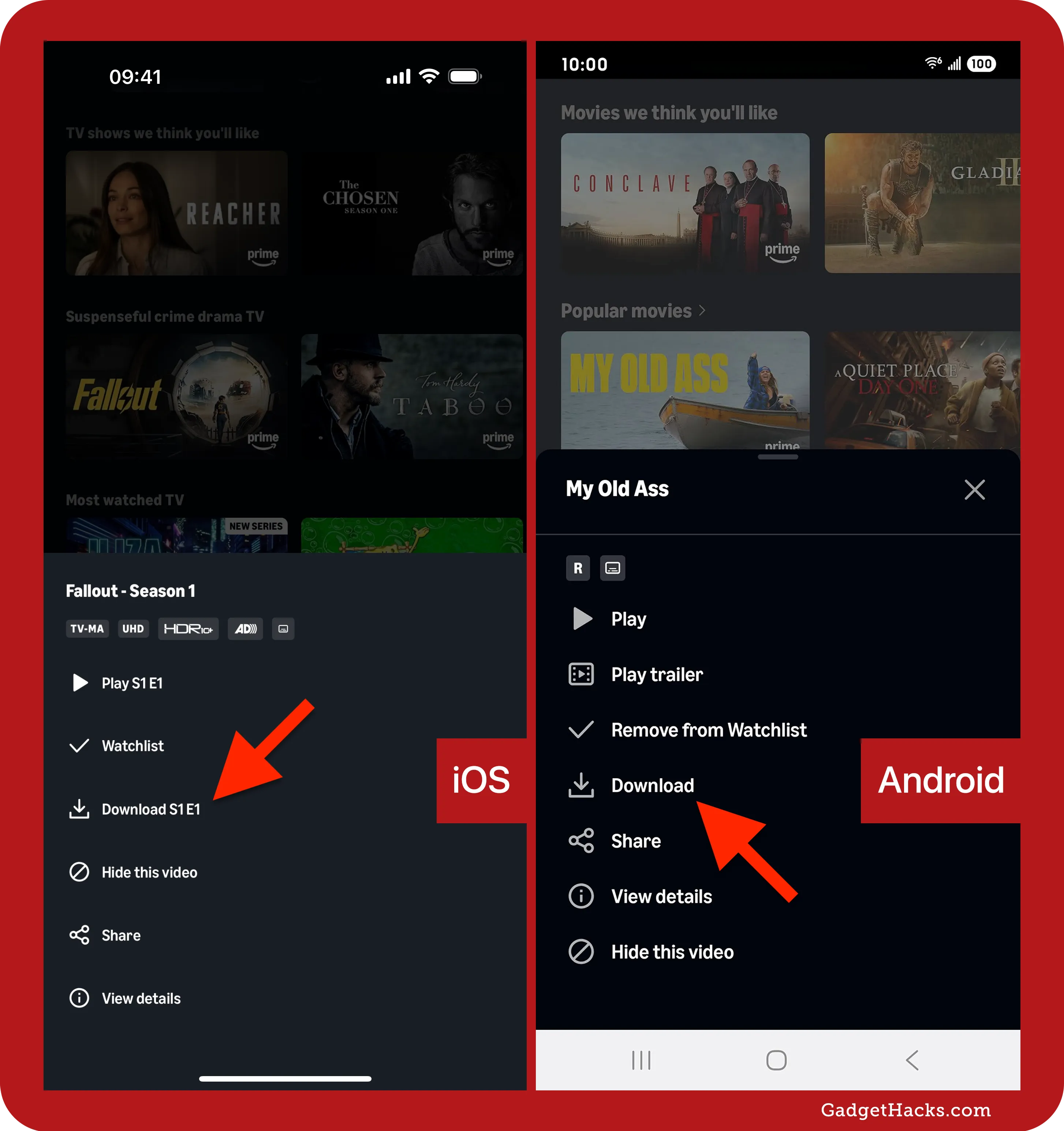
- Included with Prime: A vast majority of movies and TV shows included with your Amazon Prime subscription are available for download. These titles will typically feature a prominent download icon (a down arrow).
- Purchased or Rented Content: Movies and TV shows that you have purchased or rented through Amazon Prime Video are almost always available for download. This ensures that you can access your owned content regardless of internet availability.
- Not All-Inclusive: Some specific titles, especially newer releases or content from certain studios, may have restrictions that prevent them from being downloaded. You’ll know a title isn’t downloadable if the download icon is absent or grayed out.
- Rental Expiration: For rented titles, while you can download them, they still adhere to the rental period. Typically, you have 30 days to start watching a rented movie once downloaded, and then 48 hours to finish it once you begin playback. Downloads do not extend these time limits.
Understanding these eligibility nuances will help you plan your offline entertainment library more effectively, preventing disappointment when a specific title isn’t available for download.
Your Comprehensive Guide to Downloading on Mobile Devices
Mobile devices — smartphones and tablets — are the quintessential platforms for consuming media on the go. Amazon Prime Video has optimized its app to make downloading content on these devices a straightforward and user-friendly experience.
Setting Up Your Device: App Installation and Updates
Before you can begin downloading, you need to ensure your mobile device is ready.
- Install the Prime Video App: If you haven’t already, download the Amazon Prime Video app from your device’s app store:
- iOS: Apple App Store
- Android: Google Play Store
- Sign In: Open the app and sign in with your Amazon account credentials linked to your Prime subscription.
- Update Regularly: Always ensure your Prime Video app is up to date. App updates often include performance improvements, bug fixes, and new features, including better download management or playback capabilities. Check your app store for pending updates regularly.
- Sufficient Storage: Before downloading, check your device’s available storage. High-quality video files can consume a significant amount of space. Navigate to your device settings (e.g., “Storage” on Android, “iPhone Storage” on iOS) to monitor and manage your free space.
Navigating the Prime Video App to Find Downloadable Content
Once the app is installed and you’re signed in, finding content to download is intuitive.
- Browse or Search: Use the app’s browsing categories, curated lists, or the search bar to find the movie or TV show you wish to download.
- Identify Downloadable Content: On the detail page for a specific title, look for the download icon. This is typically a downward-pointing arrow.
- Movies: For movies, the download icon will usually be next to the “Play” or “Watch Now” button.
- TV Shows: For TV shows, you’ll see the download icon next to individual episodes. This allows you to select specific episodes or an entire season for download.
- Content Not Downloadable: If the download icon is absent or grayed out, that particular title is not available for offline viewing due to licensing restrictions.
Customizing Your Download Experience: Quality and Storage
Amazon Prime Video offers options to tailor your download quality, allowing you to balance video fidelity with storage consumption.
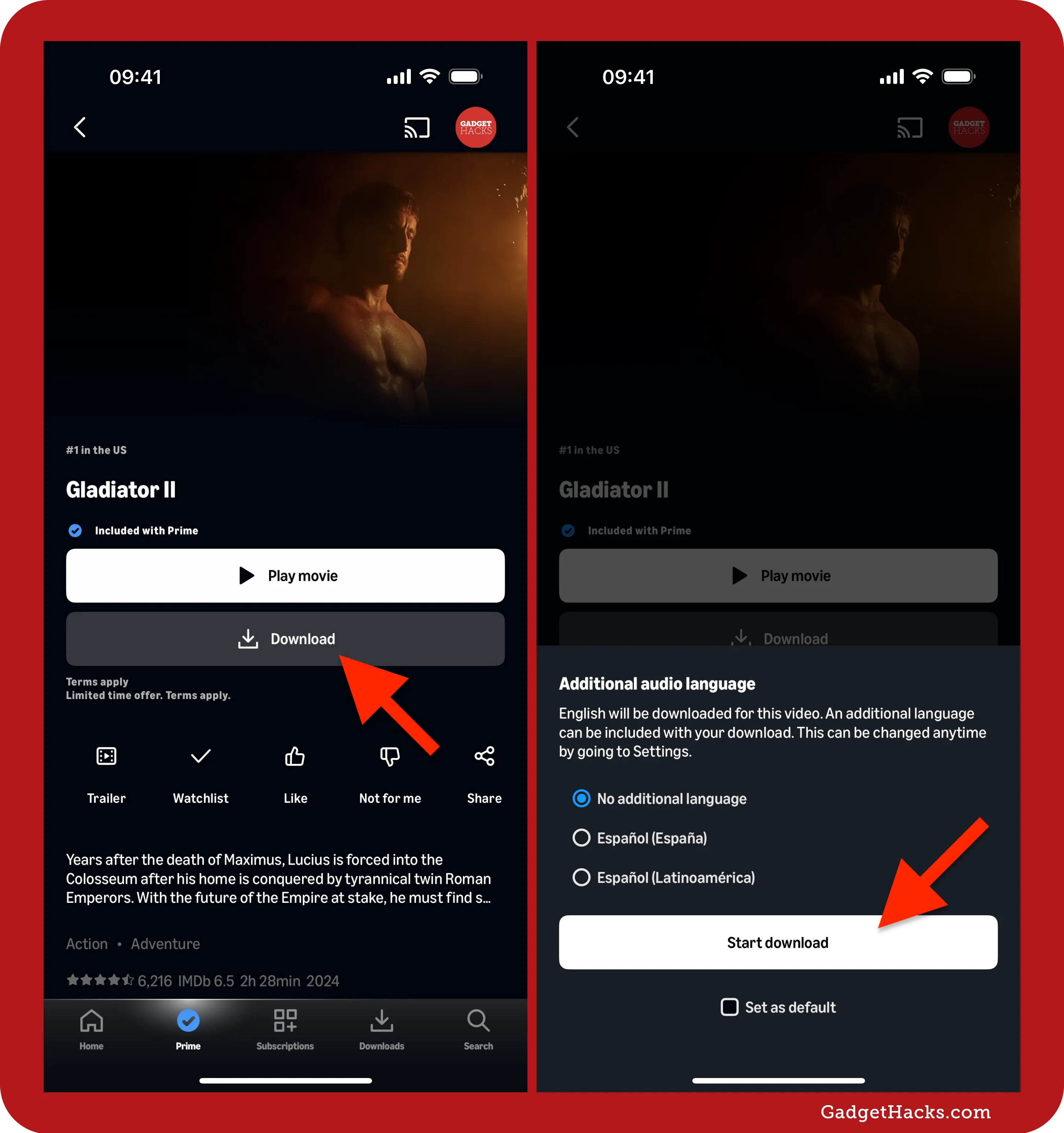
- Select Download Quality: When you tap the download icon, you’ll often be prompted to choose a download quality:
- Good: Lowest quality, smallest file size (e.g., SD). Ideal for conserving space on devices with limited storage or for quick downloads.
- Better: Medium quality, moderate file size (e.g., 720p HD). A good balance for most users.
- Best: Highest quality, largest file size (e.g., 1080p HD). Provides the best visual experience but consumes the most storage.
- Data Saver: An option that optimizes quality to be as low as possible for very small file sizes.
- Default Download Quality: You can set a default download quality in the app’s settings:
- Go to “My Stuff” (or “Settings” depending on app version) > “Settings” > “Stream & Download” > “Download Quality.”
- Choose your preferred default, and the app will use this for future downloads unless specified otherwise.
- Storage Management:
- Internal Storage vs. SD Card: On Android devices, if you have an SD card, you can often set the app to download content directly to the external storage to free up internal device memory. Navigate to “Settings” > “Stream & Download” > “Download to SD Card” (toggle on). (Note: iOS devices do not support SD cards).
Managing Your Offline Library: Playback and Deletion
Once downloaded, your content is easily accessible and manageable.
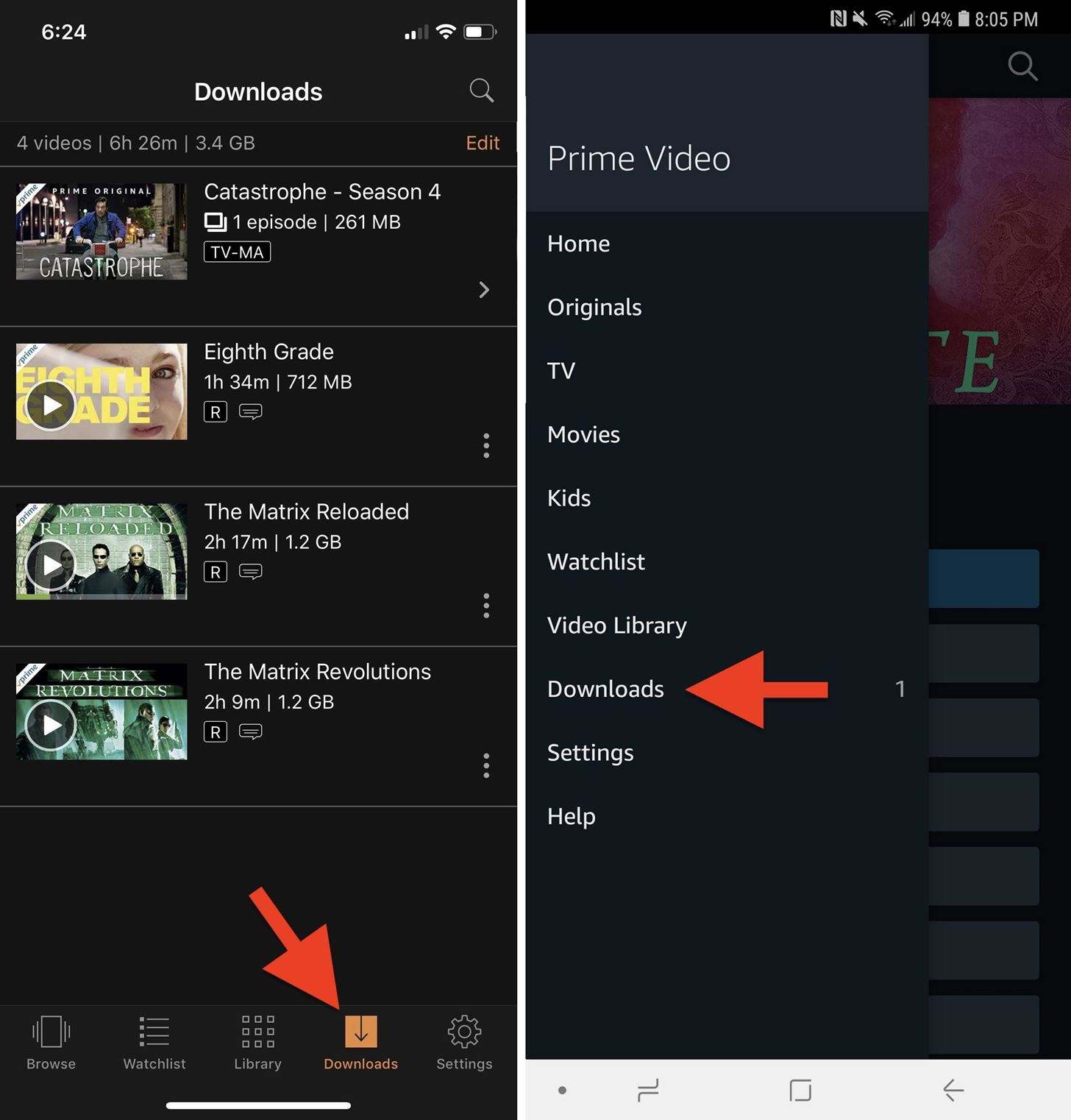
- Accessing Downloads: All your downloaded movies and episodes are stored in the “Downloads” section of the Prime Video app (usually accessible from the bottom navigation bar or the main menu).
- Playing Content: Simply tap on the title you wish to watch. It will play without requiring an internet connection.
- Deleting Content: To free up space after watching:
- Go to “Downloads.”
- Tap the “Edit” or “Manage” option (often represented by a pencil icon or three dots).
- Select the titles you wish to remove and confirm deletion.
- Alternatively, you can delete individual items from their respective detail pages or by long-pressing on the title in the downloads list.
Expanding Offline Access: Downloading on Windows and macOS Desktops
While mobile devices are prime candidates for offline viewing, Amazon also extends this functionality to desktop computers, specifically those running Windows and macOS. However, unlike mobile, desktop downloading requires a dedicated application rather than relying on a web browser.
The Essential Desktop Prime Video Application
Crucially, you cannot download Prime Video content directly from a web browser (like Chrome, Firefox, Safari, or Edge) on your desktop. Downloads are exclusively handled through the official Amazon Prime Video desktop application.
- Download the App:
- Windows: Search for “Amazon Prime Video” in the Microsoft Store and install it.
- macOS: Search for “Amazon Prime Video” in the Mac App Store and install it.
- Sign In: Launch the application and sign in using your Amazon account credentials associated with your Prime subscription.
- Familiar Interface: The desktop application’s interface largely mirrors that of its mobile counterpart, making navigation straightforward for users familiar with the mobile experience.
Step-by-Step Desktop Download Procedure
The process for downloading on a desktop app is quite similar to mobile devices.
- Browse or Search: Use the app to find the movie or TV show you want to download.
- Locate Download Icon: On the title’s detail page, look for the familiar download icon (downward-pointing arrow).
- For TV shows, you’ll select individual episodes or an entire season for download.
- Choose Download Quality: A prompt will appear, allowing you to select your preferred download quality (Good, Better, Best, Data Saver). Consider your hard drive space and desired video fidelity.
- Initiate Download: Click “Download” to begin the process.
- Monitor Progress: You can monitor the download progress in the “Downloads” section of the app.
- Access Offline Content: Once completed, your downloaded content will be available in the “Downloads” section for offline playback.
Optimizing Desktop Storage and Playback
Managing downloaded content on a desktop can be critical, especially if you have a solid-state drive (SSD) with limited space.
- Default Download Location: The Prime Video desktop app typically stores downloads in a default location on your system drive. While this location usually isn’t easily customizable within the app itself, you can ensure ample space is available on your primary drive.
- Deleting Downloads: To free up space:
- Navigate to the “Downloads” section within the desktop app.
- Hover over the title you wish to delete.
- Click on the three-dot menu or the ‘X’ icon that appears, then select “Delete Download.”
- Playback: Simply click on the downloaded title in the “Downloads” section to begin watching it offline. The desktop app provides a full-screen, high-quality viewing experience.
Mastering Your Downloads: Advanced Tips and Troubleshooting
While the download process is generally smooth, understanding a few advanced features and knowing how to troubleshoot common issues can significantly enhance your Prime Video offline experience.
Proactive Download Management: Settings and Limits
Optimizing your download settings can make a big difference in convenience and storage efficiency.
- Download Only on Wi-Fi: To prevent accidental data usage, ensure the “Download on Wi-Fi Only” setting is enabled in the Prime Video app settings (under “Stream & Download”). This is typically the default but worth checking.
- Auto Downloads (for TV shows): Some versions of the app might offer an “Auto Download Next Episode” feature. If enabled, the app will automatically download the next episode in a series after you finish watching the current one, provided you are on Wi-Fi. This keeps your queue fresh without manual intervention.
- Download Limits: Be aware that Amazon Prime Video may impose certain download limits. For instance, there might be a cap on the total number of unique titles you can download across all your registered devices at any given time (e.g., 15 or 25 titles). Additionally, a single title might be downloadable on only a limited number of devices simultaneously (e.g., two devices). While these limits are often generous for individual users, they are worth noting for households with multiple users or devices.
Addressing Common Download Challenges and Error Codes
Occasionally, you might encounter issues when attempting to download content. Here are some common problems and their solutions:
- “Download button missing or grayed out”: This almost always indicates that the specific title is not available for download due to licensing restrictions. There’s no workaround for this.
- “Download Failed” or “Error Code”:
- Check Internet Connection: Ensure your Wi-Fi is stable and strong.
- Device Storage: Verify you have enough free storage on your device for the chosen download quality.
- App Update: Make sure your Prime Video app is fully updated.
- Clear Cache (Android): Go to your device’s app settings, find Prime Video, and clear its cache.
- Restart Device/App: A simple restart of the app or your device can often resolve temporary glitches.
- “Downloaded content disappearing”: This could be due to exceeding download limits on devices, content expiration, or accidental deletion. Double-check your “Downloads” section and review content expiration policies.
- “Download stuck at 0%” or slow download: Check your internet speed. If others are using the same network, bandwidth might be saturated. Try downloading during off-peak hours or restarting your router.
Understanding Download Expiration and Viewing Windows
Downloaded content from Amazon Prime Video isn’t permanently stored on your device; it comes with specific viewing windows:
- General Expiration: For content included with Prime, once downloaded, you typically have 30 days to start watching it. After you start watching, you usually have 48 hours to finish the title before it expires from your device.
- Rental Expiration: Rented titles follow their specific rental period. You have 30 days to begin watching a downloaded rental from the time of download, and then 48 hours to finish once playback starts. Once the rental period expires, the download will become unavailable.
- Purchased Content: For content you have purchased, downloads generally do not expire as long as your Amazon account remains active and the content is still available through Amazon.
- Re-downloading: If a download expires or you delete it, you can usually re-download it (provided it’s still available for download and within your Prime subscription or ownership rights). The expiration timer resets with each new download.
- Offline-Only Playback: Remember that downloaded content can only be played back within the Prime Video app. You cannot transfer the files to other devices, extract them, or play them with third-party media players due to digital rights management (DRM).
By understanding these nuances, you can proactively manage your downloaded library and avoid any unexpected interruptions to your offline viewing pleasure.
Conclusion
The ability to download movies and TV shows from Amazon Prime Video for offline viewing is a cornerstone feature that significantly enhances the value proposition of a Prime subscription. It liberates your entertainment from the constraints of internet connectivity, empowering you to enjoy your favorite content on your terms – whether you’re traversing continents, navigating the daily commute, or simply seeking to escape the digital tether. By leveraging the intuitive features of the Prime Video app on both mobile and desktop platforms, and by understanding the subtle intricacies of download eligibility and management, you unlock a world of uninterrupted, high-quality entertainment. Embrace the freedom of offline viewing and transform every journey into a personal cinema experience, ensuring your stories are always ready, whenever you are.
aViewFromTheCave is a participant in the Amazon Services LLC Associates Program, an affiliate advertising program designed to provide a means for sites to earn advertising fees by advertising and linking to Amazon.com. Amazon, the Amazon logo, AmazonSupply, and the AmazonSupply logo are trademarks of Amazon.com, Inc. or its affiliates. As an Amazon Associate we earn affiliate commissions from qualifying purchases.