
In an increasingly mobile and data-conscious world, the ability to access your favorite entertainment on demand, regardless of internet connectivity, has become a prized feature. Amazon Prime Video, a titan in the streaming industry, understands this need, offering its subscribers a robust download feature that allows for seamless offline viewing. This capability transforms commutes, long flights, or even quiet evenings in remote areas into personal cinemas, ensuring your entertainment is always within reach. This guide delves into the technical nuances of downloading movies and TV shows from Amazon Prime Video, empowering you to master this essential feature and elevate your digital entertainment experience.
Understanding Amazon Prime Video Downloads
The convenience of streaming has revolutionized how we consume media, but it inherently relies on a stable internet connection. Amazon Prime Video’s download functionality offers a crucial bypass, providing users with the flexibility to watch content even when Wi-Fi is unavailable or data plans are limited. To truly leverage this feature, it’s important to grasp its underlying benefits and compatibility requirements.
Why Download? The Benefits of Offline Access
The decision to download content rather than stream it often stems from practical necessity, yet it offers several distinct advantages that enhance the overall viewing experience:
- Uninterrupted Viewing Anywhere: The primary benefit is freedom from internet dependency. Whether you’re on a subway, flying across continents, or vacationing in a spot with unreliable Wi-Fi, downloaded content plays without buffering, pixelation, or dropped connections. This is invaluable for travel, daily commutes, or situations where connectivity is scarce.
- Significant Data Savings: Streaming high-definition video consumes a substantial amount of cellular data. By downloading content over a Wi-Fi connection beforehand, you eliminate the need to use mobile data for viewing, safeguarding your monthly allowance and potentially saving money on overage charges. This is particularly beneficial for users with limited data plans.
- Consistent Quality and Performance: Internet speeds can fluctuate, leading to resolution downgrades or frequent buffering during streaming. Downloaded content, however, is stored locally at the chosen quality, ensuring a consistently crisp and smooth playback experience from start to finish, independent of network congestion.
- Mitigation of Content Availability Changes: While downloaded content eventually expires and requires re-downloading or an internet check-in, it offers a temporary safeguard against content being removed from the Prime Video catalog. If a title is slated to leave the service, downloading it allows for a grace period to watch it offline before it’s gone for good.
Eligibility and Device Compatibility
Before embarking on your downloading journey, it’s crucial to understand the prerequisites and device limitations imposed by Amazon Prime Video. These policies are in place due to licensing agreements and digital rights management (DRM).
- Active Amazon Prime Membership: The download feature is exclusive to active Amazon Prime subscribers or those with a standalone Prime Video subscription. Without a valid subscription, you can only stream content, not download it for offline access.
- Supported Devices are Primarily Mobile: Amazon Prime Video’s download functionality is primarily designed for mobile platforms. This includes:
- iOS Devices: iPhones and iPads running supported versions of iOS.
- Android Devices: Smartphones and tablets running supported versions of Android OS.
- Amazon Fire Tablets: Fire HD and Fire Kids Edition tablets offer seamless integration with the Prime Video app for downloads.
- Unsupported Devices: Crucially, Amazon Prime Video generally does not support direct downloads to the hard drive for offline viewing on:
- PCs (Windows/macOS): While you can stream Prime Video through a web browser or the dedicated Windows app, there is typically no option to download movies directly to your computer’s local storage for offline playback in the same manner as mobile devices. The Windows app primarily functions as a viewer, not a downloader for local storage.
- Smart TVs, Gaming Consoles, Streaming Sticks: These devices are designed for streaming and do not offer a download feature for offline viewing.
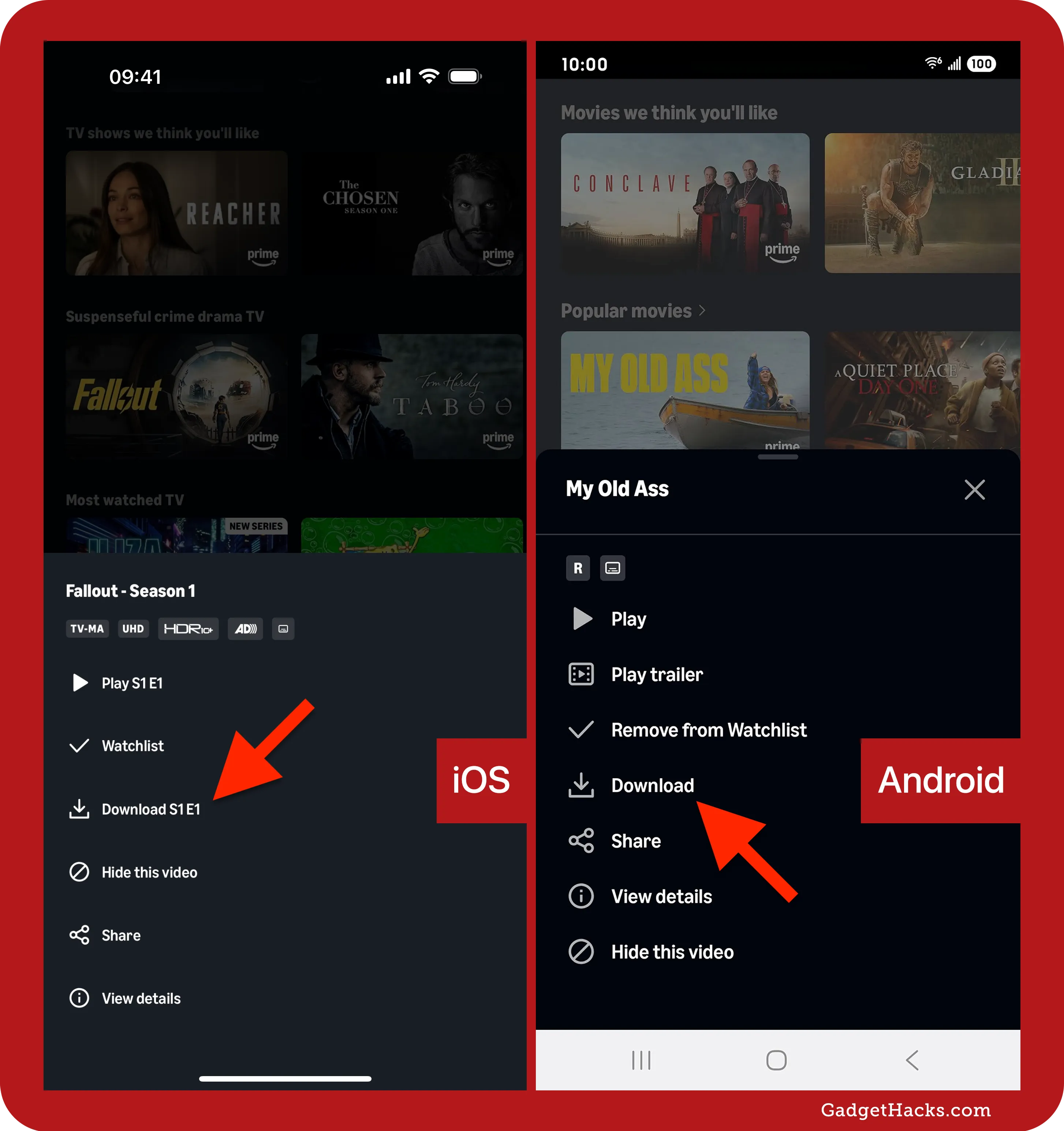
- Content Restrictions: Not every title available on Amazon Prime Video is eligible for download. Licensing agreements with studios and distributors can dictate which content can be downloaded and for how long. Generally, content included with your Prime subscription is more likely to be downloadable than content you’ve purchased or rented, although many rented/purchased titles are also downloadable. The download icon (a down arrow) next to a title is your indicator.
Step-by-Step Guide: Downloading Content on Mobile Devices
Once you’ve confirmed your eligibility and device compatibility, downloading content from Amazon Prime Video is a straightforward process. The steps are largely consistent across iOS and Android platforms, with minor interface variations.
For iOS Devices (iPhone & iPad)
Apple users can easily access and download their favorite Prime Video content.
- Open the Amazon Prime Video App: Locate and tap the Prime Video app icon on your device’s home screen. Ensure you are signed in with your Amazon Prime account.
- Browse or Search for Content: Navigate through the app’s categories, use the search bar, or explore your Watchlist to find the movie or TV show you wish to download.
- Select Your Title: Tap on the title to open its detail page. Here you’ll find information about the content, cast, synopsis, and various viewing options.
- Initiate the Download:
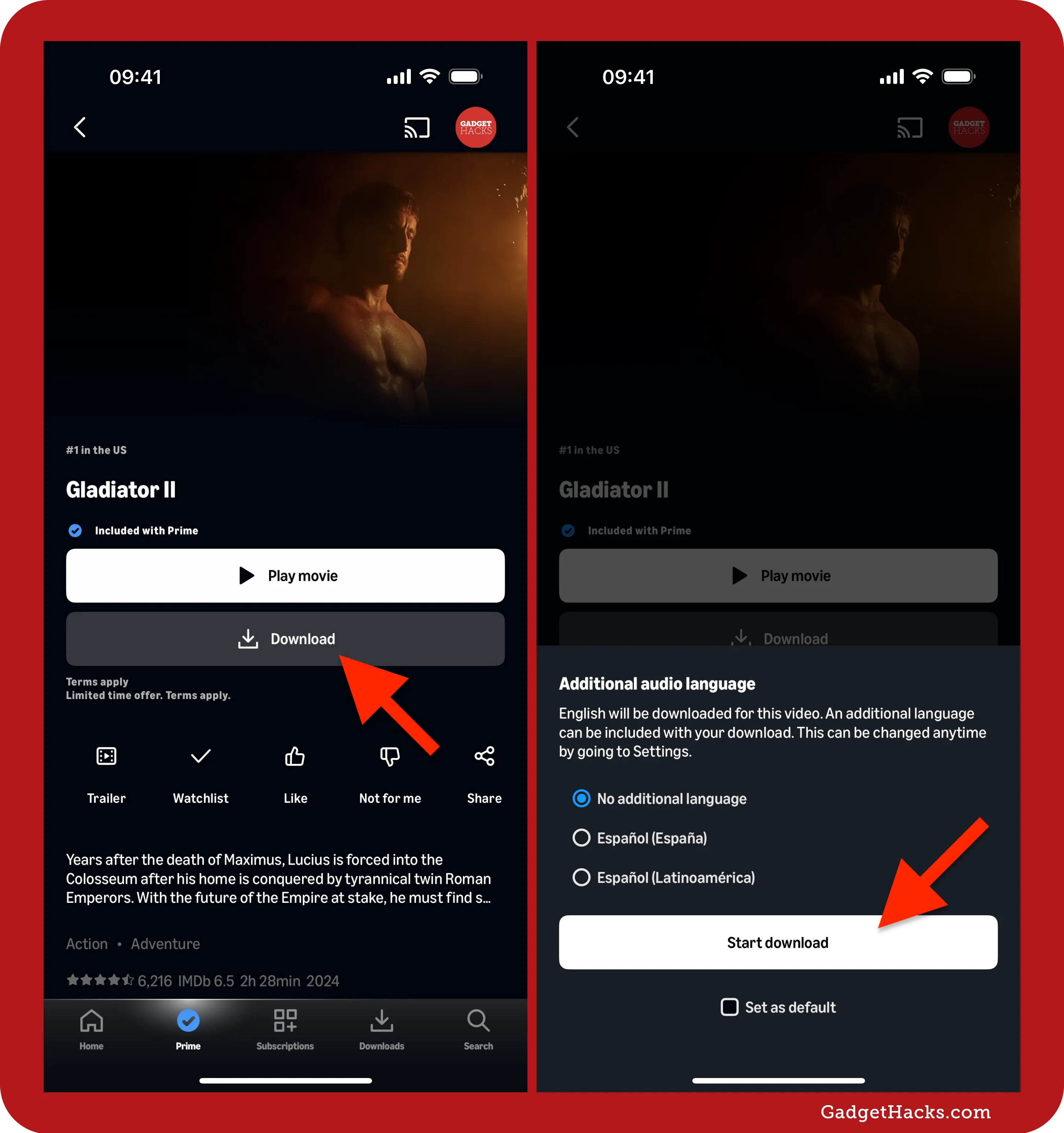
- For Movies: Look for the “Download” button, typically located near the “Play” button.
- For TV Shows: You’ll usually see a download icon (a downward arrow) next to each individual episode. You can also look for a “Download Season” option if available, though this is less common for entire seasons.
- Choose Download Quality (Optional but Recommended): Before the download begins, the app will often prompt you to select your preferred download quality:
- Good: Smallest file size, fastest download, lower resolution. Ideal for saving space.
- Better: Medium file size, good balance of speed and quality.
- Best: Largest file size, highest resolution, longest download time. Optimal for premium viewing.
- You can also set a default download quality in the app’s settings (Profile Icon > Settings icon > Stream & Download > Download Quality).
- Monitor and Access Downloads: Once you’ve selected the quality, the download will begin. A progress bar will appear. To view all your downloaded content, tap the “Downloads” tab (usually found at the bottom navigation bar of the app).
For Android Devices (Phones & Tablets)
The process for Android users mirrors that of iOS, with slight differences in menu navigation and an added consideration for storage.
- Launch the Amazon Prime Video App: Tap the Prime Video app icon on your Android device. Log in if prompted.
- Discover Your Content: Browse or use the search function to locate the movie or TV series you want to download.
- Access the Title Details: Tap on the content’s thumbnail to go to its dedicated page.
- Start the Download:
- For Movies: Tap the “Download” button.
- For TV Shows: Tap the download icon (downward arrow) next to the specific episode you wish to download.
- Select Download Quality: Similar to iOS, you’ll be prompted to choose from “Good,” “Better,” or “Best” quality, influencing file size and resolution. This can also be preset in the app settings (Profile Icon > Settings icon > Stream & Download > Download Quality).
- Storage Location (Android Specific): Some Android devices with expandable storage (via microSD card) allow you to choose where downloads are saved. You can often configure this in the Prime Video app settings under “Stream & Download” or “Storage.” It’s advisable to save to an SD card if available and you plan to download a lot, to preserve internal device storage.
- View Downloaded Content: All your downloaded movies and episodes will be accessible under the “Downloads” tab at the bottom of the app screen.
For Amazon Fire Tablets
Amazon Fire tablets offer a highly integrated experience, making Prime Video downloads exceptionally straightforward. The process is virtually identical to other Android devices, leveraging the tablet’s native compatibility with Amazon services.
- Open the Prime Video App: Tap the Prime Video icon.
- Find Your Desired Content: Browse or search.
- Tap to View Details: Select the movie or TV episode.
- Download: Tap the “Download” button for movies or the download arrow for episodes.
- Quality Selection: Choose your preferred quality.
- Access Downloads: Find them under the “Downloads” tab.
Fire tablets also have specific features like FreeTime (now Amazon Kids+) profiles, where parents can manage content access and downloads for children within their dedicated profiles, ensuring age-appropriate offline entertainment.
Managing Your Downloads and Optimizing Your Experience
Downloading content is just the first step. Effective management of your downloaded library is crucial for a smooth and uninterrupted offline viewing experience. This includes understanding storage implications, content expiration, and common troubleshooting tips.
Download Quality Settings and Storage Management
The quality setting for your downloads directly impacts the file size and, consequently, the amount of storage space they consume on your device.
- Understanding Quality Impact:
- Good: Typically standard definition, uses the least space (e.g., 0.2GB per hour).
- Better: Often 720p HD, a moderate footprint (e.g., 0.4GB per hour).
- Best: Usually 1080p HD, consumes the most space (e.g., 0.8GB per hour).
- Changing Default Download Quality: To save storage or improve download speed, you can adjust the default quality:
- Open the Prime Video app.
- Tap your Profile icon (top right).
- Tap the Settings icon (gear symbol).
- Select “Stream & Download”.
- Tap “Download Quality” and choose your preferred setting.
- Monitoring and Deleting Content: Regularly check your device’s available storage and the “Downloads” section within the Prime Video app.
- Go to the “Downloads” tab.
- Locate the content you wish to delete.
- On iOS: Swipe left on the title and tap “Delete,” or tap “Edit” in the top right to select multiple items for deletion.
- On Android/Fire: Long-press the title or tap the three-dot menu next to it and select “Delete Download.”
This practice is essential for freeing up space for new downloads and maintaining device performance.
Download Limits and Expiration
Amazon Prime Video implements certain restrictions to comply with licensing agreements and prevent misuse of the download feature.
- Number of Devices: Content can typically be downloaded on a limited number of devices simultaneously (often two to four, though this can vary by title and region). If you exceed this limit, you may need to delete downloads from one device to download on another.
- Total Downloads: There may also be a total limit on the number of unique titles you can download across all devices at any given time (e.g., 15 or 25 titles).
- Time Limits for Viewing:
- General Expiration: Once downloaded, most Prime Video content will remain on your device for 30 days. After this period, you’ll need to reconnect to the internet to verify your Prime membership and potentially renew the download license.
- Watched Content Expiration: Once you start watching a downloaded movie or episode, you typically have 48 hours to finish it before it expires. After 48 hours, you’ll need to reconnect to the internet to re-authenticate and potentially re-download the content.
- Regional Availability: Downloads are subject to regional licensing. If you download content in one country and then travel to another, that content might not be playable due to geo-restrictions. You may need to reconnect to the internet and re-download titles available in your current region.
Troubleshooting Common Download Issues
Encountering issues during the download process can be frustrating, but many problems have straightforward solutions.
- “Download Pending” or Stuck Downloads:
- Check Internet Connection: Ensure you have a stable Wi-Fi connection, especially if “Download on Wi-Fi only” is enabled (which it should be for data saving).
- Check Storage Space: Verify that your device has sufficient free storage for the download.
- Restart App/Device: Close the Prime Video app completely and reopen it. If that doesn’t work, restart your device.
- Pause/Resume Download: Sometimes pausing and then resuming the download can kickstart it.
- “Content Not Available for Download”:
- This usually means the specific title is not licensed for download due to studio agreements. There’s no workaround for this; you can only stream it.
- Verify your Prime membership is active.
- App Updates and System Requirements: Ensure your Prime Video app is updated to the latest version and that your device’s operating system meets the app’s minimum requirements. Outdated software can lead to performance issues, including download failures.
- Too Many Downloads: If you hit the device or title limit, delete some existing downloads to make space for new ones.
Beyond Basic Downloads: Advanced Tips for Prime Video Users
Mastering the fundamentals of downloading is excellent, but a few advanced tips can further enhance your Prime Video experience, integrating downloads seamlessly into your viewing habits.
Utilizing Watchlists and Parental Controls with Downloads
- Strategic Watchlist Use: Add movies and shows you intend to watch offline to your Watchlist. This creates a curated list, making it easy to find and download content when you have a stable Wi-Fi connection, rather than searching in a hurry.
- Parental Controls for Offline Content: If you have children using your device, ensure parental controls are set up within the Prime Video app (under Settings > Parental Controls). These controls apply to both streaming and downloaded content, preventing access to inappropriate material even when offline. Always verify that content downloaded for children aligns with their FreeTime/Amazon Kids+ profiles if applicable, ensuring only authorized content is accessible.
Offline Mode and Data Saving Features
- “Download on Wi-Fi Only”: This is a crucial setting for data management. Always ensure this option is enabled (found under Settings > Stream & Download > Download on Wi-Fi Only). This prevents accidental downloads over costly cellular data networks.
- Understanding Cellular Data for Streaming vs. Downloading: While downloading over Wi-Fi saves data, remember that streaming content will still use cellular data if Wi-Fi isn’t available. When you’re offline, remember to switch your device to Airplane Mode or turn off cellular data to prevent accidental streaming or background data usage that could eat into your plan. Your downloaded content will remain accessible regardless.
The Future of Offline Media Consumption
The technology behind streaming and offline media consumption continues to evolve. We can anticipate further enhancements to download features, potentially including:
- More Flexible Device Support: While PCs currently lack robust download options, future desktop apps might offer more comprehensive offline capabilities.
- Dynamic Download Quality: Smarter systems that automatically suggest optimal download quality based on device storage and remaining time before expiry.
- Seamless Cross-Device Syncing: Improved sync across devices for download progress and availability.
- Integration with Cloud Storage: While current downloads are local, future integrations with cloud services might offer new ways to manage and access offline media across ecosystems.
These advancements will likely focus on making the user experience even more seamless, efficient, and tailored to individual consumption patterns, ensuring that the power of offline entertainment remains a cornerstone of digital media.

Conclusion
The ability to download movies and TV shows from Amazon Prime Video is more than just a convenience; it’s a fundamental feature that empowers subscribers to take control of their entertainment experience. By understanding the ‘why’ behind downloads, the ‘what’ of compatibility, and the ‘how’ of execution, you can unlock a world of uninterrupted, high-quality viewing, free from the constraints of internet connectivity. From optimizing storage to troubleshooting common issues, mastering this technical capability ensures your favorite stories are always ready to accompany you, whether on a remote adventure or a daily commute. Embrace the freedom of offline viewing and transform every moment into a potential movie theater, courtesy of Amazon Prime Video.
aViewFromTheCave is a participant in the Amazon Services LLC Associates Program, an affiliate advertising program designed to provide a means for sites to earn advertising fees by advertising and linking to Amazon.com. Amazon, the Amazon logo, AmazonSupply, and the AmazonSupply logo are trademarks of Amazon.com, Inc. or its affiliates. As an Amazon Associate we earn affiliate commissions from qualifying purchases.