
In an increasingly connected world, the ability to disconnect while still enjoying your favorite digital content has become a sought-after luxury. Amazon Prime Video, a titan in the streaming industry, offers precisely this flexibility through its robust download feature. Whether you’re a frequent flyer, a daily commuter, or simply someone living in an area with unpredictable internet, downloading your cherished movies and TV shows for offline viewing is a game-changer. This comprehensive guide will walk you through the intricacies of downloading content from Prime Video, ensuring you’re always prepared for entertainment, no matter where you are or what your connectivity status might be. We’ll delve into the technical specifics, device-specific instructions, and crucial considerations that empower you to optimize your viewing experience.
The Imperative of Offline Viewing: Why Download?
The modern digital lifestyle, while offering unparalleled access, also comes with its own set of challenges. Reliance on a constant, high-speed internet connection can be a significant hurdle for uninterrupted entertainment. This is where the download feature of Prime Video emerges as an indispensable tool, offering a multitude of benefits that enhance user experience and provide peace of mind.
Uninterrupted Entertainment On-the-Go
Imagine being on a long-haul flight, a cross-country train journey, or a daily subway commute where Wi-Fi is either non-existent, unreliable, or prohibitively expensive. In such scenarios, streaming live content is simply not an option. Downloading content beforehand transforms these otherwise dead zones into personal cinemas. It guarantees continuous playback without buffering, stuttering, or unexpected interruptions, turning travel time into quality entertainment time. This is especially valuable for those who crave a seamless narrative experience without the frustration of connectivity dropouts.
Data Saving and Bandwidth Optimization
Streaming high-definition video consumes significant amounts of data. For users on limited mobile data plans or those sharing a communal Wi-Fi network, this can quickly lead to exceeded caps, throttled speeds, or inflated bills. By downloading content over a stable, unlimited Wi-Fi connection at home or a trusted public hotspot, you eliminate the need to use mobile data for subsequent viewings. This not only saves you money but also frees up bandwidth for other critical online tasks, optimizing your overall digital resource usage. It’s a smart, economical approach to media consumption in a data-conscious world.
Accessing Content Beyond Connectivity
Beyond travel, there are numerous situations where internet access is simply unavailable or too slow for streaming. Remote cabins, camping trips, or even unexpected power outages can leave you in a digital void. Having a library of downloaded content ensures that entertainment remains accessible even in the most off-grid scenarios. This capability extends beyond mere convenience; it offers a form of digital resilience, ensuring that your access to media is not solely dictated by external network conditions. It’s about empowering the user to dictate their terms of engagement with their content library.
Mastering the Download Process: A Step-by-Step Tutorial
The process of downloading content from Prime Video is remarkably straightforward, designed to be intuitive across its various applications. However, understanding the nuances can significantly enhance your experience, ensuring efficient use of storage and optimal viewing quality.
Getting Started: The Prime Video App
The foundational requirement for downloading content from Prime Video is the official Prime Video application. Downloads are not supported directly through web browsers due to Digital Rights Management (DRM) protocols. Therefore, the first step is to ensure you have the Prime Video app installed on your mobile device (iOS or Android) or your desktop (Windows or macOS). These apps are specifically engineered to handle the secure downloading, storage, and playback of licensed content, acting as the secure gateway to your offline library. Once installed, simply log in with your Amazon account credentials to access your Prime Video subscription benefits.
Locating Your Desired Content
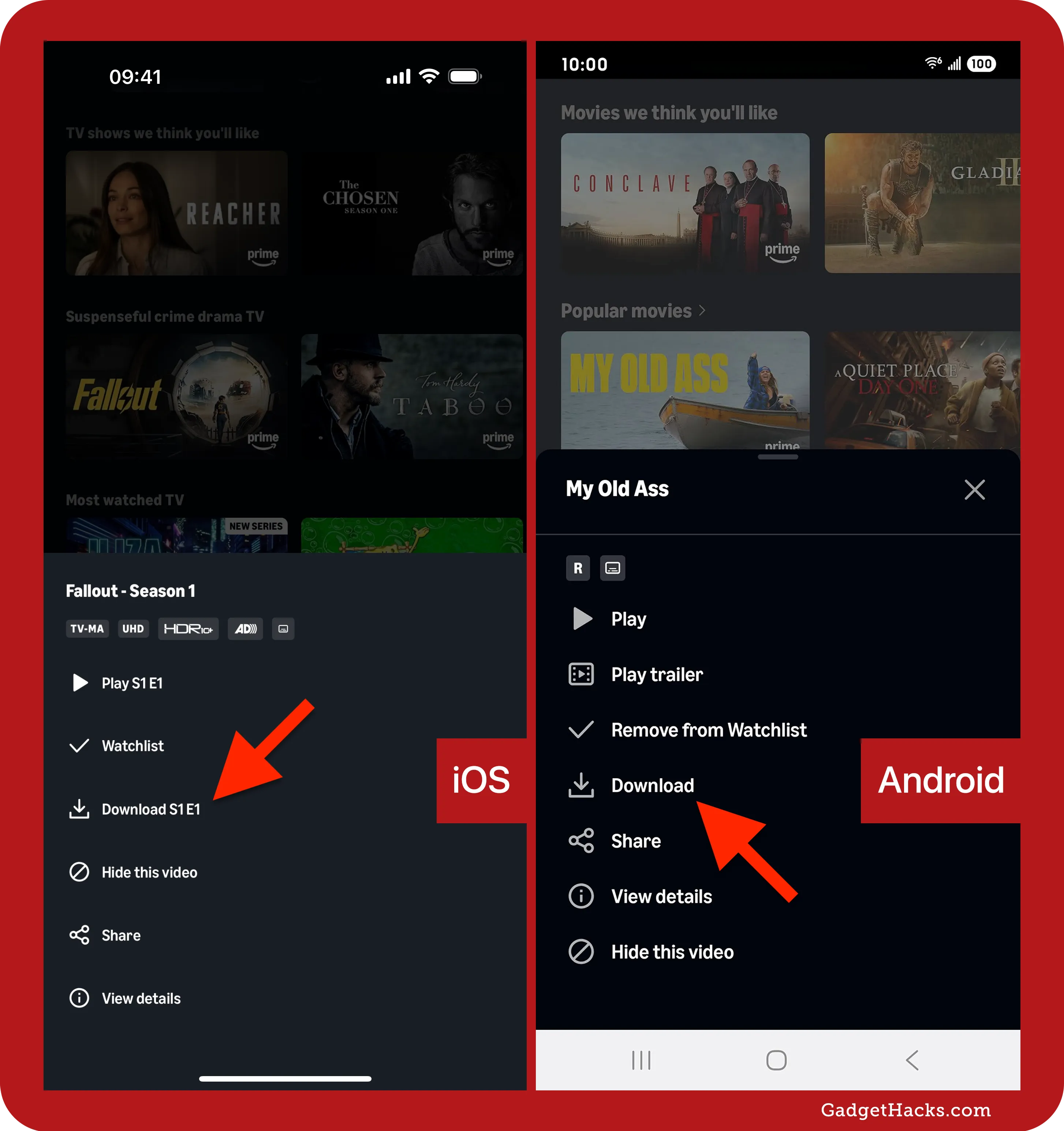
With the app ready, navigate its interface to find the movie or TV show you wish to download. You can use the search bar, browse through categories, or explore your watchlist. Once you land on the detail page of a particular title, you’ll typically find a prominent ‘Download’ button or icon. For TV series, this button might appear next to individual episodes, or you might find an option to download an entire season, depending on the series and available rights. Take a moment to read any associated text near the download button, as it might offer options or crucial information specific to that title.
Executing the Download: Quality and Storage Options
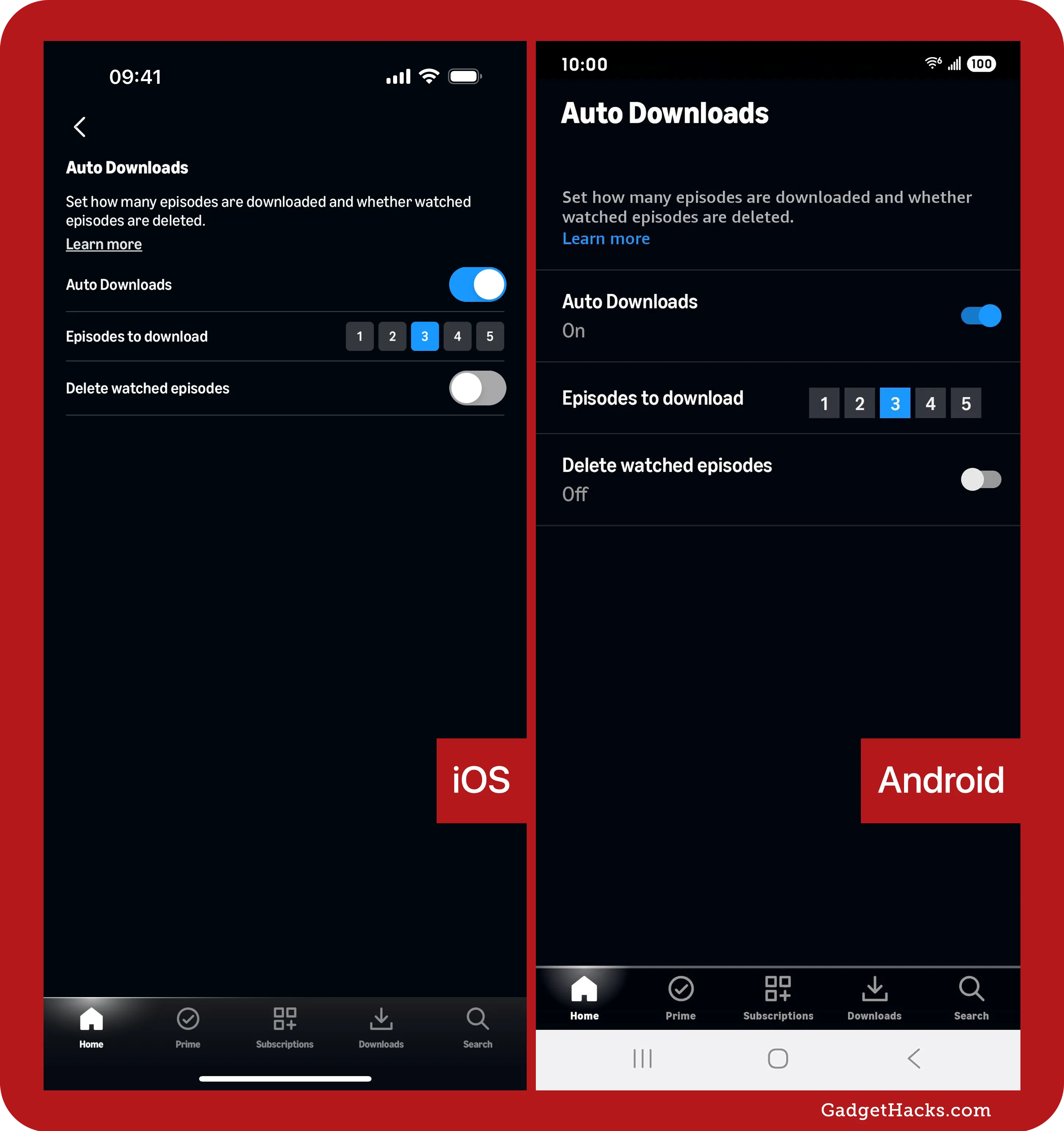
Before the download commences, Prime Video will usually prompt you to select the video quality. Options typically range from “Good” (standard definition, lower file size) to “Best” (high definition, larger file size). Your choice here impacts both the visual fidelity of the downloaded content and the amount of storage space it will consume on your device. Consider your device’s available storage and your viewing preferences. If you have limited space but want more content, opt for a lower quality. If storage isn’t an issue and you demand crisp visuals, go for the highest quality. After making your selection, confirm the download, and the title will begin downloading in the background. A progress indicator will typically be visible within the app, allowing you to monitor the status.
Managing Your Downloads
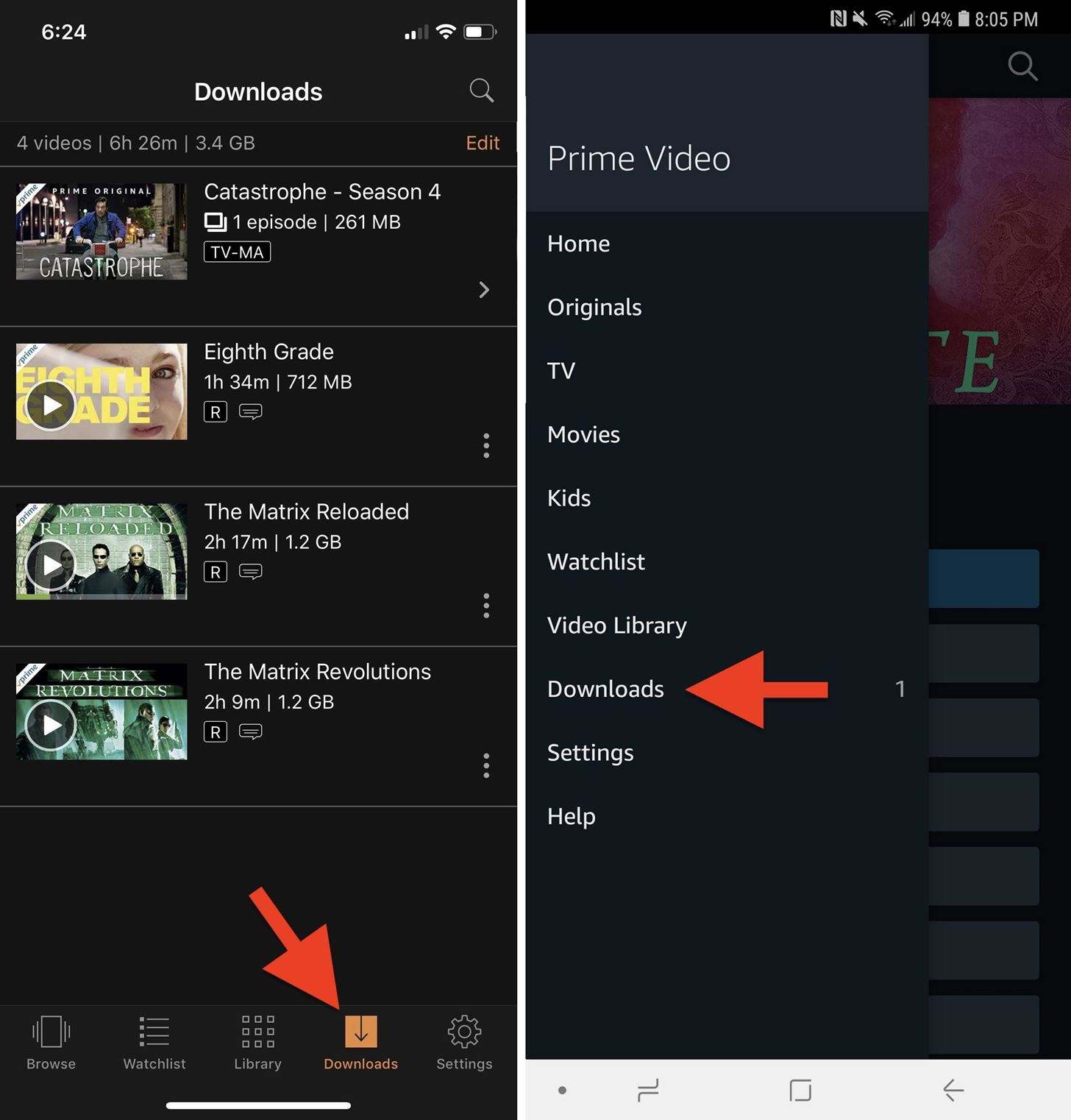
Once downloaded, your content is stored locally within the Prime Video app. To access your downloaded library, look for a “Downloads” or “My Downloads” section within the app’s menu. Here, you’ll find all your offline titles, ready for playback without an internet connection. This section also serves as your control center for managing storage. You can easily delete titles you’ve finished watching to free up space, ensuring your device doesn’t become cluttered. Regularly reviewing and managing your downloads is a good practice, especially if you download frequently or have limited device storage.
Device-Specific Download Protocols
While the core principles remain consistent, the user experience and specific steps for downloading can vary slightly depending on the device you’re using. Understanding these subtle differences ensures a smooth process regardless of your preferred viewing platform.
Mobile and Tablet Devices (iOS/Android)
Mobile devices are arguably the most common platform for offline viewing due to their portability.
- Install the App: Download “Amazon Prime Video” from the Apple App Store (iOS) or Google Play Store (Android).
- Login: Sign in with your Amazon account.
- Browse/Search: Find the content you want to download.
- Initiate Download: On the movie detail page, tap the “Download” button. For TV shows, you’ll see a download icon next to each episode. Some shows may offer a “Download Season” option.
- Select Quality: Choose your preferred download quality (e.g., “Good,” “Better,” “Best”).
- Access Downloads: Tap the “Downloads” icon (often a downward arrow) at the bottom or within the menu to view and manage your downloaded content. From here, you can play, pause, or delete titles.
Desktop Applications (Windows/macOS)
Amazon also provides dedicated desktop applications for Windows and macOS, offering a more robust experience than browser-based streaming, including download capabilities.
- Install the App: For Windows, download from the Microsoft Store. For macOS, download from the Amazon Prime Video website or the Mac App Store.
- Login: Enter your Amazon credentials.
- Navigate Content: Use the search bar or browse sections to find your desired titles.
- Download Option: On the title’s page, click the “Download” button. For series, navigate to the specific episode you wish to download.
- Quality Selection: A prompt will appear asking for your preferred download quality.
- Manage Downloads: Locate the “Downloads” section in the app’s sidebar or menu. This area lists all downloaded content and provides options to play, delete, or view download progress.
Understanding Device Limitations and Best Practices
Each device type comes with its own set of limitations. Mobile devices typically have less storage than desktops, making efficient download management crucial. Desktops, while offering more space, might still benefit from careful quality selection for large files. Prime Video also imposes limits on the number of titles you can download across all your registered devices (usually 15-25 titles total, varying by region and content). Additionally, a single title can often only be downloaded on a limited number of devices simultaneously (typically two). Be mindful of these technical constraints to avoid hitting download ceilings, especially if you share your Prime Video account with family members. Regularly review and delete content you’ve watched to maintain optimal performance and free up space.
Navigating Rights, Restrictions, and Technicalities
While downloading content from Prime Video offers unparalleled convenience, it’s essential to understand the underlying digital rights management (DRM) and usage restrictions that govern this feature. These technicalities ensure content creators are protected and service providers maintain control over their intellectual property.
Content Availability: Subscription, Rental, and Purchase
Not all content on Prime Video is available for download, and availability can differ based on how you access it.
- Included with Prime: The vast majority of movies and TV shows included with your Amazon Prime subscription are eligible for download. This forms the core of the offline library.
- Rental: Many rented titles can also be downloaded. However, rentals have strict viewing windows (e.g., you typically have 30 days to start watching, and then 48 hours to finish once started). This timer applies to downloaded content as well.
- Purchase: Content you’ve purchased can almost always be downloaded, offering the most persistent offline access, subject to expiry rules discussed below.
- Add-on Subscriptions: Content from channels subscribed through Prime Video (e.g., HBO, Showtime) may or may not be downloadable, depending on the specific channel’s agreements. Always check the individual title’s page for download options.
The Role of Digital Rights Management (DRM)
Digital Rights Management (DRM) is a critical technology that underlies the download feature. It’s a set of access control technologies used to restrict the use of proprietary hardware and copyrighted works. For Prime Video downloads, DRM ensures that:
- Content is Encrypted: Downloaded files are not standard video files; they are encrypted and can only be decrypted and played back within the official Prime Video app.
- No External Playback: You cannot transfer downloaded files to another device, copy them to a different media player, or access them outside the Prime Video application. This prevents piracy and unauthorized distribution.
- Time-Limited Access: DRM facilitates the enforcement of viewing windows and expiry dates on downloaded content, ensuring compliance with licensing agreements.
This protection mechanism, while sometimes seen as restrictive by users, is fundamental to the ecosystem that allows streaming services to license and offer such a wide range of content.
Download Expiry and Viewing Windows
Downloaded content isn’t permanent. It comes with an expiry date, which varies depending on the content and your access method.
- Subscription Content: For content included with Prime, downloaded titles typically remain available for 30 days. Once you start watching a downloaded title, you usually have 48 hours to finish it before it expires. After expiry, you may need an internet connection to “renew” the license for offline viewing, which effectively re-activates the title for another period.
- Rental Content: The rental period (e.g., 30 days to start, 48 hours to finish) applies equally to downloaded rentals.
- Purchased Content: Purchased content generally has a longer expiry window, often staying active for months or even years, but still requiring occasional online validation through the app.
These time limits are crucial to respect content licensing agreements and prevent indefinite offline retention without re-verification.
Storage, Device Limits, and Regional Considerations
Beyond individual title expiry, other technical and contractual limits influence your downloading experience:
- Device Storage: The primary practical limitation is your device’s available storage space. High-definition content, especially long movies or entire seasons, can quickly consume tens of gigabytes.
- Maximum Downloads: Prime Video typically allows a maximum of 15 to 25 titles downloaded across all registered devices associated with your account at any given time, though this can vary by region. A single title might also have a limit on how many devices it can be downloaded to simultaneously (e.g., two devices).
- Regional Availability: Content licensing is geographical. A show available for download in one country might not be available for download in another, even if you travel with your device. Your Prime Video library and download options are tied to the region your account is registered in and where you are physically located.
Understanding these technical nuances ensures you manage your expectations and resources effectively when utilizing the download feature.
Troubleshooting Common Download Challenges
Even with the most intuitive systems, technical hiccups can occur. When your Prime Video downloads aren’t cooperating, a few common troubleshooting steps can often resolve the issue, getting you back to your entertainment without significant delay.
Connectivity and App Performance
The most frequent culprit behind download failures is an unstable or insufficient internet connection. While downloads are for offline viewing, the initial download and subsequent license renewals require a robust online connection.
- Verify Internet Connection: Ensure your Wi-Fi or mobile data is stable and fast enough. Try loading other web pages or streaming a short video to confirm connectivity.
- App Updates: Outdated apps can lead to compatibility issues and bugs. Check your device’s app store for any pending updates for the Prime Video app and install them. Developers frequently release updates to improve performance, fix bugs, and enhance download stability.
- Restart the App/Device: A simple restart of the Prime Video app, or even your entire device, can often clear temporary glitches and refresh system resources, resolving minor software conflicts that might be hindering downloads.
Storage Constraints and Device Optimization
Downloaded content, especially in high quality, can consume significant amounts of storage space. If your device is running low on space, downloads will fail.
- Check Available Storage: Access your device settings to check the remaining storage. For optimal performance, aim to keep at least 10-15% of your device’s storage free.
- Delete Unnecessary Files: Remove old apps, photos, videos, or other files that you no longer need.
- Manage Existing Downloads: Within the Prime Video app’s “Downloads” section, delete titles you’ve already watched. This is the most direct way to free up space specifically for new Prime Video content.
- Select Lower Quality: If storage is consistently an issue, adjust your download settings within the Prime Video app to prefer lower video quality, which results in smaller file sizes.
Seeking Amazon Support
If you’ve exhausted common troubleshooting steps and are still experiencing persistent issues, it’s time to reach out to Amazon’s customer support.
- Detailed Information: When contacting support, be prepared to provide as much detail as possible: the specific title you’re trying to download, the device you’re using (model and operating system version), the error messages you’ve encountered, and the troubleshooting steps you’ve already attempted.
- Access Support Channels: Amazon typically offers support via live chat, phone, or email. You can usually find links to their support pages within the Prime Video app or on the Amazon website. They can investigate account-specific issues, regional content restrictions, or deeper technical problems that might be beyond standard user fixes.
Mastering the download feature on Prime Video transforms your viewing possibilities, offering unparalleled flexibility and ensuring your entertainment is never beholden to internet availability. By understanding the process, managing your content, and knowing how to troubleshoot, you can maximize your Prime Video subscription and enjoy a truly uninterrupted, personalized streaming experience.
aViewFromTheCave is a participant in the Amazon Services LLC Associates Program, an affiliate advertising program designed to provide a means for sites to earn advertising fees by advertising and linking to Amazon.com. Amazon, the Amazon logo, AmazonSupply, and the AmazonSupply logo are trademarks of Amazon.com, Inc. or its affiliates. As an Amazon Associate we earn affiliate commissions from qualifying purchases.