
In the intricate world of computing, drivers are the unsung heroes, the vital bridges that allow your operating system to communicate effectively with the myriad hardware components that make up your device. Without them, your graphics card might render images poorly, your printer might refuse to print, or your network adapter might leave you disconnected from the digital world. Understanding how to properly download and manage these essential software components is not just a technical skill; it’s a critical aspect of maintaining a healthy, high-performing, and secure computer system.
This comprehensive guide will demystify the process of driver acquisition, empowering you with the knowledge to identify your needs, navigate official sources, and ensure your hardware functions optimally. From preventing system crashes to unlocking peak performance, mastering driver management is a cornerstone of modern digital literacy.
The Indispensable Role of Drivers in Modern Computing
To appreciate the “how,” we must first understand the “why.” Drivers are more than just files; they are the interpreters, the essential linguistic bridge between the highly complex languages of hardware and software.
What Exactly is a Driver?
Imagine your computer’s operating system (like Windows, macOS, or Linux) as a CEO who speaks only English. Now imagine you’ve just installed a brand-new, cutting-edge graphics card – a brilliant engineer who speaks only Mandarin. Without a translator, communication is impossible, and the graphics card’s potential remains untapped.
This “translator” is precisely what a driver is. It’s a specific piece of software that contains instructions, allowing the operating system to understand and control a particular piece of hardware. Whether it’s your motherboard chipset, sound card, webcam, or external peripherals like keyboards and mice, each needs its own driver to function correctly and efficiently.
Why are Drivers So Important?
The significance of well-maintained and up-to-date drivers extends across several critical areas of your computing experience:
- Functionality: The most immediate impact. Without the correct driver, a piece of hardware might not work at all. Your Wi-Fi adapter won’t connect, your USB device won’t be recognized, or your monitor might display at a low resolution.
- Performance: Optimal drivers unlock the full potential of your hardware. Outdated graphics drivers, for instance, can lead to stuttering in games, slow video editing, or poor performance in design software. Chipset drivers ensure efficient data transfer across your system, directly impacting overall speed.
- Stability: Incorrect or corrupted drivers are a notorious cause of system instability, leading to crashes, freezes, and the dreaded “Blue Screen of Death” (BSOD) on Windows systems. Stable drivers ensure smooth, uninterrupted operation.
- Security: Like any other software, drivers can have vulnerabilities. Manufacturers regularly release updated drivers that patch security flaws, protecting your system from potential exploits and malware that could target outdated components.
- New Features & Bug Fixes: Driver updates often introduce new features, improve compatibility with new software, and fix known bugs that might have been present in previous versions.
Common Driver-Related Issues
Recognizing the symptoms of driver issues is the first step toward resolution. These can include:
- Device not recognized: Your operating system reports that it can’t find or identify a connected device.
- Poor performance: Games run slowly, videos stutter, or applications lag, even on powerful hardware.
- Audio/Video problems: No sound, distorted audio, flickering screen, or incorrect display resolutions.
- Network connectivity issues: Inability to connect to Wi-Fi or Ethernet.
- System crashes: Frequent reboots, freezing, or BSODs.
- Peripheral malfunctions: Printer not printing, keyboard not responding, mouse acting erratically.
Preparing for Driver Download: Essential Pre-requisites
Before you embark on downloading drivers, a little preparatory work can save you significant headaches. Accuracy is paramount to ensure you download the correct driver for your specific hardware and operating system.
Identifying Your Hardware
The first step is to know exactly what hardware component you need a driver for. This might seem obvious, but many systems contain multiple components from different manufacturers, or different versions of the same component.
- For unknown devices (e.g., after a fresh OS install or device swap):
- Device Manager (Windows): Press
Win + Xand select “Device Manager.” Look for devices with a yellow exclamation mark or listed as “Unknown device.” Right-click, go to “Properties,” then “Details” tab, and select “Hardware Ids” from the dropdown. This often reveals a Vendor ID (VID) and Device ID (DID), which can be used for online searches to identify the manufacturer and model. - System Information (Windows): Press
Win + R, typemsinfo32, and press Enter. This provides a comprehensive overview of your system components, including model numbers for motherboards, graphics cards, etc.
- Device Manager (Windows): Press
- For known devices (e.g., updating an existing driver):
- Check the device itself for a model number or serial number.
- Refer to your computer or component’s original documentation or packaging.
- Use third-party system information tools like Speccy or HWMonitor for detailed hardware reports.
Knowing Your Operating System
Drivers are highly operating system-specific. A driver for Windows 11 won’t work on Windows 7, and a 64-bit driver won’t work on a 32-bit OS (and vice-versa, though 32-bit systems are increasingly rare).
- To check your Windows version and architecture: Press
Win + Xand select “System.” This will display information like “Edition” (e.g., Windows 10 Pro), “Version” (e.g., 22H2), and “System type” (e.g., 64-bit Operating System).
Why Accuracy Matters
Downloading an incorrect driver can lead to a host of problems:
- Incompatibility: The driver simply won’t install or function, leaving your hardware useless.
- System instability: Incorrect drivers can conflict with existing system software, leading to crashes, freezes, and performance degradation.
- Security risks: Unverified or generic drivers from unofficial sources might contain malware or security vulnerabilities.
By accurately identifying your hardware and OS, you lay the groundwork for a smooth and secure driver download process.
The Safest and Most Recommended Methods for Driver Acquisition
When it comes to downloading drivers, sourcing is critical. Prioritizing official channels not only ensures compatibility but also safeguards your system from potential security threats.
Method 1: Manufacturer’s Official Website (The Gold Standard)
This is by far the most reliable and recommended method. Hardware manufacturers meticulously test and validate drivers for their specific products, ensuring optimal performance and stability.

- Finding the Right Support Page:
- For PC/Laptop manufacturers (e.g., Dell, HP, Lenovo, Acer, Asus, MSI): Go directly to the support section of your computer manufacturer’s website. You’ll usually find a “Support” or “Drivers & Downloads” link. Enter your laptop’s serial number, service tag, or product model number to quickly access all relevant drivers for your specific machine.
- For individual component manufacturers (e.g., NVIDIA, AMD, Intel for graphics cards/chipsets; Logitech for peripherals; Canon/HP for printers): Navigate to the support section of the component manufacturer’s website. You’ll typically be asked to select your product category (e.g., Graphics Cards, Motherboards), then the specific series and model number, followed by your operating system.
- Navigating Product Categories and Models: Manufacturers organize their support pages intuitively. Take your time to select the exact product series and model to avoid downloading incorrect drivers. Be wary of generic “universal driver” packages found on unofficial sites.
- Selecting OS and Version: Always choose the correct operating system (e.g., Windows 11 64-bit) from the provided options. Some manufacturers might also list different driver versions; typically, the newest stable version is recommended unless you have a specific reason to use an older one.
- Download: Once you’ve identified the correct driver, click the download button. The file will typically be an executable (
.exe) or a compressed archive (.zipor.rar).
Method 2: Utilizing Your Operating System’s Built-in Update Features (Windows Update)
Modern operating systems, particularly Windows, have robust built-in mechanisms for driver management. Windows Update often provides a convenient way to keep many of your system’s drivers up-to-date.
- Automatic Driver Updates:
- Windows Update can automatically detect, download, and install drivers for many common components and peripherals. This is often sufficient for basic functionality and maintenance.
- To check for updates on Windows: Go to
Settings > Windows Updateand click “Check for updates.”
- Optional Updates and Advanced Settings:
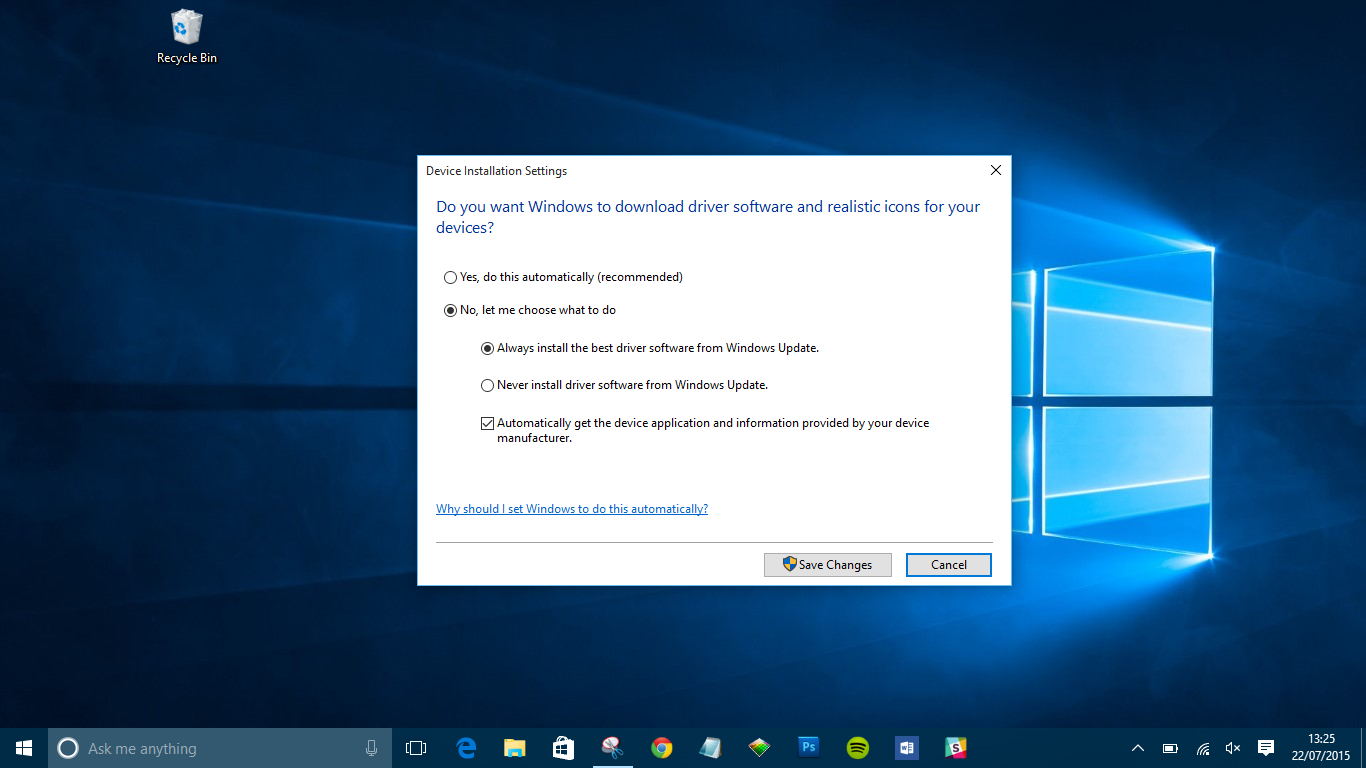
- Sometimes, Windows Update will list “Optional updates” that include drivers. You might need to expand this section to see and select specific driver updates. While these are often stable, remember that direct manufacturer drivers are still the gold standard for peak performance, especially for graphics cards.
- In
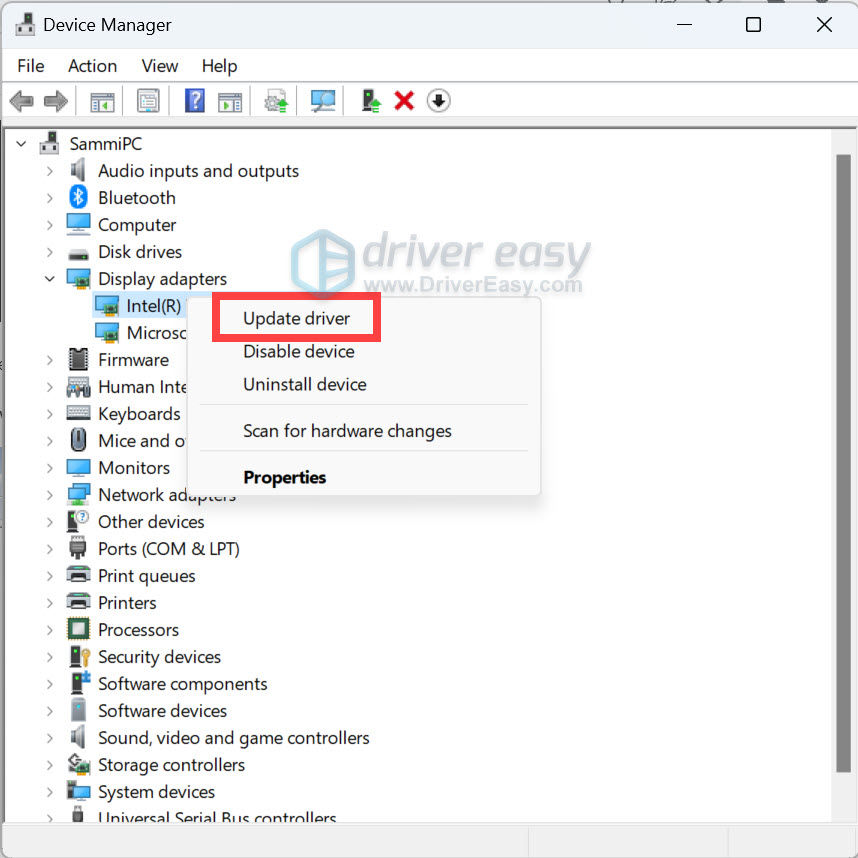
Device Manager, you can right-click on a device, select “Update driver,” and then choose “Search automatically for drivers.” This will prompt Windows to look for a driver on your system and through Windows Update.
Method 3: Reputable Driver Utility Software (Use with Caution)
While generally less recommended than direct manufacturer downloads, certain reputable driver utility software can be useful in specific scenarios.
- When to Consider Third-Party Tools: These tools scan your system, identify outdated or missing drivers, and can often download and install them for you. They can be helpful for new system builds where many drivers are missing, or for users who find manual identification cumbersome.
- Risks and Best Practices for Selection:
- Choose wisely: Many “driver updater” tools are aggressive, install unwanted software (PUPs), or even malicious. Stick to widely recognized and highly-rated solutions from trusted sources, if you choose this route. Some examples of more reputable ones include IObit Driver Booster (often comes with other IObit software, use custom install) or Snappy Driver Installer Origin (open-source).
- Always create a system restore point: Before running any third-party driver utility, always create a system restore point. This provides a rollback option if something goes wrong.
- Verify sources: Even with these tools, if they suggest a driver, try to cross-reference it with the official manufacturer’s website if you have any doubts.
- Avoid “free” versions that only scan: Many free versions only identify problems and then demand payment to fix them.
The Download and Installation Process: A Step-by-Step Guide
Once you’ve located the correct driver package, the installation process usually follows a straightforward path, but some best practices can prevent issues.
Downloading the Correct Package
- Executable files (.exe): Most drivers come as self-extracting executable files. Double-clicking these will typically launch an installation wizard.
- Zipped files (.zip, .rar): Some drivers are provided in compressed archives. You’ll need to extract their contents to a folder before you can proceed. Look for a
setup.exeor aninstall.exefile within the extracted folder.
Preparing for Installation
- Backup and System Restore Point: This is a crucial step. Before installing any major driver update, especially for critical components like graphics cards or chipsets, create a system restore point. This allows you to revert your system to a working state if the new driver causes problems. On Windows, search for “Create a restore point.”
- Close unnecessary applications: Ensure no demanding applications or games are running during the installation process to prevent conflicts.
- Uninstall previous versions (if necessary): For certain drivers, particularly graphics drivers, it’s often recommended to fully uninstall the old driver first. Use the manufacturer’s provided uninstaller utility (if available) or a tool like Display Driver Uninstaller (DDU) for a clean sweep.
Executing the Installation
- Using an Installation Wizard: For
.exefiles, simply double-click and follow the on-screen prompts. These wizards are usually user-friendly, guiding you through options like “Express Installation” (recommended for most users) or “Custom Installation” (for advanced users who want to select specific components). - Manual Installation via Device Manager: If the driver package doesn’t have an installer, or if you’re updating a specific device:
- Open Device Manager (
Win + X > Device Manager). - Right-click on the device you want to update (e.g., your graphics card under “Display adapters”).
- Select “Update driver.”
- Choose “Browse my computer for drivers.”
- Click “Browse” and navigate to the folder where you extracted or downloaded the driver files. Ensure “Include subfolders” is checked.
- Click “Next” to install.
- Open Device Manager (
Verifying Successful Installation
After installation, it’s good practice to confirm everything went smoothly.
- Reboot: Always restart your computer after installing drivers, even if not explicitly prompted. This allows the system to properly load and integrate the new drivers.
- Check Device Manager: Open Device Manager again. Ensure there are no yellow exclamation marks or red X’s next to the device. Right-click the device, go to “Properties,” and check the “Driver” tab to confirm the new driver version and date.
- Test Functionality: Test the hardware component. For a graphics card, try a game or a graphics-intensive application. For a printer, print a test page. For a network adapter, confirm internet connectivity.
Proactive Driver Management for Long-Term System Health
Downloading drivers isn’t a one-off event. It’s an ongoing process vital for maintaining the health, security, and performance of your computer.
Establishing a Regular Update Schedule
While constantly updating drivers isn’t necessary for every component, a regular schedule for critical ones is beneficial.
- Graphics Drivers: For gamers and creative professionals, keeping graphics drivers updated is paramount. Aim for updates every 1-3 months or when major game/software releases are announced.
- Chipset Drivers: Update these less frequently, perhaps annually, or when experiencing system instability.
- Network and Audio Drivers: Update when experiencing issues or if new features/fixes are released.
- Peripherals: Update as needed, especially for gaming mice/keyboards that might receive new features.
- How often? A general rule of thumb is to check for updates for major components (graphics, chipset) every few months. For other components, check annually or only when you encounter problems.
Backing Up Your Current Drivers
Before a major driver update or a fresh OS installation, having a backup of your current, working drivers can be a lifesaver.
- Manual Backup: You can manually copy the driver files from
C:WindowsSystem32DriverStoreFileRepositoryto another location, but this is complex due to folder naming. - Using Tools: Several free and paid tools can backup your existing drivers, such as Double Driver or Driver Store Explorer. These tools allow you to restore drivers if a new update causes issues or if you need to reinstall them on a fresh OS.
Troubleshooting Common Installation Errors
Even with the best preparation, issues can arise.
- Driver installation failed:
- Ensure you have administrator privileges.
- Temporarily disable antivirus software (remember to re-enable it).
- Redownload the driver file in case of corruption.
- System instability after update:
- Roll Back Driver: In Device Manager, right-click the problematic device, go to “Properties,” “Driver” tab, and click “Roll Back Driver.” This reverts to the previous version.
- System Restore: Use the system restore point you created before the update to revert your entire system to its prior state.
- Safe Mode: If your system won’t boot normally, try booting into Safe Mode (press F8 or Shift+Restart during boot-up on Windows) to uninstall or roll back the driver.
- Device still not working:
- Verify the driver’s compatibility with your OS and hardware model.
- Check for conflicting software.
- Consider a “clean install” of the driver (uninstall the old one completely before installing the new one).
In conclusion, downloading drivers is a fundamental task that underpins the reliability and performance of your computer. By understanding what drivers are, meticulously identifying your hardware, diligently sourcing drivers from official channels, and proactively managing their lifecycle, you empower yourself to navigate the complexities of modern computing with confidence and competence. This commitment to proper driver management will reward you with a stable, secure, and high-performing digital experience.
aViewFromTheCave is a participant in the Amazon Services LLC Associates Program, an affiliate advertising program designed to provide a means for sites to earn advertising fees by advertising and linking to Amazon.com. Amazon, the Amazon logo, AmazonSupply, and the AmazonSupply logo are trademarks of Amazon.com, Inc. or its affiliates. As an Amazon Associate we earn affiliate commissions from qualifying purchases.