
In the modern automotive landscape, Tesla has positioned itself not just as a vehicle manufacturer, but as a high-performance software company. Often described as a “computer on wheels,” a Tesla’s value proposition is heavily tied to its infotainment system and the digital experience it provides. However, for new owners or those accustomed to the open ecosystems of Apple’s iOS or Google’s Android, the question of “how to download apps” on a Tesla often leads to a deeper exploration of proprietary software, over-the-air (OTA) updates, and a uniquely curated user environment.

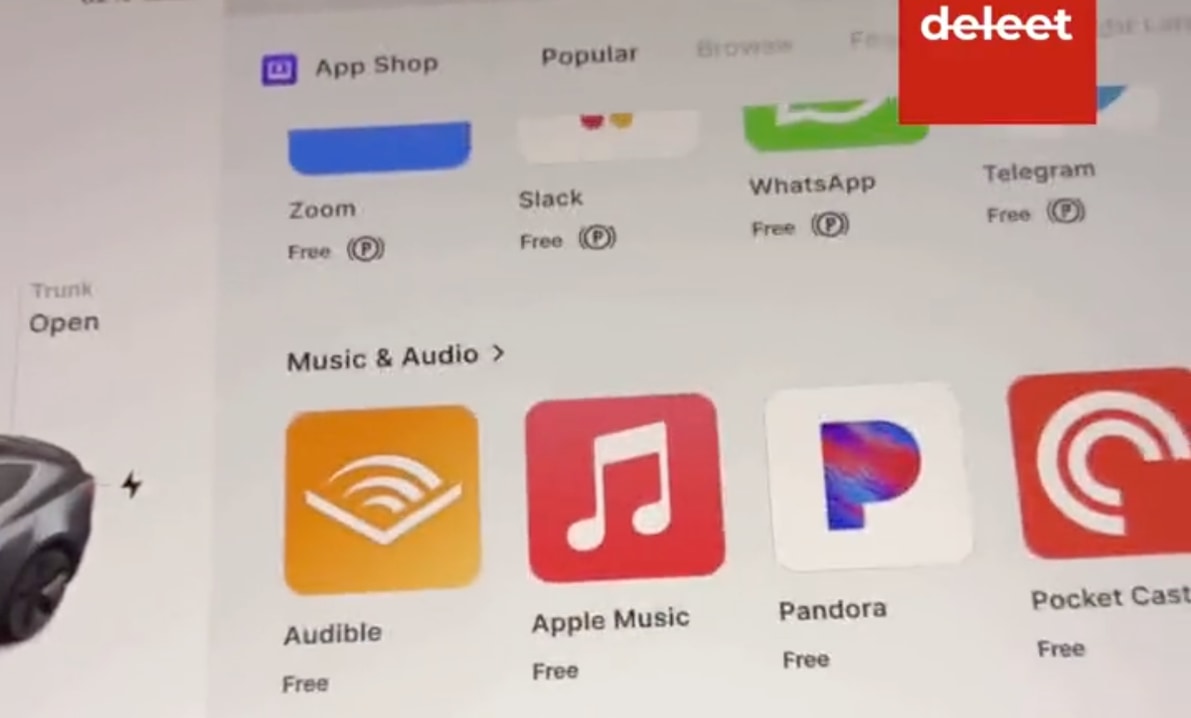
Unlike a smartphone or a tablet, Tesla does not currently offer a traditional, third-party App Store where users can browse, purchase, and install external software at will. Instead, the vehicle utilizes a closed-loop system designed to prioritize security, performance, and vehicle integration. Understanding how to expand your Tesla’s functionality requires a shift in perspective from “downloading” to “managing” and “optimizing” the software ecosystem provided by Tesla’s engineering team.
Understanding the Tesla Software Architecture
To understand how software functions within a Tesla, one must first look at the underlying hardware and the Linux-based operating system that powers the massive center touchscreen. Tesla’s software environment is built to handle everything from safety-critical Autopilot visualizations to entertainment features like Netflix and high-fidelity gaming.
The Evolution of the Media Control Unit (MCU)
The ability to run and update apps is largely dictated by the version of the Media Control Unit (MCU) installed in the vehicle. Early Tesla models used MCU1 (powered by Nvidia Tegra), which had limited processing power and eventually struggled with modern software demands. MCU2 (Intel Atom) introduced a significantly more responsive interface and the “Tesla Theater” suite. The most recent iteration, found in newer Model S, Model X, and some Model 3/Y units, utilizes the AMD Ryzen processor. This upgrade brought gaming-pc levels of performance, enabling the vehicle to run Steam and other high-demand applications that were previously impossible in an automotive context.
The Role of Over-the-Air (OTA) Updates
In a Tesla, the process of “downloading new apps” is almost entirely automated through OTA updates. When Tesla’s developers finish a new feature—whether it is a native integration of Apple Music, a new arcade game, or a utility like Zoom—the software is pushed to the global fleet via a cellular or Wi-Fi connection.
To ensure your vehicle receives the latest applications:
-
Connect to Wi-Fi: Most major software updates require a Wi-Fi connection to download. Setting your Tesla to connect to your home network while parked in the garage is the most effective way to ensure you are first in line for new features.
-
Software Update Preferences: Within the “Software” menu on the touchscreen, users can toggle between “Standard” and “Advanced” update cycles. Choosing “Advanced” signals to Tesla’s servers that your vehicle is ready to test the newest stable builds as soon as they are released for your specific hardware configuration.
Managing and Accessing Native Tesla Apps
While you cannot browse a store to add apps, Tesla provides a robust suite of native applications that are periodically updated and expanded. These are managed through the Application Launcher, a customizable bar at the bottom of the touchscreen.
The App Launcher and Customization
Tesla’s interface allows users to pin their most frequently used apps to the bottom bar for quick access. This includes the Phone app, Media player, Calendar, and the newly added Apple Music or Spotify integrations. To customize this, a user simply long-presses an icon to enter “edit mode” and drags their preferred apps into the dock. This level of UI customization is essential for maintaining driver focus while accessing the car’s growing list of digital tools.
Tesla Theater and Arcade
The “Theater” and “Arcade” sections represent Tesla’s most significant foray into third-party content.
-
Tesla Theater: This section hosts apps like Netflix, YouTube, Disney+, Hulu, and Twitch. While these function similarly to the apps on a smart TV, they are technically optimized web-wrappers or native builds provided through Tesla’s official updates. You do not download them; they appear automatically once the software version supporting them is installed.
-
Tesla Arcade: From simple touch-based games like 2048 to hardware-intensive titles like Cuphead and Beach Buggy Racing 2, the Arcade is the car’s gaming hub. On newer AMD-powered vehicles, the integration of Steam allows users to access thousands of PC games, essentially turning the car into a mobile gaming rig.
The Importance of Premium Connectivity
Many of the “apps” in a Tesla—specifically those related to streaming media and live traffic—require a constant data connection. Tesla offers two tiers: Standard Connectivity and Premium Connectivity. Standard Connectivity provides basic maps and navigation over cellular, but to use apps like Spotify, Netflix, or the Web Browser over the car’s LTE/5G connection, a monthly subscription to Premium Connectivity is required. Without this, these apps only function when the vehicle is connected to a Wi-Fi hotspot.
Expanding Functionality via the Tesla Web Browser
Because Tesla does not have an open App Store, the built-in Web Browser serves as the primary gateway for users looking to access services that haven’t been natively integrated into the OS. The browser is Chromium-based, meaning it is compatible with a vast majority of modern web applications.
Optimizing the Browser for “Web Apps”
Many developers have created “Tesla-friendly” websites that act as unofficial app stores. Sites like TeslaTheater.com or Abetterrouteplanner.com (ABRP) are designed to be viewed in full-screen mode on the Tesla display. By navigating to these URLs, owners can access weather radars, specialized navigation tools, and even game aggregators that aren’t included in the standard Tesla firmware.
Security and Performance Considerations
While the web browser offers flexibility, it is important to remember that it is sandboxed for security. You cannot download executable files (.exe, .dmg, or .apk) via the browser to install on the car’s drive. Furthermore, browser performance is heavily dependent on the MCU version. Owners of older vehicles may find the browser sluggish, whereas Ryzen-equipped models handle complex web applications with ease.
The Future of the Tesla App Store
The tech community has long speculated about when Tesla will launch a dedicated Software Development Kit (SDK) for third-party developers. If Tesla were to open its platform, it could create a massive economy for in-car software, similar to the Apple App Store.
The Potential for an SDK
An official SDK would allow developers to create apps specifically tailored to Tesla’s unique hardware, such as apps that utilize the car’s internal cameras, GPS, or battery data. Currently, Tesla uses a proprietary API that some third-party apps (like Stats or TezLab) use to track vehicle data on mobile devices, but these do not run on the car’s screen. The move to an official App Store would likely require Tesla to solve significant regulatory and safety hurdles, ensuring that third-party software never interferes with the vehicle’s driving systems.
Integration vs. Native Apps
Tesla has historically been resistant to integrating Apple CarPlay and Android Auto. The company’s philosophy is to own the entire user experience, from the hardware to the interface. By keeping the system “closed,” Tesla ensures that the navigation system can accurately predict battery state-of-charge upon arrival—a feature that is difficult to implement when a phone is simply “mirroring” its screen onto the car. As the software continues to mature, it is more likely that Tesla will continue to add native “apps” for popular services (like Zoom or Microsoft Teams) rather than ceding control to Apple or Google.
Troubleshooting and Maximizing Your In-Car Tech
As with any high-end tech device, the software on a Tesla can occasionally experience glitches, especially after a major update containing new apps or features.
Managing Storage and Cache
While users don’t have to worry about “disk space” in the traditional sense when downloading apps, the system does manage a significant amount of data for the Dashcam and Sentry Mode. If the system feels sluggish, ensuring you are using a high-quality, high-endurance USB drive for your Sentry Mode footage can sometimes alleviate secondary processing strain.
Performing a Soft Reset
If an app fails to load or the browser crashes, a “soft reset” of the infotainment system is the standard solution. This is done by holding down both scroll wheels on the steering wheel until the touchscreen goes black and the Tesla “T” logo appears. This restarts the computer without affecting the driving systems of the car, allowing the software environment to refresh.
In conclusion, “downloading apps” on a Tesla is a passive process managed by the manufacturer’s commitment to continuous improvement. By focusing on OTA updates, optimizing the web browser, and understanding the hardware limitations of the MCU, owners can unlock a digital experience that remains at the cutting edge of the automotive industry. As Tesla’s fleet grows and its processing power increases, the transition from a curated list of features to a full-fledged third-party ecosystem may be the next great frontier in vehicle technology.
aViewFromTheCave is a participant in the Amazon Services LLC Associates Program, an affiliate advertising program designed to provide a means for sites to earn advertising fees by advertising and linking to Amazon.com. Amazon, the Amazon logo, AmazonSupply, and the AmazonSupply logo are trademarks of Amazon.com, Inc. or its affiliates. As an Amazon Associate we earn affiliate commissions from qualifying purchases.