
In an increasingly connected world, the ability to disconnect without sacrificing entertainment has become a highly valued commodity. Amazon, a titan in digital content distribution, understands this need, offering a robust platform for streaming and, crucially, downloading a vast library of films and TV shows. Whether you’re a frequent traveler, commute daily, or simply want to save on mobile data, knowing how to effectively download Amazon video content is an invaluable skill. This comprehensive guide delves into the technicalities, best practices, and limitations involved in bringing your favorite Amazon Prime Video content offline, ensuring your entertainment is always at your fingertips.
The Imperative of Offline Access: Why Download Amazon Video?
The digital age, for all its marvels, still grapples with the inconsistencies of internet connectivity. From remote locations to crowded public transport, a stable connection isn’t always a guarantee. This is where the capability to download Amazon video content shines, transforming potential frustration into seamless entertainment.
Uninterrupted Entertainment on the Go
One of the primary drivers for downloading video content is the desire for uninterrupted entertainment. Imagine being on a long-haul flight, a train journey through a patchy signal area, or even just relaxing in a park without Wi-Fi. Streaming in such scenarios is often impossible or plagued by buffering, leading to a frustrating user experience. By downloading content beforehand, users can enjoy a flawless playback experience, completely independent of internet availability. This transforms downtime into entertainment time, making commutes, travel, and waiting periods significantly more enjoyable and productive.
Data Savings and Connectivity Independence
For many users, especially those reliant on mobile data plans, streaming high-definition video can quickly deplete their monthly allowances. A single movie or a few episodes of a TV show can consume gigabytes of data. Downloading content over a stable Wi-Fi connection, typically at home or a public hotspot, eliminates the need to use cellular data for viewing. This not only results in significant cost savings but also provides a sense of liberation from constant connectivity concerns. Users can plan their viewing without worrying about data caps or the quality of their current internet signal, empowering them with true connectivity independence for their media consumption.
Preserving Access to Rented and Purchased Content (within Amazon’s Ecosystem)
While Prime Video offers an extensive library included with a subscription, many users also rent or purchase individual titles from Amazon. For these specific transactions, the ability to download adds another layer of value. While purchased content theoretically remains accessible forever (within Amazon’s terms), downloading it provides a local, immediate copy. For rented content, which typically has a limited viewing window once started, downloading ensures that you can begin watching when convenient, even if you anticipate being offline. It’s important to note, however, that even downloaded rented content will expire according to its rental period, meaning the download is a temporary access mechanism, not a permanent ownership solution. This feature primarily serves to ensure playback stability and data efficiency for content you’ve already paid for, reinforcing the value proposition of Amazon’s digital store.
Official Methods for Downloading Amazon Prime Video
Amazon has made significant efforts to integrate offline viewing capabilities directly into its Prime Video applications, ensuring a user-friendly and secure experience across various devices. Adhering to these official methods is the most reliable way to download content while respecting digital rights management (DRM).
On Mobile Devices (iOS & Android)
The Prime Video app on smartphones and tablets offers the most straightforward path to offline viewing, leveraging the portability of these devices.
Installing the Prime Video App
The first step is to ensure you have the official Amazon Prime Video app installed on your device. For iOS users, this means visiting the Apple App Store; for Android users, the Google Play Store. Search for “Amazon Prime Video,” download, and install the application. Once installed, you will need to sign in with your Amazon account credentials, which should be linked to your Prime subscription or have relevant video purchases/rentals.
Navigating to Download Options
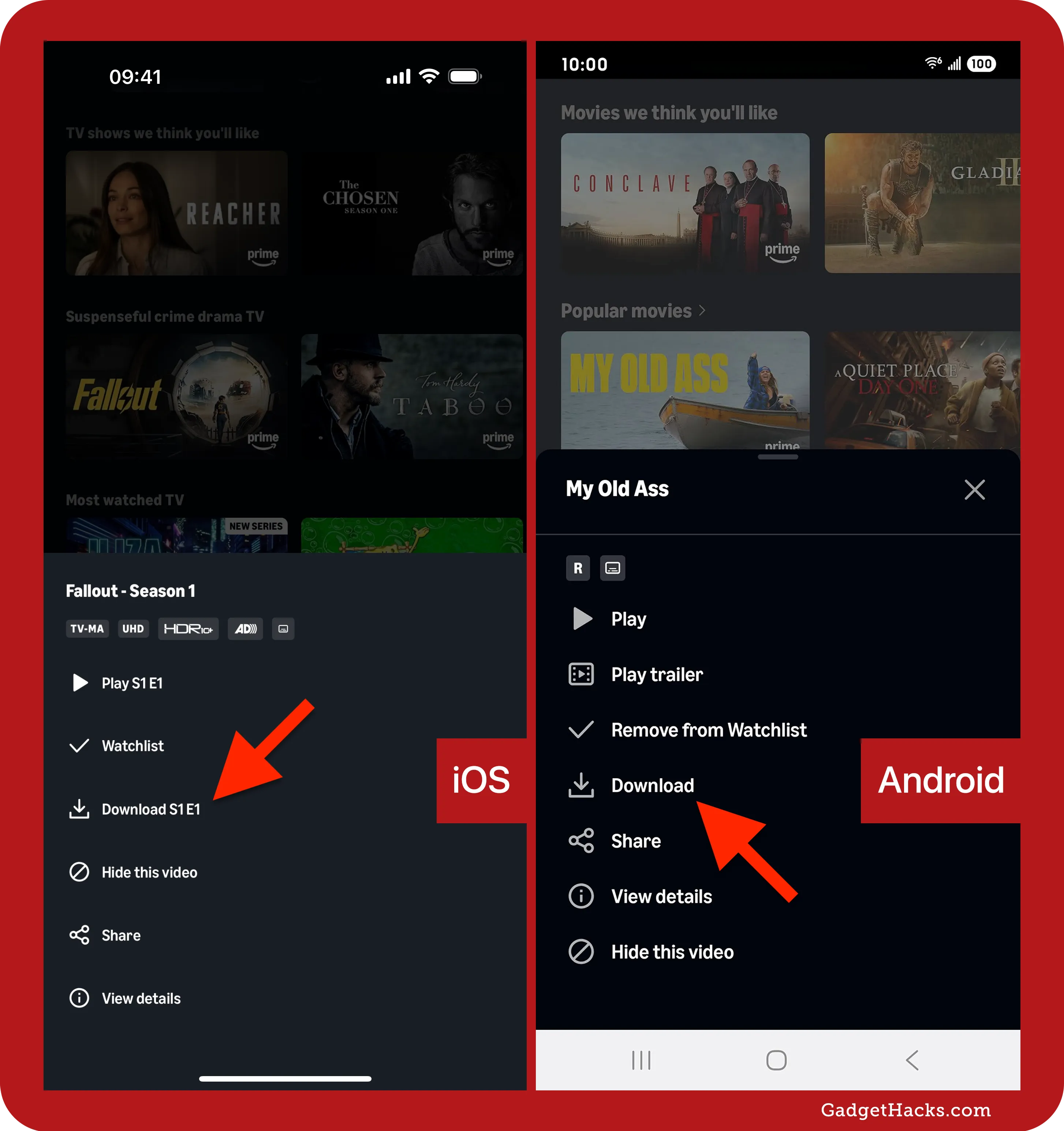
Once logged in, browsing for downloadable content is intuitive. Most content available for download will feature a “Download” icon, typically an arrow pointing downwards, next to the “Watch Now” or “Add to Watchlist” buttons. This icon might appear next to individual episodes of a TV series or on the main page of a movie. Tapping this icon initiates the download process. For TV series, you often have the option to download an entire season or select individual episodes. A progress bar or notification will indicate the download status. To access your downloaded content, navigate to the “Downloads” tab within the app, which serves as your offline library.
Managing Download Quality and Storage
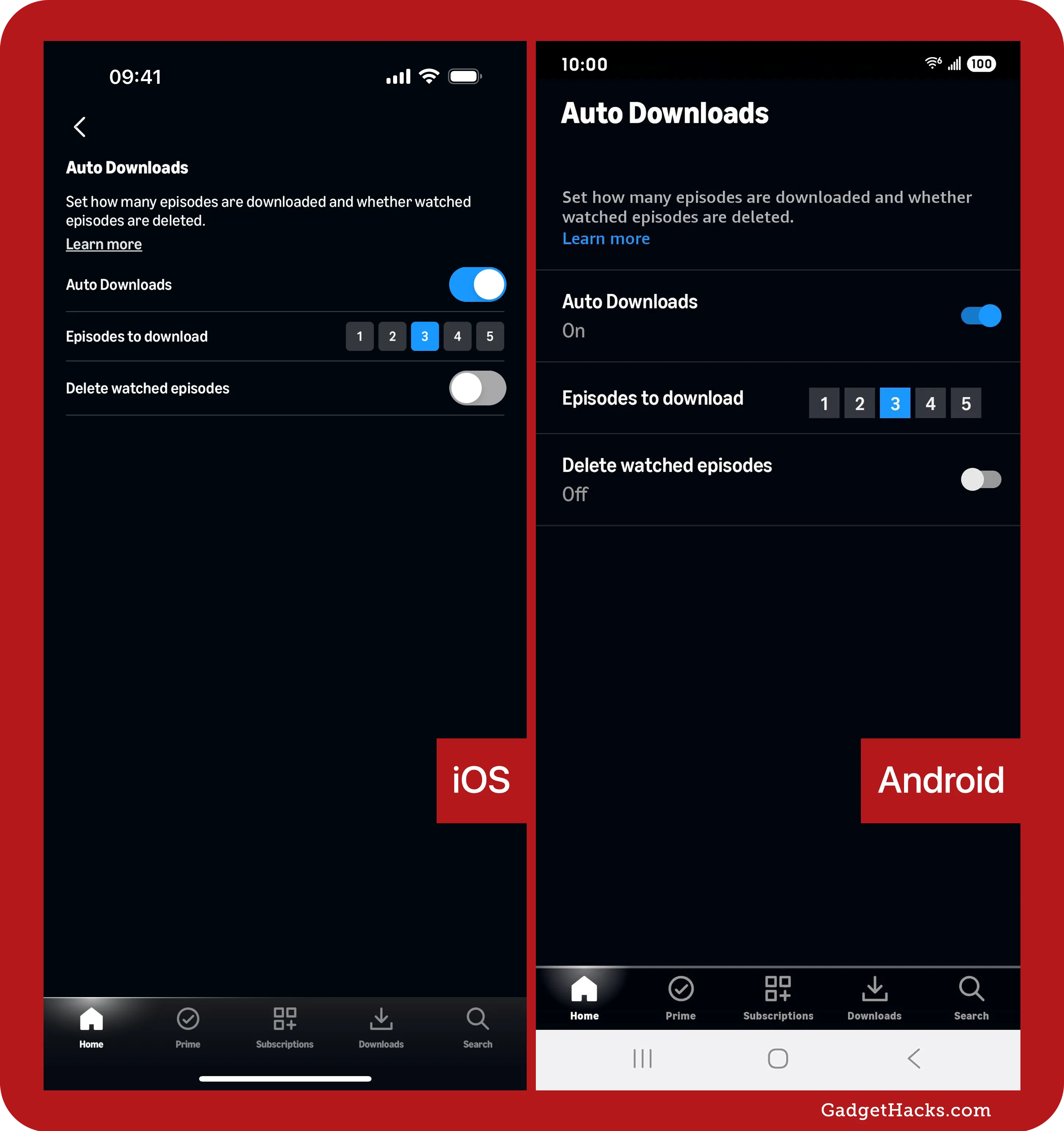
The Prime Video app also allows users to manage download quality, which directly impacts storage space consumption. In the app’s settings (usually accessible via a gear icon or through your profile settings), you’ll find “Stream & Download” or “Download Quality” options. Choices typically range from “Good” (standard definition) to “Better” (high definition) or “Best” (highest available definition). Selecting a lower quality will consume less storage space and download faster, ideal for devices with limited memory. Additionally, you can specify where downloads are stored if your Android device has external storage (like an SD card), further optimizing internal device memory.
On Windows PCs and Macs (Using the Amazon Prime Video App)
While mobile devices are popular for downloads, Amazon also offers dedicated desktop applications for Windows and macOS, bringing offline viewing to larger screens.
App Installation and Setup
For Windows users, the Amazon Prime Video app can be downloaded from the Microsoft Store. Mac users can find it on the Apple App Store. Search for the app, download, and install it. Upon launch, you will be prompted to sign in with your Amazon account. This desktop application provides a dedicated portal to your Prime Video library, mirroring much of the functionality found on mobile versions.
Locating Downloadable Content
Similar to the mobile experience, browse the library within the desktop app. Content available for download will display the familiar downward-pointing arrow icon. Clicking this icon will start the download. For TV shows, you’ll be presented with options to download specific episodes or entire seasons. The app typically features a “Downloads” section or tab where you can monitor progress and access all your downloaded titles for offline playback.
Understanding Download Settings and Location
The desktop app also provides settings to manage download quality, much like its mobile counterpart, allowing you to balance video fidelity with storage usage. These settings are usually found within the app’s preferences or settings menu. It’s important to note that, unlike general files, Amazon Prime Video downloads are encrypted and stored in a proprietary format within the application’s secure data directory. This means you cannot simply copy these files to another location or transfer them to another device via traditional file management. They are inextricably linked to the app and your Amazon account on that specific device, a critical aspect of Amazon’s DRM strategy.
Understanding Amazon’s Download Limitations and Digital Rights Management (DRM)
While convenient, the ability to download Amazon video content comes with specific limitations imposed by Amazon and content rights holders. These restrictions are primarily governed by Digital Rights Management (DRM) protocols, designed to protect copyrighted material.
Expiration of Downloads and Viewing Periods
Downloaded content, especially rented titles, is not permanent. Rented movies or TV shows typically have a limited viewing window once downloaded, often 30 days to start watching, and then 48 hours to finish once playback begins. Prime Video titles that are part of your subscription can also expire if they are removed from the Prime catalog. Even if downloaded, once a title leaves Prime, it will no longer be playable, or it might have a limited window of time before becoming unplayable after leaving the catalog. This means managing your downloaded library and understanding content availability is crucial to avoid disappointment.
Device Restrictions and Simultaneous Downloads
Amazon imposes limits on the number of devices you can download content to simultaneously. Typically, a single Amazon account can download titles to a maximum of two or three devices at any given time. If you attempt to download to a fourth device, you might be prompted to deregister an older device. Furthermore, there might be a limit on the total number of unique titles you can download across all devices within a specific period (e.g., 15-25 total downloads). These restrictions are put in place to prevent account sharing and widespread distribution of copyrighted content.
Content Availability and Regional Licensing
Not all content available for streaming on Amazon Prime Video is also available for download. This often comes down to licensing agreements with content creators and distributors. Additionally, regional licensing plays a significant role. The availability of specific titles, both for streaming and download, can vary dramatically based on your geographical location. A movie available for download in the US might only be streamable or unavailable entirely in the UK or another country. This geo-restriction is a common practice in digital distribution due to complex international content rights.
The Role of DRM in Protecting Content
Digital Rights Management (DRM) is the underlying technology that enforces all these limitations. It encrypts the video files, preventing unauthorized copying, distribution, and playback outside of the approved Prime Video applications. When you download a video, you’re not getting a standard MP4 file; you’re getting an encrypted file that only the Prime Video app, linked to your authenticated account, can decrypt and play. This ensures that content creators and distributors maintain control over their intellectual property and receive due compensation, albeit at the cost of some user flexibility.
Troubleshooting Common Download Issues and Best Practices
Despite Amazon’s robust systems, users occasionally encounter issues when attempting to download video content. Understanding common problems and implementing best practices can significantly enhance your offline viewing experience.
Addressing “Download Limit Reached” Errors
One of the most frequent error messages is related to exceeding download limits. As mentioned, Amazon typically limits the number of devices and total titles you can have downloaded at once. If you encounter this, first check your “Downloads” section across all your registered devices. You may need to delete older or unwatched content from one device to free up space for new downloads on another. Similarly, if you’ve hit the total unique title limit, you’ll need to remove some older downloads before adding new ones. Periodically managing your downloaded library is a good habit.
Network Connectivity and Storage Space Solutions
Slow or intermittent internet connectivity can cause downloads to fail or take an unreasonably long time. Ensure you have a stable, strong Wi-Fi connection when initiating large downloads. If using mobile data, verify your signal strength. Another common culprit is insufficient storage space on your device. Before starting a download, especially for high-quality video, check your device’s available storage. In the Prime Video app settings, you can often see how much space your downloads are occupying. If space is low, consider deleting other unused apps, photos, or choosing a lower download quality within the Prime Video app settings.
App Updates and Reinstallation Strategies
Outdated applications can lead to various bugs and download failures. Always ensure your Amazon Prime Video app is updated to the latest version. Regularly check your device’s app store (Apple App Store for iOS/macOS, Google Play Store for Android, Microsoft Store for Windows) for available updates. If an update doesn’t resolve the issue, a more drastic but often effective step is to reinstall the app. Before doing so, be aware that reinstallation will delete all existing downloads, so plan accordingly. After reinstallation, sign in again and attempt the download. This can clear corrupted app data or resolve conflicts.
Optimizing Your Download Experience
For an optimal download experience, consider the following best practices:
- Prioritize Wi-Fi: Always download over a strong Wi-Fi connection to save data and ensure faster speeds.
- Schedule Downloads: Initiate downloads during off-peak internet usage hours (e.g., late at night) for potentially faster speeds if your home network is shared.
- Monitor Storage: Regularly check your device’s storage and the Prime Video app’s download section. Delete unwatched or completed titles to free up space proactively.
- Select Appropriate Quality: Adjust download quality in the app settings based on your device’s storage capacity and screen size. High definition might be great for a tablet, but “Good” quality might suffice for a phone and save significant space.
- Keep Apps Updated: Enable automatic updates for the Prime Video app to ensure you always have the latest features and bug fixes.
Beyond Prime Video: Downloading Purchased/Rented Content and Considerations for Third-Party Tools
While Prime Video offers a subscription-based model, Amazon’s ecosystem also allows for direct purchases and rentals of individual titles. Understanding how these differ, and the risks associated with non-official download methods, is crucial for a complete technical overview.
Differentiating Prime, Rented, and Purchased Content
It’s vital for users to understand the nuances between content types on Amazon Video:
- Prime Video Content: These titles are included with an active Amazon Prime subscription. Their availability for download and streaming is subject to licensing agreements, and titles can enter or leave the Prime catalog. Downloads expire if the title leaves Prime.
- Rented Content: These are titles you pay a one-time fee to watch within a specific time frame (e.g., 30 days to start, 48 hours to finish once started). Downloads are possible within the Prime Video app, but the content will expire and become unplayable once the rental period concludes, regardless of being downloaded.
- Purchased Content: These are titles you buy outright, granting you perpetual access within your Amazon account. While you “own” the digital rights, this ownership is typically tied to Amazon’s platform and terms of service. Downloads are generally available via the official app, offering offline access. However, these are still DRM-protected files and are not truly “yours” in the sense of being able to move them freely between devices or convert them to other formats.
For all these categories, downloading via the official Prime Video app ensures compliance with licensing and DRM, providing a secure and supported experience.
The Landscape of Third-Party Downloaders (and Associated Risks/Legality)
A quick search online will reveal numerous “third-party Amazon video downloaders” or “DRM removal tools.” These tools promise to download Amazon videos into standard file formats like MP4, ostensibly allowing users to store them permanently, transfer them to any device, or even burn them to discs.
However, it is critical to approach these tools with extreme caution:
- Legality: Bypassing DRM is generally illegal in most jurisdictions under copyright law (e.g., the Digital Millennium Copyright Act in the US). Using such tools can put you in legal jeopardy, and certainly violates Amazon’s terms of service, which could lead to account suspension.
- Security Risks: Many third-party tools, especially free ones, are conduits for malware, viruses, or spyware. Installing them can compromise your device’s security, expose personal data, or lead to system instability. Even reputable-looking paid software can carry hidden risks.
- Quality and Reliability: The quality of downloads from these tools can be inconsistent, often inferior to official downloads. They also rely on reverse-engineering or exploiting vulnerabilities in Amazon’s systems, making them prone to breaking whenever Amazon updates its platform.
- Ethical Considerations: Using these tools undermines the creators and distributors who rely on licensing and sales to fund future content.

Why Official Methods are Generally Recommended
Given the significant risks and legal implications associated with third-party tools, relying solely on Amazon’s official Prime Video applications for downloading content is strongly recommended. The official methods offer:
- Security: Your device and data are protected from malware.
- Legality: You operate within the bounds of copyright law and Amazon’s terms of service.
- Reliability: Downloads are managed by Amazon’s own infrastructure, ensuring consistent quality and availability (within their stated terms).
- Support: If you encounter issues, Amazon’s customer support can assist you, which is not possible with third-party software.
- Ease of Use: The in-app download feature is designed for user convenience and seamless integration with your Amazon library.
In conclusion, while the allure of “owning” digital content outside of platform restrictions is strong, the technical, legal, and security implications of using unauthorized tools far outweigh the perceived benefits. Sticking to Amazon’s integrated download features provides a secure, legitimate, and highly reliable way to enjoy your purchased and subscribed video content offline. Embracing these official capabilities ensures a smooth, worry-free entertainment experience, keeping you connected to your favorite shows and movies, even when you’re technically disconnected.
aViewFromTheCave is a participant in the Amazon Services LLC Associates Program, an affiliate advertising program designed to provide a means for sites to earn advertising fees by advertising and linking to Amazon.com. Amazon, the Amazon logo, AmazonSupply, and the AmazonSupply logo are trademarks of Amazon.com, Inc. or its affiliates. As an Amazon Associate we earn affiliate commissions from qualifying purchases.