
In an increasingly connected world, the ability to enjoy our favorite entertainment anytime, anywhere, regardless of internet access, has become a premium feature. Amazon Prime Video, a titan in the streaming industry, understands this crucial demand, offering its subscribers the invaluable option to download movies and TV shows for offline viewing. This functionality transforms commutes, long flights, and even remote getaways into private cinemas, ensuring that your entertainment never stops, even when your connection does. This comprehensive guide delves into the technical aspects of leveraging Amazon Prime Video’s download feature, providing step-by-step instructions, addressing common queries, and offering insights into optimizing your offline viewing experience.
The Convenience of Offline Viewing: Why Download?
The fundamental appeal of downloading content stems from the promise of unconstrained entertainment. For users navigating the modern digital landscape, the ability to detach from reliance on constant, high-speed internet is not just a luxury but often a necessity. Understanding the core benefits illuminates why this tech feature is so highly valued.
Uninterrupted Entertainment On-the-Go
Imagine a long-haul flight, a daily subway commute, or a road trip through areas with spotty cell service. These scenarios traditionally meant a pause in your binge-watching marathon or a reliance on pre-loaded, often limited, local content. With Amazon Prime Video downloads, your chosen entertainment library travels with you, offering seamless playback without a single buffer, even in airplane mode. This freedom from connectivity transforms otherwise unproductive travel time into an opportunity for relaxation and enjoyment, making your device a truly portable entertainment hub.
Conserving Data and Battling Buffering
For many, mobile data caps are a constant concern, and streaming high-definition video can quickly deplete monthly allowances. Downloading content over a robust Wi-Fi connection prior to heading out eliminates the need to consume valuable mobile data. This not only saves money but also ensures a superior viewing experience free from the frustration of buffering. Buffering, often a symptom of weak or inconsistent internet connections, can severely detract from enjoyment. By downloading, you bypass these issues entirely, guaranteeing smooth, high-quality playback regardless of network conditions. This technical workaround for bandwidth limitations is a game-changer for data-conscious users and those in areas with unreliable internet infrastructure.
Accessing Content Beyond Connectivity
Beyond travel, there are numerous situations where internet access is either unavailable or prohibitively expensive. Remote cabins, international destinations with costly roaming charges, or even simply a power outage at home can interrupt streaming. Downloads serve as a robust contingency plan, ensuring that your curated selection of movies and shows remains accessible. This feature essentially creates a personal, localized digital library that is immune to external network disruptions, providing peace of mind and continuous access to your purchased or subscribed content.
Getting Started: Requirements and Preparation
Before embarking on your downloading journey, a few prerequisites must be met to ensure a smooth and successful experience. Understanding these foundational requirements is key to effectively utilizing Amazon Prime Video’s offline capabilities.
Active Amazon Prime Membership
The download feature is an exclusive benefit for active Amazon Prime subscribers. While you can rent or buy titles on Amazon Prime Video without a full Prime membership, the ability to download content from the Prime Video catalog (titles included with your subscription) is restricted to Prime members. Ensure your subscription is current and in good standing. This underlying membership is the technical gateway to unlocking the full suite of Prime Video’s features, including its robust offline viewing options.
Compatible Devices and Sufficient Storage
Amazon Prime Video allows downloads primarily on specific devices:
- Mobile Devices: iOS devices (iPhones, iPads) and Android smartphones and tablets.
- PCs: Windows 10/11 devices running the official Amazon Prime Video app from the Microsoft Store.
- Fire Tablets: Amazon’s own line of tablets are fully integrated with Prime Video.
It’s crucial that your device has sufficient internal storage space or expandable storage (for Android devices) to accommodate the downloaded files. High-definition movies, especially feature films, can consume several gigabytes of storage. Before downloading, check your device’s available space to avoid interruptions. This technical consideration of storage capacity is paramount, as insufficient space will prevent downloads from completing.
Installing the Amazon Prime Video App
Downloading is not supported directly through web browsers. To access the download feature, you must install the dedicated Amazon Prime Video application on your chosen device.
- For Mobile Devices: Download the “Amazon Prime Video” app from the Apple App Store (iOS) or Google Play Store (Android).
- For Windows PCs: Download the “Amazon Prime Video” app from the Microsoft Store.
- For Fire Tablets: The app comes pre-installed.
Once installed, sign in with your Amazon Prime account credentials. The app serves as the secure interface for managing your library, streaming content, and, crucially, initiating and managing your downloads. This application-centric approach ensures secure digital rights management (DRM) and a consistent user experience across platforms.
Step-by-Step Guide to Downloading Prime Video Content
Navigating the Amazon Prime Video app to download your desired content is a straightforward process, though the exact steps may vary slightly between device types. Here, we break down the procedure for the most common platforms.
Downloading on Mobile Devices (iOS & Android)
Mobile devices are arguably the most popular platform for consuming downloaded content due to their portability. The Prime Video app on these devices is designed for intuitive use.
Navigating the App and Finding Content
- Open the Prime Video App: Launch the Amazon Prime Video app on your smartphone or tablet.
- Sign In: If not already logged in, enter your Amazon Prime account credentials.
- Browse or Search: Use the search bar or browse through categories, genres, or your watchlists to find the movie or TV show you wish to download. Titles included with your Prime membership will typically have a “Prime” banner or badge.
Initiating the Download Process
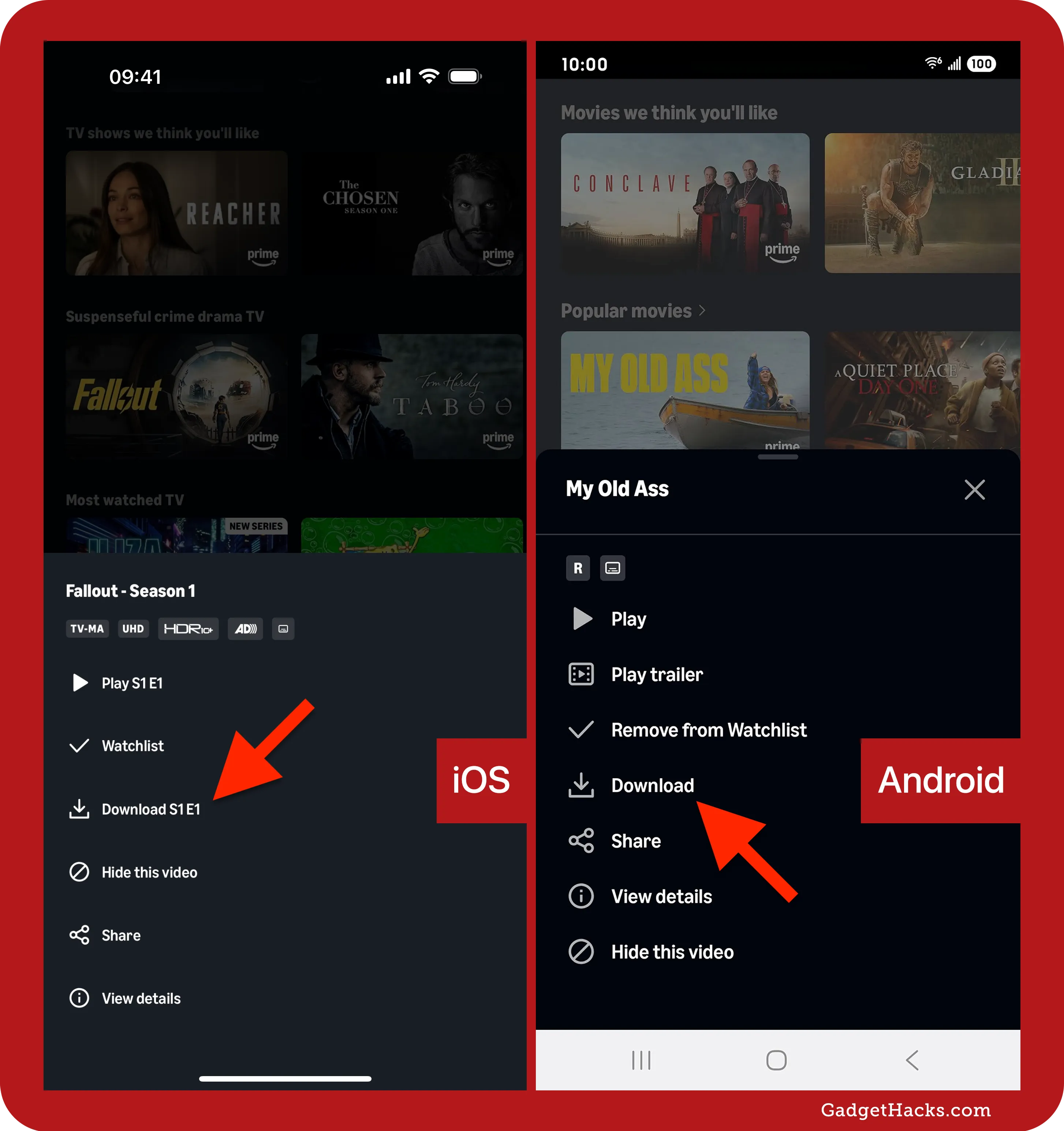
- Select Content: Tap on the title you want to download. This will take you to its detail page.
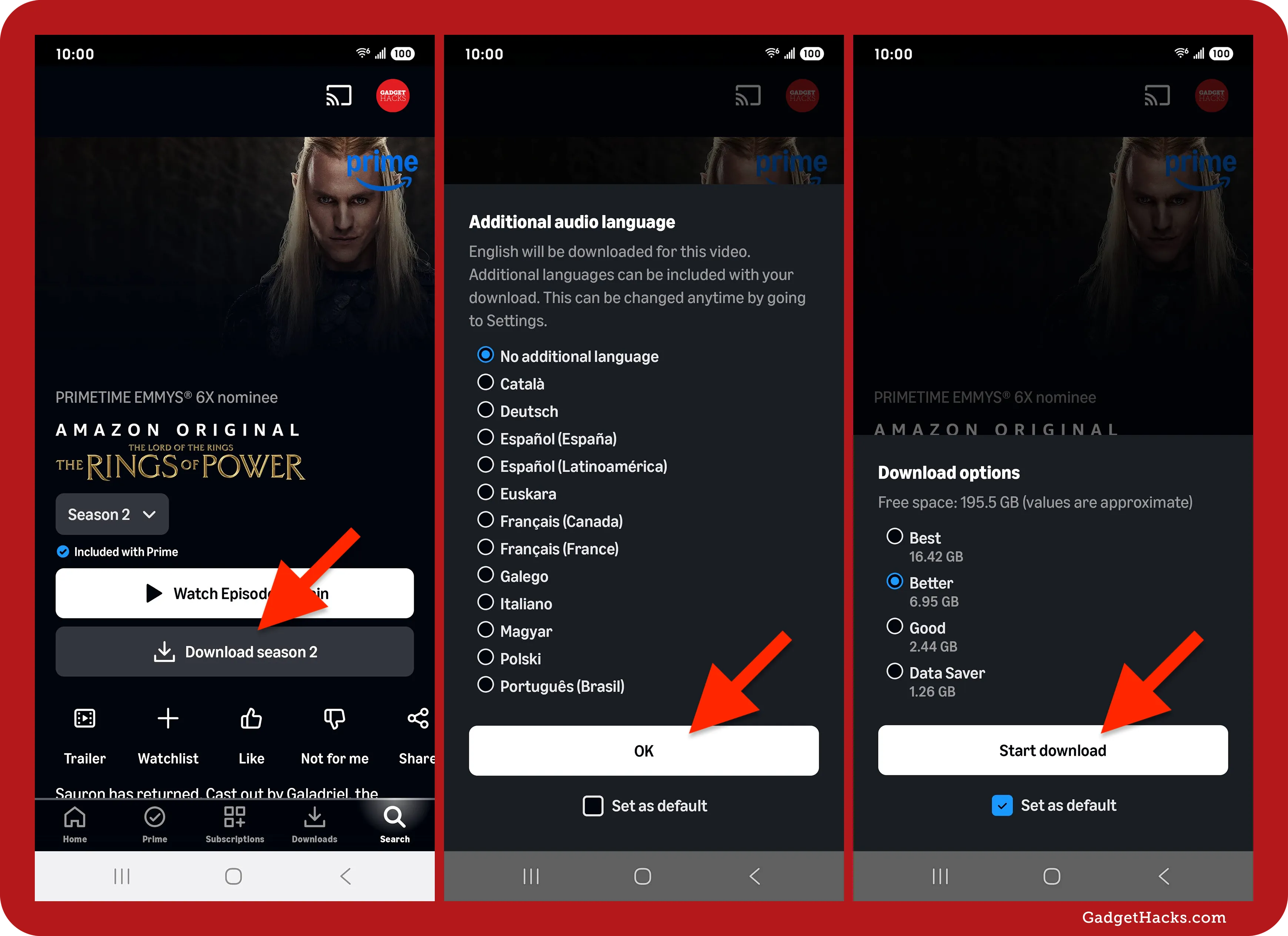
- Locate Download Icon: On the detail page, look for the “Download” button or icon. For movies, it’s usually a single button. For TV shows, you’ll often see a “Download Season” option, or individual download icons next to each episode. The icon typically looks like a downward arrow pointing into a tray or line.
- Choose Download Quality: Before the download begins, the app might prompt you to choose the download quality (e.g., “Good,” “Better,” “Best”). Higher quality consumes more storage space and takes longer to download but offers a superior viewing experience. Select your preferred option.
- Start Download: Confirm your selection, and the download will begin. You’ll usually see a progress indicator.
Managing Download Quality and Storage
To manage your download preferences globally or check on ongoing downloads:
- Go to the “Downloads” section of the app (often found in the bottom navigation bar or the main menu).
- Here, you can see all your downloaded titles, pause or cancel downloads, and adjust overall download settings (e.g., default download quality, Wi-Fi only downloads).
- To free up space, you can easily delete individual downloaded titles from this section.

Downloading on Windows PCs
For users preferring a larger screen or working from a laptop, the Amazon Prime Video app for Windows offers robust download capabilities, mirroring much of the mobile experience.
Utilizing the Amazon Prime Video Desktop App
- Launch the App: Open the Amazon Prime Video app on your Windows 10/11 PC.
- Log In: Sign in with your Amazon Prime account credentials.
- Browse or Search: Navigate through the interface to find the movie or TV show you want to download. The interface is quite similar to the mobile app.
Selecting and Downloading Titles
- Click on Content: Select the desired movie or TV show to open its detail page.
- Find Download Button: Similar to mobile, locate the “Download” button or icon (downward arrow). For TV shows, you’ll have options to download individual episodes or an entire season if available.
- Choose Download Quality: The app will prompt you to select the download quality. Consider your storage space and viewing preference.
- Initiate Download: Confirm your choice, and the download will start. A progress bar will indicate its status.
Customizing Download Settings
The Windows app also offers settings to customize your download experience:
- Click on the “Settings” or gear icon, usually found in the bottom left corner or a sidebar menu.
- Here, you can adjust the default download quality, choose whether to download over Wi-Fi only, and even change the download location on your PC to a different drive if you have limited space on your primary drive.
- The “Downloads” section of the app will display all your downloaded content, allowing you to play them offline or delete them to free up space.
Understanding Download Limitations and Best Practices
While the download feature is incredibly powerful, it operates within certain technical and licensing constraints. Being aware of these limitations helps in managing expectations and optimizing your offline viewing.
Content Availability and Regional Restrictions
Not every title available on Amazon Prime Video is eligible for download. This is often due to licensing agreements with studios and distributors. Some content may only be available for streaming. Additionally, regional licensing can affect download availability; a title downloadable in one country might only be streamable, or not available at all, in another. Always check for the download icon on the title’s detail page to confirm its eligibility. The absence of the icon indicates that the title cannot be downloaded.
Viewing Periods and Expiration of Downloads
Downloaded titles are not permanently owned files. They come with a viewing period, similar to a rental. Once you start watching a downloaded movie or episode, you typically have a limited time (e.g., 48 hours) to finish it before it expires. Prime Video also often imposes a broader expiration date, usually 30 days, from the moment you download the content, even if you haven’t started watching it. After expiration, the title will be removed from your downloads and you may need to re-download it to watch again, subject to its continued availability in the Prime catalog. This DRM (Digital Rights Management) is a crucial technical component protecting content copyright.
Device Limits and Concurrent Downloads
Amazon imposes limits on the number of devices you can have downloaded content on simultaneously from a single Prime account. Typically, you can download titles on a maximum of two devices at once. Attempting to download on a third device may require you to remove downloads from one of the previously authorized devices. Furthermore, there might be limits on the total number of unique titles you can download across all devices at any given time. These technical safeguards prevent unauthorized sharing and excessive use beyond the terms of service.
Optimizing Your Download Experience
To get the most out of the download feature:
- Prioritize Wi-Fi: Always download over a stable, fast Wi-Fi connection to save mobile data and ensure quick downloads.
- Manage Storage: Regularly review your downloaded content and delete titles you’ve already watched to free up valuable device storage.
- Choose Appropriate Quality: Balance storage needs with visual preference. If you’re watching on a small phone screen, “Good” quality might suffice, saving significant space.
- Download in Advance: Plan ahead! Download content well before your trip or before you anticipate losing internet access. This avoids last-minute rushes and potential connection issues.
Managing Your Downloaded Library
Once you have a collection of downloaded movies and shows, managing them efficiently within the Prime Video app is crucial for a seamless offline viewing experience.
Locating and Playing Downloads
All your downloaded content is conveniently grouped in a dedicated section of the Amazon Prime Video app, typically labeled “Downloads.”
- Navigate to Downloads: On mobile devices, this is usually an icon in the bottom navigation bar. On Windows PCs, it’s often a menu option on the side or top.
- Select and Play: Tap or click on the title you wish to watch. The playback will begin immediately, without needing an internet connection. The app handles the local playback directly from your device’s storage.
Deleting Unwanted Content
To free up space or remove expired titles:
- Go to Downloads: Access the “Downloads” section as described above.
- Select Edit/Manage: Look for an “Edit” button, a “pencil” icon, or a menu (three dots) next to individual titles.
- Choose to Delete: Select the title(s) you wish to remove and confirm the deletion. This action permanently removes the file from your device, freeing up the occupied storage. This is a simple yet vital file management function built into the app.
Adjusting Download Preferences Post-Setup
Even after you’ve started downloading, you can revisit and adjust your global download preferences:
- Default Download Quality: In the app’s settings, you can change the default quality for future downloads. This means you won’t be prompted every time you initiate a download, unless you specifically override it.
- Storage Location (Windows): For Windows users, the settings often allow you to specify an alternative drive for downloads, which is invaluable if your primary drive is running low on space.
- Wi-Fi Only Downloads: Confirm that the “Download over Wi-Fi only” option is enabled in your settings. This prevents accidental data usage and ensures downloads only occur when a stable, free connection is available.
These customization options provide users with granular control over how and where their digital media is stored, enhancing the technical utility of the Prime Video app.
Conclusion: Maximizing Your Prime Video Experience
The ability to download Amazon Prime movies and TV shows for offline viewing is a cornerstone feature that significantly enhances the value proposition of a Prime subscription. It empowers users with unparalleled flexibility, allowing them to transform idle moments into entertainment opportunities, mitigate data consumption concerns, and liberate themselves from the unpredictable nature of internet connectivity.
By understanding the technical requirements, navigating the app’s intuitive interface, and being mindful of the inherent digital rights management limitations, you can fully leverage this powerful functionality. From optimizing storage to strategically planning your downloads, each step contributes to a more seamless and enjoyable viewing experience. Embrace the freedom of offline entertainment and truly make your Amazon Prime Video library accessible, anytime, anywhere.
aViewFromTheCave is a participant in the Amazon Services LLC Associates Program, an affiliate advertising program designed to provide a means for sites to earn advertising fees by advertising and linking to Amazon.com. Amazon, the Amazon logo, AmazonSupply, and the AmazonSupply logo are trademarks of Amazon.com, Inc. or its affiliates. As an Amazon Associate we earn affiliate commissions from qualifying purchases.