
In an increasingly connected world, the ability to disconnect without losing access to your favorite entertainment has become a premium feature. Amazon Prime Video, a titan in the streaming industry, offers just that: the capability to download movies, TV shows, and documentaries directly to your devices for offline viewing. This functionality liberates users from the shackles of unstable Wi-Fi, expensive mobile data, and the frustrations of travel without reliable internet access. Whether you’re commuting, flying across continents, or simply want to save data at home, knowing how to leverage Prime Video’s download feature is a fundamental skill for any modern digital consumer. This comprehensive guide will walk you through the process, uncover the nuances of its technology, and provide insights to optimize your offline viewing experience.
The Core Benefits and Mechanics of Amazon Prime Video Downloads
At its heart, the ability to download content is about user convenience and freedom. It’s a technological solution designed to bridge the gap between ubiquitous online access and the very real-world limitations that users face. Understanding the ‘why’ and ‘what’ behind these downloads is the first step to mastering the feature.
Why Offline Viewing Matters in the Digital Age
The allure of offline viewing extends beyond mere convenience; it’s a testament to the evolving demands of digital consumption. In an era where streaming has become the norm, the expectation of seamless access often clashes with the reality of patchy Wi-Fi in hotels, dead zones on public transport, or restrictive data caps on mobile plans. Offline downloads provide a robust solution, guaranteeing uninterrupted entertainment regardless of network conditions. For globetrotters, business travelers, or even just parents trying to keep kids entertained in the car, this feature transforms passive viewing into an active, controlled experience. It’s about digital resilience, ensuring your entertainment library is always at your fingertips, come what may. Moreover, downloading over a stable Wi-Fi connection can significantly reduce mobile data usage, leading to tangible cost savings for many users. This pragmatic benefit aligns with a broader trend in technology where features are increasingly designed to empower users with greater control over their data consumption and digital footprint.
Differentiating Downloadable Content on Prime Video
Not all content on Amazon Prime Video is created equal, especially when it comes to downloads. Generally, content included with your Amazon Prime subscription (Prime-eligible titles) is available for download without an extra charge. These are the movies and TV shows explicitly marked as “Included with Prime.” However, Amazon Prime Video also offers a vast library of titles available for rent or purchase. For these titles, once you’ve rented or bought them, they typically become available for download to your devices. This distinction is crucial because it affects not only your access but also the terms of use. For instance, rented titles often have a limited viewing window once downloaded, mirroring their streaming counterparts. Understanding these categories helps manage expectations and ensures you’re not surprised by limitations when trying to access content offline. The technical infrastructure behind this differentiation involves digital rights management (DRM) systems that tag each piece of content with specific permissions, dictating whether it can be downloaded, how long it can be kept, and on how many devices.
Understanding Download Limitations and Best Practices
While robust, the download feature isn’t without its technical and contractual constraints. Amazon imposes certain limitations to balance user convenience with content protection and licensing agreements. Key among these are storage requirements (downloads consume significant space on your device), device limits (you might only be able to download a specific title on a handful of devices simultaneously), and expiration dates. Downloaded content, especially Prime-included titles or rentals, often has an expiration period, after which it will automatically be removed from your device or require a new download. For Prime-included titles, if the content leaves the Prime catalog, your download will also expire.
Best practices involve regularly checking your device’s available storage before downloading, opting for standard definition (SD) over high definition (HD) if storage is a concern or bandwidth is limited during the download process, and keeping track of expiration dates. Furthermore, if you plan to travel, it’s advisable to download content well in advance over a stable, high-speed Wi-Fi connection to avoid last-minute frustrations. The underlying technology managing these limitations is a sophisticated DRM system that encrypts the content and enforces these rules directly on your device, ensuring that copyright holders’ rights are respected while still providing a flexible user experience.
Step-by-Step Guide: Downloading on Mobile Devices (iOS & Android)
Mobile devices are arguably the most popular platform for offline viewing due to their portability. The process is intuitive, designed for ease of use across both iOS and Android ecosystems.
Preparing Your Device and Amazon Prime Video App
Before you begin, ensure your mobile device is ready. First, you need to have the Amazon Prime Video app installed. If you don’t, download it from the App Store (iOS) or Google Play Store (Android). Make sure the app is updated to its latest version, as updates often include performance enhancements and bug fixes related to downloading. Second, you’ll need a stable internet connection (preferably Wi-Fi, especially for large files or multiple downloads) and sufficient free storage space on your device. High-definition movies, for instance, can easily consume several gigabytes. Finally, ensure you are logged into your Amazon Prime account within the app. The technological backbone here is a client-side application that communicates with Amazon’s servers, authenticates your subscription, and then initiates the secure transfer of encrypted media files to your device’s local storage.
Navigating to Your Desired Content and Initiating the Download
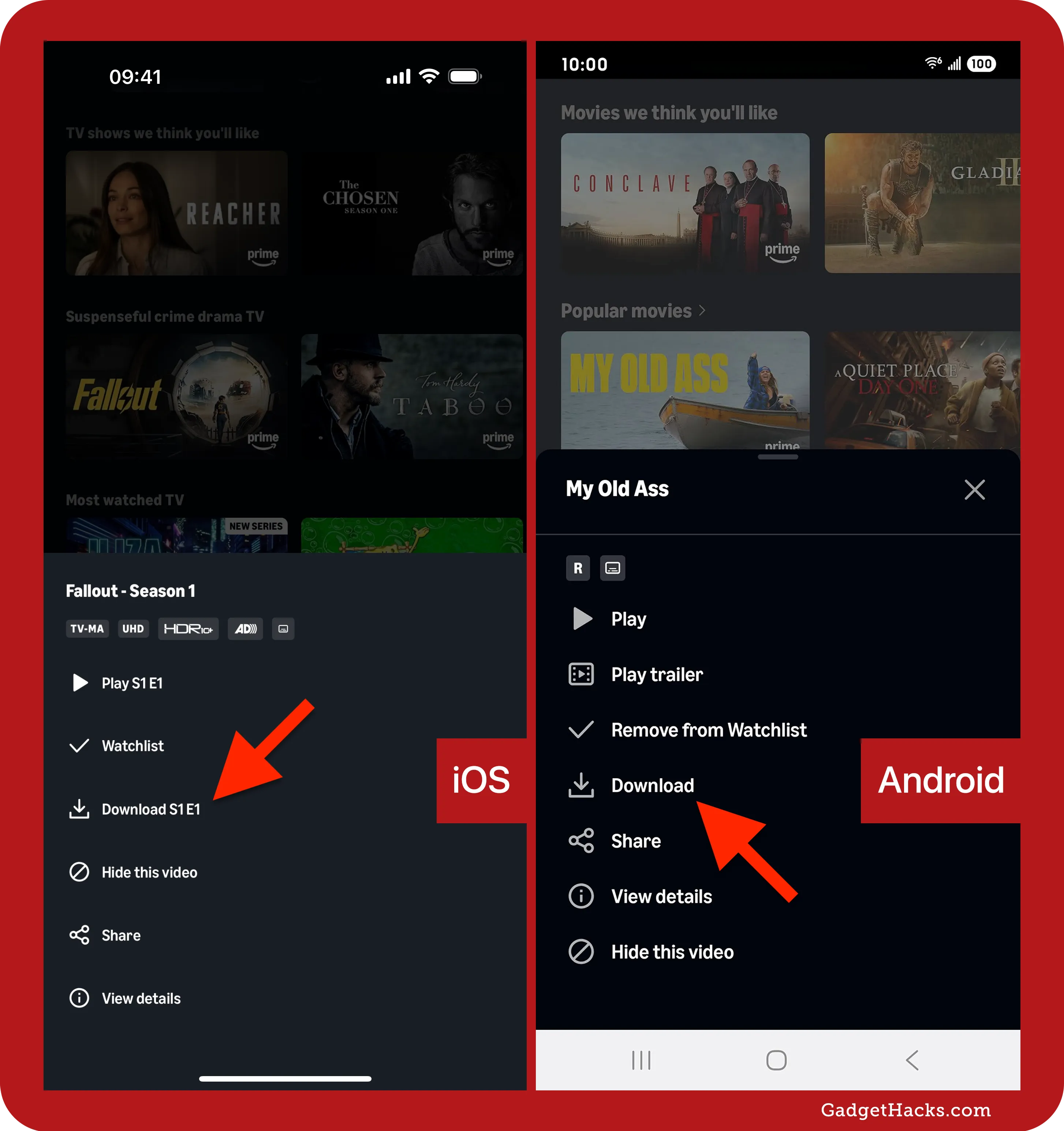
With your device prepared, open the Amazon Prime Video app. You can browse for content in various ways: through categories, searching by title, or exploring personalized recommendations. Once you find a movie or TV show episode you wish to download, tap on its title to open its detail page. Here, you’ll typically see a “Download” button or an icon (often a downward-pointing arrow). For TV series, you’ll find the download icon next to each individual episode. Tap this icon, and the download process will begin. The app will usually provide a progress indicator, allowing you to monitor the download status. This process relies on a robust content delivery network (CDN) that efficiently streams the requested data from geographically distributed servers to minimize latency and maximize download speeds.
Managing Download Quality and Storage Preferences
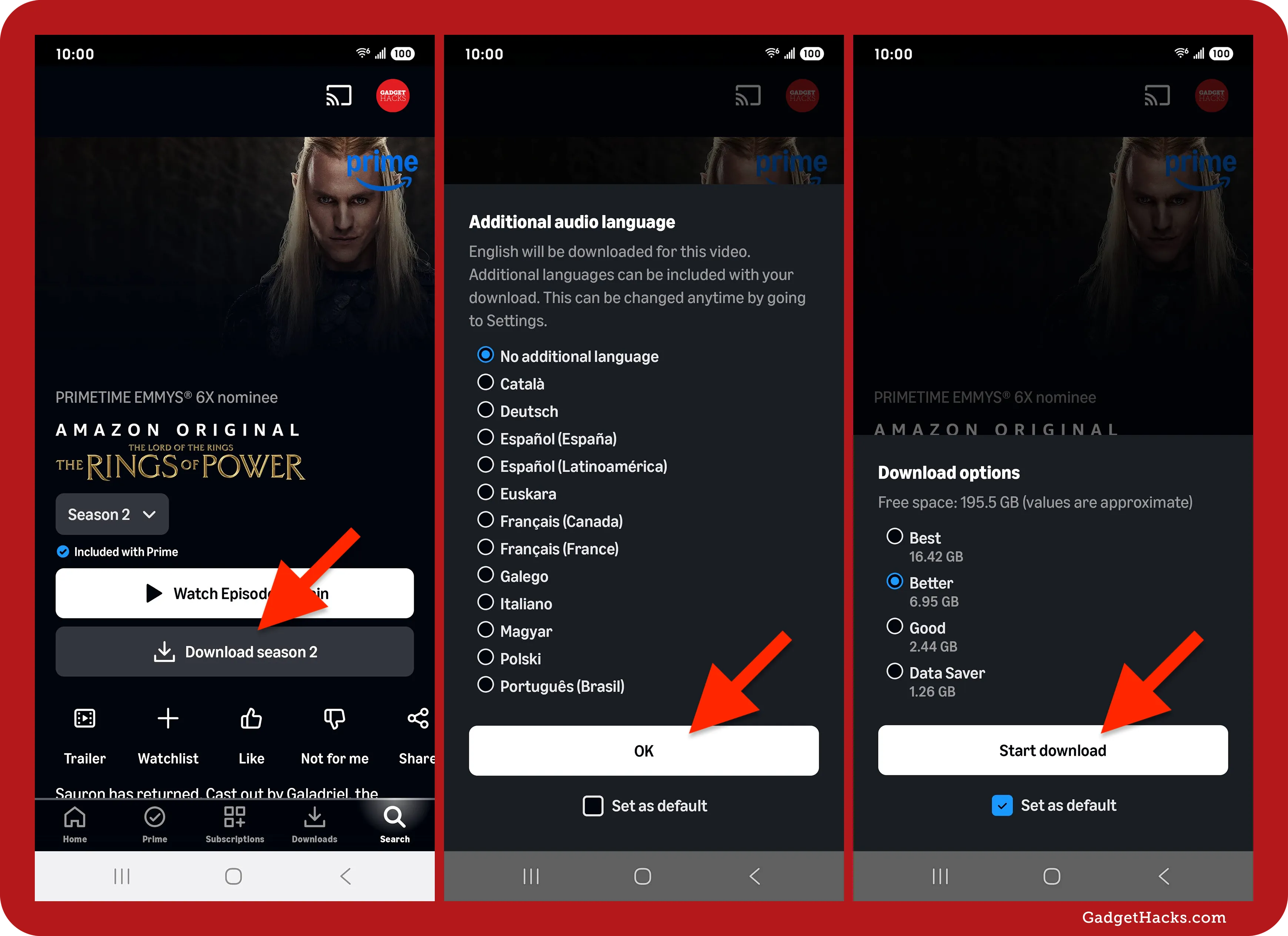
Before or during the download process, the Prime Video app often gives you the option to select the download quality: “Good” (standard definition), “Better” (high definition), or “Best” (highest available quality). This choice directly impacts file size and storage consumption. To adjust this, go to the app’s settings (usually found by tapping your profile icon, then the gear icon). Look for “Stream & Download” or “Downloads.” Here, you can set a default download quality, which is particularly useful if you have limited storage or a preference for faster downloads. You can also view and manage your existing downloads, deleting old content to free up space. The app’s internal file management system handles the secure storage and indexing of these downloaded files, ensuring they are only accessible within the Prime Video application itself, a standard practice for DRM-protected content.
Downloading Prime Video Content on Desktops and Fire Tablets
While mobile devices are primary, Amazon extends the download functionality to other platforms, catering to different viewing preferences and scenarios.
Utilizing the Amazon Prime Video App for Windows and macOS
For users who prefer a larger screen or wish to save content to a laptop, Amazon provides dedicated Prime Video applications for Windows and macOS. These desktop apps offer a comparable experience to their mobile counterparts. First, download and install the Amazon Prime Video app from the Microsoft Store (for Windows) or the Mac App Store (for macOS). Once installed and logged in, the interface will be familiar. You can browse, search, and access your Prime library. To download, navigate to the content’s detail page and click the “Download” button. The app will manage the download, and your content will be stored locally on your computer. This capability is particularly beneficial for students or professionals who travel with laptops and want to ensure entertainment access without relying on potentially unreliable hotel Wi-Fi. The desktop applications integrate with the operating system’s file management but still enforce DRM and restrict direct file access to maintain content security.
Seamless Downloads on Amazon Fire Tablets
Amazon’s own ecosystem, particularly its Fire tablets, offers a highly integrated and streamlined download experience. Since Fire tablets are designed to prioritize Amazon services, the Prime Video app is often pre-installed and deeply optimized. The process for downloading content on a Fire tablet is nearly identical to that on iOS and Android devices: open the Prime Video app, find your desired movie or show, and tap the download icon. Fire tablets also often come with expandable storage via microSD cards, which can be a game-changer for offline viewing, allowing users to store hundreds of hours of content without worrying about internal storage limitations. This tight integration highlights Amazon’s full-stack approach, where hardware and software are synergistically designed to enhance the user experience, especially around content consumption. The Fire OS, being a fork of Android, leverages similar underlying technologies for content storage and playback.
Accessing and Enjoying Your Downloaded Library Across Devices
Once downloaded, accessing your content is straightforward across all platforms. On mobile devices and Fire tablets, look for a “Downloads” section or tab within the Prime Video app. On desktop apps, there’s usually a dedicated “Downloads” category in the left-hand navigation or menu. Tapping on a downloaded title will instantly begin playback, requiring no internet connection. It’s important to remember that downloaded content is typically tied to the specific device it was downloaded on due to DRM. You cannot, for instance, download a movie on your phone and then transfer the file to another device to watch it. Each device requires its own download. This device-specific binding is a fundamental aspect of digital rights management, preventing unauthorized distribution and ensuring that licensing terms are adhered to.
Troubleshooting and Maximizing Your Download Experience
Even with robust technology, issues can arise. Knowing how to troubleshoot and how to get the most out of your downloads will elevate your Prime Video experience.
Common Issues and Quick Solutions for Prime Video Downloads
Several common problems can impede successful downloads. The most frequent culprit is insufficient storage space. Always check your device’s free storage before initiating large downloads. If space is low, delete old downloads or other unused apps/files. Network errors can also interrupt downloads; ensure you have a stable internet connection. If using Wi-Fi, try moving closer to the router or restarting it. Licensing restrictions might prevent certain titles from being downloaded at all, regardless of your Prime status or purchase. In such cases, the download icon will simply be absent or grayed out. Device limits can also be an issue; Amazon sometimes limits the number of devices on which a single title can be downloaded simultaneously. If you encounter this, try deleting the download from an older, unused device. Finally, if the app itself is misbehaving, a simple restart of the app or your device can often resolve temporary glitches. These troubleshooting steps leverage a user’s understanding of basic computing principles to diagnose and fix issues related to network, storage, and application behavior.
Extending the Life of Your Downloads: Expiration and Renewal
Downloaded content on Prime Video is not permanent. Prime-included titles usually remain downloadable as long as they are part of the Prime catalog. Once a title leaves Prime, your download will expire. Rented content typically expires after a fixed period (e.g., 30 days to start watching, and 48 hours once playback begins). Purchased content, while generally available indefinitely for streaming, still adheres to the app’s download management rules regarding device limits and the need for occasional re-authentication. To “renew” a download (if it has expired but is still available through Prime), you often simply need to connect to the internet, and the app will re-verify your subscription and extend the download’s validity. If a title has left the Prime catalog, you would need to rent or purchase it to download it again. This system is a dynamic interplay between your local device’s storage and Amazon’s cloud-based licensing servers, constantly verifying your access rights.

Advanced Tips for an Optimal Offline Entertainment Library
To truly maximize your offline viewing, consider these advanced tips. Firstly, plan your downloads: identify content you want to watch offline well in advance, especially before travel. Secondly, manage storage proactively: dedicate a certain amount of your device’s storage for Prime Video downloads and regularly prune content you’ve already watched. For Fire tablets, utilize microSD card expansion for virtually unlimited offline storage. Thirdly, explore the “Downloads” settings within the Prime Video app thoroughly. Here, you can often find options like “Download on Wi-Fi only” to prevent accidental data usage and toggle automatic downloads for watchlists. Lastly, keep an eye on Prime Video’s monthly content rotations. New titles are added, and old ones leave, so download your favorites before they disappear from the included Prime catalog. By adopting these strategies, you transform the download feature from a simple convenience into a powerful tool for building a personal, portable, and interruption-free entertainment library, seamlessly integrated into your digital lifestyle.
In conclusion, the ability to download movies and TV shows on Amazon Prime Video is a robust and essential feature in today’s digital landscape. It empowers users with unparalleled flexibility, ensuring entertainment is always accessible, regardless of connectivity. By understanding the mechanics, following the simple step-by-step guides, and employing smart management and troubleshooting techniques, you can fully harness this technology to craft a seamless and enjoyable offline viewing experience, making every journey and every moment of downtime a potential opportunity for entertainment.
aViewFromTheCave is a participant in the Amazon Services LLC Associates Program, an affiliate advertising program designed to provide a means for sites to earn advertising fees by advertising and linking to Amazon.com. Amazon, the Amazon logo, AmazonSupply, and the AmazonSupply logo are trademarks of Amazon.com, Inc. or its affiliates. As an Amazon Associate we earn affiliate commissions from qualifying purchases.