
In an increasingly data-driven world, the ability to quickly and accurately calculate percentages is an indispensable skill, not just for academics and financial professionals, but for anyone navigating daily life. From understanding discounts during online shopping to interpreting statistics in news reports or analyzing performance metrics at work, percentages are ubiquitous. While the underlying mathematical concept is straightforward, the sheer volume and complexity of calculations often necessitate the use of a calculator. This guide delves into mastering percentage calculations across various calculator types, transforming a seemingly complex task into a streamlined, efficient process. We will explore the fundamentals, advanced techniques, and best practices for leveraging technology to enhance your numerical proficiency.

The Ubiquitous Role of Percentages in the Digital Age
Percentages are more than just numbers; they are a universal language for proportional representation. They allow us to standardize comparisons, express parts of a whole in a digestible format, and understand relative changes. In the digital age, where information is constantly presented in numerical form, the ability to quickly grasp and interpret percentage-based data is a cornerstone of digital literacy. Whether you’re configuring software settings, monitoring server load, assessing app usage statistics, or simply budgeting for your next tech gadget, percentages provide clarity and context.
Understanding the Core Concept
At its heart, a percentage (from the Latin “per centum,” meaning “by the hundred”) represents a fraction of 100. So, 25% is equivalent to 25/100, or 0.25 in decimal form. The elegance of percentages lies in this standardization, allowing for easy comparison of quantities that might otherwise be difficult to relate. For instance, comparing a 3 out of 10 success rate with a 15 out of 50 success rate becomes much clearer when both are expressed as percentages (30% in both cases). Calculators streamline the conversion between these forms and perform operations with them seamlessly, eliminating manual fractional or decimal conversions that can be prone to error.
Why Calculator Proficiency Matters
While mental math can handle simple percentages, real-world scenarios often involve more complex numbers, multiple steps, or the need for precision. Relying on a calculator for these tasks frees up cognitive resources, reduces the likelihood of human error, and significantly speeds up the process. Modern calculators, from basic handheld devices to sophisticated scientific models and integrated software applications, are designed with percentage functions that simplify these computations. Understanding how to effectively utilize these features is not just about getting the right answer; it’s about optimizing your workflow, enhancing accuracy in data interpretation, and fostering a deeper confidence in numerical tasks. In an era where data manipulation and analysis are paramount, calculator proficiency for percentages is a fundamental technical skill.
Mastering Basic Percentage Calculations on Standard Calculators
Most basic and scientific calculators are equipped with a dedicated percentage key (%) or, failing that, can easily handle percentage calculations through decimal conversion. Understanding these fundamental operations is the first step towards leveraging your device efficiently.
Finding a Percentage of a Number
This is perhaps the most common percentage calculation. For example, finding 15% of 200.
Method 1 (Using the % key):
- Enter the base number:
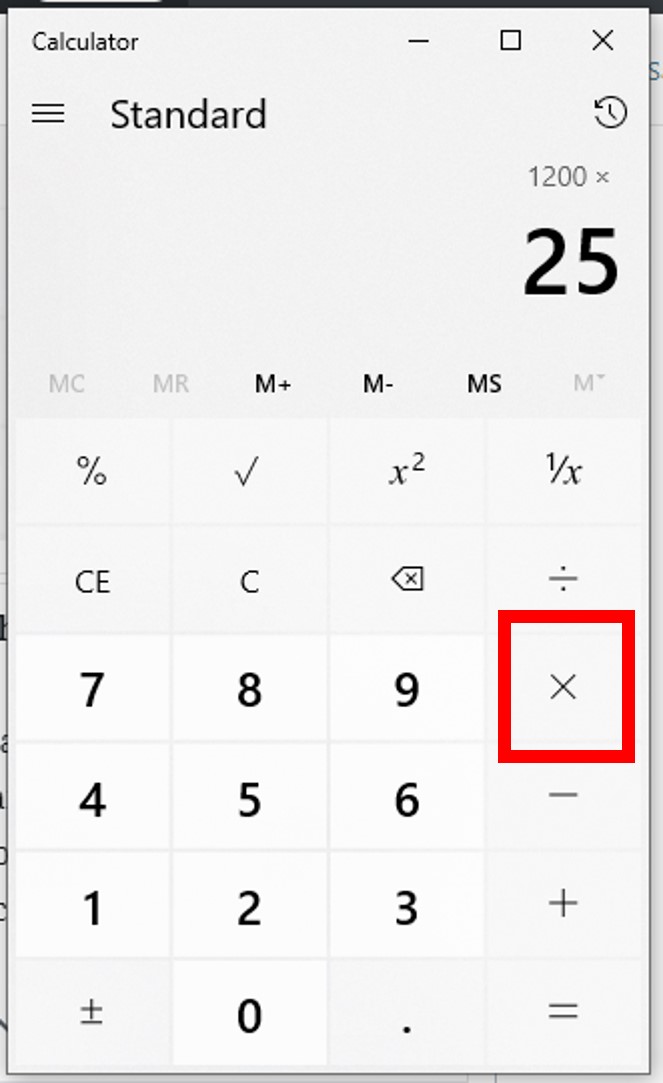
200 - Press the multiplication key:
x - Enter the percentage:
15 - Press the percentage key:
% - The calculator will display the result:
30
Method 2 (Using decimals, if no % key or for clarity):
- Convert the percentage to a decimal:
15 ÷ 100 = 0.15 - Enter the base number:
200 - Press the multiplication key:
x - Enter the decimal equivalent:
0.15 - Press the equals key:
= - The calculator will display the result:
30
Calculating Percentage Increase/Decrease
These calculations are vital for tracking growth, depreciation, price changes, or performance improvements.
To calculate a percentage increase (e.g., increase 50 by 10%):
- Enter the original number:
50 - Press the addition key:
+ - Enter the percentage increase:
10 - Press the percentage key:
%(this calculates 10% of 50, which is 5) - Press the equals key:
= - The calculator will display the new number:
55
To calculate a percentage decrease (e.g., decrease 50 by 10%):
- Enter the original number:
50 - Press the subtraction key:
- - Enter the percentage decrease:
10 - Press the percentage key:
%(this calculates 10% of 50, which is 5) - Press the equals key:
= - The calculator will display the new number:
45
Determining the Percentage One Number Is of Another
This helps in understanding proportions, such as what percentage of a total a specific part represents (e.g., what percentage is 30 out of 200?).
Method 1 (Using the % key):
- Enter the part:
30 - Press the division key:
÷ - Enter the whole:
200 - Press the percentage key:
% - The calculator will display the result:
15(meaning 15%)
Method 2 (Manual multiplication by 100):
- Enter the part:
30 - Press the division key:
÷ - Enter the whole:
200 - Press the multiplication key:
x - Enter
100 - Press the equals key:
= - The calculator will display the result:
15
Reverse Percentage Calculations
Sometimes you know the final amount after a percentage change and need to find the original amount (e.g., an item costs $60 after a 25% discount, what was the original price?). This is a slightly more advanced application but entirely manageable on a calculator.
For a discount (finding original price after a 25% discount, final price $60):
The final price represents 100% – 25% = 75% of the original price.
- Enter the final price:
60 - Press the division key:
÷ - Enter
75(the remaining percentage) - Press the percentage key:
% - The calculator will display the original price:
80
For an increase (finding original price after a 20% increase, final price $120):
The final price represents 100% + 20% = 120% of the original price.
- Enter the final price:
120 - Press the division key:
÷ - Enter
120(the increased percentage) - Press the percentage key:
% - The calculator will display the original price:
100
Leveraging Scientific and Financial Calculators for Advanced Percentage Tasks
Scientific and financial calculators offer specialized functions that go beyond basic arithmetic, making them invaluable for more complex percentage-based calculations common in technical and business fields. While their interfaces might seem daunting at first, understanding a few key operations can unlock significant analytical power.
Compound Interest and Growth Rates
Many scientific and financial calculators feature built-in functions for time value of money (TVM) calculations, which heavily rely on percentages for interest rates and growth. While the exact button names vary by model (e.g., N, I/YR, PV, PMT, FV), the principle is to input known variables and solve for the unknown.
For example, to calculate compound interest (A = P(1 + r/n)^(nt)), you’d input the principal (P), annual interest rate (r, as a decimal), number of times interest is compounded per year (n), and the number of years (t). The calculator will compute the future value (A) much faster and more accurately than manual iteration. Similarly, growth rates (often expressed as percentages) can be calculated or applied using these functions to project future values based on current trends.
Margin and Markup Calculations
These are critical for business and retail, often requiring quick percentage adjustments.
Margin: Profit as a percentage of revenue (Sales Price – Cost / Sales Price). A financial calculator can help quickly determine selling prices needed to achieve a target margin. For example, if an item costs $50 and you want a 30% margin, you’d calculate:
Selling Price = Cost / (1 – Margin %) = $50 / (1 – 0.30) = $50 / 0.70 = ~$71.43. Many calculators have direct Cost, Selling Price, Margin keys or functions to streamline this.
Markup: Profit as a percentage of cost (Sales Price – Cost / Cost). Using the same example (cost $50, want 30% markup):
Selling Price = Cost * (1 + Markup %) = $50 * (1 + 0.30) = $50 * 1.30 = $65.
While these can be done with basic functions, financial calculators often have dedicated shortcuts or modes that make these calculations much faster and less error-prone by handling the formula structure for you.
Statistical Applications
In scientific and engineering fields, percentages are used to express relative error, confidence intervals, and data distribution. Scientific calculators often include statistical modes where you can input data sets and then calculate means, standard deviations, and often specific percentage-based values like percentiles. For instance, to calculate the percentage error: (|Actual Value - Measured Value| / Actual Value) * 100. While the calculator doesn’t have a specific “percentage error” button, its ability to handle complex expressions with parentheses and memory functions makes such multi-step percentage calculations straightforward. Advanced models might even have functions for statistical distributions where results are often expressed in probabilities (which are essentially percentages).
Exploring Software and Online Calculators for Enhanced Efficiency
Beyond physical handheld devices, the digital ecosystem offers a plethora of software and online tools designed to handle percentage calculations with even greater flexibility, especially for large datasets or recurring tasks.
Spreadsheet Software (Excel, Google Sheets) for Batched Calculations
Spreadsheets are arguably the most powerful and versatile tools for percentage calculations, especially when dealing with lists of numbers. Their grid-based structure allows for applying formulas to entire columns or rows, automating calculations that would be tedious on a handheld device.
Examples:
- Calculating percentages of a total: If you have sales figures in column A and want to know what percentage each sale is of the total in cell A10, you’d enter
=(A1/$A$10)*100in cell B1 and drag the formula down. The*100converts the decimal to a percentage, and formatting cells as “Percentage” does this automatically. - Applying percentage increases/decreases: To increase all prices in column A by 15%, you’d enter
=A1*(1+0.15)or=A1*1.15in column B. For a decrease, it would be=A1*(1-0.15). - Conditional percentages: Using
IFstatements, you can calculate percentages based on specific criteria within your data.
Spreadsheets offer robust features for data organization, visualization (charts and graphs automatically generated from percentage data), and error checking, making them indispensable for anyone working with significant volumes of numerical data.
Dedicated Percentage Calculator Apps and Websites
For quick, on-the-go percentage needs or for users who prefer a minimalist interface, countless mobile apps and websites offer specialized percentage calculators. These tools often simplify the input process by providing distinct fields for “number,” “percentage,” “of,” “is,” etc., guiding the user through the calculation step-by-step.
Benefits:
- User-friendly interfaces: Often clearer than physical calculators for specific percentage types.
- Specialized functions: Many apps are designed for specific tasks like tip calculation, sales tax, loan interest, or body fat percentage, integrating the necessary percentage formulas.
- Accessibility: Available on smartphones, tablets, and any device with web access, providing convenience wherever you are.
Popular examples include dedicated “Tip Calculators,” “Loan Payment Calculators,” or general-purpose “Percentage Calculators” found in app stores or via a simple web search.
Smartwatch and Mobile Device Integration
Modern smartwatches and mobile operating systems often include calculator apps with percentage functionality, or dedicated percentage features built into system utilities. For instance, Apple’s iOS calculator app works very similarly to a physical scientific calculator, including the % key for common percentage operations. Android devices have similar default calculator apps. Smartwatches might offer basic calculations directly on the wrist, useful for quick mental checks or simple percentage adjustments while hands-free. This integration means that a powerful percentage calculation tool is almost always within arm’s reach, making ad-hoc calculations seamless.
Best Practices and Troubleshooting for Accurate Percentage Calculations
Even with the most advanced tools, human error remains a factor. Adhering to best practices and understanding common pitfalls can significantly improve the accuracy and reliability of your percentage calculations.
Double-Checking Inputs and Outputs
The most frequent source of error in any calculation is incorrect data entry. Always take an extra moment to verify the numbers you’ve typed into the calculator match your source data. For multi-step calculations, review intermediate results if your calculator allows (e.g., through a history log or by pressing = after each step in a chain operation). When working with spreadsheets, check the cells referenced in your formulas. A common mistake is forgetting to use absolute references ($A$10) when copying formulas, leading to incorrect calculations when a relative reference shifts unexpectedly.
Understanding Rounding Rules
Percentages often result in decimal values, and how these are rounded can impact the final answer, especially in financial or precise technical contexts.
- Calculator’s inherent precision: Be aware of how many decimal places your calculator displays or retains internally. Many calculators keep more precision internally than they display.
- Contextual rounding: In monetary calculations, rounding to two decimal places (cents) is standard. In scientific contexts, significant figures might dictate rounding. Always understand the required precision for your specific task.
- Rounding errors: In long chains of calculations, rounding too early can introduce cumulative errors. It’s often best to perform all calculations with the calculator’s full precision and only round the final answer.

Common Errors and How to Avoid Them
- Misinterpreting the % key: Some calculators interpret
50 + 10%as50 + (10% of 50), while others might simply convert10%to0.1and perform50 + 0.1. Always test your specific calculator’s behavior, especially with percentage increase/decrease operations. - Decimal vs. Percentage input: Remember that when converting a percentage to a decimal manually, you divide by 100 (e.g., 25% = 0.25). Many functions (especially in spreadsheets) expect decimal input for percentages.
- Order of operations (PEMDAS/BODMAS): Ensure complex percentage expressions are entered correctly, utilizing parentheses to enforce the correct order of operations. For example,
(100 + 10) * 0.05is different from100 + (10 * 0.05). - Forgetting “of”: “Percentage of a number” implies multiplication. “Percentage is of another” implies division. Confusing these leads to incorrect results.
- Reverse percentage confusion: Remember the logic: if an item is 20% off, you are paying 80% of the original price, so you divide the final price by 0.80, not multiply by 1.20.
By understanding the diverse capabilities of various calculators—from basic handheld devices to sophisticated software solutions—and adhering to sound practices, anyone can master percentage calculations. This not only enhances numerical accuracy but also boosts confidence in navigating the data-rich environments of our digital world. Mastering these tools means not just getting the right answer, but doing so efficiently, reliably, and with a clear understanding of the underlying proportional relationships.
aViewFromTheCave is a participant in the Amazon Services LLC Associates Program, an affiliate advertising program designed to provide a means for sites to earn advertising fees by advertising and linking to Amazon.com. Amazon, the Amazon logo, AmazonSupply, and the AmazonSupply logo are trademarks of Amazon.com, Inc. or its affiliates. As an Amazon Associate we earn affiliate commissions from qualifying purchases.