
Calculating percentages is a fundamental mathematical skill applicable across numerous domains, from personal budgeting to understanding statistical data. While the underlying math is straightforward, mastering the percentage function on a calculator can sometimes be counterintuitive due to variations in device design and the diverse ways percentages are applied. This guide delves into the mechanics of performing various percentage calculations across different types of calculators, ensuring precision and efficiency in your computations.
Demystifying the Percentage Function on Calculators
The percentage key (often labeled “%”) on a calculator is a specialized function designed to simplify a series of multiplication or division steps into a single press. Its behavior, however, can vary significantly between basic, scientific, and digital calculators. Understanding its default operation is crucial for accurate results.

At its core, a percentage represents a fraction of 100. For instance, 25% means 25 out of 100, or 25/100, which simplifies to 0.25 in decimal form. Most calculators use the percentage key to either convert a number into its decimal equivalent (e.g., pressing 25 % might display 0.25) or to perform a direct percentage calculation in conjunction with other operations.
For standard four-function calculators, the percentage key often acts as an operator that concludes a calculation. For example, to find 20% of 150, you typically input 150 * 20 %. The calculator interprets 20 % as 0.20 and then multiplies it by 150. If you simply pressed 20 % alone, it might convert 20 into 0.2. Conversely, some advanced calculators might require explicit multiplication with the decimal equivalent, or they might integrate the percentage function within specific calculation modes. Familiarizing yourself with your specific device’s manual or experimenting with known values is the most effective way to grasp its unique percentage logic.
Core Percentage Operations on Standard Calculators
Standard calculators, including many desktop and handheld models, are typically equipped for basic percentage calculations. Here’s how to execute the most common operations:
Finding a Percentage of a Number
This is perhaps the most frequent use of the percentage function. You want to determine what a certain percentage of a base number is (e.g., 15% of 200).
Steps:
- Enter the base number. (e.g.,
200) - Press the multiplication key. (e.g.,
*) - Enter the percentage value. (e.g.,
15) - Press the percentage key. (e.g.,
%) - The result should instantly appear. (e.g.,
30)
Example: Calculate 15% of 200.
Input: 200 * 15 %
Output: 30
This sequence works because the calculator interprets 15 % as 0.15 and then performs 200 * 0.15.
Adding a Percentage to a Number
This operation is common for calculating sales tax, tips, or mark-ups. You want to add a percentage of the original number back to the original number itself (e.g., add 10% to 50).
Steps:
- Enter the base number. (e.g.,
50) - Press the addition key. (e.g.,
+) - Enter the percentage value. (e.g.,
10) - Press the percentage key. (e.g.,
%) - Press the equals key. (e.g.,
=) – Note: Some calculators might not require the final equals key if the percentage key itself triggers the full calculation.
Example: Add 10% to 50.
Input: 50 + 10 %
Output: 55
Here, the calculator first calculates 10% of 50 (which is 5) and then adds this value to the original 50.
Subtracting a Percentage from a Number
Often used for discounts or reductions. You want to subtract a percentage of the original number from the original number (e.g., subtract 20% from 80).
Steps:
- Enter the base number. (e.g.,
80) - Press the subtraction key. (e.g.,
-) - Enter the percentage value. (e.g.,
20) - Press the percentage key. (e.g.,
%) - Press the equals key. (e.g.,
=)
Example: Subtract 20% from 80.
Input: 80 - 20 %
Output: 64
Similar to addition, the calculator determines 20% of 80 (which is 16) and then subtracts this from the original 80.
Handling Percentage Increase and Decrease
Calculating percentage change is crucial for analyzing growth, depreciation, or performance metrics. It involves determining the relative change between two values.
Finding the Percentage One Number Is of Another
This determines what percentage the first number represents of the second number (e.g., 30 is what percent of 120?).
Steps:
- Enter the part. (e.g.,
30) - Press the division key. (e.g.,
/) - Enter the whole. (e.g.,
120) - Press the percentage key. (e.g.,
%) – Note: On many calculators, this will directly display the percentage. On others, you might need to multiply by 100 after division if the % key isn’t designed for this specific operation.
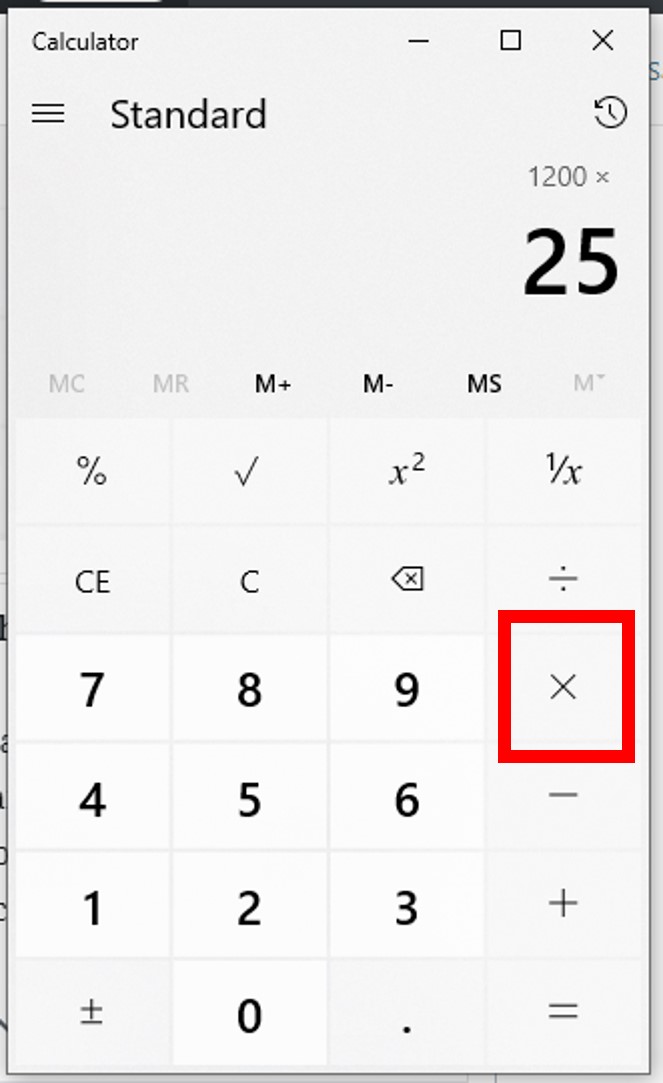
Example (direct % key support): 30 is what percent of 120?
Input: 30 / 120 %
Output: 25 (meaning 25%)
Example (manual * 100 if % key doesn’t convert automatically):
Input: 30 / 120 * 100
Output: 25
Calculating Percentage Increase
To find the percentage increase, you need to know the original value and the new (higher) value.
Formula: ((New Value - Original Value) / Original Value) * 100
Steps on a calculator (without a dedicated % change function):
- Enter the new value. (e.g.,
150) - Press the subtraction key. (e.g.,
-) - Enter the original value. (e.g.,
120) - Press the equals key. (e.g.,
=) – This gives you the absolute increase (30). - Press the division key. (e.g.,
/) - Enter the original value again. (e.g.,
120) - Press the equals key. (e.g.,
=) – This gives you the decimal change (0.25). - Press the multiplication key. (e.g.,
*) - Enter
100. - Press the equals key. (e.g.,
=) – This gives you the percentage (25).
Example: From 120 to 150.
Input: (150 - 120) / 120 * 100 =
Calculation: 30 / 120 * 100 = 0.25 * 100 = 25
Output: 25 (meaning 25% increase)
Calculating Percentage Decrease
Similar to increase, but for a decrease in value.
Formula: ((Original Value - New Value) / Original Value) * 100
Steps on a calculator:
- Enter the original value. (e.g.,
150) - Press the subtraction key. (e.g.,
-) - Enter the new value. (e.g.,
120) - Press the equals key. (e.g.,
=) – Absolute decrease (30). - Press the division key. (e.g.,
/) - Enter the original value. (e.g.,
150) - Press the equals key. (e.g.,
=) – Decimal change (0.2). - Press the multiplication key. (e.g.,
*) - Enter
100. - Press the equals key. (e.g.,
=) – Percentage (20).
Example: From 150 to 120.
Input: (150 - 120) / 150 * 100 =
Calculation: 30 / 150 * 100 = 0.2 * 100 = 20
Output: 20 (meaning 20% decrease)
Beyond Basic: Scientific and Digital Calculators
Modern computing tools offer more sophisticated ways to handle percentages.
Scientific Calculators
Scientific calculators, while primarily designed for complex mathematical functions, often integrate a percentage key that behaves similarly to standard calculators. However, their robust order of operations (PEMDAS/BODMAS) means you might have more control over complex expressions. For instance, you could input 150 * (1 + 0.10) to add 10% to 150, explicitly defining the multiplication and addition order, rather than relying solely on the ‘%’ key’s internal logic. Some advanced scientific models might also feature dedicated functions or modes for percentage change or financial calculations. Always consult the specific model’s manual for its particular percentage function behavior.
Smartphone and Desktop Calculator Apps
Digital calculators found on smartphones (iOS Calculator, Android Calculator) and desktop operating systems (Windows Calculator, macOS Calculator) offer diverse interfaces and functionalities.
- Smartphone Calculators: These apps typically emulate traditional calculators, often including a percentage key. Their behavior generally mirrors the “standard calculator” examples provided above. The user interface can sometimes be more intuitive, displaying intermediate steps or clearly delineating the impact of the percentage key.
- Desktop Calculators: Windows Calculator offers different modes (Standard, Scientific, Programmer, Date Calculation). In Standard mode, the percentage key usually functions as described for basic calculators. In Scientific mode, you might default to manual decimal conversions for percentages (e.g., multiplying by
0.15instead of15%) for greater control, although the%key often remains present. macOS Calculator also provides Standard and Scientific views, with similar percentage key behavior. - Online Calculators: Numerous web-based calculators (e.g., Google’s built-in calculator, dedicated percentage calculators) are available. These often feature specialized input fields for different percentage scenarios (e.g., “What is X% of Y?”, “X is what % of Y?”), simplifying the process by handling the underlying arithmetic for the user. While they remove the need to understand specific calculator key sequences, they rely on a functional web browser and internet connection.
The advantage of digital calculators lies in their accessibility and often clearer display of operations, making complex percentage calculations less prone to input errors.
Tips for Accuracy and Troubleshooting
Despite the seeming simplicity, percentage calculations on a calculator are a common source of errors.
Understanding the Percentage Key’s Context
The most common pitfall is misunderstanding how the % key interacts with preceding operations. As demonstrated, 150 + 10 % often means “add 10% of 150 to 150,” not “add 10% to 150 and then divide by 100.” Always be aware of whether the calculator is interpreting the percentage as a decimal conversion or as an operator applying to the previous number or result.
Input Order and Parentheses
For complex calculations involving multiple percentages or mixed operations, the order of input is critical.
For example, to calculate (100 + 10%) - 5%, some calculators might yield different results depending on whether they process % immediately or wait for the + or - to be completed.
When in doubt, use parentheses () on scientific or digital calculators to explicitly define the order of operations, or break down the calculation into smaller, sequential steps on a basic calculator.
Example: (100 * 1.10) * 0.95 (to increase by 10% then decrease by 5%) is more reliable than trying to chain % operations.

Rounding and Precision
Calculators typically maintain a high level of precision internally. However, the displayed result might be rounded. When dealing with currency or critical figures, be mindful of how many decimal places are displayed and whether you need to manually round or if the calculator offers a rounding function. For intermediate steps in complex calculations, avoid manual rounding until the final result to prevent compounding errors.
Mastering percentage calculations on your calculator transforms it from a simple device into a powerful tool for quick and accurate numerical analysis. By understanding the specific functionalities of your chosen calculator and applying the correct sequence of operations, you can confidently tackle any percentage-related task.
aViewFromTheCave is a participant in the Amazon Services LLC Associates Program, an affiliate advertising program designed to provide a means for sites to earn advertising fees by advertising and linking to Amazon.com. Amazon, the Amazon logo, AmazonSupply, and the AmazonSupply logo are trademarks of Amazon.com, Inc. or its affiliates. As an Amazon Associate we earn affiliate commissions from qualifying purchases.