
Is your Windows PC feeling sluggish, riddled with mysterious errors, or bogged down by years of accumulated digital clutter? You’re not alone. Over time, even the most robust operating systems can become weighed down by forgotten files, conflicting software, registry inconsistencies, and remnants of old applications. While regular maintenance helps, sometimes the best solution is to wipe the slate clean and start fresh. This process, known as a Windows clean install, involves completely erasing your hard drive and installing a brand-new copy of the operating system. It’s like giving your computer a complete brain transplant, resulting in unparalleled speed, stability, and security.

This comprehensive guide will walk you through every step of performing a Windows clean install, from initial preparation to post-installation optimization. Whether you’re a seasoned tech enthusiast or new to the intricacies of system management, we’ll ensure you have the knowledge and confidence to revitalize your machine, boosting your digital security and enhancing your overall productivity.
Why Opt for a Windows Clean Install?
Before diving into the technicalities, it’s crucial to understand why a clean install is often the most effective solution for a wide range of computer woes. It offers benefits that simply cannot be achieved through mere troubleshooting or system tune-ups.
Reclaiming Peak Performance
One of the most immediate and noticeable benefits of a clean install is a dramatic improvement in system performance. Over months or years, software installations, un-installations, temporary files, browser caches, and system updates can accumulate, leading to a fragmented and bloated operating system. This digital cruft clogs your hard drive, strains your RAM, and forces your CPU to work harder, resulting in slower boot times, unresponsive applications, and general system lag.
A clean install eliminates all this accumulated baggage. You start with only the essential Windows files, ensuring that your hardware can operate at its maximum potential. Applications launch faster, multitasking becomes smoother, and your entire computing experience feels snappier and more responsive, directly contributing to improved productivity.
Enhancing System Stability and Reliability
Frequent crashes, freezes, blue screens of death (BSODs), and inexplicable errors are common frustrations for many Windows users. These issues often stem from corrupted system files, conflicting drivers, or deeply embedded software conflicts that are difficult, if not impossible, to diagnose and resolve individually. Imagine trying to fix a complex knot by pulling on individual strands; sometimes it’s easier to cut the knot and start fresh.
A clean install provides a pristine environment, free from the lingering effects of problematic software or corrupted system components. By installing a fresh copy of Windows, you eliminate these underlying issues, leading to a significantly more stable and reliable system. This stability is vital for any user, particularly those who rely on their computers for critical work or uninterrupted creative flows.
Eradicating Stubborn Malware and Digital Clutter
Despite the best antivirus software, some persistent malware, adware, or potentially unwanted programs (PUPs) can embed themselves deep within your system, making them incredibly difficult to remove. These malicious entities can compromise your digital security, steal personal information, or simply make your computer unusable. Even after a successful removal, remnants can sometimes linger, posing future risks.
A clean install offers the most definitive solution for such security threats. By wiping the entire drive, you ensure that all traces of malware, viruses, and any other unwanted software are completely obliterated. This provides a fresh, secure foundation upon which you can rebuild your digital environment, confident that you’re free from unwanted digital surveillance or interference. It’s the ultimate reset for digital hygiene and robust security.
A Fresh Start for Productivity and Security
Beyond performance and stability, a clean install represents a unique opportunity to reassess and optimize your digital workspace. You get to decide exactly what software to install, avoiding bloatware that comes pre-installed on many new machines. This selective approach means every application serves a purpose, contributing directly to your workflow and productivity. Furthermore, it’s a chance to re-evaluate and implement stronger security practices from the ground up, such as setting up robust firewalls, configuring privacy settings, and selecting reliable security software. This deliberate approach to system building translates directly into a more efficient, secure, and personalized computing experience, aligning perfectly with goals of enhanced tech and digital security.
Essential Preparations: Your Pre-Installation Checklist
Performing a clean install is a destructive process—it will erase everything on your chosen drive. Therefore, thorough preparation is not just recommended, it’s absolutely mandatory. Skipping these crucial steps can lead to permanent data loss and significant headaches.
Backing Up Your Irreplaceable Data
This is the single most critical step. Assume that everything on your primary drive (usually C:) will be erased.
- Identify Critical Files: Go through your Documents, Pictures, Videos, Music, Downloads, and Desktop folders. Don’t forget specific application data, game saves, browser bookmarks, and email archives if you use a desktop client.
- Choose a Backup Method:
- External Hard Drive/USB Drive: A simple and effective way to copy large amounts of data.
- Cloud Storage: Services like OneDrive, Google Drive, Dropbox, or iCloud offer convenient backup solutions, especially for frequently accessed files.
- Network Attached Storage (NAS): If you have a home network server, this is an excellent option for large backups.
- Verify Your Backup: After copying, double-check that all your important files are present and accessible in your backup location before proceeding with the install. This step prevents untold grief.
Gathering Your Installation Arsenal
Having all necessary tools and information ready beforehand will ensure a smooth installation process.
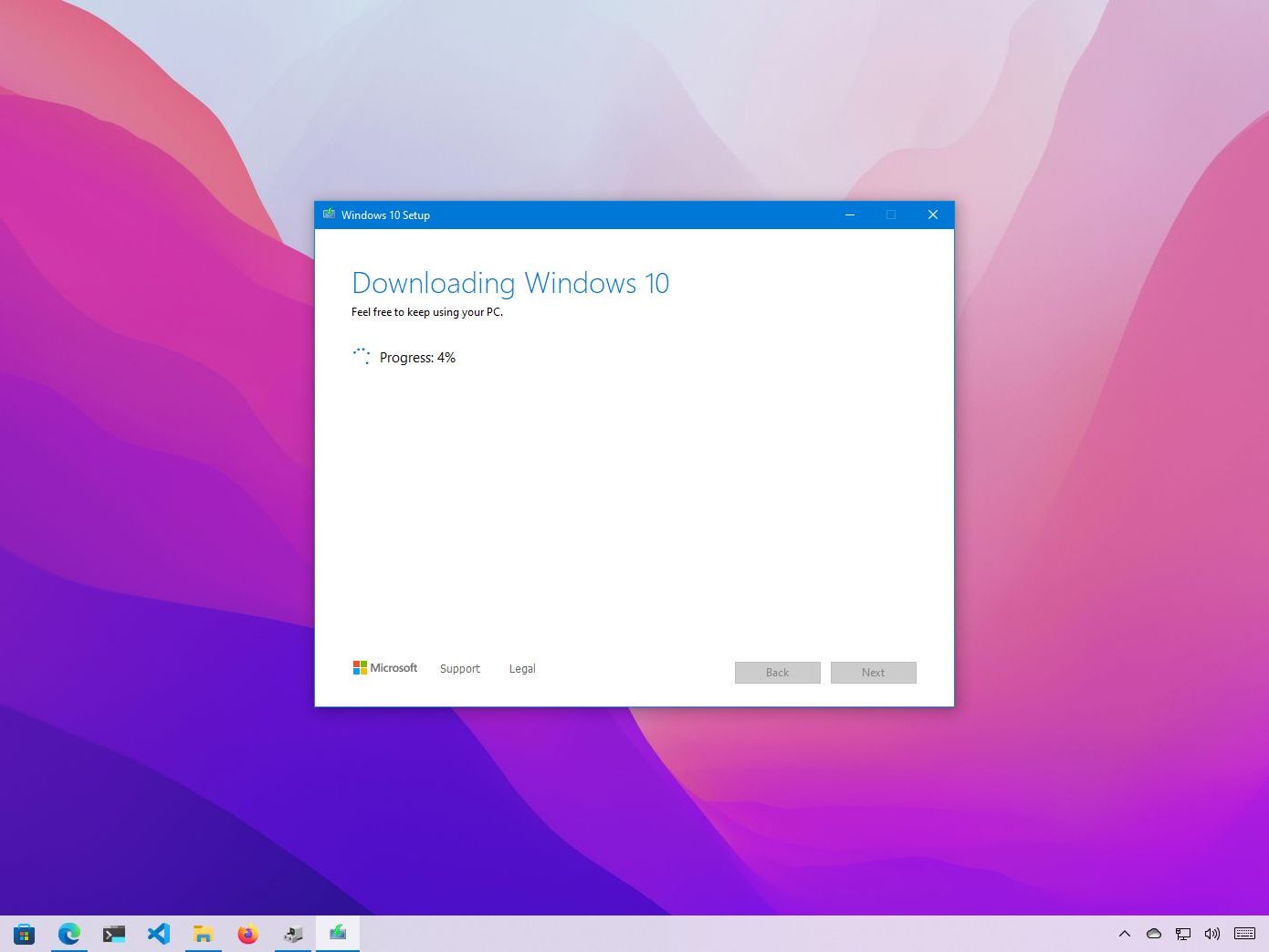
- Windows Installation Media: You’ll need a bootable USB drive (at least 8GB) or a DVD containing the Windows operating system. The easiest way to create this is by using Microsoft’s official Media Creation Tool, which can be downloaded from the Microsoft website. It will download the correct Windows version and create the bootable media for you.
- Windows Product Key: If your Windows license isn’t digitally linked to your Microsoft account or embedded in your motherboard’s firmware (common for pre-built PCs), you’ll need your 25-character product key. For Windows 10/11, if you previously activated it on the same hardware, it should reactivate automatically after installation. However, it’s always good to have the key handy. You can often find it on a sticker on your PC or in your purchase confirmation email.
- Necessary Drivers: After a clean install, Windows may not have all the specific drivers for your computer’s hardware, especially for network adapters, graphics cards, and chipsets. Crucially, download your network adapter drivers (Wi-Fi and Ethernet) before you start the clean install. Without them, you might not be able to connect to the internet to download other drivers or updates. Visit your PC manufacturer’s website (Dell, HP, Lenovo, ASUS, Acer, etc.) or the motherboard manufacturer’s website (Gigabyte, MSI, ASRock, etc.) and download the latest drivers for your specific model onto a separate USB drive.
- Stable Internet Connection: Essential for downloading updates, additional drivers, and re-installing software post-installation.
Understanding Your System’s Boot Settings
To initiate the clean install, you’ll need to instruct your computer to boot from your USB drive or DVD instead of your hard drive. This is done by accessing your computer’s BIOS or UEFI firmware settings.
- Accessing BIOS/UEFI: As your computer starts, repeatedly press a specific key (commonly F2, F10, F12, DEL, or ESC) to enter the BIOS/UEFI setup or a boot menu. The exact key varies by manufacturer.
- Changing Boot Order: Within the BIOS/UEFI, navigate to the “Boot” section and change the boot order to prioritize your USB drive or DVD drive over your primary hard drive.
- Secure Boot/Fast Boot: While generally not strictly necessary to disable, some older systems or specific configurations might require you to temporarily disable “Secure Boot” or “Fast Boot” within the BIOS/UEFI settings to allow booting from external media. You can re-enable them after the installation.
The Step-by-Step Clean Installation Process
With your preparations complete, it’s time to begin the actual installation. Follow these steps carefully to ensure a successful clean install.
Creating Bootable Windows Installation Media
If you haven’t already, use Microsoft’s official Media Creation Tool to download the latest Windows ISO and create a bootable USB drive.
- Download the Tool: Go to Microsoft’s website (search “Windows 10/11 Media Creation Tool”).
- Run the Tool: Follow the on-screen prompts.
- Select USB Flash Drive: Choose “Create installation media (USB flash drive, DVD, or ISO file) for another PC” and select “USB flash drive” as the media type.
- Select Language, Edition, and Architecture: Confirm your desired settings.
- Wait for Creation: The tool will download Windows and prepare your USB drive. This can take some time depending on your internet speed.
Initiating the Boot Sequence
- Insert Media: Plug your bootable USB drive into your computer or insert the DVD.
- Restart PC: Restart your computer.
- Access Boot Menu/BIOS: As it starts, repeatedly press the key to access the boot menu (e.g., F12) or BIOS/UEFI settings (e.g., DEL, F2).
- Select Boot Device: From the boot menu, select your USB drive or DVD drive. If you changed the boot order in BIOS, it should boot directly from your installation media.
Navigating the Windows Setup Wizard
Once your computer boots from the installation media, the Windows Setup Wizard will begin.
- Language, Time, and Keyboard: Select your preferred language, time and currency format, and keyboard layout. Click “Next.”
- Install Now: Click the “Install now” button.
- Product Key: If prompted, enter your Windows product key. If you’re reinstalling Windows 10/11 on a machine that was previously activated with a digital license, you can click “I don’t have a product key” and it should activate automatically once connected to the internet.
- Accept License Terms: Read and accept the Microsoft Software License Terms. Click “Next.”
- Choose Installation Type: This is a crucial step for a clean install. Select “Custom: Install Windows only (advanced).” Do NOT select “Upgrade.”
Partitioning and Drive Management

This is where you’ll delete existing partitions and create new ones. Proceed with extreme caution, as incorrect actions here will lead to permanent data loss.
- Identify Your Drives: You’ll see a list of drives and partitions. Your primary drive (where Windows is currently installed) will likely have multiple partitions, such as “Drive 0 Partition 1,” “Drive 0 Partition 2,” etc. Look for partitions labeled “System Reserved,” “Primary,” “Recovery,” or with a large size corresponding to your current Windows installation.
- Delete Partitions: Select each partition associated with your old Windows installation (e.g., “Drive 0 Partition 1,” “Drive 0 Partition 2,” etc.) and click the “Delete” button. Confirm the deletion for each. Make absolutely sure you are deleting partitions only from the drive you intend to clean. If you have multiple physical drives, be careful not to delete partitions from your data drives.
- Unallocated Space: After deleting, these partitions will merge into “Drive 0 Unallocated Space.”
- Select for Installation: Select this “Unallocated Space” and click “Next.” Windows will automatically create the necessary partitions (System Reserved, Primary) and begin the installation. Alternatively, you can click “New” to manually create a primary partition of a specific size before clicking “Next.”
Completing the Core Installation
Windows will now begin copying files and installing the operating system. This process involves multiple reboots.
- Installation Progress: You’ll see a “Getting files ready for installation” progress bar, followed by “Installing features,” “Installing updates,” and “Finishing up.”
- System Restarts: Your computer will restart several times during this phase. Do not remove the USB drive until after the first restart where Windows continues its setup after rebooting. It’s often safer to remove it when the computer reboots to the initial setup screen (where you choose your region).
- Initial System Configuration: After the final restart, you’ll be greeted by the Out-of-Box Experience (OOBE) where you’ll configure basic settings.
Initial System Configuration
- Region and Keyboard Layout: Select your country/region and keyboard layout.
- Network Connection: Connect to your Wi-Fi or Ethernet network.
- Account Setup:
- Microsoft Account: You can sign in with your Microsoft account. This links your digital license, settings, and OneDrive.
- Local Account: If you prefer not to use a Microsoft account, you can often find an option to create a local offline account (though Microsoft increasingly makes this less obvious).
- Privacy Settings: Review and adjust your privacy settings (location, diagnostic data, tailored experiences, etc.).
- Cortana/Voice Assistant: Decide whether to enable or disable any integrated voice assistants.
Post-Installation: Optimizing Your Fresh System
Your Windows clean install is complete, but the job isn’t quite finished. These post-installation steps are crucial for ensuring your system is fully functional, secure, and performing at its best.
Installing Essential Drivers
This is arguably the most important step after the initial Windows setup.
- Start with Network Drivers: If you couldn’t connect to the internet during setup, install the network (Ethernet and/or Wi-Fi) drivers you downloaded earlier onto a USB stick. Once connected, you can download other drivers directly.
- Install Chipset Drivers: These are fundamental for your motherboard’s functionality.
- Graphics Drivers: Install the latest drivers for your NVIDIA, AMD, or Intel graphics card. This will unlock full display resolution and performance.
- Other Device Drivers: Install drivers for audio, USB controllers, card readers, and any other specialized hardware.
- Source: Always download drivers from your PC manufacturer’s website (for pre-built systems) or your motherboard manufacturer’s website (for custom builds). Avoid generic driver update utilities from unknown sources, as they can sometimes install incorrect or outdated drivers.
Running Windows Update
Once all drivers are installed and you have an internet connection:
- Check for Updates: Go to
Settings > Update & Security > Windows Updateand click “Check for updates.” - Install All Updates: Allow Windows to download and install all pending updates. This will include security patches, feature enhancements, and potentially even more drivers.
- Restart as Needed: Your system will likely restart multiple times during this process. Continue checking for updates until no more are available. Keeping your system up-to-date is a cornerstone of digital security.
Reinstalling Your Essential Software
Now that your system is stable and updated, you can start reinstalling the applications you need for work, creativity, and entertainment.
- Web Browser: Install your preferred browser (Chrome, Firefox, Edge, Brave, etc.).
- Antivirus/Security Software: While Windows Defender is decent, consider installing a reputable third-party antivirus solution for enhanced protection, especially if your online activities warrant it.
- Productivity Suites: Install Microsoft Office, LibreOffice, or other productivity tools.
- Creative Tools: Photoshop, video editors, music software, etc.
- Communication Apps: Discord, Zoom, Slack, etc.
- Utilities: Any other essential tools you use regularly.
- Download from Official Sources: Always download software directly from the developer’s official website to avoid bundled adware or malware.
Restoring Your Backed-Up Data
With your applications installed, it’s time to bring your personal files back onto your machine.
- Copy Files: Connect your external hard drive or log into your cloud storage and copy your backed-up documents, photos, videos, and other personal files back to their appropriate folders (Documents, Pictures, etc.).
- Organize: This is also a good opportunity to organize your files and delete anything you no longer need.
Configuring Security and Privacy Settings
A clean install provides a perfect opportunity to tighten your digital security and privacy.
- Windows Defender/Firewall: Verify that Windows Defender and the Windows Firewall are active and configured correctly.
- Privacy Settings: Revisit
Settings > Privacyand adjust options like location services, camera, microphone access, diagnostic data, and advertising ID to your comfort level. - User Account Control (UAC): Ensure UAC is enabled; it provides a vital layer of security against unauthorized changes.
Troubleshooting and Best Practices for a Seamless Experience
Even with careful preparation, issues can sometimes arise. Knowing how to handle them and adhering to best practices can make the clean install experience even smoother.
Common Installation Hurdles
- “No drives found” error: This usually means Windows doesn’t have the storage controller drivers for your specific hardware. Download these from your manufacturer’s website onto a USB and load them during the “Where do you want to install Windows?” step by clicking “Load driver.”
- Boot loop after installation: Could be an incorrect boot order (check BIOS/UEFI) or a corrupt installation. Try re-creating the installation media and reinstalling.
- Activation issues: Ensure you’re connected to the internet. If you used a Microsoft account with a digital license, it should activate automatically. Otherwise, enter your product key or contact Microsoft support if problems persist.
- Missing drivers post-install: Use another computer to download essential network drivers, then get online and use Windows Update or your manufacturer’s website for the rest.
Performance Tuning and Maintenance
A clean install is a fresh start, but maintaining that performance requires ongoing effort.
- Regular Updates: Keep Windows and all your software updated.
- Disk Cleanup: Periodically use the built-in Disk Cleanup tool to remove temporary files.
- Responsible Software Installation: Only install software you genuinely need and download it from trusted sources. Avoid “crapware” or dubious free software bundles.
- Monitor Startup Programs: Use Task Manager to disable unnecessary programs from launching at startup, which can significantly improve boot times.
The Value of Regular Backups
While a clean install resolves many issues, it’s not a substitute for ongoing data protection. Continue to implement a regular backup strategy for your essential files. Whether it’s daily cloud backups or weekly external drive copies, safeguarding your data is paramount. A clean install prepares your system for peak productivity; consistent backups protect your work and digital life.
Conclusion
Performing a Windows clean install can seem daunting at first, but by following this detailed guide, you’ve gained the knowledge to successfully revitalize your computer. You’ve learned how to prepare meticulously, execute the installation with precision, and optimize your system for peak performance and robust security.
The benefits are clear: a faster, more stable, and more secure computing experience free from the digital clutter and hidden issues that can plague an aging operating system. This fresh start not only enhances your machine’s longevity but also significantly boosts your productivity, allowing you to focus on your tasks without frustrating slowdowns or worrying about persistent threats. Consider a clean install not just a fix, but a powerful upgrade that empowers you to get the most out of your technology.
aViewFromTheCave is a participant in the Amazon Services LLC Associates Program, an affiliate advertising program designed to provide a means for sites to earn advertising fees by advertising and linking to Amazon.com. Amazon, the Amazon logo, AmazonSupply, and the AmazonSupply logo are trademarks of Amazon.com, Inc. or its affiliates. As an Amazon Associate we earn affiliate commissions from qualifying purchases.