
Managing digital subscriptions and accounts is a fundamental aspect of modern digital literacy. Whether you’re streamlining your entertainment budget, migrating to a different service, or simply decluttering your digital footprint, knowing how to properly terminate a service like YouTube TV is crucial. This process, while seemingly straightforward, involves understanding the distinction between cancelling a subscription and truly “deleting” an account, especially when dealing with services deeply integrated into a broader ecosystem like Google’s. This guide will walk you through the technical steps and critical considerations for managing your YouTube TV membership, ensuring a clean and informed exit.
Understanding Your Options: Cancelling vs. Deleting
Before diving into the mechanics, it’s essential to clarify what “deleting a YouTube TV account” actually entails. Unlike some standalone applications or services, YouTube TV is an add-on service tied directly to your primary Google account. This means you don’t typically “delete” a YouTube TV account in isolation without affecting your overarching Google profile. The most common and intended action when users speak of “deleting” is actually cancelling the YouTube TV subscription. This stops recurring payments and access to the live TV and VOD content, but your Google account, with its associated data and services like Gmail, YouTube (the free version), Drive, etc., remains fully intact.
The Nuance of YouTube TV Accounts
Your YouTube TV subscription is a feature of your Google account, not a separate, deletable entity. If you were to fully “delete” your Google account, it would indeed remove your YouTube TV membership along with all other Google services (Gmail, Google Photos, Google Drive, Google Play purchases, etc.). This is a drastic step with widespread implications and is generally not the goal when someone simply wants to stop using YouTube TV. Therefore, our focus will primarily be on the process of cancelling the subscription, which effectively removes your access and billing for the service without impacting your wider Google presence.
Why You Might Want to Sever Ties
Several factors might prompt a user to cancel their YouTube TV subscription. Financial considerations often top the list; as streaming costs accumulate, pruning unnecessary services can lead to significant savings. Content preferences can also shift, leading users to explore alternative live TV streaming platforms or rely solely on on-demand services. Furthermore, digital decluttering and privacy concerns can motivate users to reduce their online subscriptions and minimize their digital footprint. Understanding your motivation helps ensure you choose the right path, whether that’s a temporary pause or a complete cancellation.
A Step-by-Step Guide to Cancelling Your YouTube TV Subscription
The process for cancelling your YouTube TV membership is designed to be user-friendly, primarily handled through the YouTube TV website. It’s important to complete this process on a web browser, as the mobile apps typically redirect you to the web for subscription management.
Accessing Your Membership Settings
- Open a Web Browser: Navigate to tv.youtube.com on your computer or mobile browser. Ensure you are signed into the Google account that is associated with your YouTube TV membership. If you manage multiple Google accounts, double-check that you are logged into the correct one to avoid confusion.
- Access Settings: Once logged in, click on your profile avatar in the top right corner of the screen. A dropdown menu will appear.
- Select “Settings”: From the dropdown menu, choose “Settings.” This will take you to your account management page, where various aspects of your YouTube TV membership can be controlled.
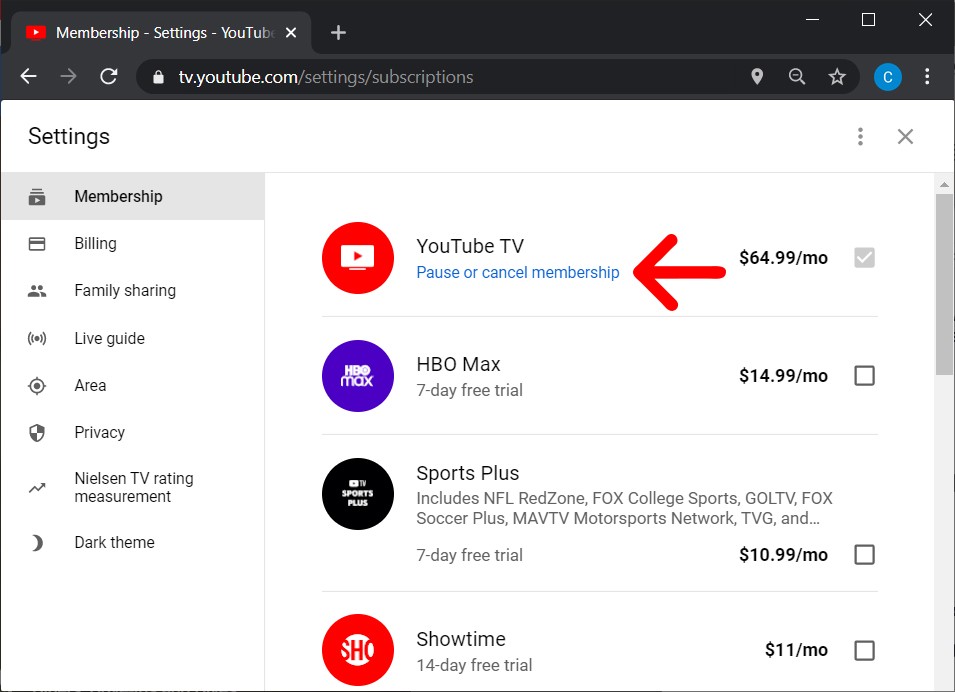
- Navigate to “Membership”: Within the Settings menu, you’ll see several tabs on the left-hand side (or top, depending on your screen size). Click on “Membership.” This section displays your current plan, billing date, and options related to your subscription.
Navigating the Cancellation Process
- Locate “Manage Membership”: Under the “Membership” section, you’ll see details about your base plan and any add-ons. Look for an option that says “Manage Membership” or “Cancel Membership.” It might appear as a clickable text link or a button.
- Initiate Cancellation: Click on “Cancel Membership.” YouTube TV will often present you with options to pause your membership first (which we’ll cover next) or offer a discount to stay. Carefully read these prompts.
- Confirm Your Decision: You will likely be asked to provide a reason for cancelling. While optional, providing feedback can help YouTube TV improve its service. After selecting a reason (or skipping this step), you’ll proceed to a final confirmation page. This page will explicitly state when your service will end (usually at the end of your current billing cycle) and any remaining access you might have.
- Complete Cancellation: Click the “Cancel” or “Confirm Cancellation” button to finalize the process. You should receive an email confirmation of your cancellation shortly thereafter. Keep this email for your records.
Confirmation and What to Expect
Upon successful cancellation, your YouTube TV service will remain active until the end of your current billing period. You can continue to watch live TV, access your cloud DVR recordings, and stream on-demand content until that date. Once the billing cycle concludes, your access will be revoked, and you will no longer be charged. It’s important to note that any content saved in your library or recorded on your cloud DVR will become inaccessible after your membership officially ends.
Considering Alternatives: Pausing Your Membership
For those who anticipate returning to YouTube TV or only need a temporary break, pausing your membership is an excellent alternative to outright cancellation. This feature allows you to suspend your service for a set period without fully severing ties.
How to Pause Your Service
The process to pause is similar to cancellation:

- Follow Steps 1-4 from “Accessing Your Membership Settings”: Navigate to tv.youtube.com, log in, click your profile avatar, go to “Settings,” then “Membership.”
- Select “Pause Membership”: Instead of “Cancel,” look for “Pause Membership” (often presented as an alternative when you click “Cancel”).
- Choose Pause Duration: You’ll be prompted to select how long you want to pause your service, typically ranging from 4 weeks to 6 months.
- Confirm Pause: Review the details, including when your service will automatically resume, and confirm your decision.
Benefits of Pausing Over Cancelling
Pausing offers several advantages:
- Retain Settings and Library: When you pause, your settings, preferences, and DVR recordings remain intact. When you resume, everything will be just as you left it.
- Ease of Resumption: You can resume your membership at any time before the pause period ends, or it will automatically restart on the specified date. There’s no need to re-subscribe or re-enter billing information.
- Flexibility: It’s ideal for seasonal viewers, those going on an extended vacation, or individuals facing temporary budget constraints without wanting to lose their accumulated content library.
Post-Cancellation: Data Retention and Account Management
Understanding what happens after you cancel is crucial from a technical and privacy perspective. While your access to YouTube TV content ceases, your relationship with Google continues.
What Happens to Your Data and Library?
Upon cancellation, your saved programs, library additions, and viewing history within YouTube TV become inaccessible. Unlike some services that might offer a grace period for data retrieval, YouTube TV’s cloud DVR recordings are tied to an active subscription. Once your billing cycle ends, these recordings are typically no longer available. However, your preferences and profile information related to YouTube TV are usually retained within your Google account for a period, making it easier to resume service if you decide to return in the future. This data is subject to Google’s general data retention policies, which are outlined in their privacy policy.
Managing Your Google Account Connection
Even after cancelling YouTube TV, your Google account remains fully operational, and other YouTube services (like the free, ad-supported YouTube platform) are unaffected. If your primary concern was to completely erase all traces of your YouTube TV usage, short of deleting your entire Google account, there isn’t a direct “delete YouTube TV history” button that completely purges data associated with your past subscription. Google generally retains some aggregated or anonymized data for analytical purposes, even after service cancellation, in line with their privacy terms. If you have significant privacy concerns beyond simply stopping billing, reviewing Google’s privacy dashboard and data deletion tools for your overall Google account might be helpful.
Reinstating Your Subscription
Should you wish to return to YouTube TV after cancelling, the process is straightforward. Simply log back into tv.youtube.com with your Google account, navigate to “Settings” > “Membership,” and you should see an option to “Reactivate” or “Resubscribe.” Your previous preferences might be partially restored, offering a familiar experience upon your return.
Best Practices for Digital Subscription Hygiene
Effectively managing digital services like YouTube TV goes beyond mere cancellation; it encompasses a broader approach to digital hygiene that can save money, protect privacy, and reduce digital clutter.
Regular Audits of Services
Make it a habit to regularly review all your active subscriptions. Many people accumulate numerous streaming services, apps, and software subscriptions over time, often forgetting about ones they no longer use. A quarterly or biannual audit of your bank statements and subscription lists can highlight forgotten charges and prompt you to cancel or pause services that no longer serve a purpose. Tools and apps exist that can help track and manage your subscriptions, providing a consolidated view of your recurring expenses.
Data Privacy Considerations
When subscribing to any service, including streaming platforms, be mindful of the data you share. Understand the service’s privacy policy, especially regarding data retention after cancellation. While cancelling a service stops future data collection related to your active usage, previously collected data might be retained for a period as per the service’s terms. For critical privacy needs, always investigate the specific data deletion options for your account within that service or platform. For Google services, the Google Activity controls and Privacy Dashboard offer granular control over certain data types.

Avoiding Unnecessary Subscriptions
Before signing up for new trials or subscriptions, consider whether you truly need the service. Many services offer free trials, which can be beneficial, but it’s crucial to set a calendar reminder to cancel before the trial period ends if you don’t intend to continue. Being selective about what you subscribe to initially can prevent the need for frequent cancellation processes later, contributing to a more streamlined and cost-effective digital life. Implementing these practices ensures that your digital entertainment choices align with your financial goals and privacy preferences.
aViewFromTheCave is a participant in the Amazon Services LLC Associates Program, an affiliate advertising program designed to provide a means for sites to earn advertising fees by advertising and linking to Amazon.com. Amazon, the Amazon logo, AmazonSupply, and the AmazonSupply logo are trademarks of Amazon.com, Inc. or its affiliates. As an Amazon Associate we earn affiliate commissions from qualifying purchases.