
In the rapidly evolving landscape of digital entertainment, services like YouTube TV have redefined how we consume television. Offering a robust live TV experience combined with an innovative cloud DVR, YouTube TV has become a cornerstone for many cord-cutters. However, with its unique approach to content storage and organization, understanding how to manage your personal library—specifically, how to “delete” shows—can be less straightforward than traditional DVR systems. This guide dives deep into the technical nuances of YouTube TV’s library management, offering a professional and insightful walkthrough for optimizing your streaming experience.
Understanding YouTube TV’s Unique DVR Mechanism
YouTube TV’s cloud-based Digital Video Recorder (DVR) is a technological marvel that sets it apart from conventional cable boxes and even some competing streaming services. Unlike physical DVRs that store recordings on a finite hard drive, YouTube TV leverages cloud infrastructure, offering “unlimited” storage. This fundamental difference shapes how users interact with their recorded content and the concept of “deletion.”
The Cloud DVR Advantage: Unlimited Storage and Its Nuances
At its core, YouTube TV’s cloud DVR promises the ability to record as many shows as you want simultaneously, without worrying about storage limits. This is a significant advantage, eliminating the frustration of having to choose which show to sacrifice due to space constraints. However, this “unlimited” storage comes with specific operational parameters that impact library management. All recordings are automatically stored for nine months. After this period, they are automatically removed from your library. This auto-expiry mechanism is crucial because it means users aren’t truly deleting content to free up space, as there’s no personal storage quota to manage. Instead, interactions like “removing” a show from your library primarily affect its visibility and your personalized recommendations.
The implication of this cloud-first approach is that when you “record” a show, YouTube TV essentially makes a unique instance of that broadcast available to you for those nine months. If multiple users in a YouTube TV family group record the same show, they each get their own instance. The system’s backend handles the immense data storage, abstracting away the complexities from the end-user. This model is a testament to the power of distributed computing and cloud architecture, allowing for scalable and flexible entertainment delivery.
Distinguishing Between Recording and Library Management
A common point of confusion for new YouTube TV users is the distinction between “recording” a show and “managing” it within their library. When you select a series to be recorded, you’re essentially telling YouTube TV to add all future airings of that series to your library. It’s a series-level instruction, not an episode-by-episode recording. Consequently, “deleting” in the traditional sense doesn’t apply to individual episodes that you’ve recorded.
Instead, YouTube TV’s “library” functions more like a dynamic watchlist or a personalized content hub. When you “add” a show to your library, you’re instructing the system to track that series, automatically recording new episodes and making them available alongside any previously recorded or on-demand versions. Therefore, “removing” a show from your library means you’re no longer interested in tracking that series. It stops future recordings, and existing recordings will eventually expire or become inaccessible via your library view, depending on their availability through on-demand options. This distinction highlights a shift from owning individual media files (like on a physical DVR) to subscribing to a dynamic content stream managed by a sophisticated algorithm.
Why “Deletion” Isn’t Always What You Think It Is
Given the unlimited cloud DVR and the series-centric approach, the act of “deleting” a show from your YouTube TV library isn’t about freeing up storage space on your end. It’s fundamentally about managing your interface, recommendations, and personal content queue. If you “remove” a series from your library, it simply means:
- Future recordings stop: New episodes of that series will no longer automatically be added to your library.
- Existing recordings become less accessible (or disappear): While recordings have a 9-month shelf life, removing the series from your library view might make it harder to find those specific recordings, as they won’t be prominently displayed under “New in your Library” or “Recorded.” However, if the show is available on-demand, you might still access it that way.
- Recommendation algorithms adjust: By signaling your disinterest in a particular series, YouTube TV’s recommendation engine can refine its suggestions, presenting you with more relevant content.
This paradigm shift from “deleting files” to “managing access and visibility” is a crucial aspect of modern streaming technology. It emphasizes a user-centric design that prioritizes convenience and discovery over granular file management, a common characteristic across many cloud-based services.
Step-by-Step: Removing Shows from Your YouTube TV Library
While the underlying mechanics are complex, the process of removing shows from your YouTube TV library is designed to be user-friendly across various devices. The steps are intuitive, focusing on the series level, which aligns with YouTube TV’s DVR philosophy.
Via the YouTube TV App (Mobile/Tablet)
The mobile app provides a streamlined interface for managing your library on the go.
- Open the YouTube TV App: Launch the application on your iOS or Android device.
- Navigate to the Library Tab: At the bottom of the screen, you’ll typically find a navigation bar. Tap on the “Library” icon, which often looks like a stack of books or a folder.
- Locate the Show/Series: Scroll through your recorded shows. They are usually organized into categories like “New in your Library,” “Recorded Shows,” “Movies,” etc. Find the specific series you wish to remove.
- Access Series Options: Tap on the thumbnail or title of the series. This will take you to the series detail page, where you can see all available episodes.
- Remove from Library: Look for an icon or button that indicates library management. This is often a checkmark inside a box that says “Added to Library,” or a “√ In Library” button. Tapping this will usually present an option to “Remove from Library” or simply toggle the status. Confirm your decision if prompted.
- Note: For some shows, you might see a “+” icon (to add) or a checkmark (already added). Tapping the checkmark typically allows you to remove.
On a Smart TV or Streaming Device Interface
Using YouTube TV on a larger screen, such as a smart TV or a streaming device like a Roku, Fire TV, or Apple TV, involves a remote-controlled interface.
- Launch YouTube TV: Open the YouTube TV application from your device’s home screen.
- Access the Main Menu: Use your remote to navigate to the left-hand sidebar menu.
- Select “Library”: Scroll down the menu and select the “Library” option.
- Find the Desired Series: Browse through your recorded content. Shows are typically grouped by series.
- Go to Series Detail Page: Select the series you want to remove by clicking on it. This will open its dedicated page.
- Remove from Library Option: On the series detail page, look for a prominent button or option that says “Remove from Library,” “√ In Library,” or a similar indicator. Select this option and confirm if necessary. This action tells YouTube TV to stop recording future episodes and removes the series from your immediate library view.
Using a Web Browser on Your Computer
Managing your YouTube TV library from a web browser offers a comprehensive overview and is ideal for bulk adjustments or when you prefer a keyboard and mouse.
- Go to the YouTube TV Website: Open your preferred web browser and navigate to
tv.youtube.com. - Sign In: If not already logged in, sign in with your Google account associated with your YouTube TV subscription.
- Click on “Library”: In the left-hand navigation pane, click on the “Library” option.
- Locate the Series: Browse through your recorded shows. You can often filter or sort them for easier identification.
- Hover and Click “More” Options: Hover over the series you wish to remove. You might see a three-dot menu icon (ellipsis) or a direct “Remove from Library” button appear.
- Select “Remove from Library”: Click on the three-dot menu if present, and then select “Remove from Library” from the contextual menu that appears. Confirm your choice. This will prevent new episodes from being recorded and visually clear the series from your active library.
The Strategic Benefits of Library Management
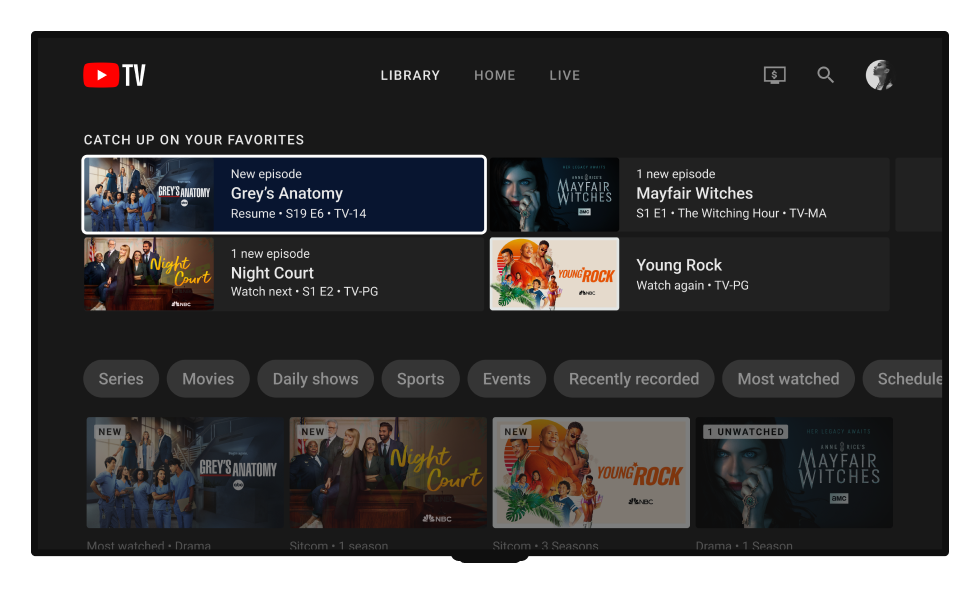
While the “deletion” process on YouTube TV isn’t about freeing up storage, actively managing your library offers significant strategic benefits that enhance your overall streaming experience. It’s about curating your digital space to match your preferences and optimize content discovery.
Decluttering Your Watchlist and Recommendations
A cluttered library can lead to decision fatigue and make it harder to find shows you genuinely want to watch. By regularly removing shows you’ve finished, lost interest in, or mistakenly added, you’re performing a digital declutter. This streamlined library translates into:
- Cleaner Interface: Your “New in your Library” and “Recorded Shows” sections will only display content relevant to your current viewing habits, making navigation quicker and more enjoyable.
- Improved Recommendations: YouTube TV’s algorithms learn from your interactions. When you remove a show, it signals disinterest, helping the system provide more accurate and appealing recommendations for new content you might genuinely enjoy. This iterative feedback loop is a core mechanism in modern AI-driven content platforms.
- Reduced Overwhelm: In an era of infinite content, a curated personal space can significantly reduce the feeling of being overwhelmed by choice, allowing for a more focused and intentional viewing experience.
Streamlining Family Account Navigation
For households utilizing YouTube TV’s family sharing features, efficient library management becomes even more crucial. While each family member has their own personalized viewing experience and library, a collective understanding and practice of cleaning up can prevent confusion and improve usability for everyone. If one member adds a show to the library that others have no interest in, it can still appear in shared browse lists or create visual clutter for everyone, depending on how they access content.
By encouraging each user to manage their own recorded series, the overall “Library” section, particularly when viewed from a shared smart TV interface, remains lean and relevant to the family’s current collective interests. This proactive approach fosters better digital citizenship within the household, ensuring that the technology serves, rather than hinders, a harmonious entertainment experience for all.
Optimizing Content Discovery
Paradoxically, removing shows can be a powerful tool for optimizing content discovery. When your library is filled with shows you no longer care about, they can overshadow newer or more relevant content. By removing these older or irrelevant entries, you make room for fresh content to shine.
This allows YouTube TV’s discovery features, such as “Top Picks for You” and “Shows You Might Like,” to work more effectively. Your active library acts as a strong signal to the platform about your current tastes. If your library is filled with sci-fi, the system will primarily recommend sci-fi. If you’ve moved on to documentaries, updating your library to reflect this change will lead to better, more tailored documentary suggestions. This iterative refinement process is key to leveraging the full potential of AI-driven content platforms, turning the user into an active participant in their own content curation.
Common Misconceptions and Advanced Tips for YouTube TV Users
Navigating the intricacies of a cloud-based streaming service requires understanding its unique operational logic. Clearing up common misconceptions and employing advanced tips can empower users to fully leverage YouTube TV’s features.
“Deleted” Recordings Aren’t Gone Forever (Potentially)
One of the most persistent misconceptions is that removing a show from your library permanently deletes it from existence. This is not always the case, due to several factors:
- On-Demand Availability: Many shows, even after being removed from your library or after their 9-month recording window expires, might still be accessible via YouTube TV’s on-demand section. This is especially true for popular series or those from networks that have a strong VOD presence. The on-demand versions are provided directly by the networks and are separate from your DVR recordings.
- Family Group Access: If you are part of a YouTube TV family group, removing a show from your library only affects your personal view. Other members of the family group might still have the show in their libraries, or it might still be recording for them if they added it to their library.
- No Storage Cleanup: As discussed, since YouTube TV offers unlimited cloud DVR space, removing a show does not “free up” any storage on your account, as there was no personal storage being consumed in the first place. The “deletion” is purely a user interface and recommendation adjustment.
Understanding these nuances helps manage expectations and clarifies the true impact of your actions within the YouTube TV ecosystem. It underscores the distinction between a local file system and a distributed cloud service.
Managing Your “Watch History” vs. Library
Another point of confusion can be the difference between managing your “Watch History” and your “Library.”
- Watch History: This tracks every video you’ve watched on YouTube (including YouTube TV content that might be available on the main YouTube platform) and influences recommendations across both platforms. You can typically view and clear your watch history via your Google Account settings or within the main YouTube app. This is more about privacy and managing past viewing habits.
- YouTube TV Library: This pertains specifically to the shows and movies you’ve actively added to your YouTube TV account for recording or tracking. It’s about future and current content you want to follow and access via the DVR or VOD within the YouTube TV interface.
While there can be some overlap in how they influence recommendations, they are distinct management features. Clearing your YouTube watch history will not remove shows from your YouTube TV library, and vice-versa. Users should be aware of both to fully control their viewing data and content preferences across the Google ecosystem.
Leveraging Search and Filters for Specific Content
Even after meticulously managing your library, you might occasionally find yourself looking for a show that you’ve removed or one that wasn’t recorded. Instead of assuming it’s gone forever, leverage YouTube TV’s powerful search and filtering capabilities.
- Global Search: Use the search function (magnifying glass icon) to look for any show, movie, or channel. The search results will display live airings, recorded versions (if still available in your library or an on-demand option), and on-demand content. This is your most robust tool for finding specific content regardless of its library status.
- Genre Filters: Within the “Library” or “Home” sections, you can often filter content by genre (e.g., comedy, drama, news, sports). This can help you rediscover content you might have forgotten about or explore new options within your preferred categories.
- Network Browsing: If you know the network a show airs on, you can also browse channels directly through the “Live” tab or the “Home” tab to see what’s currently playing or available on-demand from that specific broadcaster.
By mastering these tools, users can move beyond simple “deletion” and embrace a more dynamic, intelligent approach to their digital television experience, fully harnessing the technological capabilities of YouTube TV.
Conclusion
Managing your YouTube TV library is less about traditional “deletion” and more about sophisticated digital content curation. By understanding the underlying cloud DVR technology, distinguishing between recording and library management, and recognizing the true impact of removing shows, users can take control of their streaming experience. The process of removing shows is simple across various devices, leading to strategic benefits such as decluttered interfaces, improved recommendations, and streamlined navigation for multi-user households.
Embracing these insights allows YouTube TV users to move beyond common misconceptions, leverage advanced features, and ultimately optimize their interaction with one of the most powerful live TV streaming services on the market. In an age of abundant content, mastering your digital library isn’t just a convenience—it’s an essential skill for an engaging and personalized entertainment future.
aViewFromTheCave is a participant in the Amazon Services LLC Associates Program, an affiliate advertising program designed to provide a means for sites to earn advertising fees by advertising and linking to Amazon.com. Amazon, the Amazon logo, AmazonSupply, and the AmazonSupply logo are trademarks of Amazon.com, Inc. or its affiliates. As an Amazon Associate we earn affiliate commissions from qualifying purchases.