
In an increasingly digital world, managing our online presence extends beyond social media to financial platforms and payment gateways. PayPal, a titan in online payment processing, has become indispensable for millions, facilitating everything from e-commerce transactions to peer-to-peer money transfers. However, circumstances change, and users may find themselves needing to close their accounts. Whether due to privacy concerns, a shift to alternative payment methods, or simply decluttering your digital footprint, understanding the technical process of deleting your PayPal account is crucial. This guide provides a detailed, step-by-step tutorial, emphasizing digital security and best practices for account management within the technological sphere.
Understanding the Digital Implications of PayPal Account Deletion
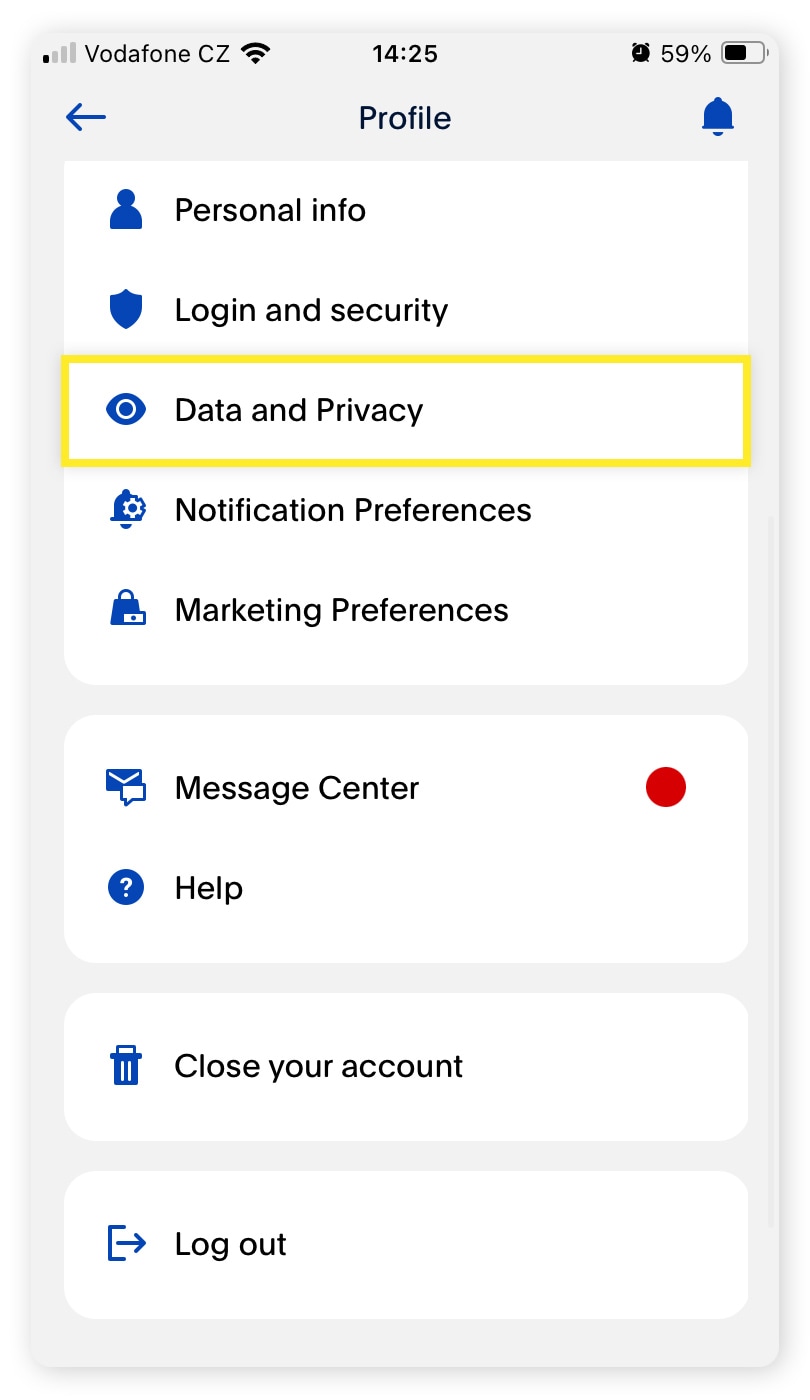
Deleting a digital account, especially one linked to financial transactions, is more than just clicking a button; it’s a significant action with several technical and data-related ramifications. Before proceeding, it’s essential to grasp what happens to your data, your transaction history, and your ability to interact with the PayPal ecosystem. This isn’t just about financial impact; it’s about your digital identity and data integrity.
Data Retention and Privacy Considerations
When you delete a PayPal account, your data isn’t instantly erased from existence. Like many online services, PayPal is subject to various legal and regulatory requirements, which often necessitate retaining certain transaction records and personal information for a defined period. This is primarily for anti-money laundering (AML), fraud prevention, and tax compliance purposes. While your account will be closed and inaccessible, some of your data will likely reside on PayPal’s servers in an archived state for several years.
From a tech perspective, understanding this is vital for managing your digital privacy. It means that even after deletion, your past activities might still be retrievable by PayPal under specific legal circumstances. It also highlights the importance of reviewing a service’s privacy policy and terms of service before signing up, to understand their data retention practices.
Irreversibility and Account Re-creation Limitations
A key technical aspect of deleting a PayPal account is its irreversibility. Once closed, that specific account cannot be reopened. If you later decide you need PayPal services again, you’ll have to create an entirely new account. This process often comes with its own set of rules and limitations, particularly concerning the reuse of the same email address and phone number previously associated with a deleted account.
PayPal’s systems are designed to prevent the immediate reuse of identifying information to mitigate fraud and maintain account integrity. This means if you delete an account, you might encounter technical hurdles when trying to register a new one with the same email or phone number in the near future. This constraint underscores the importance of being absolutely sure about your decision before initiating the deletion process. It’s a technical safeguard that, while sometimes inconvenient for legitimate users, serves an important purpose in overall digital security.
Essential Preparations Before Closing Your PayPal Account
Before you initiate the final deletion steps, a series of preparatory actions are highly recommended. These steps are crucial for ensuring a smooth transition, preventing potential financial losses, and maintaining a clean digital record. Neglecting these could lead to complications down the line, affecting your funds, subscriptions, and even access to vital transaction histories.
Withdrawing All Remaining Funds
The most critical technical prerequisite for deleting a PayPal account is ensuring its balance is zero. PayPal’s system will not allow you to close an account that has funds remaining. This is a fundamental safeguard to prevent users from accidentally forfeiting their money.
How to technically clear your balance:
- Transfer to linked bank account: The most common method. Access your PayPal wallet, select “Transfer Money,” and follow the prompts to move funds to your verified bank account.
- Send to another PayPal user: If you have a trusted contact, you can send them the remaining balance. Be mindful of any transaction fees.
- Donate to a charity: Some charities accept PayPal donations, offering another way to zero out your balance.
- Spend on online purchases: Make a final online purchase using your PayPal balance, ensuring it brings the balance to zero or very close to it.
Confirm that the transfer has successfully completed and your PayPal balance shows $0.00 before proceeding further. This usually takes 1-3 business days for bank transfers.
Canceling Recurring Payments and Subscriptions
Many users link their PayPal accounts to various online subscriptions, services, and recurring payments. These could range from streaming services to SaaS tools or online memberships. Deleting your PayPal account without first canceling these recurring charges directly within the respective service providers can lead to several issues:
- Service interruption: Your subscription might be automatically canceled by the service provider due to failed payments, potentially causing a loss of access.
- Unexpected charges elsewhere: If you have a backup payment method linked, the service might automatically try to charge that instead.
- Billing confusion: It can create a messy situation where you’re unsure if a subscription has truly ended.
Technical steps for cancellation:
- Review your PayPal activity: Log into your PayPal account and navigate to the “Activity” or “Settings” section to find “Preapproved payments,” “Automatic payments,” or “Manage automatic payments.” This feature lists all merchants authorized to charge your PayPal account.
- Cancel each payment individually: For each listed recurring payment, click on it and select the option to cancel.
- Confirm with the merchant: Even after canceling on PayPal, it’s best practice to log into the respective merchant’s website or contact their support to confirm the cancellation and update your payment method if you wish to continue the service with a different payment source.
Downloading Transaction History for Records
From a digital record-keeping perspective, preserving your transaction history is a smart move. Although PayPal will retain your data for regulatory purposes, you won’t be able to access it yourself once the account is closed. This history can be invaluable for personal finance management, tax purposes, resolving disputes, or simply referencing past purchases.
How to technically export your data:
- Access your activity: Go to your PayPal account’s “Activity” section.
- Generate reports: Look for an “Statements” or “Reports” option. You can typically generate custom reports for specific date ranges, transaction types, or download full activity statements.
- Choose a format: Most platforms offer downloads in CSV (Comma Separated Values) or PDF format. CSV is excellent for spreadsheet analysis, while PDF provides a clear, formatted document.
- Save securely: Download these files and store them securely on your local device or a cloud storage service, preferably encrypted.
Step-by-Step Guide to Deleting Your PayPal Account
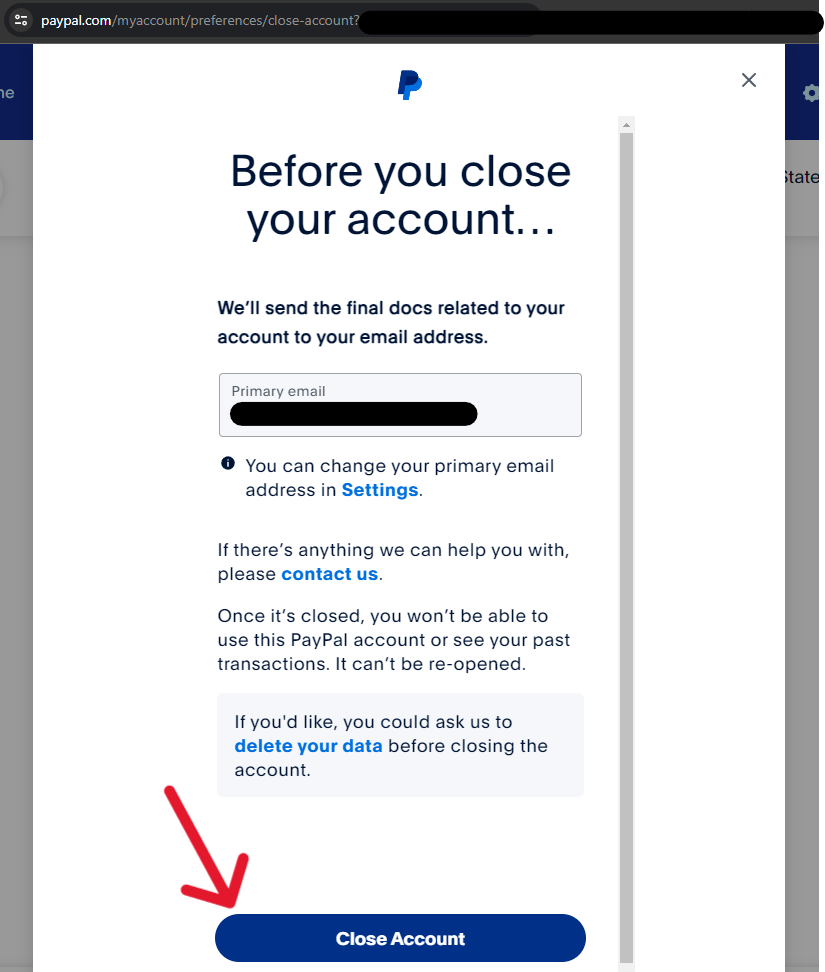
Once you’ve completed all necessary preparations, you’re ready to proceed with the actual deletion process. This involves navigating PayPal’s interface to locate and execute the account closure command. The exact steps may vary slightly depending on whether you’re using a personal or business account, and the interface updates over time, but the core process remains consistent.
Accessing Account Settings
The first step is always to log into your PayPal account securely. Ensure you are using a trusted device and network connection to protect your credentials.
- Log In: Go to the official PayPal website (www.paypal.com) and log in with your username and password. Avoid clicking links from suspicious emails.
- Navigate to Settings: Once logged in, look for the “Settings” icon (often represented by a gear or cogwheel) usually located in the top right corner of the dashboard. Click on it.
- Locate Account Options: Within the settings menu, you’ll typically find various tabs or sections such as “Account,” “Security,” “Payments,” etc. Click on the “Account” or “Account Settings” section.
Initiating the Account Closure Process
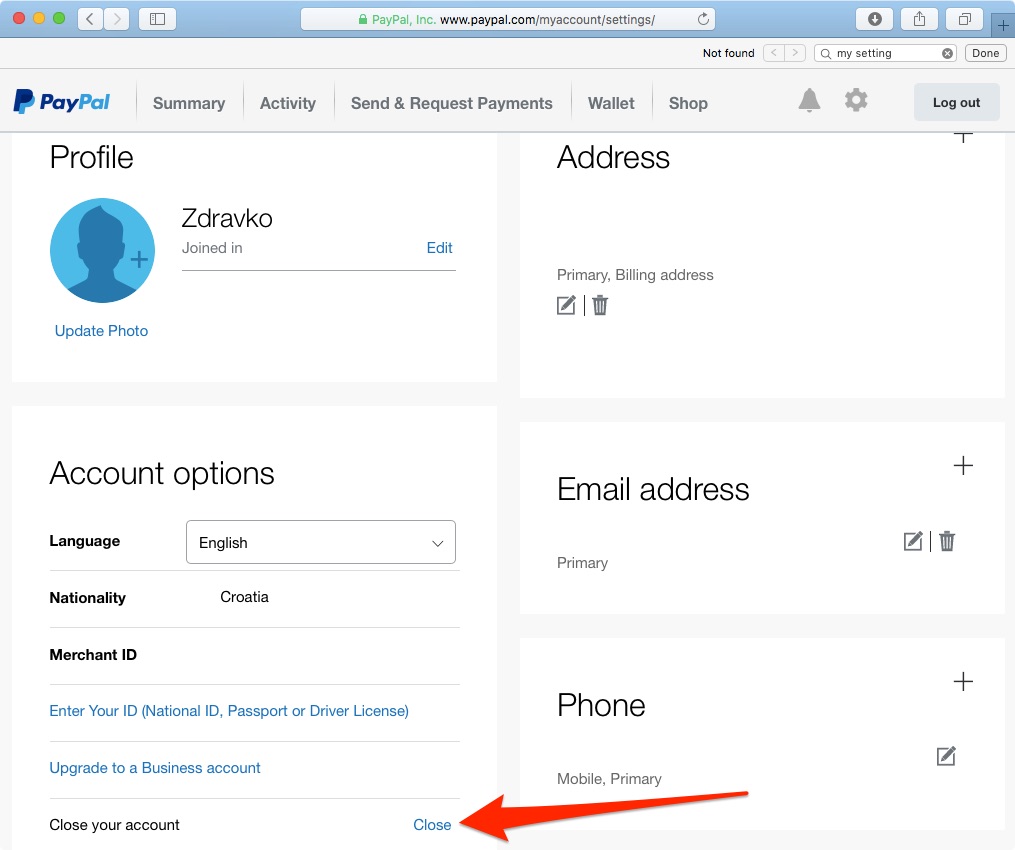
Within the account settings, you’ll need to find the specific option for closing or deleting your account. This is usually located at the very bottom of the account summary page or under a specific ‘Account Closure’ or ‘Close your account’ link.
- Find the “Close Your Account” Link: Scroll down to the bottom of the “Account” or “Account Settings” page. You should see a link or button labeled “Close your account” or “Close account.” It might be subtly placed, sometimes requiring a bit of searching.
- Confirm Your Identity (if prompted): For security purposes, PayPal might ask you to re-enter your password or complete a two-factor authentication challenge to confirm it’s you attempting to close the account.
- Follow On-Screen Prompts: PayPal will likely present you with a series of prompts. These often include:
- Warnings about consequences: Reaffirming that your account cannot be reopened.
- Reasons for leaving: You might be asked to provide a reason for closing your account. This data helps PayPal understand user behavior and improve their service, but it’s usually optional.
- Final checks: Confirming you have no pending transactions or remaining balance.
Finalizing the Deletion
After reviewing the warnings and providing any requested information, you will typically be presented with a final confirmation step.
- Click “Close Account” (or similar): A prominent button or link will finalize the process. Click this button only when you are absolutely ready.
- Receive Confirmation: PayPal will usually display a confirmation message on the screen and may send a confirmation email to the primary email address linked to your account. This email serves as your record that the closure process has been initiated successfully.
Once these steps are completed, your PayPal account will enter a closed state, effectively removing your access and preventing further transactions.
Post-Deletion Considerations and Alternatives
While deleting your account might seem like the ultimate solution, it’s worth considering what happens after and if there were perhaps less drastic alternatives that could have met your needs. Managing your digital presence often involves a spectrum of actions, not just absolute deletion.
What Happens After Account Deletion
After your account is successfully closed, here’s what you can expect from a technical and data management standpoint:
- Loss of access: You will no longer be able to log in to the account or access its features.
- Email communication cessation: You should stop receiving promotional or transactional emails related to that specific account.
- Data Archiving: As mentioned, your data isn’t immediately purged. It’s moved to an archived status, accessible only by PayPal for regulatory and legal compliance for a period typically ranging from 5 to 10 years, depending on jurisdiction and data type. This is standard practice across financial tech platforms.
- Email reuse limitations: You might face challenges using the same email address for a new PayPal account for a certain period, which can be several months or even longer.
Alternatives to Full Account Deletion
Sometimes, a full deletion is not necessary, and other digital management strategies might suffice.
- Removing Linked Financial Instruments: If your concern is about a specific bank account or credit card linked to PayPal, you can simply remove those payment methods from your PayPal wallet without deleting the entire account. This maintains your PayPal access while safeguarding your primary financial details.
- Limiting Account Activity: You can effectively “deactivate” an account without closing it by removing all linked payment methods, canceling all recurring payments, and ensuring a zero balance. This leaves the account open but dormant, allowing for easy reactivation if needed in the future, without the irreversibility of deletion.
- Changing Account Settings: For privacy concerns, you can adjust various privacy settings within your account, such as notification preferences, data sharing options, and marketing communications, to tailor your experience without full deletion.
- Contacting Support for Specific Issues: If your reason for deletion stems from a specific issue (e.g., fraud concerns, unauthorized activity), contacting PayPal customer support might be a better first step. They can guide you through securing your account, investigating issues, or placing temporary restrictions without permanent closure.
Ensuring Digital Security During Account Management
Throughout the process of managing, closing, or even creating online accounts, digital security should remain paramount. Particularly with financial platforms like PayPal, a robust approach to security safeguards your assets and personal information from cyber threats.
Best Practices for Secure Account Closure
- Use Strong, Unique Passwords: Before you even consider closing an account, ensure all your online accounts, especially financial ones, use strong, unique passwords. If you’re using a weak or reused password, change it before closing the account. This prevents any remaining data from being easily compromised.
- Enable Two-Factor Authentication (2FA): Always have 2FA enabled on your PayPal account. This adds an extra layer of security, requiring a code from your phone or an authenticator app in addition to your password. This protects against unauthorized access during the closing process and in case your credentials are ever compromised.
- Be Wary of Phishing Attempts: During the closure process, be extra vigilant about emails or messages claiming to be from PayPal. Phishers often target users at critical junctures. Always navigate directly to the official PayPal website for account management, never through emailed links.
- Secure Your Devices: Ensure the device you’re using to close your account is free from malware and viruses. Use up-to-date antivirus software and maintain a secure operating system.
- Clear Browser Data: After closing your account, consider clearing your browser’s cache, cookies, and history, especially if you used a public or shared computer. This helps remove any residual login information.
The Importance of Digital Hygiene
Deleting your PayPal account can be part of a broader strategy for digital hygiene. Regularly reviewing and managing your online accounts, applications, and services is a critical component of maintaining a secure and private digital life.
- Regular Account Audits: Periodically review all online services you use. Delete or deactivate accounts that are no longer needed.
- Data Minimization: Only provide essential information when signing up for new services. The less data stored about you, the less there is to potentially compromise.
- Understand Terms and Conditions: Take the time to read privacy policies and terms of service. Understand what data services collect, how they use it, and their retention policies.
By approaching account deletion with a comprehensive understanding of its technical implications and prioritizing digital security at every step, users can ensure a controlled and secure exit from online services like PayPal, contributing to a healthier and more protected digital footprint.
aViewFromTheCave is a participant in the Amazon Services LLC Associates Program, an affiliate advertising program designed to provide a means for sites to earn advertising fees by advertising and linking to Amazon.com. Amazon, the Amazon logo, AmazonSupply, and the AmazonSupply logo are trademarks of Amazon.com, Inc. or its affiliates. As an Amazon Associate we earn affiliate commissions from qualifying purchases.