
In the modern academic landscape, digital tools are as essential as textbooks. Amazon has integrated itself into this ecosystem through Amazon Prime Student, a specialized tier of its ubiquitous Prime service designed specifically for those in higher education. Creating a student account is not merely about gaining access to faster shipping; it is about unlocking a suite of digital services, cloud storage, and streaming platforms at a significantly reduced entry point. This guide provides a comprehensive, step-by-step technical walkthrough on how to establish your account, verify your status, and optimize your digital presence within the Amazon ecosystem.

Understanding the Amazon Prime Student Ecosystem
Before diving into the setup process, it is important to understand what a Student Amazon account represents. Technically, it is a Prime membership tier that offers a six-month trial followed by a discounted monthly or annual subscription. Unlike a standard household account, a student account is tied to individual academic verification, meaning it cannot be shared via “Amazon Household” in the same way regular accounts can.
The Technical Distinction of Prime Student
The backend of a Student Amazon account is linked to third-party verification services. While a standard account requires only an email and a payment method, the Student account requires proof of enrollment. This is usually managed through an automated verification system that checks the validity of an institutional email address or analyzes uploaded registrar documents.
Why a Dedicated Student Account Matters
For the tech-savvy student, this account serves as a gateway to several proprietary apps and services. From Prime Video’s massive library to Prime Gaming’s monthly loot and Amazon Photos’ unlimited full-resolution image storage, the account acts as a central hub for your digital life. Understanding how to correctly set this up ensures you don’t run into “verification loops” or billing errors later in your academic career.
Eligibility and Digital Requirements
To successfully create a student account, you must meet specific digital criteria. Amazon uses these parameters to ensure that the subsidized pricing is reserved for legitimate students.
The .edu Email Advantage
The primary method of verification is an active .edu email address provided by your college or university. This is the fastest way to get approved. When you sign up using a .edu domain, Amazon’s system automatically recognizes the institution as an accredited post-secondary school in the United States or relevant regions.
Alternative Documentation for Non-Standard Domains
If your institution does not provide a .edu email address, or if you are an international student studying at an institution that uses a different domain suffix (such as .ac.uk or .edu.au), you are not excluded. You will, however, need to undergo manual verification. This involves providing digital scans or high-quality photos of:
-
A valid student ID card with a current term or expiration date.
-
A transcript or class list with your name and the school’s name.
-
A tuition bill for the current semester.
Age and Enrollment Status
Technically, you must be enrolled in at least one course at a college or university located in one of the 50 states, the District of Columbia, or Puerto Rico (for US-based accounts). While there is no strict upper age limit, the account is restricted to four years of “student status” or until you graduate, whichever comes first.
Step-by-Step Account Creation Process
Setting up the account is a linear process, but attention to detail is required to ensure the six-month trial is activated correctly.
Step 1: Navigating to the Prime Student Portal
Do not sign up through the standard “Prime” landing page. Instead, navigate specifically to the Amazon Prime Student sign-up page. This ensures the system triggers the student-specific verification flow rather than the standard 30-day trial.
Step 2: Account Login or Creation
If you already have a standard Amazon account, you can “upgrade” it to a student account. If not, you will need to create a new account using your name, a secure password, and an email address. While using your .edu email for the account login is recommended for simplicity, you can technically use a personal email (like Gmail) as your primary login and provide the .edu email only for the verification step.

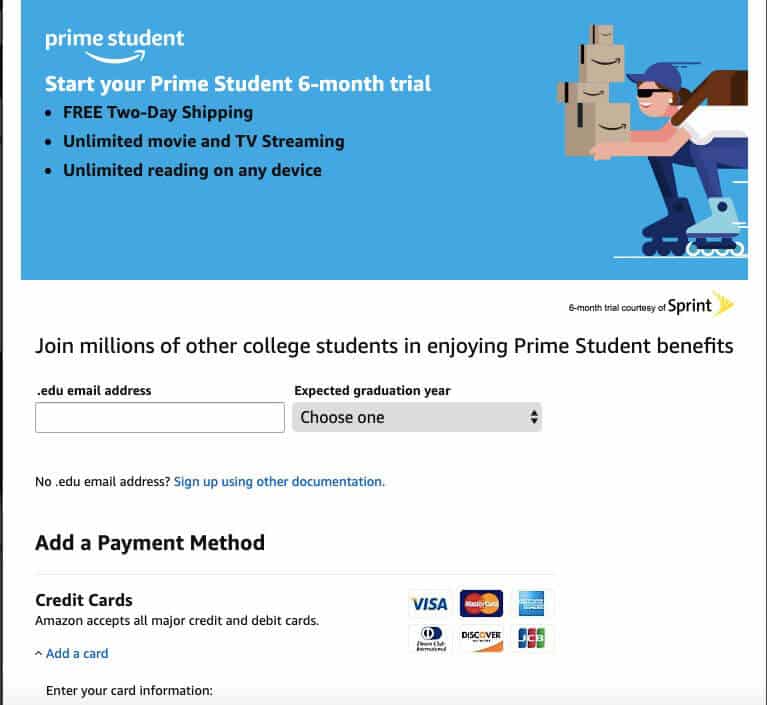
Step 3: Submitting Academic Information
Once logged in, the system will prompt you for your academic details. You will need to enter:
-
Your School Name: Select from the auto-complete list.
-
Expected Graduation Year: This helps Amazon determine how long to keep your student status active.
-
Your Student Email: Enter the institutional email address.
Step 4: Verification and Activation
After submitting your .edu email, Amazon will send a verification link to that specific inbox. You must log in to your school email, find the message from Amazon, and click the confirmation button. If you are using the manual document upload method, this is the stage where you will attach your PDFs or JPEGs. Manual verification can take between 24 to 72 hours.
Step 5: Payment Method Setup
Even though the first six months are typically free, Amazon requires a valid payment method on file. This is to ensure a seamless transition to the paid tier once the trial ends. You can use a credit card, debit card, or certain digital payment methods. Note that you will not be charged until the trial period concludes, and you can set reminders or cancel the auto-renewal at any time in the “Manage Prime Membership” settings.
Integrating Prime Student into Your Digital Life
Once your account is active, it’s time to leverage the software and apps that come with the membership. These tools are designed to streamline both your academic and personal productivity.
Prime Video and Digital Entertainment
The Student account gives you full access to the Prime Video app. For the best experience, download the app on your laptop, tablet, and smartphone. The technical benefit here is the “Offline Viewing” feature, allowing you to download lectures, documentaries, or movies while on the campus Wi-Fi to watch later without consuming your mobile data.
Prime Gaming and Twitch Integration
One of the most overlooked perks for tech enthusiasts is the integration with Twitch. By linking your Amazon Student account to a Twitch account, you receive a free monthly channel subscription. Additionally, Prime Gaming provides free monthly PC game downloads and in-game content for popular titles. This requires navigating to the Gaming.Amazon.com portal and signing in with your student credentials.
Amazon Photos: The Cloud Storage Solution
Storage is often a pain point for students working with high-resolution media or large projects. Prime Student includes unlimited full-resolution photo storage through Amazon Photos. You can set the app to automatically sync your phone’s camera roll to the cloud, freeing up local storage on your device. This is a robust alternative to paid tiers of Google Photos or iCloud.
Amazon Music and Special App Discounts
Students often get access to Amazon Music Unlimited at a fraction of the cost of a standard subscription. Furthermore, the account often unlocks discounts on other digital subscriptions, such as LinkedIn Premium, GrubHub+ (for food delivery during late-night study sessions), and specialized software tools.
Troubleshooting and Account Security
Managing a student account requires a proactive approach to digital security and maintenance. Because this account is tied to your financial information and academic identity, keeping it secure is paramount.
Resolving Verification Failures
The most common technical issue is the system failing to recognize a .edu email. This often happens with newer satellite campuses or institutions undergoing name changes. If the automated system fails, do not attempt to sign up repeatedly with the same info. Instead, contact Amazon Customer Service specifically for “Prime Student Verification.” Be prepared to provide the manual documentation mentioned earlier.
Multi-Factor Authentication (MFA)
Given that your Amazon account likely stores your home address, payment methods, and digital purchase history, you must enable Multi-Factor Authentication. Navigate to “Login & Security” in your account settings. Link your mobile number or use an authenticator app (like Google Authenticator or Authy). This adds a layer of security that prevents unauthorized access even if your password is compromised.
Managing Subscription Cycles
To avoid unexpected charges, you should familiarize yourself with the “Manage Membership” dashboard. Here, you can see exactly when your trial ends. A helpful tech tip is to toggle the “Remind me before renewing” setting. Amazon will then send you an email three days before your card is charged, giving you time to evaluate if you want to continue the service or cancel.
Transitioning After Graduation
Your student account is not permanent. Once you reach your graduation date or the four-year limit, the account will automatically transition to a standard Amazon Prime membership at the prevailing rate. To ensure a smooth transition, keep your primary email address updated to a personal one so you don’t lose access to your digital library (Kindle books, Prime Video history) once your university email is deactivated by your school.
By following this technical framework, you can ensure that your Student Amazon account is set up correctly, secured against threats, and fully utilized to support your academic journey and digital lifestyle.
aViewFromTheCave is a participant in the Amazon Services LLC Associates Program, an affiliate advertising program designed to provide a means for sites to earn advertising fees by advertising and linking to Amazon.com. Amazon, the Amazon logo, AmazonSupply, and the AmazonSupply logo are trademarks of Amazon.com, Inc. or its affiliates. As an Amazon Associate we earn affiliate commissions from qualifying purchases.